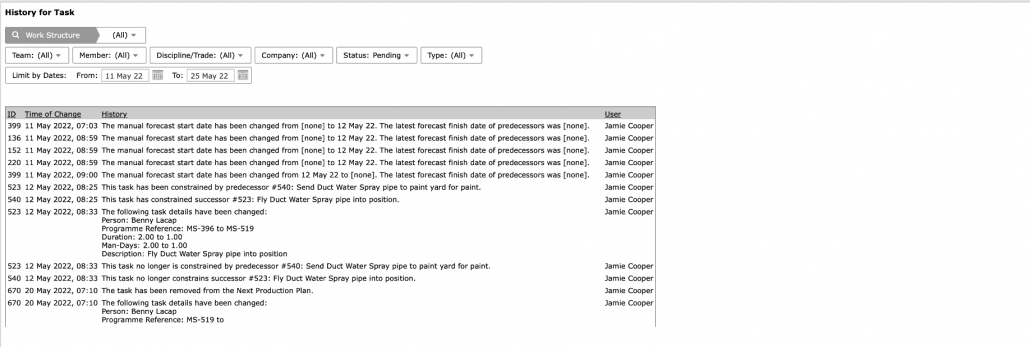
The Task Change Log shows all changes made to a Production Schedule for an individual task based on selected filters.
To access the Task Change Log, complete the steps below.
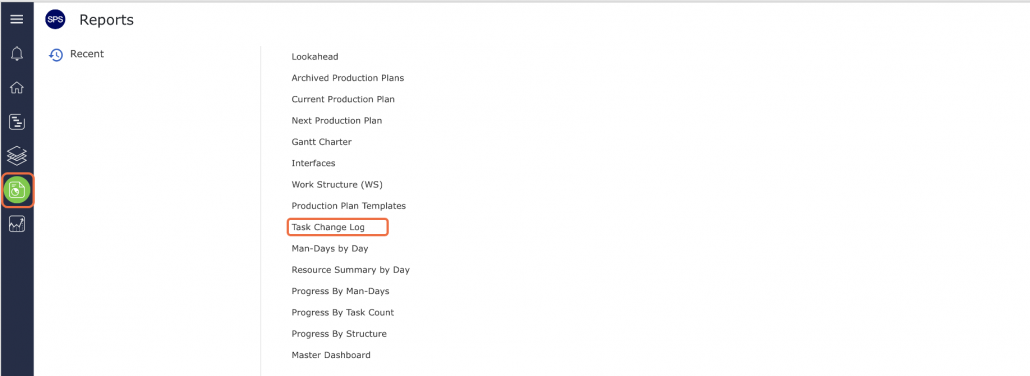
- From the Main Navigation Bar select the Reports then select Task Change Log.
- In the History for Task window modify the filters to select the desired Production Schedule and date parameters. Once selected, the Task Change Log displays the associated change history for each task in the Production Schedule: Task ID, date / time of change, change, and user that performed the change.