Occasionally, a Production Plan must be closed out before one or more tasks on that Plan are statused. This situation may occur if the team member responsible for that task is not able to confirm the task’s status before the Production Plan is closed out, or is unexpectedly out and has not coordinated with another team member to provide coverage. In this situation, the current Plan must be closed out to allow the Next Production Plan to be created and avoid delaying the progress of the entire team. Tasks that are not statused before the Plan is closed out become Unstatused Planned Tasks. These tasks must be updated later by either the responsible person or any team member with Team-level Access.
When Unstatused Planned Tasks appear, SPS|PM will group these tasks and place them in a particular location waiting for a status update. All team members must try to minimize the number of Unstatused Planned Tasks and be diligent about updating any unstatused tasks as soon as possible to keep all information in SPS|PM current. If tasks remain unstatused, members whose tasks are dependent on the unstatused tasks will not be able to determine whether they can (or should) plan to complete those dependent tasks.
To status the Unstatused Planned Tasks, complete the steps below:
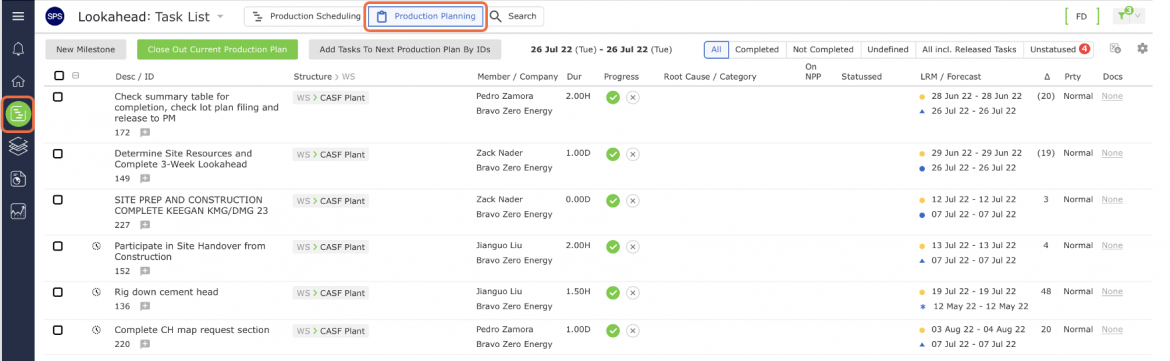
- From the Main Navigation Bar select Lookahead, then select Production Planning.
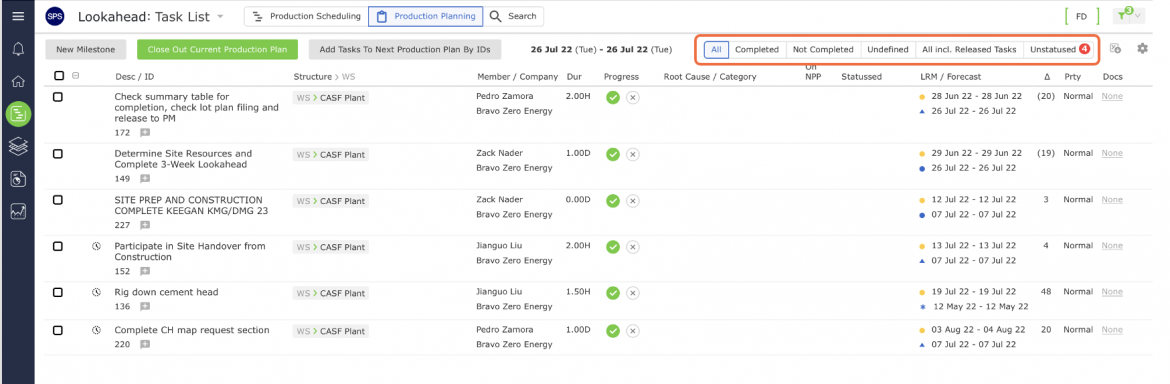
- In the Production Planning mode, you can filter tasks by their status. The filter options include; All, Completed, Not Completed, Undefined, All Including Released Tasks, and Unstatused.
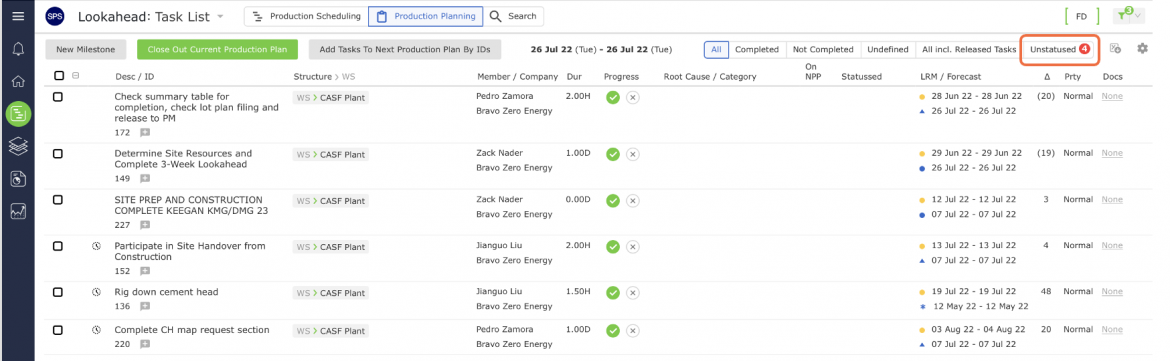
Note: The Unstatused Planned Task menu option ONLY appears when a team has one or more tasks with no status defined. Also, to serve as a notification or warning, the Unstatused Planned Tasks menu option displays in red front.
- Select Unsatusted Planned Tasks
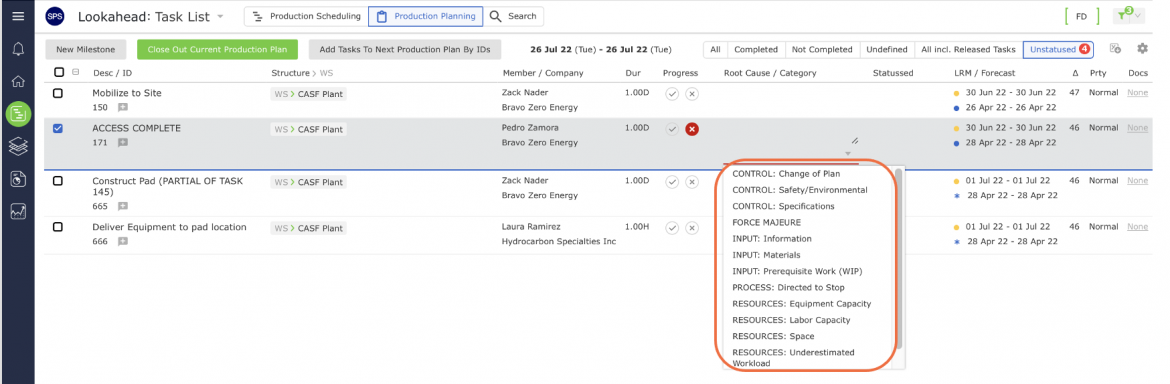
- Once you locate the task you wish to update in the Unstatused Planned Tasks view, you can status Planned Tasks as Completed or Not Completed under the Progress column, as shown in the image below.
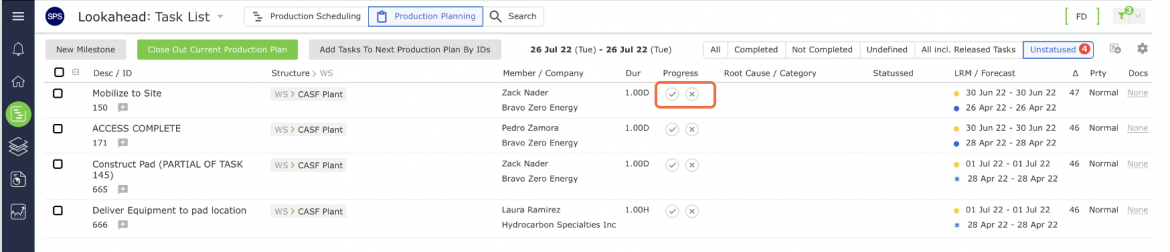
For non-completed tasks, the underlying reason for non-completion must be entered in the text box in the Root Cause column. The reason should be as detailed as possible to allow accurate Root Cause Analysis to identify areas for performance improvement. Additionally, the appropriate root cause category for non-completion must be selected from the drop-down in the Category column. The root cause categories can be modified on a project-by-project basis, but common categories include Information, Material, Labor, Equipment, Plan, Site Access, Prerequisites, and Weather.