Workflow logic is the set of dependency relationships between the individual tasks, which make up a workstream. In other words, the workflow logic is the order or sequence of the tasks in a workstream. As a specific stream of work progresses, it is often necessary to insert a new task between two existing tasks in the Lookahead: Task List and to add or remove dependency relationships between the tasks to accurately represent the new flow of work. Any changes of this type are accomplished by “editing the workflow logic” relating to the tasks.
Deleting a dependency relationship can mean delinking either a predecessor or a successor from a specific task in a workstream. This can be performed in the Lookahead: Task List view using two methods as detailed below.
To delete a dependency in the Lookahead: Task List view, complete the steps below for the desired option:
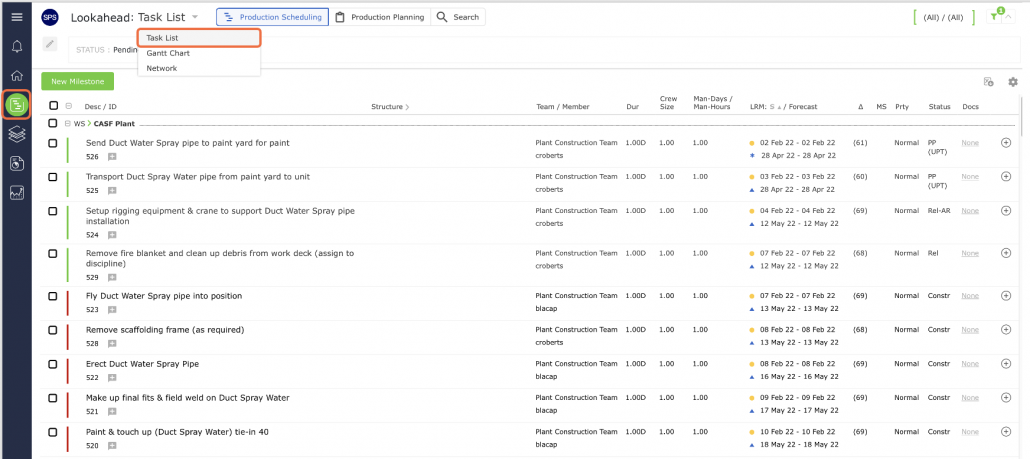
- From the Main Navigation Bar select Lookahead, then select Task List.
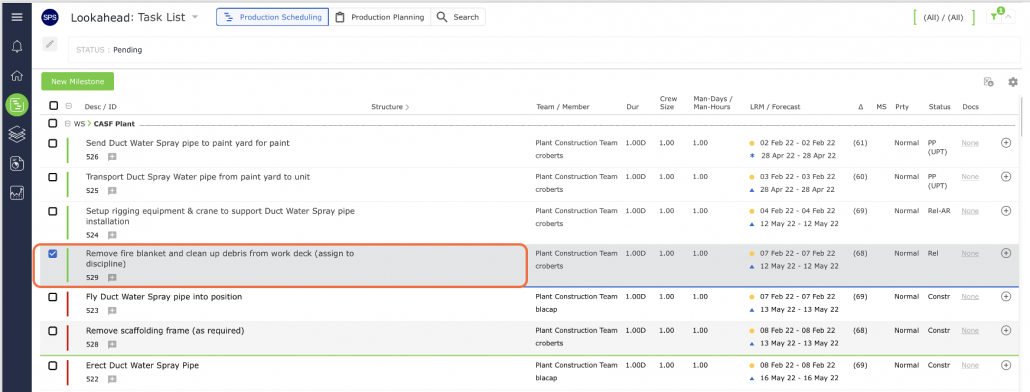
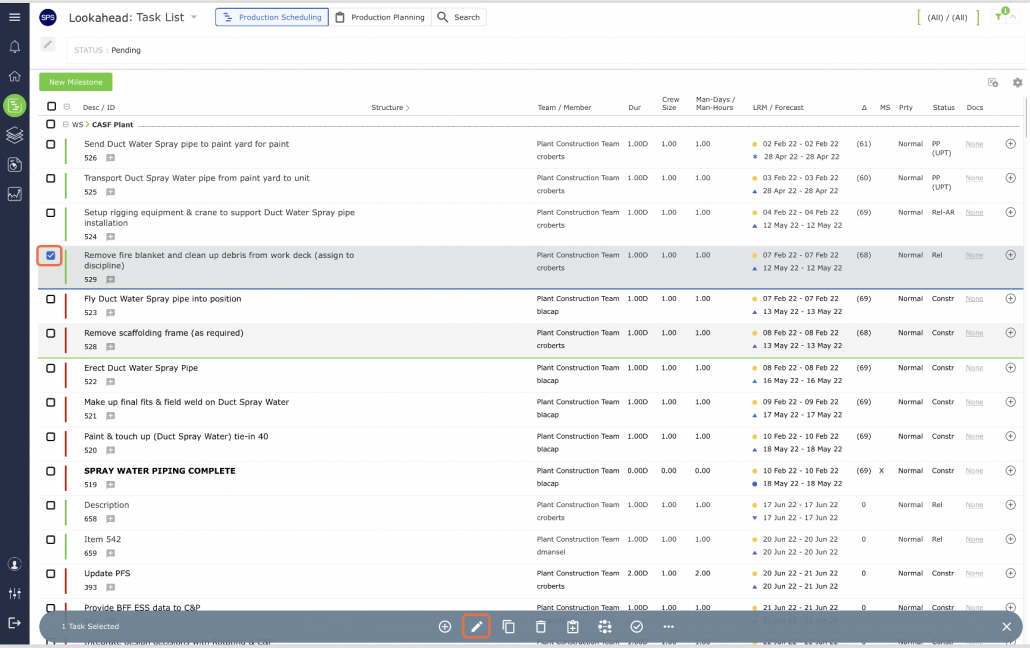
- Select the Milestone / Task you wish to edit the workflow logic on by clicking one on the task description or by selecting the checkbox on the left of the Milestone / Task row. Once selected the task row will highlight and underline in blue.
Method 1: Edit Workflow Logic
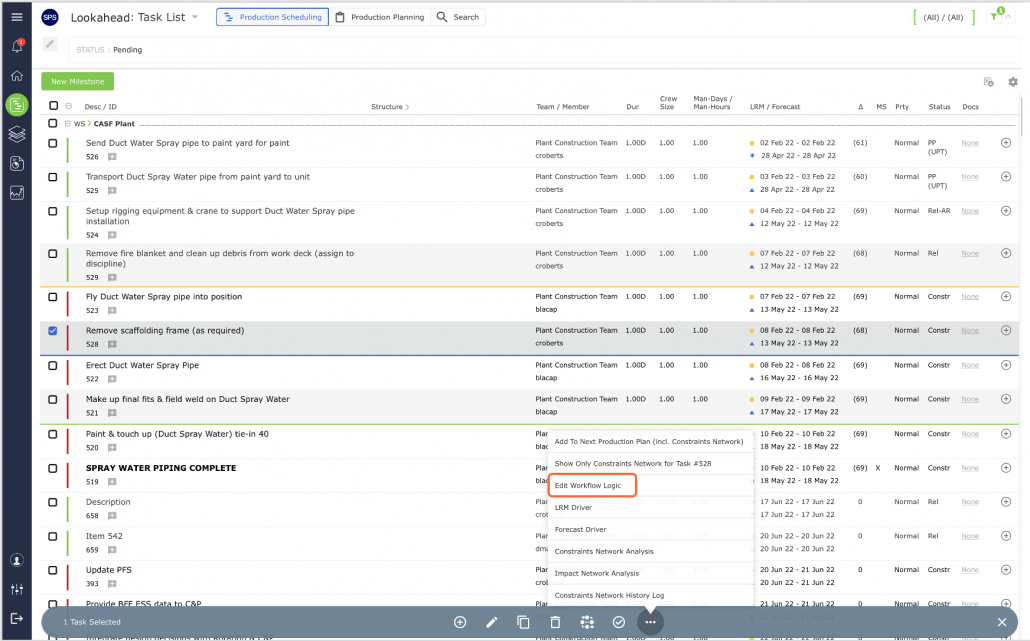
- Click on the more options icon on the bottom toolbar and select Edit Workflow Logic.
- The Edit Workflow Logic window opens as shown below and displays the task details for the selected task, any direct predecessor tasks, and any direct successor tasks. The selected task is located in the center of the window, any predecessors are shown above, and any successors are shown below. Each task is boarded by a color block according to the legend shown on the top left of the screen (Yellow = Processors, Blue = Selected and Green = Successors). The downward-pointing arrows show the flow of work.
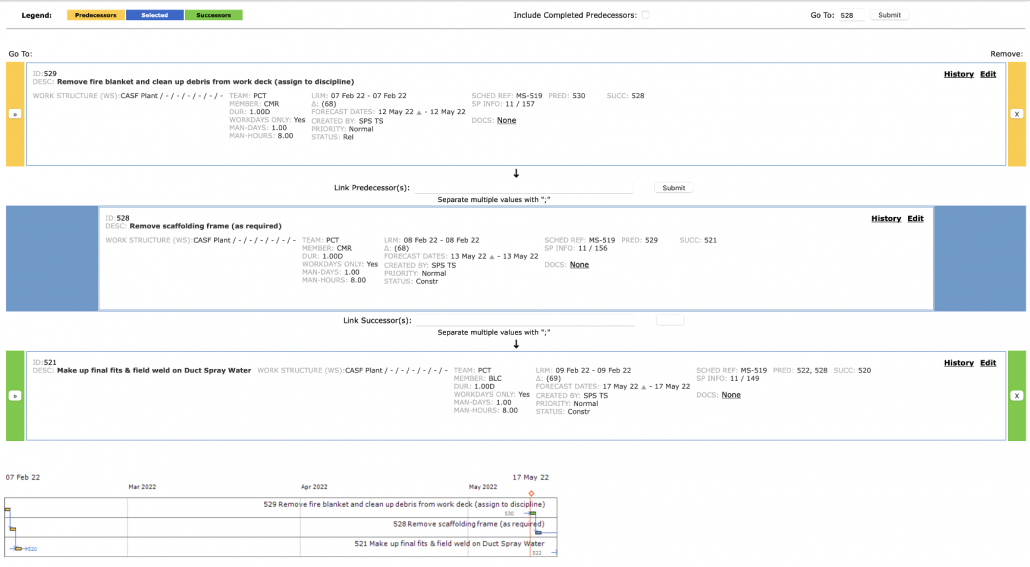
To remove the dependency relationship between the selected task and an existing predecessor or successor, click the “X” to the right of the desired predecessor or successor task(s). Both tasks remain in the Lookahead, but no longer share a dependency relationship.
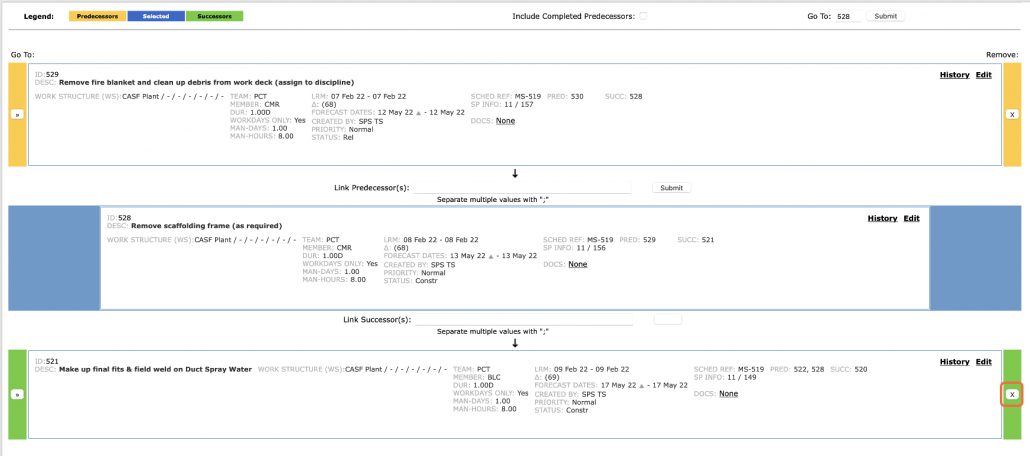
Note: There is no confirmation pop-up when removing a dependency relationship. A relationship is immediately delinked when you click the “X.” Therefore, to avoid unnecessary rework, ensure you have selected the correct task before removing a dependency relationship.
- To make further edits by changing the selected task or navigating through the workflow, click the “>>” symbol to the left of the predecessor or successor to make that task the selected task. Changing the selected task re-centers the Edit Workflow Logic window on the chosen predecessor or successor to further modify the workflow logic. All direct predecessors and successors for that newly selected task will then appear and the workflow can be edited using the methods described above.
Method 2: Delete “X“ Button
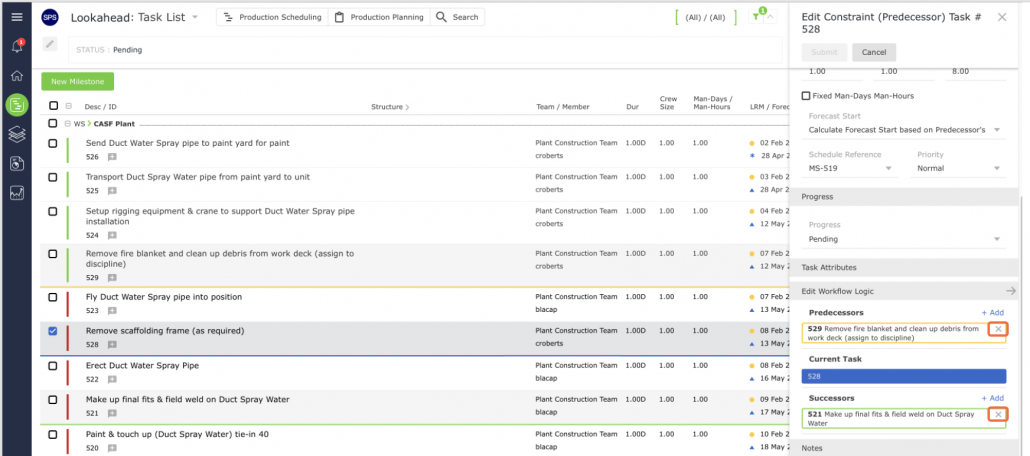
- Click the Edit Task icon on the bottom toolbar to open the Edit Constraint (Predecessor) Task # window. Scroll until the Predecessors and Successors are visible.
- Scroll until the Predecessors and Successors are visible.
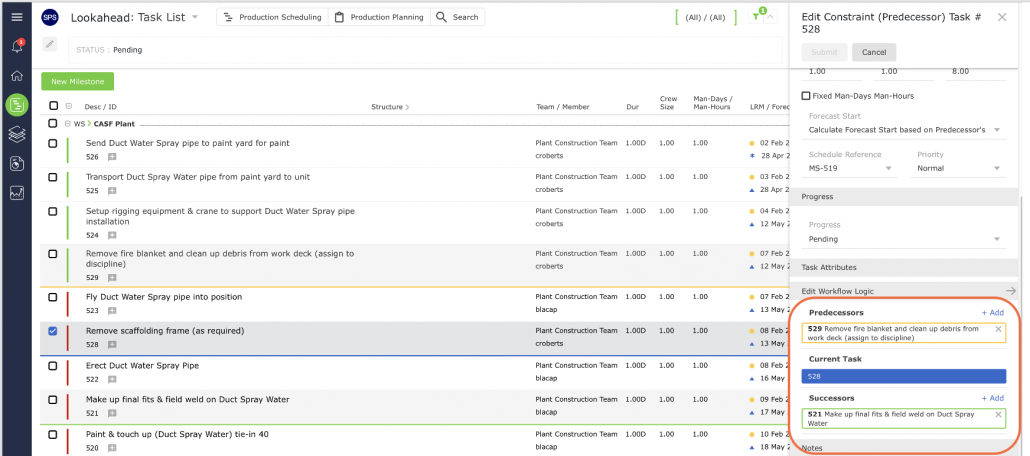
- To delink a Predecessor(s) or Successor(s), click the “X” to remove the desired link.
Note: There is no confirmation pop-up when removing a dependency relationship. A relationship is immediately delinked when you click the “X.” Therefore, to avoid unnecessary rework, ensure you have selected the correct task before removing a dependency relationship.