Understanding how Production Schedules behave over time is important to expose opportunities for performance improvement right at the time of execution or even after the fact. To enable an analysis of this behavior, Constraints Network History Log captures how the entire constraint network for a given Milestone / Task has evolved since it was created in SPS|PM. If new tasks are added to the constraint network, new standard processes, new links are made, etc., all actions are tracked and reported through the Constraints Network History Log, which captures actions in real-time.
The Constraints Network History Log is available in SPS|PM in the Lookahead view and Gantt Charter view. To access the Constraints Network History Log use one of the following methods:
Method 1: Lookahead View
To access the Constraints Network History Log from the Lookahead view, complete the steps below:
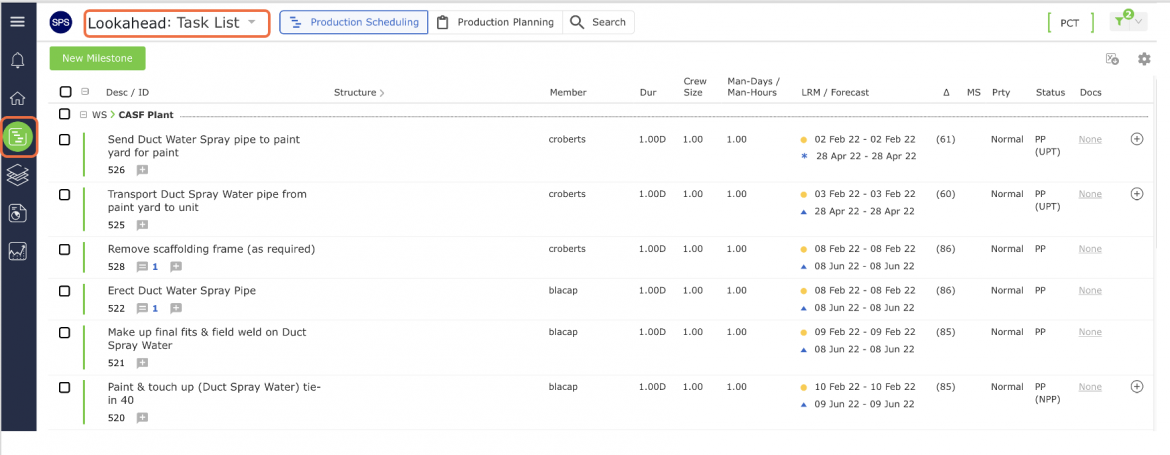
- From the Main Navigation Bar select Lookahead, then select Task List from the drop-down.
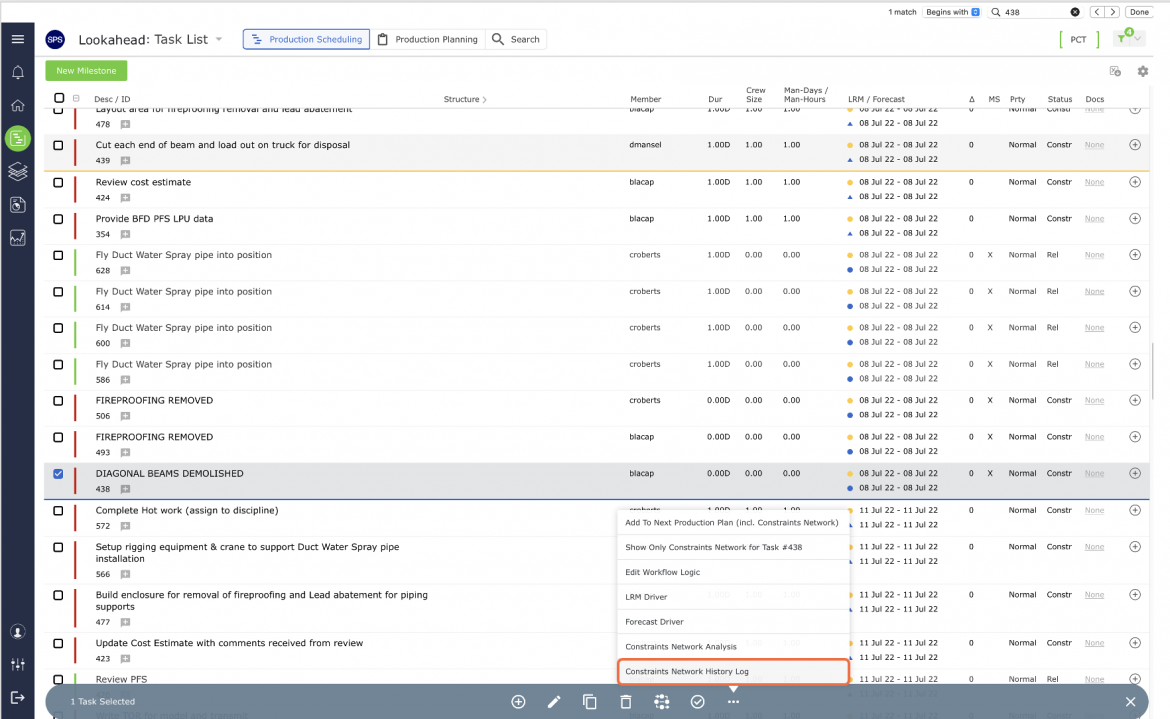
- From the Lookahead view, select the desired Milestone / Task by clicking once anywhere on the Milestone / Task row. Once selected, the task row will display a blue underline. From the More Options of the floating menu select Constraints Network History Log as shown below.
- The Constraints Network History Log will open in a new window and display a combined Network Manager view and tabular log of the entire constraints network including actions any team member has taken during the default date range of two weeks from the current date. Adjust the date range as desired.
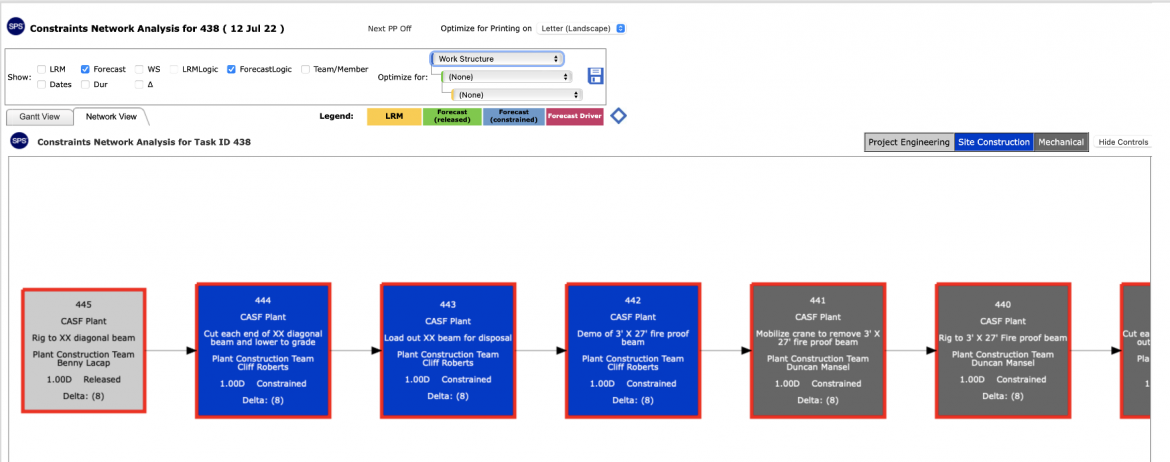
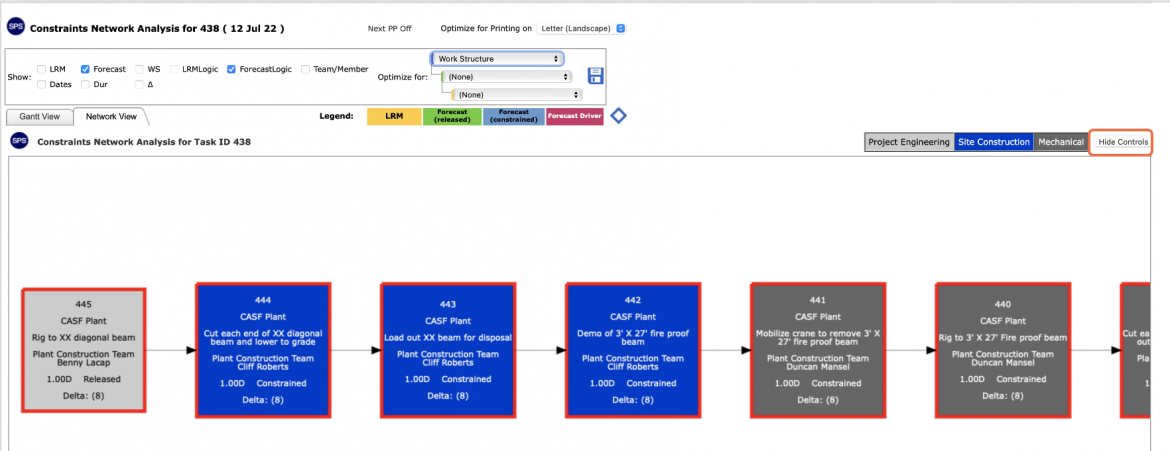
- Show or hide the attributes and Controls by clicking the Show / Hide Controls button in the top right of the window.
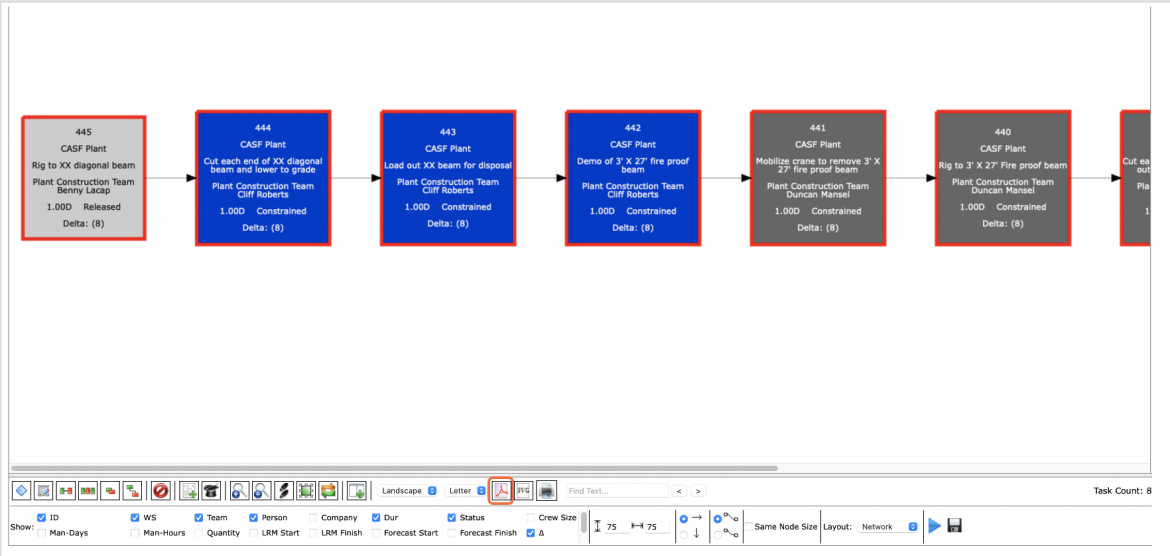
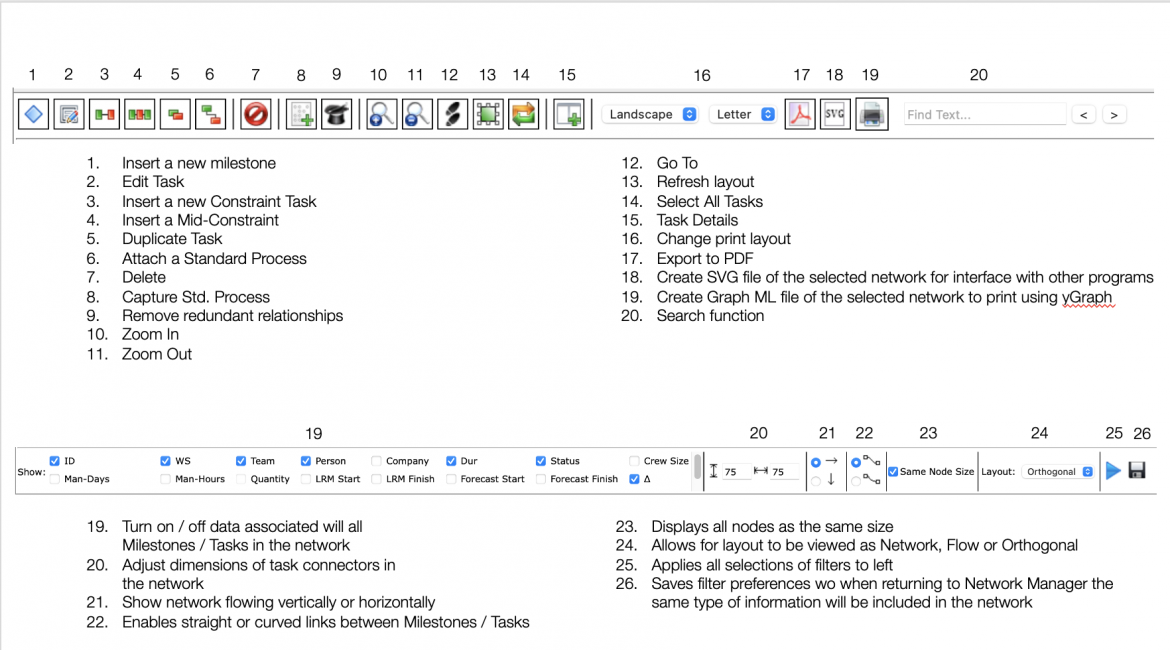
- The Controls appear at the bottom of the window. The Controls allow you to edit, review, and print.
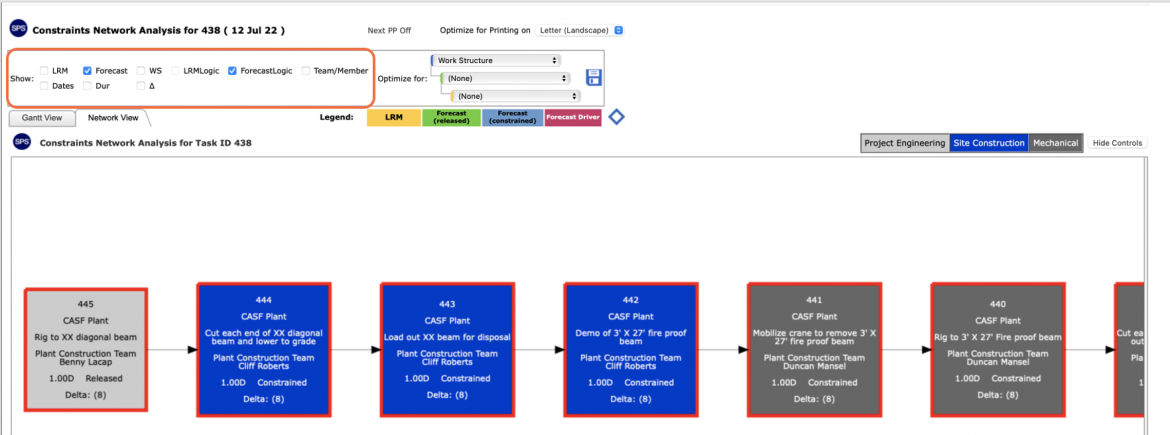
- The attributes shown on Constraints Network History Log can be limited by filtering by LRM Start, Forecast Start, Work Structure, team, team member, duration, etc.
Method 2: Gantt Charter View
To access the Constraints Network History Log from the Gantt Charter view, complete the steps below:
- From the Main Navigation Bar, select Lookahead and then select Gantt Chart.
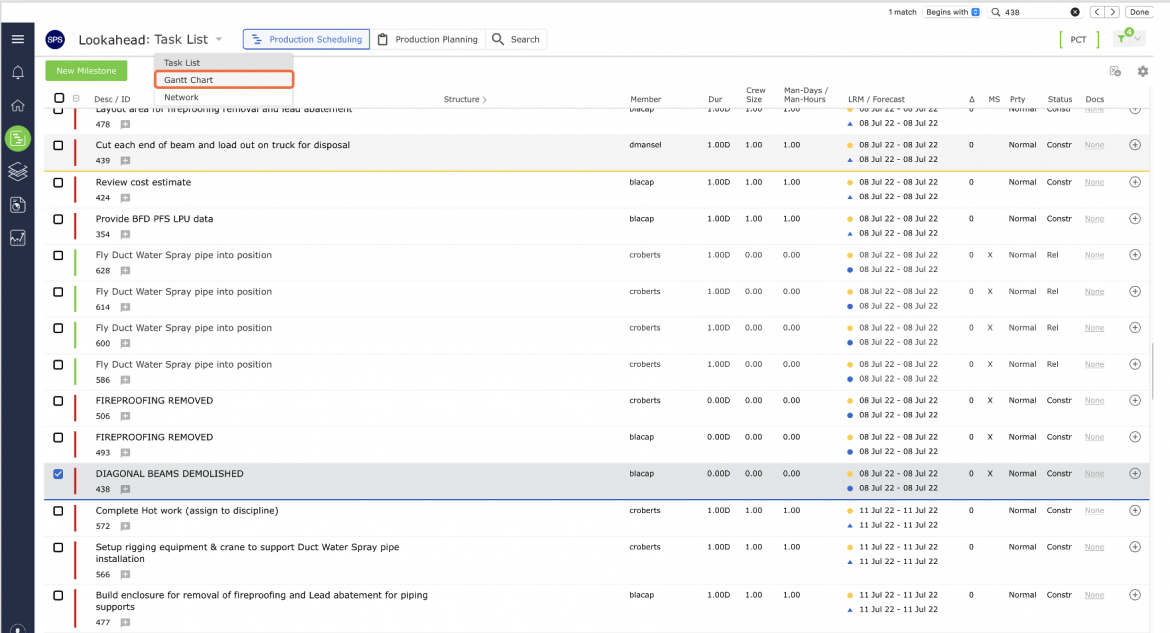
- From the Gantt Chart view, select the desired Milestone / Task by clicking once anywhere on the Milestone / Task row. Once selected, the task row will highlight. From the More Options of the floating menu select Constraints Network History Log as shown below.
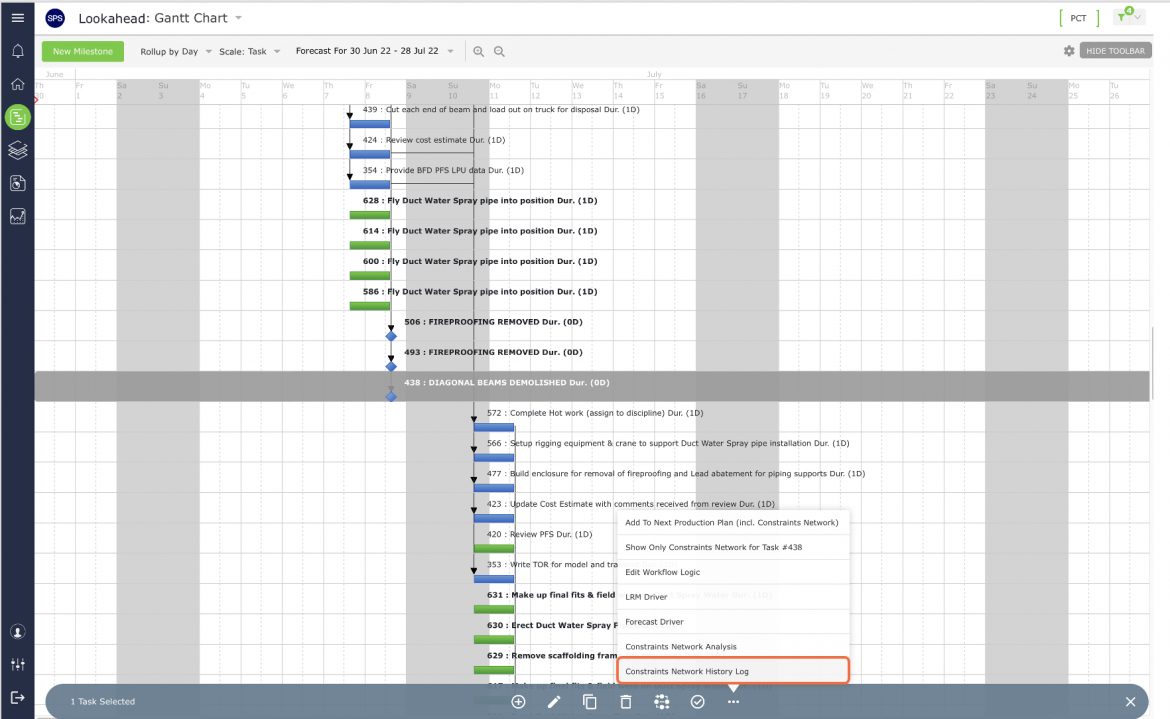
- The Constraints Network History Log will open in a new window and display a combined Network Manager view and tabular log of the entire constraints network including actions any team member has taken during the default date range of two weeks from the current date. Adjust the date range as desired.
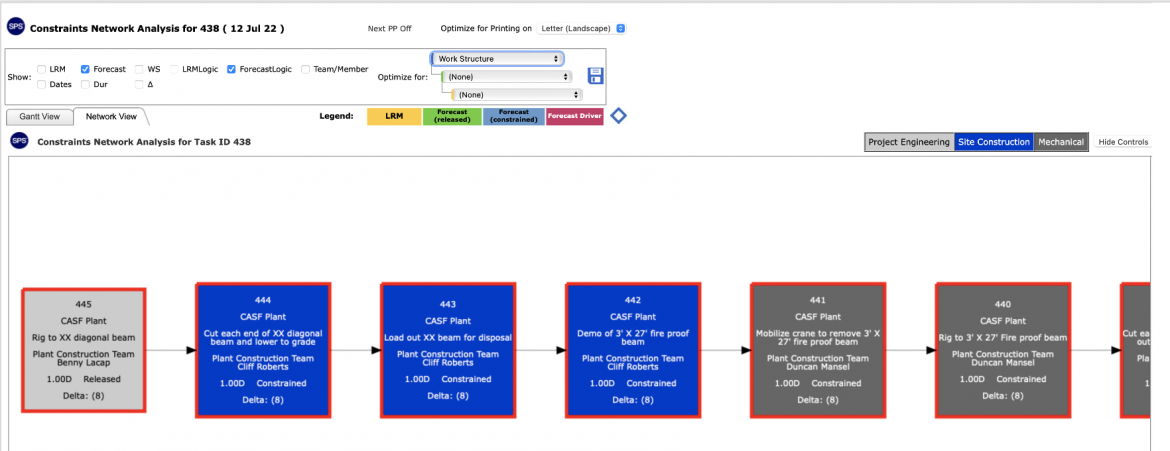
- Show or hide the attributes and Controls by clicking the Show / Hide Controls button in the top right of the window.
- The Controls appear at the bottom of the window. The Controls allow you to edit, review, and print.
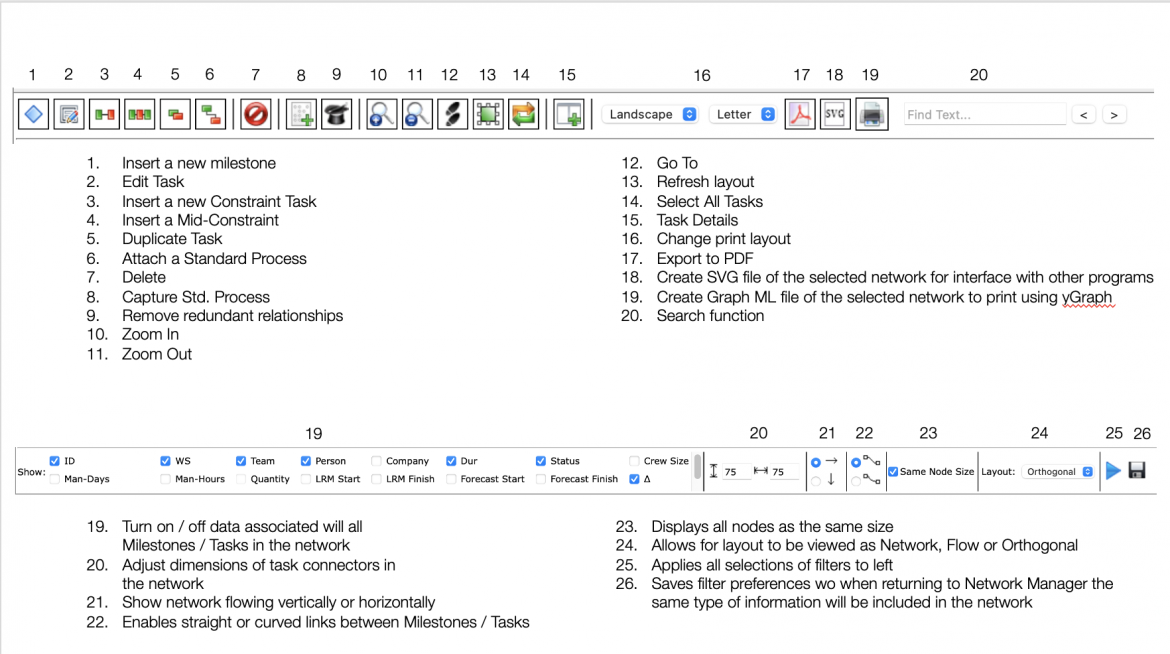
- The attributes shown on Constraints Network History Log can be limited by filtering by LRM Start, Forecast Start, Work Structure, team, team member, duration, etc.
- To print Constraints Network History Log, click the Export to PDF control and follow the prompts according to the specific browser you are using to export the file and print.