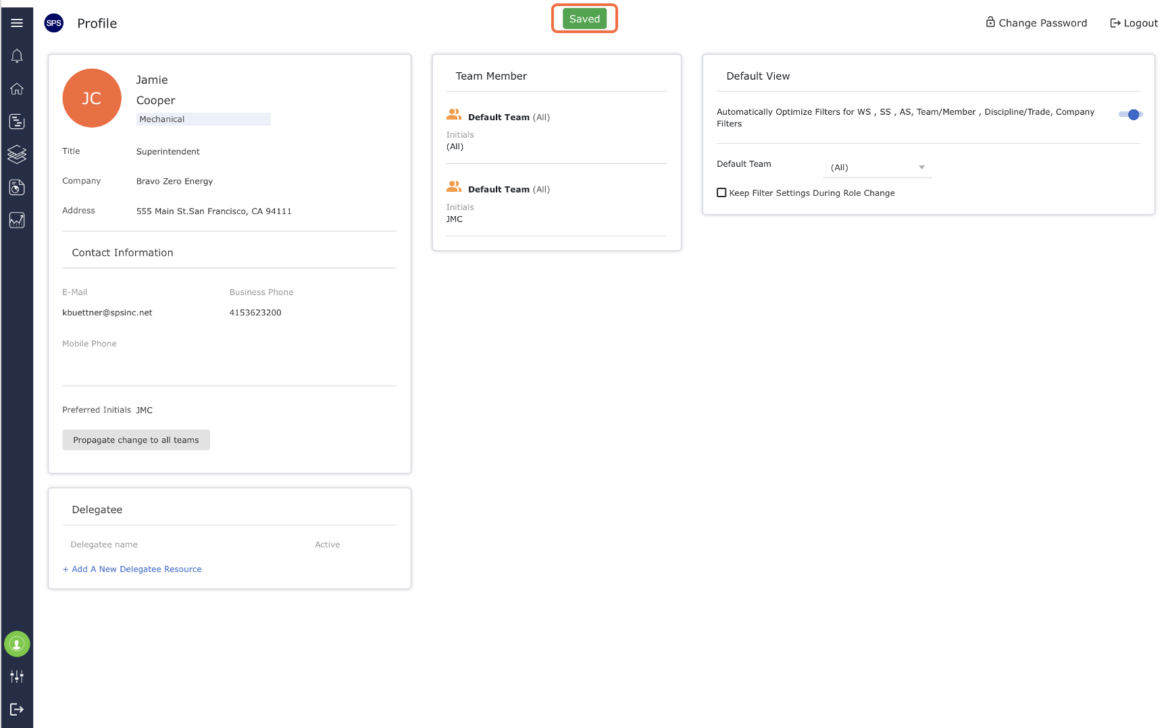
In order to optimize the efficiency of SPS|PM functions, there are two types of personal preferences each individual can configure for their SPS|PM account: User Preferences and View Preferences.
This section explains how to edit each preference type.
User Preferences
To modify User Preferences, complete the steps below:
- From the Main Navigation Bar select Profile.

- The Profile allows for personal details such as name, company, and email address to be edited. To modify any of your personal details, click on the personal information and enter the change.
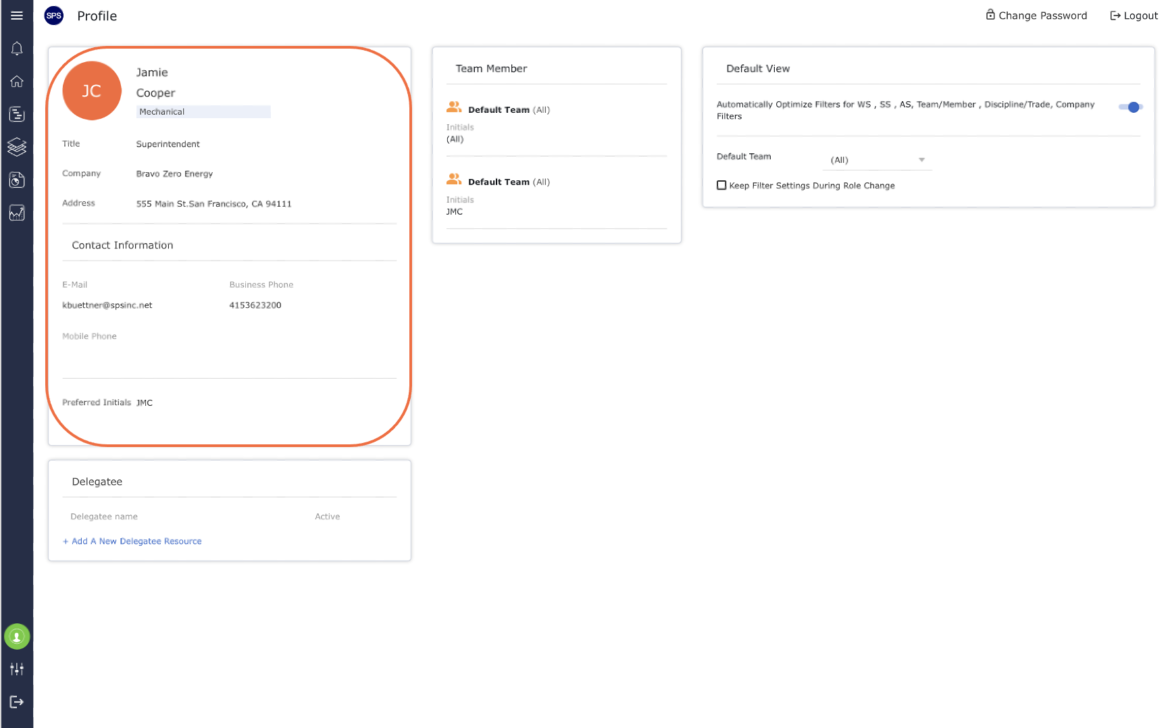
Information will automatically be saved to your profile once it is changed.
View Preferences
To modify View Preferences, complete the steps below:
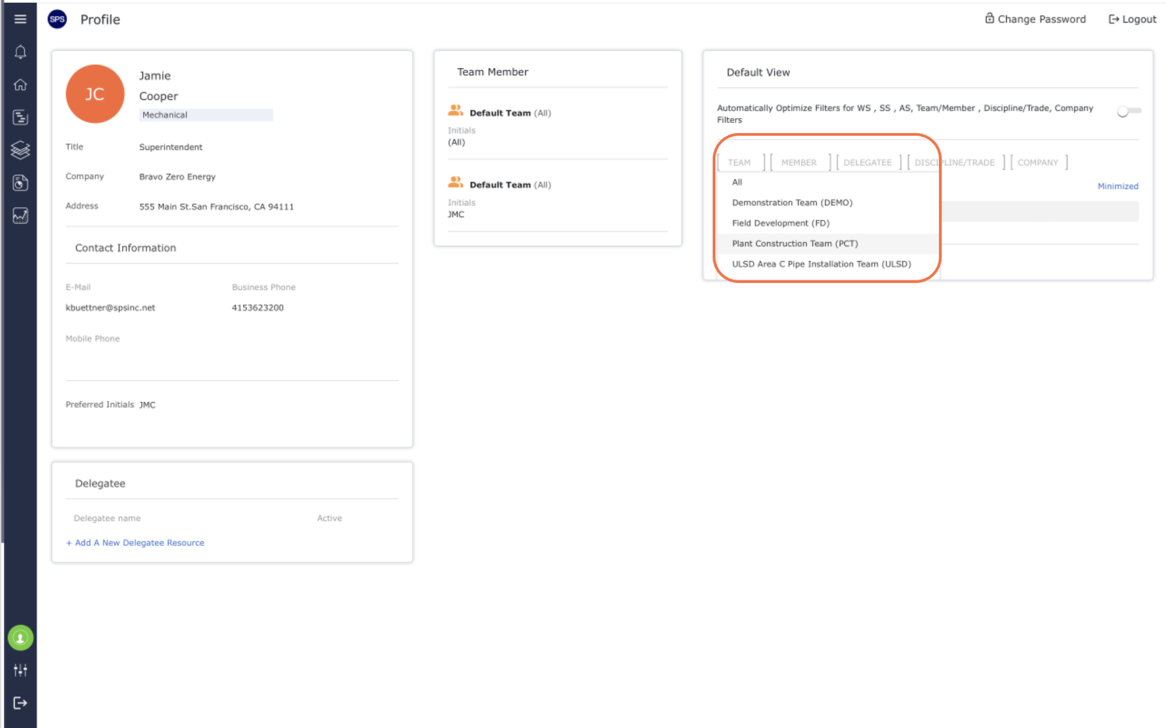
- From the Main Navigation Bar select Profile.
- To modify any item in your View Preference, enter / select the new value for the associated item
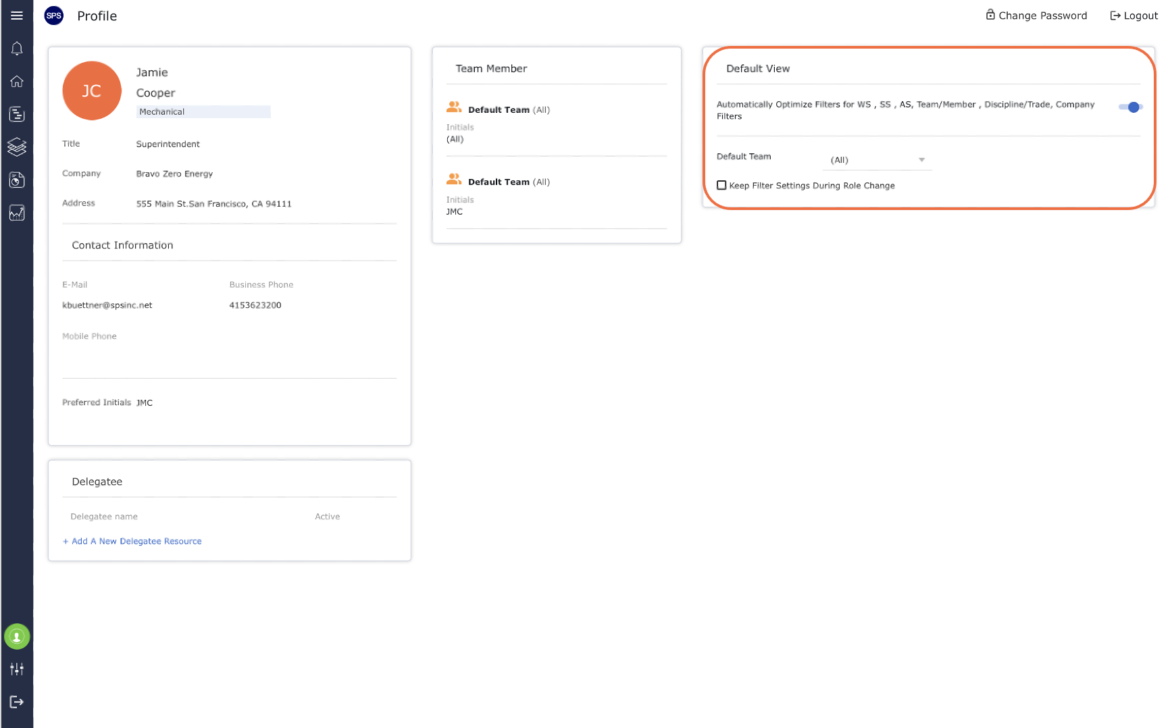
The following table defines and explains the available options under View Preference.
| Item | Definition | Options |
|---|---|---|
| Automatic Optimize Filters | Defines how the following structures of each screen are populated; Team, Member, Delegatee, Discipline / Trade and Company | On: SPS|PM automatically fills in values Off: Enter your own values for the structures |
| Default Team | Primary team of which you are a member. After successful login to SPS|PM, your Member Role is automatically set to your role defined in your primary team | Of the available teams listed, select the entry for your desired primary team |
- To modify any item in your Default View, enter / select the new value for the associated item
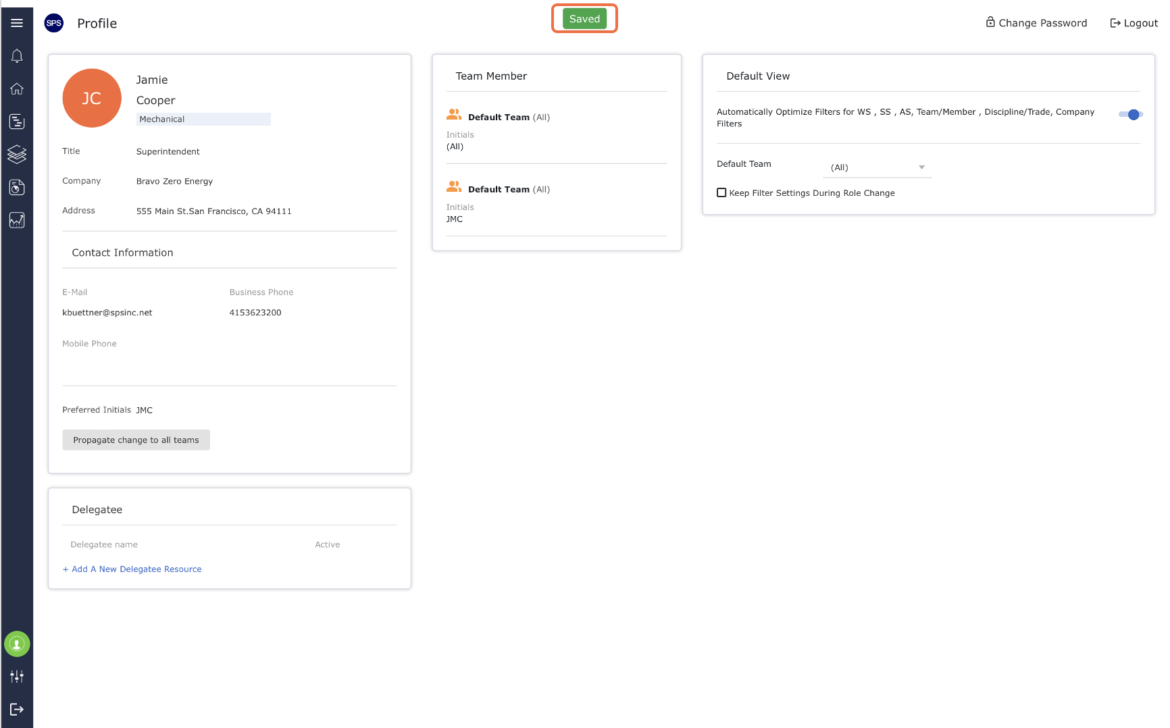
Information will automatically be saved to your profile once it is changed.