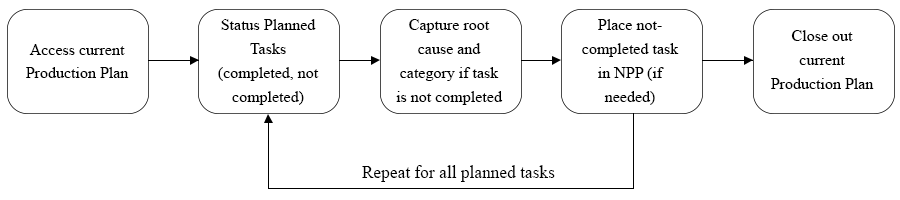
As work in a Production Plan is executed, teams must update the status of the work as Completed or Not Completed. This involves reviewing each task committed for completion, and recording whether it was actually completed as planned or not according to the five key steps, shown below.
The objective of updating the Current Production Plan is to enable a real-time view of progress as well as to inform those responsible for subsequent work of the status of each planned task.
It may seem easy to determine if a task has been completed but this is not always true. Task descriptions must be specific enough to accurately assess completion. For instance, a description such as ‘Excavate trench’ without specifying start and endpoints (e.g., Excavate trench section A-10) makes the definition of actual completion very difficult.
People often focus on starting work, not on completing it. Those involved in Production Planning are encouraged to focus on the completion of activities – completion of work releases further work while starting work does not. Furthermore, starting work and not completing it may obstruct others from accessing a specific piece of work. Frequently, stakeholders will say, “Yes, I’ve started that.” Through effective facilitation, it is important to determine if the task is actually 100% finished, or simply started. In cases where the same team member does not own the next task in the sequence, a way of confirming 100% completion is to ask the downstream customer to verify its completion (i.e., accept the work as being executed). This is not the same as measuring progress the way conventional project controls do. The focus of Production Planning is to optimize the use of capacity and time, not to forecast and report progress. Therefore, the practice of Production Planning is based on determining whether tasks are 100% complete or not. In Project Production Control, there is no credit or earned value for a task that is not 100% complete.
When loading tasks on the Production Plan, a member with Write Access can only update the status of his or her own planned tasks, while a member with Team-Level Access can update the status of any task on the Current Production Plan for their team.
To update the Current Production Plan, complete the steps below:
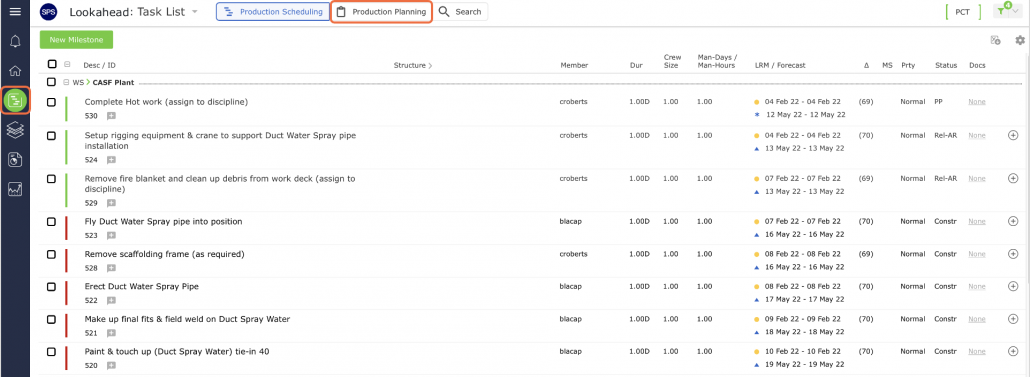
- From the Main Navigation Bar select Lookahead, then select the Production Planning mode.
In the Update Current Production Plan view, status completed Planned Tasks as ‘Completed’ by selecting the check icon or ‘Not Completed’ by selecting the x icon under the Progress column. Insert the actual duration and date completed (if enabled).

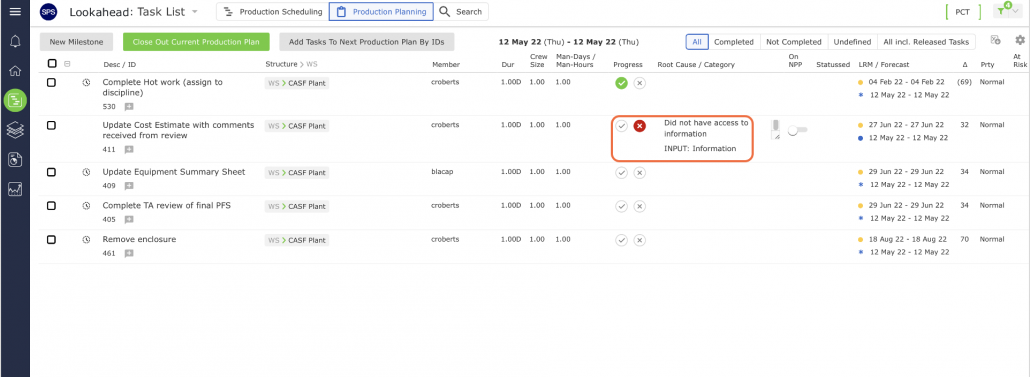
For non-completed tasks, the underlying reason for non-completion must be entered in the text box in the Root Cause column as shown in the image below. The reason should be as detailed as possible to allow accurate Root Cause Analysis and to identify areas for performance improvement. Additionally, the appropriate Root Cause category for non-completion must be selected from the drop-down menu in the Category column. The Root Cause categories can be modified on a project-by-project basis, but common categories include Information, Material, Labor, Equipment, Plan, Site Access, Prerequisites, and Weather.
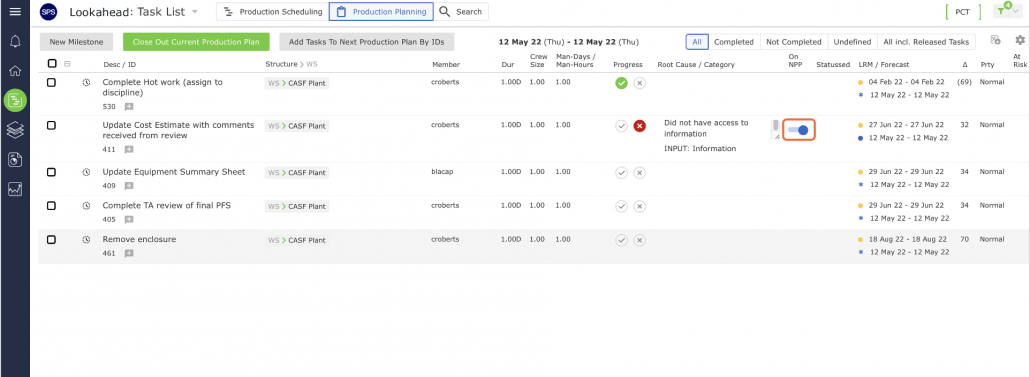
- Typically, not all tasks on a Production Plan will be completed as planned. There will most likely be items that will need to be added to the Next Production Plan. Before adding carry-over tasks to the Next Production Plan, it is important to identify constraints that may need to be executed prior to a carry-over task being completed during the next production cycle. This is an example of constraint analysis performed during the Production Planning process. To place a Not Completed task on the Next Production Plan, slide the radio button under On NPP column only if the task can be executed within the Planning Horizon.