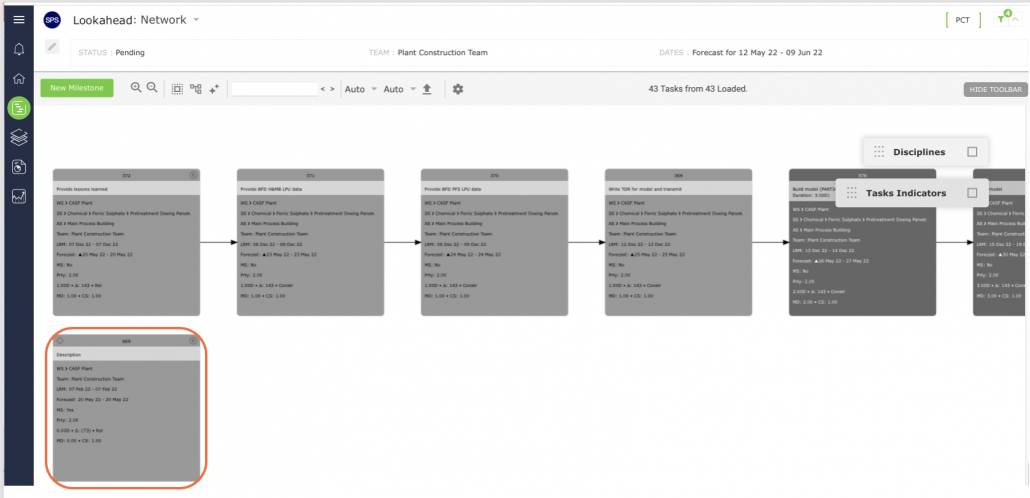
A Milestone / Task is created using the same steps and attributes. Unlike a task, however, a Milestone represents the end of a workflow and so does not have any successor tasks. Any Milestone can be turned into a task by specifying another task as its successor. However, this linking is prohibited for a Master Level Milestone as it represents the end of a workflow, so it has no successor tasks and serves as the basis for determining Last Responsible Moment (LRM) dates for a workflow.
To create a new Production Schedule in the Network Manager view, start by inserting a Milestone followed by inserting constraint tasks (see section Insert Constraint Task). If you are revising an existing Production Schedule, you may also need to insert a new Milestone / Task.
To create a Milestone / Task from the Network Manager view, complete the steps below:
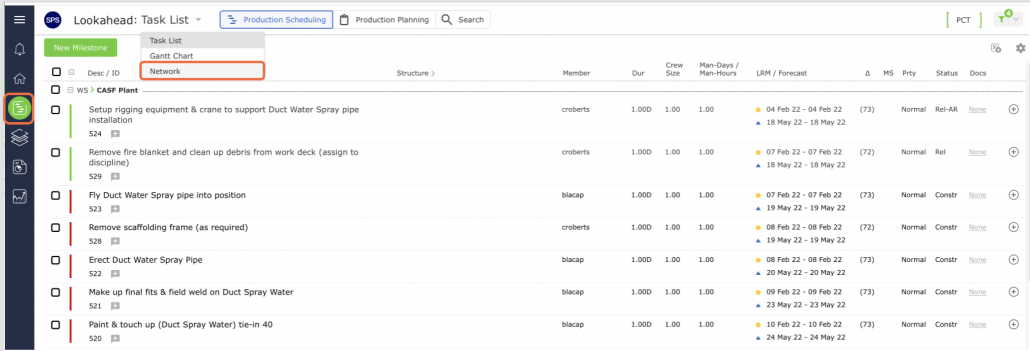
- From the Main Navigation Bar select the Lookahead, then choose Network Manager.
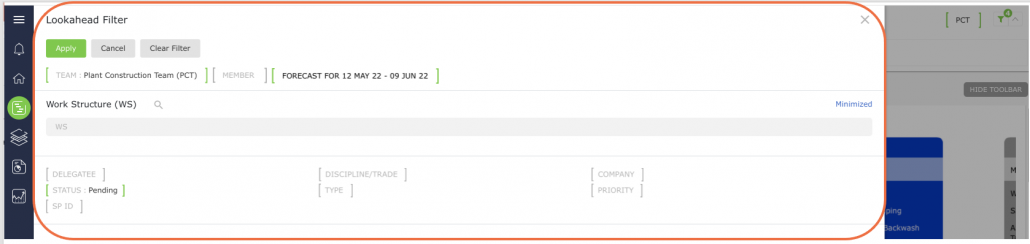
- In the Network Manager view, select the edit filter icon to change any filter settings.

- The Network Manager view will display the filter. Select any filter option to add or change.
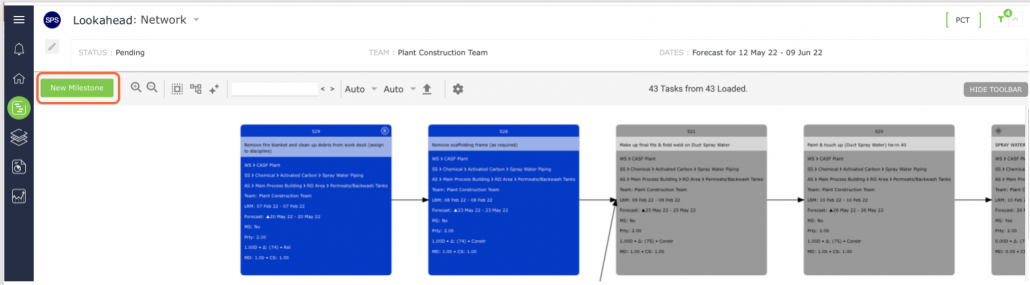
- The Toolbar appears at the top of the Network diagram. The controls allow you to edit, review, and print the Production Schedule. The image below explains each Control.

- Create the new Milestone / Task by clicking the New Milestone control.
- The Insert New Milestone window opens as shown in the image below.
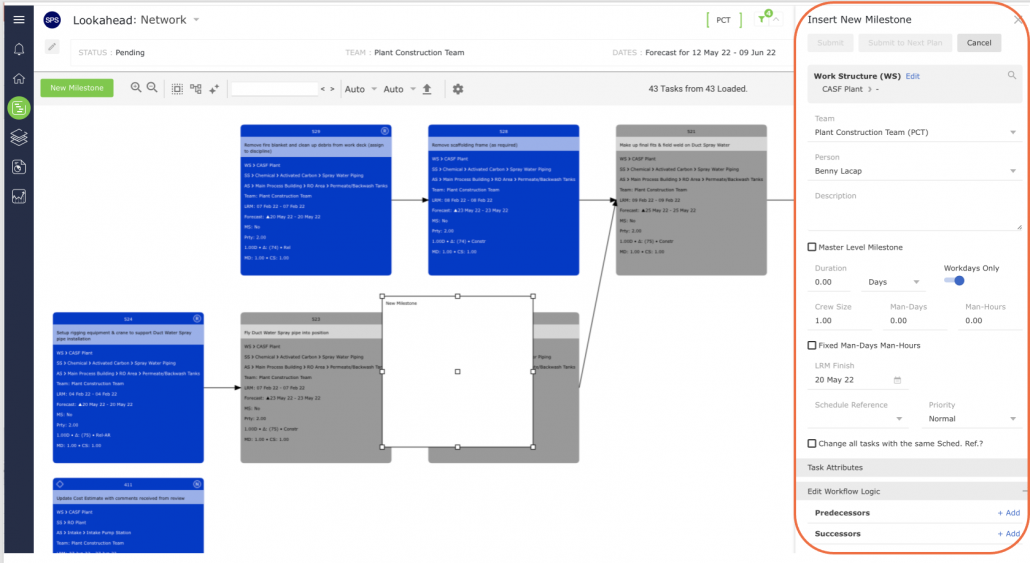
- Populate the Milestone / Task details following the parameters below.
| Parameter | Description |
|---|---|
| Work Structures | Select values for levels 1-7 of the Work Structures according to the defined Work Structures for your specific project |
| Team / Member | Team and member who will own and complete the task |
| Description | Start the description of the task activity with a verb such as ‘Install,’ ‘Develop,’ ‘Formulate,’ ‘Fabricate,’ Approve,’ etc. Task description should be specific and a measurable quantity, no greater than the Planning Horizon (e.g., one day, one week, etc.) Level of detail should represent measurable hand-off to the successor activity |
| Master Level Milestone | If the milestone is a “Major Milestone” that will be used to measure progress in the Analytics reports, check the Master Level Milestone box |
| Duration | Proposed time task will take to complete |
| Workdays Only | Check ‘Workdays Only’ if the task will only be completed during the workweek |
| MS LRM Finish | LRM date when the Milestone / Task must be completed, excluding time buffers |
| Schedule Reference | Enter the reference number if used by the project |
| Priority | Default set as ‘Normal,’ other options include ‘Low and ‘High’ |
- When finished entering the Milestone / Task attributes, click the Submit button. The Milestone / Task will appear in the Network Manager view. If the new Milestone / Task does not display after clicking the Submit button, click the Refresh control.