
Constraints analysis and task dependency are the core of Production Scheduling. Any task is simply an item of work with a specified duration, for which a single person is responsible. Within SPS|PM, two tasks are connected by a dependency relationship when work on one task cannot begin before all work on the other has been completed. The dependent task is known as a successor, while the “providing” task is a predecessor or constraint.
To add constraints to a Milestone / Task in the Network Manager view complete the steps below:
- Open the Network Manager view as shown in Steps 1 – 4 of Insert Milestone / Task.
- Select the Milestone / Task you want to constrain by clicking once on its shape. Once selected, the object controls will appear around the shape.
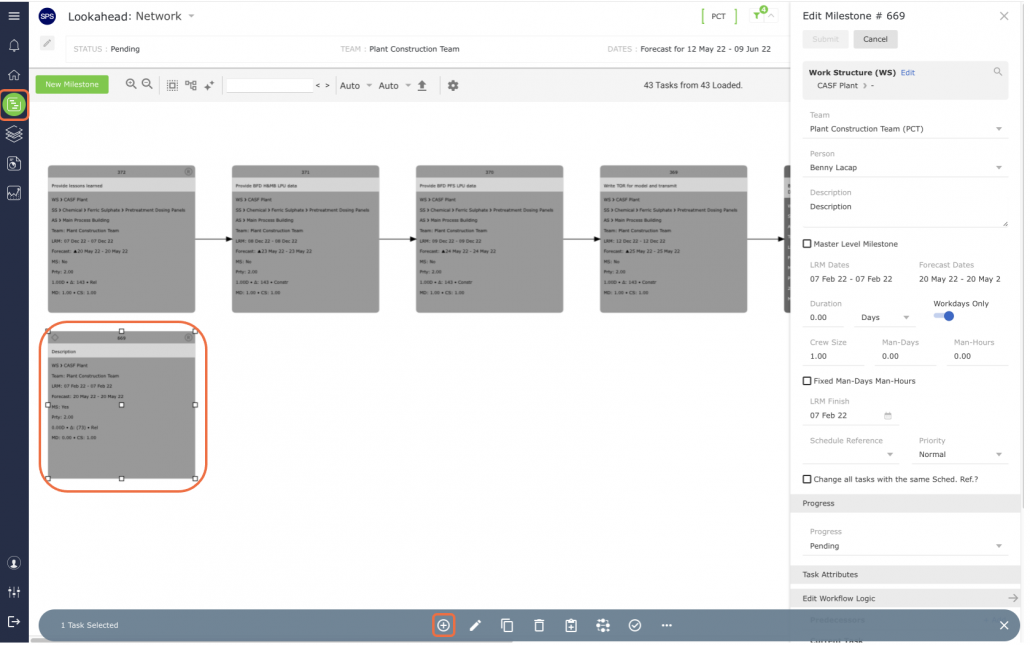
- Click the Insert a New Constraint Task control and the Insert New Constraint (Predecessor) Task window opens.
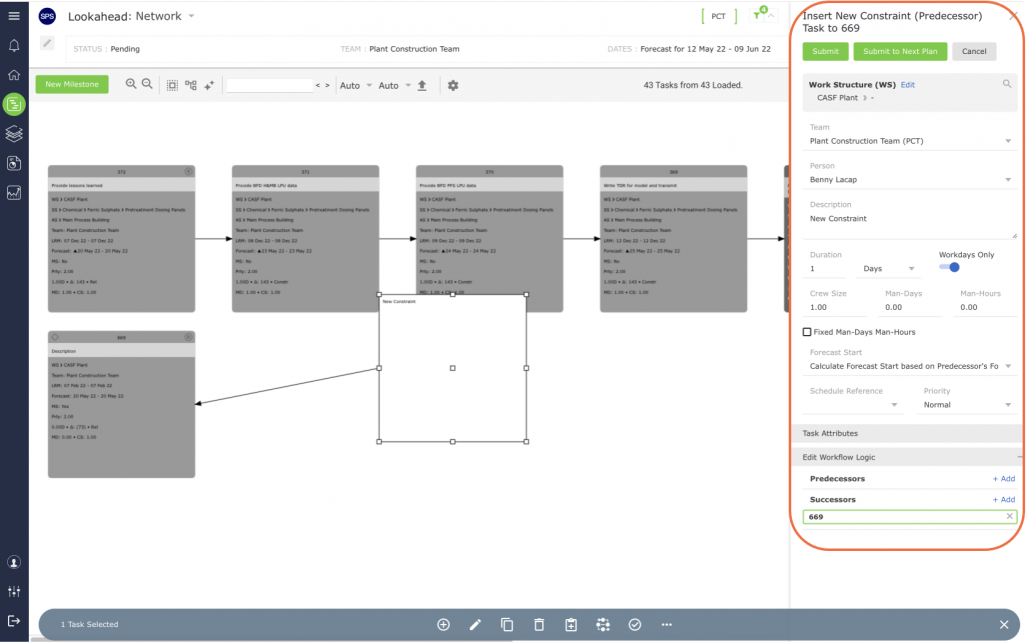
- Populate the Insert New Constraint Task window using the parameters described in the table below and click the Submit button when complete.
| Parameter | Description |
|---|---|
| Work Structures | Select values for levels 1-7 of the Work Structures according to the defined Work Structures for your specific project |
| Team / Member | Team and member who will own and complete the task |
| Description | Start the description of the task activity with a verb such as ‘Install,’ ‘Develop,’ ‘Formulate,’ ‘Fabricate,’ Approve,’ etc. Task description should be specific and a measurable quantity, no greater than the Planning Horizon (e.g., one day, one week, etc.) Level of detail should represent measurable hand-off to the successor activity |
| Duration | Proposed time task will take to complete |
| Workdays Only | Check ‘Workdays Only’ if the task will only be completed during the workweek |
| Forecast Start | Default is based on a ‘Continuous’ Workflow; other options are used when tasks need to start at a different point than anticipated (see section Task Dates for more information) |
| Schedule Reference | Default set as ‘Normal,’ other options include ‘Low and ‘High’ |
| Priority | Default set as ‘Normal,’ other options include ‘Low and ‘High’ |
The new constraint task appears as a predecessor to the Milestone / Task as shown in the image below.
Note: You may need to click the Refresh control if tasks’ shapes and colors are not properly rendered.
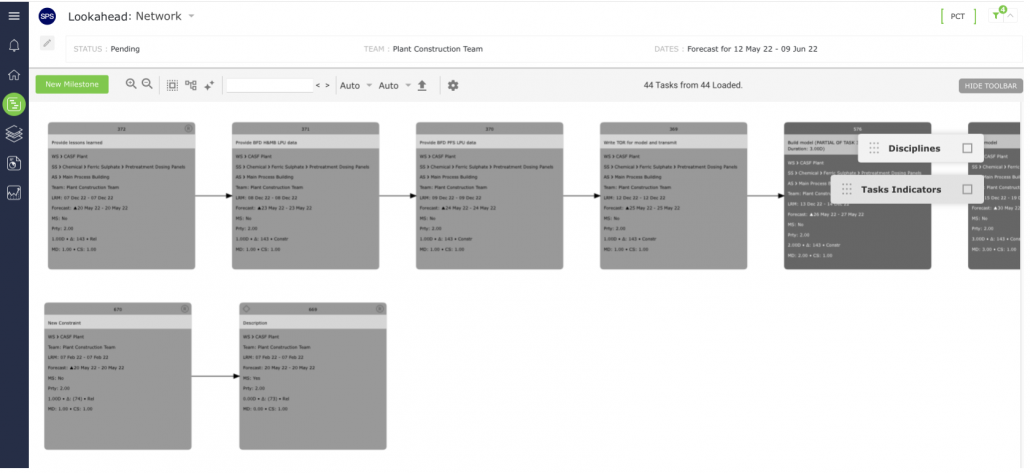
- To continue adding constraint tasks, repeat above step, selecting the appropriate Milestone / Task to constrain.