
To duplicate a Milestone / Task in the Network Manager view complete the steps below:
- Open the Network Manager view as shown in Steps 1 – 4 of Insert Milestone / Task.
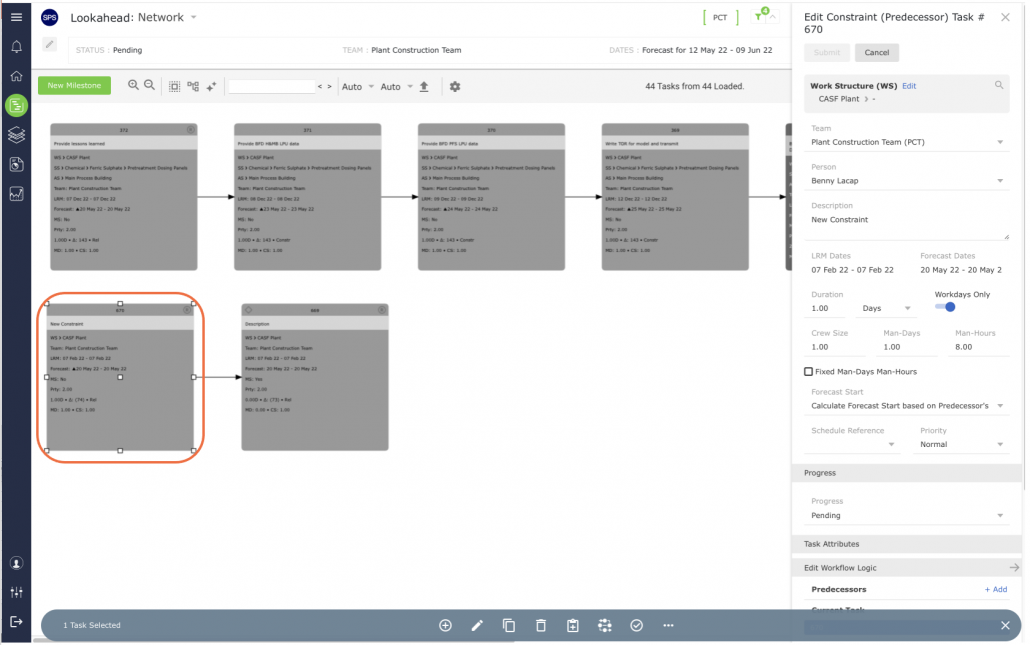
- Select the Milestone / Task you want to duplicate by clicking once on its shape. Once selected, the object controls will appear around the shape.
- Click the Duplicate Task control and the Duplicate Task window opens.
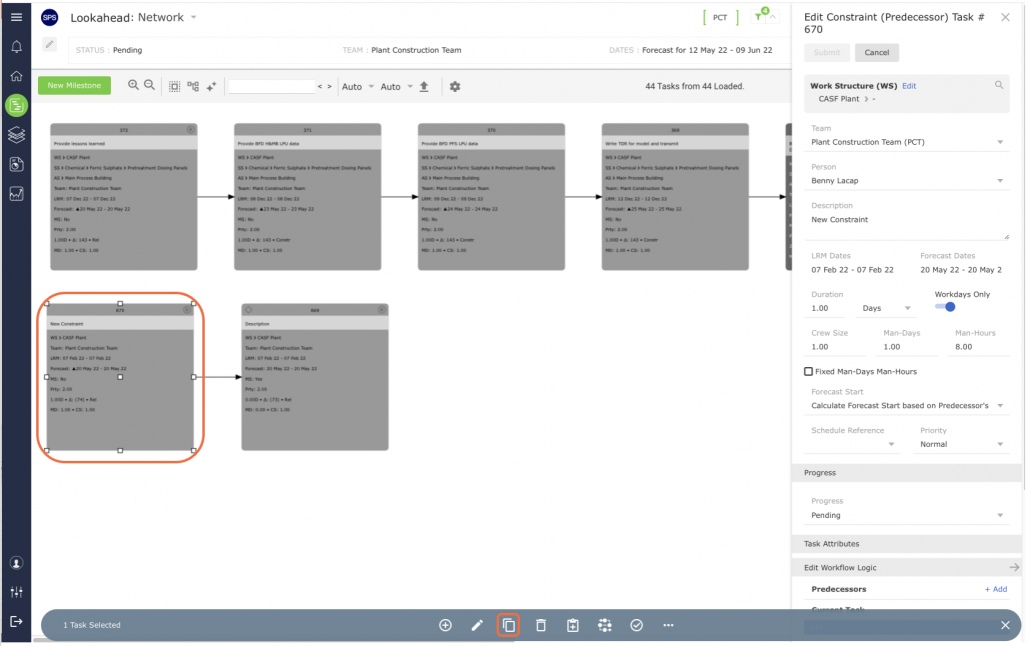
Populate the Duplicate Task window using the parameters described in the table below and click the Submit button when complete.
| Parameter | Description |
|---|---|
| Work Structures | Select values for levels 1-7 of the Work Structures according to the defined Work Structures for your specific project |
| Team / Member | Team and member who will own and complete the task |
| Description | Start the description of the task activity with a verb such as ‘Install,’ ‘Develop,’ ‘Formulate,’ ‘Fabricate,’ Approve,’ etc. Task description should be specific and a measurable quantity, no greater than the Planning Horizon (e.g., one day, one week, etc.) Level of detail should represent measurable hand-off to the successor activity |
| Master Level Milestone | If the milestone is a “Major Milestone” that will be used to measure progress in the Analytics reports, check the Master Level Milestone box |
| Duration | Proposed time task will take to complete |
| Workdays Only | Check ‘Workdays Only’ if the task will only be completed during the workweek |
| Forecast Start | Default is based on a ‘Continuous’ Workflow; other options are used when tasks need to start at a different point than anticipated (see section Task Dates for more information) |
| Schedule Reference | Enter the reference number if used by the project |
| Priority | Default set as ‘Normal,’ other options include ‘Low and ‘High’ |
The new duplicate task appears and has the same workflow logic as the original task from which it was duplicated.
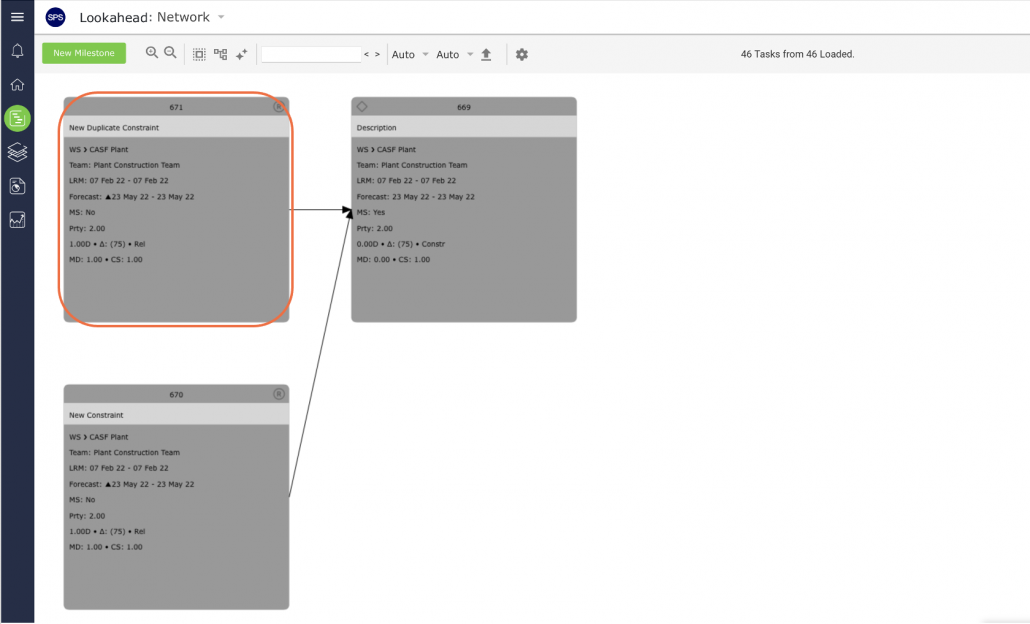
Note: You may need to click the Refresh control if tasks’ shapes and colors are not appropriately rendered.