
As Production Schedules are developed and optimized, determining what changes were made, and when and who made them, becomes important additional information for analysis. To enable this, the Task Change Log report provides the ability to filter and view task history for a given selection of tasks.
To access the Task Change Log report, complete the steps below:
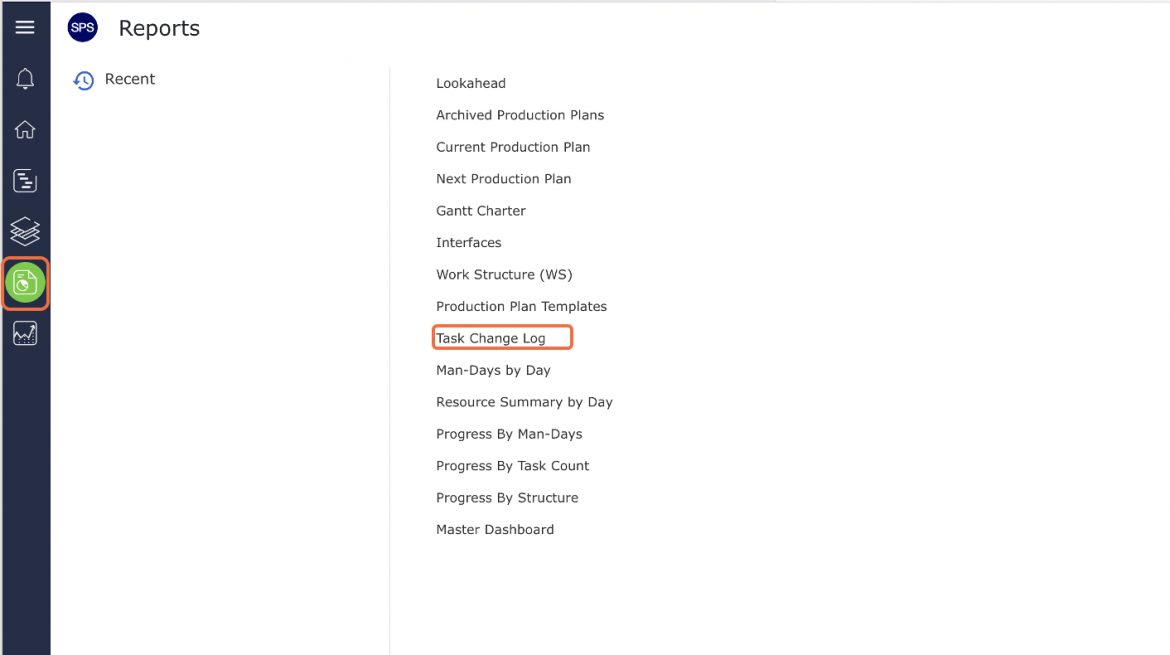
- From the Main Navigation Bar select Reports, then select Task Change Log.
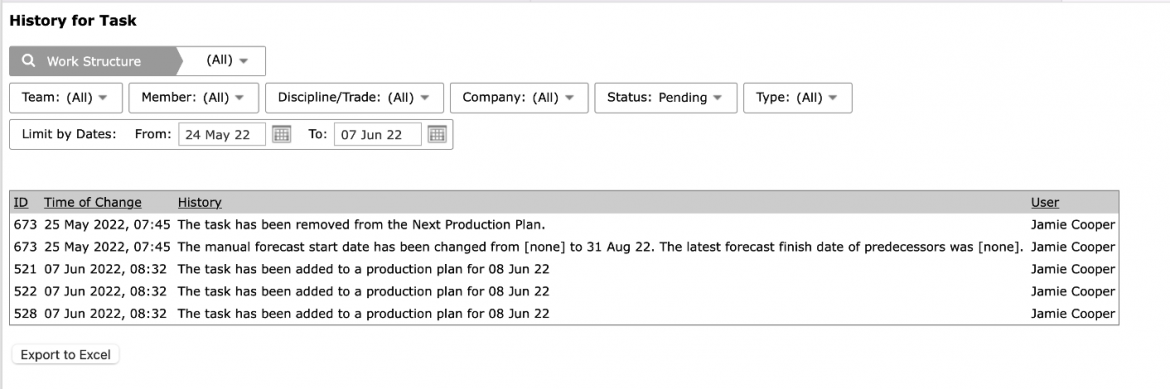
- The Task Change Log report opens in a new window and automatically displays the report for the team selected under the Team Menu.
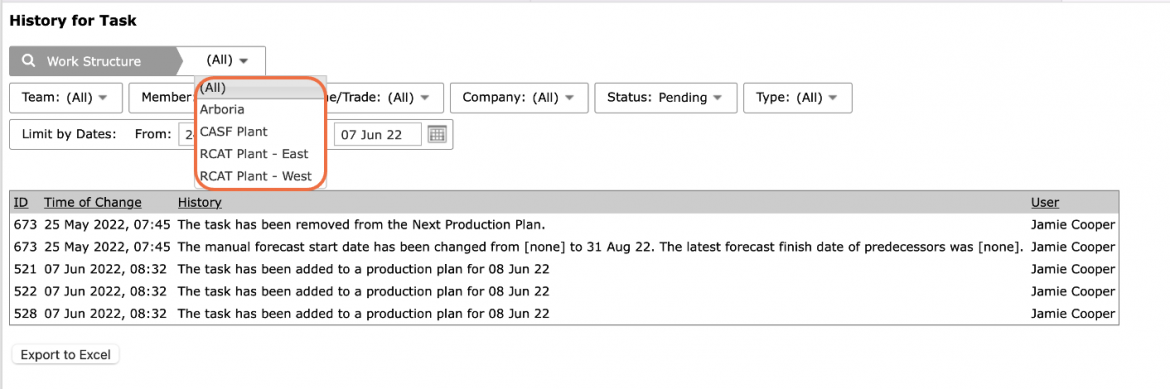
- Select Work Structure, Member, Milestone / Task Status, and any other attributes, in addition to date range, to filter for the desired data.
- Using the Task History Log report, you can identify the Milestone / Task changes that occurred within the selected filters including Milestone / Task ID, time of change, detailed change history, and the associated user.
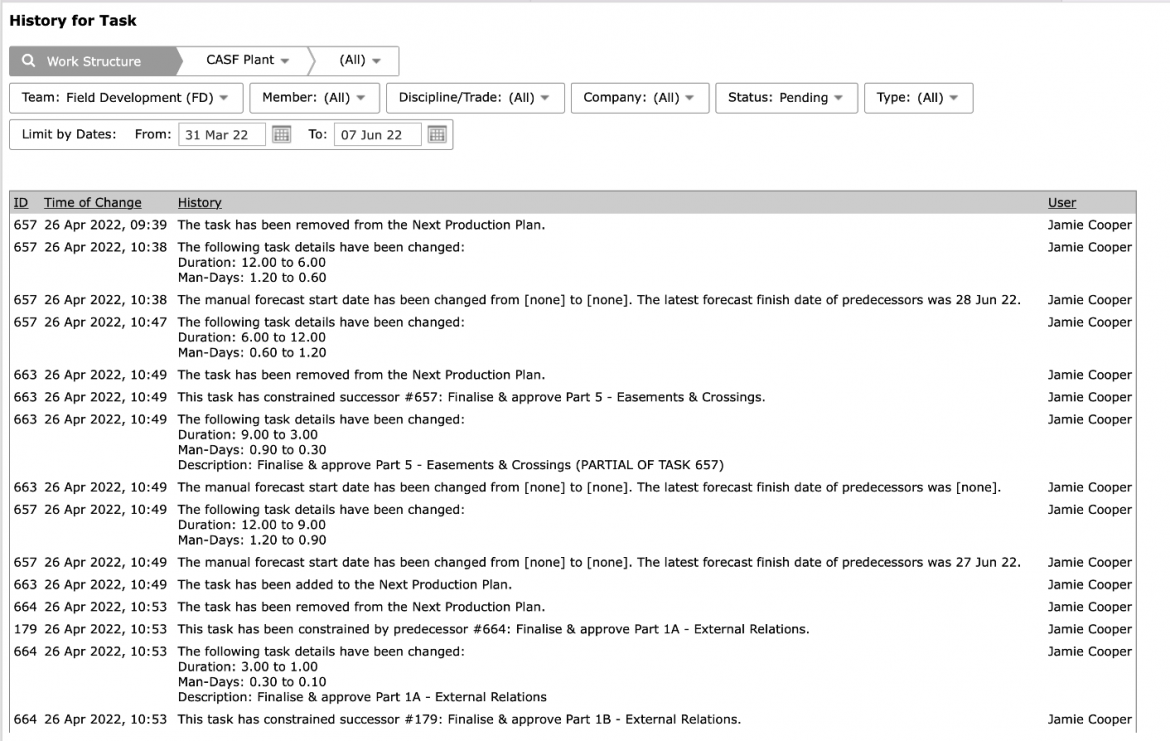
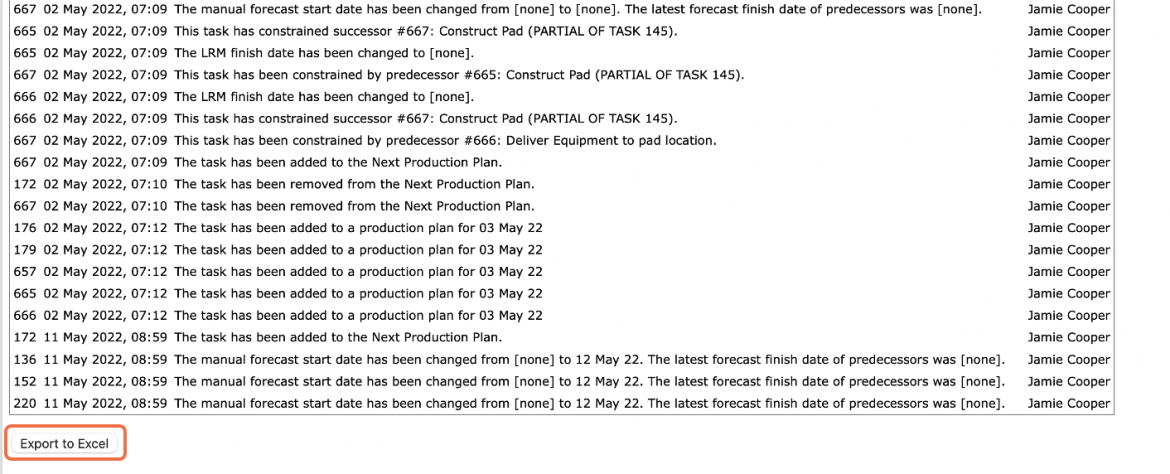
- To export the Task History Log report to a Microsoft Excel file e.g., for further data analysis, click the Export to Excel button and follow the prompts according to the specific browser you are using.
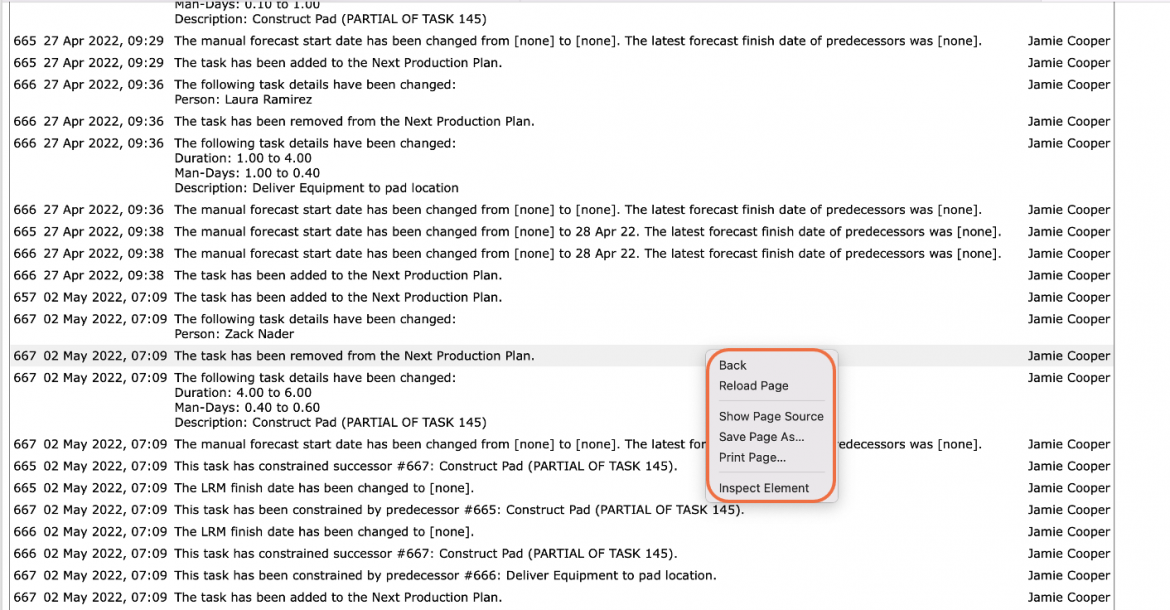
- Depending on your browser, access to printing options may vary. For example, if you use Internet Explorer, to print the Task History Log report, right-click anywhere on the Task History Log report and select Print from the menu or simultaneously press the Ctrl and P keys on your keyboard.
- The Print Dialogue box opens.
- Using the Print Dialogue box, change any desired print settings. Once all relevant printing settings have been modified, click the Print button.
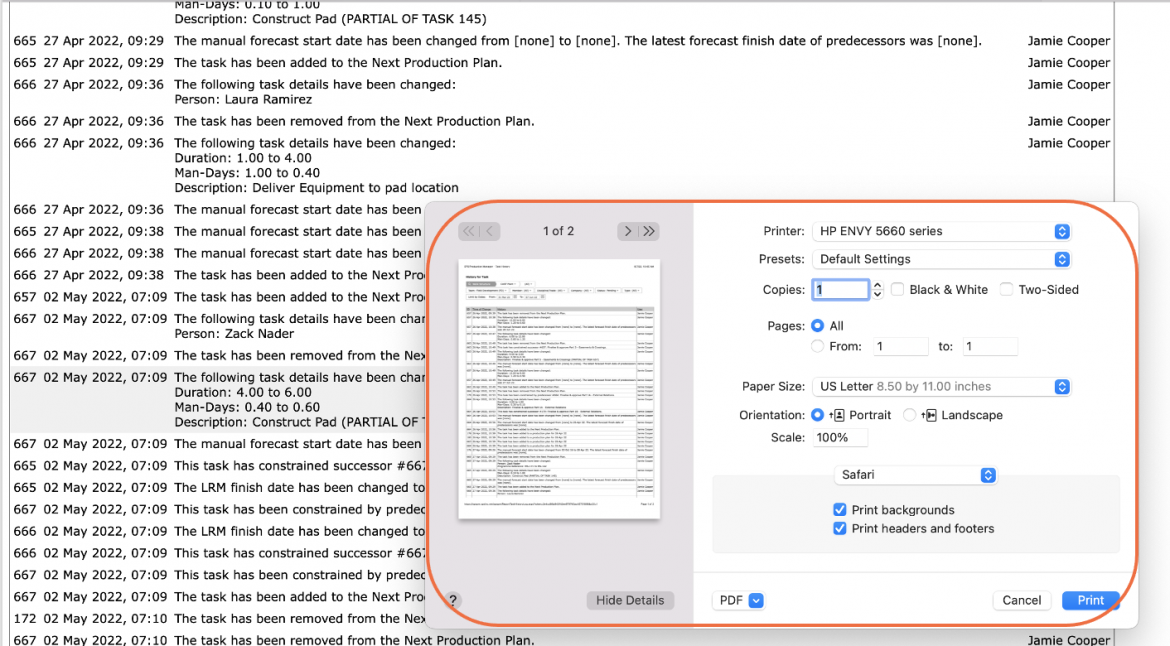
Note: Before printing the report, it is recommended you confirm whether the report fits the desired paper size.