
When managing project production, there are many circumstances that will constrain a task from being completed, impacting work downstream in the Production Schedule. In these cases, it is important to assess the impact on any other Milestones / Tasks. For a given Milestone / Tasks, Impact Network Analysis does this by exposing how not executing a task impacts Milestones / Tasks in a Production Schedule. It answers the question “If we don’t do this task, which Milestones / Tasks does it affect?” This Decision-Support Mechanism exposes what the completion of a task drives. Impact Network Analysis depicts all paths (rather than a single path) ahead of the selected task.
The Impact Network Analysis is available in SPS|PM in the Lookahead view and Gantt Charter view. To access the Impact Network Analysis use one of the following methods:
Method 1: Lookahead View
To access Impact Network Analysis from the Lookahead view, complete the steps below:
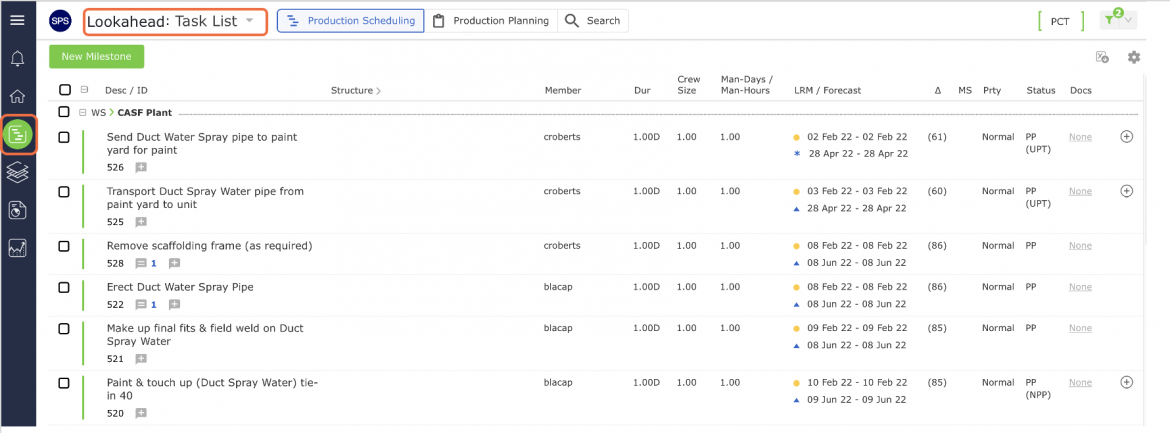
- From the Main Navigation Bar select Lookahead, then select Task List.
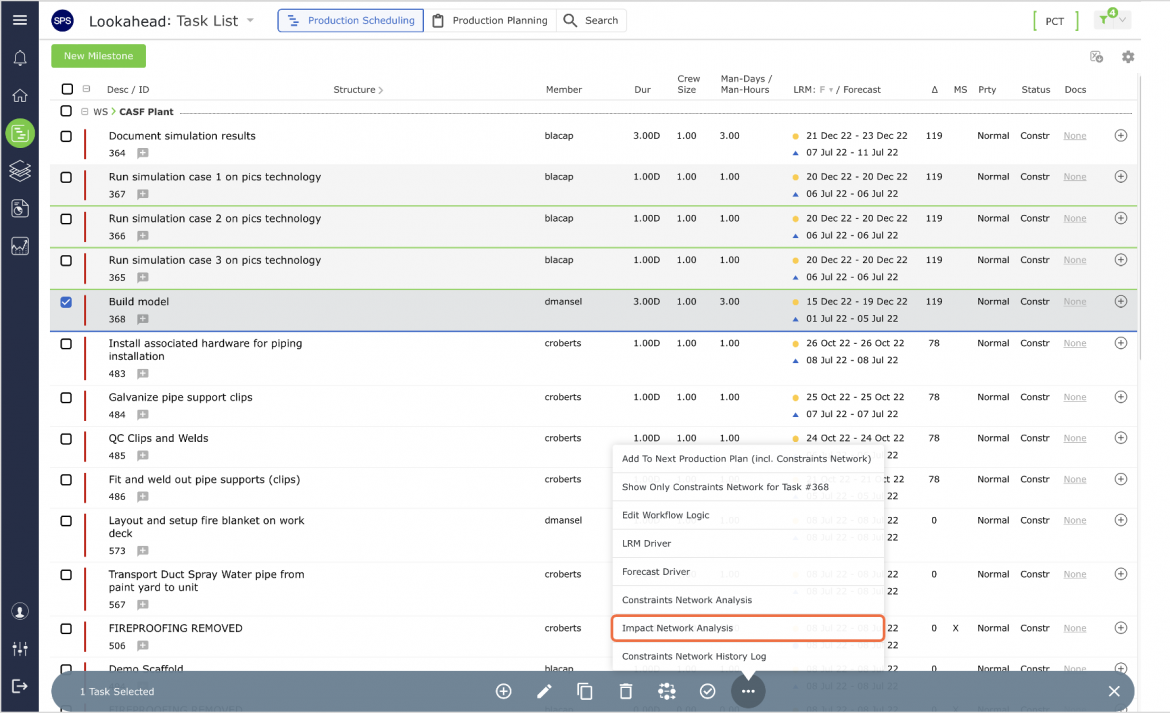
- From the Lookahead view, select the desired Milestone / Task by clicking once anywhere on the Milestone / Task Once selected, the task row will display a blue underline, then from the Floating Menu select Impact Network Analysis.
Note: If the selected Milestone / Task does not have any successors, Impact Network Analysis will automatically be disabled (the selected Milestone / Task impacts no work).
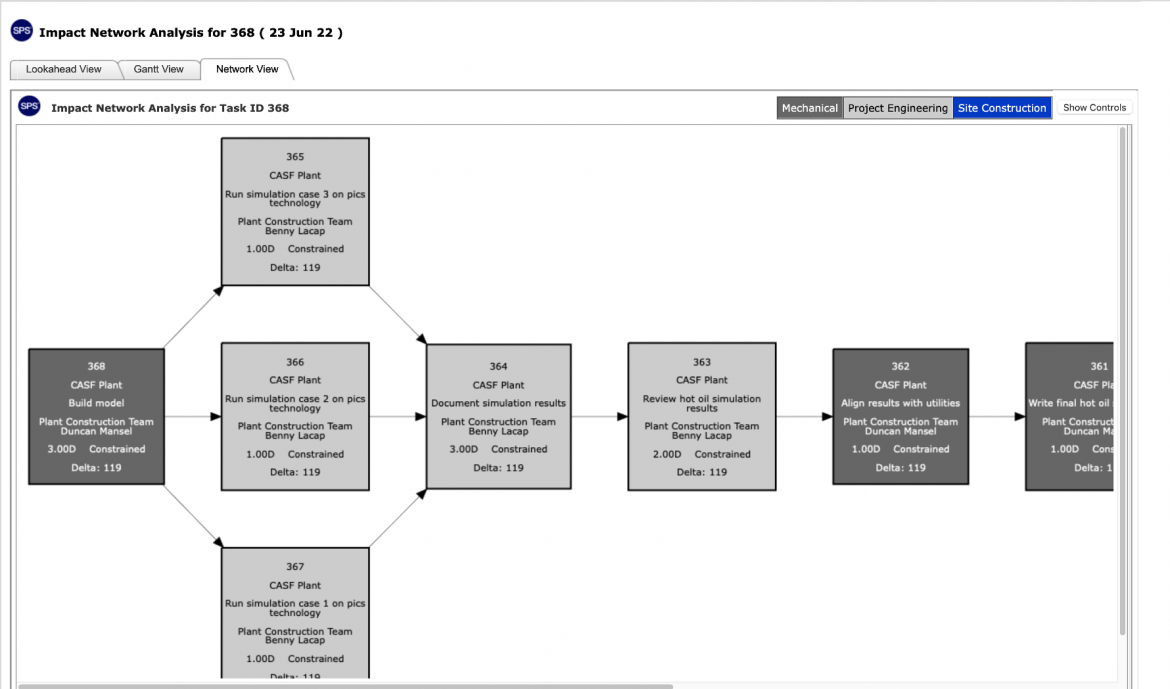
Impact Network Analysis will open in a new window and display the Milestones / Tasks that are affected by the selected Milestone / Task completed.
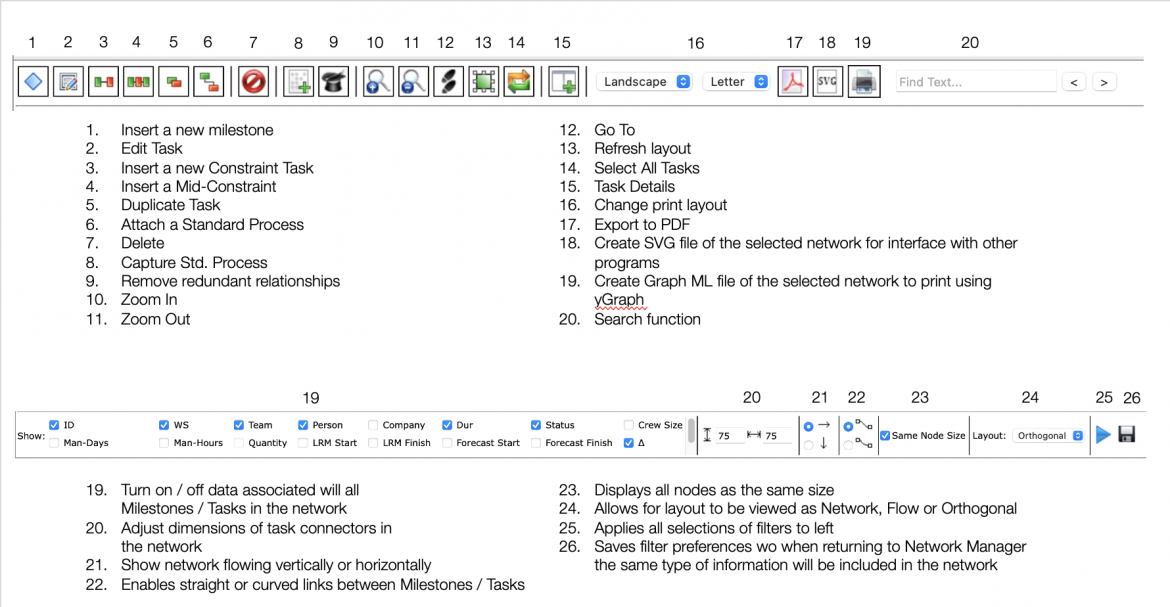
- The attributes shown on Impact Network Analysis can be limited by filtering by: LRM Start, Forecast Start, Work Structure, team, and team member, duration, etc.
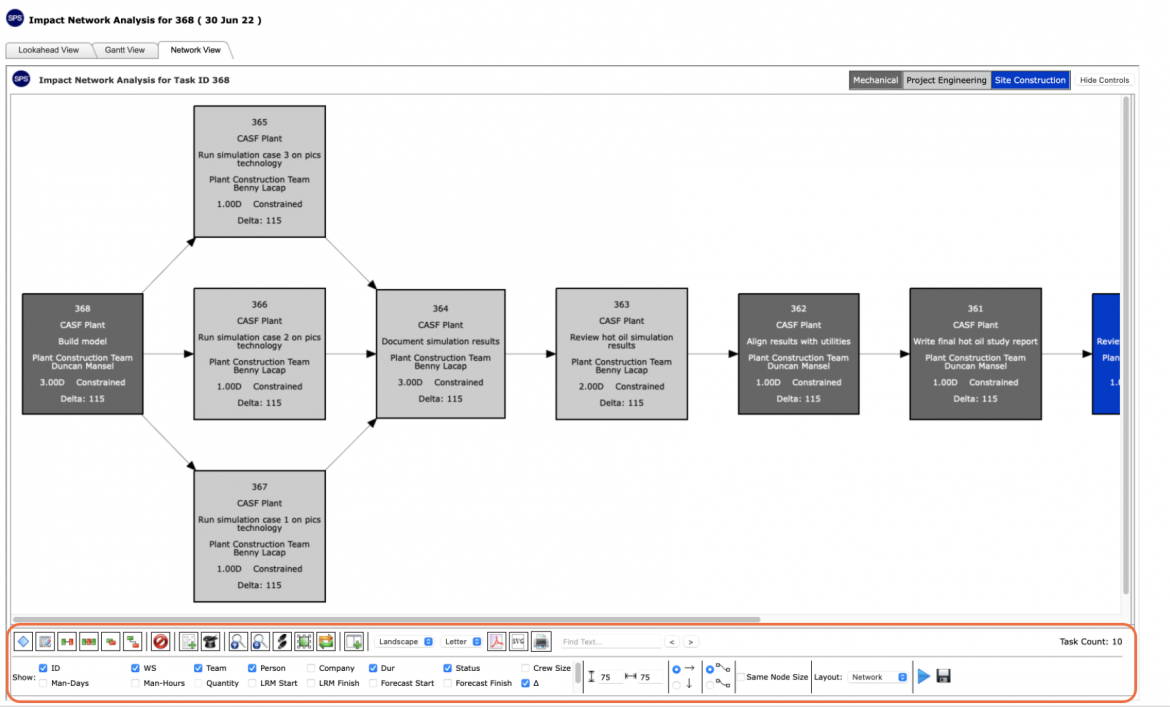
The Controls appear at the bottom of the window. The Controls allow you to edit, review, and print.
Method 2: Gantt Charter View
To access the Impact Network Analysis from the Gantt Charter view, complete the steps below:
- From the Lookahead dropdown list select the Gantt Chart.
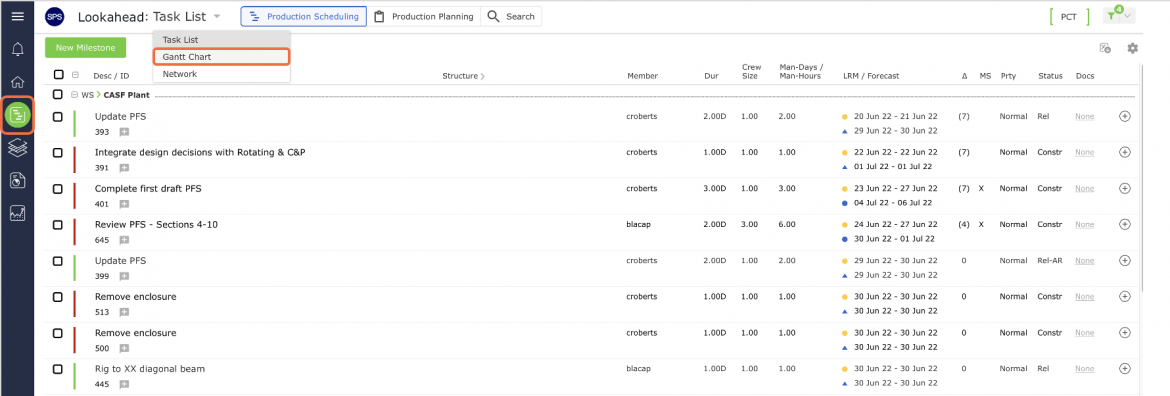
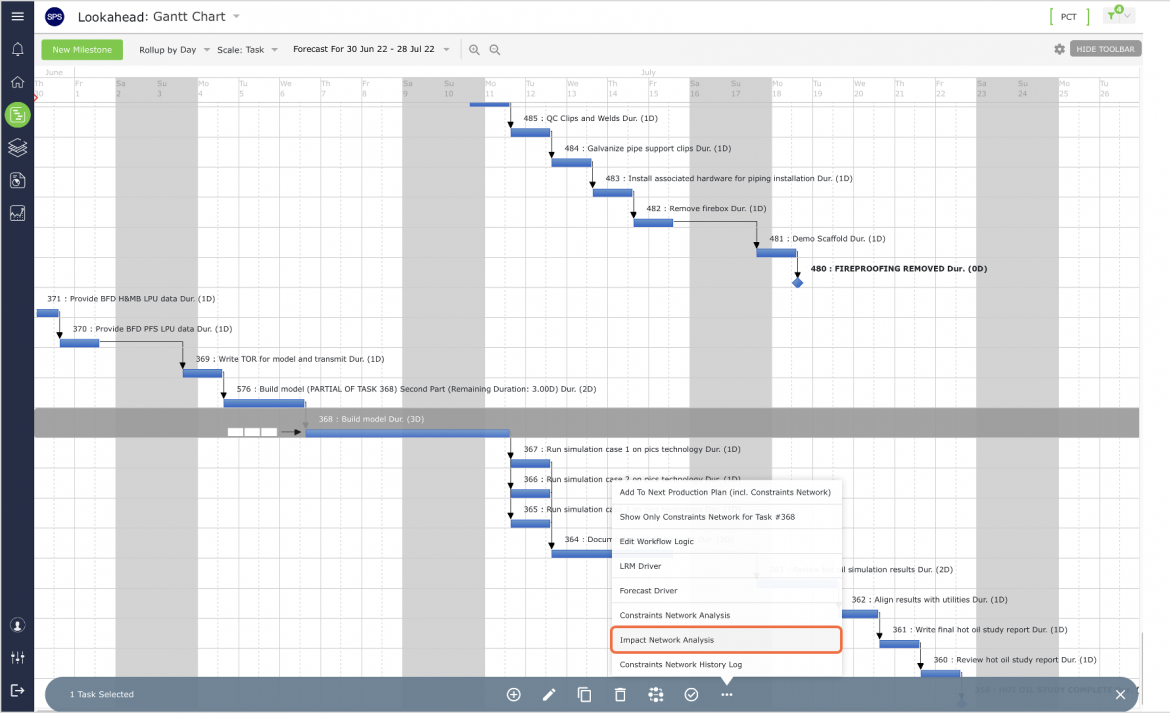
- Click once anywhere on the Milestone / Task Once selected, the task row will display a blue underline, then from the Floating Menu select Impact Network Analysis.
Note: If the selected Milestone / Task does not have any successors, Impact Network Analysis will automatically be disabled (the selected Milestone / Task impacts no work).
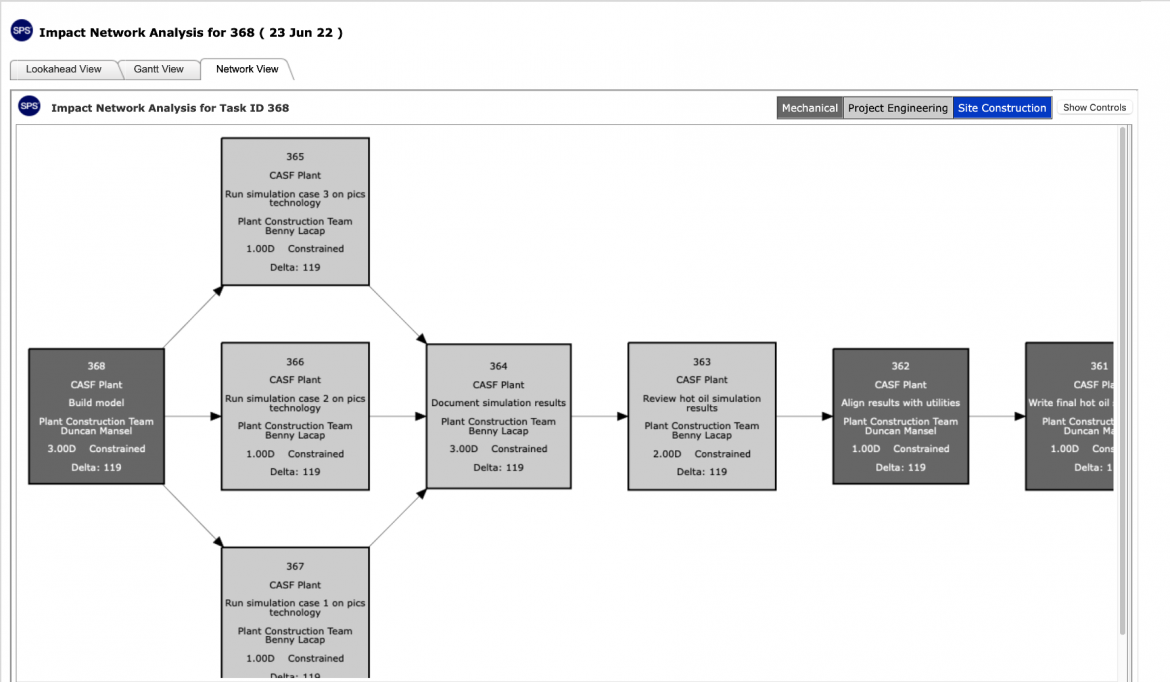
- Impact Network Analysis will open in a new window and display the Milestones / Tasks that are affected by the selected Milestone / Task completed.
Show or hide the filters by clicking the Show Controls button in the top right of the window.
- The Controls appear at the bottom of the window. The Controls allow you to edit, review, and print.
- The attributes shown on Impact Network Analysis can be limited by filtering by: LRM Start, Forecast Start, Work Structure, team, and team member, duration, etc.
- To print Impact Network Analysis, click the Export to PDF control and follow the prompts according to the specific browser you are using to export the file and print.