
Once closed out, a Production Plan is archived and is then accessible for viewing and printing through the Archived Production Plans report.
To access the Archived Production Plans report, complete the steps below:
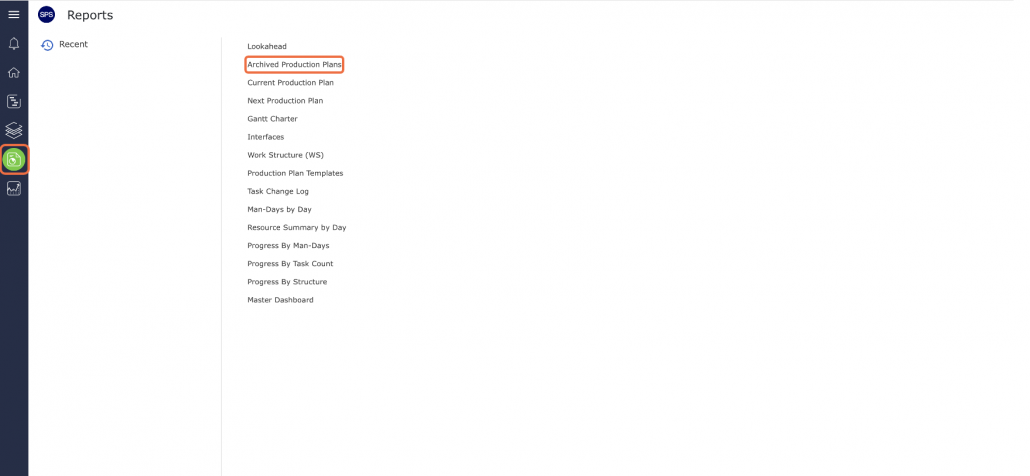
- From the Main Navigation Bar select the Reports, then select Archived Production Plans.
- When the Archived Production Plans window opens, it shows the most recently archived Production Plan for the team selected under the Team Menu. The report data can also be filtered to view other teams or subset data of the current team, using the filters or sorting by any of the underlined column headings.
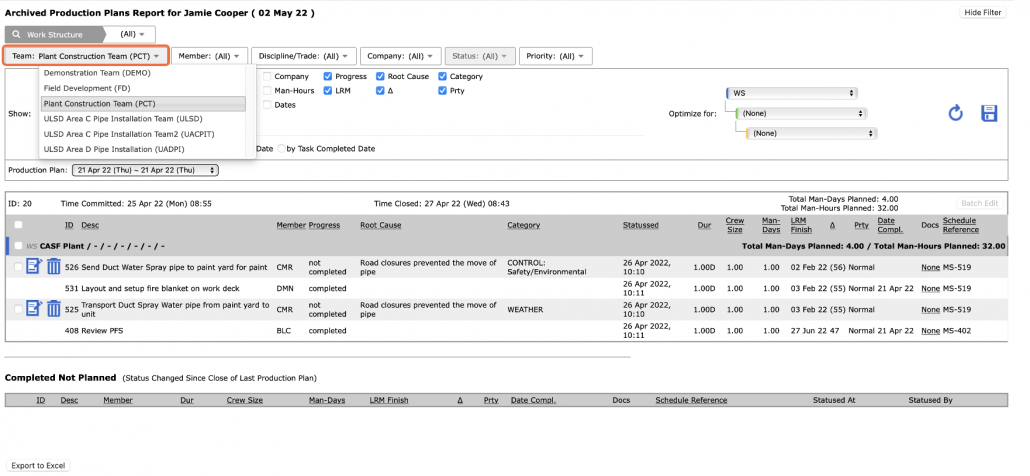
- Once the correct team is selected, choose the desired Archived Production Plan from the Production Plan drop-down, based on the start and end dates for the Plan.

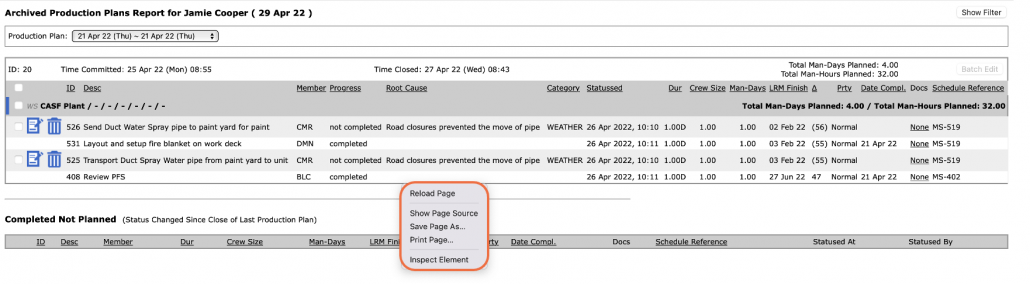
- To print the Archived Production Plan report, right-click anywhere on the Archived Production Plans report and select Print from the menu or simultaneously press the Ctrl and P keys on your keyboard.
- The Print Dialogue box opens as shown in the image below.
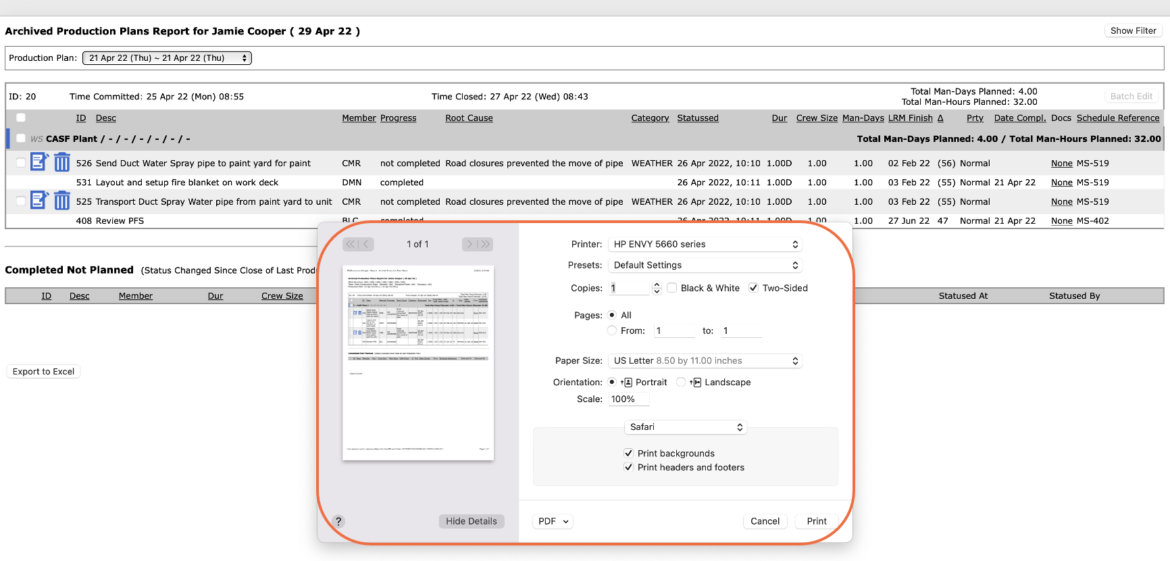
- Using the Print Dialogue box, change any desired print settings. Once all relevant print settings have been modified, click the Print button.
Note: Before printing the report, it is recommended you confirm whether the report fits the desired paper size.