
The Next Production Plan Report allows you to view and print all released tasks for a team. This report can be useful in certain cases, such as when an off-site team member needs to print out the set of released tasks for the team to review on-site with another team member to discuss which tasks to load on the next Production Plan.
To access the Next Production Plan report, complete the steps below:
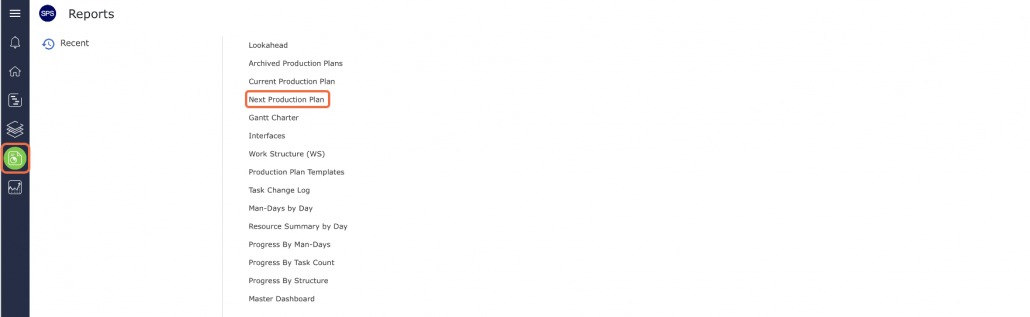
- From the Main Navigation Bar select the Reports, then select Next Production Plan.
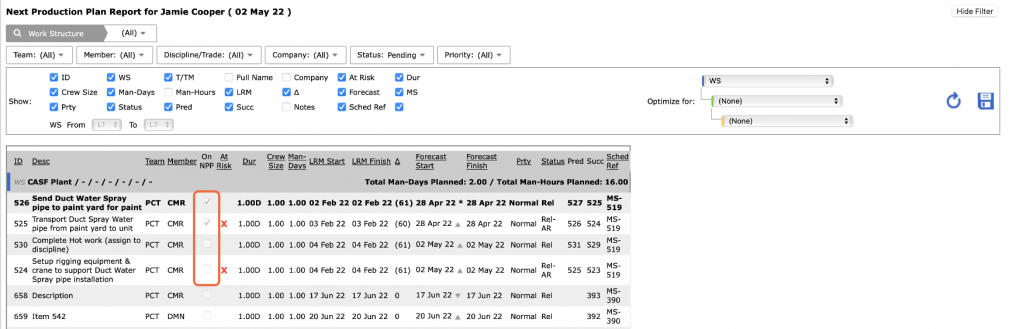
The Next Production Plan Report can also be filtered to view other teams, subset data of the current team, or sorted by any of the underlined column headings, using the filters shown below.
Note: Any tasks which have been selected to be loaded on the Next Production Plan are shown in bold text and are indicated by a checkmark in the box under the On NPP column.
As with other reports, no task editing is possible, and no tasks can be loaded on the Plan from the report. To edit a task, see Edit a Milestone / Constraint Task within the Production Scheduling section. For instructions on loading tasks to the Next Production Plan, see Load Tasks on the Next Production Plan.
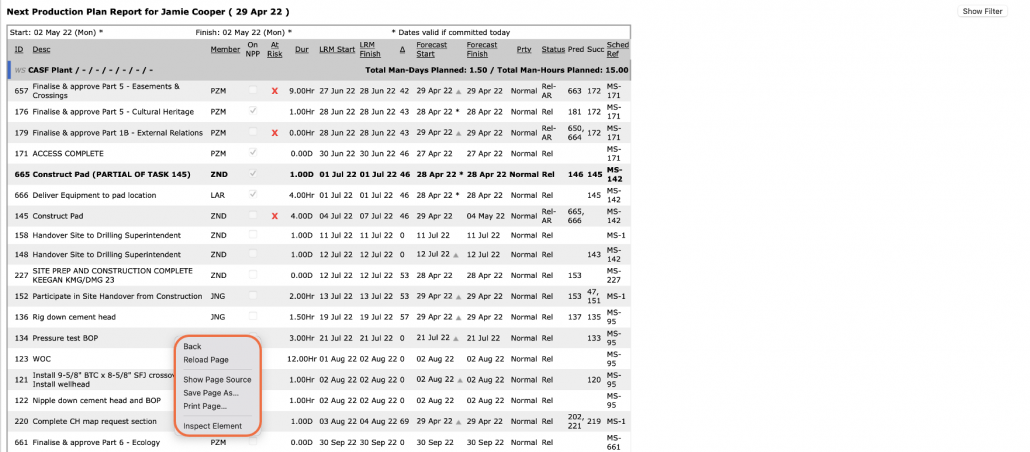
- To print the Next Production Plan report, right-click anywhere on the Next Production Plan report and select Print from the menu or simultaneously press the Ctrl and P keys on your keyboard.
- The Print Dialogue box opens as shown in the image below.
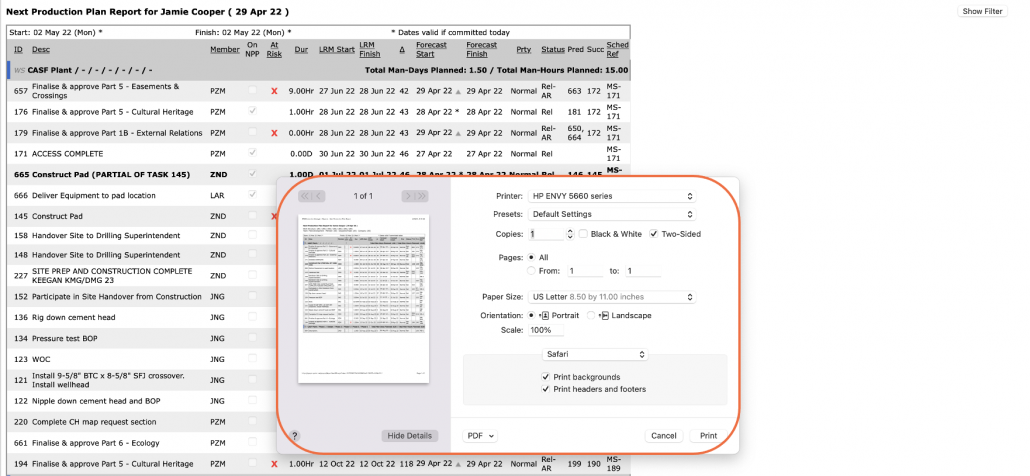
Using the Print Dialogue box, change any desired print settings. Once all relevant print settings have been modified, click the Print button.
Note: Before printing the report, it is recommended you confirm whether the report fits the desired paper size.