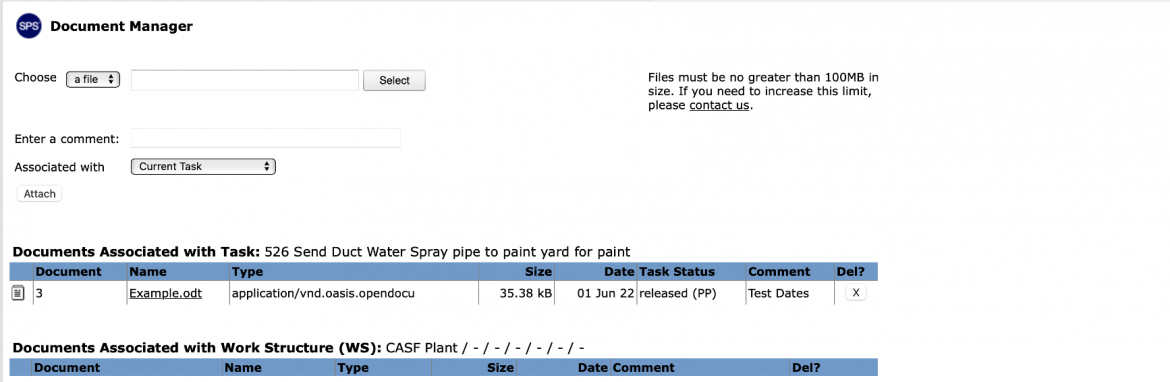
To attach a file or URL to a Milestone / Task or specific Work Structures complete the steps below:
- Open the Document Manager window by following the steps above in View Attached File / URL.
- In the Document Manager window, use the Choose drop-down to select the type of attachment (file or URL).
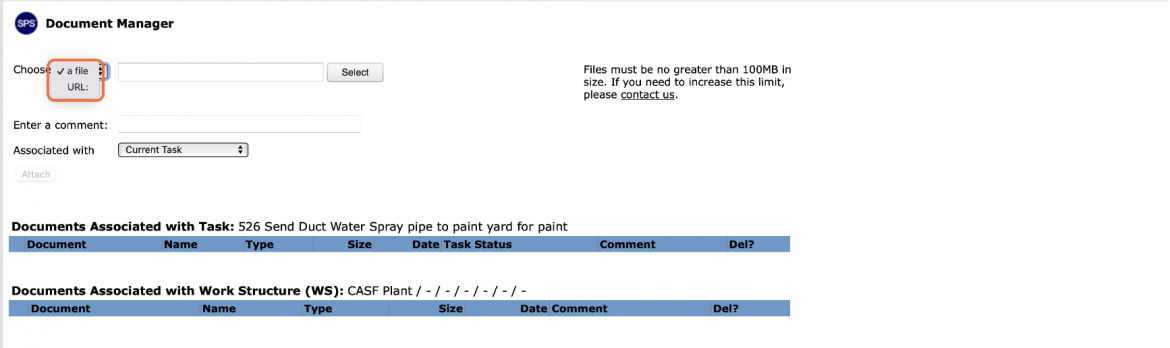
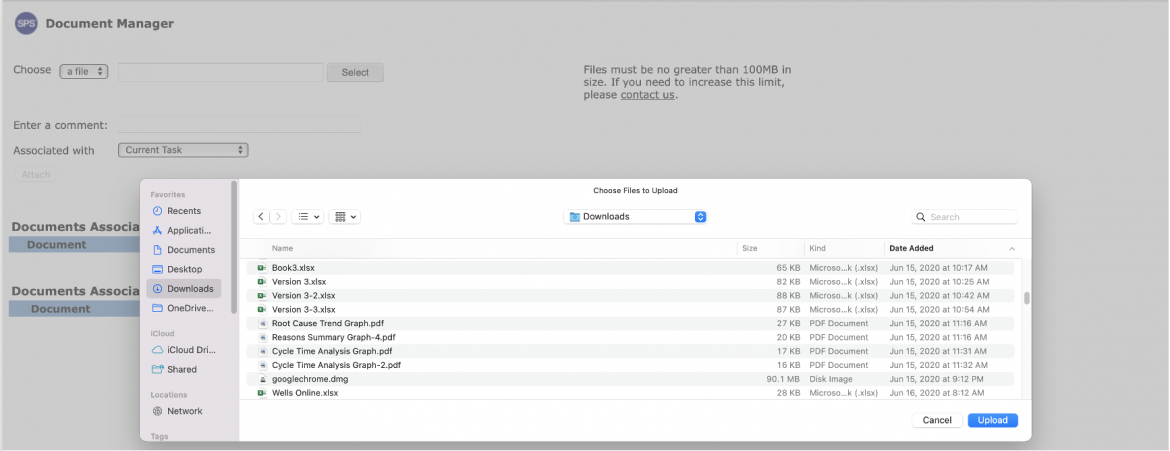
- To attach a file, select a file from the drop-down, click the Select button, then browse to locate and select the desired file as shown below.
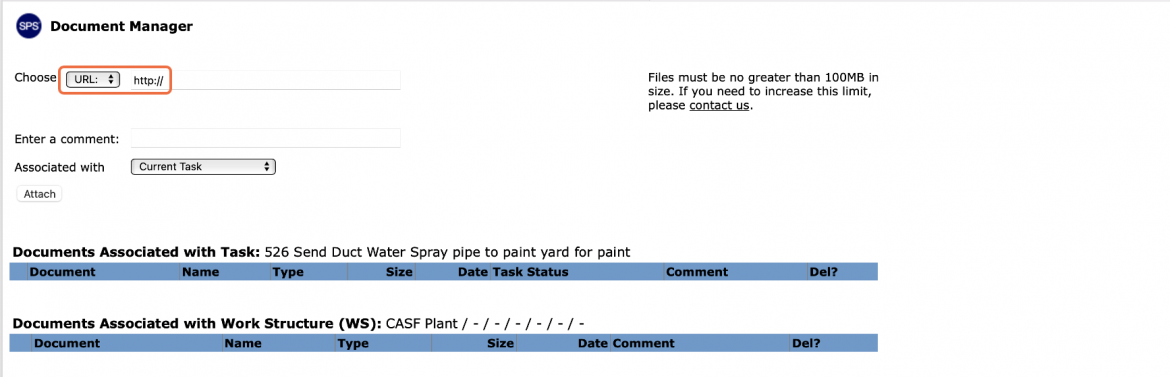
- To attach a URL, select URL. When this option is chosen, the “http://” portion of the website address will appear in the Choose field. Fill in the remaining portion of the address.
- Once the correct file / URL is selected, you can enter a brief comment regarding the information about the file / URL in the Enter a comment field. In the ‘Associated with’ drop-down, choose Current Task to attach the file to the selected task only, or Current Work Structure to attach the file to the Work Structure to which that task belongs.
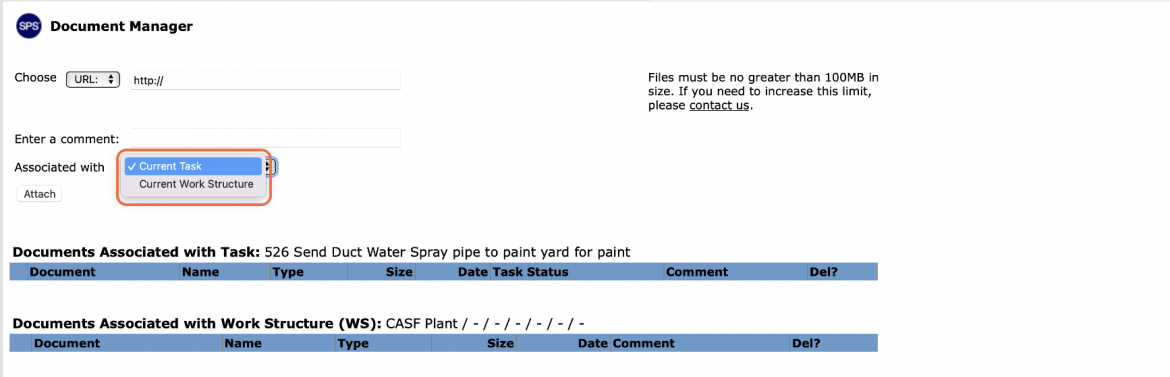
- When satisfied with the information shown, click the Attach button to attach the file / URL.
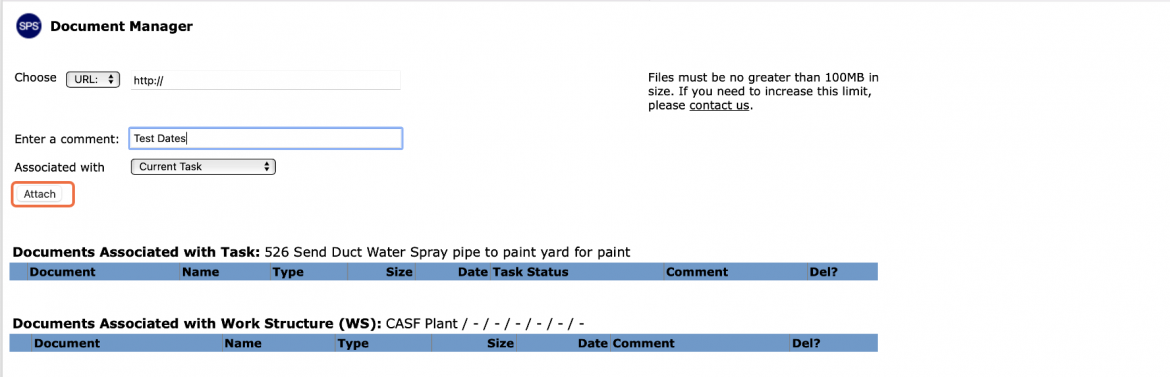
- Once attached, the file / URL and its relevant details will appear below in either the Documents Associated with Task or Documents Associated with Work Structure (as applicable).