
Effective and reliable planning relies on the use of robust and accurate standard processes. To maintain a cohesive logic in daily planning, the Broken Standard Process Logic analytic enables this by identifying any changes that have occurred to the logic of specific standard processes. The idea is, to minimize tasks outside of standard process workflow logic and optimize the standard processes to eliminate future occurrences.
To access Broken Standard Process Logic, complete the steps below:
- From the Main Navigation Bar select Analytics, then select Broken Standard Process Logic.
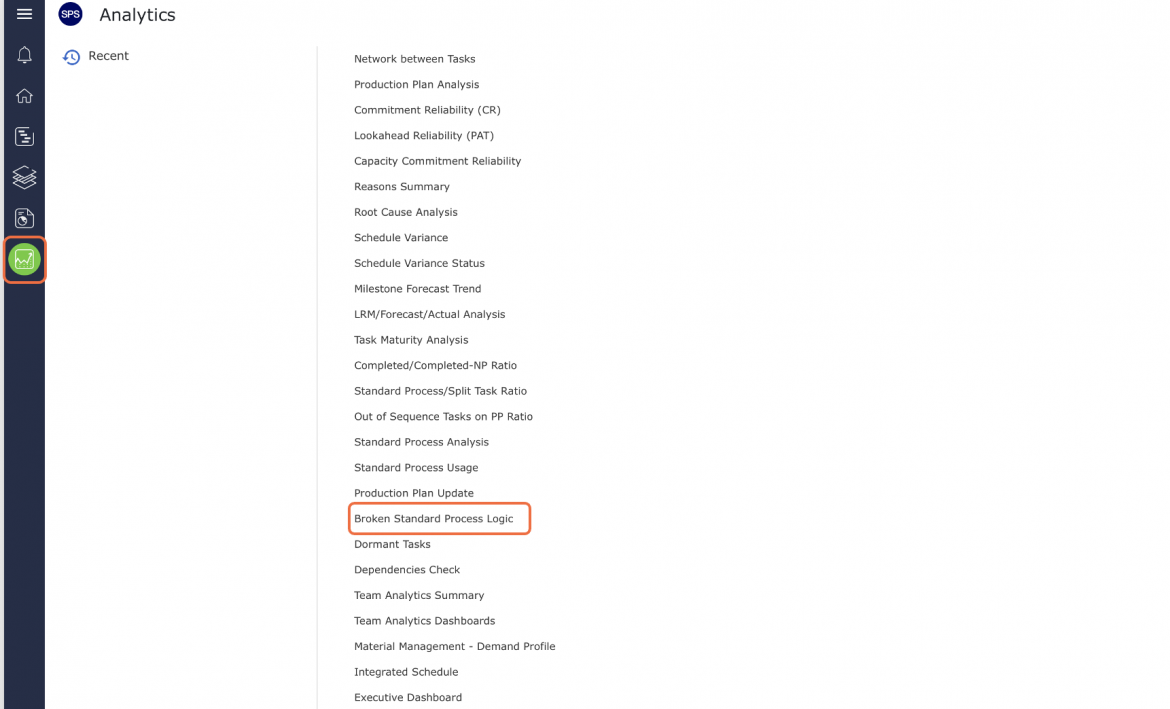
- Broken Standard Process Logic opens in a new window and automatically displays the Analytic for the team selected under the Team Menu with the default date range of one week from the current date.
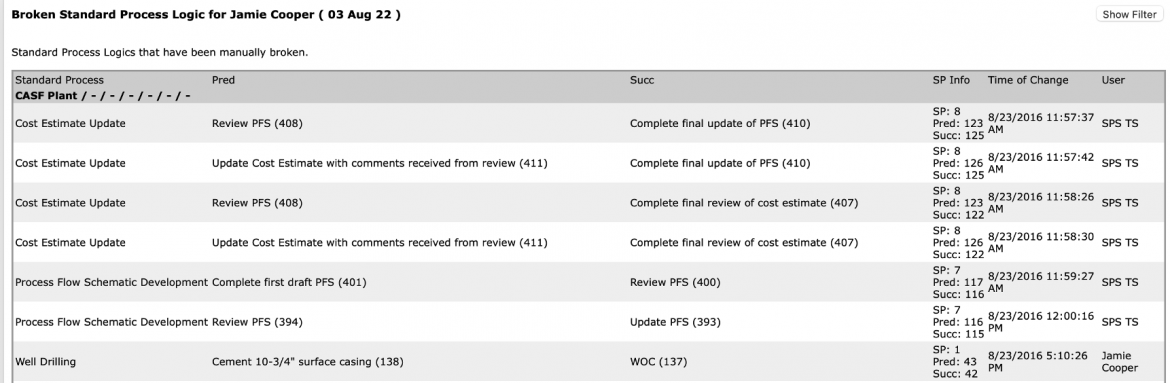
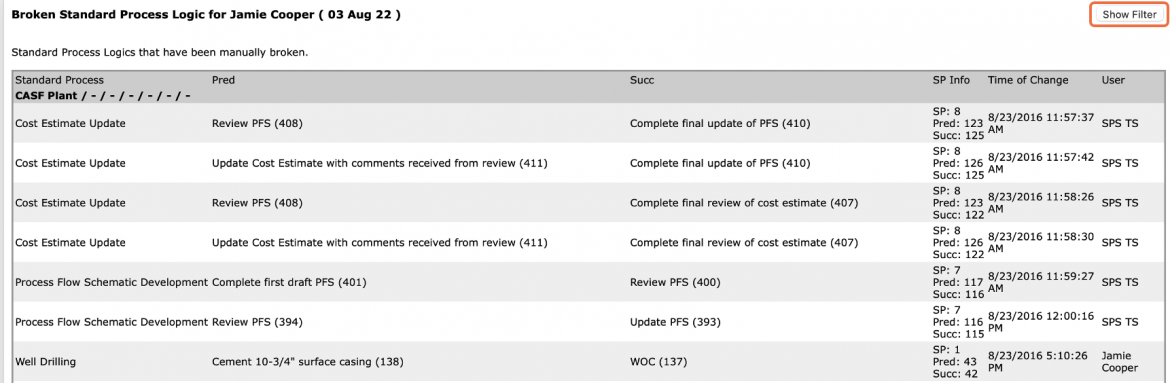
- Click the Show Filter button to display the filters above the Broken Standard Process Logic table.
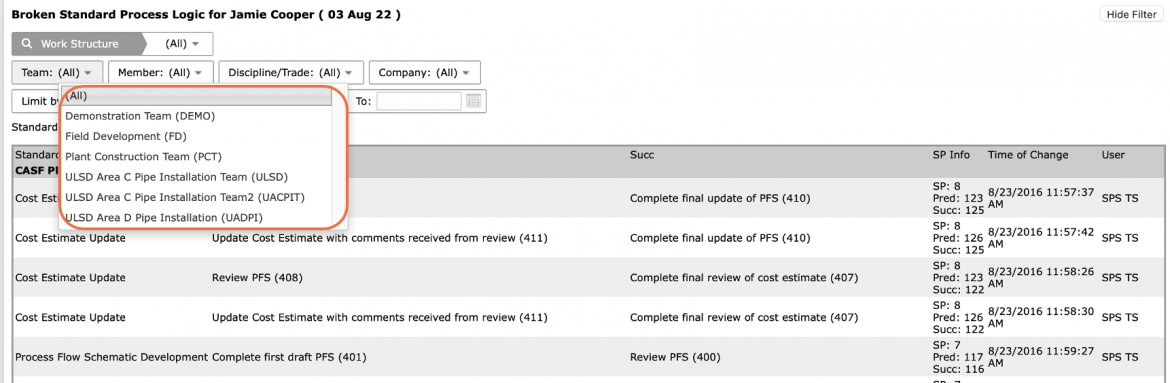
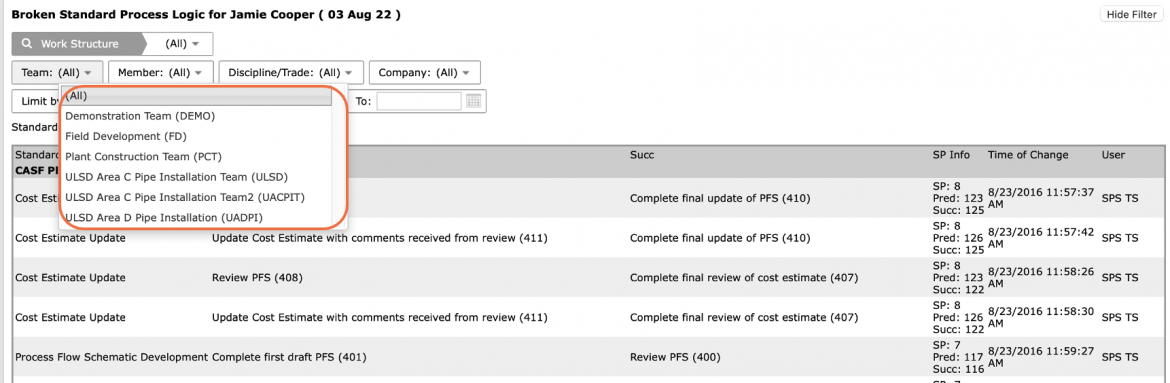
- To view Broken Standard Process Logic for another team, select the desired team under the Team drop-down.
- If a different date range is desired, or no data is visible, adjust the From and To dates or check: Include All, to show all historical data.
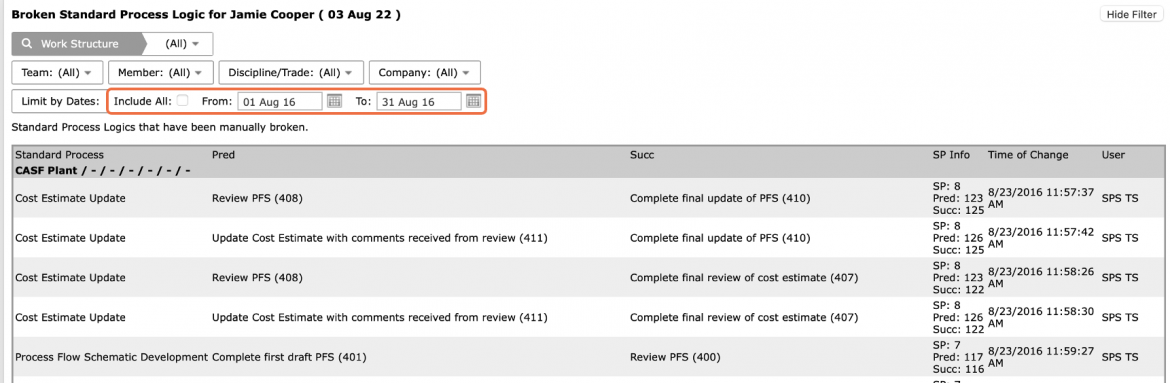
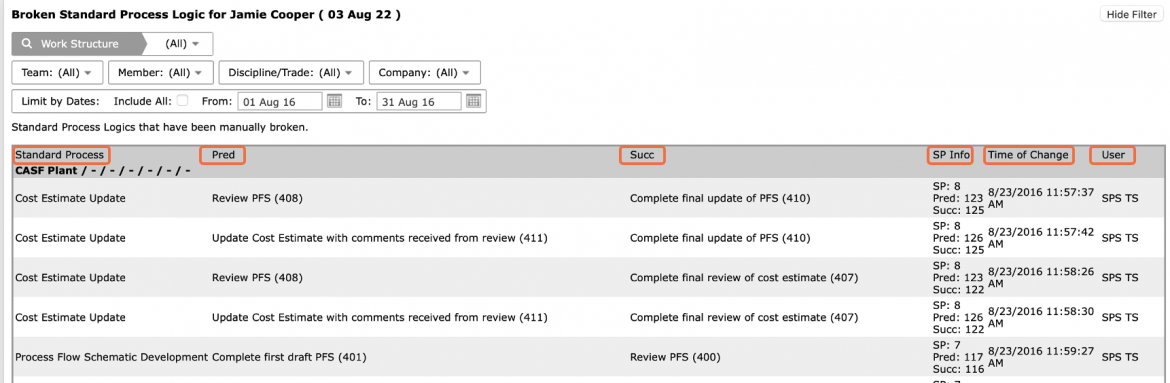
- For the selected team(s), Broken Standard Process Logic displays the standard process task(s) and information for the Predecessor and Successor logic that was modified: Standard Process Information, Time of Change and User that performed the modification.
- In addition to viewing Broken Standard Process Logic for a single team, to view an aggregate Broken Standard Process Logic for all teams select: All, under the Team drop-down.
This feature displays all of the broken logic to show global issues where cohesive logic was not maintained across the project.
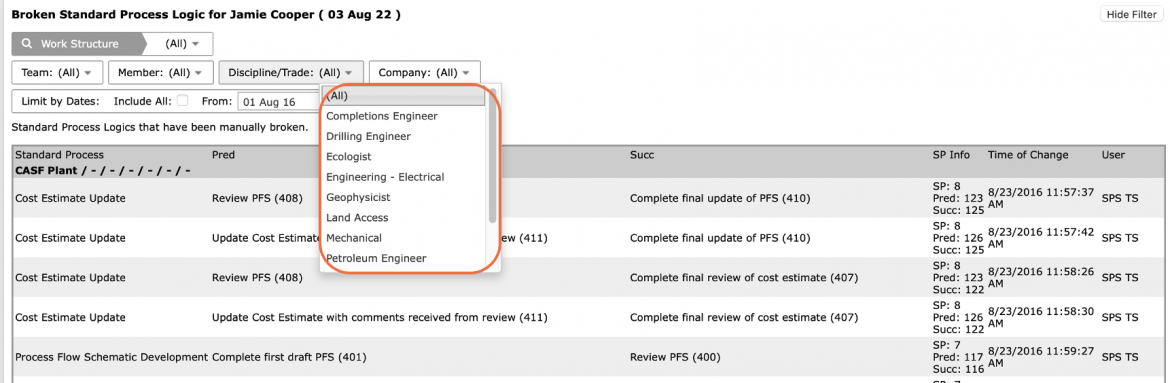
- You can also filter by Member, Company, Discipline / Trade and Work Structure.
- To print Broken Standard Process Logic, options may differ based on your browser. For instance, if you are using Internet Explorer, right-click anywhere on Broken Standard Process Logic graph and select Print from the menu or simultaneously press the Ctrl and P keys on your keyboard.
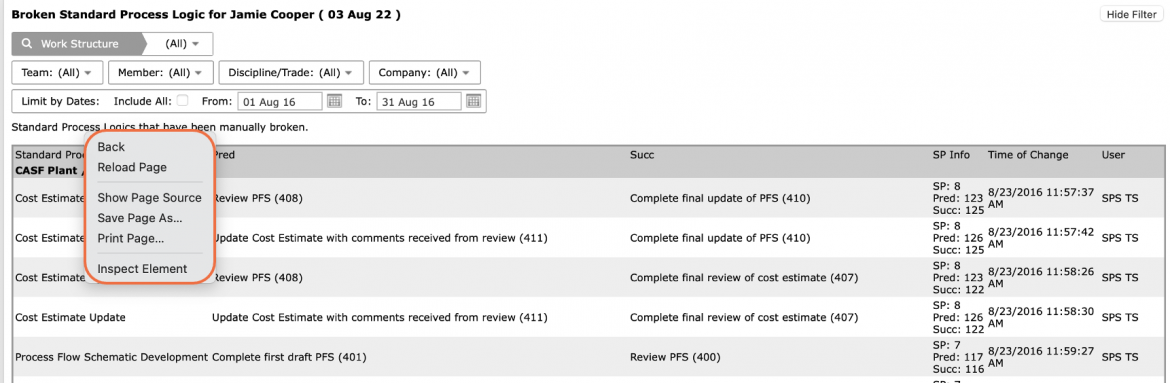
- The Print Dialogue box opens.
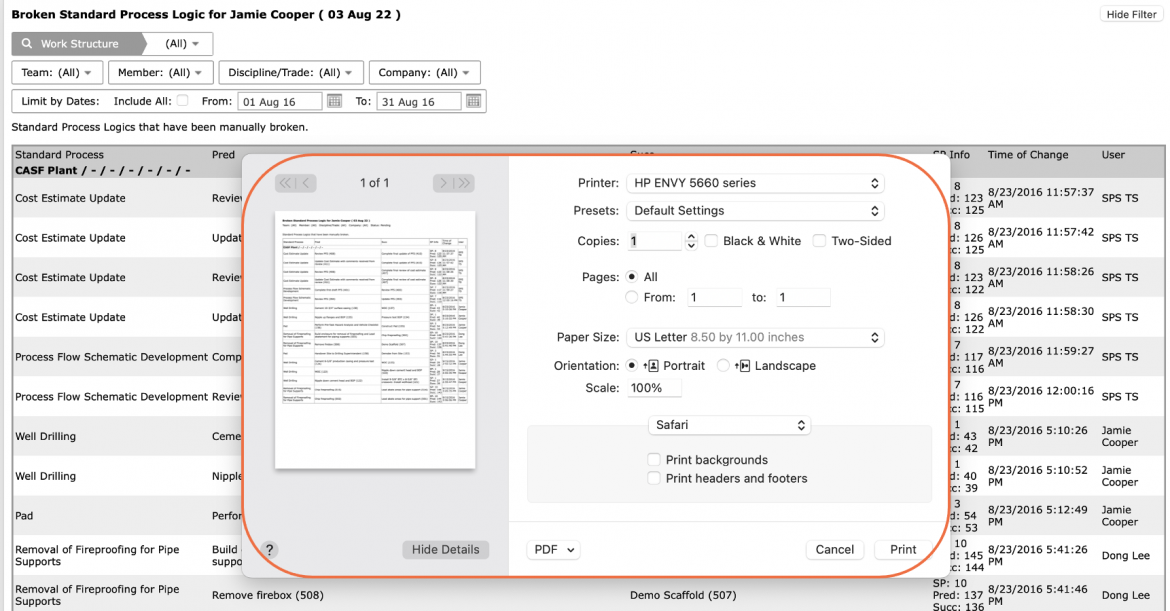
- Once all relevant printing settings have been modified, click the Print button.
Note: Before printing, it is recommended you confirm the fit to the desired paper size.