
Once all desired tasks have been loaded on the Next Production Plan and the team agrees on the finalized Plan, a user with Team-Level Access can commit to the Production Plan.
To commit the Next Production Plan complete the steps below:
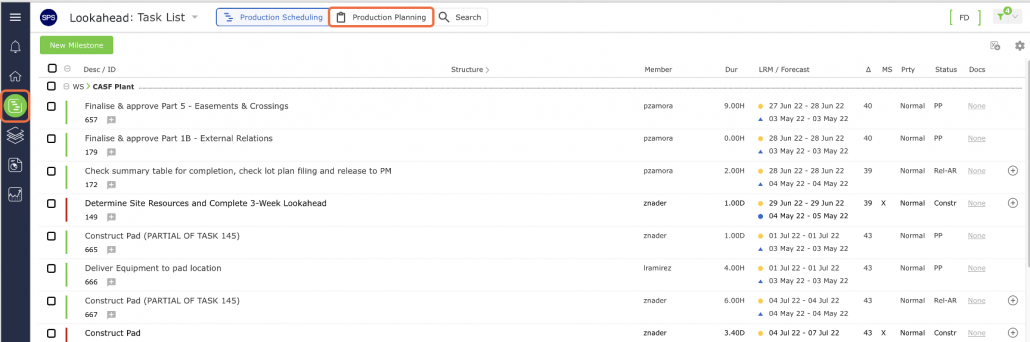
- From the Main Navigation Bar select the Lookahead, then select Production Planning mode as shown in the image below.
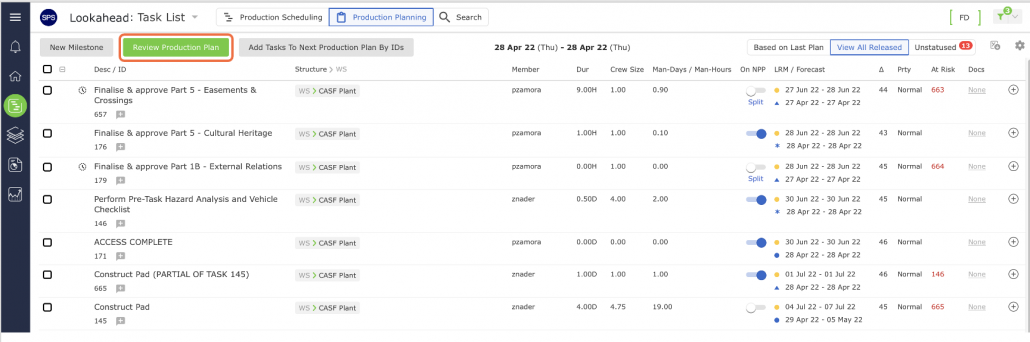
- Click the Review Production Plan button as shown in the image below.
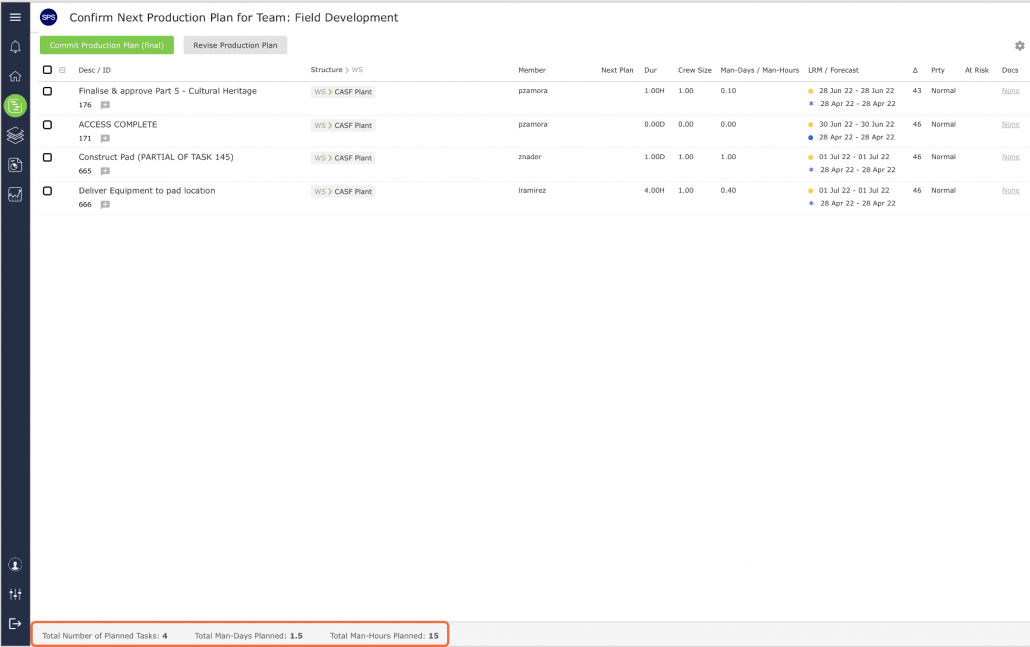
- As the team loads tasks to the Production Plan, the total number of Planned Tasks and Man-Days (if enabled) for the loaded tasks is displayed at the bottom of the window. This allows the team to compare the total number of tasks and Man-Days planned against available capacity.
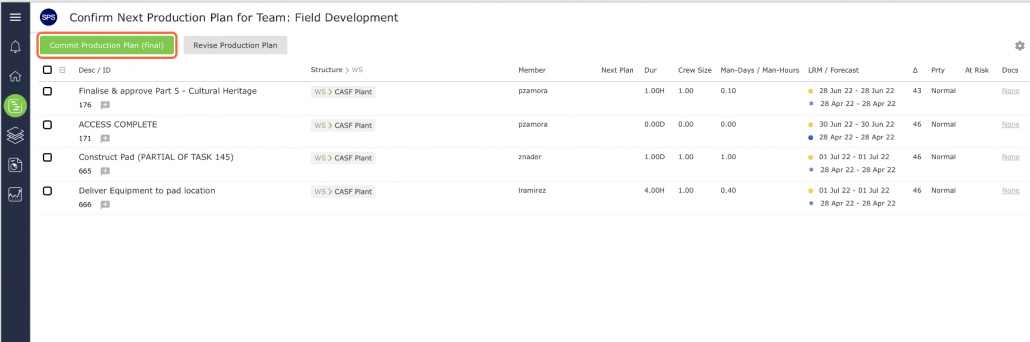
Before the final commitment, in the Confirm Next Production Plan view, verify the status of all tasks and then click the Commit Production Plan (final) button to perform the final commitment. If there is an inaccurate commitment, click the Revise Production Plan button to return to the Production Planning mode view and modify it as shown in the image below.
Note: By clicking the Commit Production Plan (final) button, the Production Plan will be committed without an option to modify or go back to the previous view. Once the Next Production Plan is committed, no additional tasks may be added or removed.
If you are unable to see the Commit Production Plan (final) button, it means that you do not have Team-Level Access.
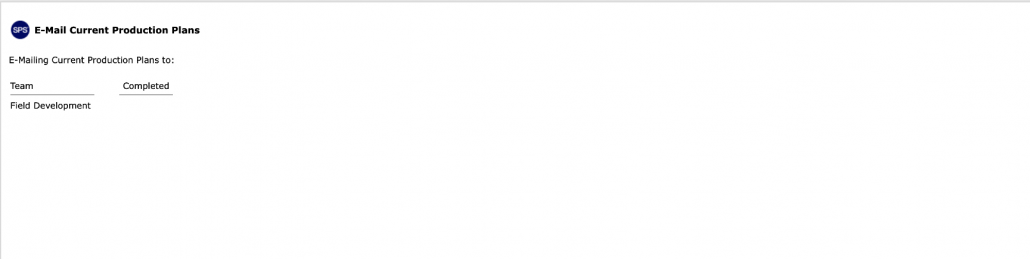
- A confirmation window will display showing that the Production Plan has been sent to Team Subscribers as shown in the image below. After emails are sent, this window will automatically refresh to the Lookahead. DO NOT manually close this window as it will abort the automatic Production Plan email function. If this is accidentally done, see Retrigger the Production Plan Email.
Once committed, the Next Production Plan becomes the Current Production Plan. The Current Production Plan may then be viewed by selecting Update Current Production Plan from the View Menu or from the Reports Menu.