
In order to maintain Work Structure integrity and validity, you should always coordinate with your System Administrator prior to creating new, or modifying existing, Work Structures. Work Structure can be created in SPS|PM by a System Administrator with level 5 access through one of three methods: 1) Insert a new Milestone, 2) Work Structure window or 3) the Import Function.
To create a new Work Structure in SPS|PM, use one of the following methods.
Method 1: Insert New Milestone
To create a new Work Structure by inserting a new Milestone, complete the steps below:
- Complete the steps under Insert Milestone / Task in Production Scheduling, however, to create the new Work Structure, select Add New from the desired Work Structure drop-down Level 2 – 7 as shown in the image below.
Note: Work Structure Level 1 is defined as a Domain and can only be created as a new project. See Add New Project in Administration for more information.
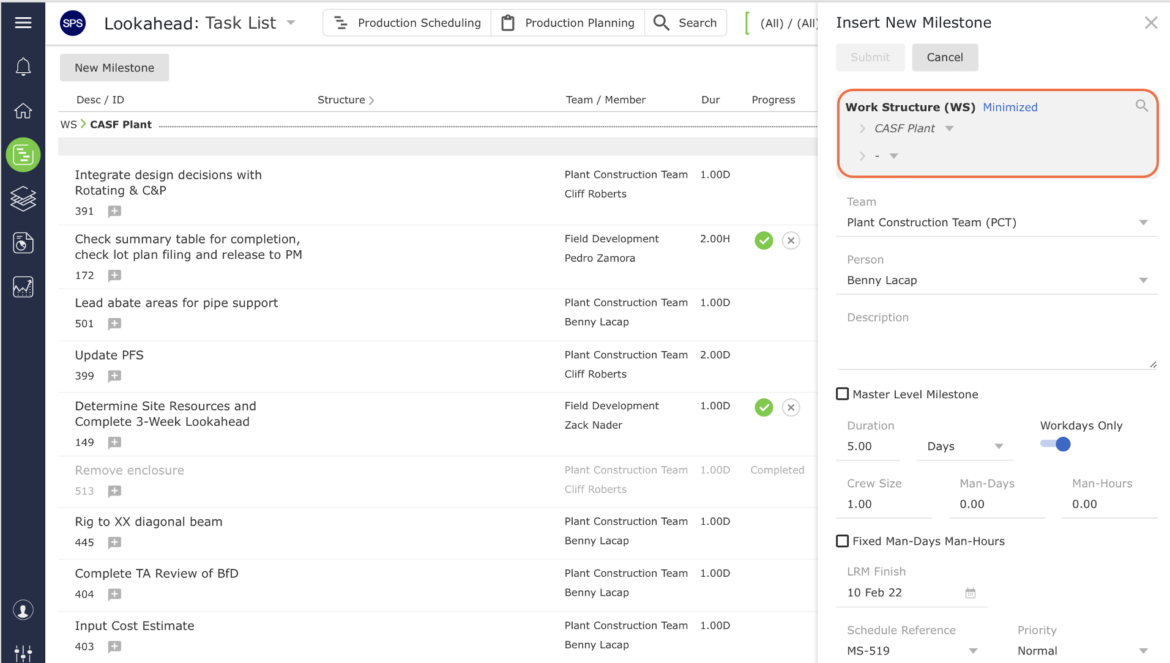
- In the pop-up, enter the desired title for the new Work Structure. When finished, click the Okay button.
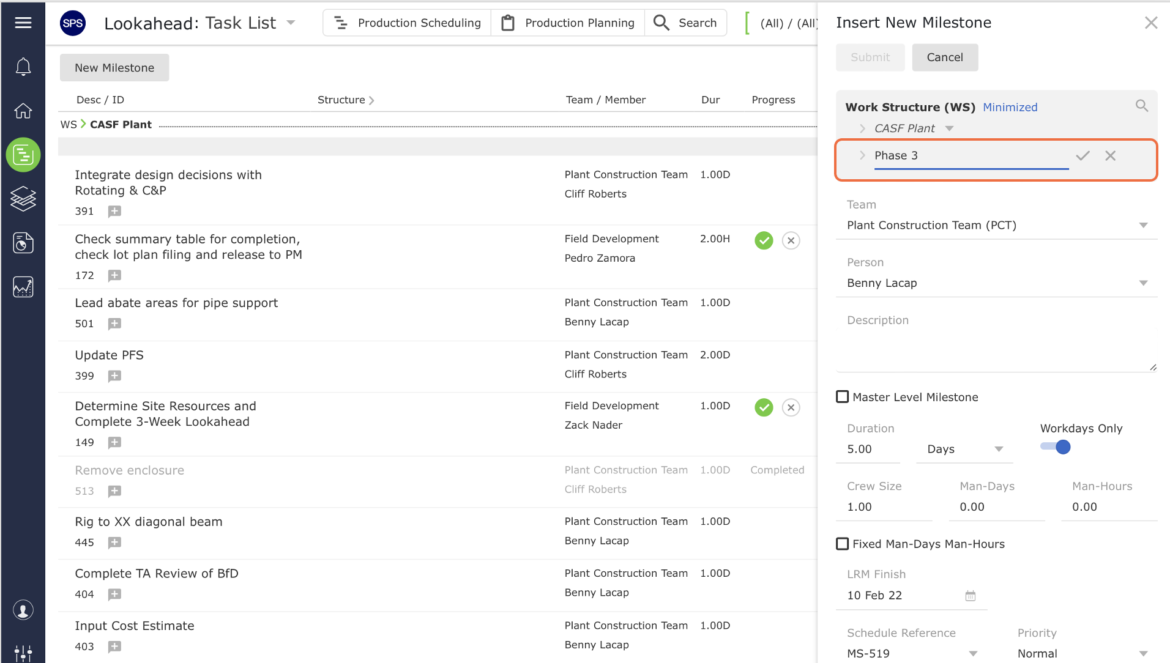
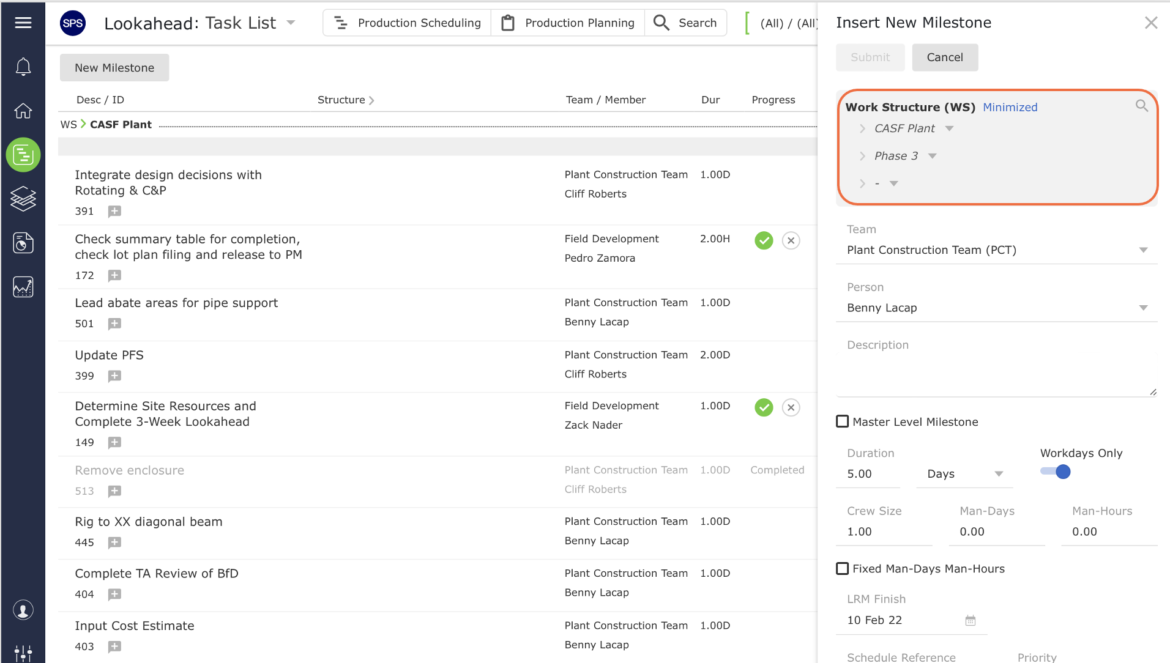
- The new Work Structure displays the Level at which it was created. Click the Cancel button to close the window, as you do not need to enter any other Milestone / Task attributes when creating a Work Structure. Or, if you desire to create a new Milestone / Task, populate the attributes and click the Submit button.
Note: The new Work Structure will NOT be visible in the Lookahead view or any other views until Milestones / Tasks are created using the new Work Structure and the view where the Milestone / Task is being created from is refreshed.
Method 2: Work Structure Window
To create a new Work Structure using the Work Structure window, complete the steps below:
- From the Main Navigation Bar select Tools, then select Work Structure (WS).
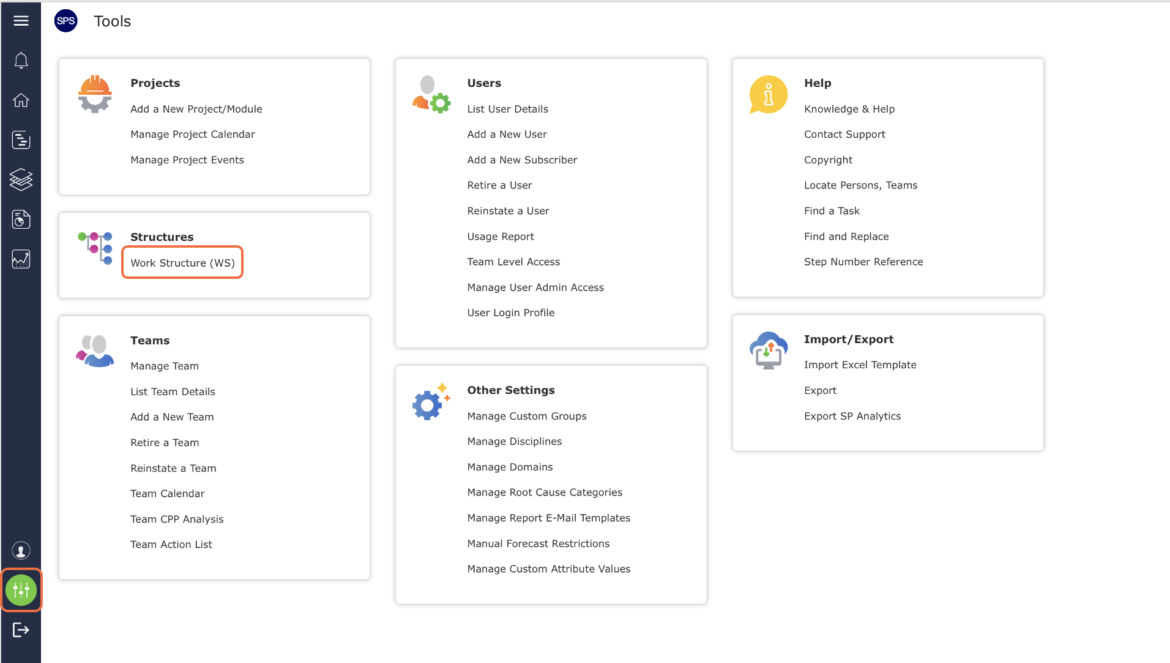
- The Work Structure (WS) window opens and displays all existing Work Structures.
To view more or less of the Work Structure, click the Expand (+) button and Collapse (-) button next to the desired Level to view / hide Levels.
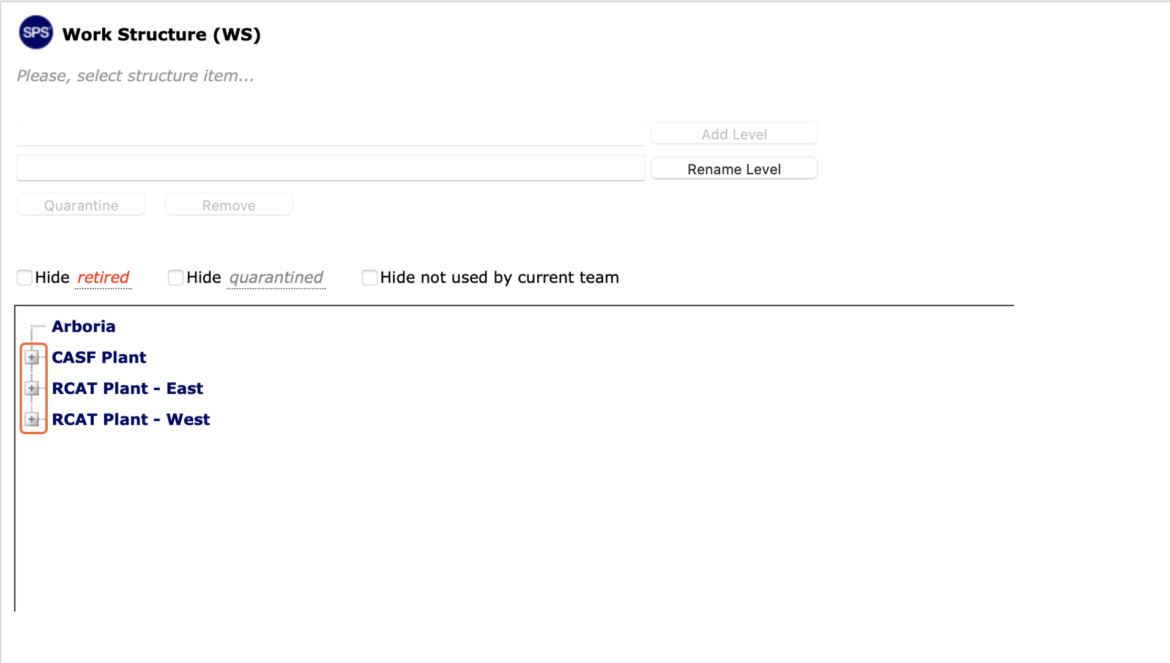
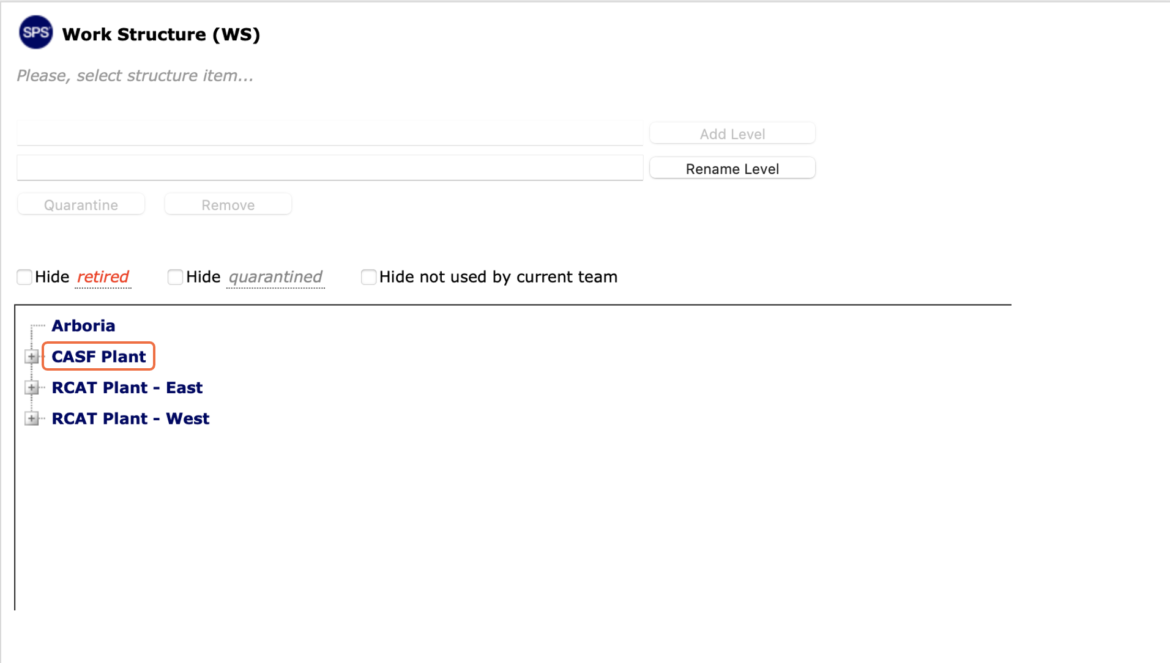
- To add a Level 2 Work Structure, select the desired Domain by clicking once on the Domain title. Once selected, the Domain title will display a reverse gray background.
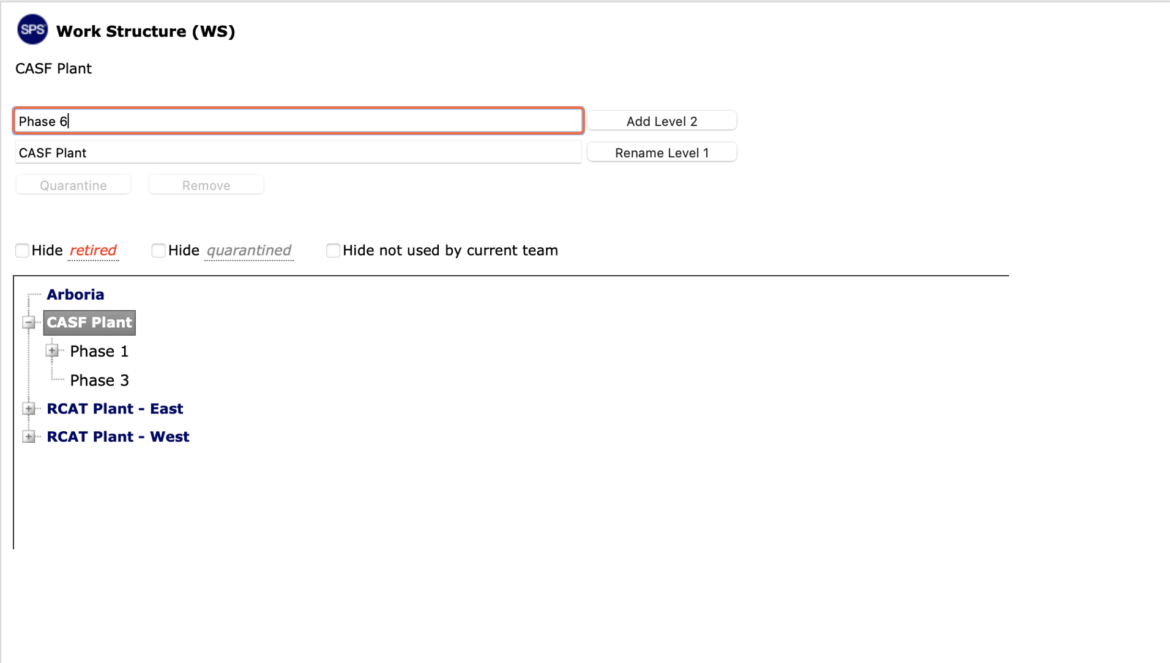
- Enter the desired title for the new Work Structure. When finished, click the Add Level 2 button.
- The new Work Structure Level 2 displays below the Domain Level 1 under which it was created.
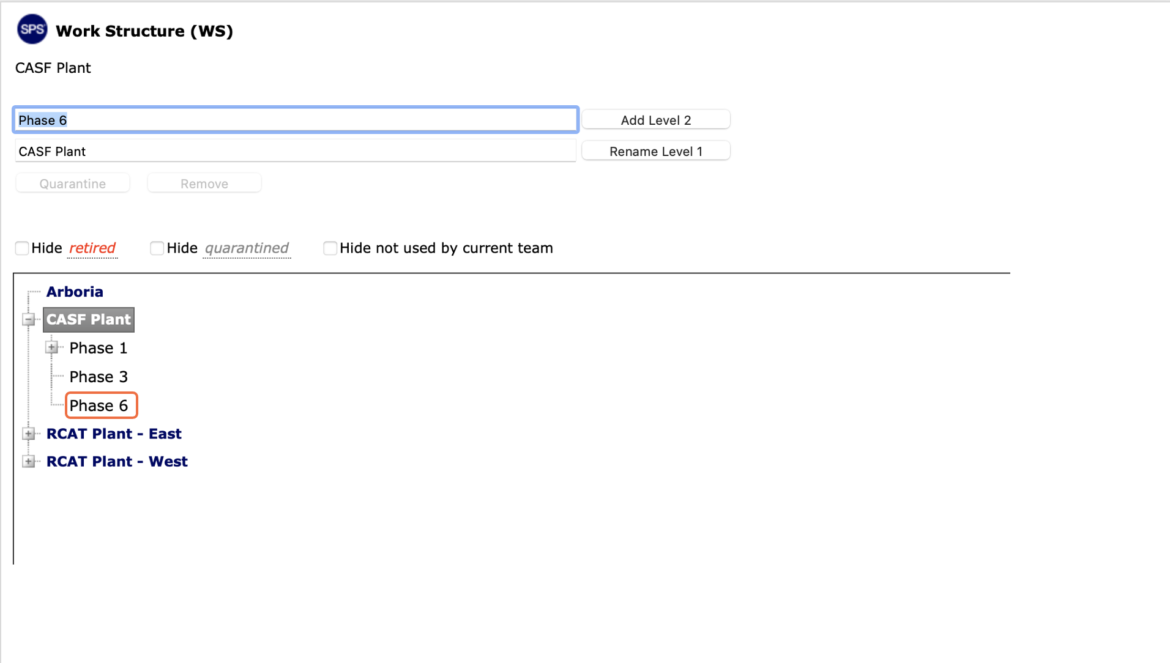
- Unlike Method 1: Insert New Milestone, in Method 2: Work Structure (WS) Window, the new Work Structure will be IMMEDIATELY visible in the Lookahead view or any other views.
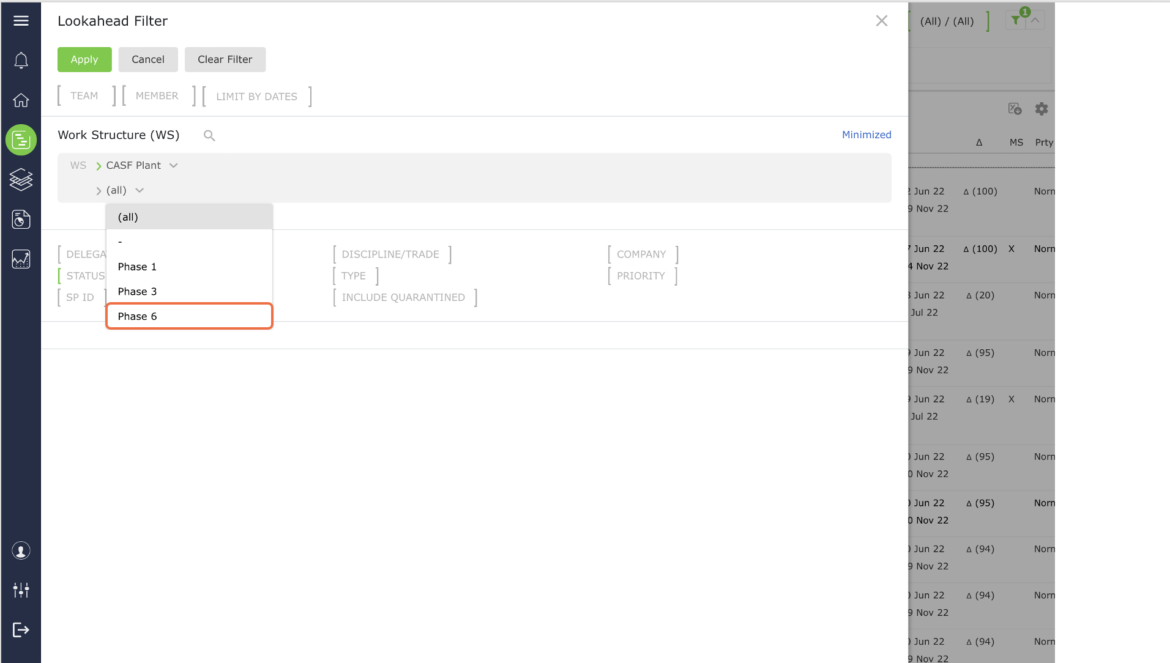
- To add a Level 3 – 7 Work Structure, in the Work Structure (WS) window, select the desired Level under which the new Level will be created, by clicking once on the Level title. Once selected, the Level title will display a reverse gray background.
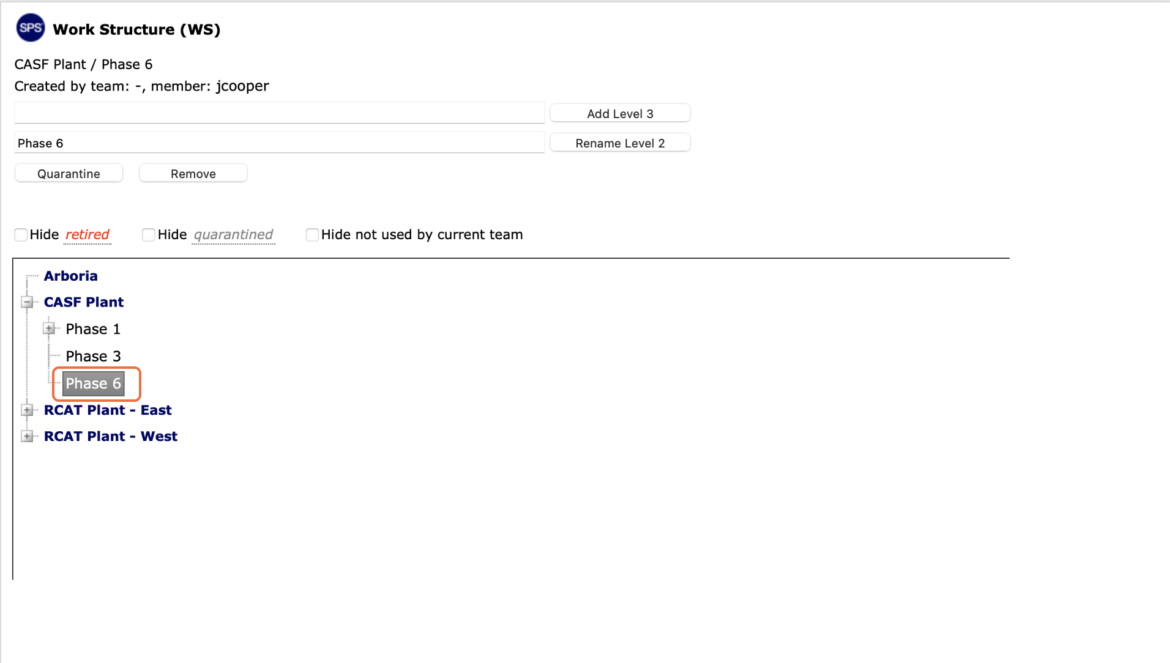
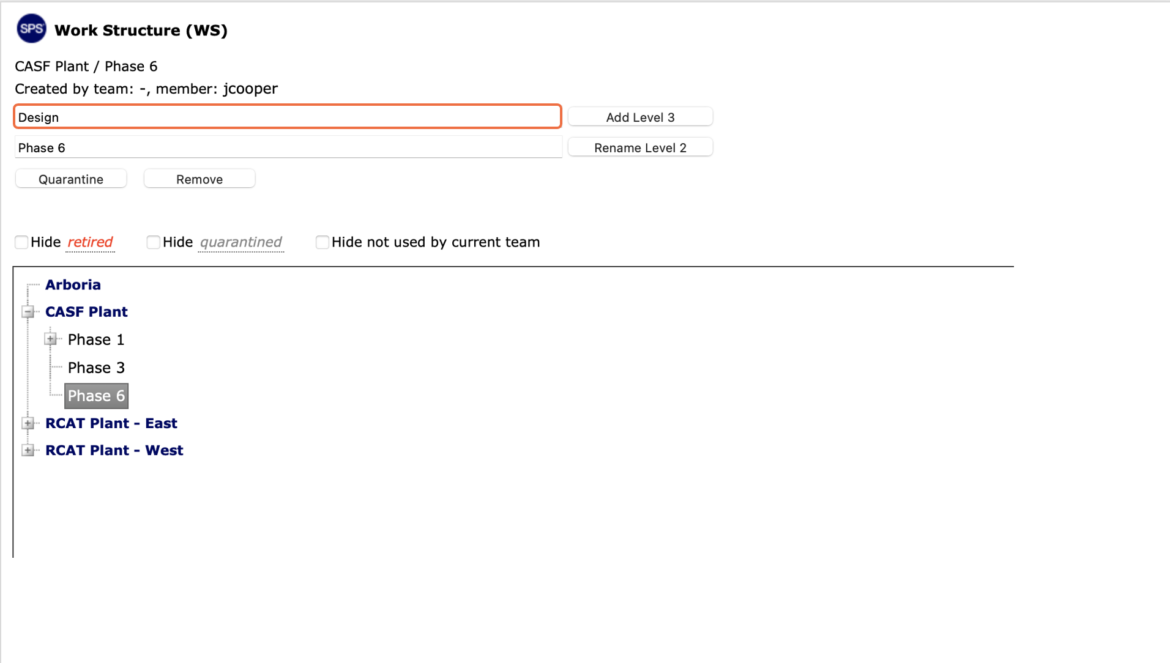
- Enter the new Level name and then click the Add Level 3 button. If adding a new Level 4, 5, 6 or 7 title, the Add button will display the applicable Level e.g., Add Level 4, Add Level 5, etc.
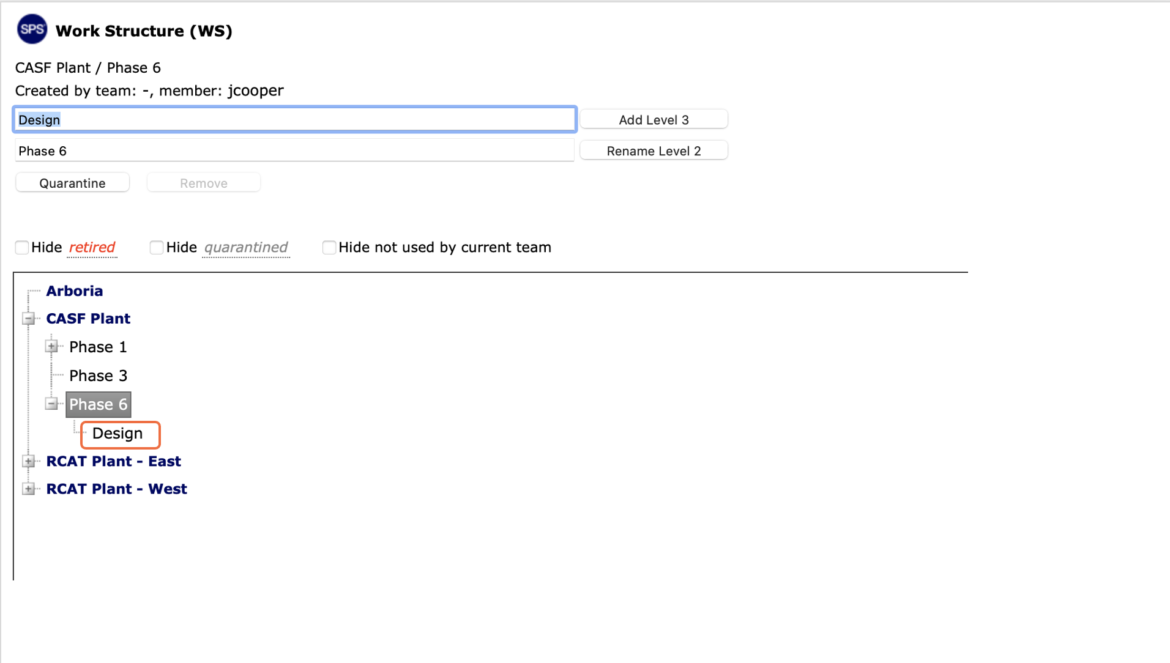
- The new Work Structure Level 3 displays below the Domain Level 2 under which it was created.
- To add additional Work Structure Levels, repeat the above steps.
Method 3: Import Function
The Import function in SPS|PM is used to import data and can also be used to create Work Structure. See the Import Data section within Import / Export Data for more information.
Note: In order to maintain Work Structure integrity and validity, you should always coordinate with your System Administrator prior to creating any new, or modifying existing, Work Structures.