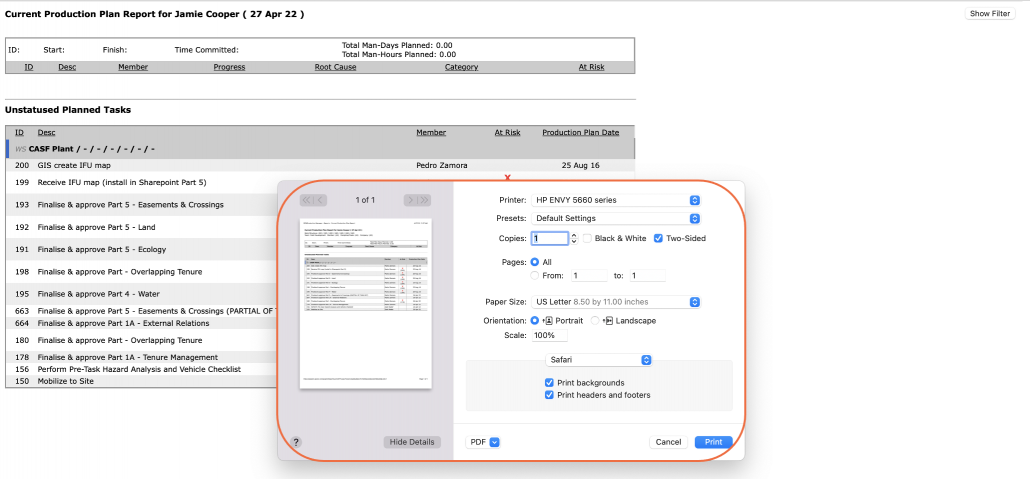
Having quick access to all tasks committed for execution for a given Planning Horizon allows users to further monitor the completion of that work. To enable this, the Current Production Plan report becomes a tool for viewing and printing the Current Production Plan for a given team or across many teams. The Current Production Plan report contains the Milestone / Task description and responsible team member for each Milestone / Task on the Current Production Plan. An example of when the Current Production Plan report can be of value is for printing and distributing the Current Production Plan to field-level team members and contractors or all team members immediately after the Production Plan is committed.
To access the Current Production Plan report, complete the steps below:
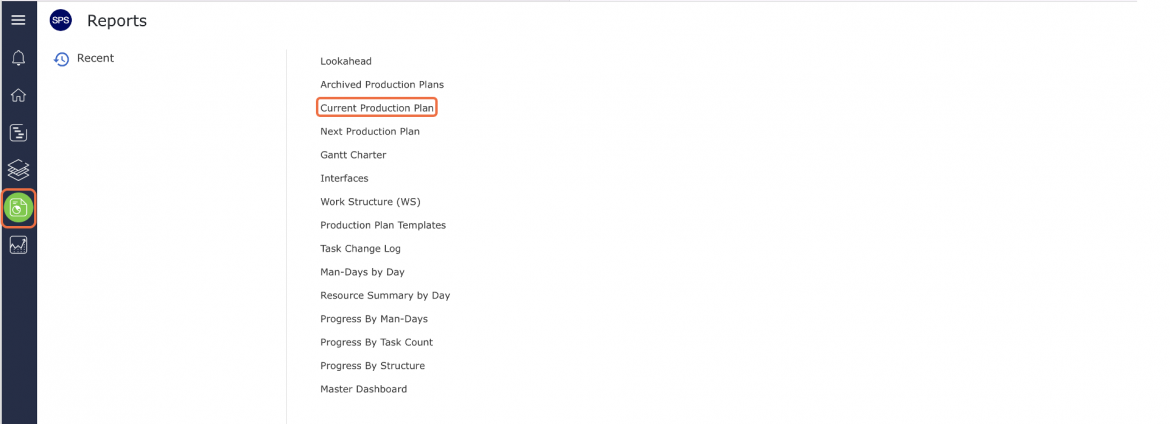
- From the Main Navigation Bar select the Reports, then select Current Production Plan.
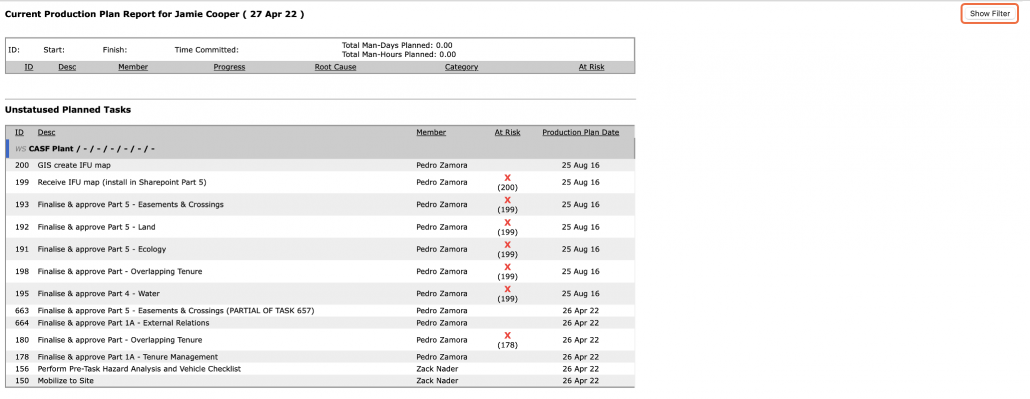
- The Current Production Plan report opens in a new window and automatically displays the Current Production Plan for the team selected under the Team Menu. Click the Show / Hide Filter button to display or hide the filters above the report.
- To view a Current Production Plan for another team, select the desired team name in the Team drop-down.
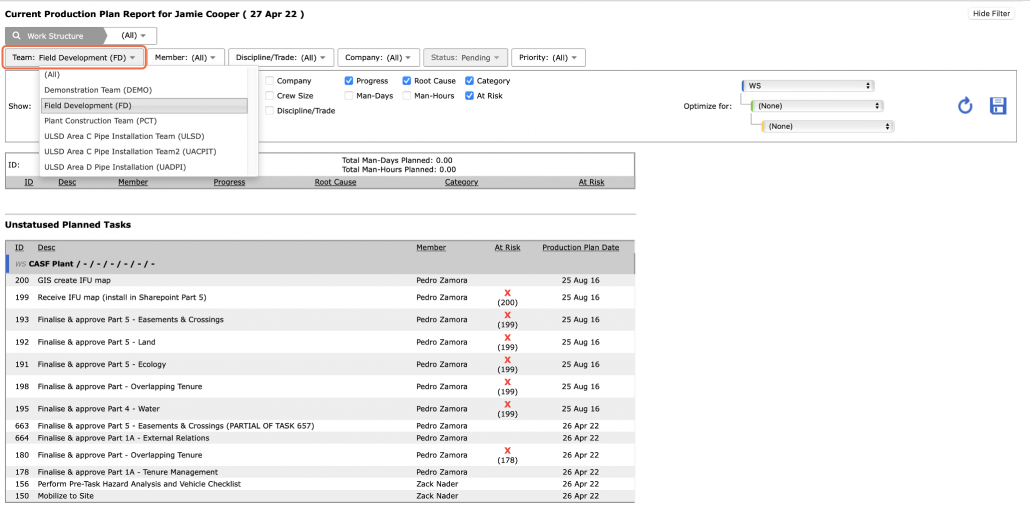
- Once the desired team is selected, select Work Structure, Member, Milestone / Task Status and any other attributes to filter for the desired data.
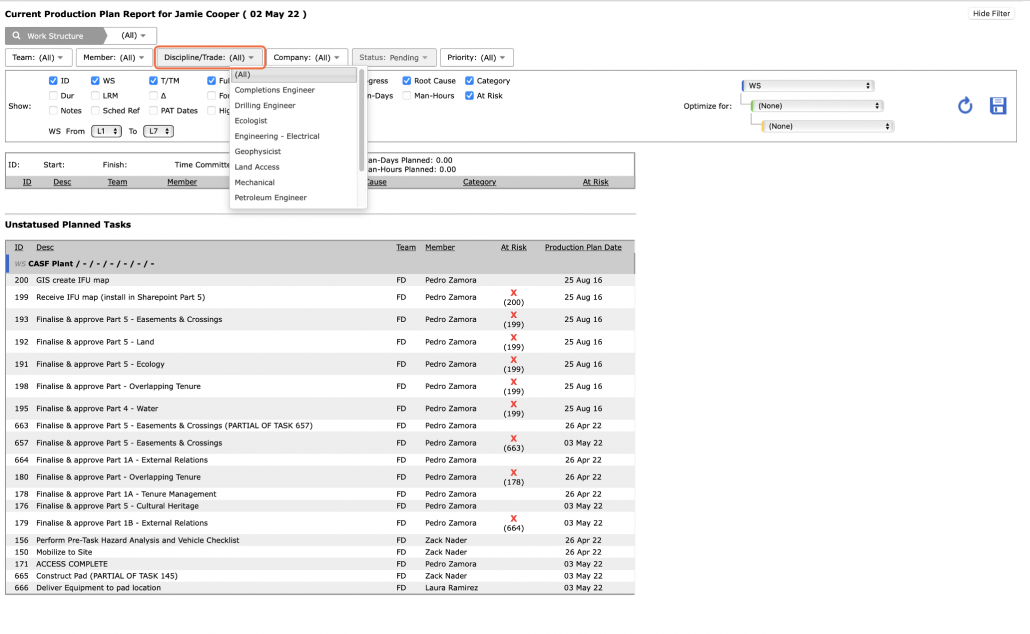
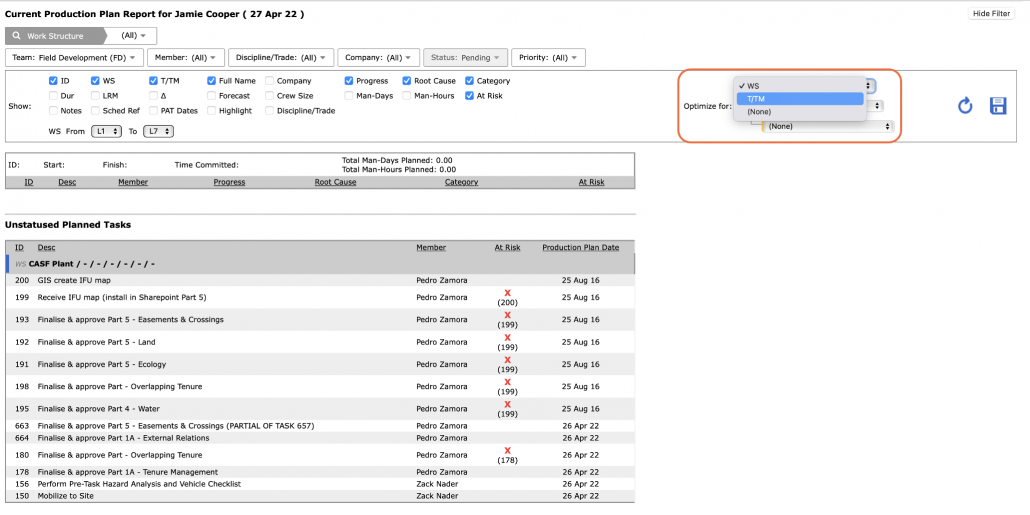
- Sort the data by clicking on any of the underlined column headings according to the structure and attribute values selected in the Optimize for drop-down list. Alternatively, to unlock the use of predefined structures and attributes, in the Optimize for drop-down list select “(None).” This allows clicking on any column heading to sort in ascending order. Click a second time to reverse the sort.
- Unlike the Current Production Plan view, no update to Milestone / Task status is possible on the Current Production Plan report, simply the ability to view, filter and print. All updates must be performed on the Production Plan mode.
- Depending on your browser, access to printing options may vary. For example, if you use Internet Explorer, to print the Current Production Plan report, right click anywhere on the Current Production Plan report and select Print from the menu or simultaneously press the Ctrl and P keys on your keyboard.
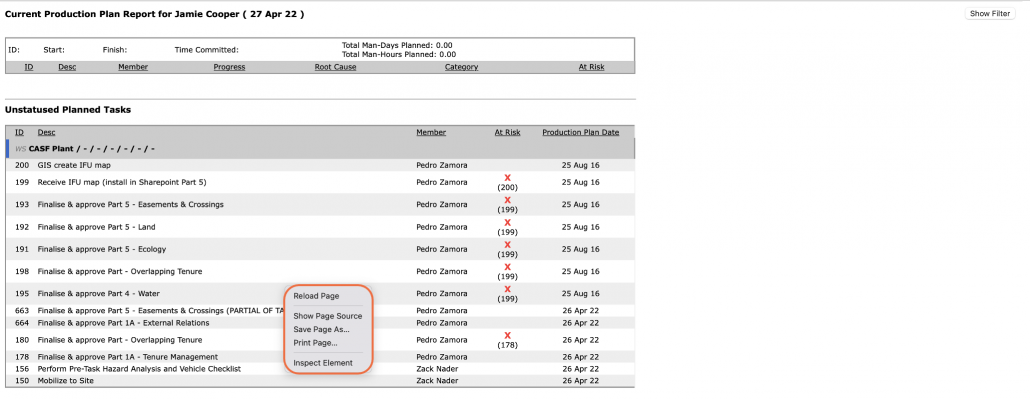
- The Print Dialogue box opens.
- Using the Print Dialogue box, change any desired print settings. Once all relevant printing settings have been modified, click the Print button.
Note: Before printing the report, it is recommended you confirm whether the report fits on the desired paper size.