
Viewing a list of tasks available for execution or even pre-selected for the next Planning Horizon enables team members to be better prepared before commitment occurs. To achieve this, the Next Production Plan report becomes a tool for viewing and printing those tasks for a given team or across many teams. The Next Production Plan report contains the description and responsible team member for each Milestone / Task on the Next Production Plan. An example of when the Next Production Plan report can be of value is for printing and distributing the set of released Milestones / Tasks for the project team to review and discuss which Milestones / Tasks the team desires to load to the Next Production Plan.
To access the Next Production Plan report, complete the steps below:
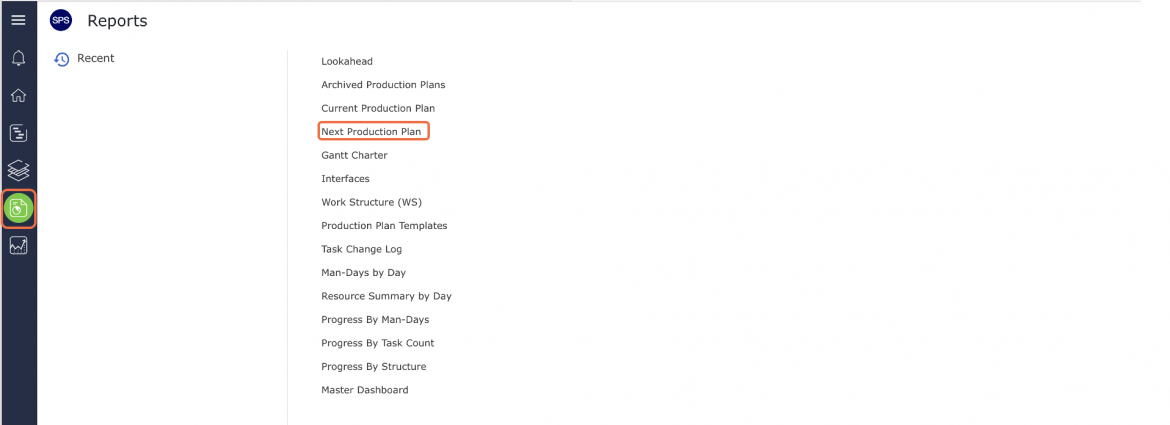
- From the Main Navigation Bar select the Reports, then select Next Production Plan.
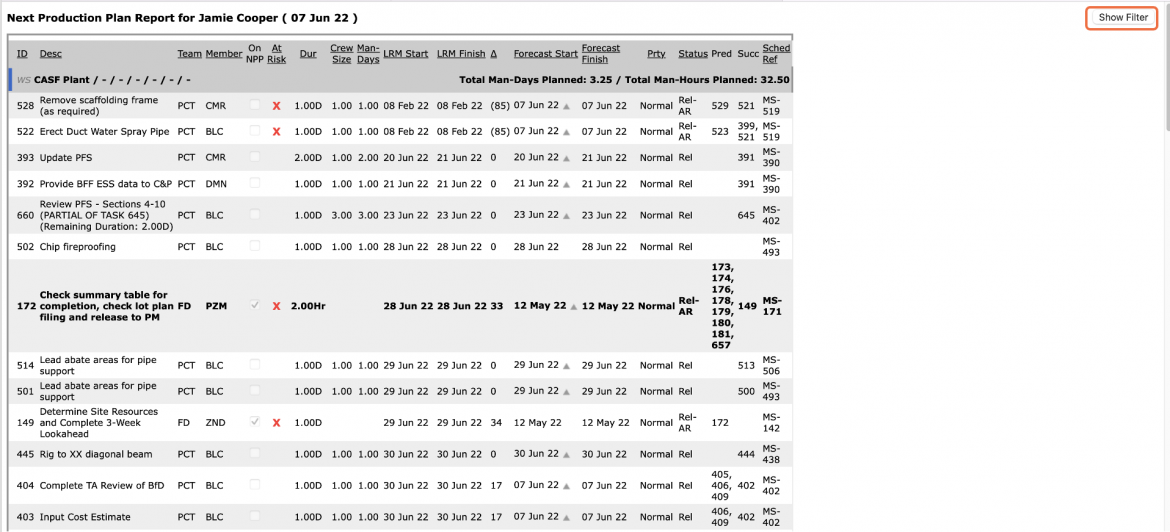
- The Next Production Plan report opens in a new window and automatically displays the Next Production Plan for the team selected under the Team Menu. Click the Show / Hide Filter button to display or hide the filters above the report.
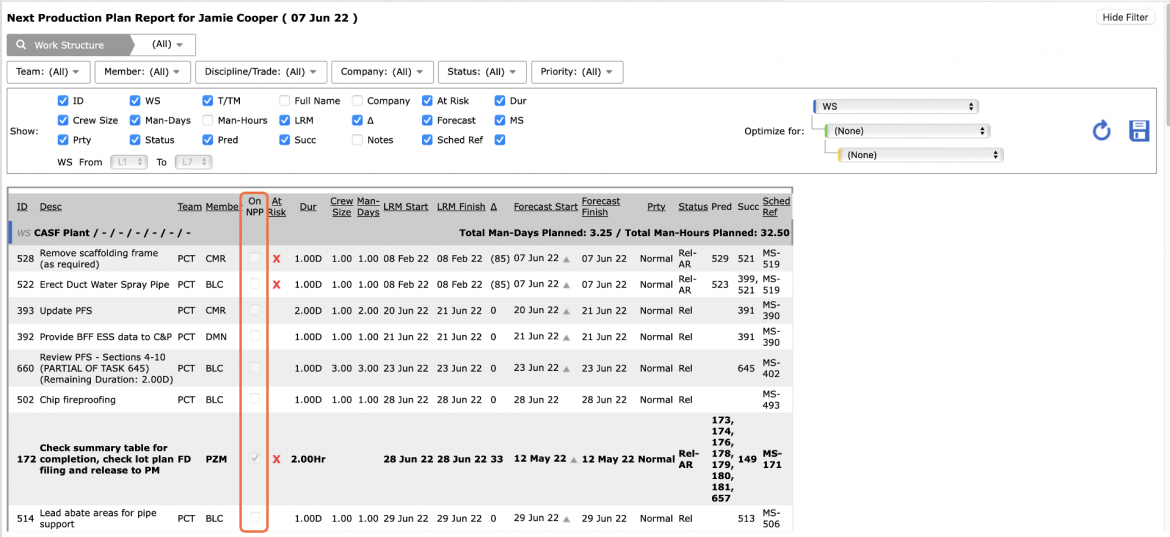
Note: Any Milestones / Tasks that have been loaded on the Next Production Plan have a checkmark under the On NPP column.
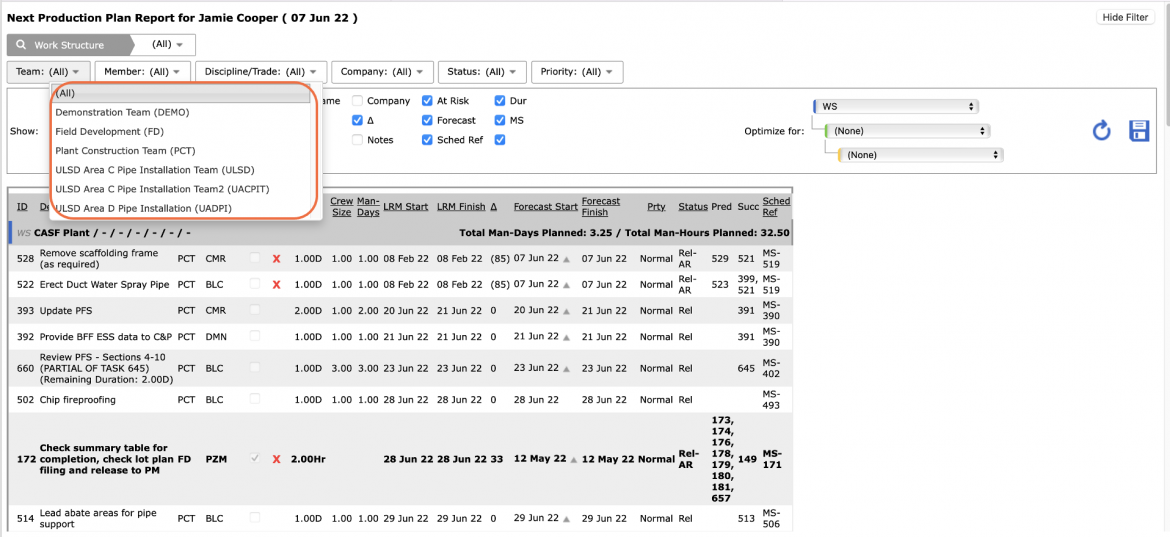
- To view a Next Production Plan for another team, select the desired team name in the Team drop-down.
- Once the desired team is selected, select Work Structure, Member, Milestone / Task Status, and any other attributes to filter for the desired data.
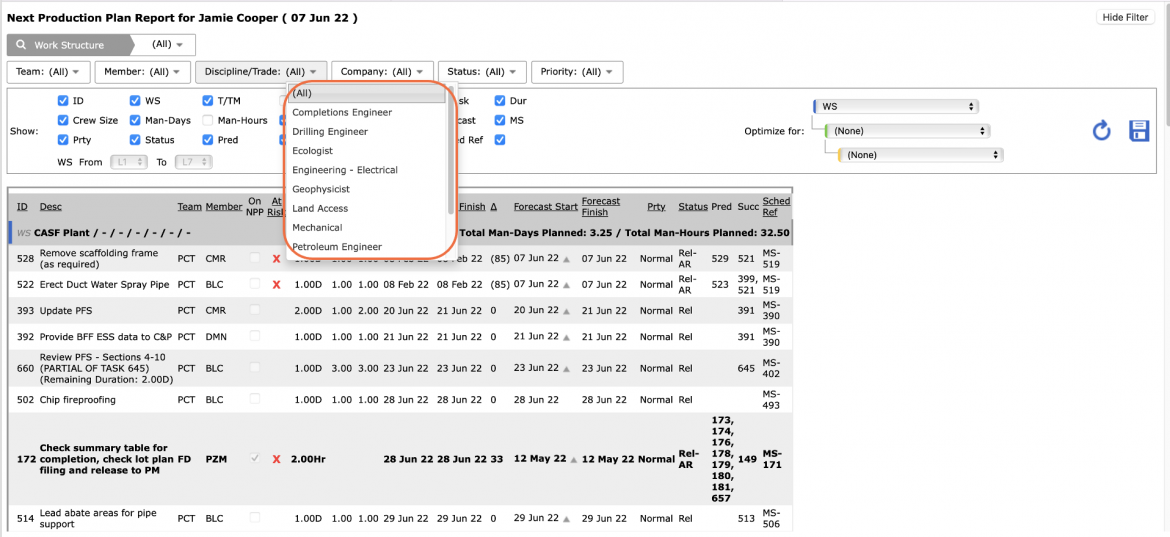
- Sort the data by clicking on any of the underlined column headings according to the structure and attribute values selected in the Optimize for drop-down. Alternatively, to unlock the use of predefined structures and attributes, in the Optimize for drop-down select “(None).” This allows clicking on any column heading to sort in ascending order. Click a second time to reverse the sort.
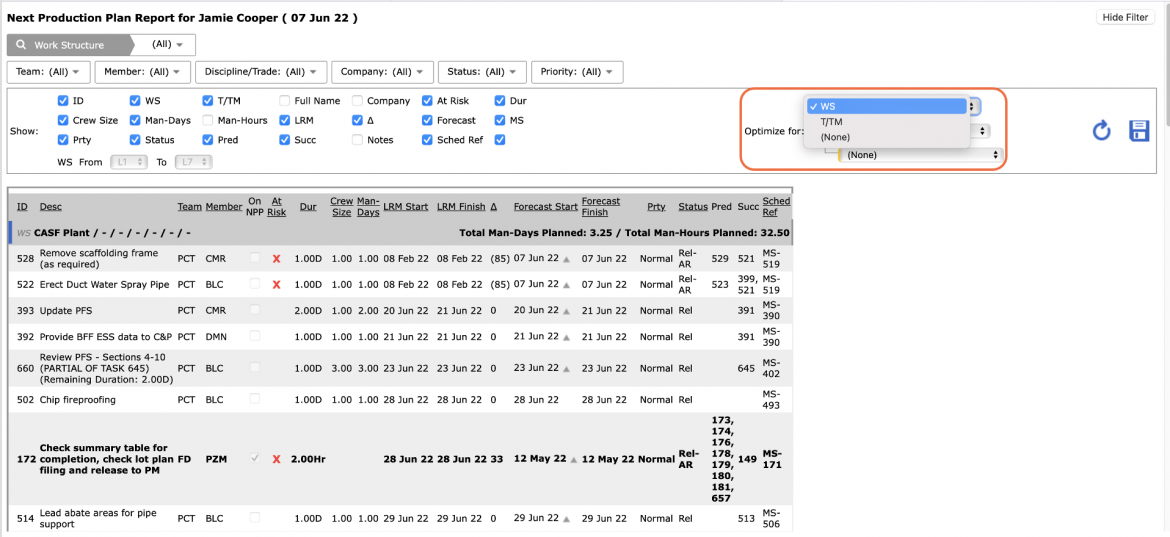
- Unlike the Next Production Plan view, no update to Milestone / Task detail or loading of Milestones / Tasks is possible on the Next Production Plan report, simply the ability to view, filter, and print. All updates and loading must be performed on the Create Next Production Plan.
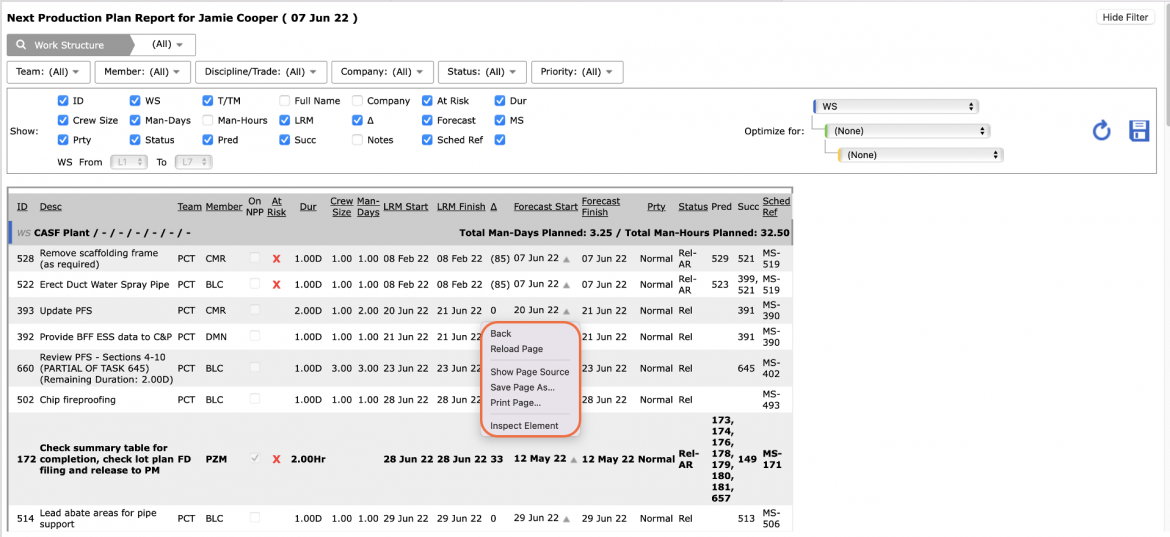
- Depending on your browser, access to printing options may vary. For example, if you use Internet Explorer, to print the Next Production Plan report, right-click anywhere on the Next Production Plan report and select Print from the menu or simultaneously press the Ctrl and P keys on your keyboard.
- The Print Dialogue box opens.
- Using the Print Dialogue box, change any desired print settings. Once all relevant printing settings have been modified, click the Print button.
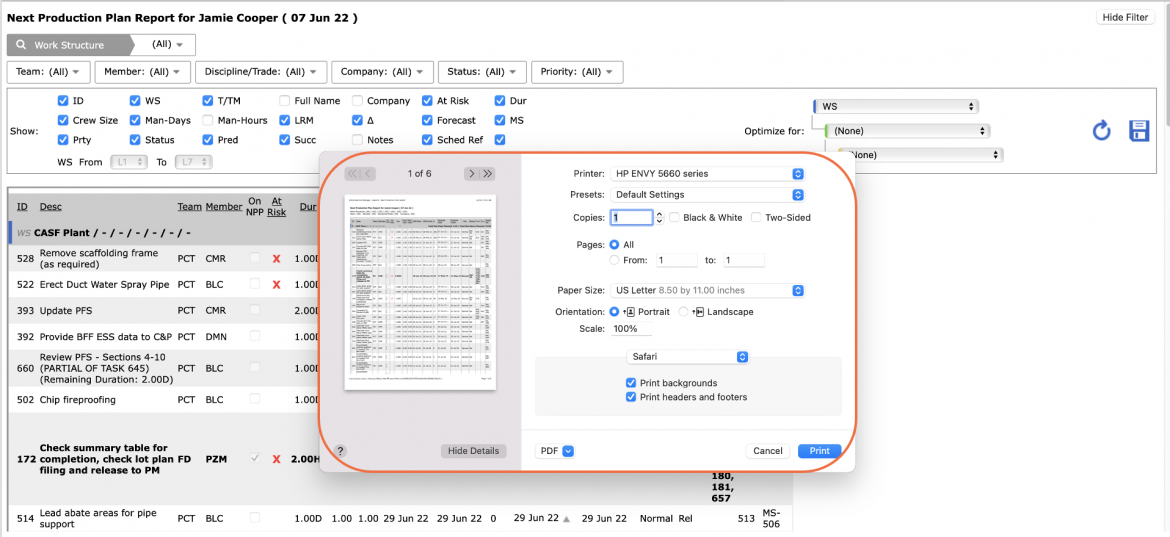
Note: Before printing the report, it is recommended you confirm whether the report fits on the desired paper size.