SPS|PM provides two types of searches for locating a Milestone / Task: Simple and Advanced. The Simple Search uses the Task ID as its search criteria and is accessible in the Lookahead and Lookahead (Network Manager) views. The Advanced Search enables the use of multiple search criteria such as task description, status and assigned member. This search is available under the Help Menu of the Main Menu. Each search method is described below.
Simple Search – Lookahead
To locate a Milestone / Task using the Simple Search within the Lookahead view, complete the steps below:
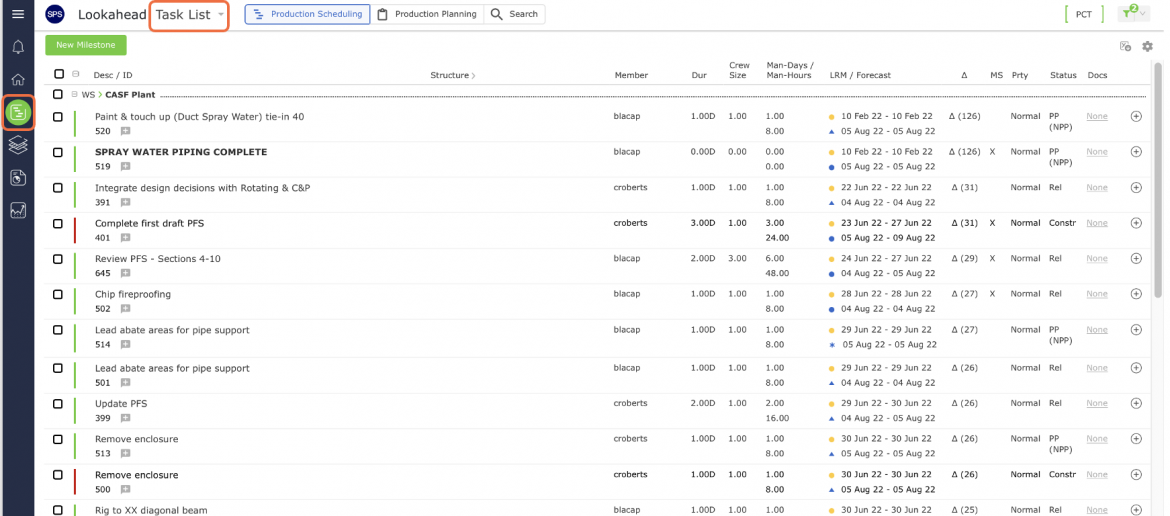
- From the Main Navigation Bar select Lookahead, then select Task List.
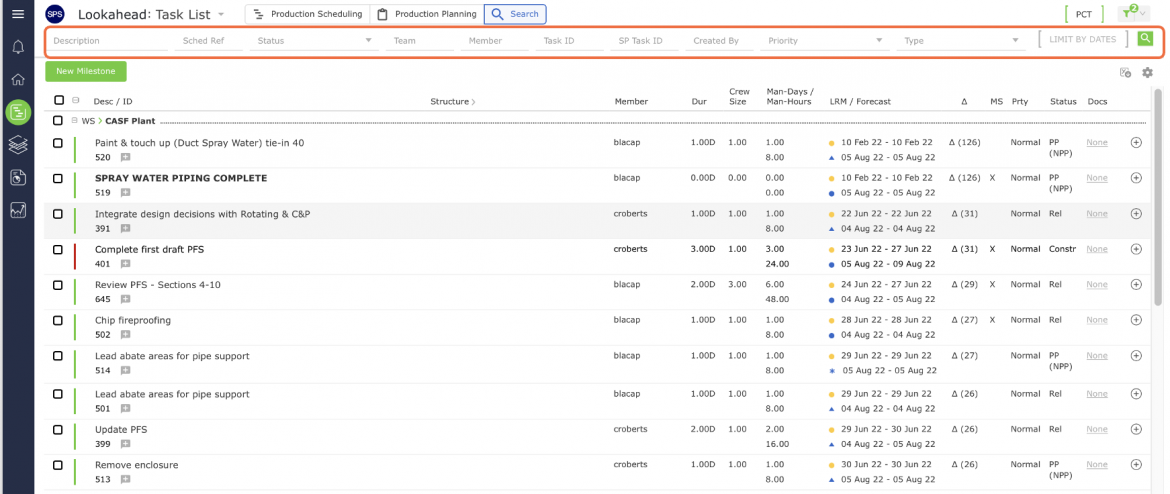
- Click the Search field in the upper middle of the Lookahead view.
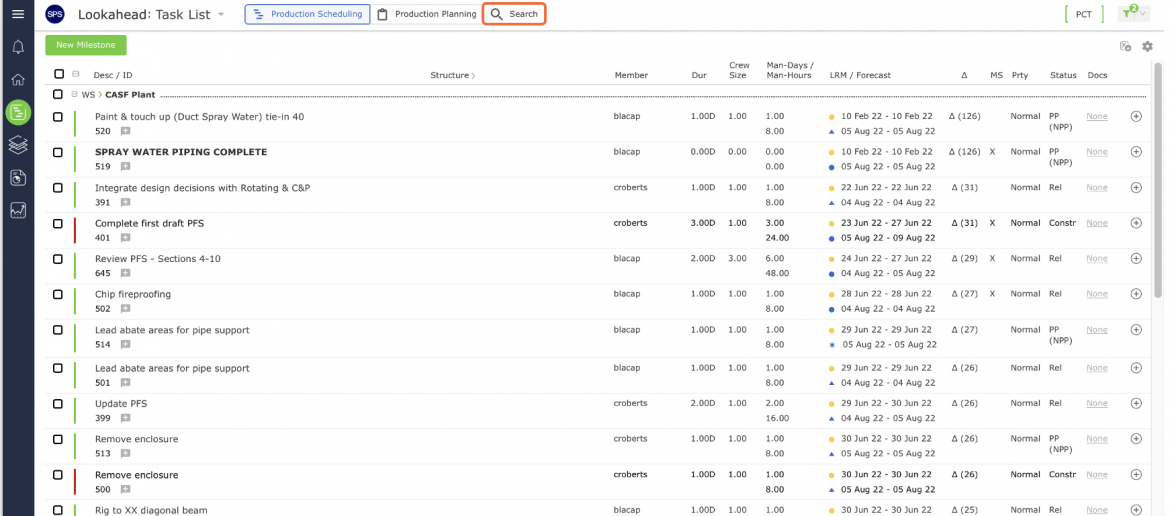
- Search options will appear allowing you to enter information.
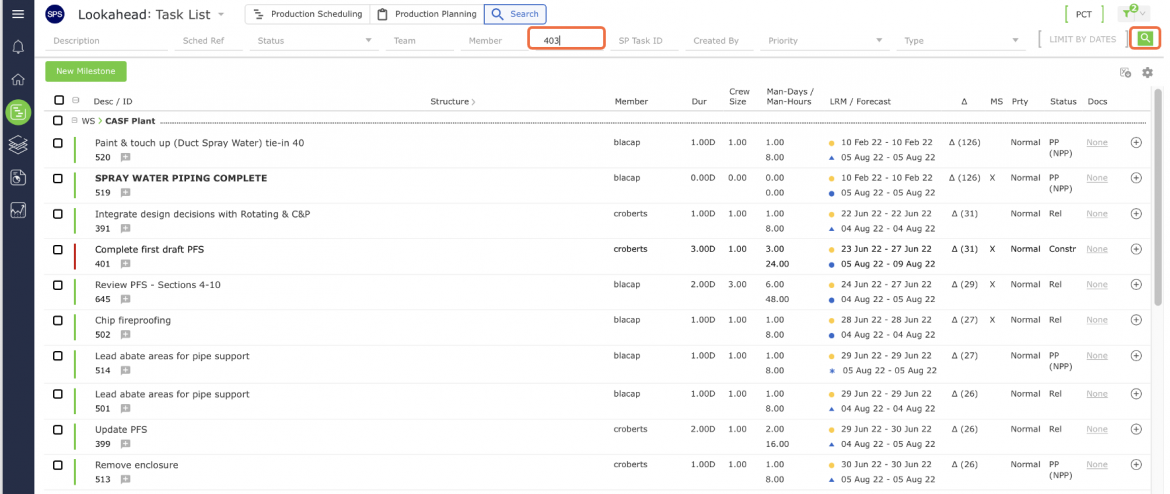
- Enter the information you wish to locate, then click the search icon.
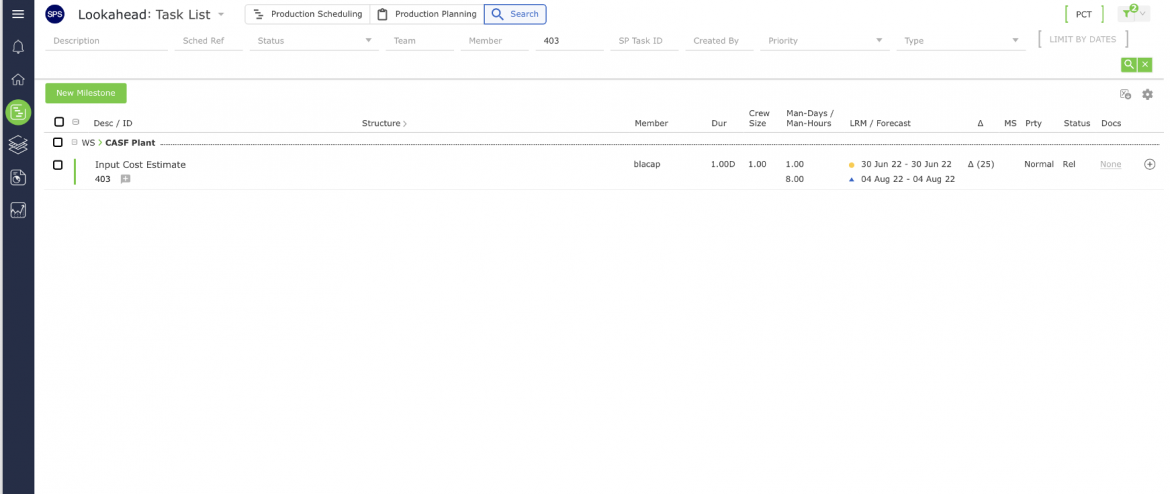
- The Search will locate the entered information. If the information is part of more than one task, all tasks will be listed.
Simple Search – Lookahead (Network Manager)
To locate a Milestone / Task using the Simple Search within the Lookahead (Network Manager) view, complete the steps below. For additional information on using Network Manager see About Network Manager.
- From the Main Navigation Bar select Lookahead, then select Network.
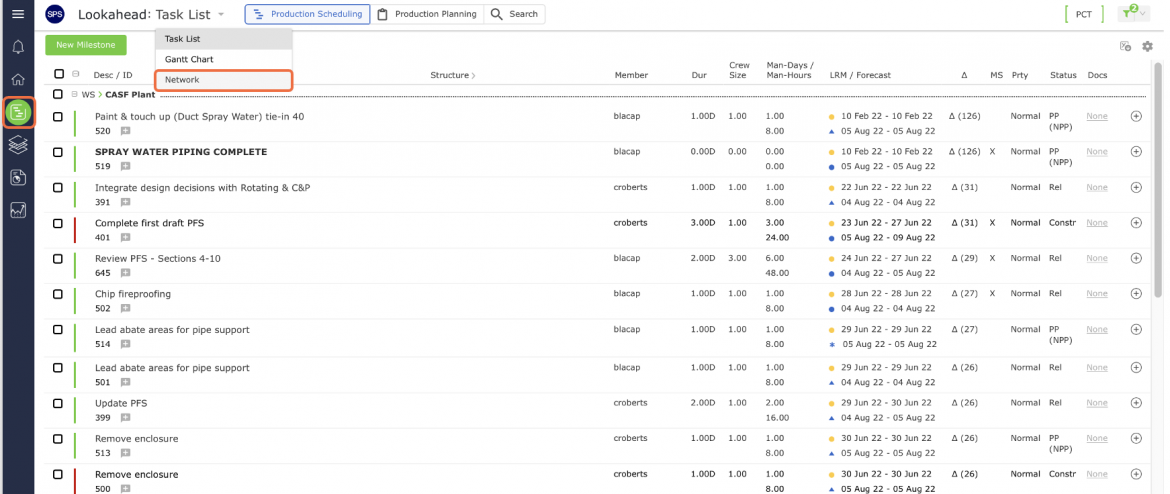
- In the Network Manager view, enter the information you wish to locate.
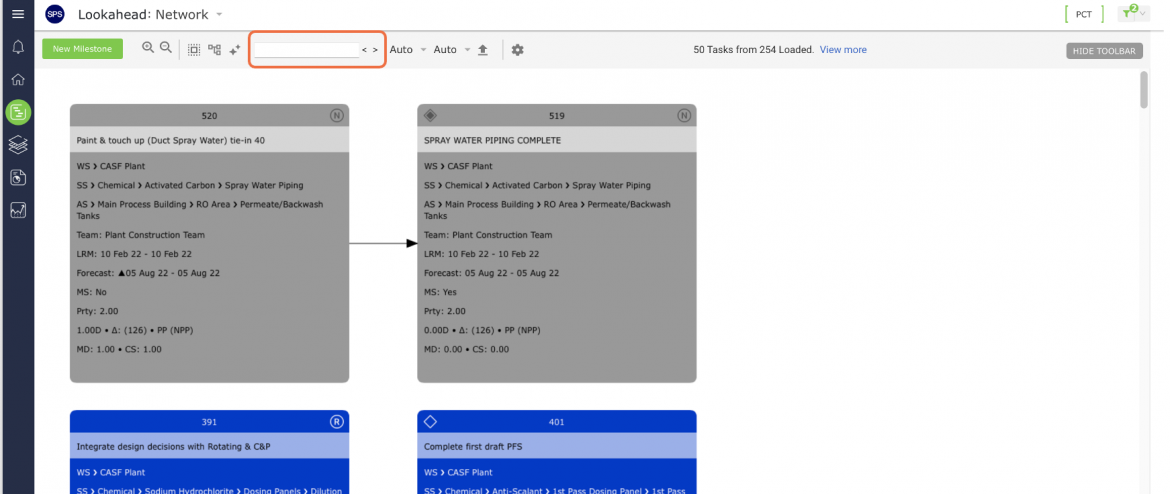
- If the Search locates the entered Task ID, the task will be selected in the Network Manager.
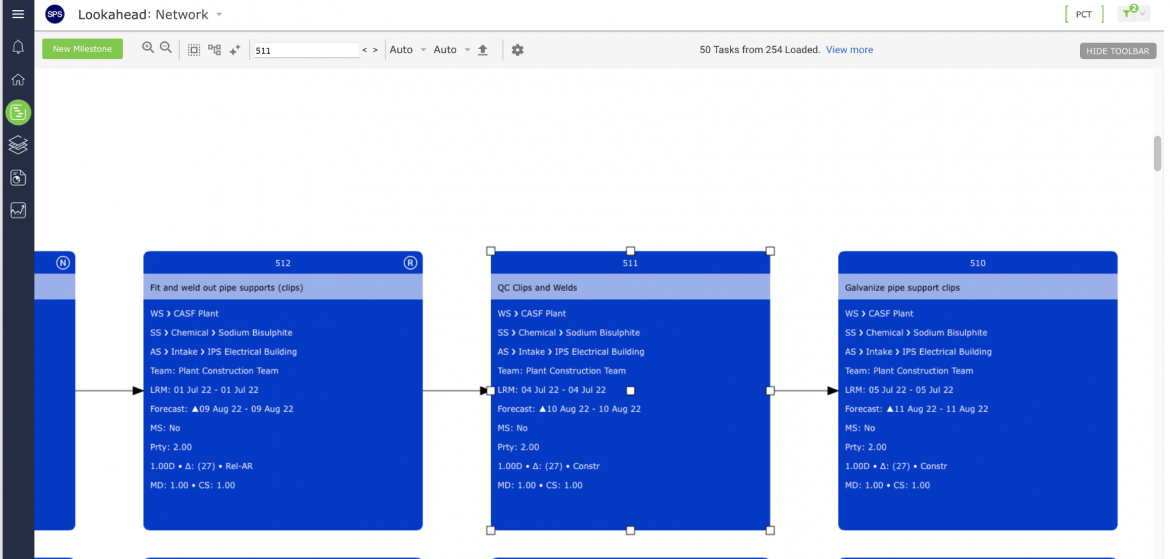
Note: If a view is greatly zoomed out to the point where task detail is not easily discernable, it may be difficult to identify that the located task is selected.
Advanced Search
To locate a Milestone / Task using the Advanced Search, complete the steps below:
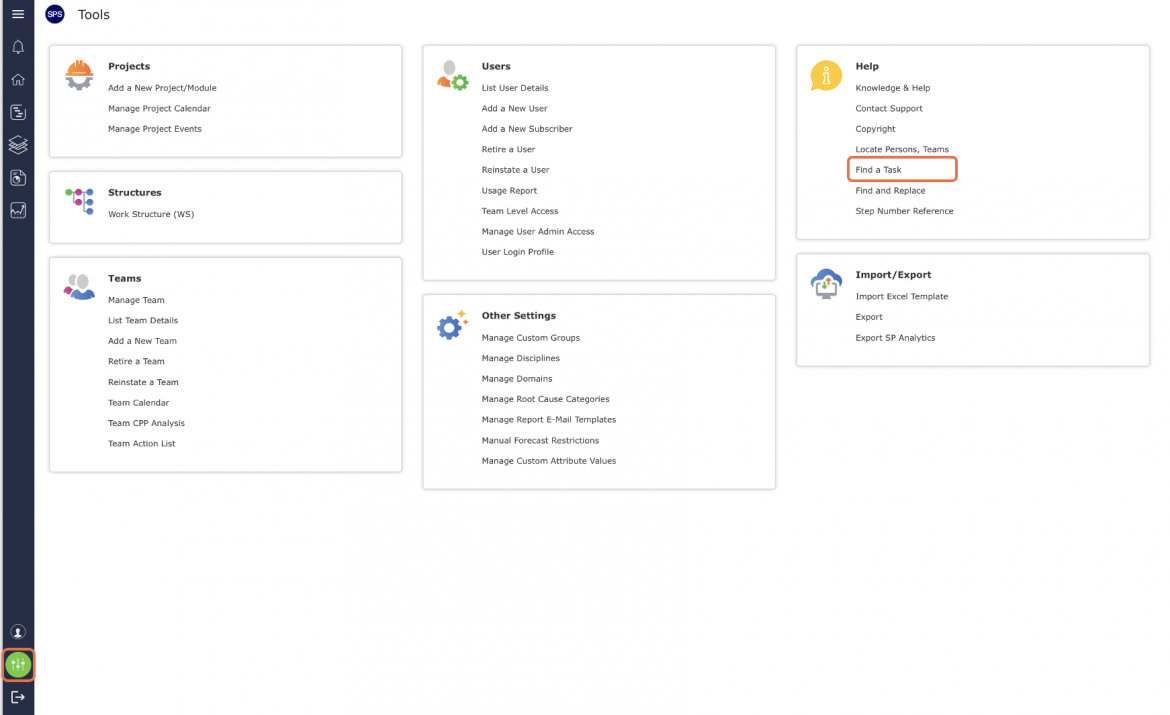
- From the Main Navigation Bar select Tools, then select Find a Task.
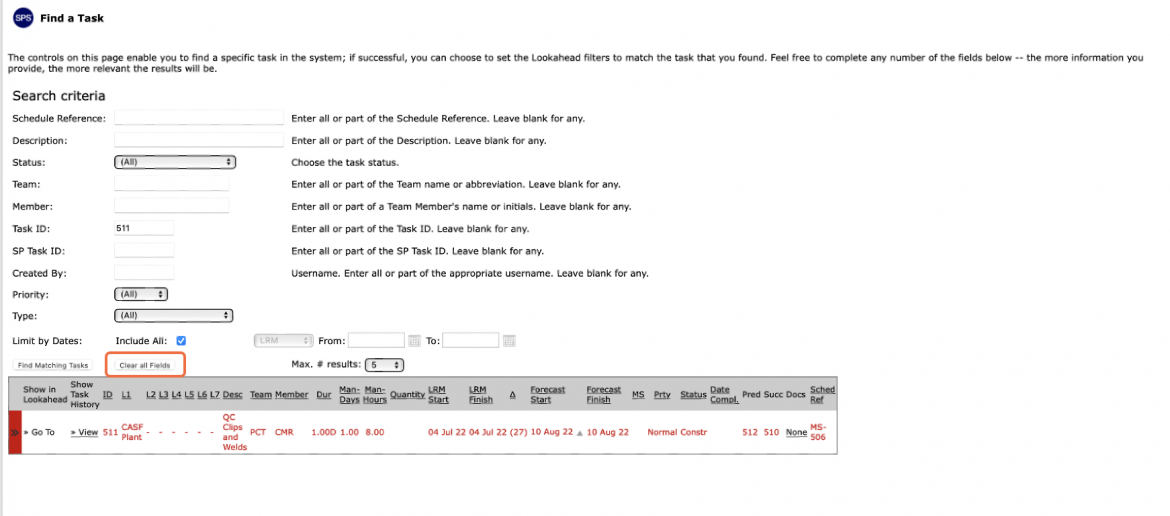
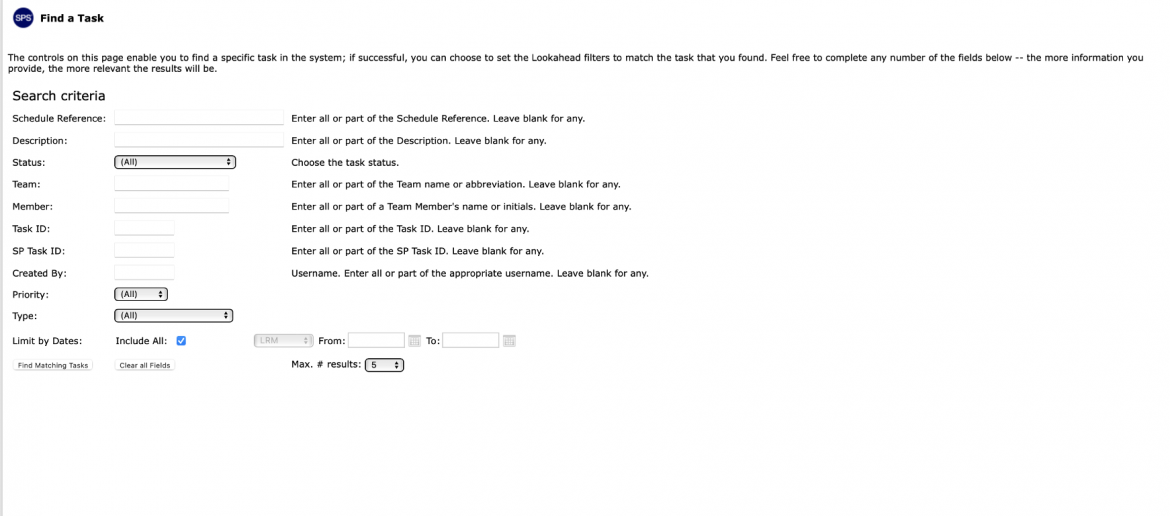
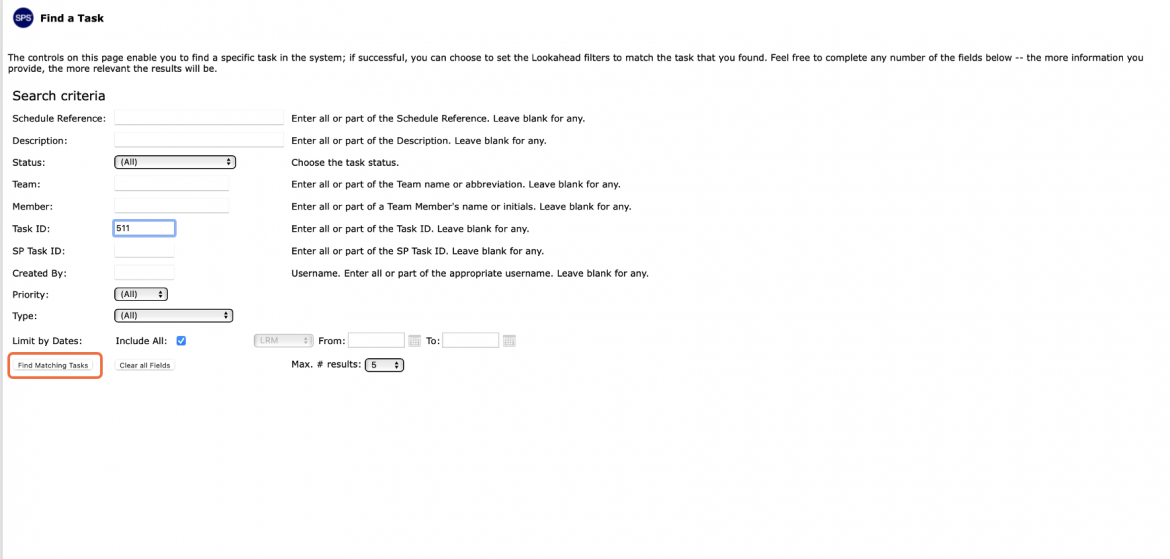
- In the Find a Task view, enter one or more of the desired search criteria: Task ID, Team, Team Member assigned to or who created the task, Task Description, Task Type (e.g., Master-Level Milestone, Milestone, Constraint), Task Status, Schedule Reference, or Task Priority. Additionally, you can filter by the LRM (Last Responsible Moment), Forecast, or Actual dates for the task. In order to obtain a robust search result, carefully examine the Max. # results value. Change the default value of five to a higher number e.g., ten or twenty, however, a number such as 100 may be too high.
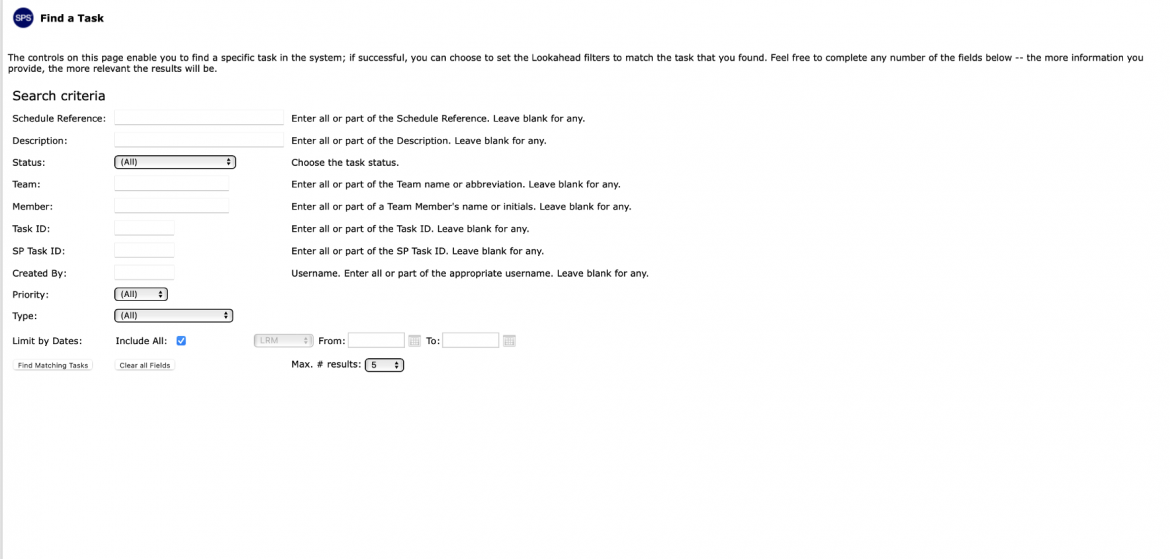
- Once all desired criteria is entered, click the Find Matching Tasks button. If no tasks are located, the data table will be unpopulated.
- If tasks are located after you click the Find Matching Tasks button, the results will return in the data table.
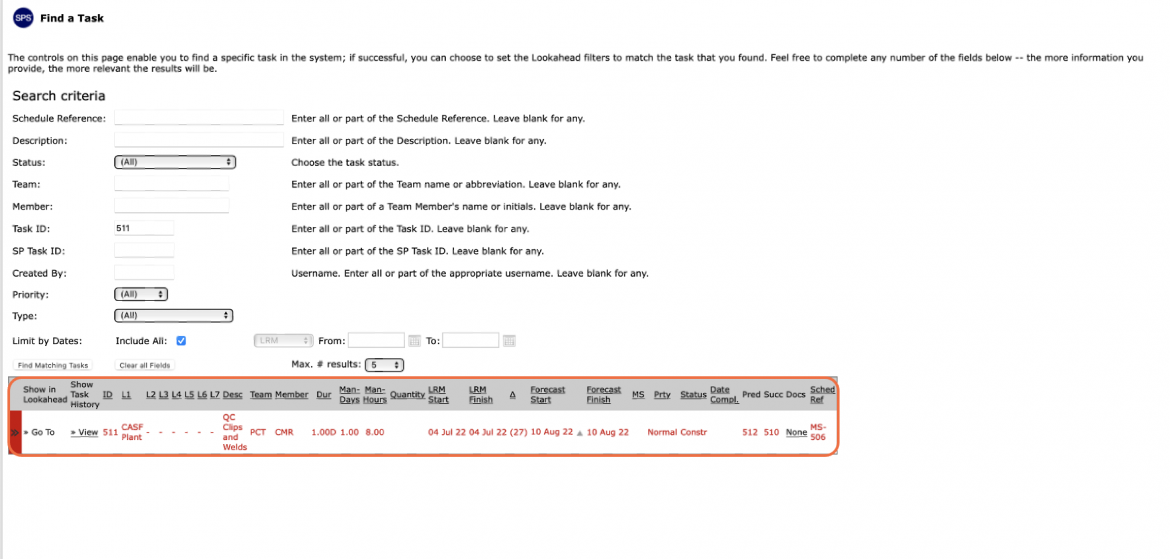
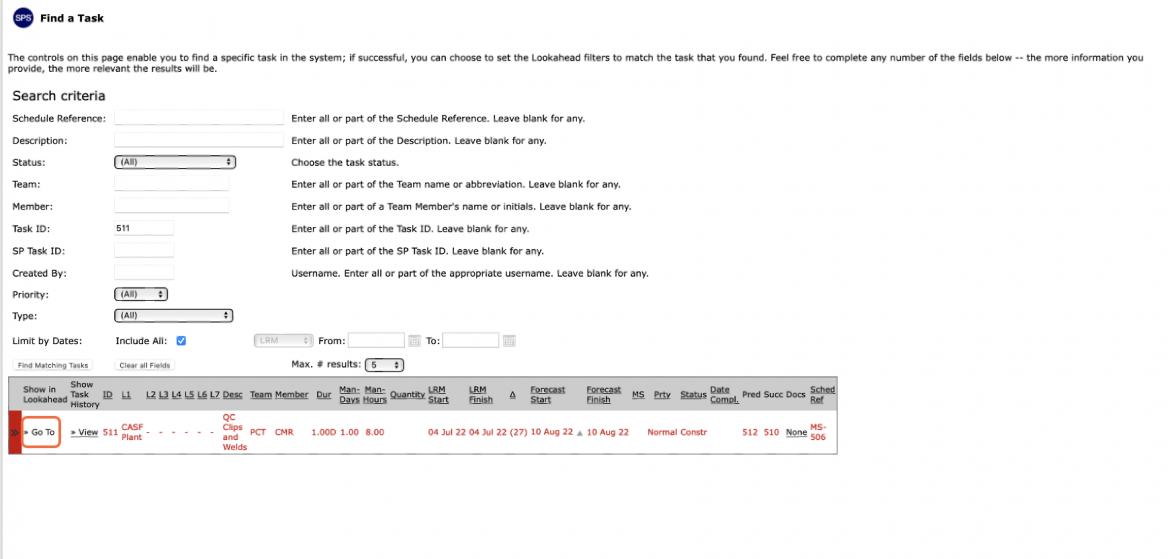
- Once you have located the desired task in the data table, you can view the task in the Lookahead by clicking Go To under the Show in Lookahead column to the left of the task details.
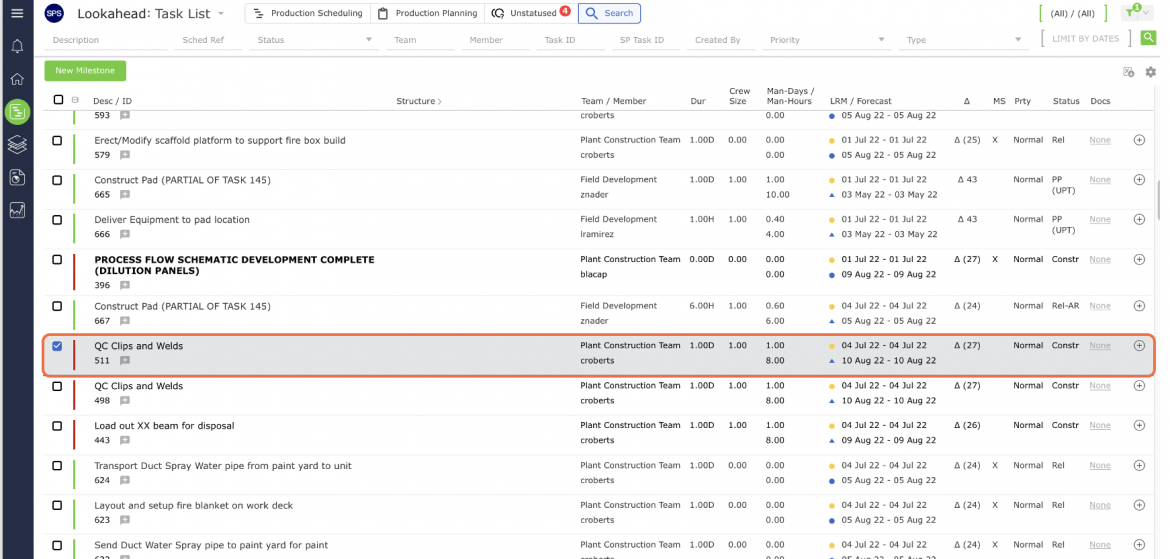
The Find a Task window will then close, and you will be returned to the Lookahead view displaying the located task.
- You can also view the located task’s history by clicking >> View under the Show Task History column, and the Task History will display in a separate window.
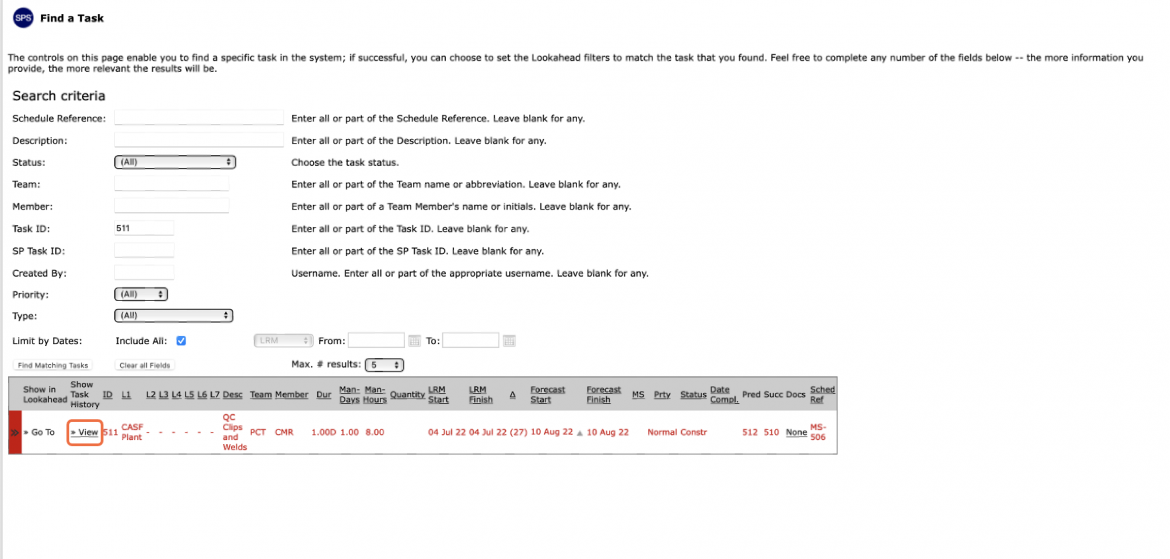

- To perform a new search, click the Clear all Fields button (as shown in the first image below), to clear all entries from the search criteria fields (as seen in the second image).