
As the admin level assigned to an individual user determines the administrative functionalities he / she can access in SPS|PM, it is important that access levels be carefully managed. Each individual is assigned a different access level based on their project role, which determines the administrative functions he / she may perform. One or more individuals can become System Administrators (level 5) per project team. However, due to the functionalities associated with admin level 5 access, assignments should be carefully controlled and only granted to a discrete number of individuals on a project team.
To protect system and data integrity in SPS|PM, an individual can only create or modify admin level access below or equal to his / her current level. For example, if an individual is assigned admin level 3 access, he / she will only be able to assign admin level access of 0 – 3 to other team members.
To establish or modify admin level access, complete the steps below:
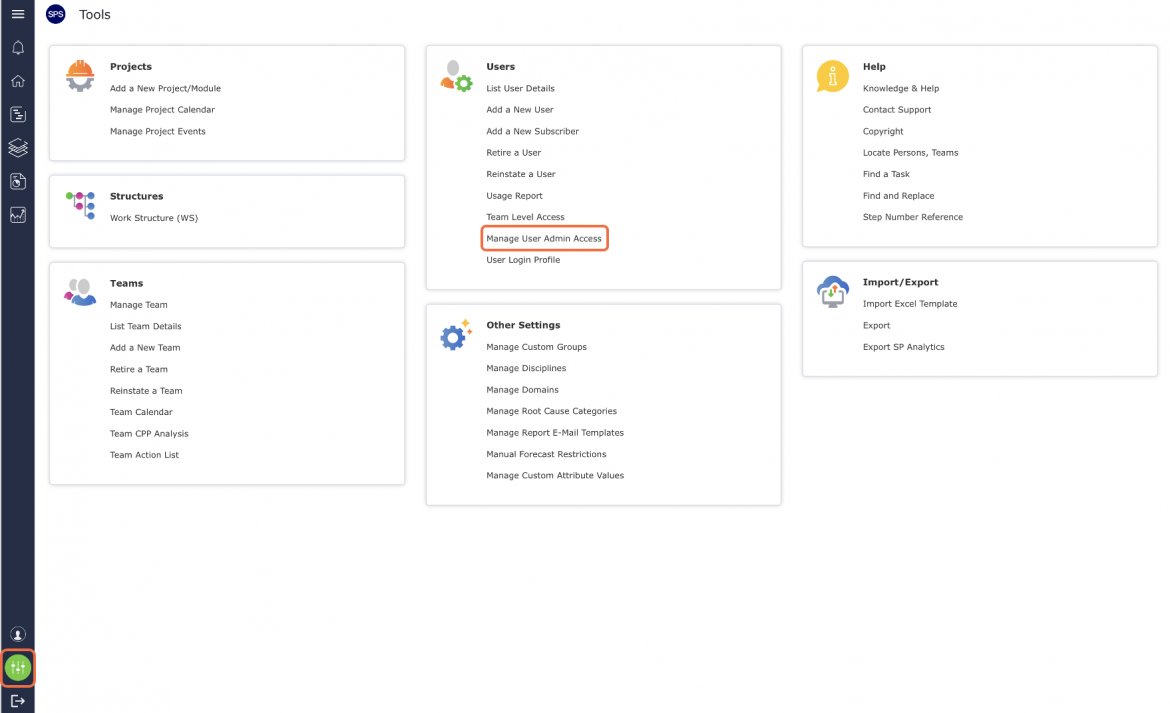
- From the Main Navigation Bar select Tools, then select Manage User Admin Access.
- The Manage User Admin Access window opens and displays the Admin Level Assigned table on the left, listing all assigned admin access for the Domain and the Admin Level Definition table on the right as reference, containing the functions for each admin level 0 – 5.
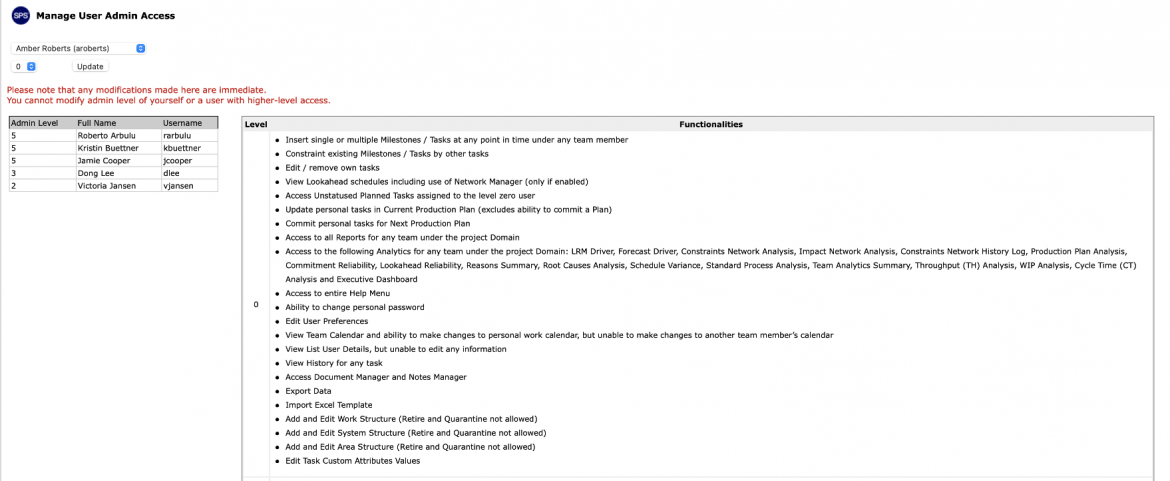
- To establish admin level access for an individual, select the desired name from the drop-down and the desired admin level from the drop-down, then click the Update button as shown in the video below.
The Admin Level Assigned table will refresh to display the individual and associated admin level.

- To modify admin level access for an individual, follow the above step. The Admin Level Assigned table will refresh to display the revised admin level for the selected individual.