
To insert a standard process from the Lookahead view, complete the following steps:
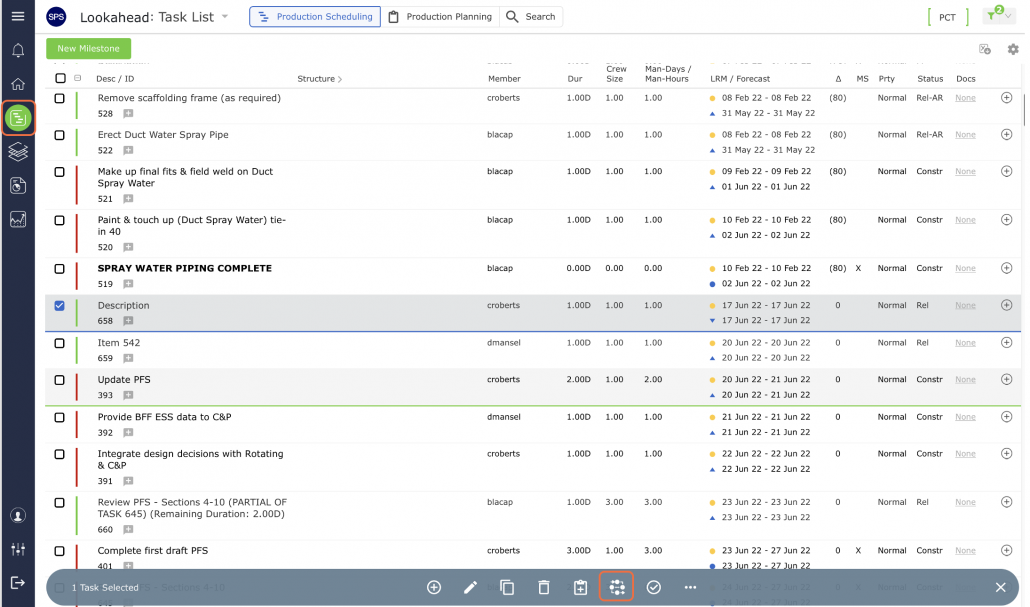
- Select the desired Milestone / Task to attach the standard process to by clicking once anywhere on the Milestone / Task row. Once selected, the task row will display a blue background, then select the Insert Standard Process control.
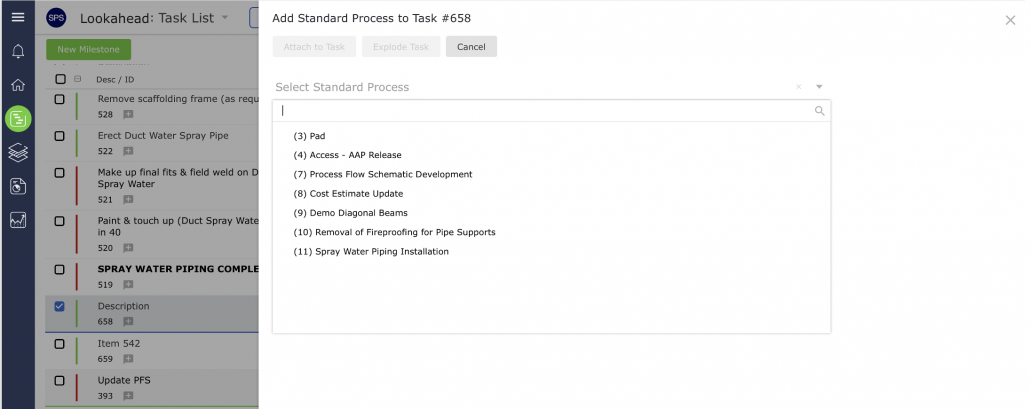
- In the Add Standard Process window, locate the desired standard process from the list under Select Standard Process region by clicking once on the standard process title.
If the standard process you are looking for is not listed, it is likely due to the process being in an off-line state. A process must be in an on-line state in order to be inserted into the Lookahead. See Take Process Off-line / Put Process On-line for details.
Above the Select Standard Process section, you can access functions to modify the Work Structure, and the team / member responsible for the standard process. By default, all tasks in the standard process share the same Work Structure as the Milestone.
- Review the Work Structure and if not already defined in the standard process, the team and members. Modify the structures and the team / member responsible for the standard process as necessary. After the standard process is inserted into the Lookahead, individual tasks can be edited and reassigned to a different team / member as needed as detailed in Edit Milestone / Constraint Task.
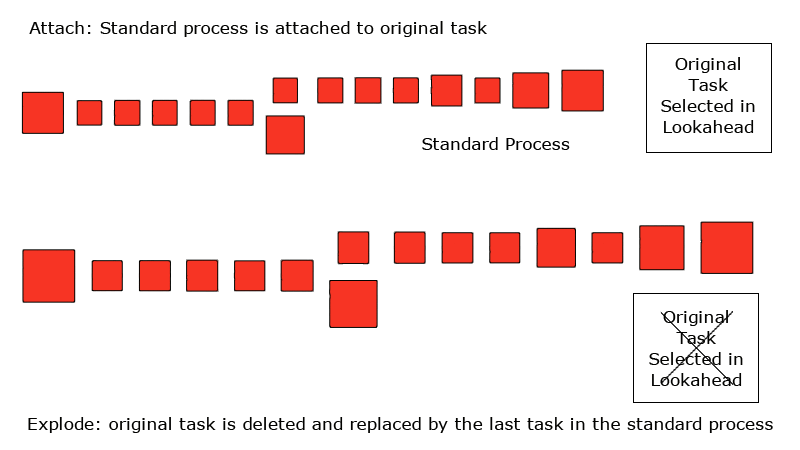
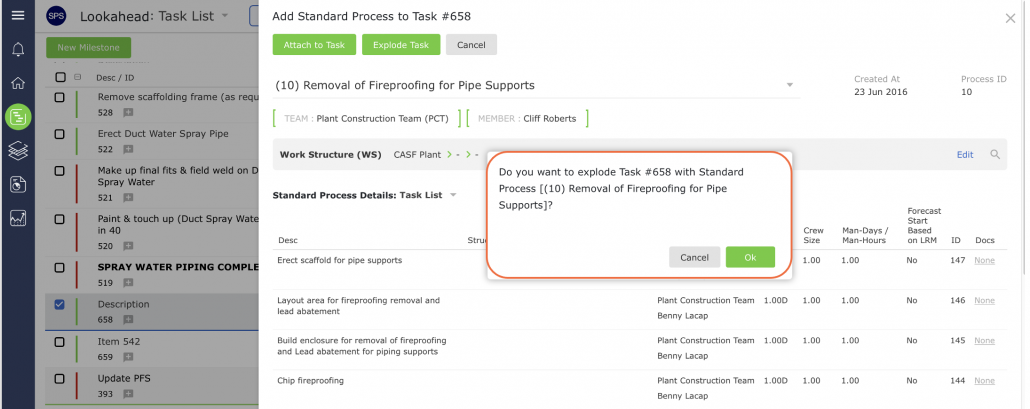
- Once the desired standard process is selected and all attributes have been confirmed or modified, you can choose to either attach or explode the selected Milestone / Task in the Lookahead as defined in the image below.
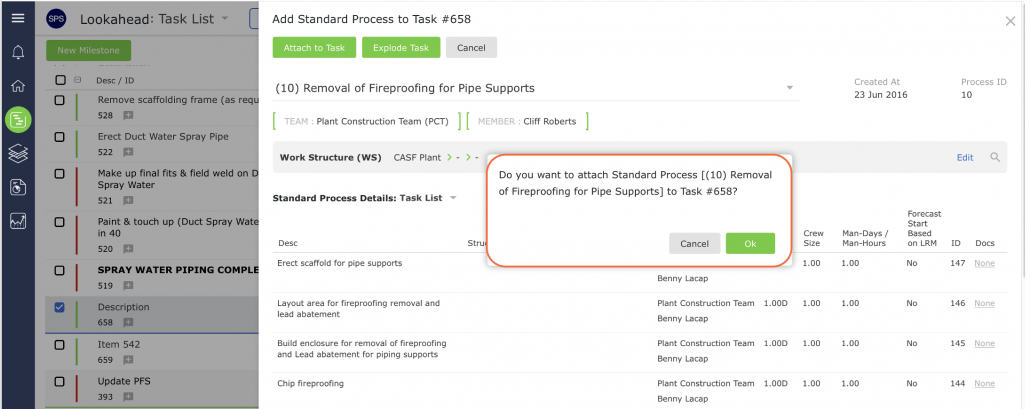
- In the confirmation pop-up, click the OK button if you want to proceed with the selection (attach or explode). If you do not want to proceed, click the Cancel button as shown in the images below.
- The standard process will then be inserted into the Lookahead.