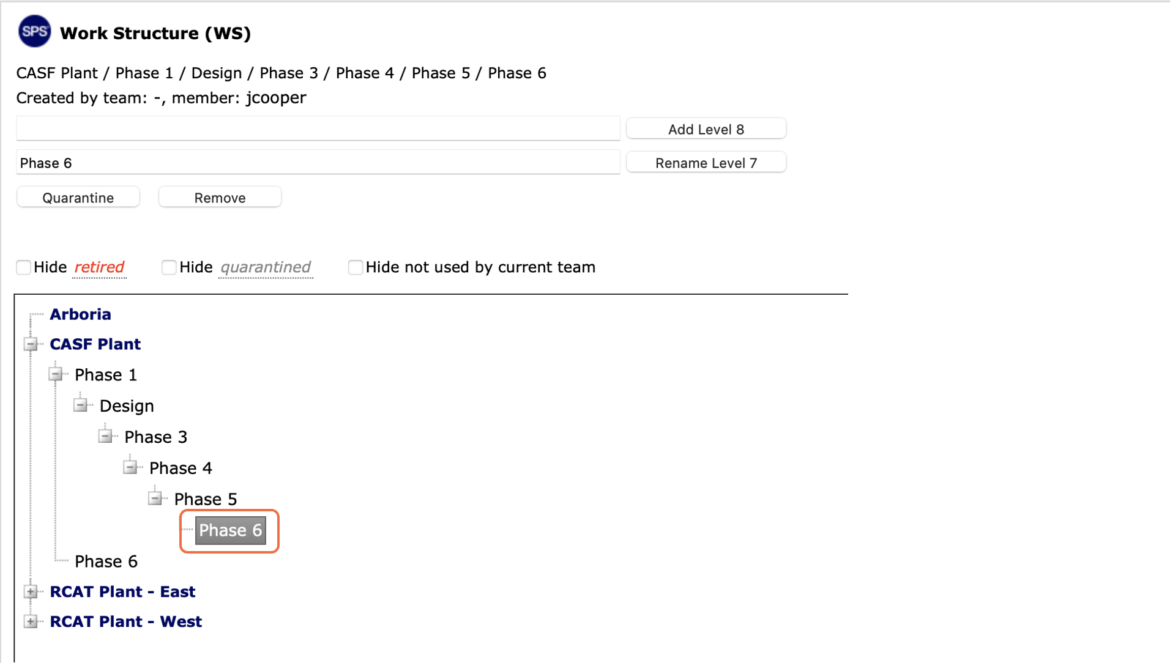
As the project progresses, certain external or internal factors may occur that require specific work to temporarily stop. Constantly having these stopped workflows visible in the Lookahead can be confusing to the project team and can also have an undesirable effect on Performance Analytics.
SPS|PM provides the ability to suppress selected workflows from view, and to reinstate them when work resumes, through the Work Structure quarantine functionality.
To quarantine Work Structure in SPS|PM, complete the steps below:
- From the Main Navigation Bar select Tools, then select Work Structure (WS).
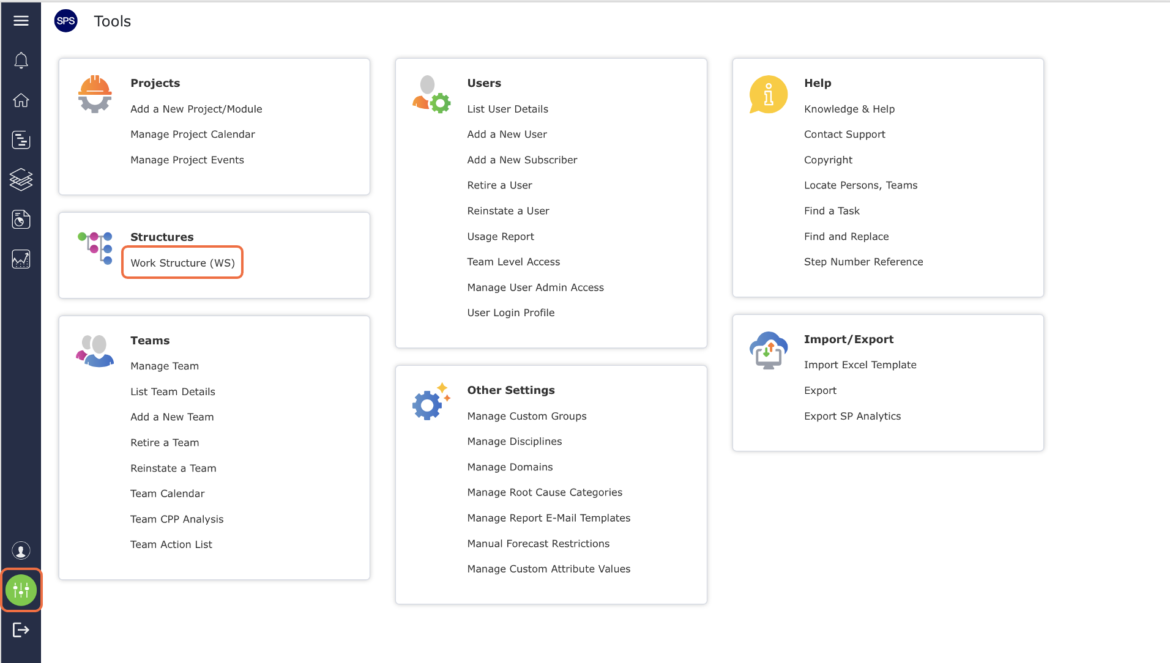
- The Work Structure (WS) window opens and displays all existing Work Structure.
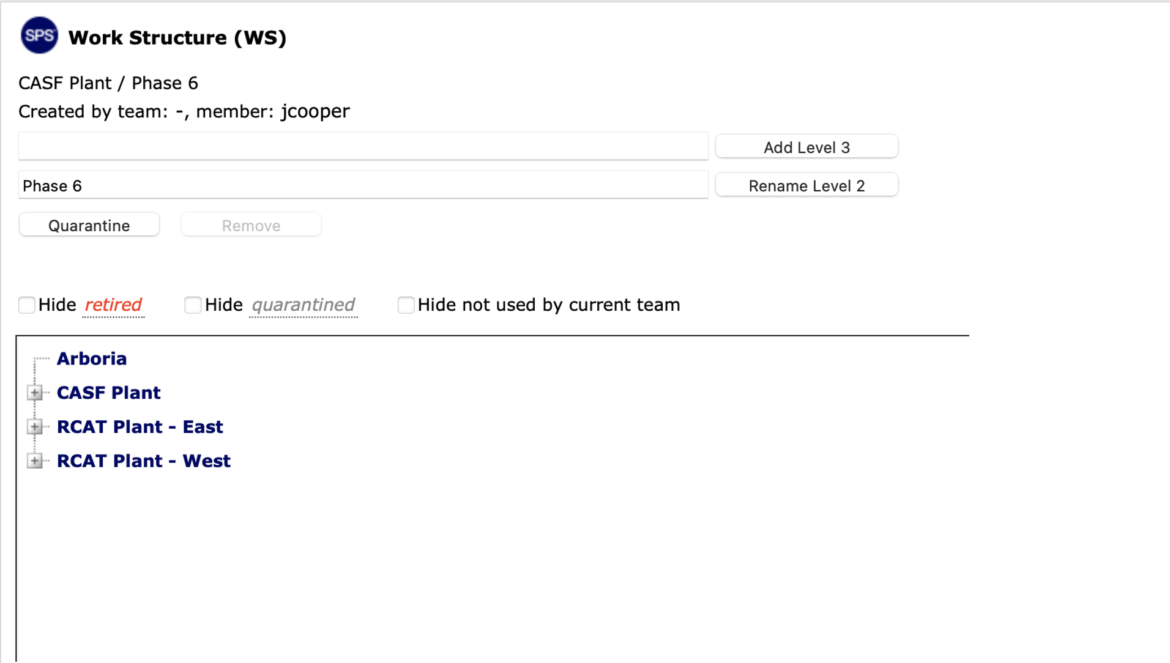
- Locate the Work Structure to be quarantined by clicking the Expand (+) button and Collapse (-) button next to the desired Level to view / hide Levels.
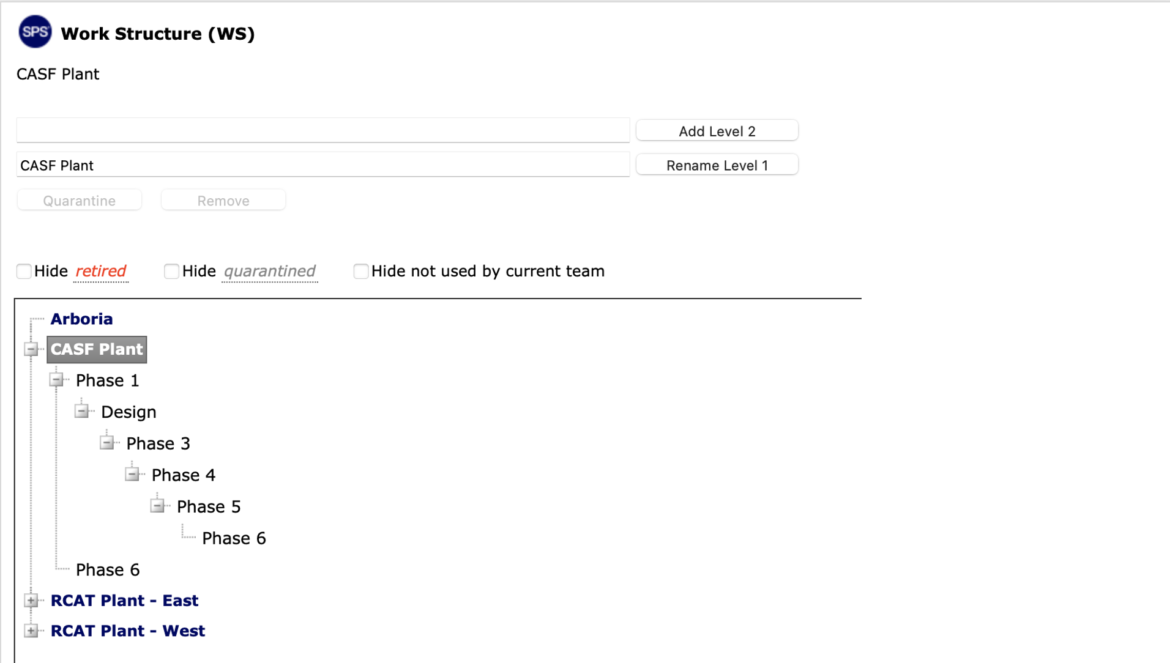
- Select the desired Work Structure to be quarantined, by clicking once on the Work Structure. Once selected, the Work Structure will display a reverse gray background and the Work Structure displays in the Rename Level X field.
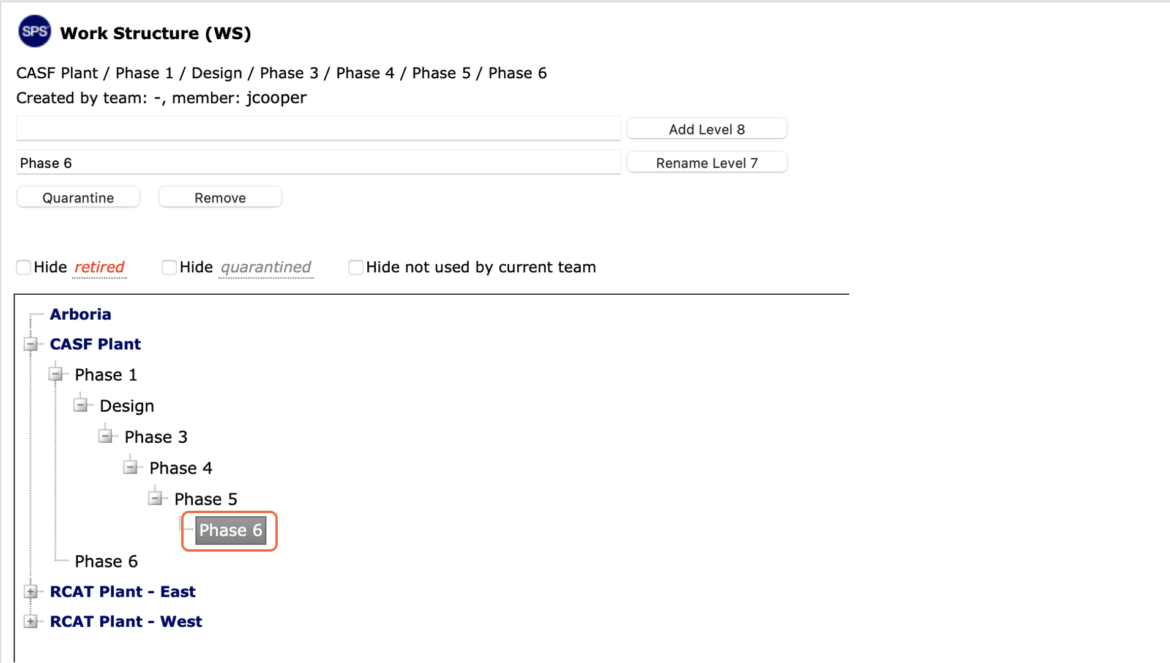
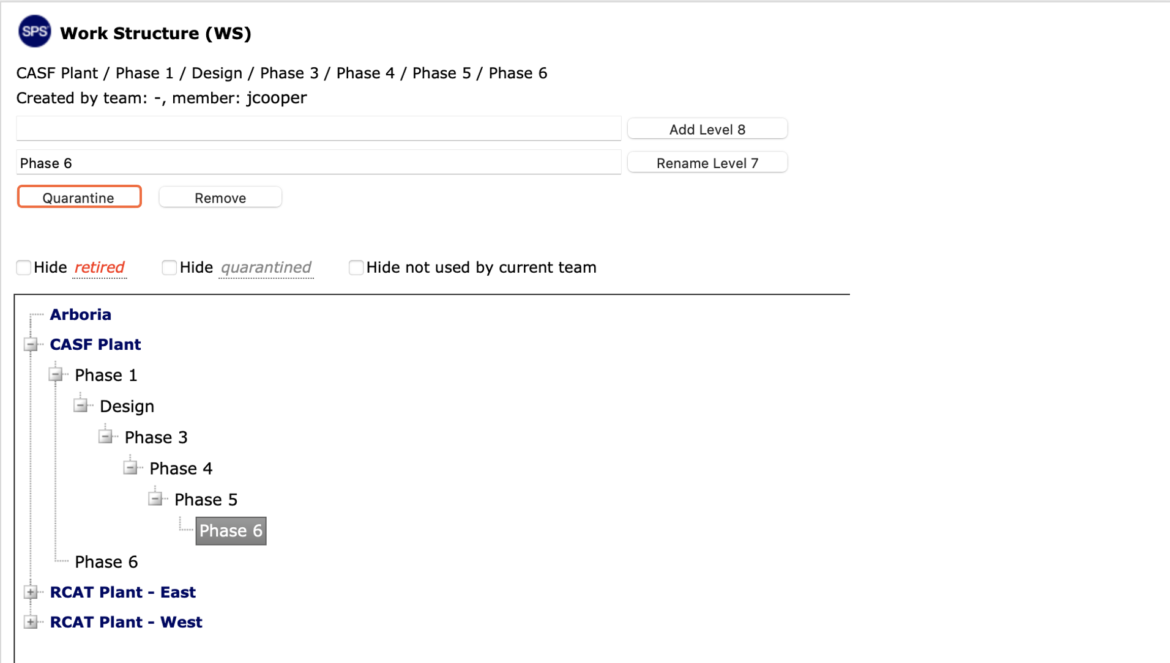
- Click the Quarantine button and the Work Structure window refreshes to display the quarantined Work Structure in italics as shown in the image below.
- To reinstate a quarantined Work Structure, select the desired Work Structure as described above, then click the Reinstate button.
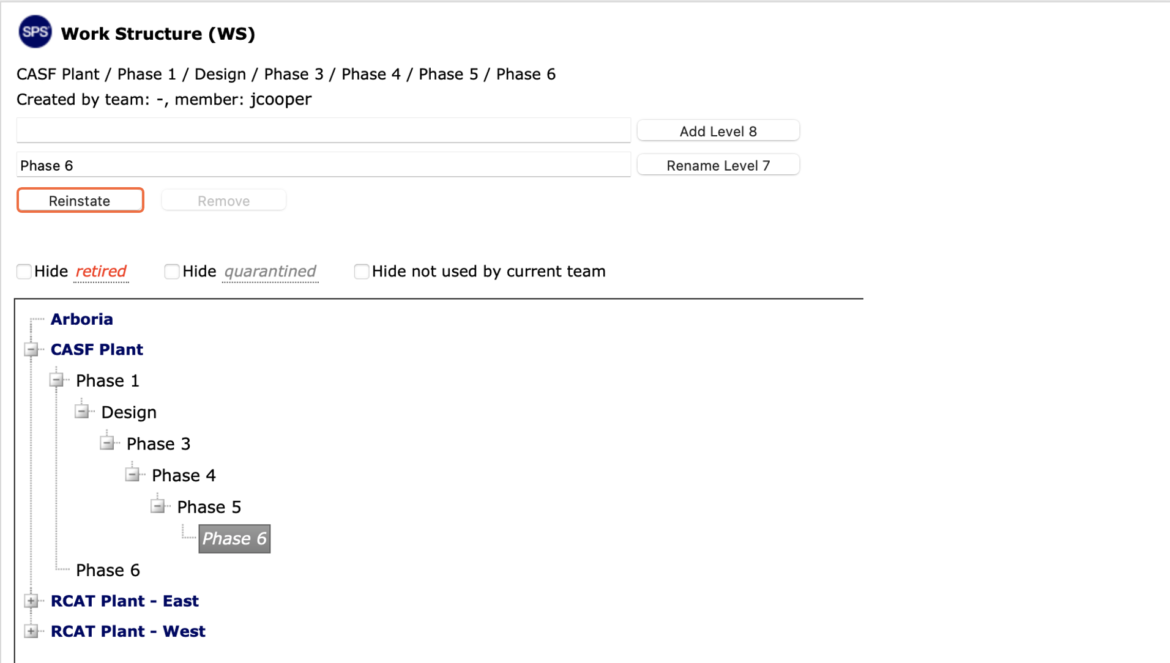
- The reinstated Work Structure is displayed in non-italics and the previously displayed Reinstate button now displays as the Quarantine button.