Notes are a type of supporting information, in addition to files and URLs, and contain information relating to a task or work stream. Examples of notes may include findings from a constraint task, contact information for the individual owning the task or completing the work, driving or special location instructions, safety information, etc. Using the Notes function, distributed team members across the project can easily share relevant information by inserting notes to a task or work stream in SPS|PM.
To view Notes for any Milestone / Task from the Notes Manager window, use one of the following methods:
Method 1: Task View
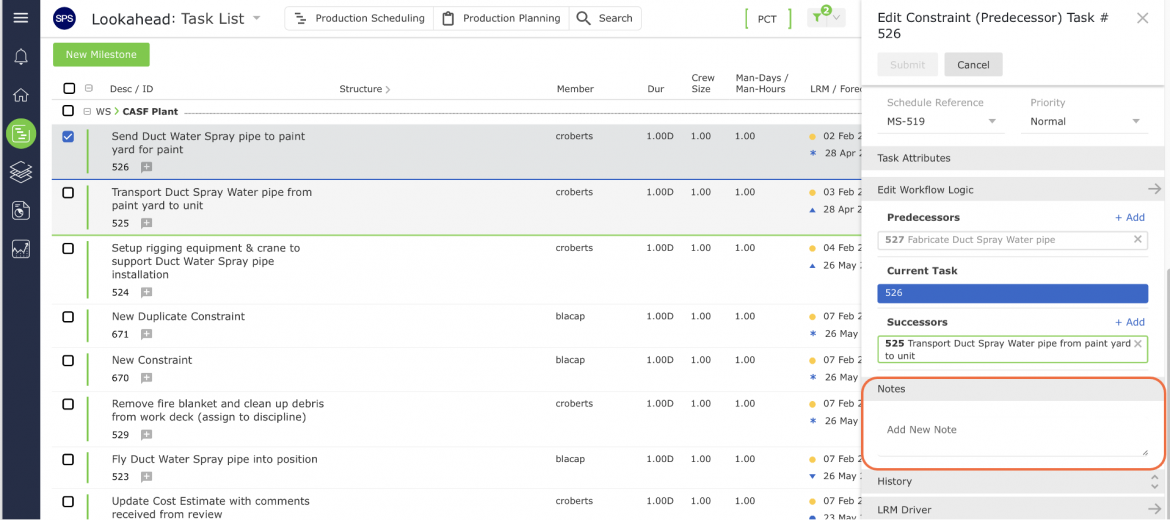
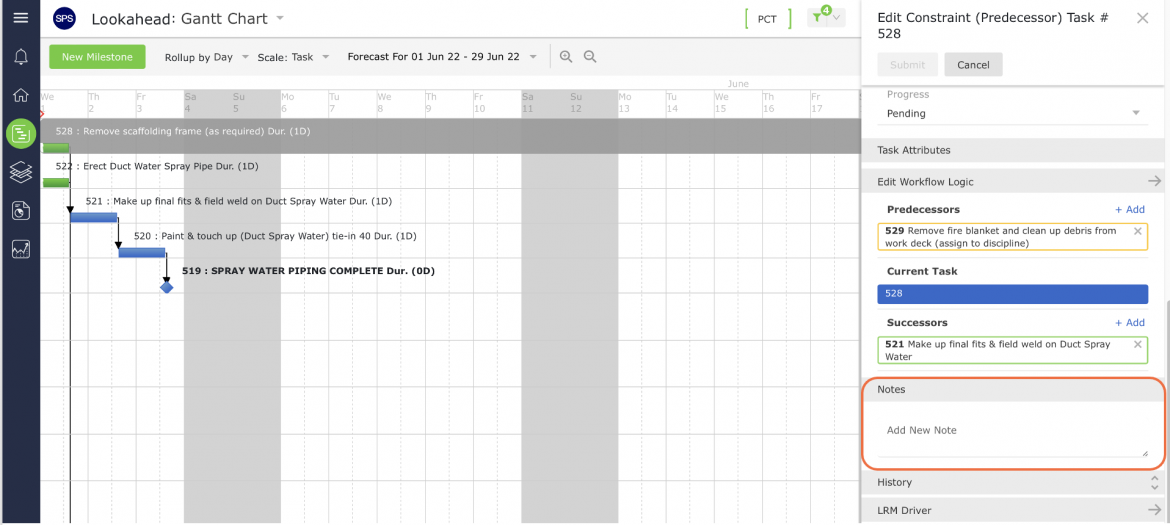
- From the Lookahead view, select the desired Milestone / Task by clicking once anywhere on the Milestone / Task row. Once selected, the Edit Constraint (Predecessor) Task window will open. Scroll to the Notes section.
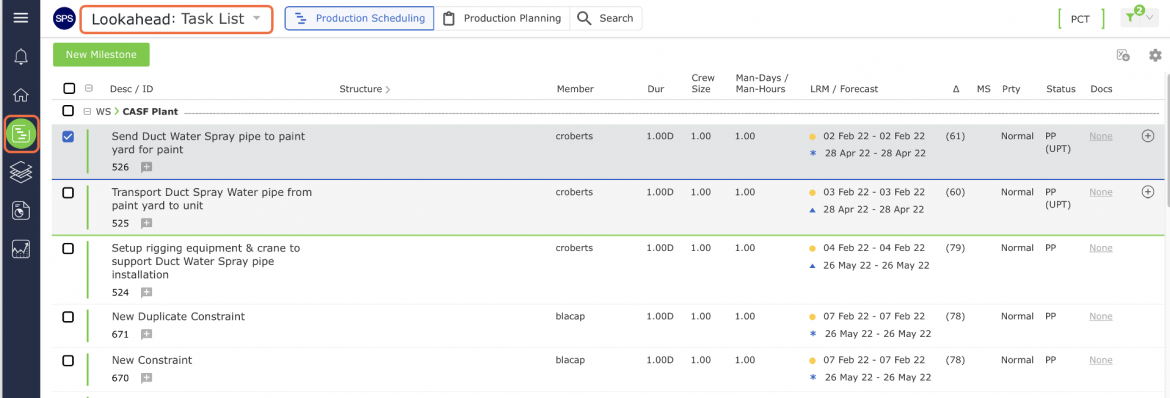
- Scroll to the Notes section.
Method 2: Notes Attribute
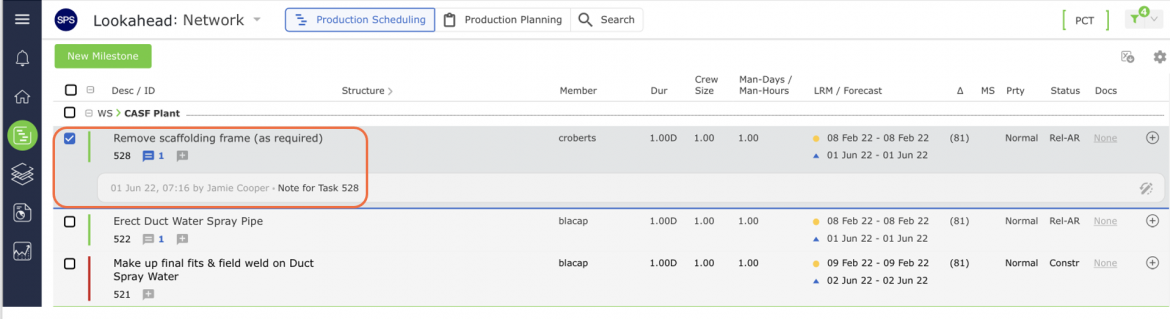
- Click the Notes icon of a task in the Lookahead
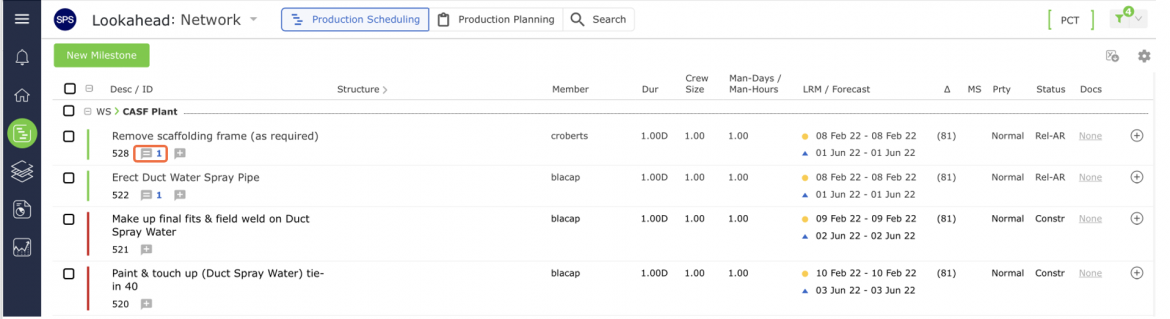
The notes window opens and displays any Notes associated with the selected Milestone / Task, along with the date created and creating individual.
Method 3: Gantt Chart
- To view Notes for a Milestone / Task in the Gantt Charter view, click the Integrated Menu to the left of the desired Milestone / Task, then select Notes Manager. For information on how to access the Gantt Charter view see Using Gantt Charter.
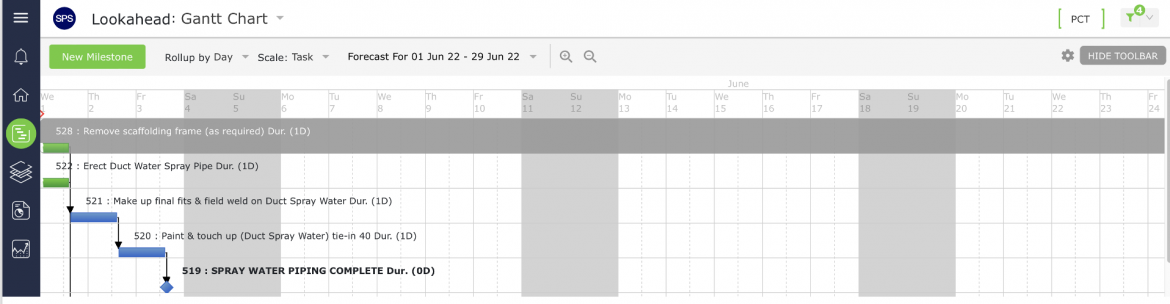
The Edit Constraint (Predecessor) Task window opens and displays any Notes associated with the selected Milestone / Task, along with the date created and creating individual.
Method 4: Network Manager
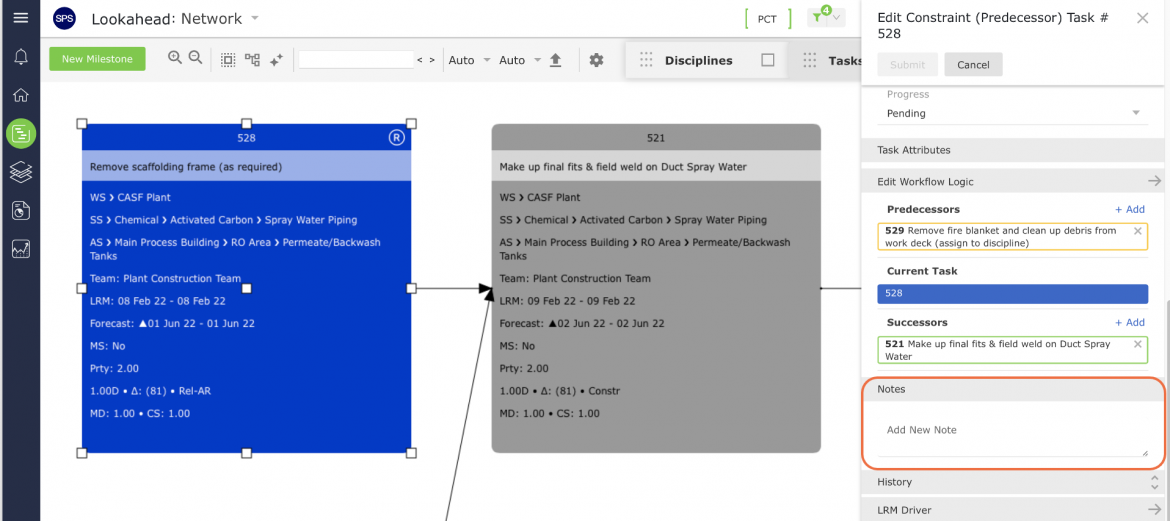
- To view notes for a Milestone / Task in the Network Manager, double-click the task. In the Task Details window, scroll until the Notes detail is visible as shown in the video below. For information on how to access the Network Manager, see Using Network Manager.
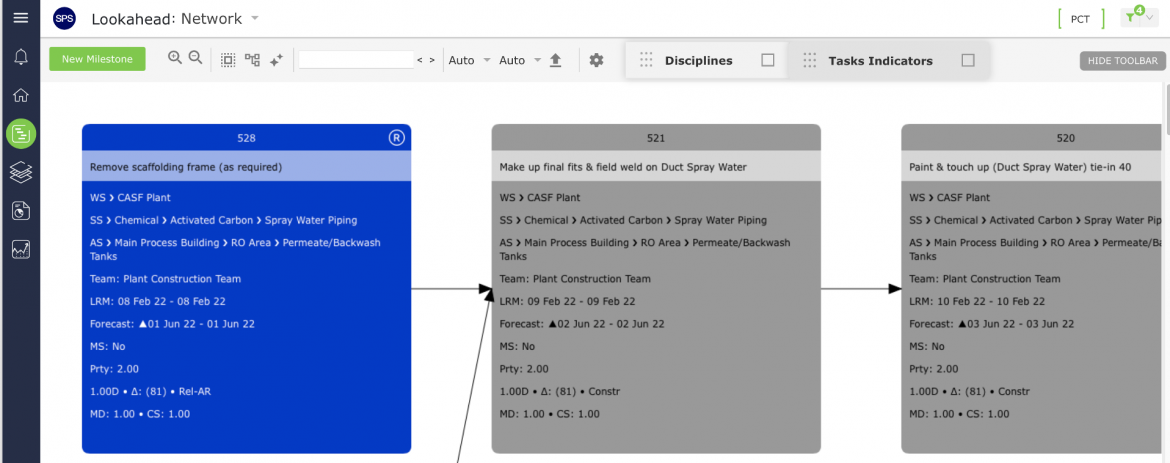
The Edit Constraint (Predecessor) Task window opens and displays any Notes associated with the selected Milestone / Task, along with the date created and creating individual.