
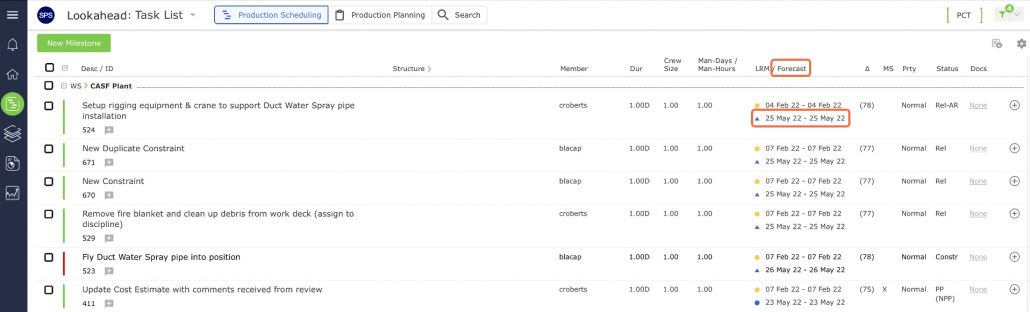
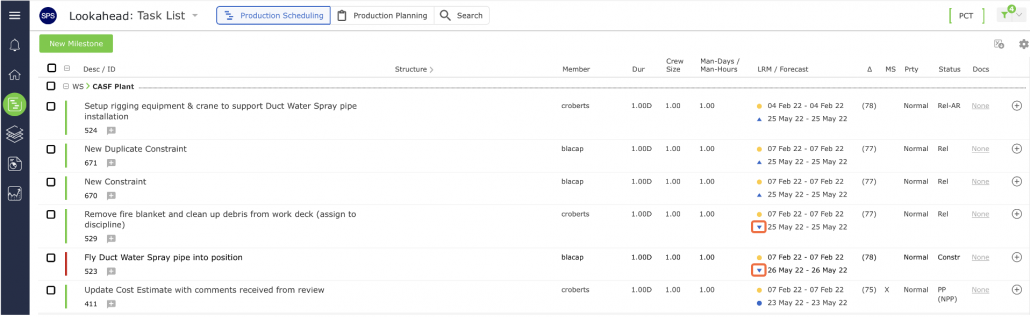
Forecast dates should represent the dates when a task is likely to occur based on a given workflow logic and associated work calendar. These dates can often be different than the LRM dates due to unforeseen delays or work being completed earlier than expected. Each task in the Lookahead will have a Forecast Start Date and a Forecast Finish Date. The difference or variance between the Forecast Start Date and the LRM Start Date for a task (in days) is displayed in the “Δ” column on the Lookahead as shown in the image below and can be used to measure how far the activity is deviating from the schedule.
There are three possible methods for calculating the Forecast Dates for tasks in a workflow:
- Continuous Workflow Method
- Last Responsible Moment Workflow Method
- Manually Selecting a Forecast Start Date
You have the opportunity to select the desired Forecast Date calculation method for each task when inserting a new constraint task or editing an existing task.
Continuous Workflow Calculation Method
The default calculation method for Forecast Dates is the “Continuous” Workflow Method as shown in the image below.
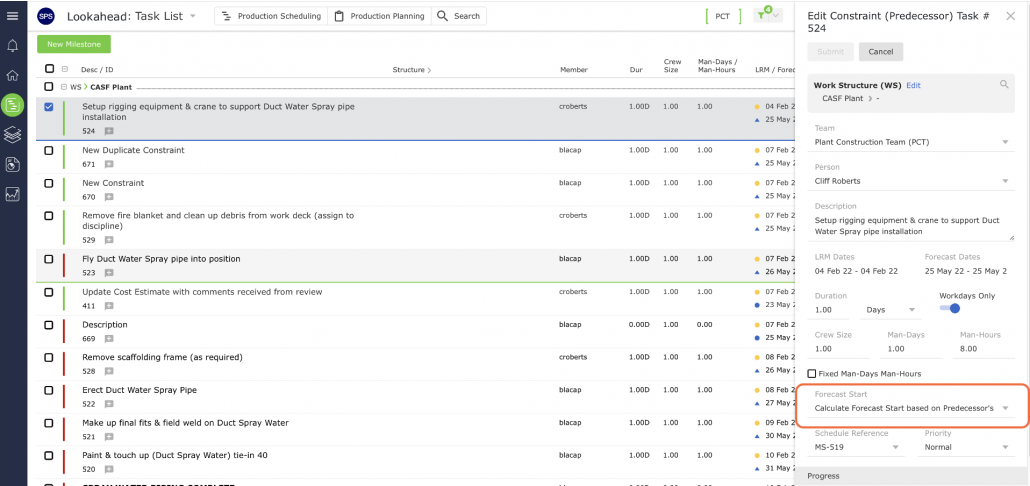
Using the Continuous Workflow Method, the Forecast Start Date of a task is calculated based on the Forecast Finish Date of its predecessor to minimize WIP, i.e., “if the work has begun for a given work stream, finish it.” The Forecast Start Date of the task will directly follow the latest Forecast Finish Date of any predecessor task. For example, if Task A has two predecessors – one with a Forecast Finish of 13 January and one with a Forecast Finish of 16 January, the Forecast Start Date of Task A will be 17 January. This calculation method assumes that work will begin as soon as all predecessor tasks are completed (i.e., a “continuous” flow of work) in order to reduce Cycle Time and minimize Work in Process (WIP), even if the LRM Start date is further in the future. However, the Forecast Start Date for the very first task for a given workflow will be set same as the LRM Start Date in order to minimize Cycle Time and WIP as long as the resulting date is in the future.
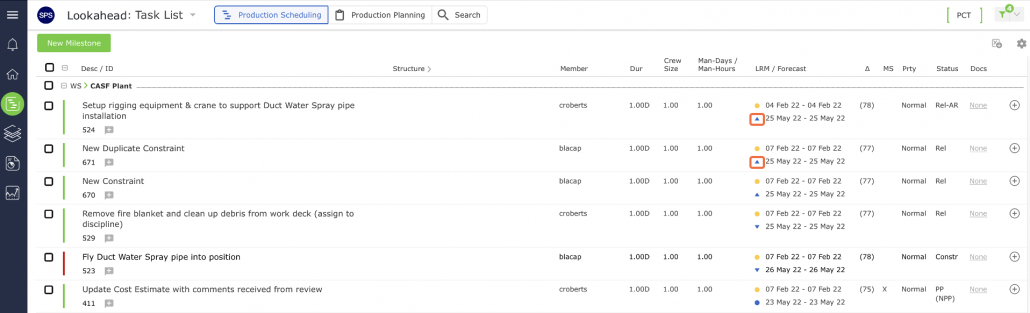
Any tasks that are using the Continuous Workflow calculation method will have an upward pointing arrow next to the date entry in the Forecast Start column in the Lookahead as shown in the above image.
Last Responsible Moment Workflow Calculation Method
Using the LRM Workflow Method, the Forecast Dates for a task are calculated by working backwards from the Milestone Dates. This method is similar to the task’s date calculation method. Using this method, if Task A has a LRM Start date of 24 January, and has two predecessors – one with a Forecast Finish of 13 January, and one with a Forecast Finish of 16 January, the Forecast Start Date of Task A will remain 24 January. Unlike the Continuous Workflow Method, the Forecast Start will not be pulled forward to follow the predecessor task. This calculation method assumes that work will be done “Just-In-Time,” rather than at the first possible moment.
Below image shows the LRM Workflow Method selected when entering a new constraint task.
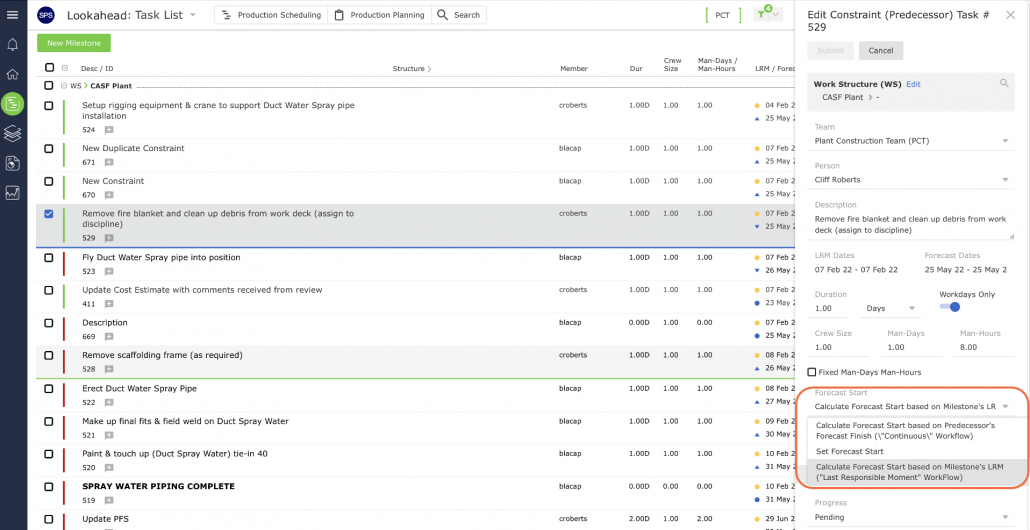
Any tasks which are using the LRM Workflow calculation method will have a downward pointing arrow next to the date entry in the Forecast Start column in the Lookahead as shown in the image below.
Setting or Changing Forecast Dates
Forecast Start Dates can also be manually set by the responsible team member or individual with Team-Level Access. Using this method, a specific Forecast Start Date is chosen for a task.
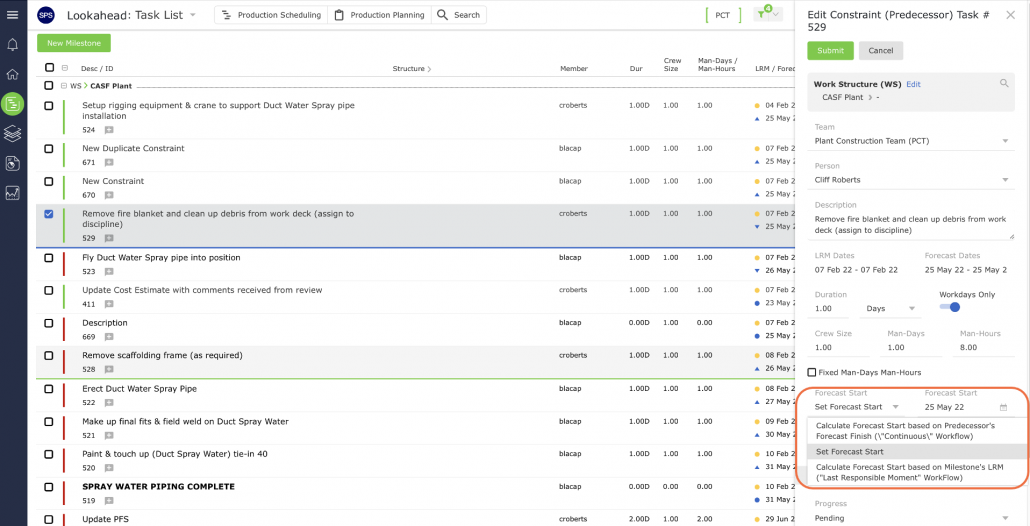
This chosen Forecast Start does not have to directly follow the Forecast Finish of its predecessor(s), and may be earlier or later than the Start. For example, if Task A has a LRM Start date of 24 January, and has two predecessors – one with a Forecast Finish of 13 January, and one with a Forecast Finish of 16 January, the Forecast Start Date of Task A can be manually set to any date after 16 January.
Any tasks with Forecast Start Dates that have been manually set are denoted with an asterisk (*) next to the date entry in the Forecast Start column on the Lookahead.
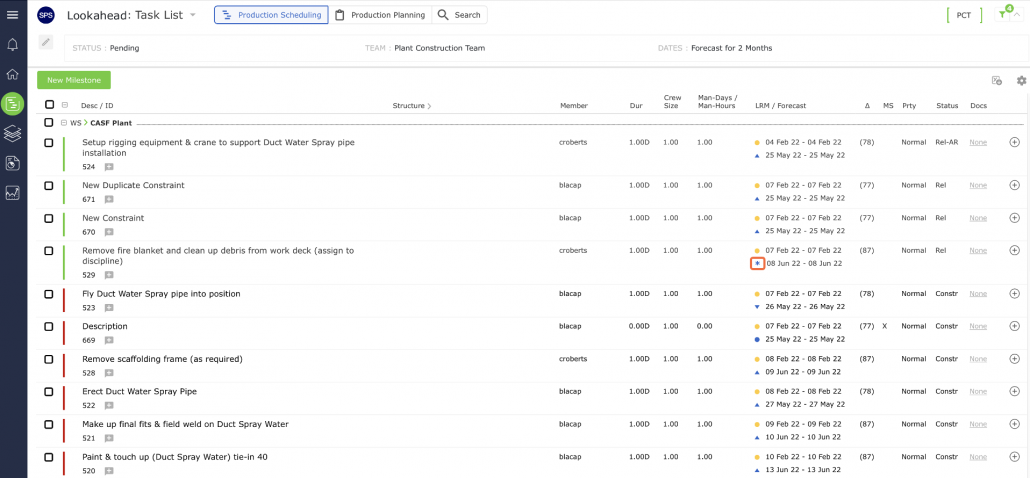
The Forecast Start Date and / or calculation method for any task can be modified at any time prior to the task being loaded on a Production Plan. A new Forecast Start Date and / or calculation method can be set for any non-completed (released or constrained) task in a workstream.
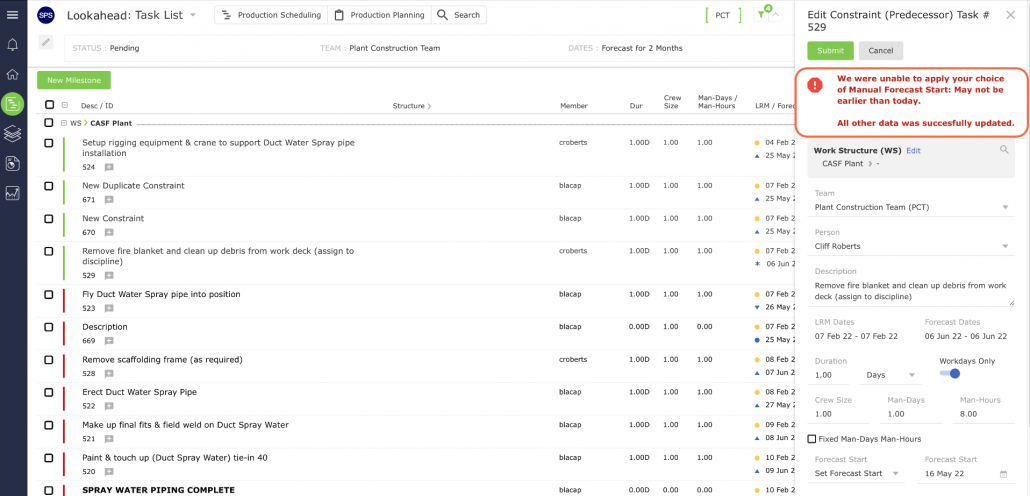
Note: if you enter a Forecast Start Date, which is not a valid date (e.g., earlier than the Forecast Finish Date of the task’s predecessor), a warning message appears and the invalid input is not accepted as shown in the image below.
If a task is not loaded on a Production Plan on or before its Forecast Start Date, SPS|PM will automatically calculate a new Forecast Start Date for the task based on the rules set for the forecast date calculation. If work has already begun on a work stream, any tasks that are Released or Released-At-Risk and have the forecast dates calculated based on continuous workflow will have Forecast Start Date that matches the next work day of the end of the current Production Plan’s Planning Horizon.
Once a Production Plan has been created for a given day, any released tasks with forecast dates matching the date of the newly created Production Plan will have their forecast dates pushed out until the start of the Next Production Plan. For example, if a team created a Production Plan for 10 January and the Planning Horizon is 1 day, any released tasks with a forecast date of 10 January, which were not loaded on the Production Plan, will now have a Forecast Start date of 11 January (the next available Production Plan date).
Based on whether a team commits Production Plans for a Planning Horizon of “today” or “tomorrow,” two different rules will apply.
Rule 1: Teams that commit Production Plans for “today”
If the team committed a Production Plan for today, the Planning Horizon will start today and any released tasks which were not loaded on today’s Production Plan, and which have forecast dates within the Planning Horizon, will have their forecast dates pushed out to the next workday of the Planning Horizon. Also, any successor tasks will have their forecast dates accordingly adjusted.
Rule 2: Teams that commit Production Plans for “tomorrow”
If the team committed a Production Plan for tomorrow, the Planning Horizon will start tomorrow and any released tasks which were not loaded on tomorrow’s Production Plan, and which have forecast dates within the Planning Horizon, will have their forecast dates pushed out to the next workday of the Planning Horizon. Also, any successor tasks will have their forecast dates accordingly adjusted.
The following example shows the forecast date calculation method for three tasks (A, B, and C) which are part of the work stream that have work already started and have continuous workflow as the date calculation method. In this example, a team created a Production Plan with Planning Horizon of 1 day on 23 November (present day for this example) for the next day (i.e., 24 November – 24 November). A single task (Task A) is loaded on the Production Plan.
In this case, when the 24 November Production Plan is committed, the forecast date for Task B (which is released, with a forecast date of 24 November) will be immediately updated to 25 November, the next possible Production Plan start day.
No additional changes to the forecast dates occur on the following day. Both tasks, B and C, retain forecast dates of 25 November. The team can then plan for the next Production Plan, 25 November – 25 November, and the remaining released tasks have the correct forecast dates.