Before an individual can be added as a new member to an existing team, the individual’s account must first be created in SPS|PM.
To create a new user account, complete the steps below:
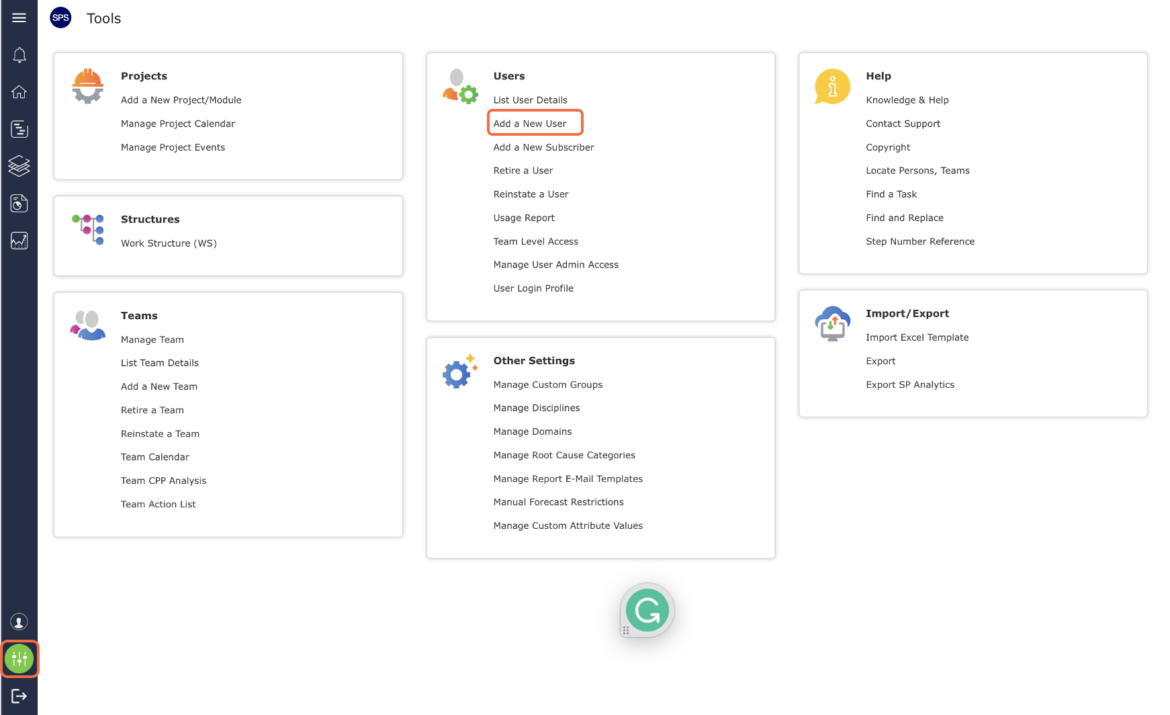
From the Main Navigation Bar select Tools, then select Add a New User.
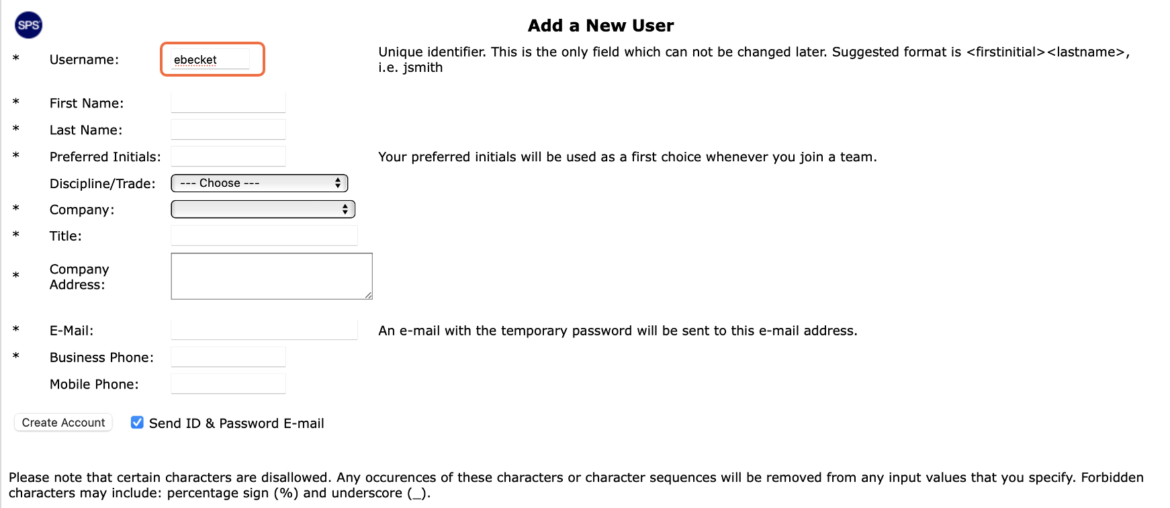
The Add a New User window opens and displays the fields associated with creating a new user account. All fields denoted with an asterisk (*) are mandatory.
Enter the new user’s name in the Username field according to the recommended format to the right of the field (e.g., jsmith for James Smith). The username is unique to each individual user. In order to ensure consistency across the entire project, it is important to use the same username format for all users. Consult with your System Administrator to ensure proper format.
Enter the new user’s associated information in the First Name, Last Name, and Preferred Initials fields. SPS|PM will use the first choice Preferred Initials whenever possible. In cases where the entered Preferred Initials are already assigned to another user, SPS|PM will assign different Preferred Initials as close as possible to the first choice entered.
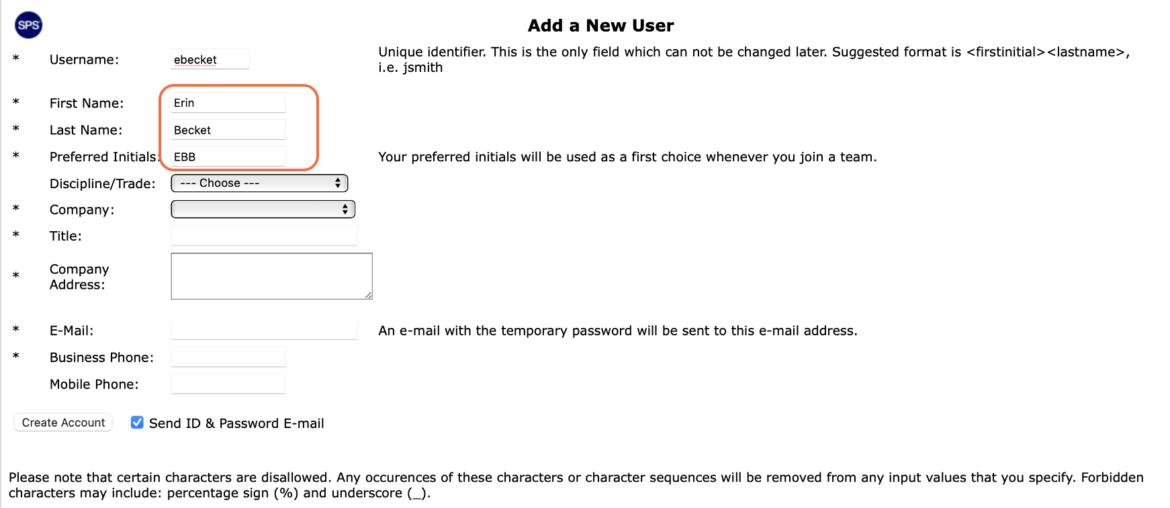
Select the new user’s associated Discipline / Trade from the Discipline / Trade drop-down. Although Discipline / Trade is not mandatory, selecting the appropriate Discipline / Trade will contribute to a detailed filtered Lookahead view and reports.
Note: You can add a new Discipline / Trade if it does not already exist in the drop-down by selecting (Add New) and entering the new Discipline / Trade in the resulting pop-up, then click the OK button. To maintain data integrity, avoid creating similar entries that are duplicative for the same Discipline / Trade. For example, for a Discipline / Trade of Electrical, duplicative entries could include Elec, ELEC, etc.
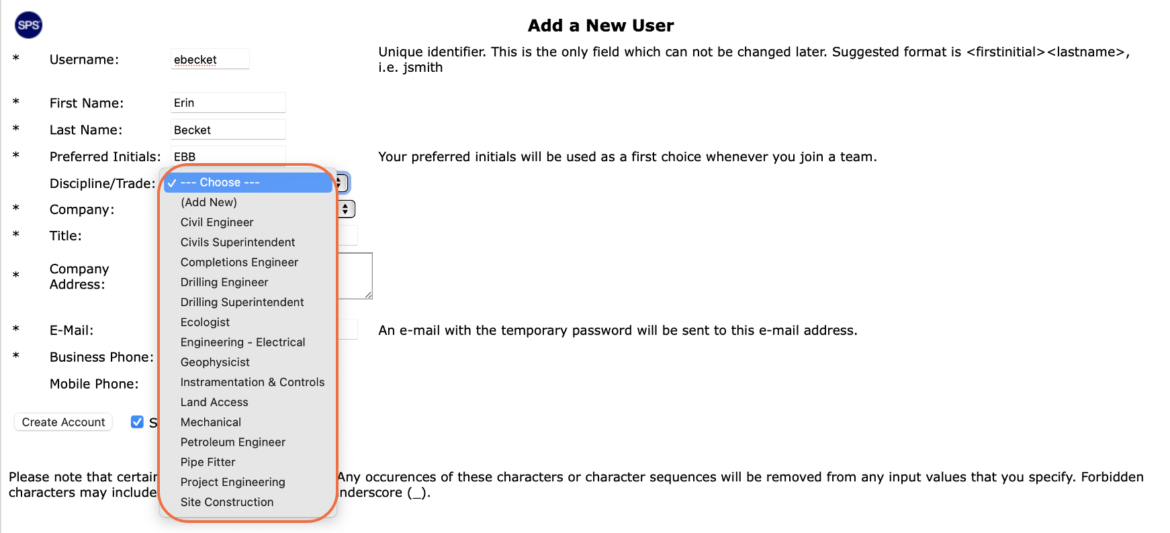
Select the new user’s associated Company from the Company drop-down.
Note: You can add a new company if it does not already exist in the Company drop-down by selecting (Add New) and entering the new company in the resulting pop-up, then click the OK button. To maintain data integrity, avoid creating similar entries that are duplicative for the same company. For example for a company named Acme, duplicative entries could include Acme Co. Acme Company, ACME, etc.
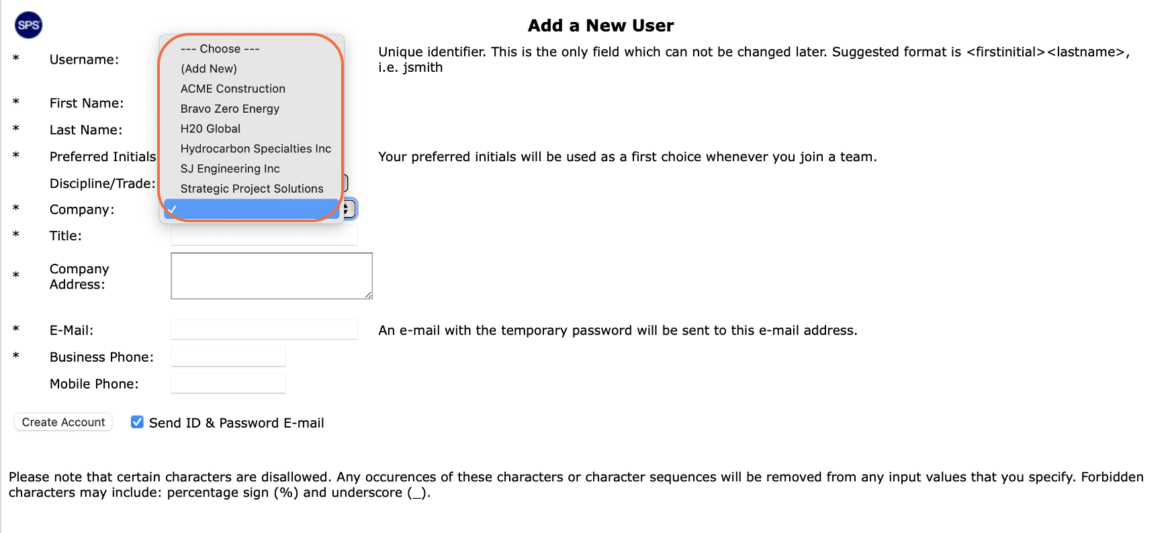
Enter the new user’s associated title and company address in the Title and Company Address fields.
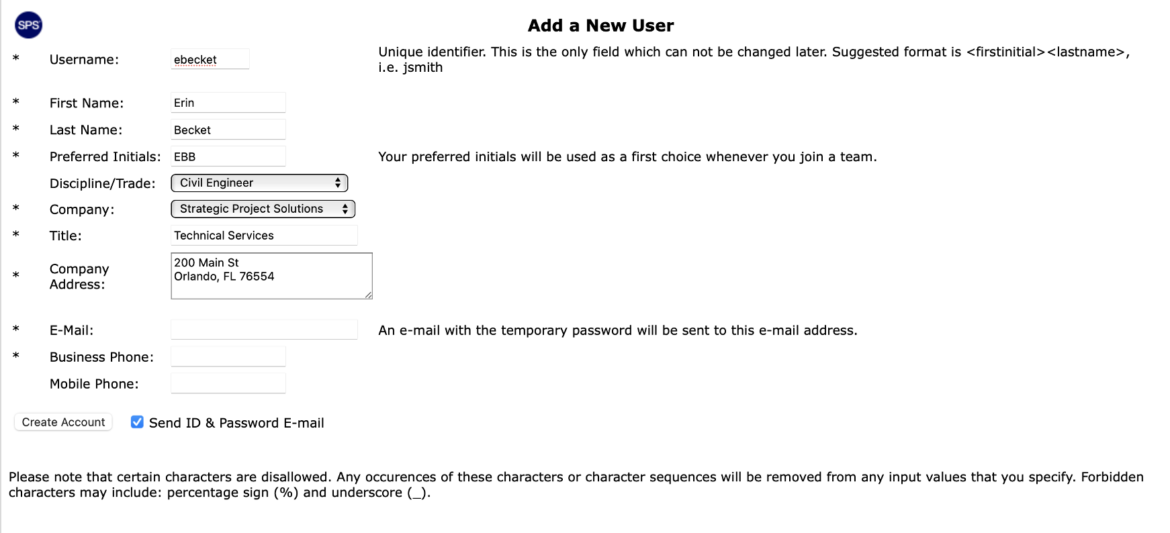
Enter the new user’s associated email and telephone number in the E-Mail and Business Phone fields.
Note: If the Send ID & Password E-mail checkbox is checked, once the new account is created, SPS|PM will send an automatic email containing the new user’s SPS|PM login credentials (username and temporary password) to the email address provided. To avoid confusion, carefully consider whether this information should be emailed now or at a later time. To send the new user’s SPS|PM login credentials at a later time, the new user may click the Forgot Your Password? link on the login page, or a System Administrator with user access level 3 or higher can trigger the login credentials from User List Details under the Name Menu.
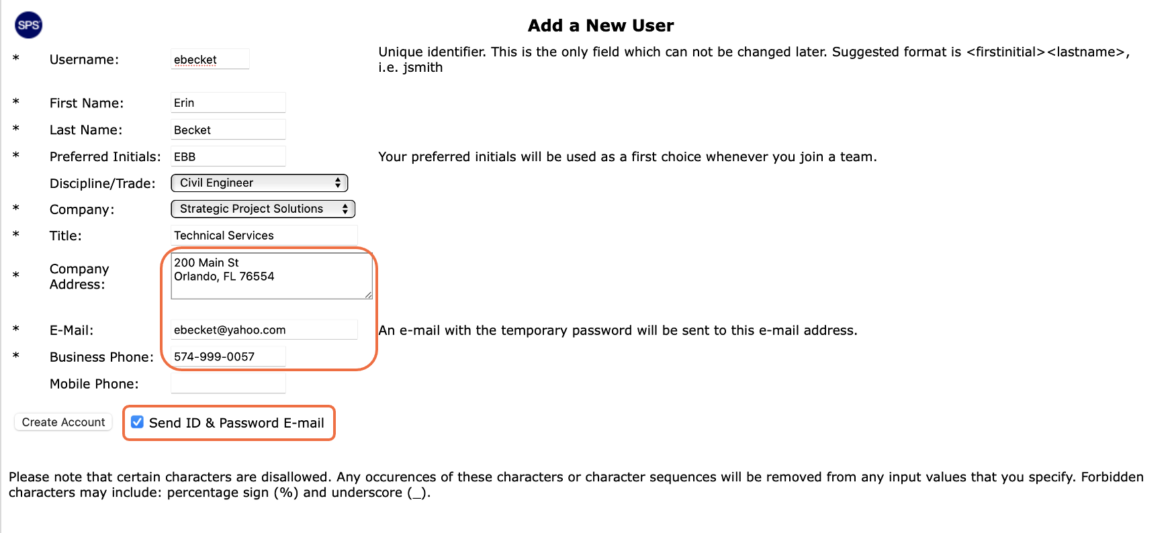
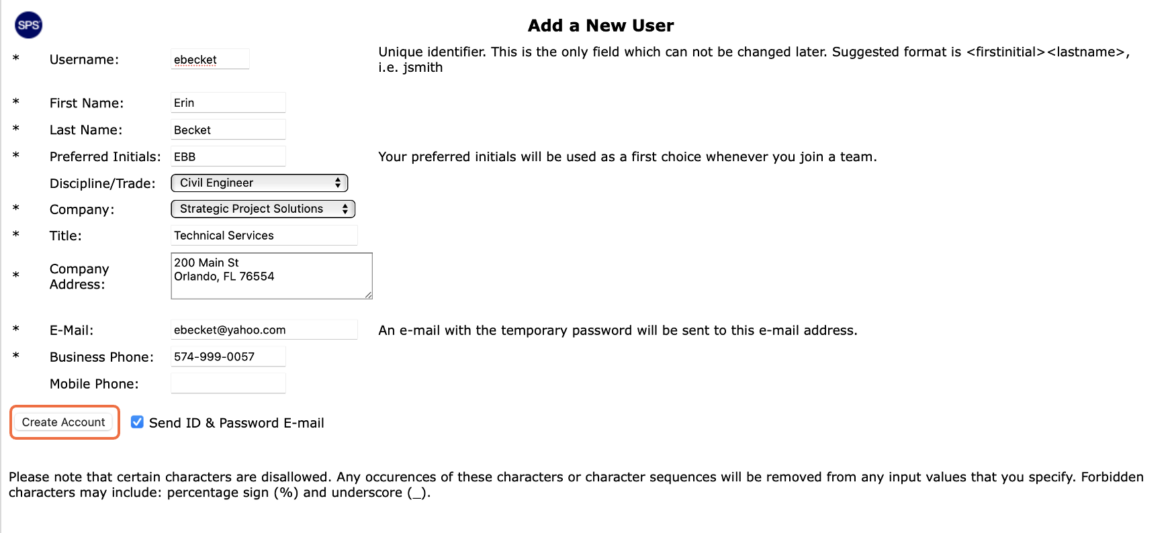
When finished entering all of the new user’s information, click the Create Account button.