To add a new member to an existing team, the individual’s SPS|PM account must have already been created. If the individual you desire to add to a team does not have an SPS|PM account, see Create New User Account for more information on how to add a new member.
To add an individual as a new member to an existing team, complete the steps below:
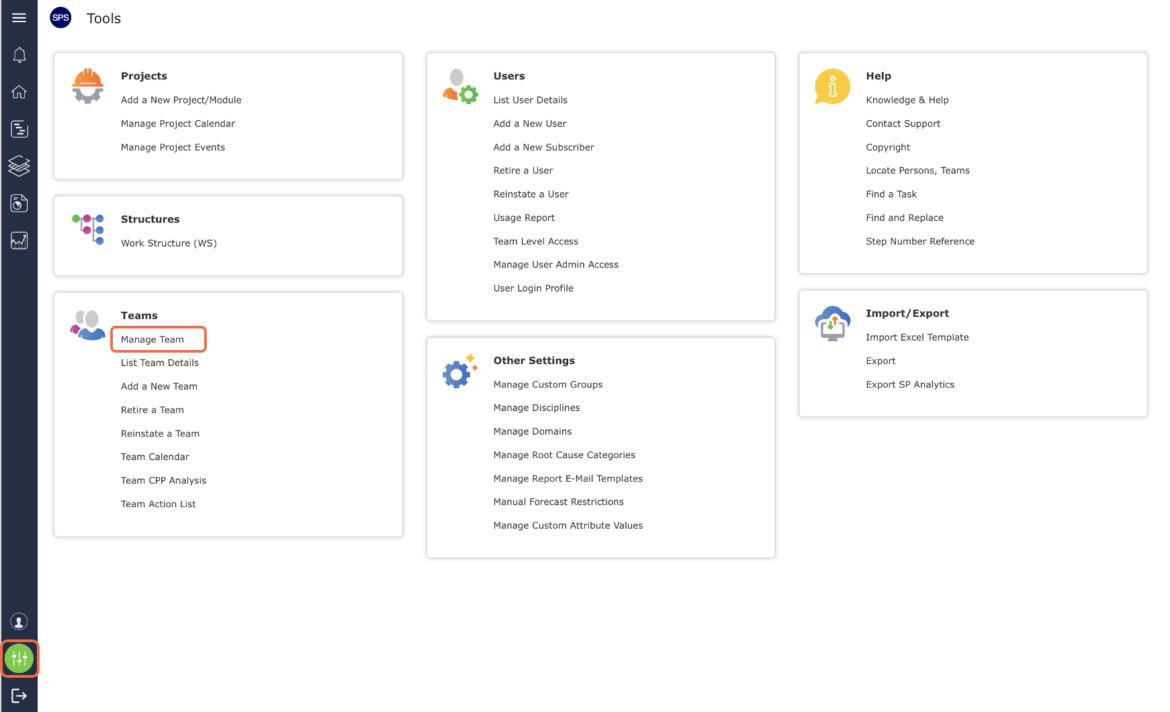
From the Main Navigation Bar select the Tools, then select Manage Team.
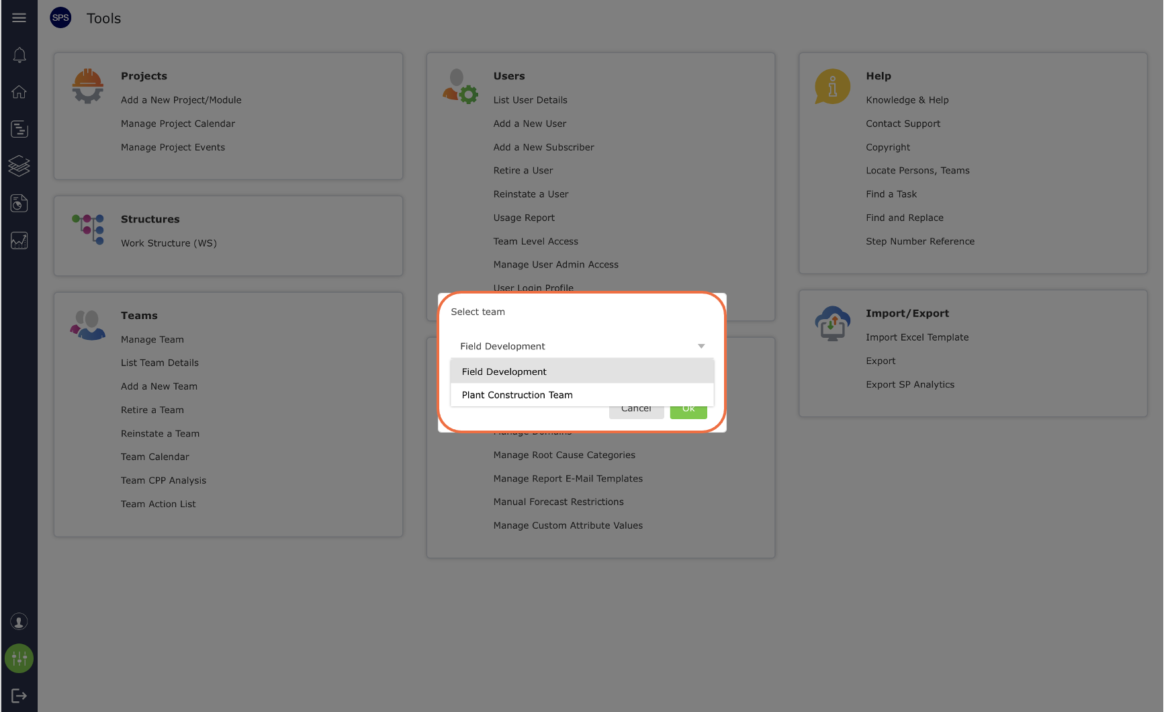
- Select the team you wish to add the new team member using the drop-down in the pop-up window.
The Manage Team window opens in a new window, displaying four tabs as shown in the image below.
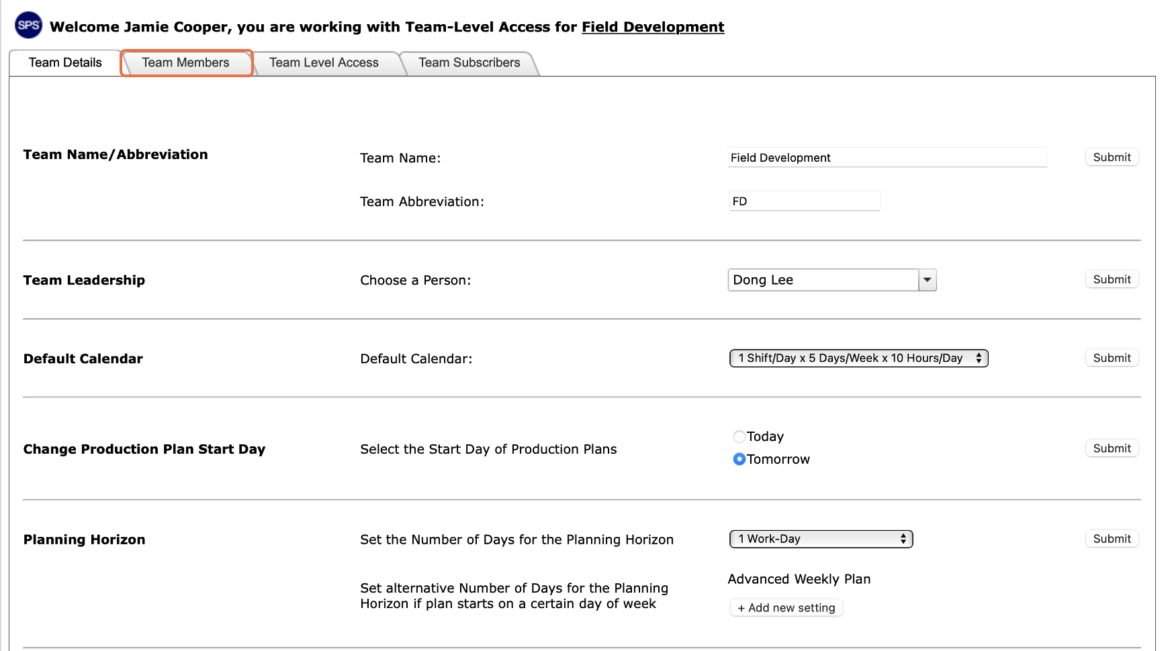
Select the Team Members tab and scroll to the New Team Member region.
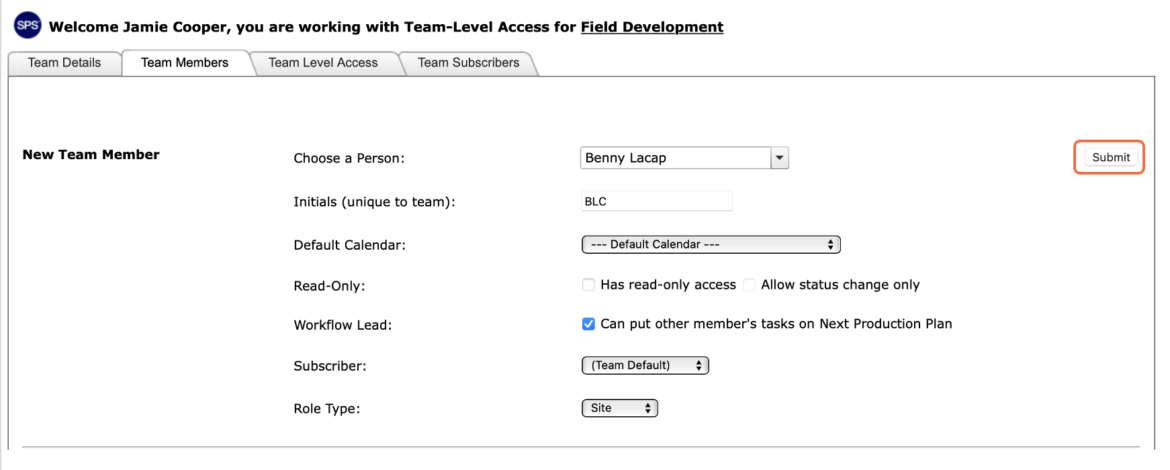
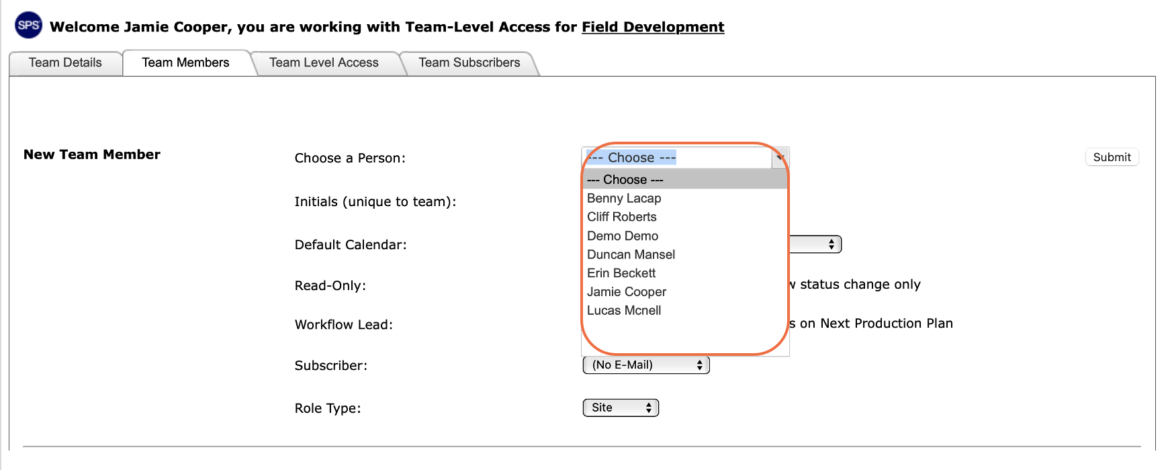
From the Choose a Person drop-down, locate and select the name of the individual to be added to the team.
Note: If you cannot find the name of the person you want to add, it may be due to the individual not having an SPS|PM account (see Create New User Account for more information) or you may not have sufficient user admin access (minimum level 3 is required).
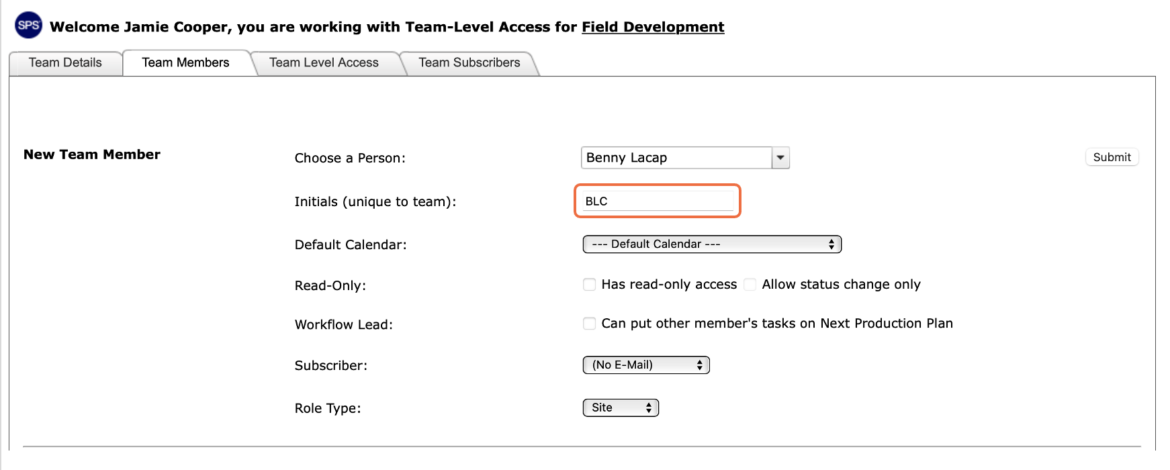
- Once the desired name is selected, the Initials (unique to team) field will auto-populate with the value assigned when the individual’s account was created.
If desired, you can modify the individual’s initials in the field. However, use caution – if another team member has the same initial’s SPS|PM will not allow duplicate initials for different individuals.
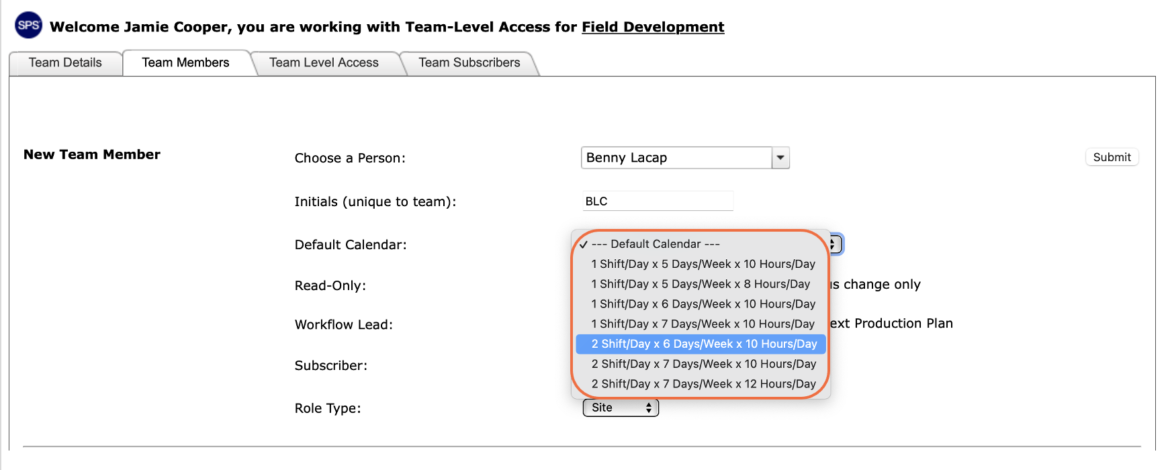
- From the Default Calendar drop-down, select the appropriate calendar to be used for the team.
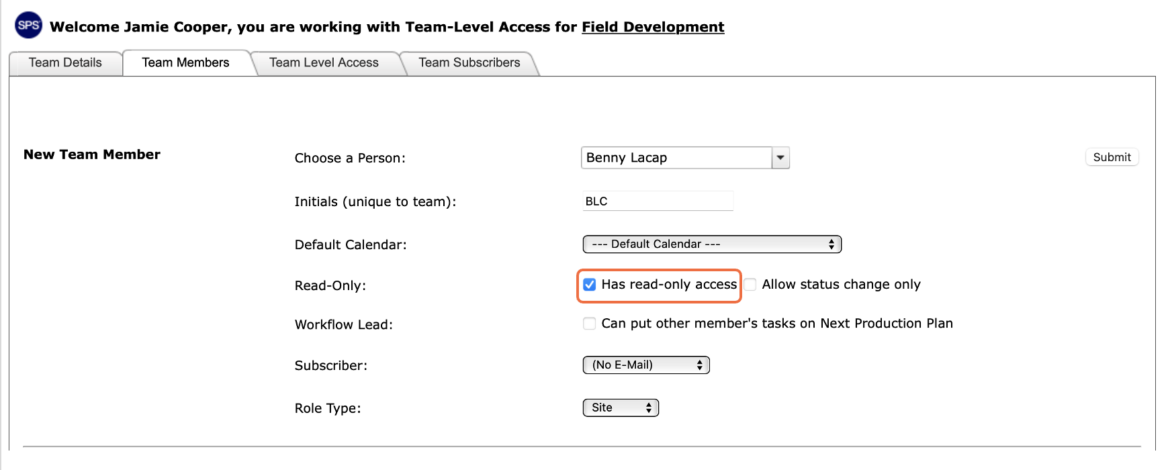
- If the appropriate level of access for the new team member is Read-Only, check the Has Read-Only Access checkbox. Otherwise, leave the Has Read-Only Access checkbox unchecked to assign the team member Write Access.
- If the new team member will be required to add other team members’ tasks to Production Plans and the new team member will not be assigned Team-Level Access, click Workflow Lead checkbox.
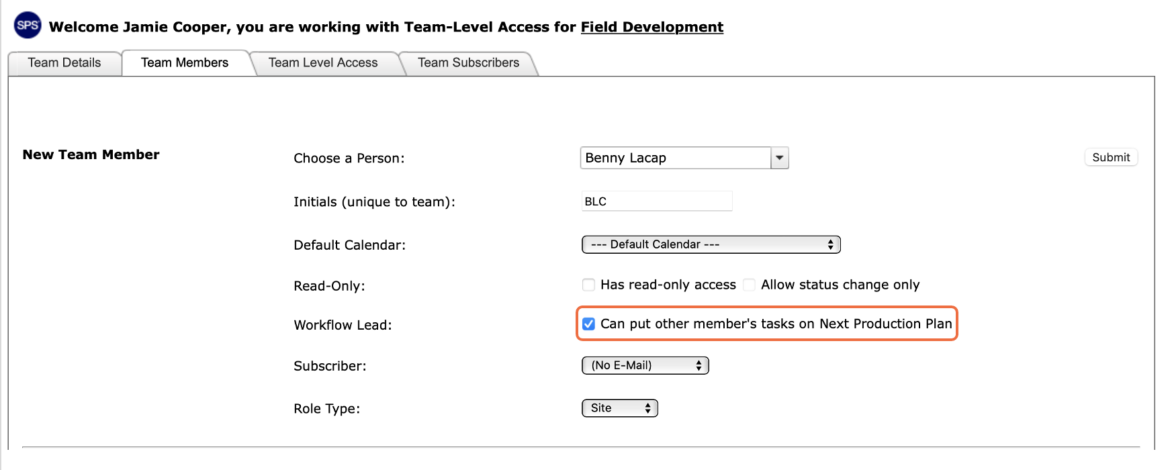
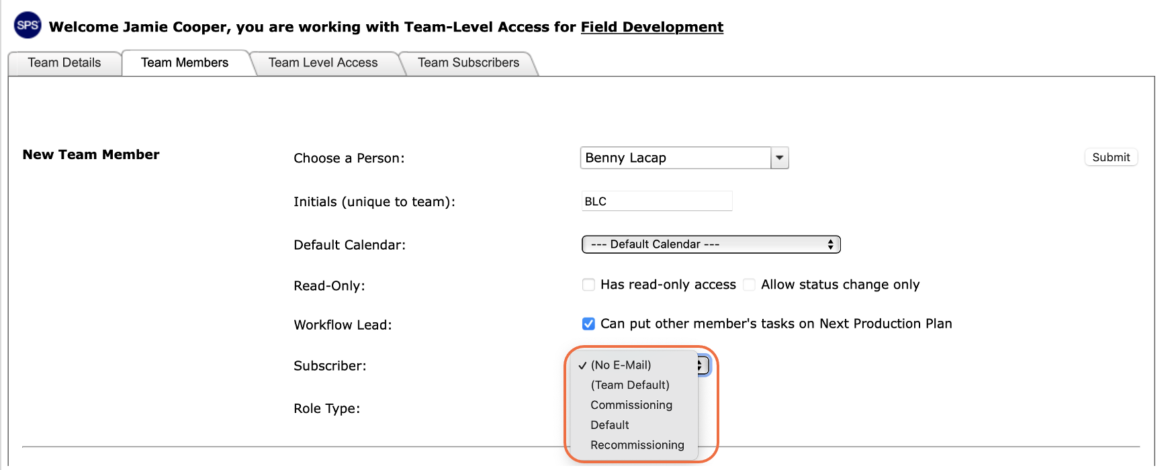
- If the new team member is required to receive the team’s auto-emailed Production Plans from SPS|Admin (when the Plans are committed), select (Team Default) or the applicable email template from the Subscriber drop-down. If the new team member should not receive the auto-emailed Production Plans, select (No Email) from the Subscriber drop-down.
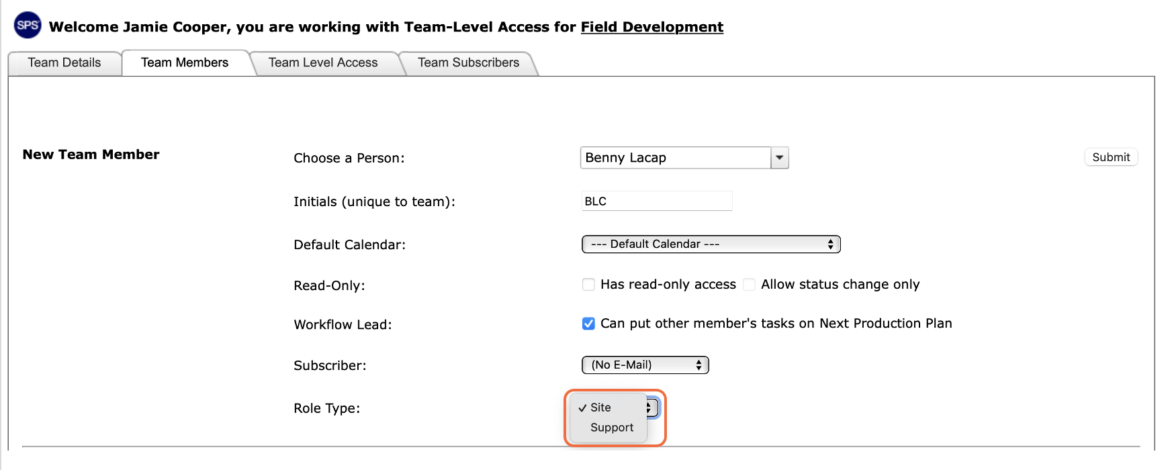
- Select the desired value (either Site or Support) from the Role Type drop-down. The distinction between Site activities and Support activities is driven by each team member’s assigned role.
- Once all information is correct in the New Team Member region, click the Submit button to add the new team member to the team.