
When a team is no longer active, it can be retired. To retire a team, the individual performing this action must have admin Level 3 access or higher but does not need to be a member of the team to retire it.
Retiring a team removes that team from the active list of teams under the Team Menu. Once a team is retired, anyone who was previously a member of that team will no longer see the abbreviation for the team under the Team Menu and no tasks can be assigned to that team.
To retire an existing team, complete the steps below.
- From the Main Navigation Bar select Tools, then select Retire a Team.
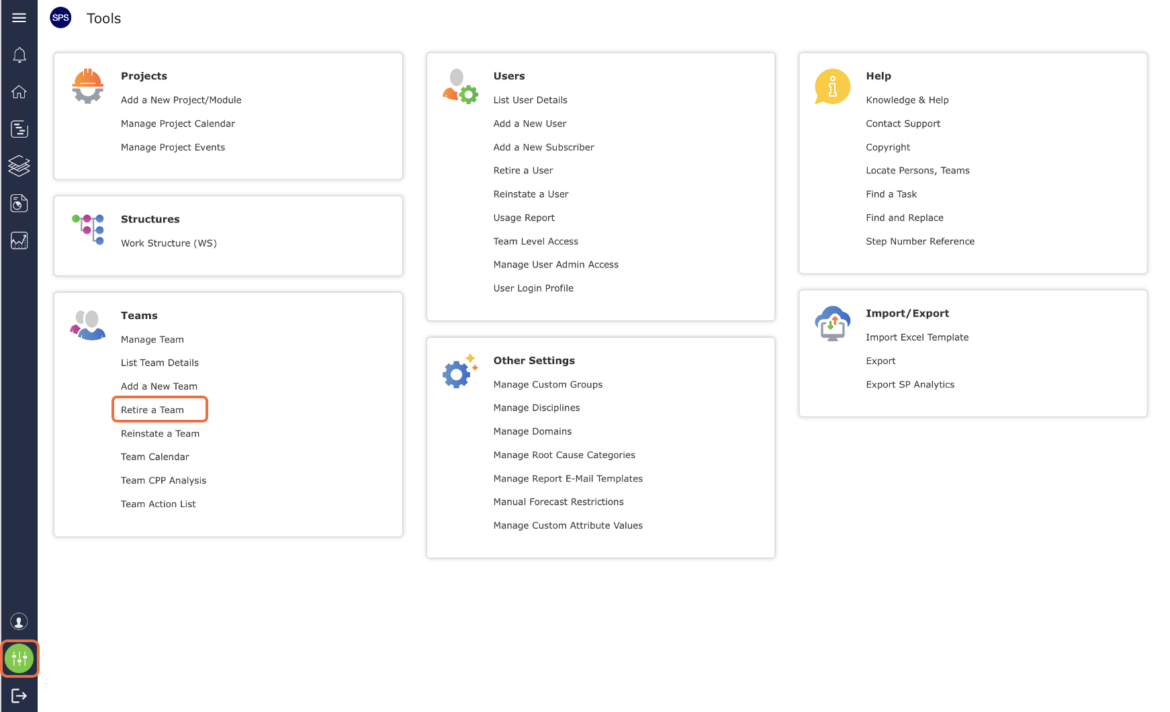
- The Retire a Team window opens as shown in the image below.

- Select the name of the team you desire to retire from the drop-down, then click the Retire a Team button.

The Retire a Team window refreshes and displays a confirmation message.

If a team has pending tasks it cannot be retired and a message will display as shown in the image below. To resolve, review the pending tasks in the Lookahead and take the required action such as deleting the task, then repeat the above steps.

Note: In addition to no pending tasks, to successfully retire a team there can be no active Standard Processes, which have tasks assigned to members of the team. If the team is referenced in any active Standard Process, a message will appear in the Retire a Team window stating that the Standard Processes must be retired first, and a button to retire those Standard Processes will appear. Clicking the Retire a Team button retires BOTH the team and also any active Standard Processes with references to members of the team. Once this button is clicked, a message should appear confirming that the team has been retired.