If an individual is not a member of an existing team in SPS|PM, he / she can be subscribed to receive an email every time the team commits a Production Plan and thus be notified about the work of the team.
To add subscribers to receive Production Plan emails for existing individuals, team members, and subscribers (associated with other teams) in SPS|PM, complete the steps below. For individuals that do not already exist in SPS|PM, complete Steps 6 – 10 below before completing Steps 1 – 5.
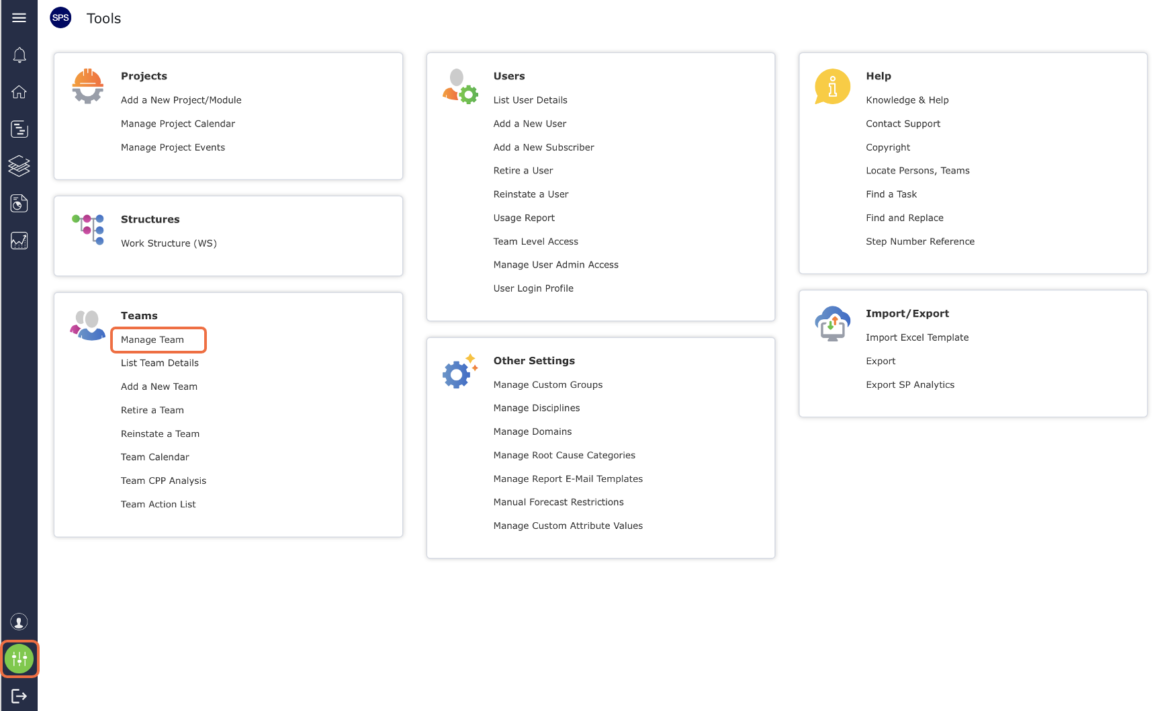
- From the Main Navigation Bar select the Tools, then select Manage Team.
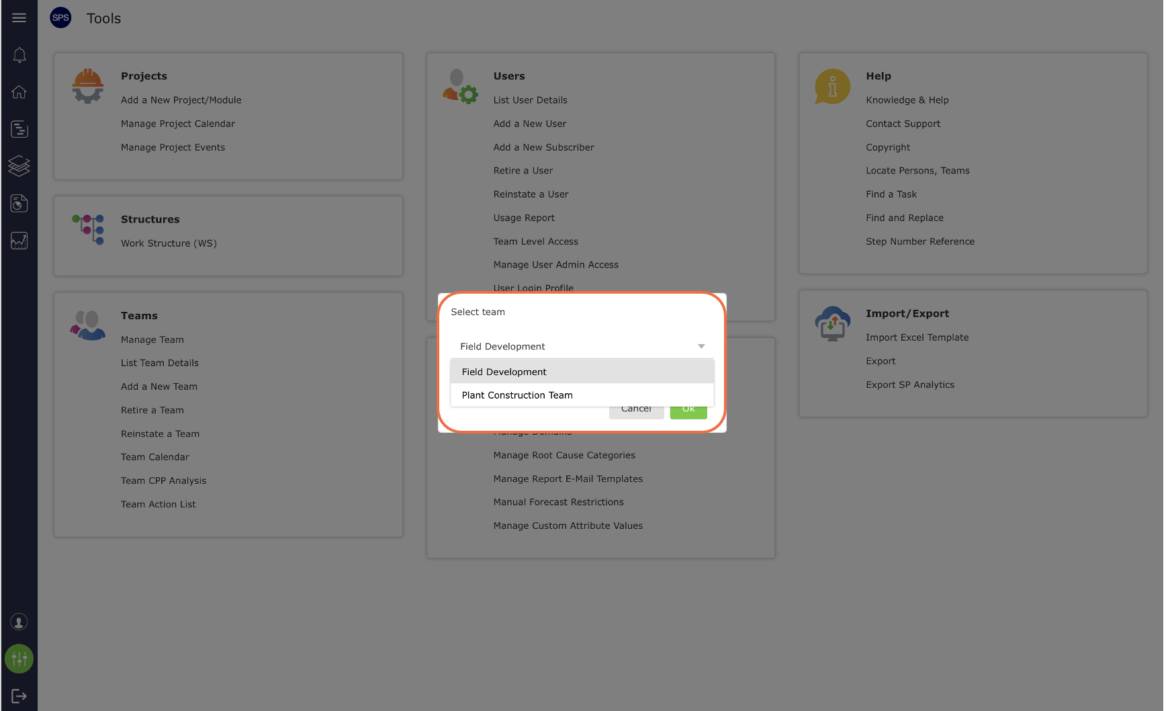
- Select the desired team.
- The Manage Team window will open to the Team Details tab. Select the Team Subscribers tab as shown in the image below.
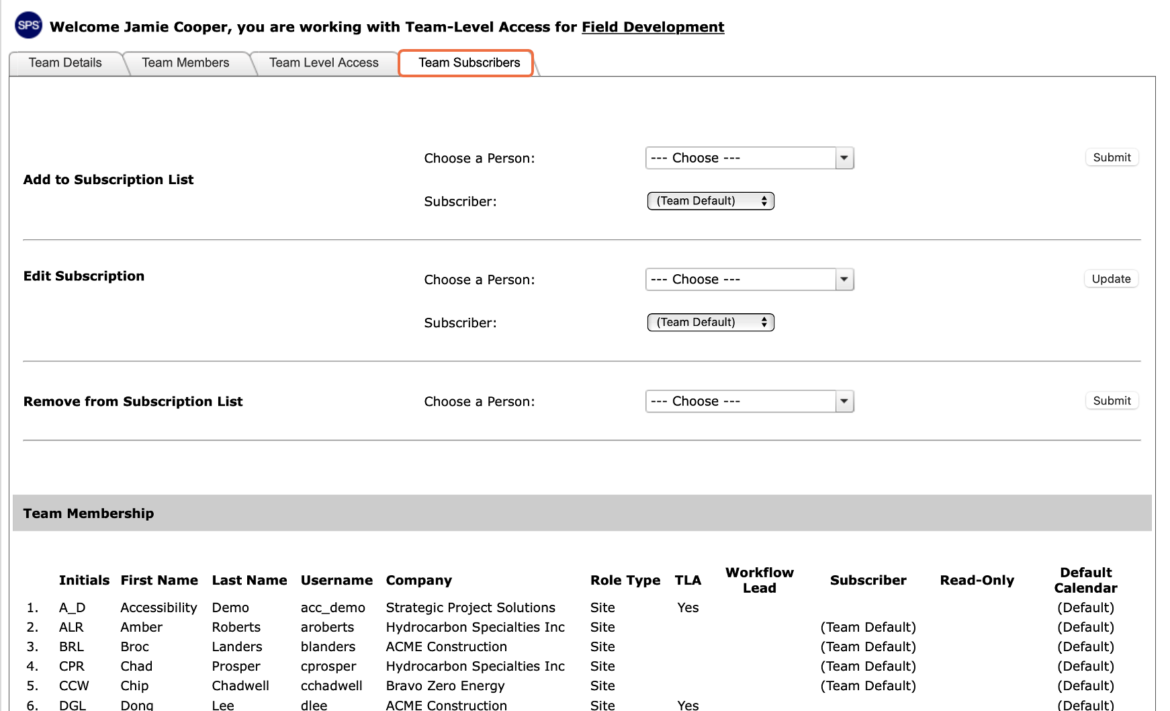
- In the Add to Subscription List region, select the desired individual from the Choose a Person drop-down and select the applicable email subscription option e.g., (Team Default) from the Subscriber drop-down. If the individual’s name does not appear in the Choose a Person drop-down, you must first add them as a new subscriber; see Step 6 for instructions.
Note: In order to ensure Production Plan emails can also be sent to those that may not be a team member or an individual with Team-Level Access not associated with the team, the Subscriber drop-down will also include individuals and subscribers that are not part of the selected team.
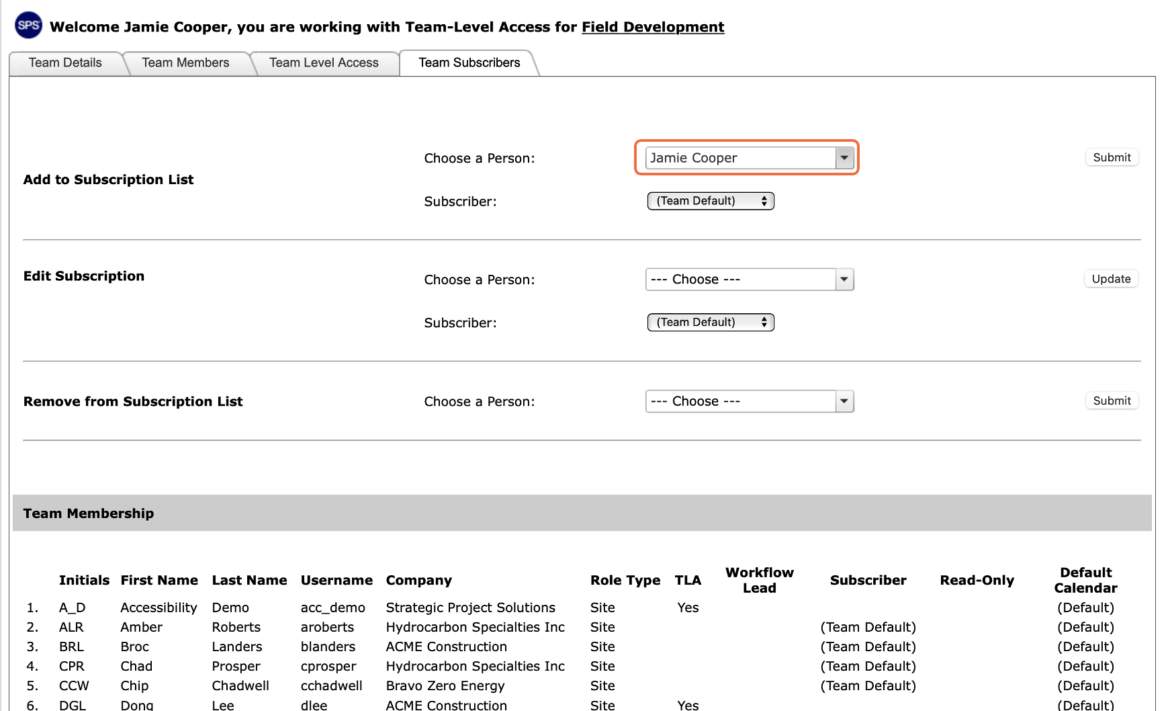
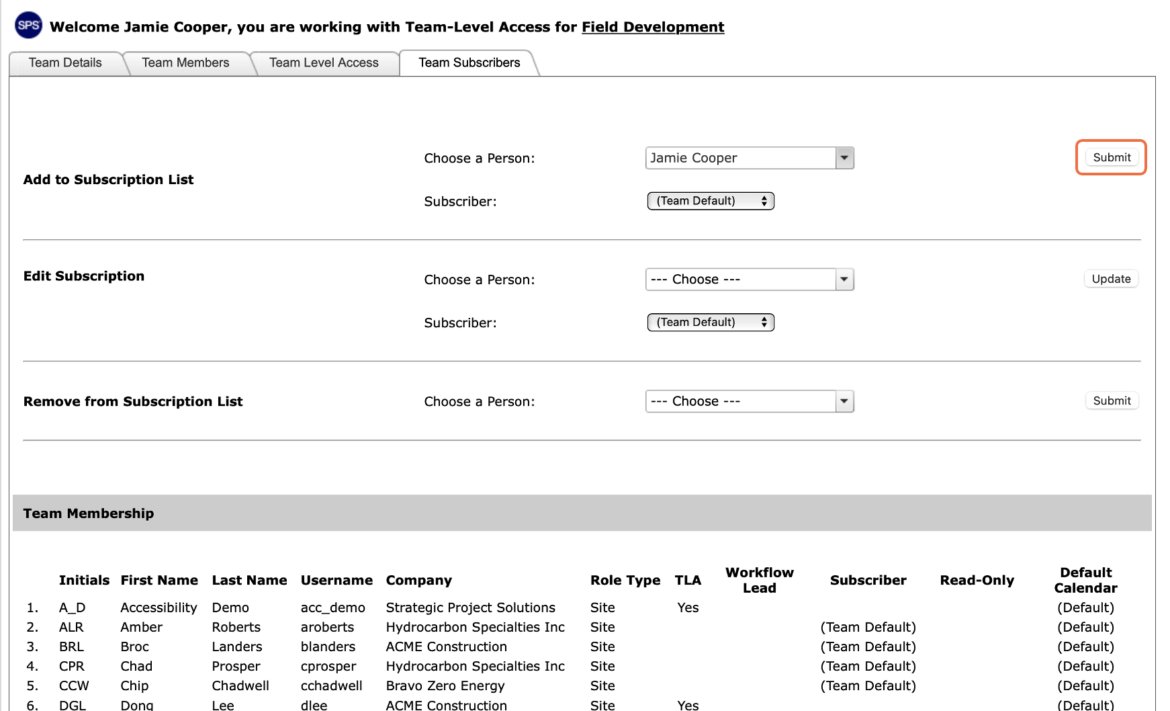
When finished selecting the desired individual and subscription option, click the Submit button.
To add a new subscriber that does not already exist in SPS|PM, complete the steps below and then complete Steps 1 – 5.
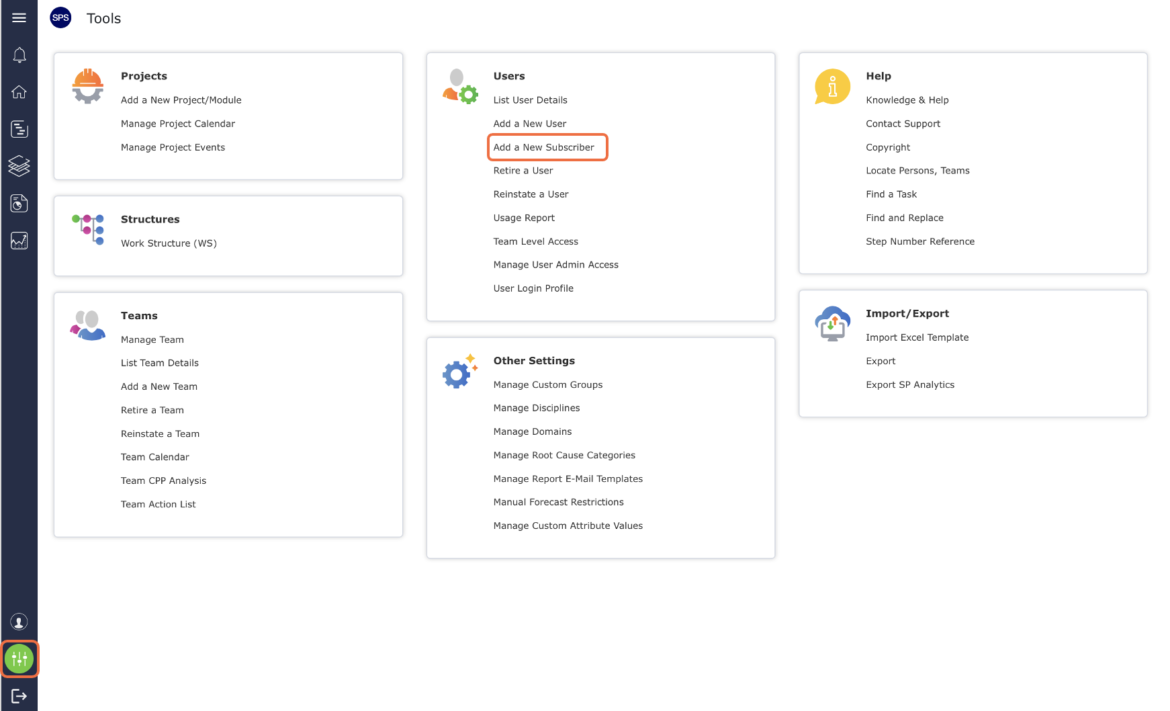
- From the Main Navigation Bar select the Tools, then select Add a New Subscriber.
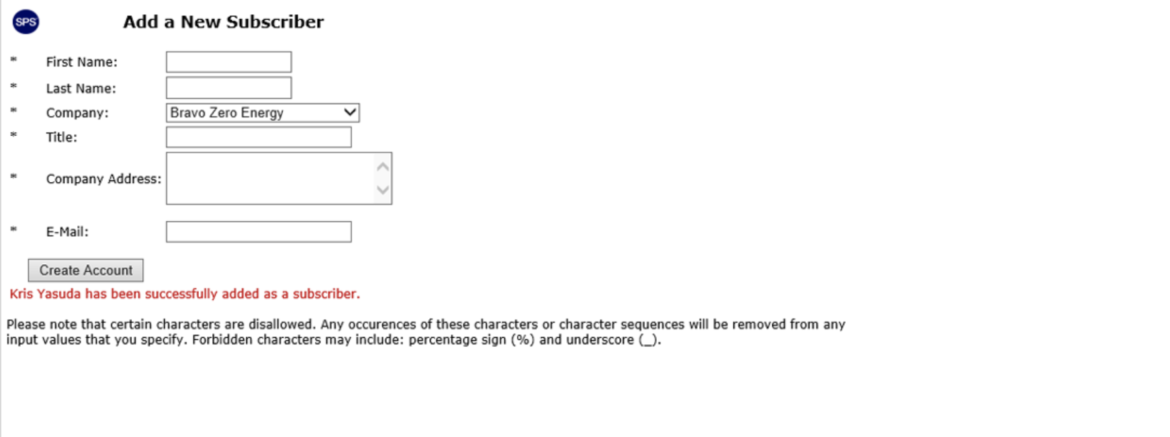
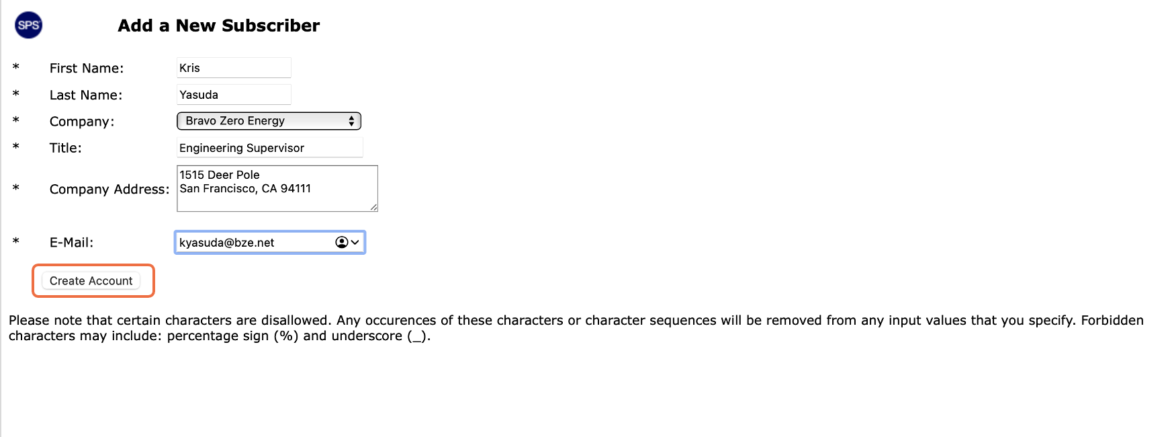
The Add a New Subscriber window opens as shown in the image below.
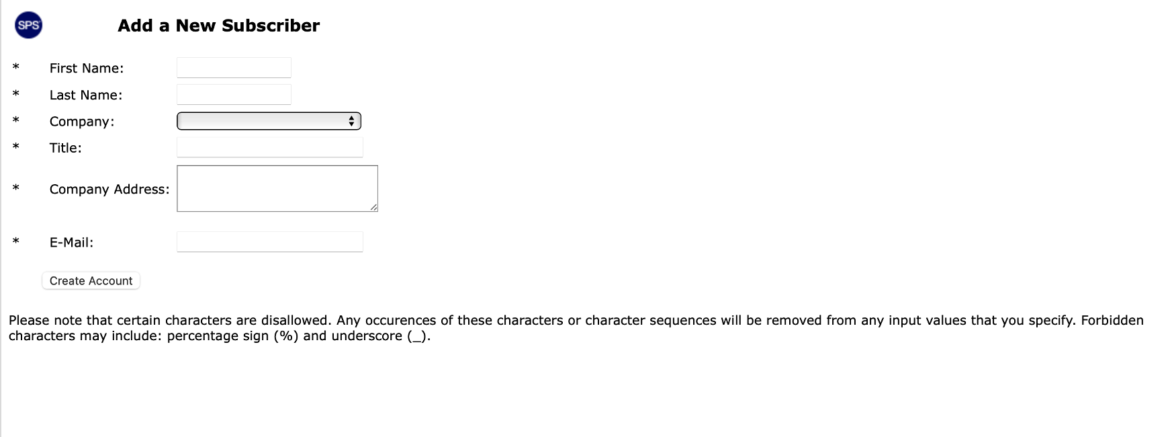
- Enter all the required information denoted by an asterisk (*) for the new subscriber, then click the Create Account button.
- Once the account has been created a confirmation message will display, as shown in the image below. While the subscriber will be a member of the team, the individual will only receive Production Plans to the e-mail address entered in Step 9 and will not appear in any of the team member drop-downs such as in the Lookahead view.