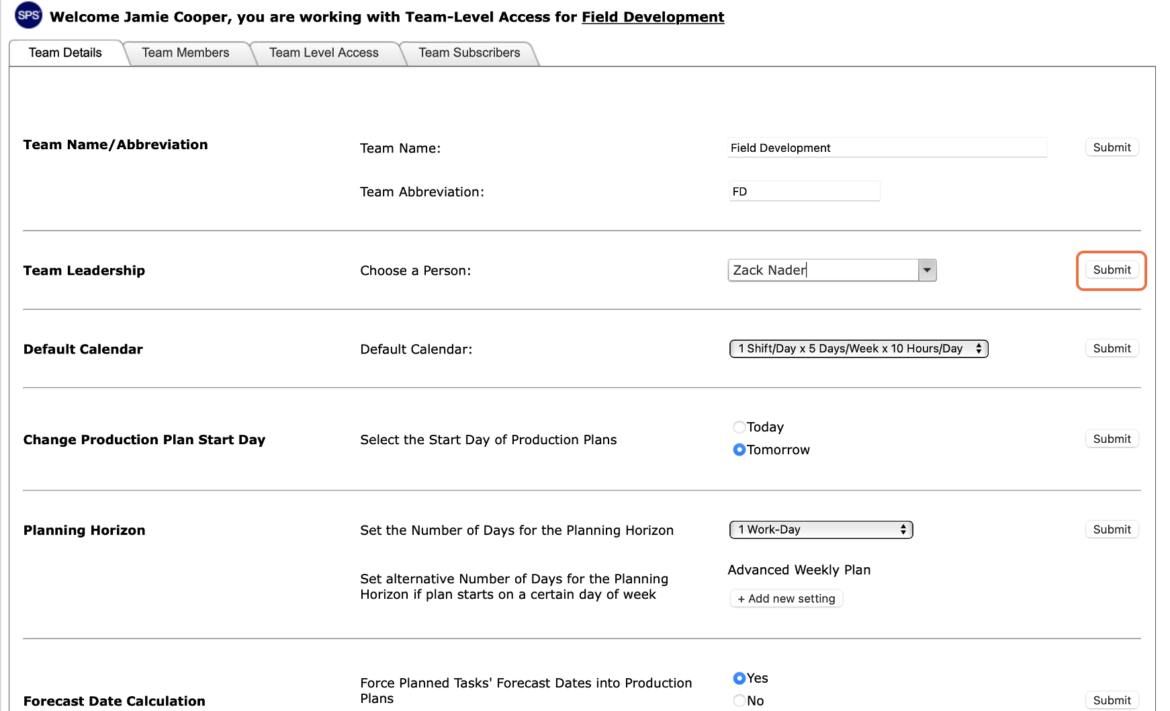
Occasionally, circumstances may arise that require the team leader to be changed such as a reassignment to another project or promotion to a new role.
To change the team leader for an existing team in SPS|PM complete the steps below:
Note: Only a user with Team-Level Access can change the team leader.
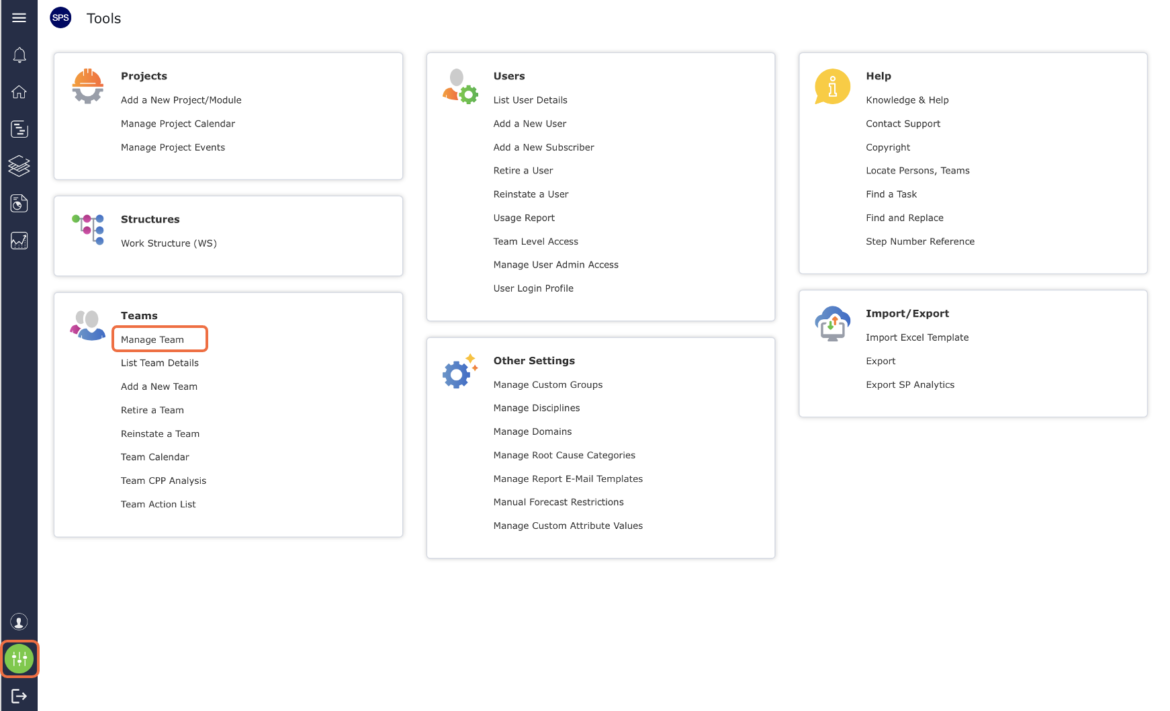
- From the Main Navigation Bar select Tools then select Manage Team.
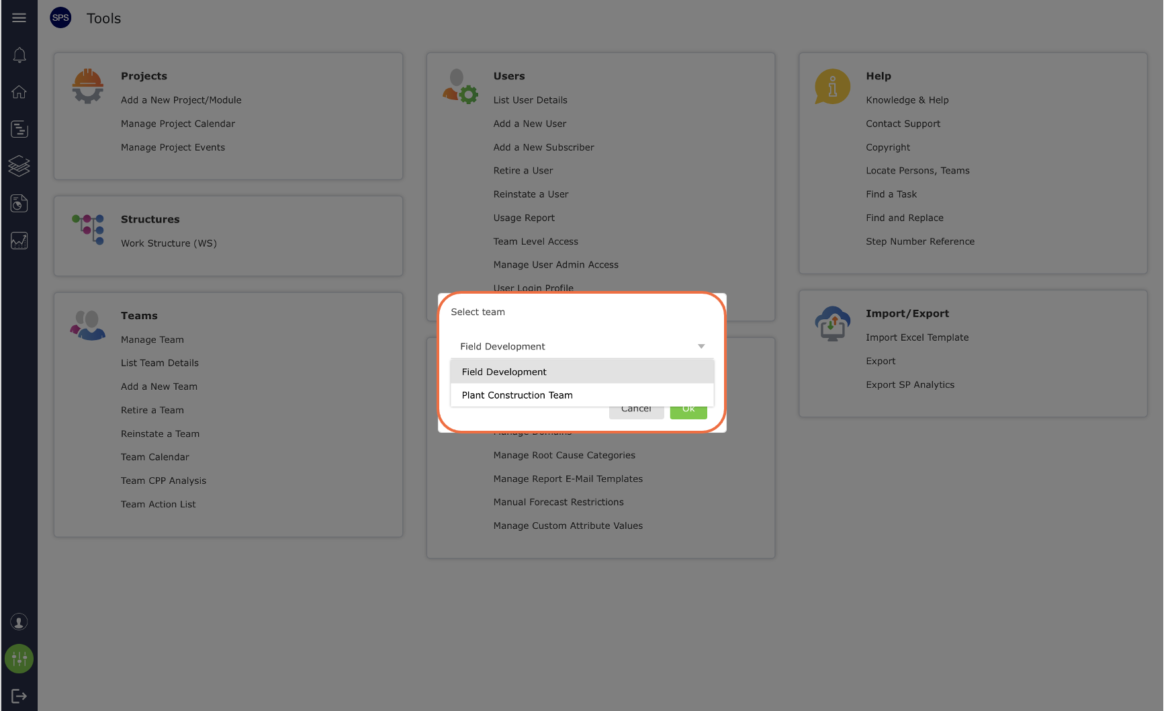
- Select the desired team.
- The Manage Team window opens with the Team Details tab selected.
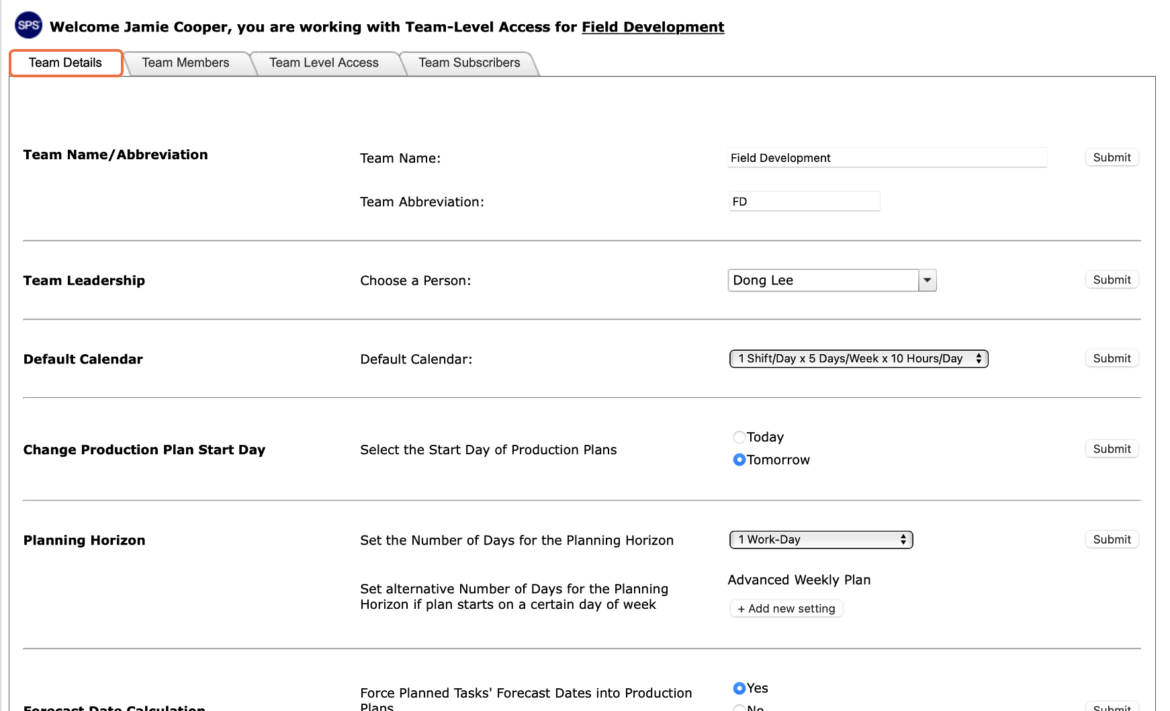
- In the Team Leadership region, select the new team leader from the Choose a Person drop-down.
The individuals listed in the drop-down are team members who have Team-Level Access. If no individuals other than the current team leader appear in the drop-down, Team-Level Access must first be granted to the desired new team lead before that individual’s name will appear in the drop-down. For more information on how to grant Team-Level access, see Team-Level Access under Set Access Rights.
Note: The current team leader cannot be removed from the team, or have Team-Level Access or Write Access revoked until he / she is removed as the team leader.
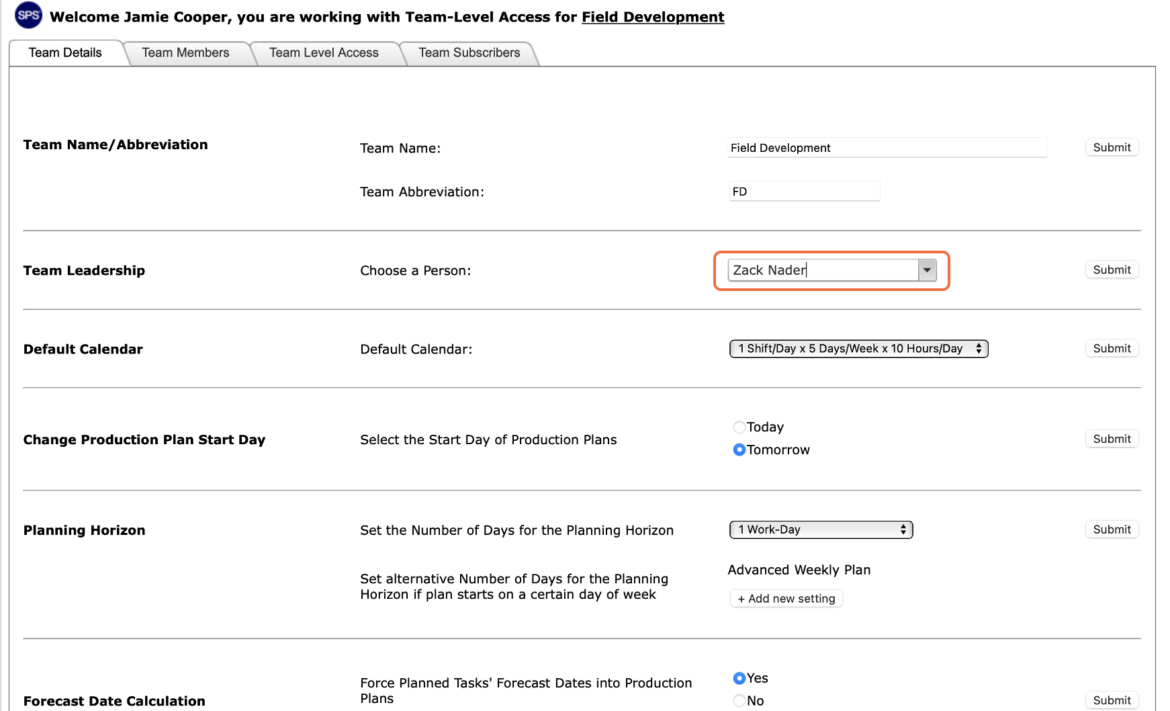
- Once the desired individual has been selected, click the Submit button.