
As SPS|PM provides many features and functions, a baseline configuration that optimally supports business and project objectives must be collaboratively established with project leadership. Once a baseline configuration is agreed upon, a new project or new SPS|PM module (Production Controller, Materials Manager, Production Packager, Progress Reporter, etc.) for an existing project can be created in SPS|PM.
To protect system and data integrity in SPS|PM, only an individual (typically a System Administrator) with admin level 4 or 5 access, can add a new project in SPS|PM.
The Add New Project / Module function provides teams the ability to create a new project or add a new module to an existing project based upon the agreed configuration. SPS|PM does this through a form to be populated with required data and agreements.
To add a new project / module in SPS|PM, complete the steps below:
- From the Main Navigation Bar select the Tools, then select Add New Project / Module.

- The Add New Project / Module window opens.
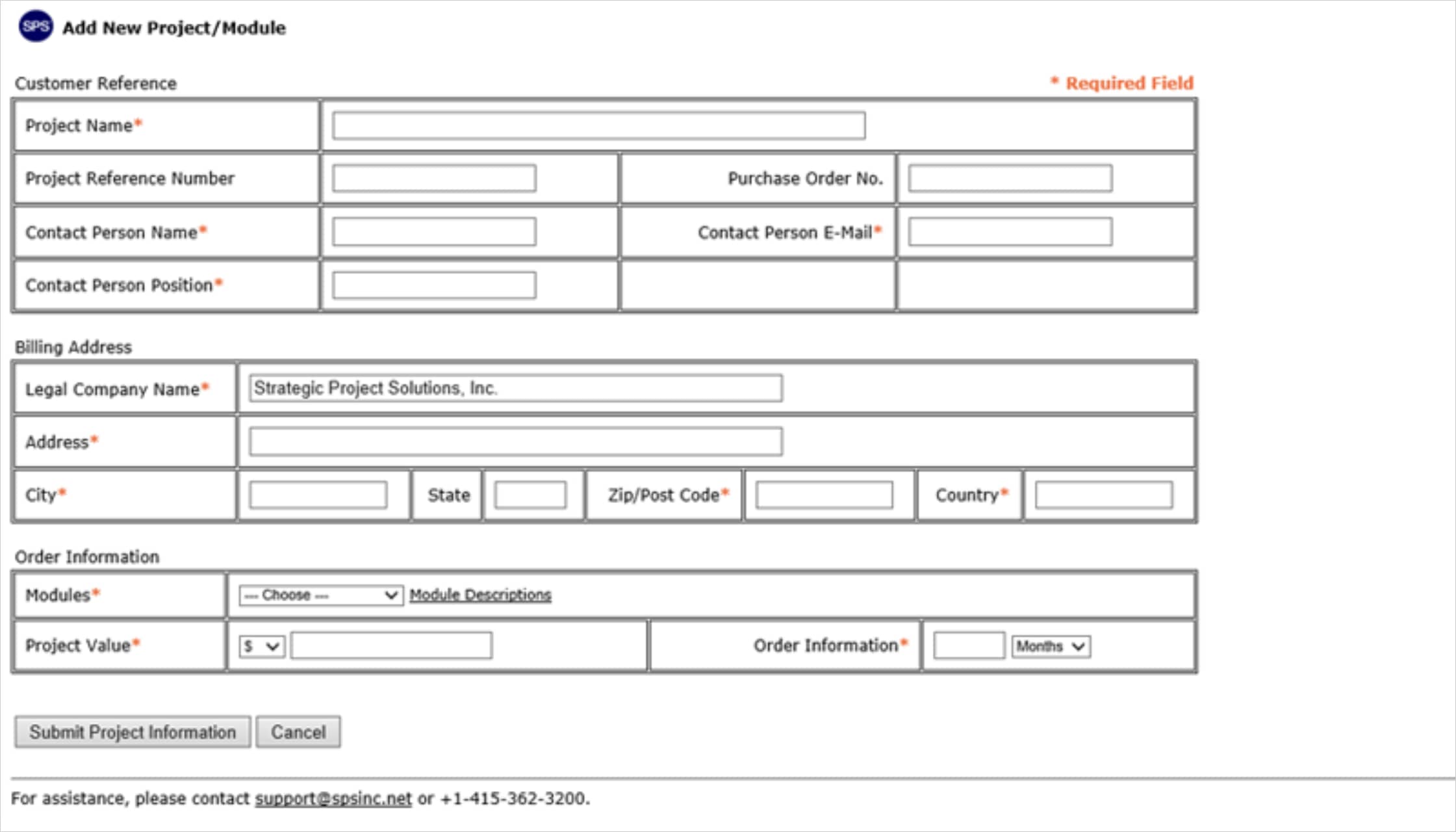
- Populate all required fields (denoted by an asterisk) at a minimum. When finished, click the Submit Project Information button.
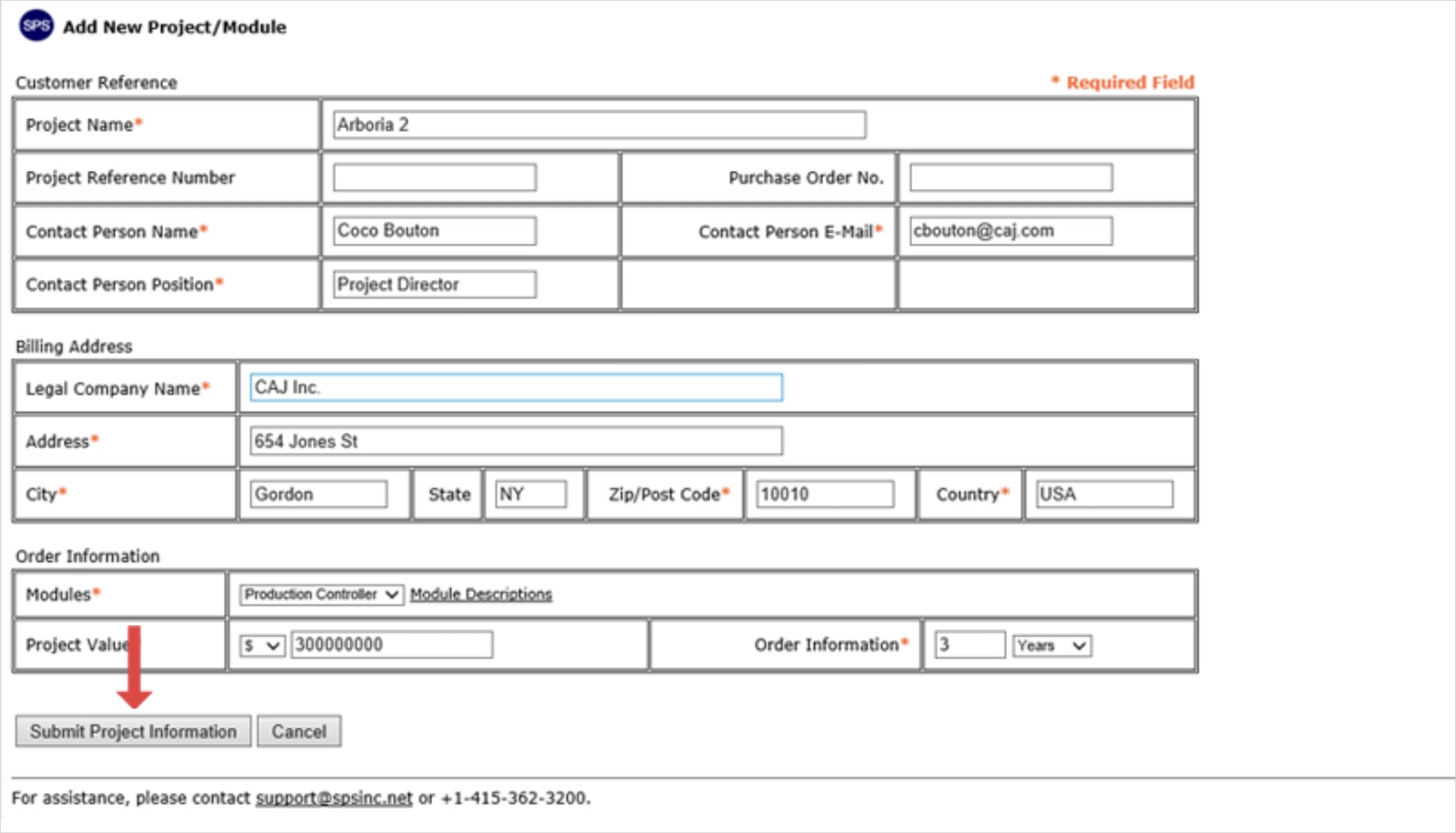
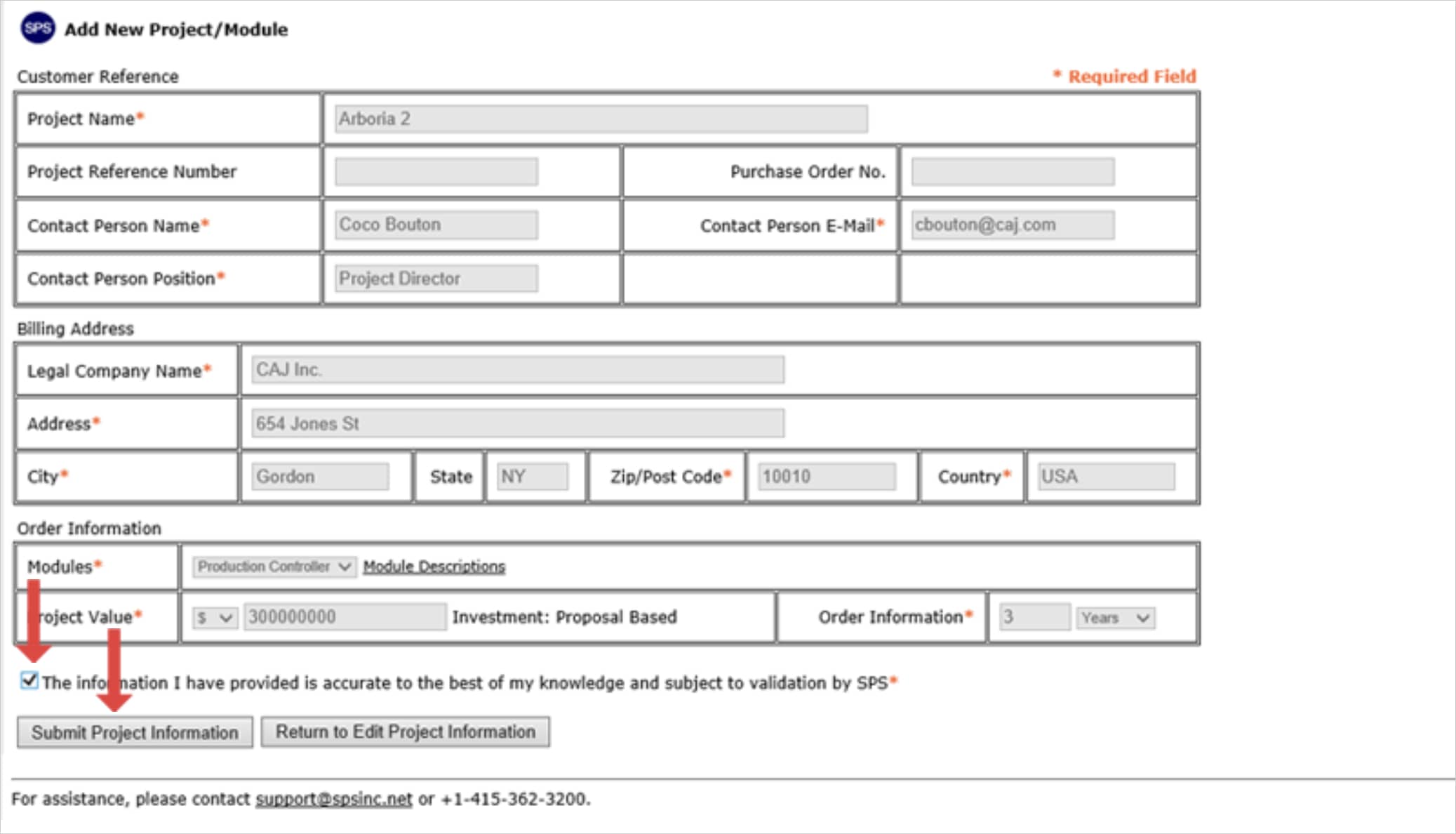
- The Add New Project / Module window will refresh. If all information is accurate, check the Confirmation checkbox and click the Confirm Project Information button. Or if the information requires revising click the Return to Edit Project Information button, correct the desired information then click the Confirm Project Information button.
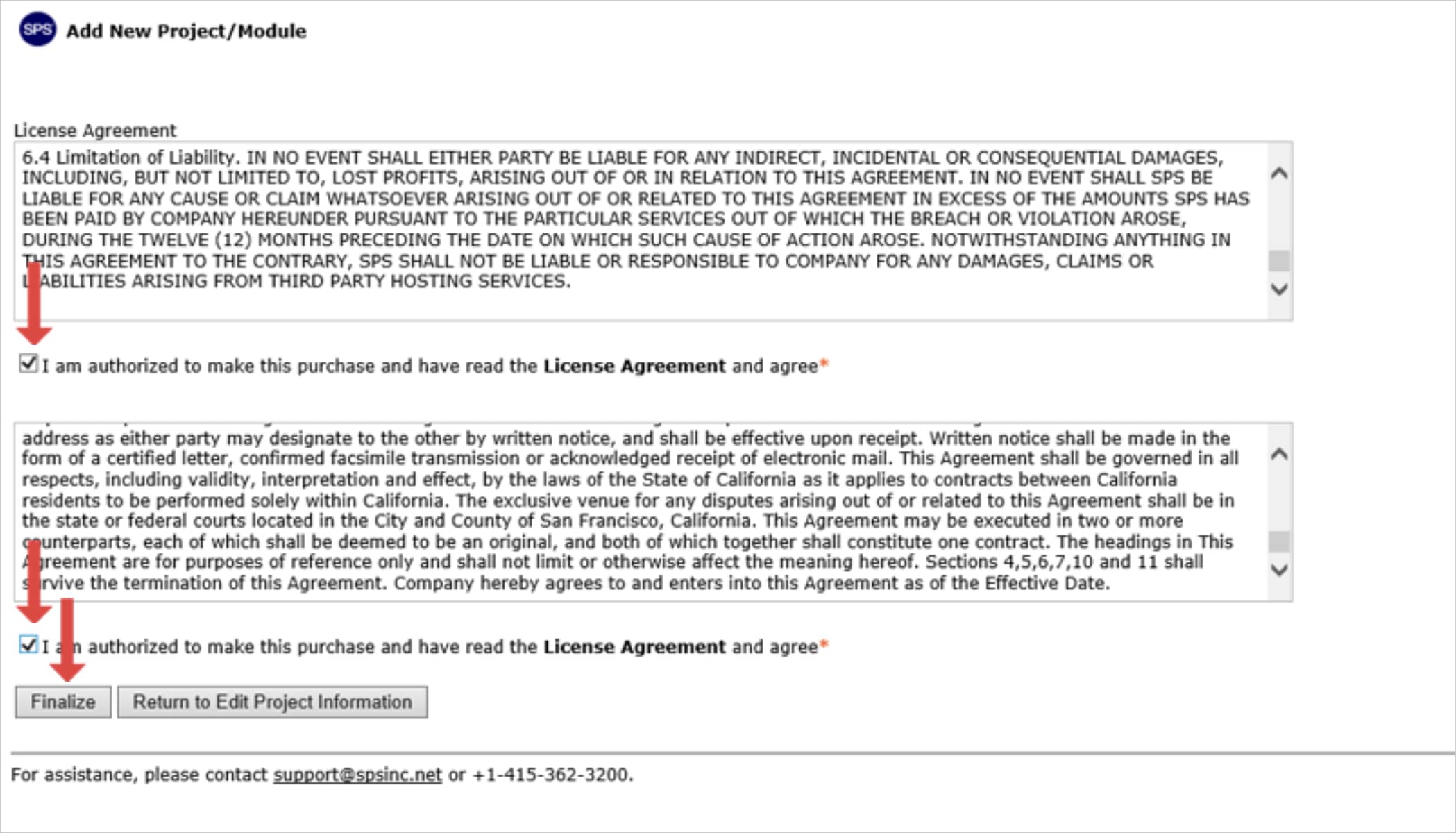
- Read the License Agreement and scroll through to the bottom of each field to enable the License Agreement checkboxes.
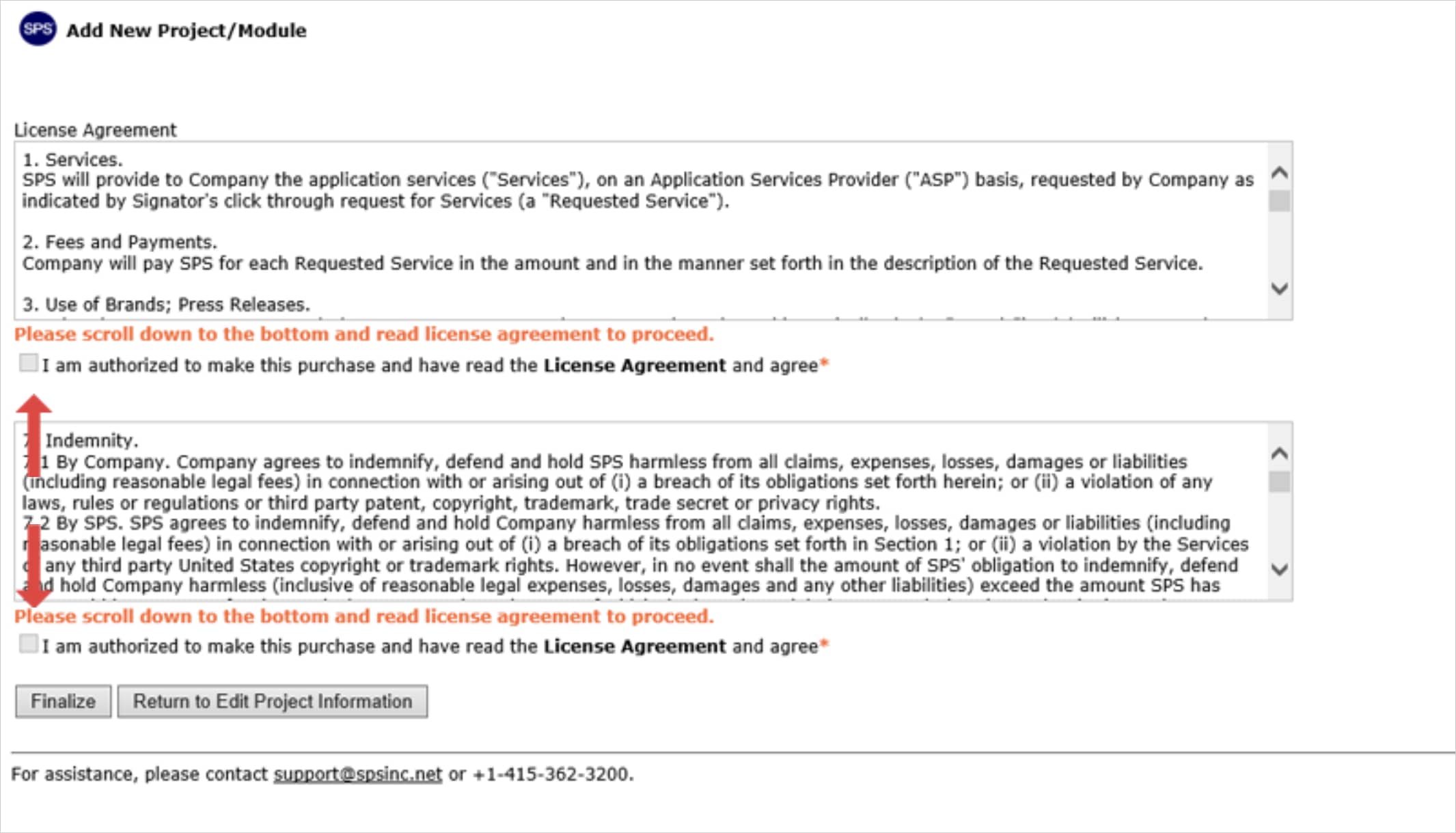
- If authorized, check each License Agreement checkbox then click the Finalize button. Or if the information requires revising or click the Return to Edit Project Information button, correct the desired information then continue with Step 4 above.
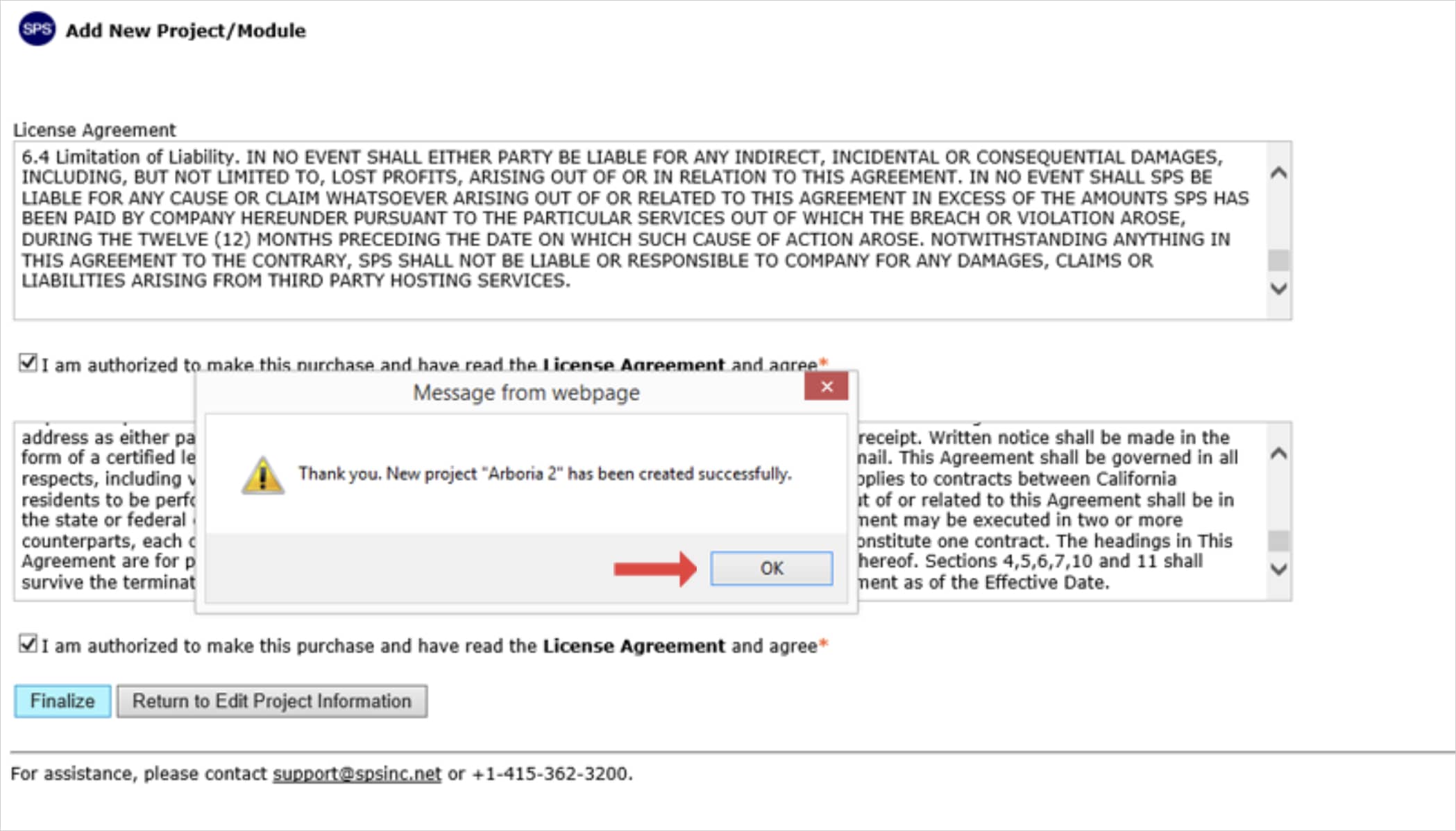
- A confirmation pop-up will display. To proceed, click the OK button.
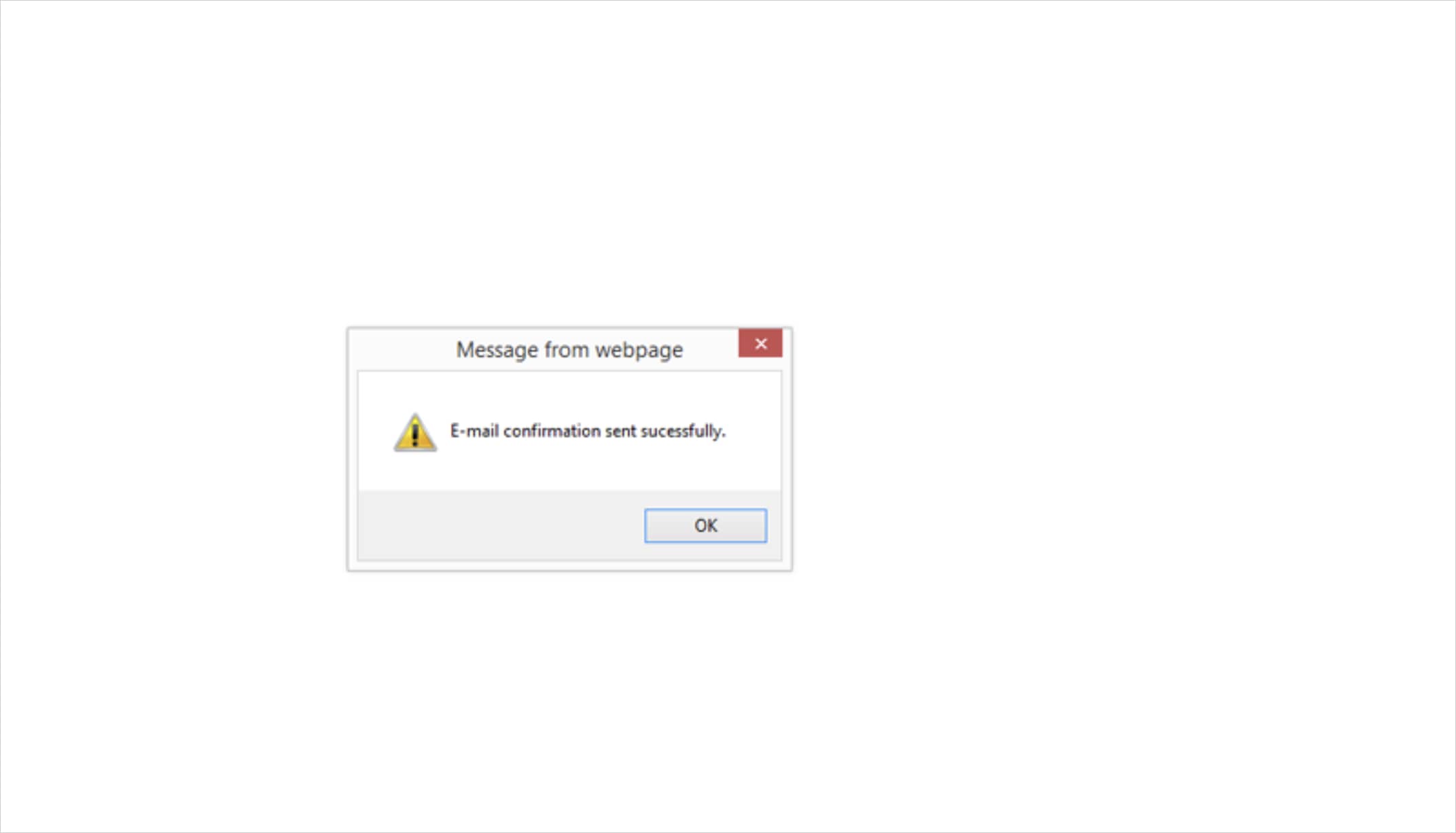
- A confirmation pop-up will inform you that SPS|Admin has sent an email confirmation to the contact person identified in the form.
- To add and manage team members associated with the new project / module see Team Management. Also see Manage Domains for information on how to link existing teams, team members, standard process and Work Structure to the new project / module.