Understanding why tasks are not completed as planned is essential to reducing variability by eliminating recurrence to the extent optimal and thereby improving overall project performance.
The Manage Root Cause function provides the ability for teams to customize root cause categories for task non-completion. SPS|PM does this by enabling you to configure root cause categories according to the type of work being executed. Along with descriptions by those directly responsible for the work, root cause categories enable detailed analysis of individual categories for non-completion (e.g., prerequisite, capacity-labor, etc.) through access to the root cause description log. For more information on accessing and analyzing the description log, see Root Cause Analysis and Performance Improvement.
To create a new root cause group or add a category to an existing group in SPS|PM, complete the steps below:
Create Root Cause Group
To create a new root cause group in SPS|PM, complete the steps below:
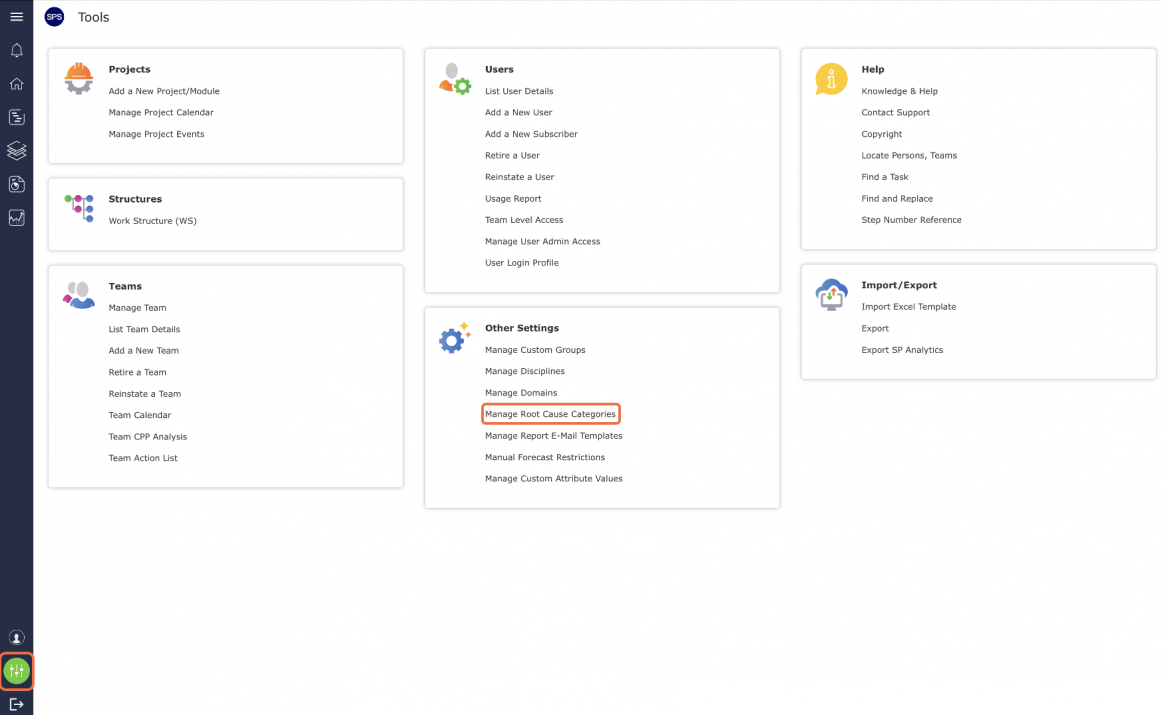
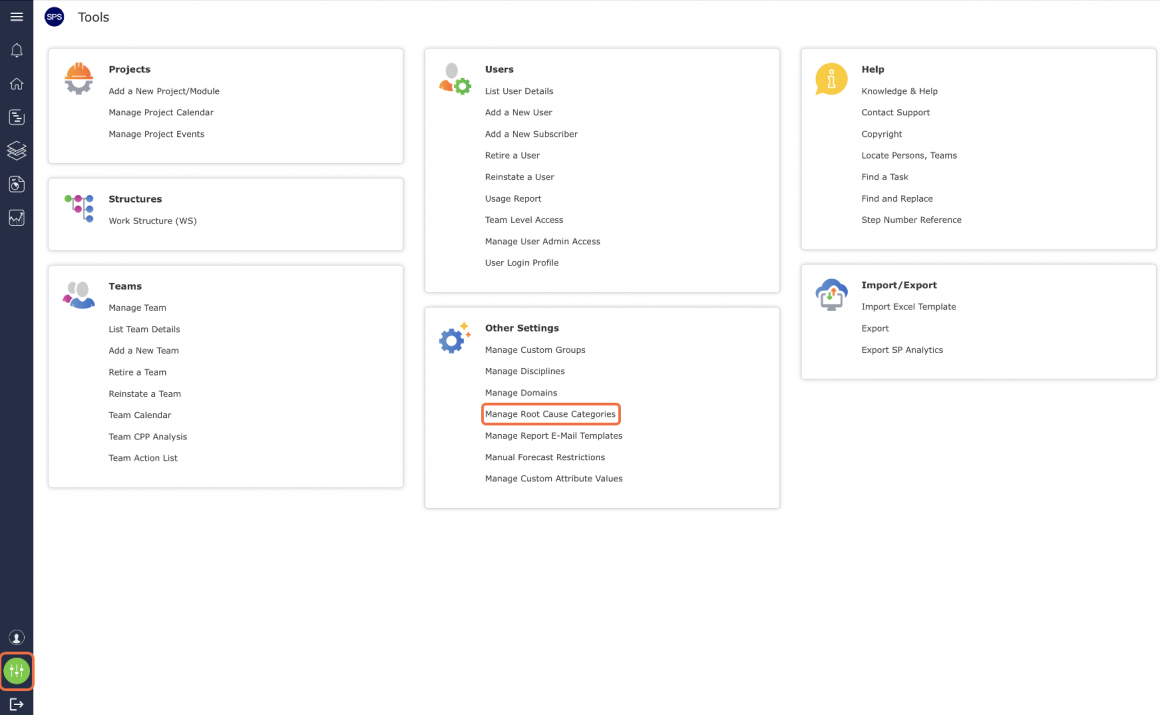
- From the Main Navigation Bar select Tools, then select Manage Root Cause Categories.
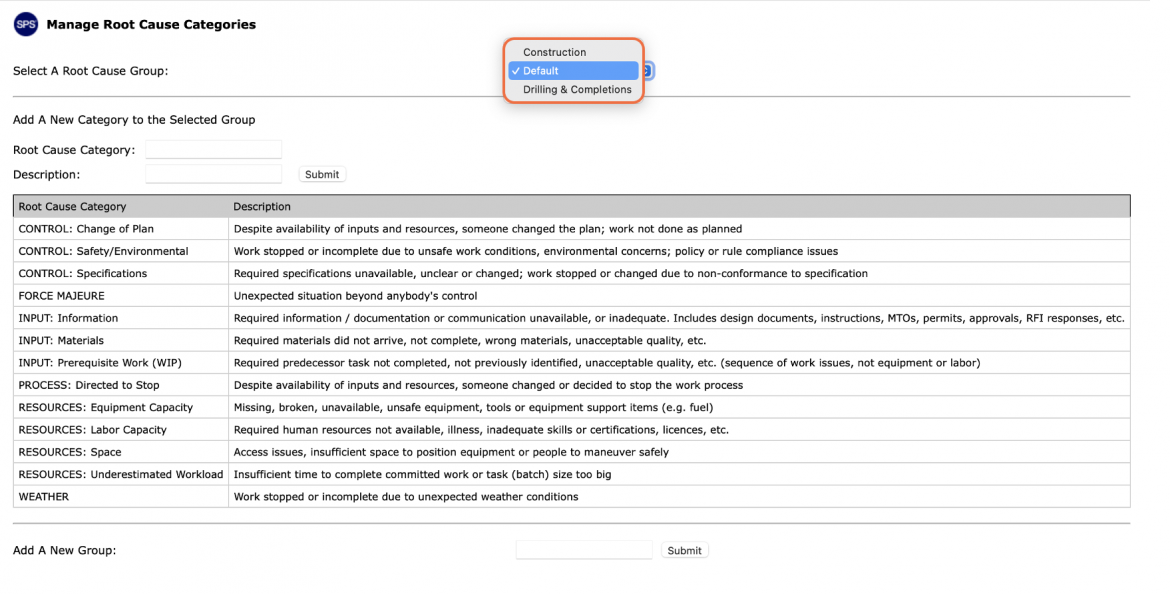
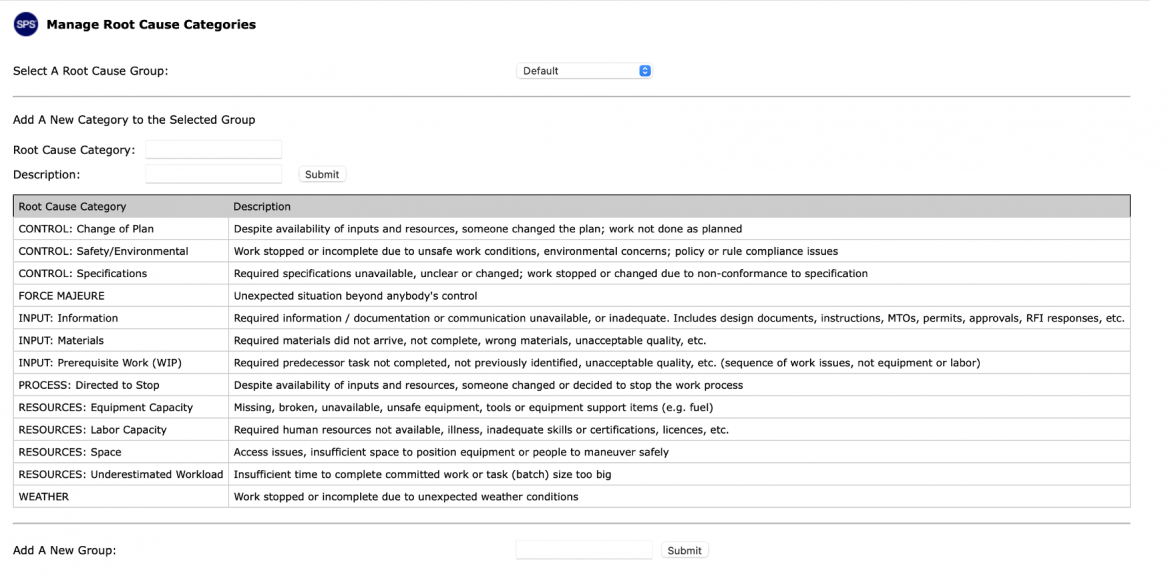
- The Manage Root Cause Categories window opens and displays the categories and descriptions for the selected root cause group along with options for adding additional categories and creating a new group.
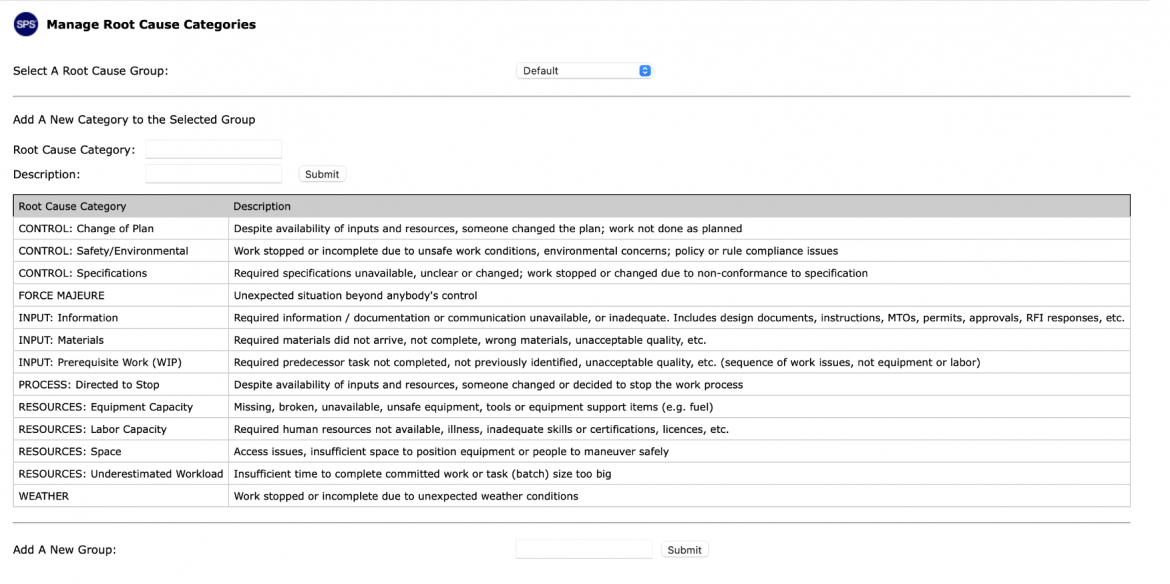
- To add a new group, enter the desired title for the new group and click the Submit button.
Note: Although SPS|PM does not limit the number of root cause groups that can be created, it is recommended that standardized groups be used by one or multiple teams managing the same type of work. For example, create a root cause group for a design that is used by multiple design teams in SPS|PM. The same applies to multiple construction teams within the same project or program. Standardization is very important considering the use of these root cause categories for identifying opportunities for improvement through analytics reviews.
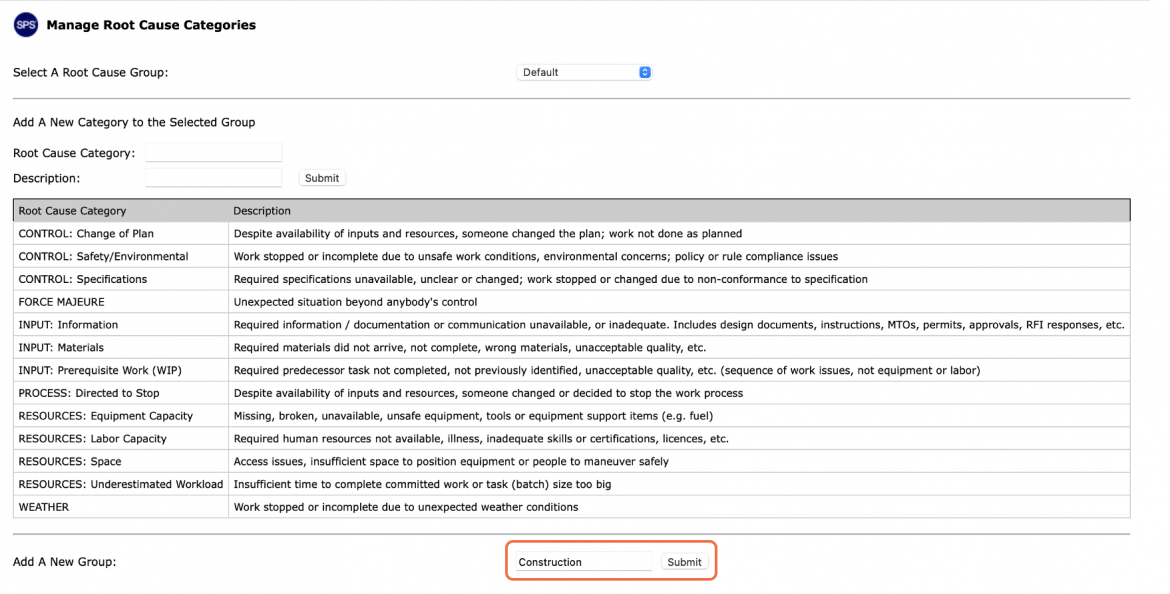
- The new group will then be displayed in the Root Cause Group drop-down. To add root cause categories and descriptions for the new root cause group, continue with the section below.
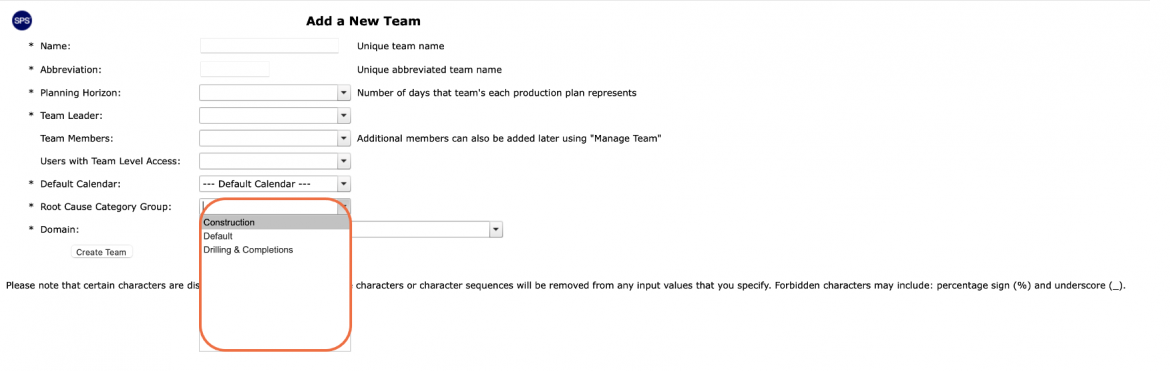
- When a new team is created in SPS|PM, the root cause category group is also selected as shown in the image below. This is how the root cause category group is linked in SPS|PM with the work of a team. For more information, see Add New Team under Team Management.
Add Root Cause Category
To add a new root cause category in SPS|PM, complete the steps below:
- From the Main Navigation Bar select Tools, then select Manage Root Cause Categories.
- The Manage Root Cause Categories window opens and displays the categories and descriptions for the selected root cause group along with options for adding additional categories and creating a new group.
- To add a new category and description, select the desired root cause group from the drop-down.
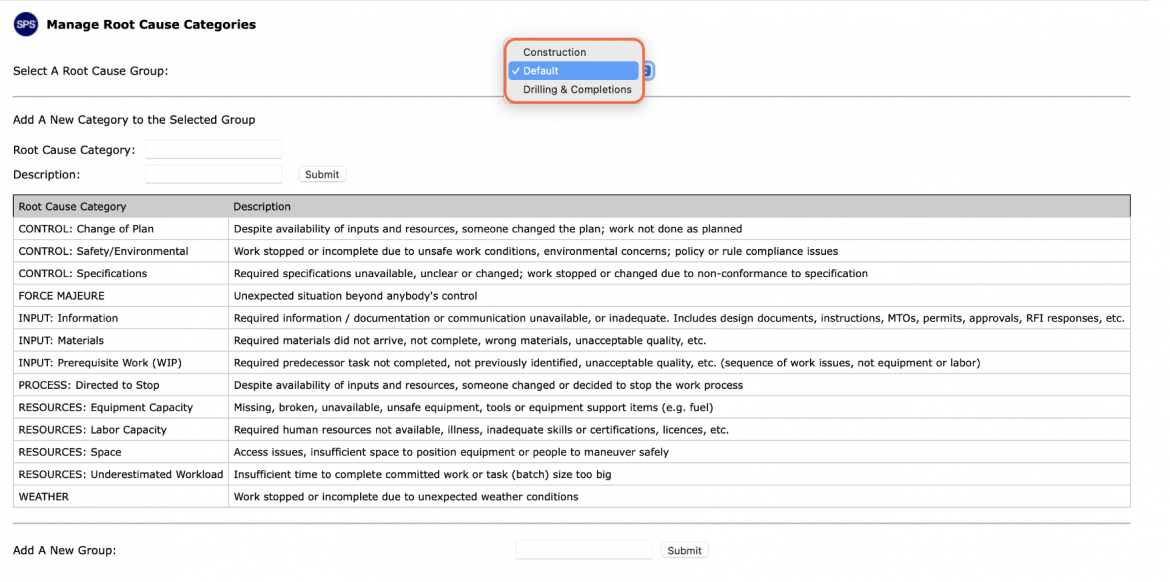
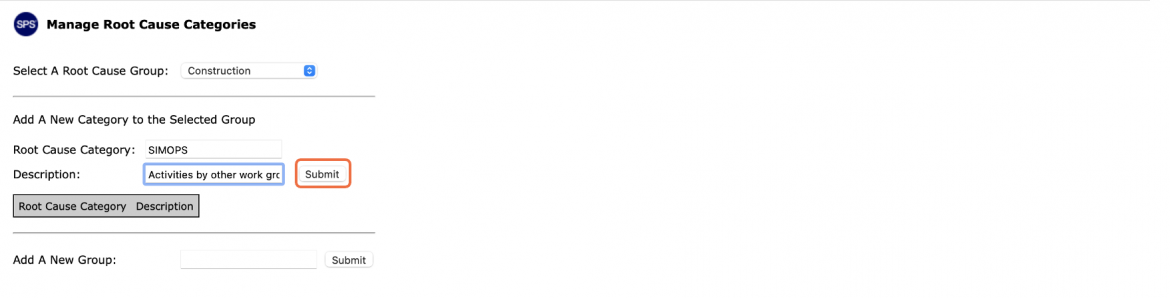
- Enter the desired Root Cause Category and Description and then click the Submit button. Once created, you will not be able to edit the root cause category and description, so accuracy when entering the category and description is important. However, if an error is made e.g., spelling or content, contact your System Administrator for assistance.
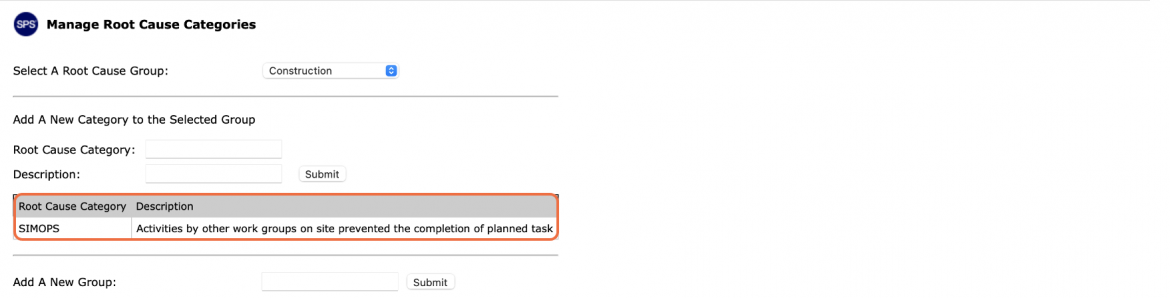
- The Manage Root Cause Categories window refreshes and displays the new category and description. Repeat the above steps to add all desired categories and descriptions.
- Although SPS|PM does not limit the number of root cause categories that can be created, it is recommended to standardize categories into specific types of reasons using the Task Design Model (TDM) as the basis for root cause category definition and configuration.
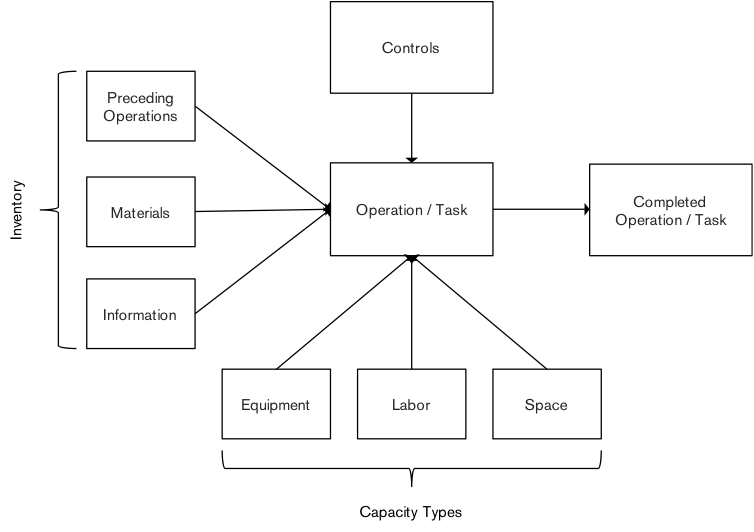
TDM is an input-process-output representation of tasks (see Figure below). As such, the model is based on a transformational view of a process or operation; in other words, inputs (inventory) are transformed into an output using capacity according to specific controls. The model can also be used to enable constraint analysis to be performed for tasks at any level so their readiness for execution can be assessed and advanced (e.g., the TDM can be used during Production Scheduling sessions as well to better expose constraints or in the mapping and modeling of supply flows. The rule is that an operation or task should only begin once all inputs, controls, and required capacity are in place (e.g., all constraints have been removed), so process reliability is increased. Inputs are items such as WIP from preceding operations, materials, and information to be transformed through the work of the process / operation / task using the specified capacity (equipment, labor, and space) in accordance with the controls.
Controls are rules, policies, and specifications upon which the operation / task is to be executed and quality is checked (e.g., codes dictating product specifications such as ASTM or ISO standards, policies related to the use of capacity, and process rules). Capacity (labor, equipment, space) and time are required to execute the operation, and to transform the inputs into the output. If a task is committed on a Production Plan, but not completed as planned at the end of the selected control cycle, there are only five options for why the task was not completed: 1) One or more inputs were missing, 2) Required capacity was not available, 3) Controls were not clearly defined or simply not understood or followed, 4) Operation / task was stopped or failed, and 5) Uncontrollable conditions stopped the operation. While options 1 through 4 corresponds to the use of the TDM, option 5 is considered a non-TDM reason (e.g., weather, unforeseen event). To enhance the effectiveness of planning, the TDM can also be used to identify and set policies and rules for the production system. For instance, a rule can be established that states Production Plans shall only be loaded to 80% of capacity so the remaining 20% is used as a capacity buffer against variability. The implementation of this rule works as a proactive measure to increase reliability.