Adding a new team to SPS|PM requires admin-level access 3 or higher. If you do not have level 3 access, contact your System Administrator to discuss and coordinate the creation of a new team.
To add a new team to SPS|PM, complete the steps below:
- From the Main Navigation Bar select the Tools, then select Add a New Team.
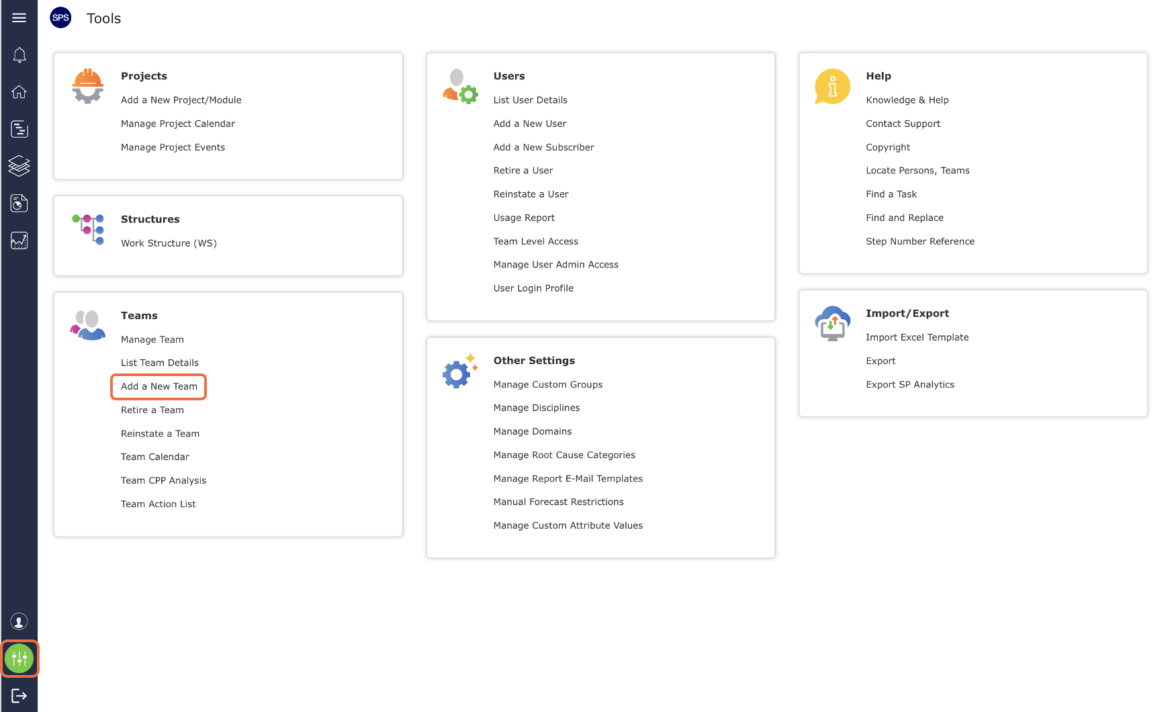
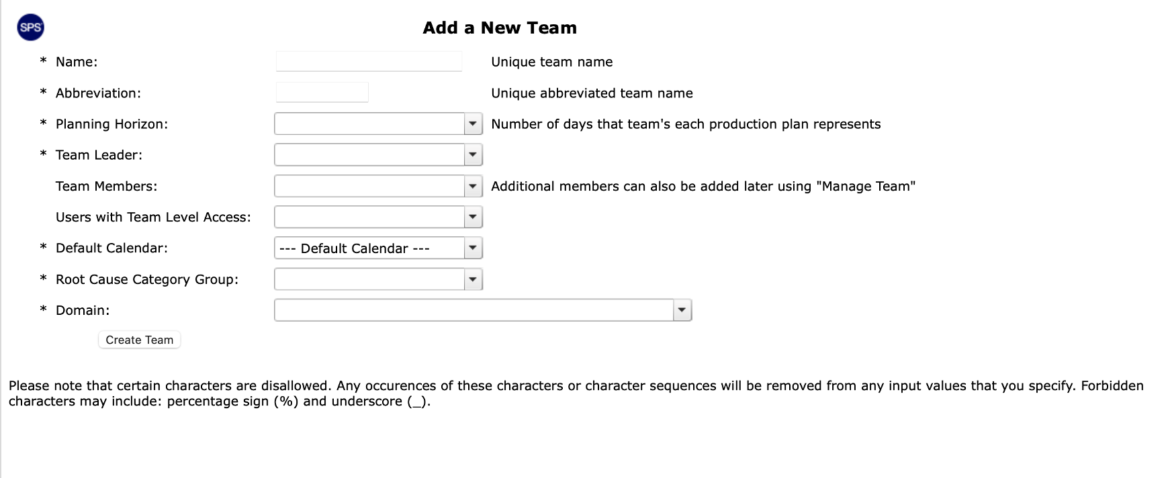
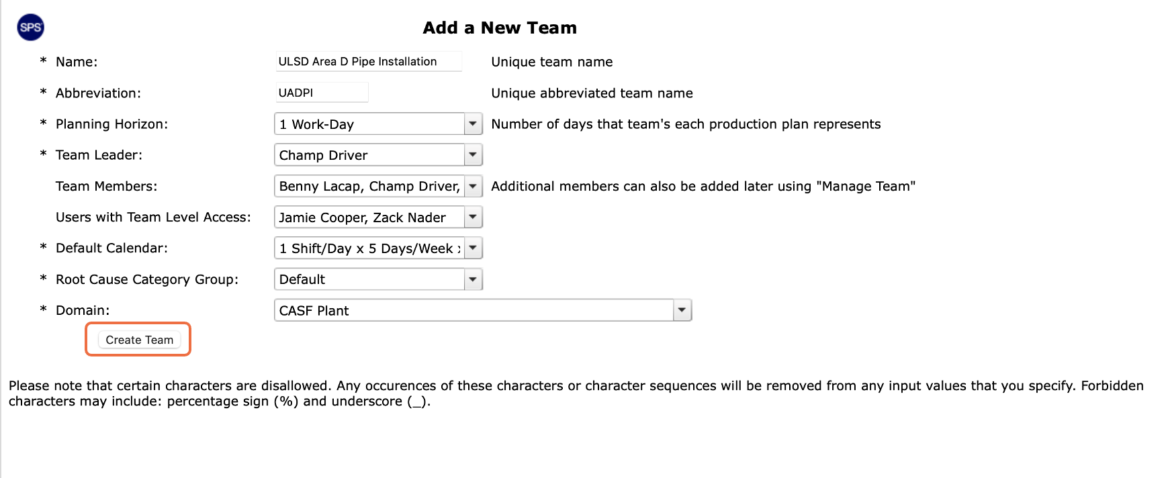
- The Add a New Team window opens as shown in the image below.
Note: All elements with an asterisk (*) are mandatory fields. Pay close attention to the character and character sequencing information below the Create Team button.
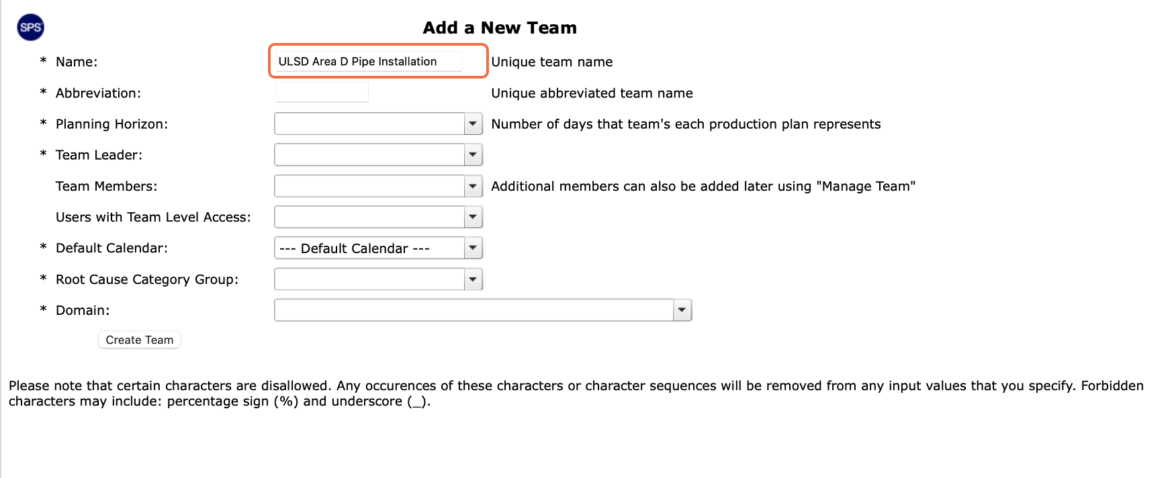
- Enter the name of the new team in the Name field. The team name may be comprised of several words, and should accurately describe the work the team will perform (e.g., ULSD Area C Pipe Installation Team).
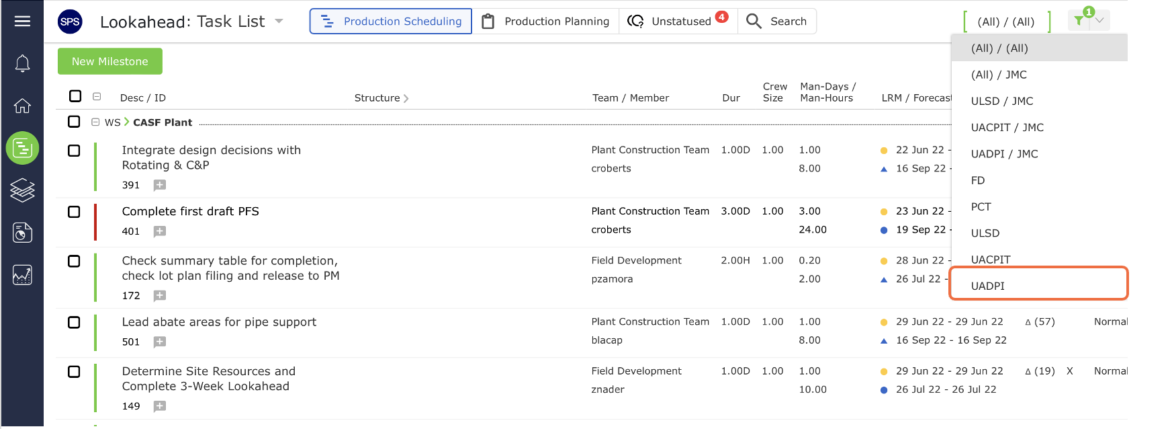
Enter an abbreviation for the new team name in the Abbreviation field. For example team: ULSD Area C Pipe Installation Team, which can be abbreviated as UACPIT or UACPI. This abbreviation is how the team will be listed under the Team Menu as well as under the Team attribute drop-down in most views and windows. The abbreviation may include up to 10 characters. When creating your team abbreviation, select a standardized format that is also easily identifiable.
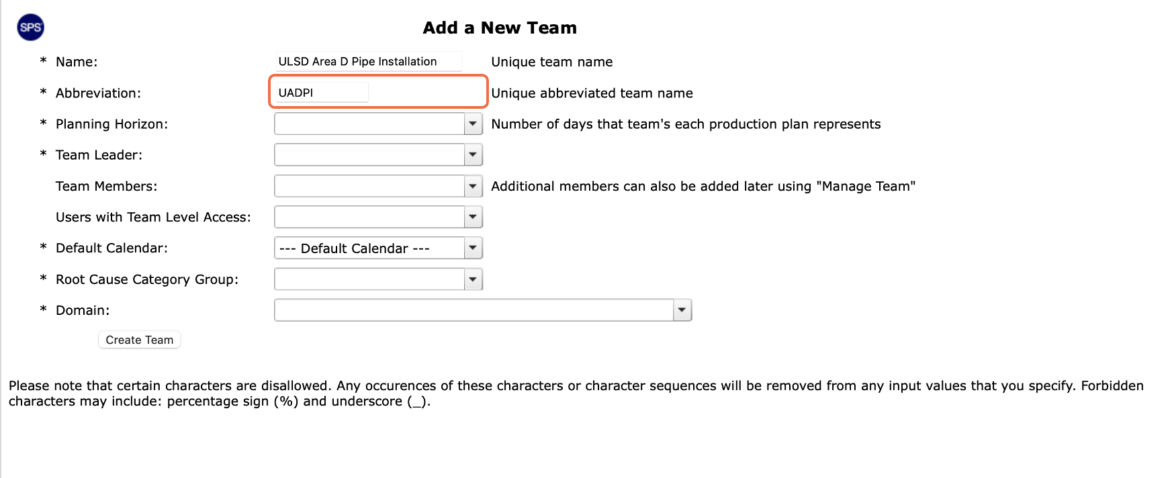
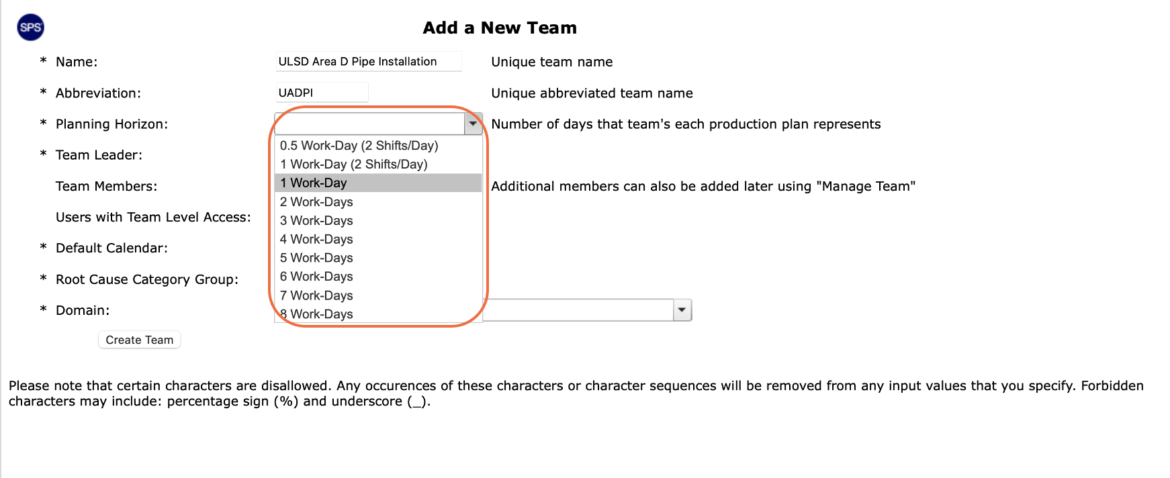
Select the applicable Planning Horizon for the team from the Planning Horizon drop-down. The Planning Horizon may range from 0.5 work days (2 shifts / day) to 10 work days.
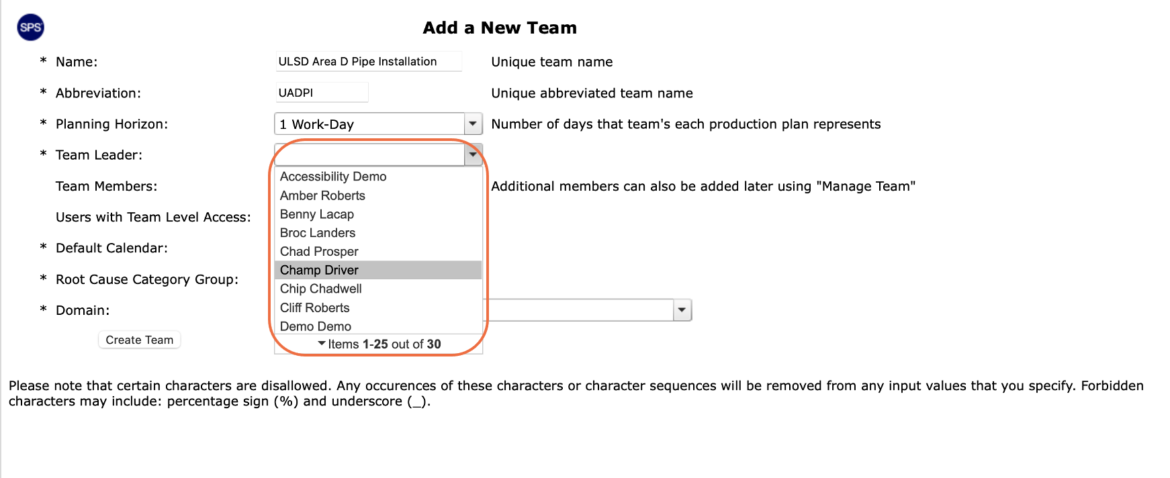
Select the applicable team leader for the team from the Team Leader drop-down. The drop-down contains a list of all individuals in the system. The individual who is chosen as the team leader will automatically be added as a member of the team and will also receive Team-Level Access.
Note: The team leader must first be added as a user in SPS|PM before you can select him / her in the Team Leader drop-down.
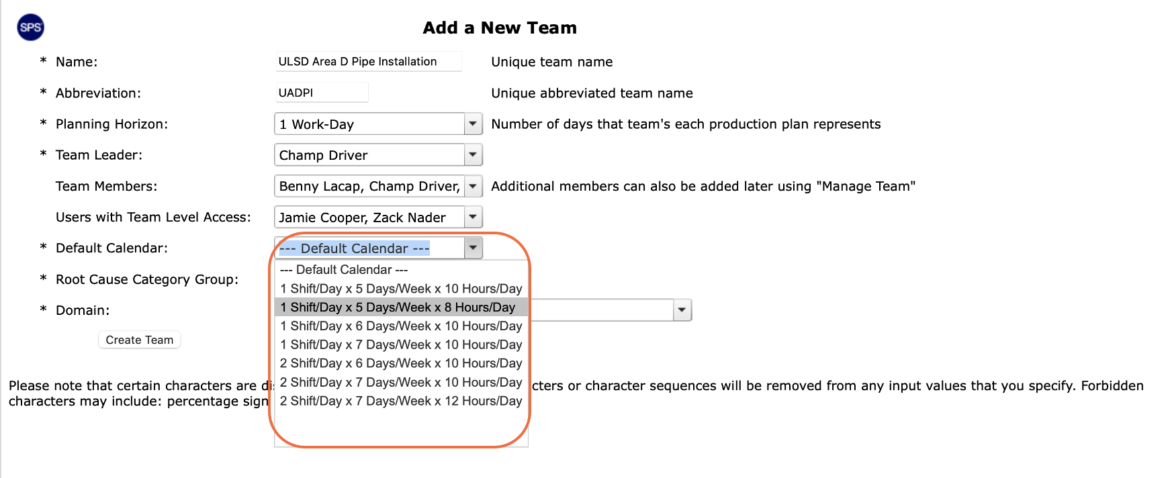
Select the applicable values from the Default Calendar, Root Cause Category Group, and Domain drop-downs.
Once all content is completed, click the Create Team button as shown in the image below.
Once you create a new team, it is recommended that you log out and log back into SPS|PM to ensure the new team is displayed. After logging back in, the team abbreviation will display under the Team Menu in alphabetical order.