
Occasionally, circumstances may arise that result in an individual not being active in SPS|PM such as when reassigned to another project or promotion to a new role. Or, it may be necessary to reinstate an individual whose account is retired when the individual rejoins a team. When an individual is no longer active, his / her SPS|PM account can be retired or when an individual becomes active his / her SPS|PM account can be reinstated.
Retire User
To retire a user, complete the steps below:
From the Main Navigation Bar select Tools, then select Retire a User.
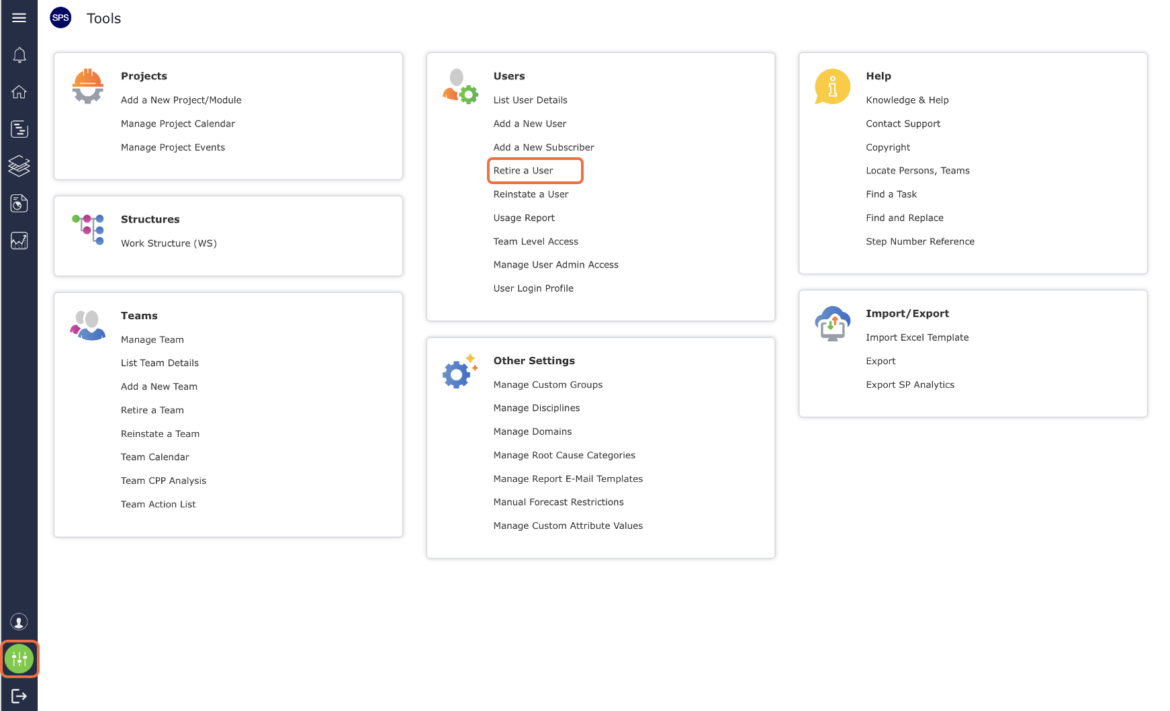
The Retire a User window opens as shown in the image below.

Select the name of the individual you desire to retire from the User to be Retired drop-down and select the individual to inherit thuser’sired users tasks, then click the Submit button.

The Retire a User window refreshes and displays a confirmation message.

Reinstate User
From the Main Navigation Bar select Tools, then select Reinstate a User.
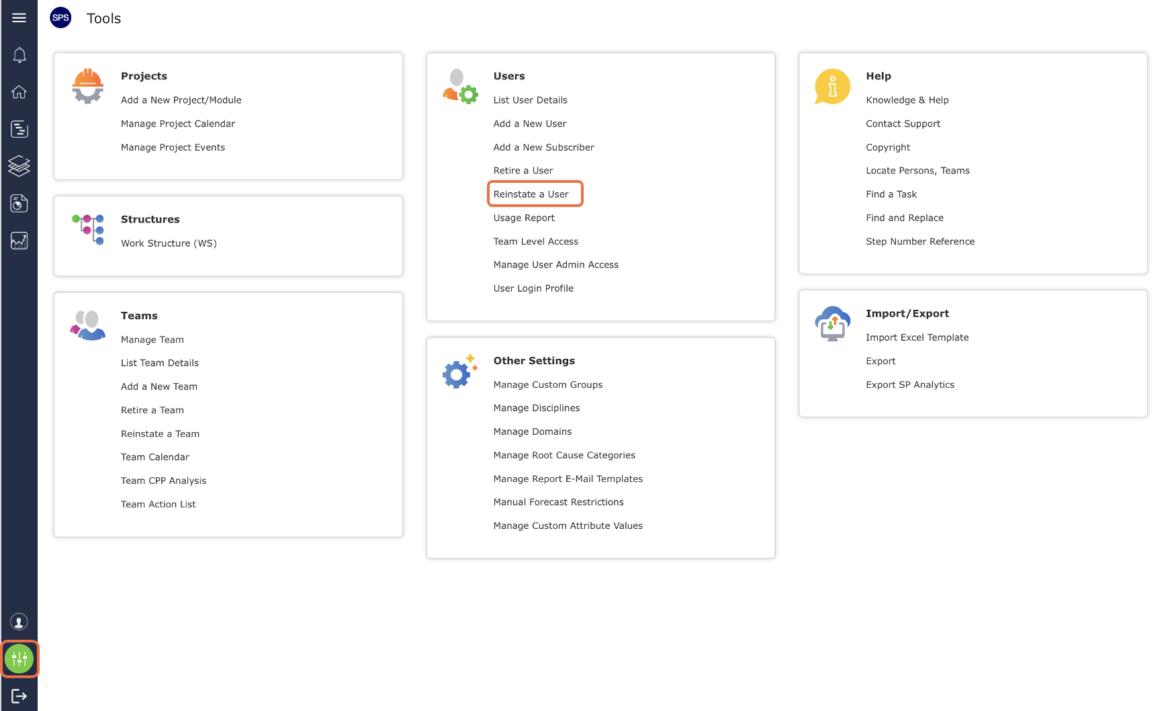
The Reinstate a User window opens as shown in the image below. Select the individual you desire to reinstate from the drop-down and click the Submit button.

The Reinstate a User window refreshes and displays a confirmation message.
