
Completing work outside of the formal Production Planning process with other activities as part of ongoing Production Plans creates variability and increases work-in-process (WIP).
To better understand how much work is being completed outside Production Plans, Completed / Completed-Not-Planned Ratio provides a ratio between the number of tasks committed on a Production Plan and the number of tasks completed but not committed through the Plan (Completed Not Planned).
The Completed / Completed-Not-Planned Ratio Analytic displays a column chart that graphically illustrates the ratio of actual Completed and Completed Not Planned tasks based over time and answers the question, “Does Completed / Completed-Not Planned Ratio meet established target?” If it does, the team should examine Lookahead Reliability (PAT) to analyze the team’s ability to reliability forecast its work. If Completed / Completed-Not Planned Ratio does not meet the established target, determine the root cause for the Completed Not Planned tasks and reduce occurrence to the target level.
To access Completed / Completed-Not-Planned Ratio, complete the steps below:
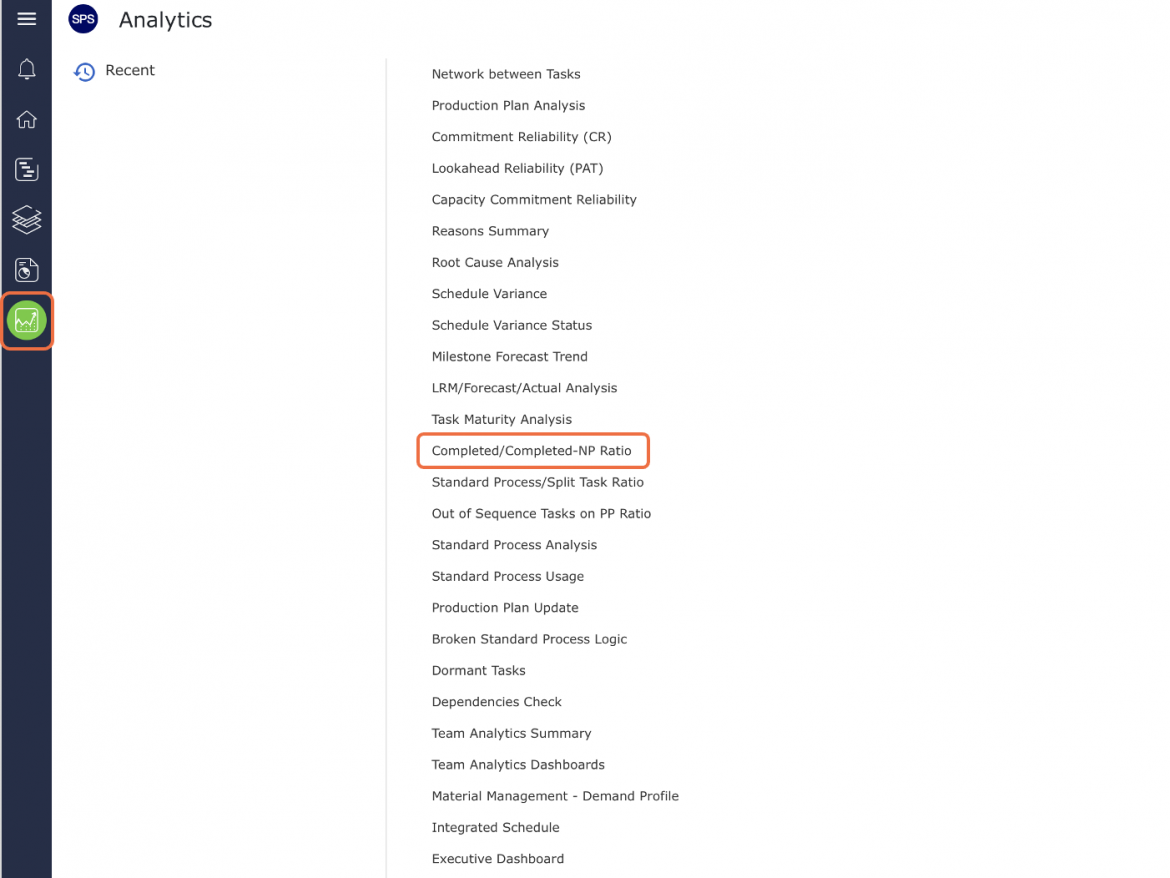
- From the Main Navigation Bar select Analytics, then select Completed / Completed-Not-Planned Ratio.
- Completed / Completed-Not-Planned Ratio opens in a new window and automatically displays the Analytic for the team selected under the Team Menu with the default date range of two weeks from the current date.
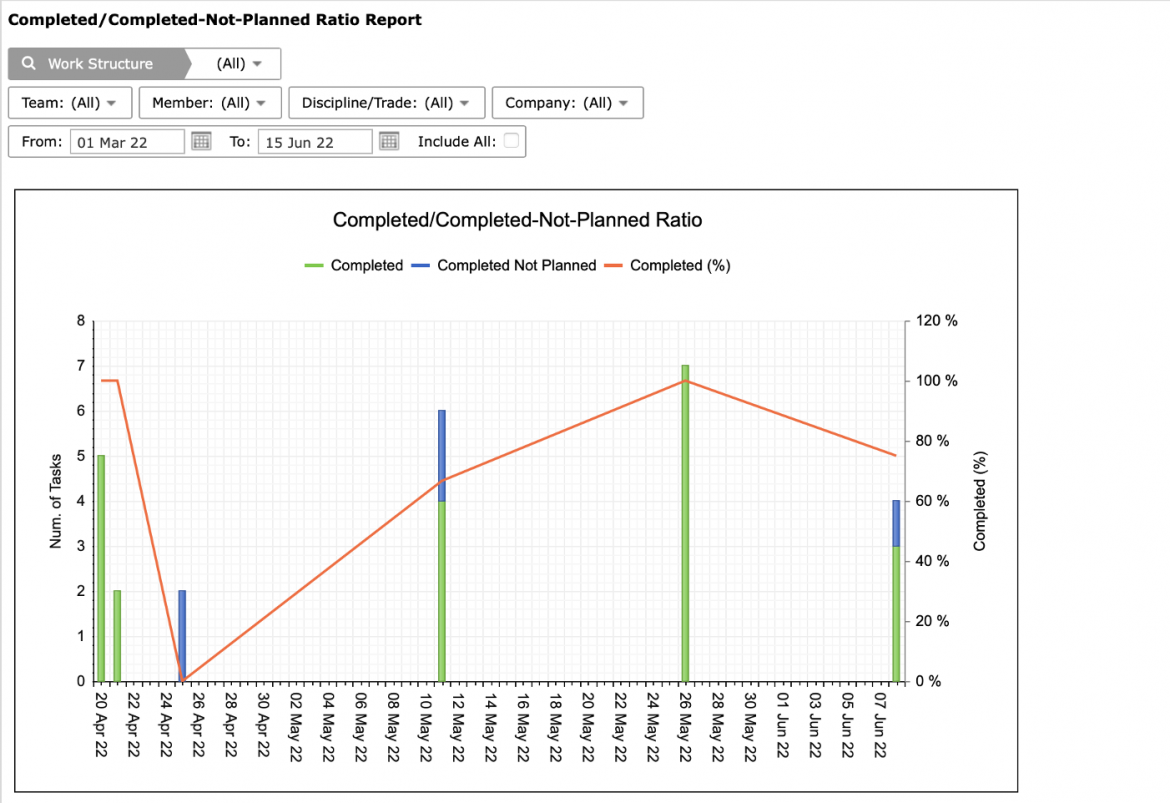
- To view Completed / Completed-Not-Planned Ratio for another team, select the desired team under the Team drop-down.
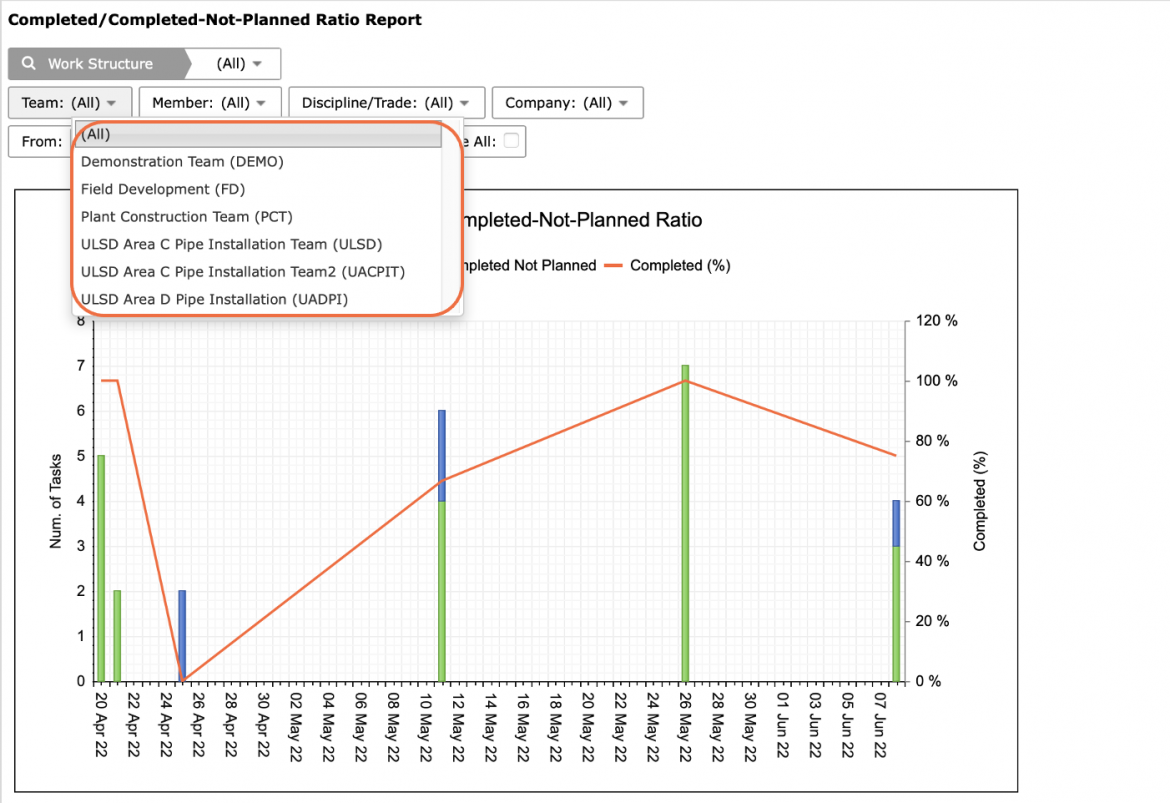
- If a different date range is desired, or no data is visible, adjust the From and To dates or check: Include All, to show all historical data.
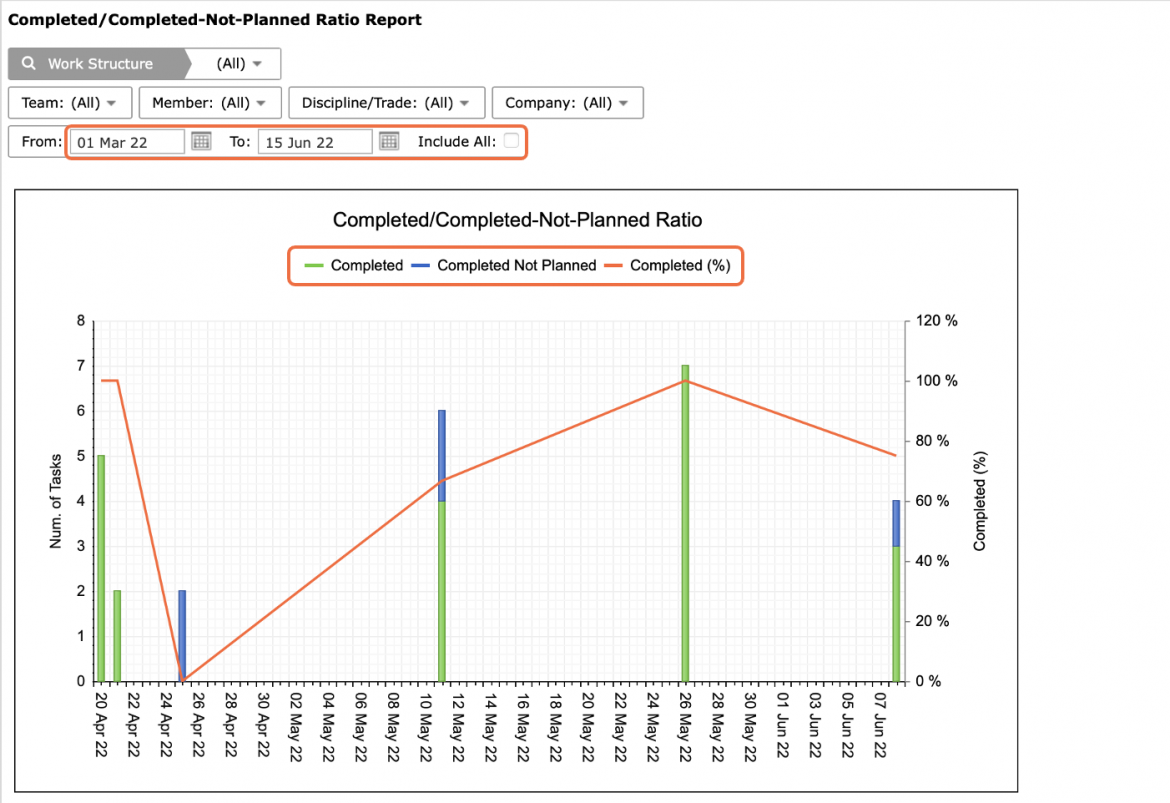
The legend elements: Completed and Completed Not Planned are clickable and toggle to display / hide data.
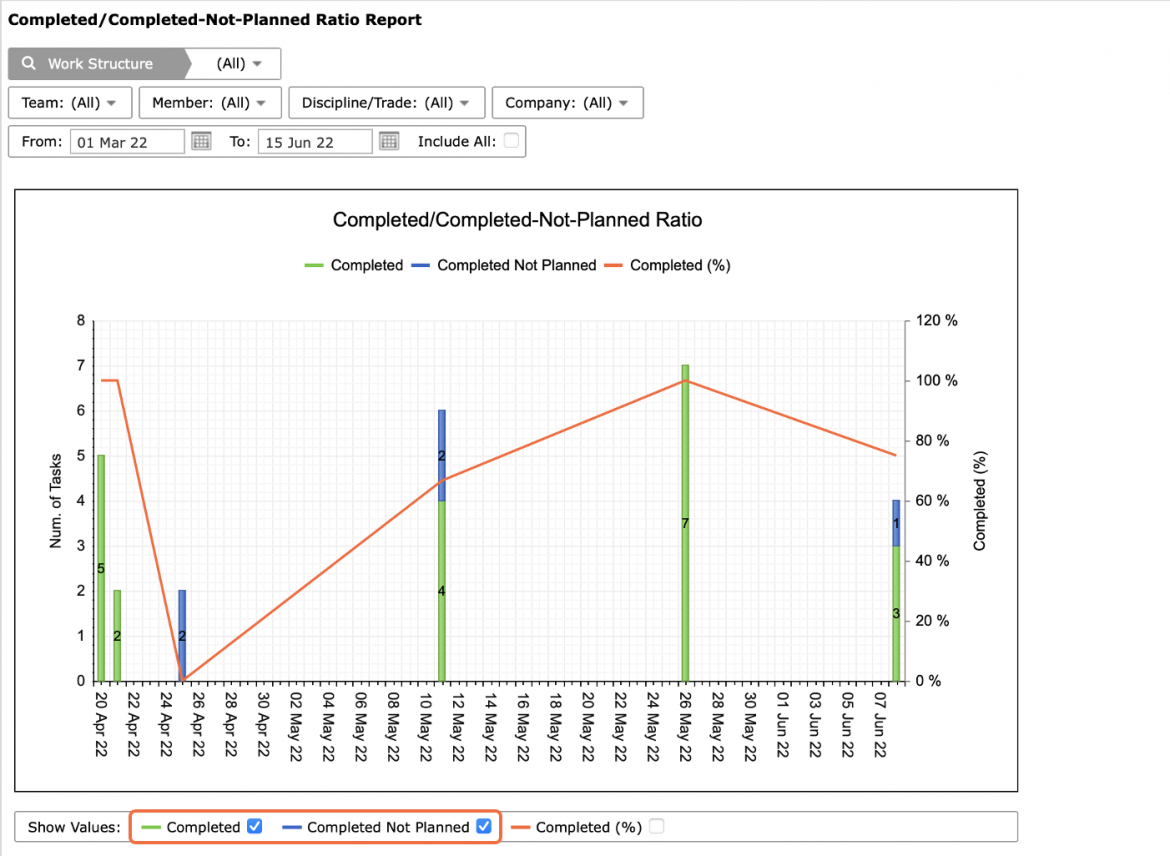
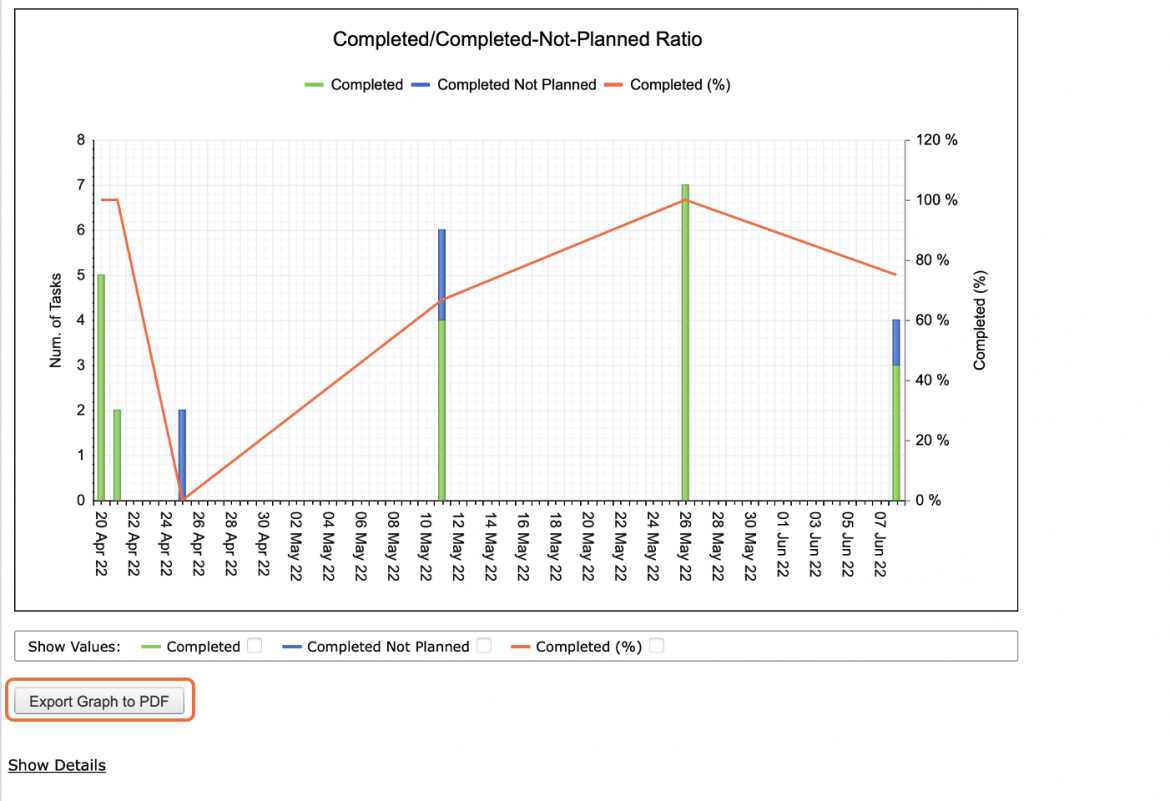
- If desired, the numerical values for all legend elements may be shown in the Completed / Completed-Not-Planned Ratio chart. To display these values, select the checkbox in the ‘Show Values’ section underneath the chart. Note that the legend element must first be activated and displayed in the chart to be able to select the ‘Show Values’ checkbox for that legend element.
- Also use the Pin icon in the top right of the graph to include Completed / Completed-Not-Planned Ratio in your Dashboard.
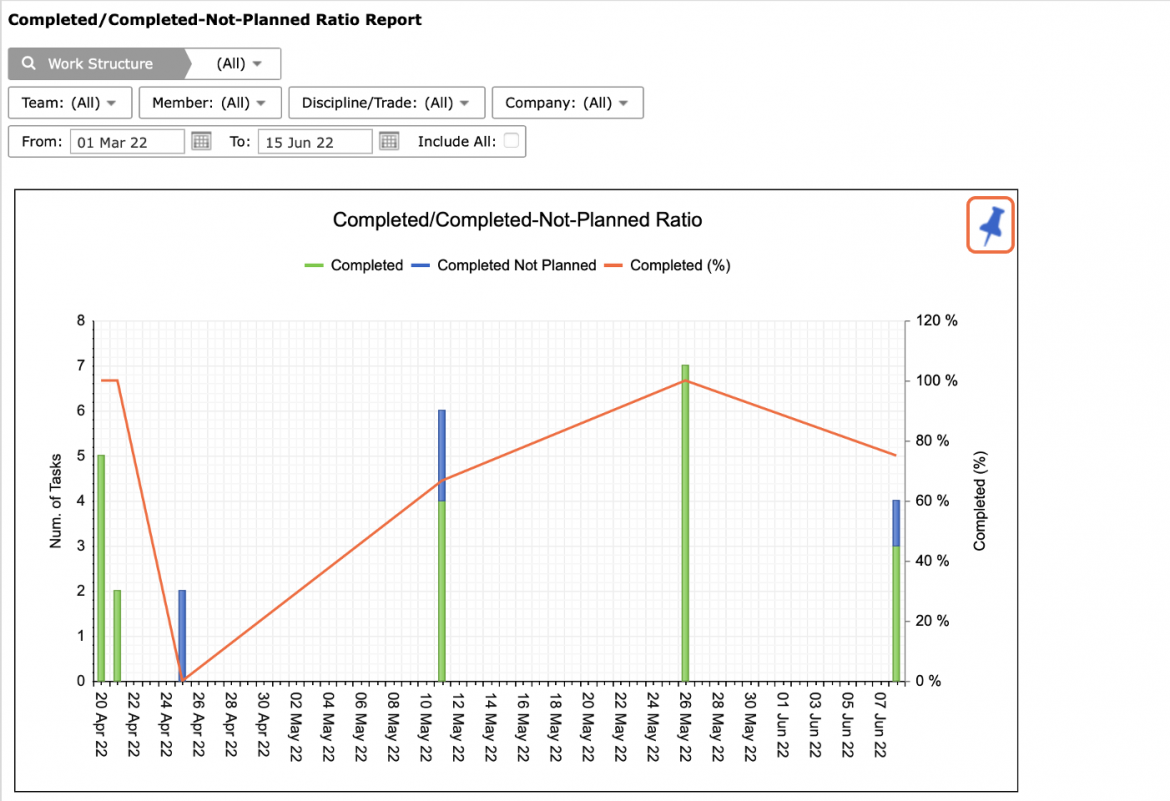
- For the selected team(s), Completed / Completed-Not-Planned Ratio displays the total number of tasks (left vertical axis) for each Production Plan (dates on the horizontal axis) that the selected team has committed to a Production Plan. The number of Completed tasks are displayed by a green column while the number of Completed Not Planned (CNP) tasks are displayed by a blue column.
If a particular date does not show any blue columns, this indicates that the particular date SPS|PM did not record any CNP tasks.
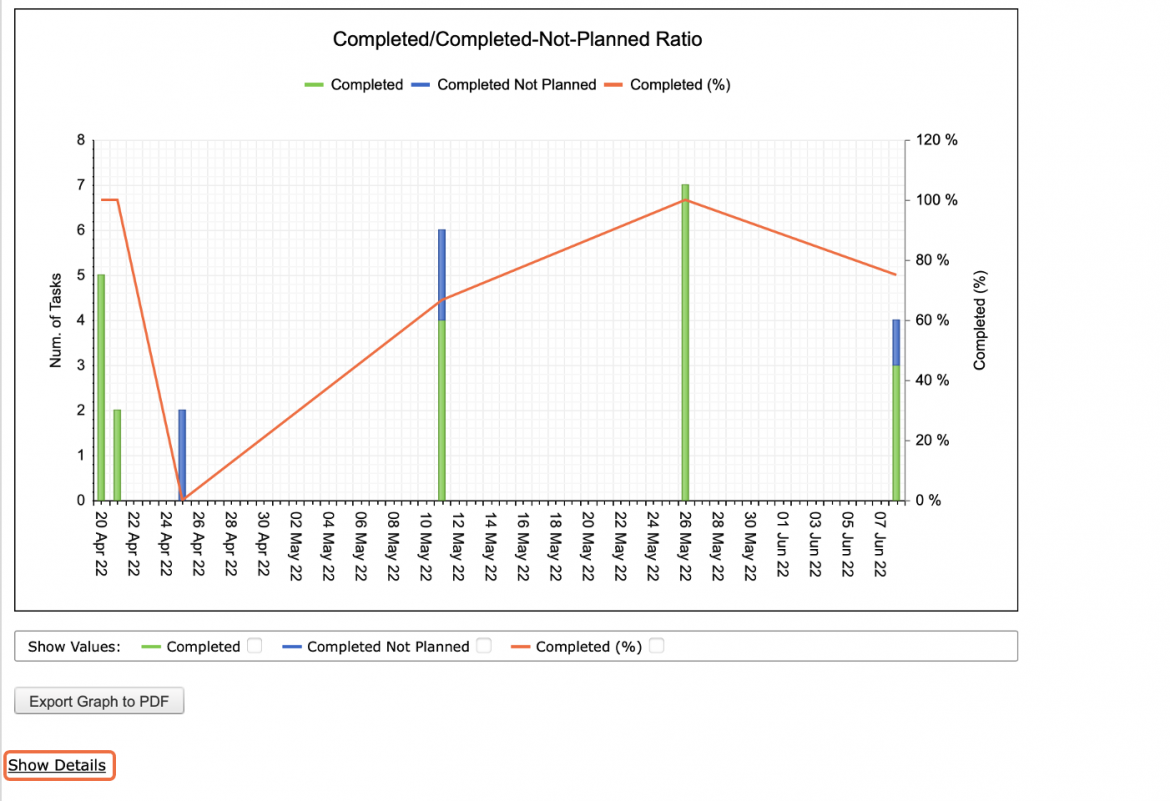
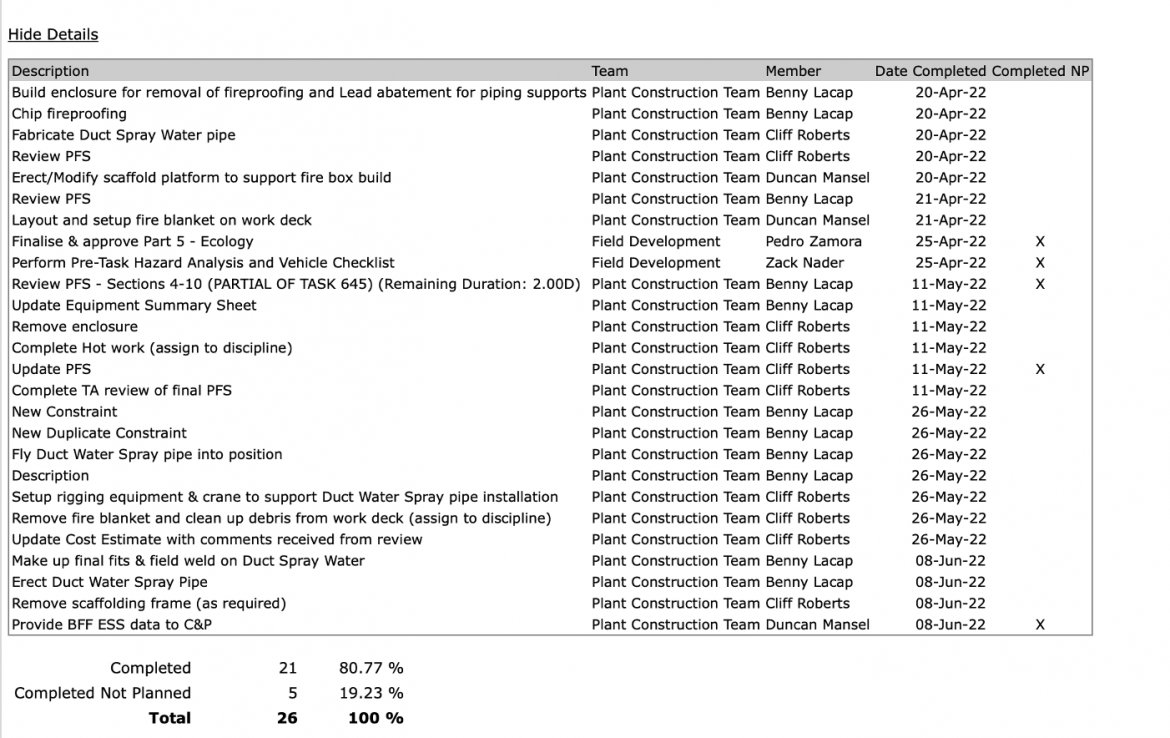
- To view the data behind the Completed / Completed-Not-Planned Ratio calculation for each date along the horizontal axis, click Show Details beneath the graph. To hide the data, click Hide Details.
For each individual date, the data table lists the task Description, Team, Member, Date Completed and if the task was Completed Not Planned. The total number of tasks and percentages that were Completed and Completed Not Planned are also shown at the bottom of the table.
- In addition to viewing Completed / Completed-Not-Planned Ratio for a single team, to view an aggregate Completed / Completed-Not-Planned Ratio for all teams select: All, under the Team drop-down.
This feature totals the number of Completed and Completed Not Planned task completions for all teams to show issues of global work being completed outside Production Plans across the project.
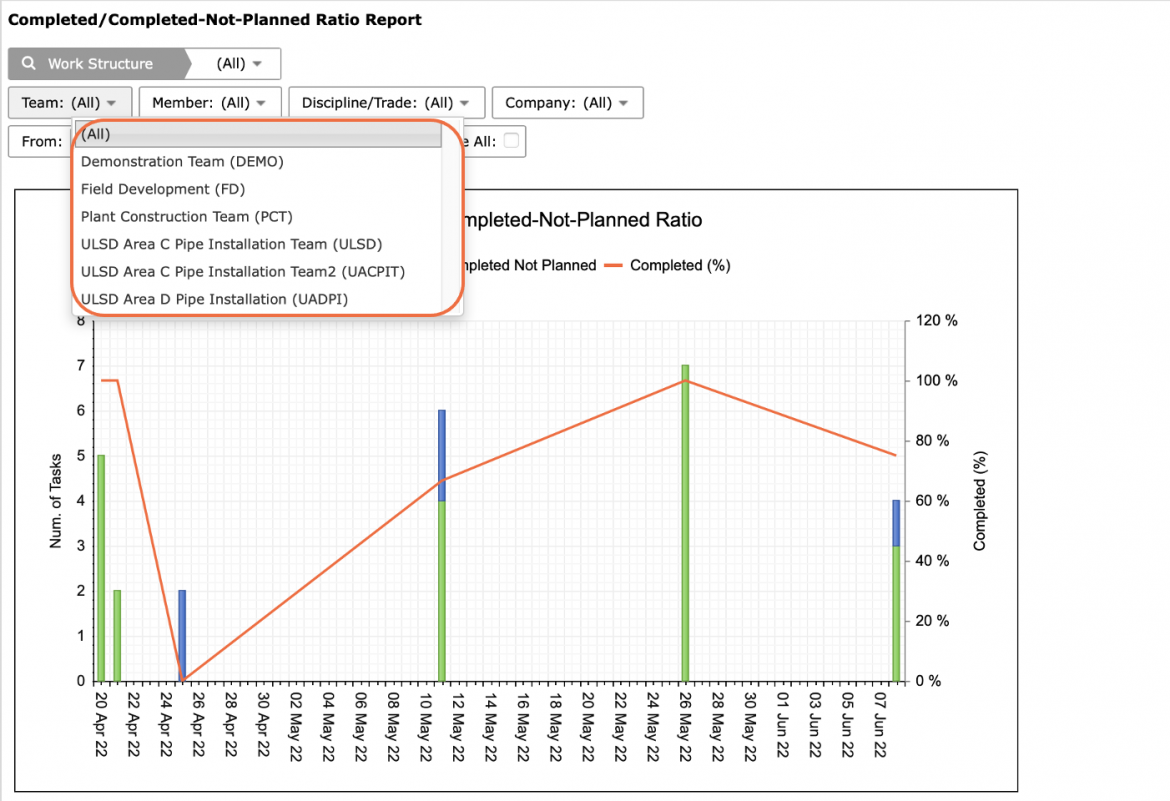
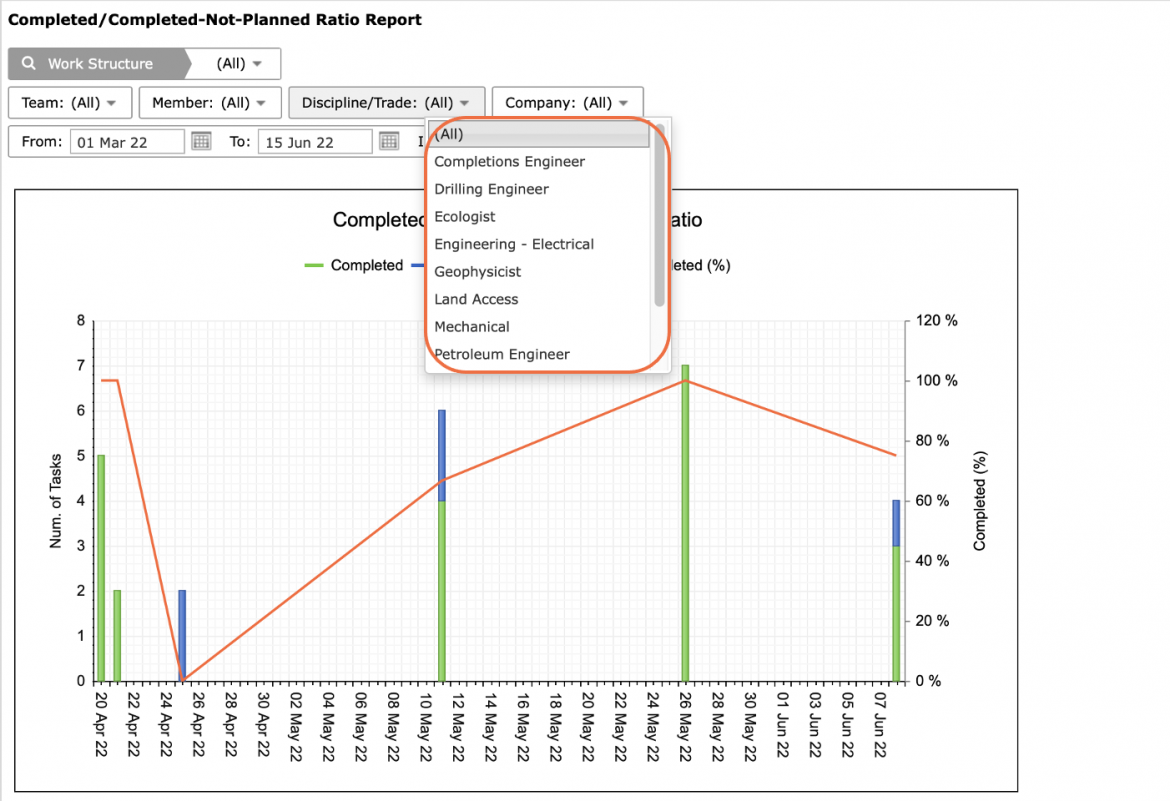
- You can also filter by Member, Company, Discipline / Trade and Work Structure.
- To export Completed / Completed-Not-Planned Ratio to a PDF file, click the Export Graph to PDF button and follow the prompts according to the specific browser you are using.
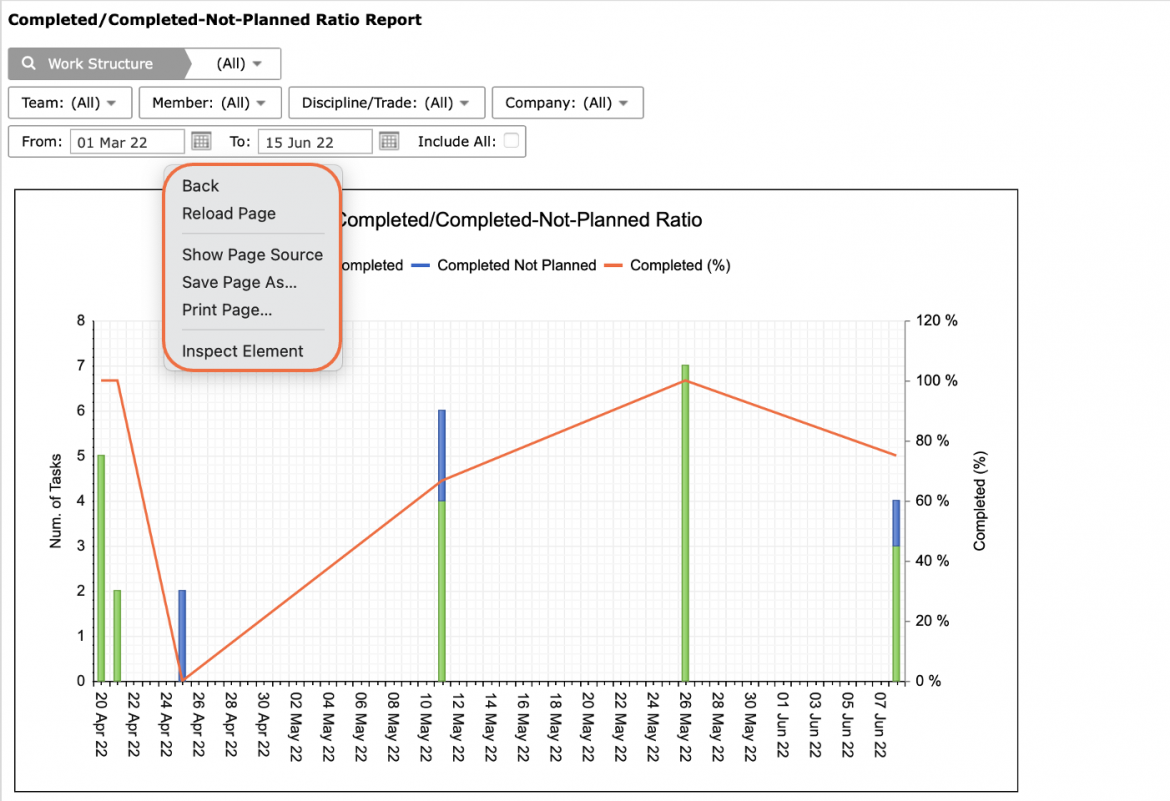
- To print Completed / Completed-Not-Planned Ratio, options may differ based on your browser. For instance, if you are using Internet Explorer, right-click in the white space outside of the Completed / Completed-Not-Planned Ratio graph and select Print from the menu or simultaneously press the Ctrl and P keys on your keyboard.
- The Print Dialogue box opens.
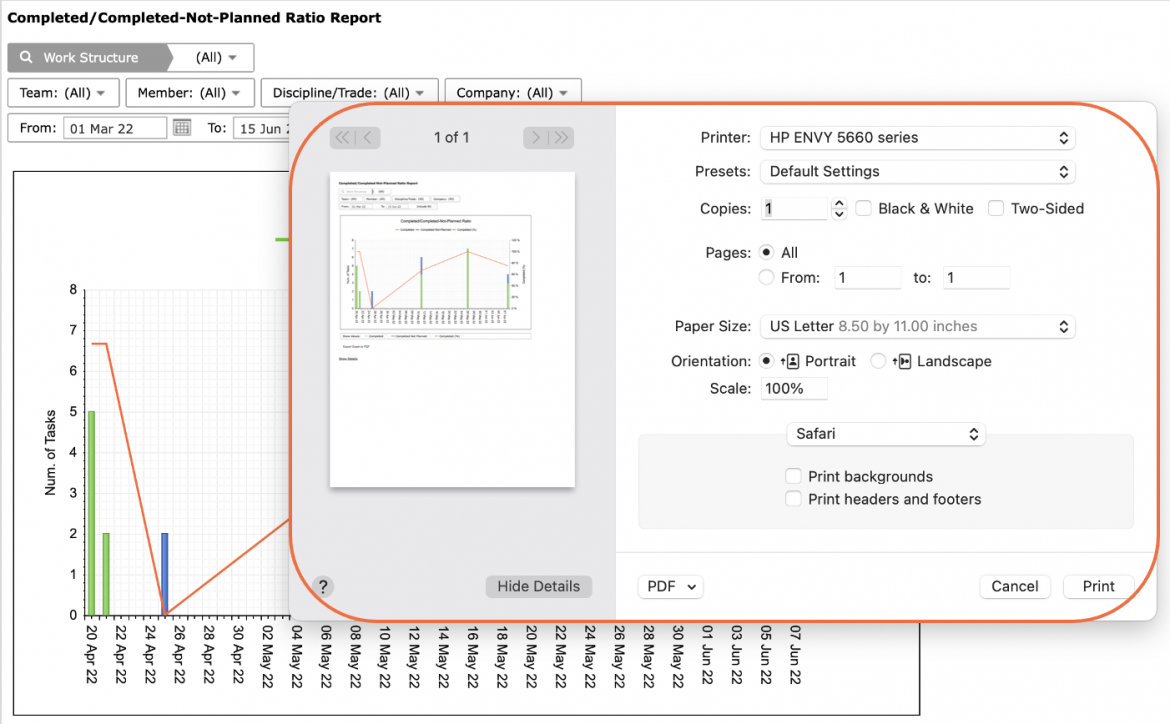
- Once all relevant printing settings have been modified, click the Print button.
Note: Before printing, it is recommended you confirm the fit to the desired paper size.