
To create a new standard process in the Standard Process Edit view, complete the steps below:
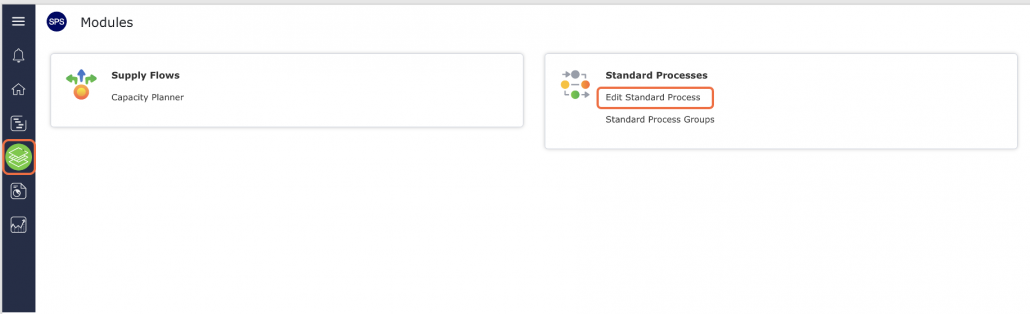
- From the Main Navigation Bar select Modules, then select Edit Standard Process.
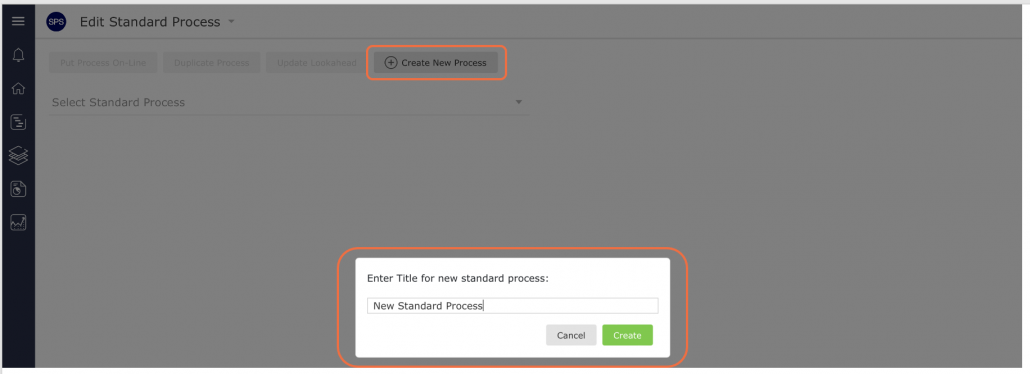
- In the Edit Standard Process window, click the Create a New Standard Process button. Enter the new standard process title following the project’s agreed-upon nomenclature then click the Create button. Consistency in naming standard processes is important to facilitate identification when using and editing standard processes in the future; a single project can easily have hundreds of standard processes.
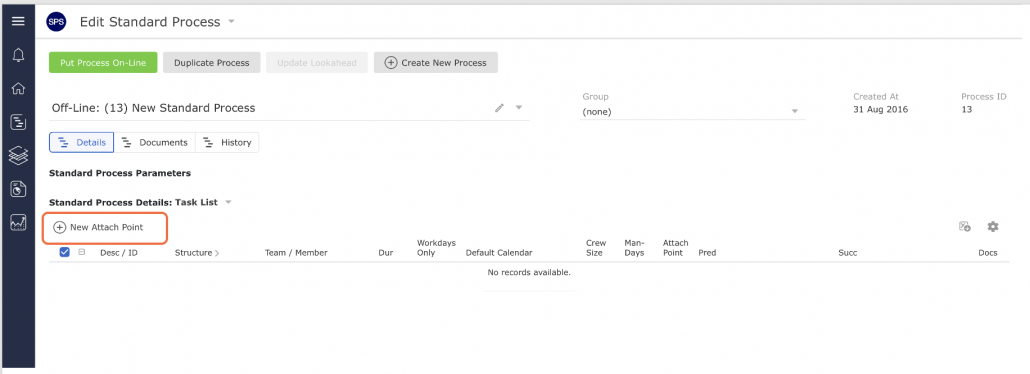
- Create the attach point (the end task of the process which will “attach to” the tasks in the Lookahead) used to link to a Milestone / Task in the Production Schedule by clicking the New Attach Point button and the New Attach Point window will open as show in image below.
- Populate the attach point details following the parameters below then click the Submit button.
| Parameter | Description |
|---|---|
| Work Structures | Select values for levels 1-7 of the Work Structures according to the defined Work Structures for your specific project. Values should be left as “(none)” if they are to be inherited from the Milestone / Task that standard process is attached to |
| Team / Member | Team and member who will own and complete the task. Should be left as “(none)” if these values are to be inherited from the Milestone / Task that standard process is attached to |
| Description | Start the description of the task activity with a verb such as ‘Install,’ ‘Develop,’ ‘Formulate,’ ‘Fabricate,’ Approve,’ etc. Task description should be specific and a measurable quantity, no greater than the Planning Horizon (e.g., one day, one week, etc.) Level of detail should represent measurable hand-off to the successor activity |
| Duration | Proposed time task will take to complete |
| Forecast Start | Default is based on a ‘Continuous’ Workflow; other options used when tasks need to start at a different point than anticipated (see section Task Dates for more information) |
Constraint Analysis and task dependency are the core of Production Scheduling. Any task is simply an item of work with a specified duration, for which a single individual is responsible. Within SPS|PM, two tasks are connected by a dependency relationship when work on one task cannot begin before all work on the other has been completed. The dependent task is known as a successor, while the “providing” task is a predecessor or constraint.
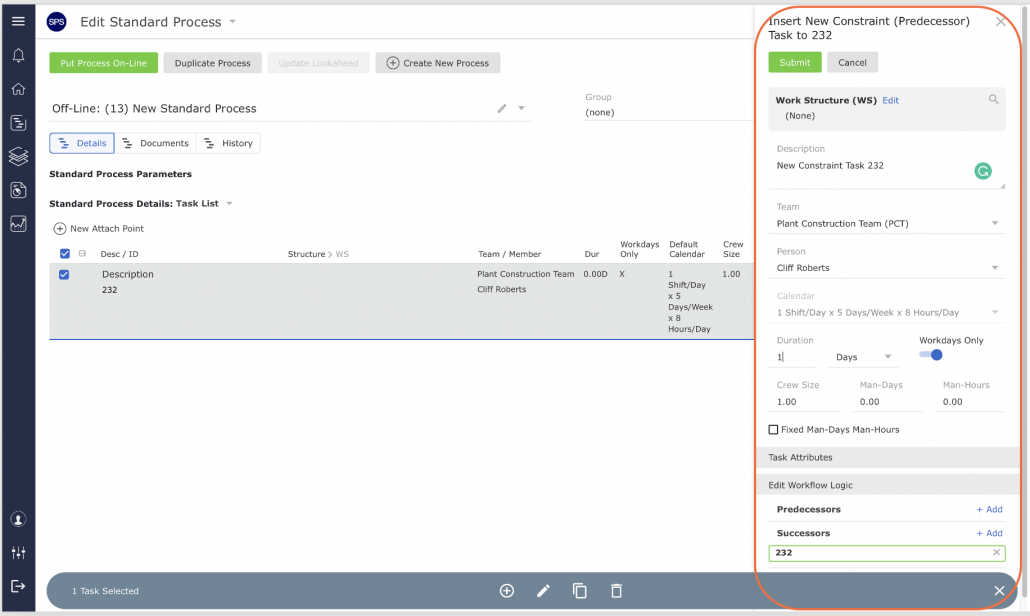
To add constraints to the attach point, select the attach point by clicking once anywhere on task row. Once selected, the task row will display a blue background as shown below. Then click the New Constraint Task button on the bottom floating toolbar.
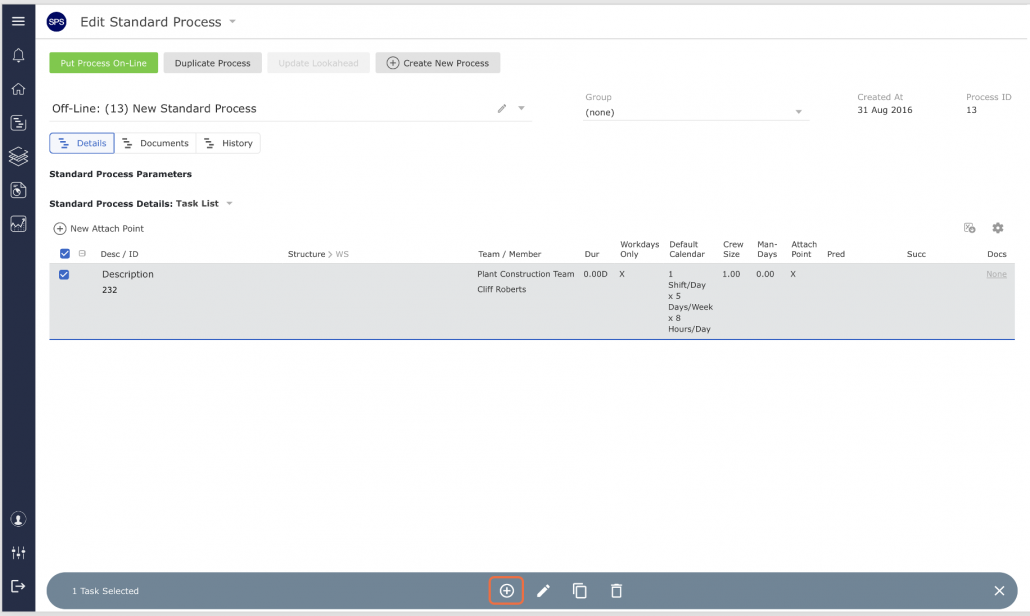
- Populate the Insert New Constraint Task (Predecessor) window using the parameters described above in Step 4 and click the Submit button when complete.
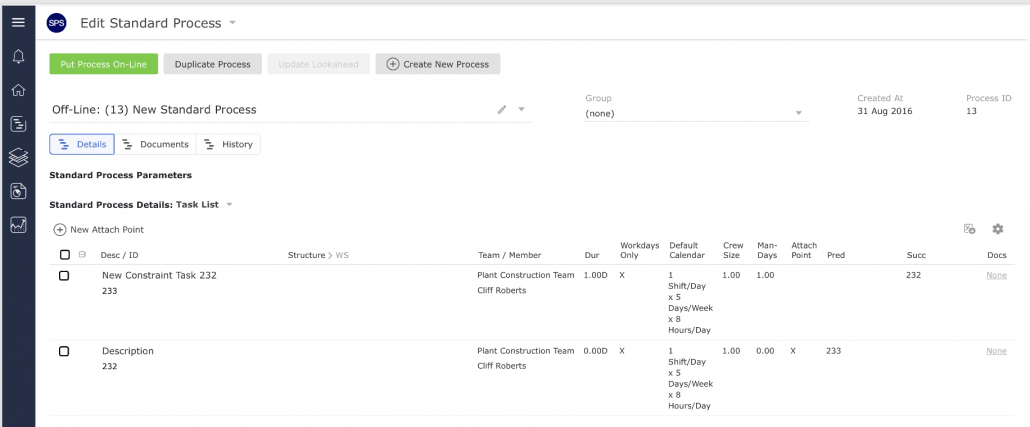
- After entering the new constraint task, the task will appear in the process step list and Gantt Chart.
- To continue adding constraint tasks, repeat above Steps 5 – 6, selecting the appropriate task or attach point to constrain.