Once you create a standard process in SPS|PM, anyone with admin level 2 or above may access the Library and edit the process. Within the Edit Standard Process view, you can edit tasks within a standard process.
To edit an existing standard process, complete the steps below.
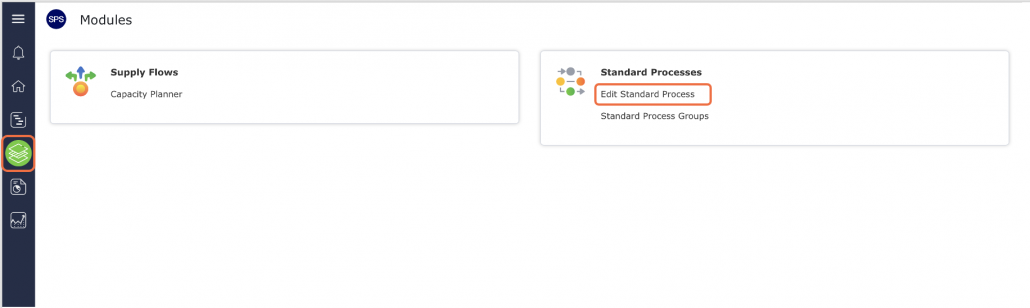
- From the Main Navigation Bar select Modules, then select Edit Standard Process.
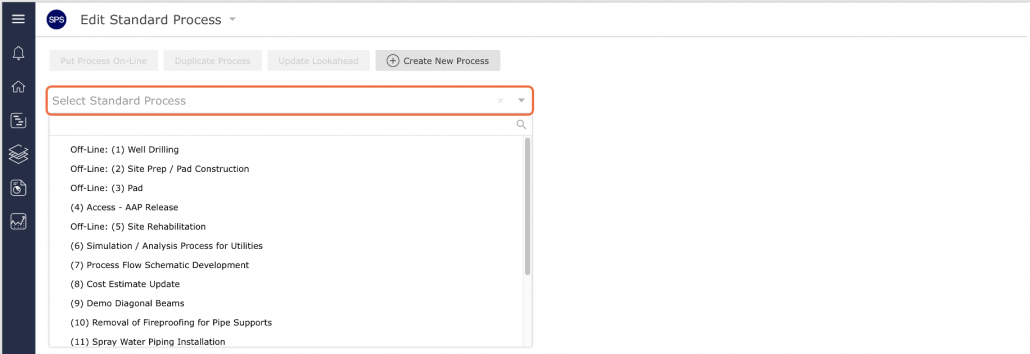
- Locate the standard process you wish to edit from the Edit Existing Standard Process drop-down.
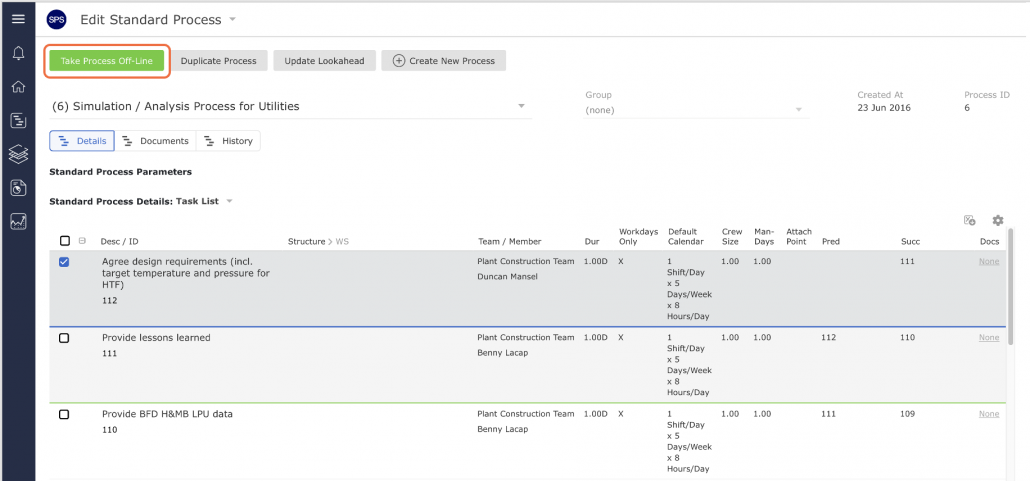
- In order to prevent the use of a standard process while being edited, it must be in an off-line state to edit the process. The state (on-line or off-line) is found within the Selected Standard Process region as shown in the image below.
If a process is off-line, the status button will display Put Process On-line. If a process is on-line, the status button will display Take Process Off-Line. To put a process that is on-line into an off-line state (and is then ready to be edited), click the Take Process Off-Line button.
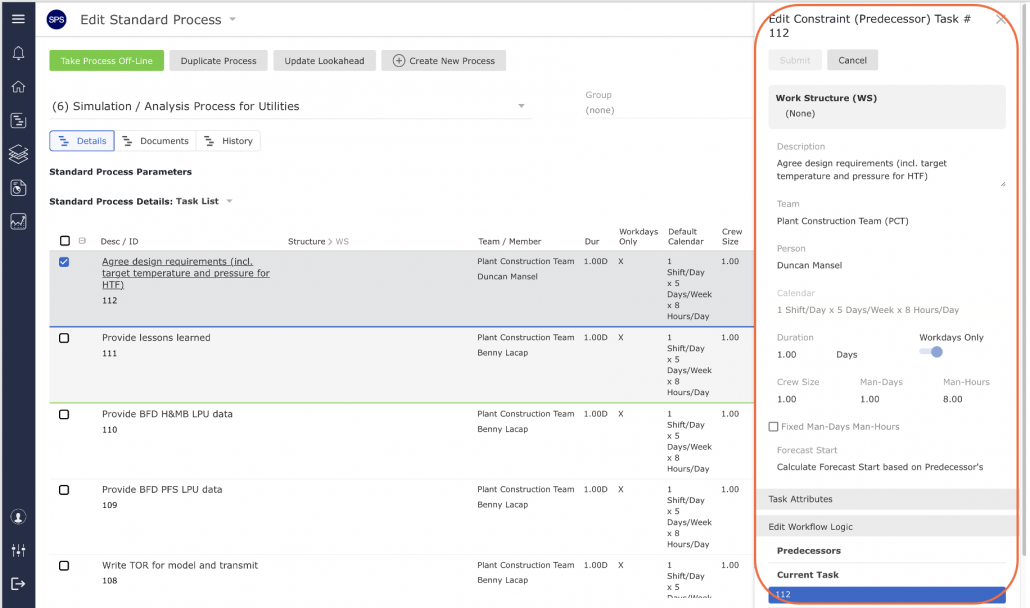
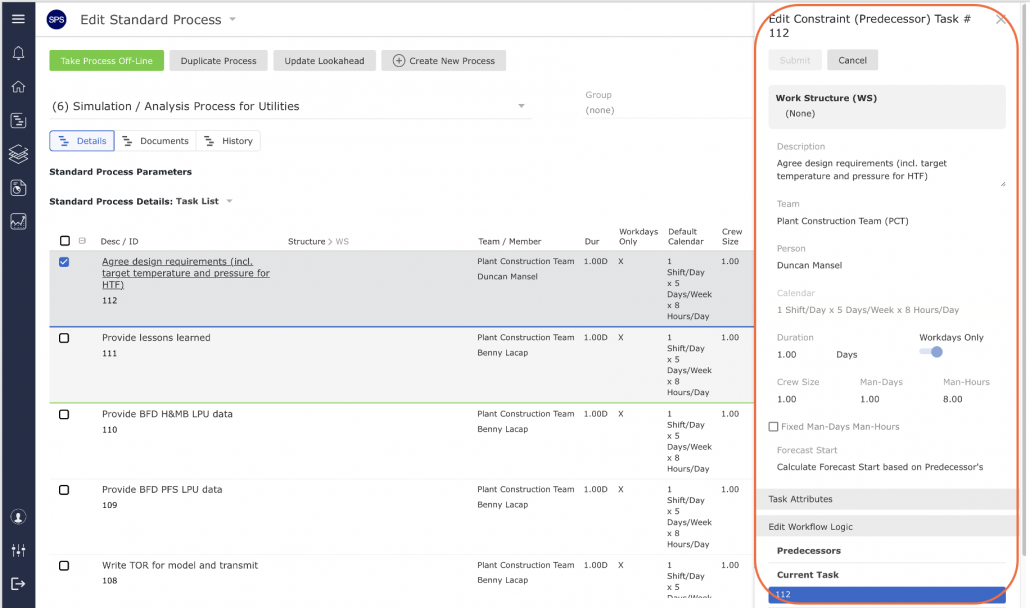
- To edit a task or attach point, click twice on the task row and the Edit Constraint / Edit Attach Point window will open. When you have completed all desired edits, click the Submit button.
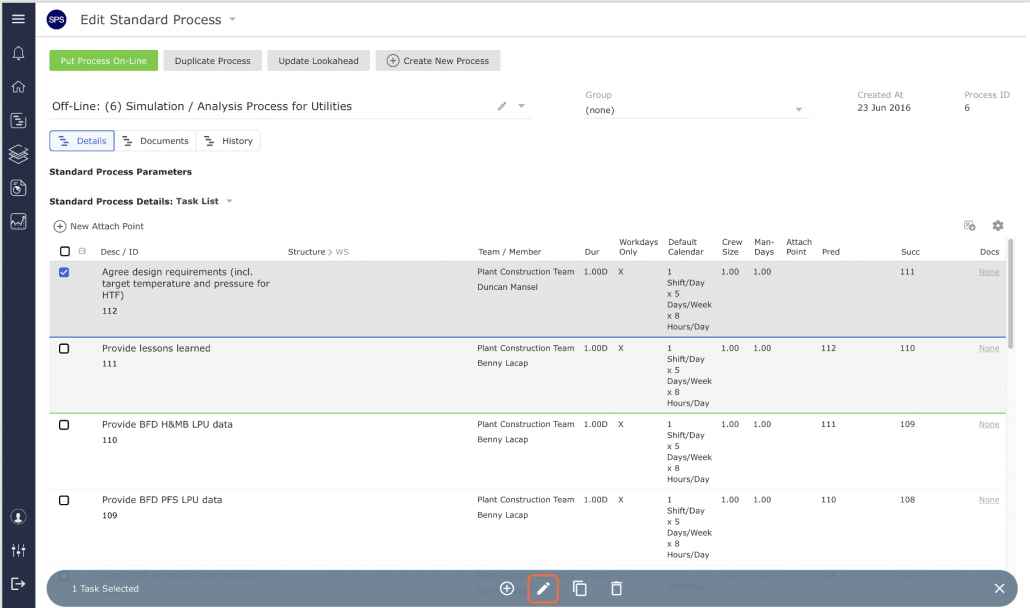
- Alternatively, select the task or attach point you want to edit by clicking once anywhere on the task row. Once selected, the task row will display a blue background as shown below. Then click the Edit Task button and perform desired edits in the Edit Constraint / Edit Attach Point window. When you have completed all desired edits, click the Submit button.
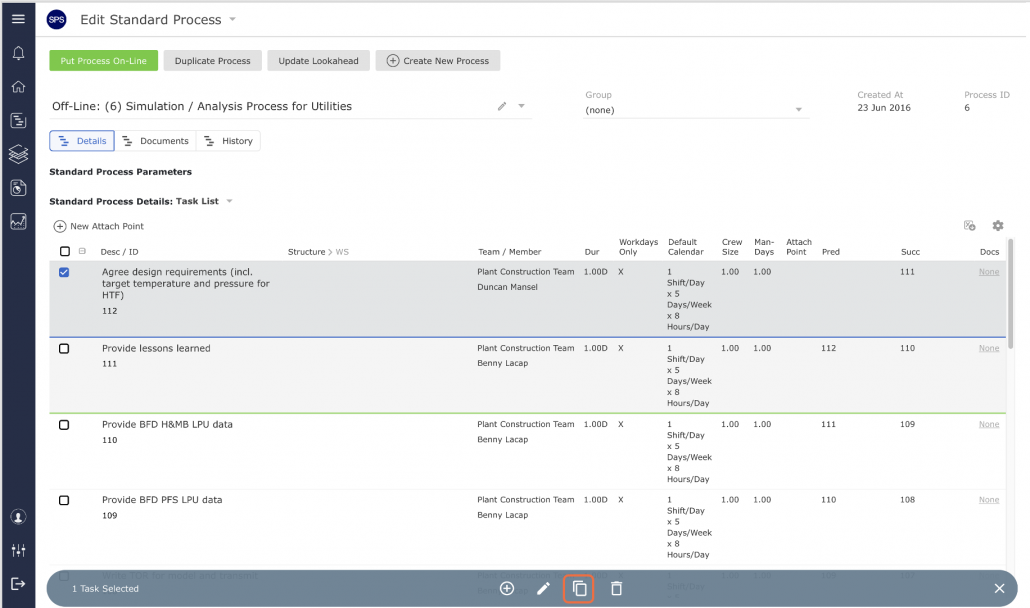
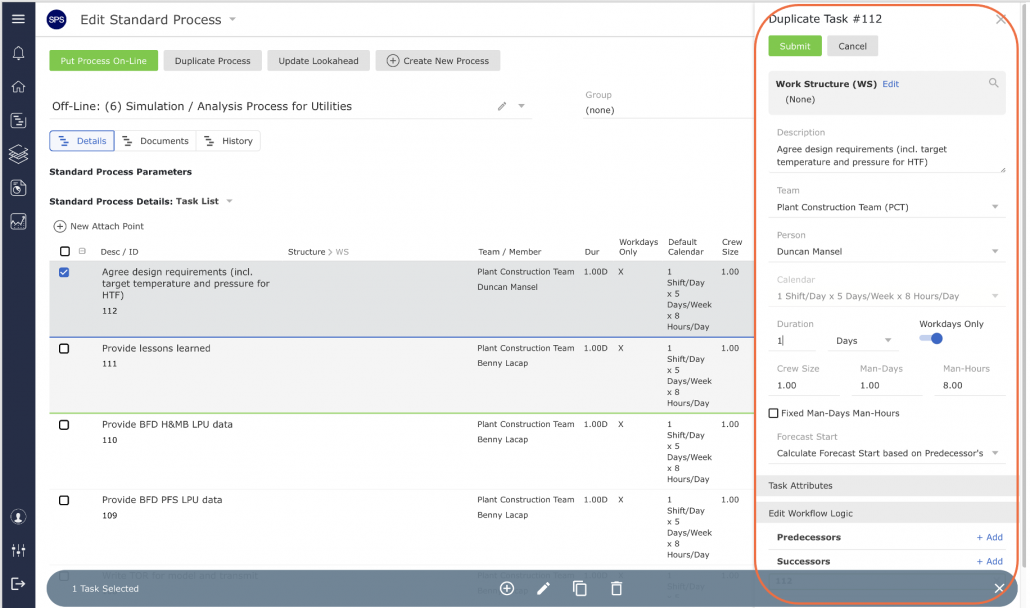
- To duplicate a task or attach point, select the task or attach point that you want to duplicate by clicking once anywhere on the task row. Once selected, the task row will display a blue background as shown below. Then click the Duplicate Task button. In the Duplicate Task window, revise any task details you desire for the duplicate task. When you have completed all desired edits, click the Submit button. The newly create duplicate task will then appear in the task table and the Gantt Chart. To make workflow logic changes, edit using Network Manager as described in the Edit Existing Standard Process in the Using Network Manager section.
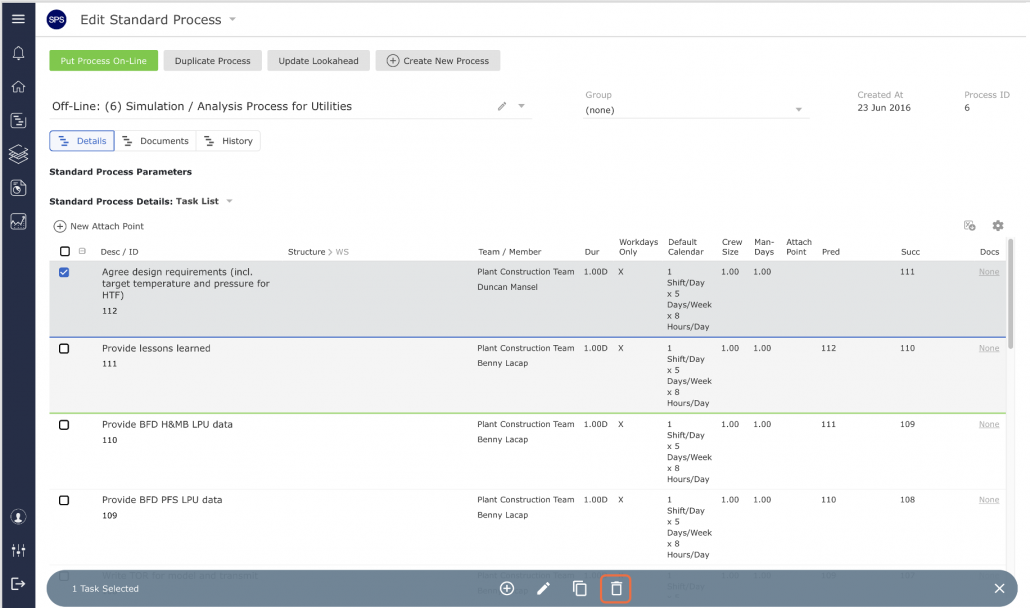
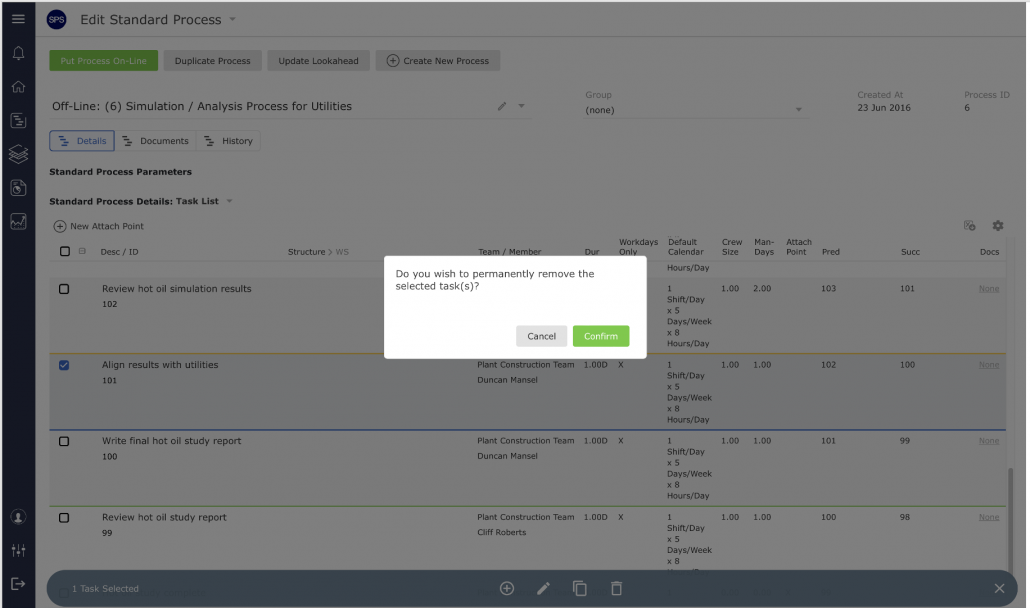
- To remove (delete) a task or attach point, select the task or attach point that you want to delete by clicking once anywhere on the task row. Once selected, the task row will display a blue background as shown below. Then click the Remove Task button. In the confirmation pop-up, click the OK button. The change will then be reflected in the task table and the Gantt Chart. To make logic changes, edit using Network Manager as described in the Edit Existing Standard Process in the Using Network Manager section.