The Export function can be used to export data from SPS|PM for additional analysis, to generate mock-ups of customized reports, or to import into an external system. Two types of exports are available: Export (data) and Export SP Analytics. Any data from the Lookahead can be exported using the Export function, while the Export SP Analytics function exports analytics data specifically associated with standard processes. Detailed instructions for each export type are provided below.
Export
The Export function allows you to export data from SPS|PM to file formats: Microsoft Excel, MPX (Microsoft Project), and CSV (Comma Separated Values).
To create an export from SPS|PM, complete the steps below:
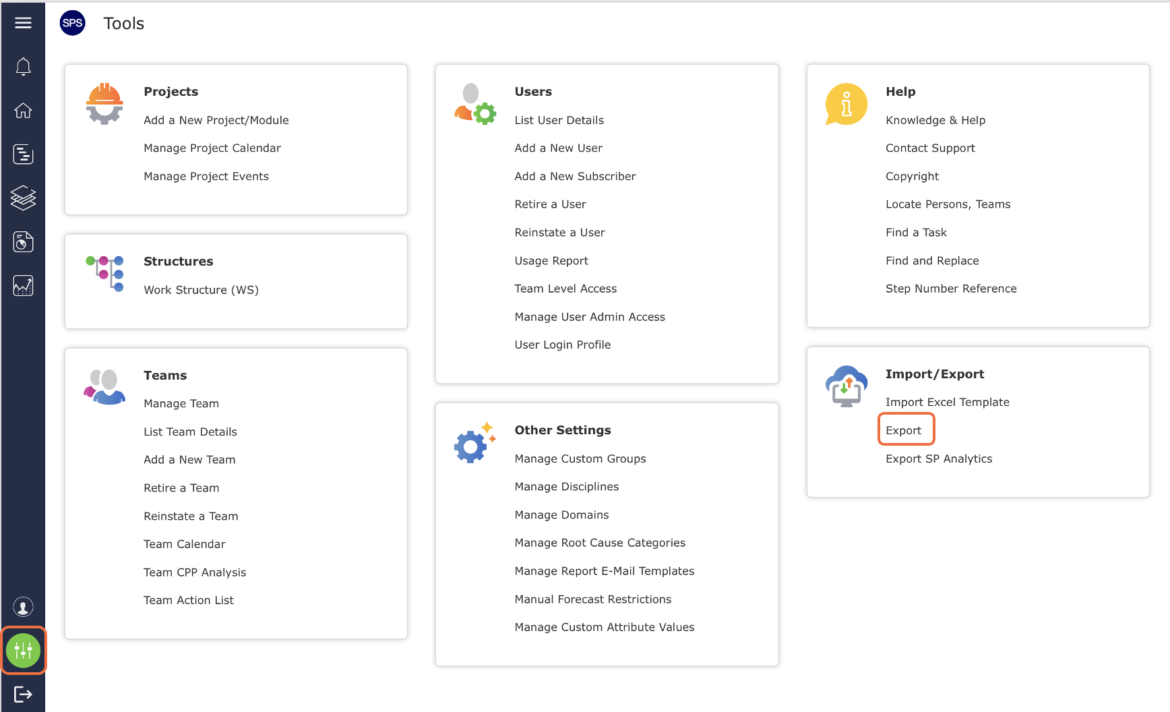
- From the Main Navigation Bar select Tools, then select Export as shown in the image below.
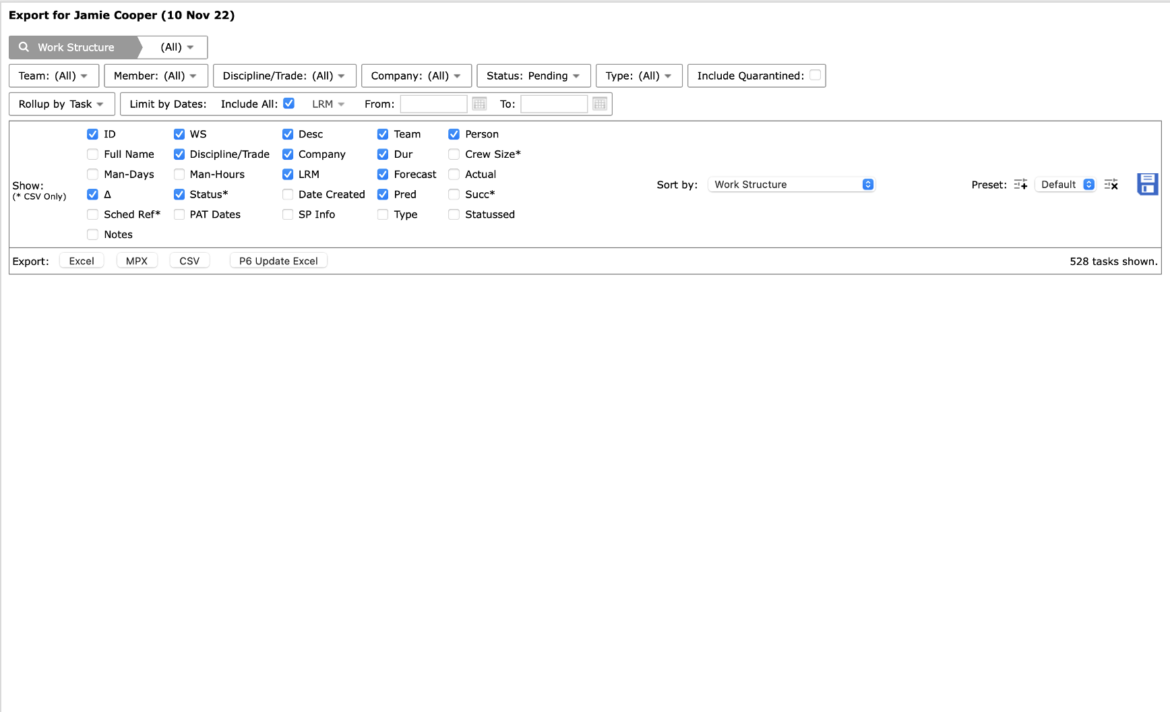
- The Export window will open as shown in the image below.
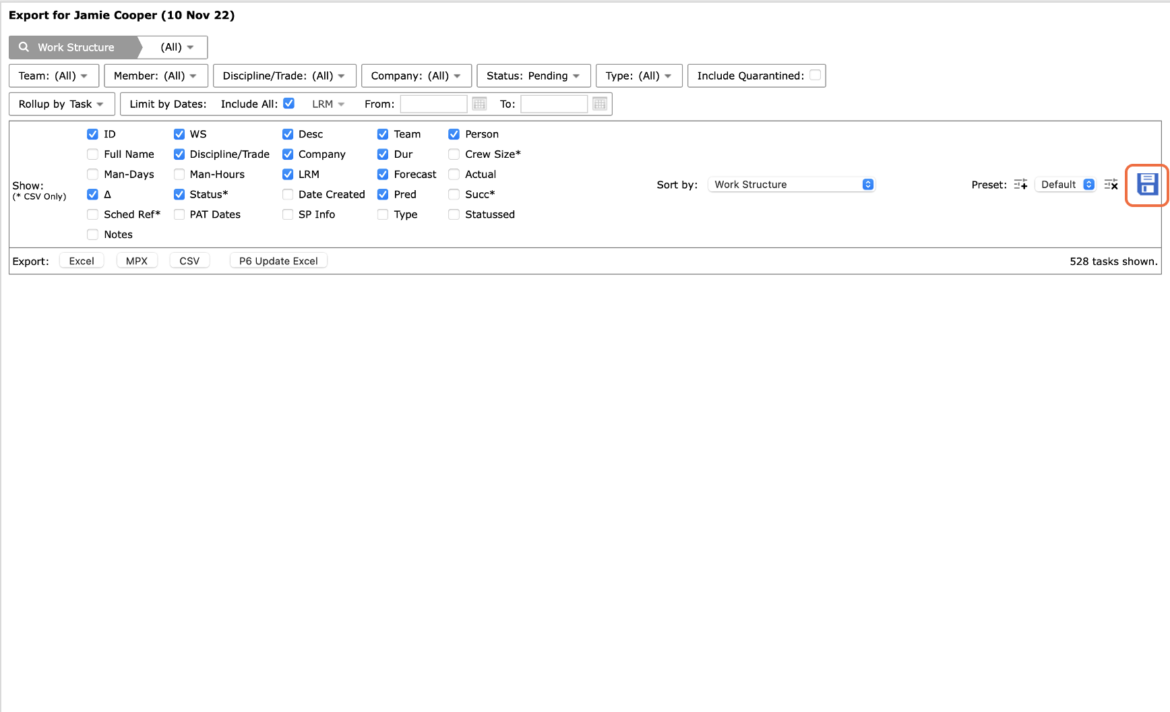
- Filter for the data you wish to export and also select the desired data attributes by checking / unchecking the available attributes in the Show region.
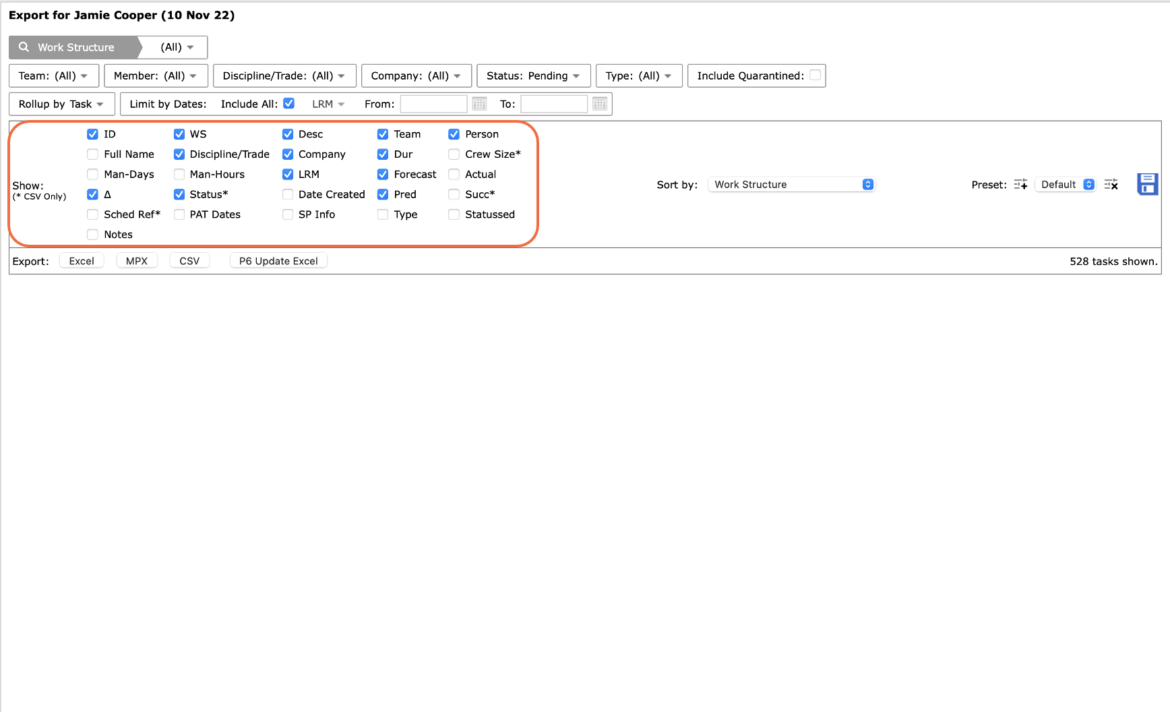
The Attribute selection can also be saved as a default setting for use in future exports by clicking the Diskette icon. The total number of tasks that will be exported is displayed in the lower right corner as shown in the image below.
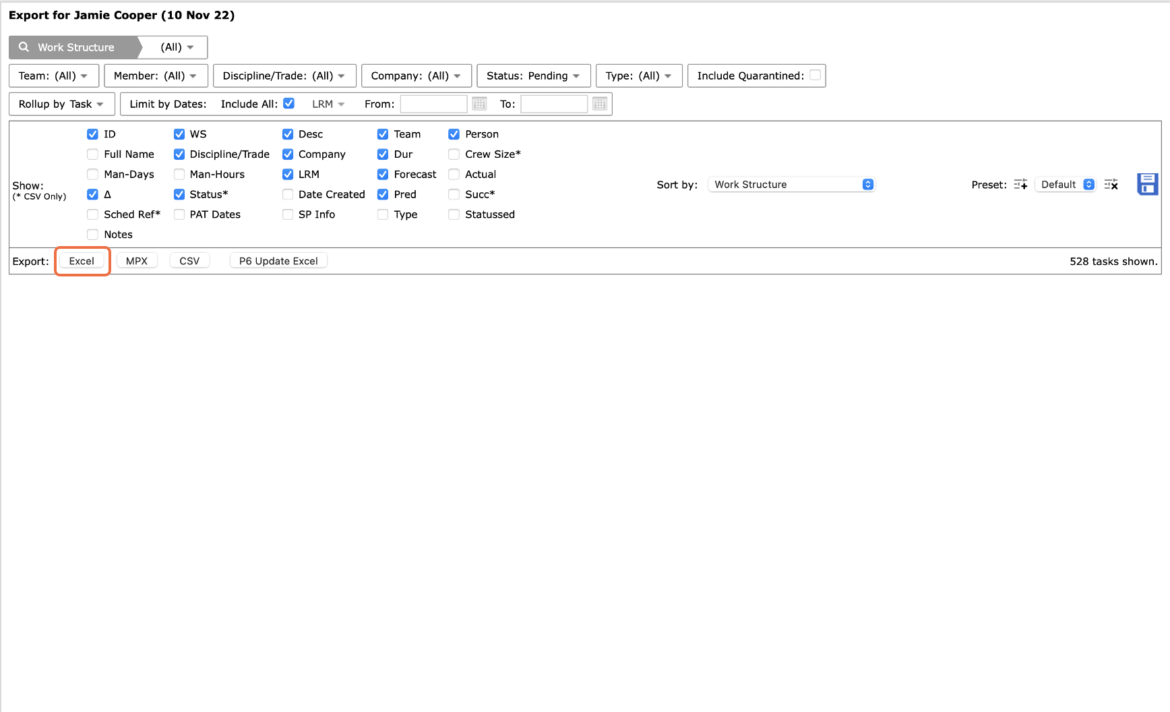
- Once you have finished selecting the data to be exported, click the Excel, MPX or CSV button, depending on the desired file format.
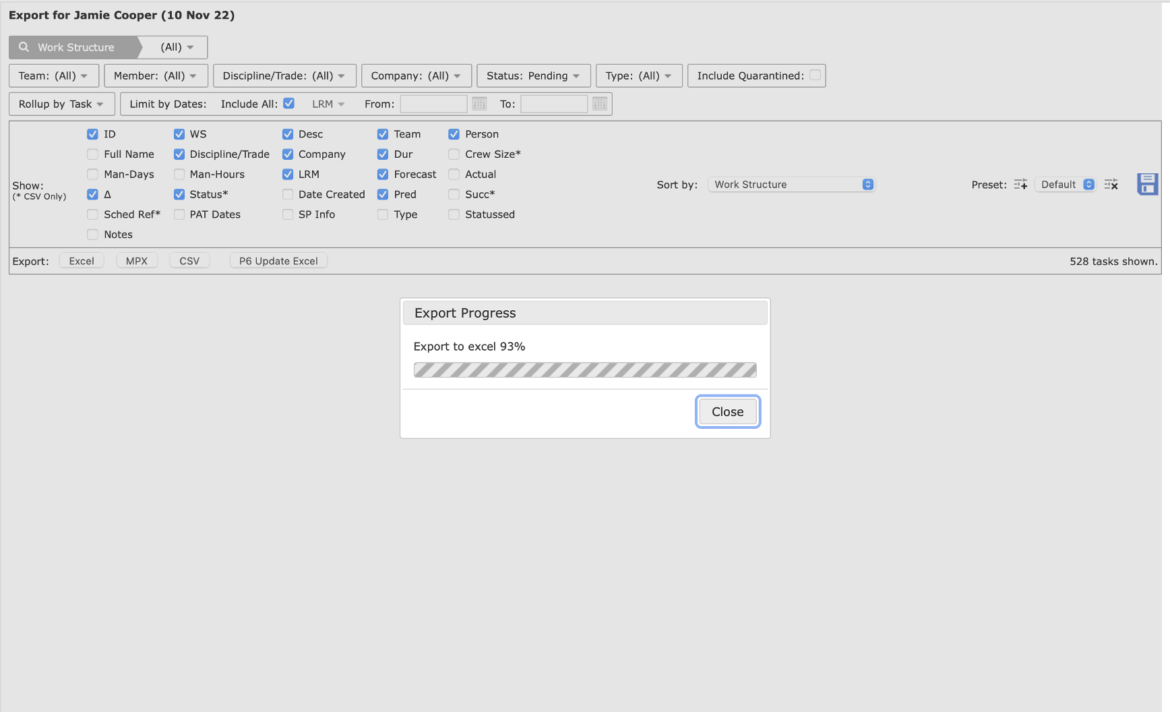
- If the Excel export format was selected, in the download prompt, click the Open, Save or Save As button as desired.
If the version of Microsoft Excel installed on your computer and that of the Export file are not the same, a warning message will display as shown in the image below when you attempt to open the file. Click the Yes button to proceed with opening the file.
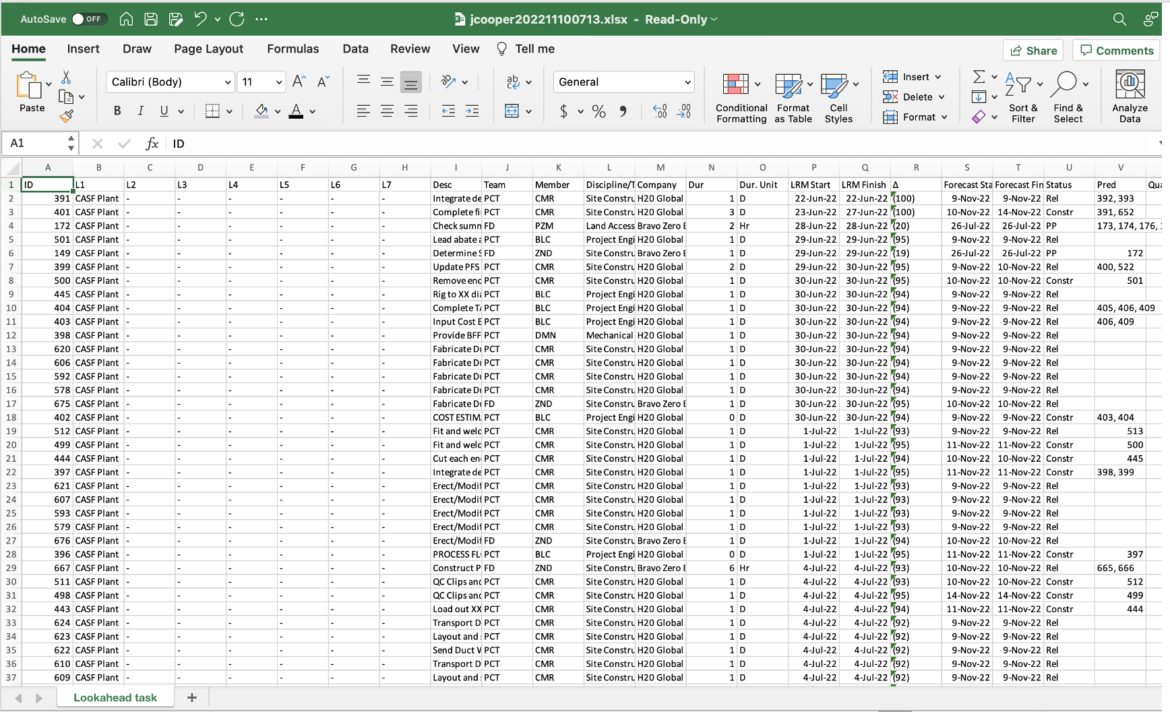
- The Export file opens with the selected data as shown in the image below.
- If the MPX or CSV export button was clicked, select the desired action in the download prompt: Open, Save or Save As, as described above. The MPX and CSV export files will open with the default software association specified in your computer’s settings.
Export Standard Process Analytics
The Export SP Analytics function supports optimization of standard processes by exporting Standard Process Analytics according to specific parameters including project structure, team, and date range into a Microsoft Excel file. See Standard Process Analysis for an explanation of the Standard Process Analytic.
To export Standard Process Analytics, complete the steps below:
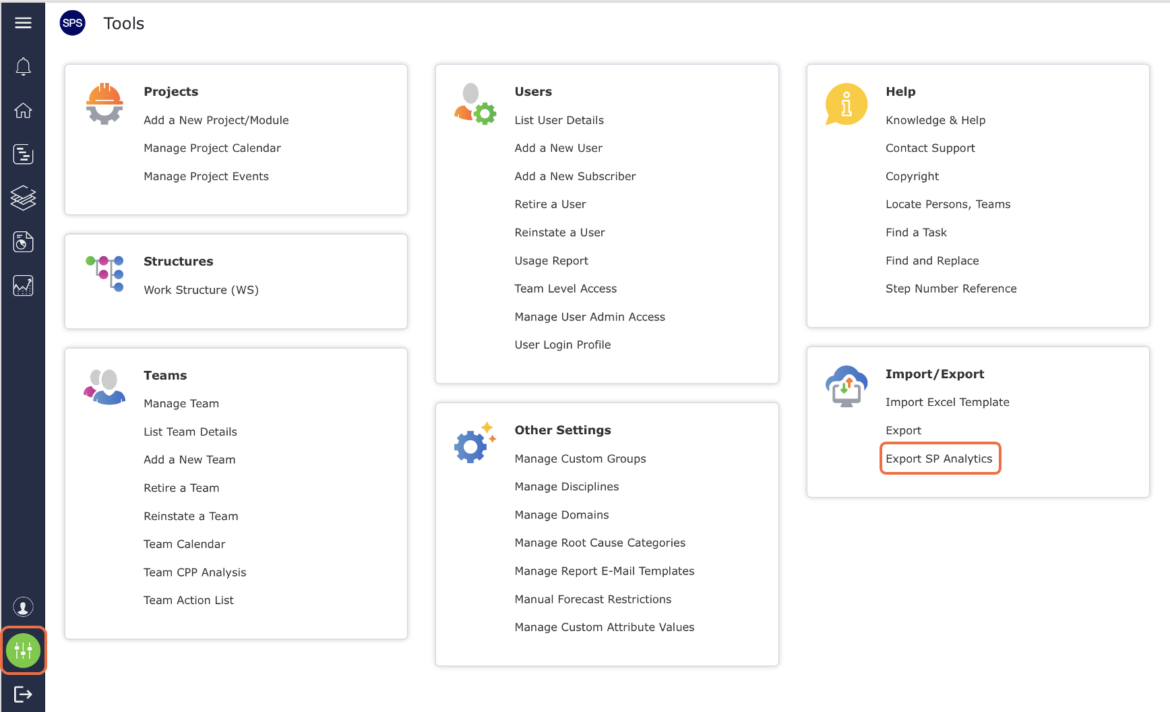
- From the Main Navigation Bar select Tools, then select Export SP Analytics as shown in the image below.
- The Export SP Analytics window will appear as shown in the image below.
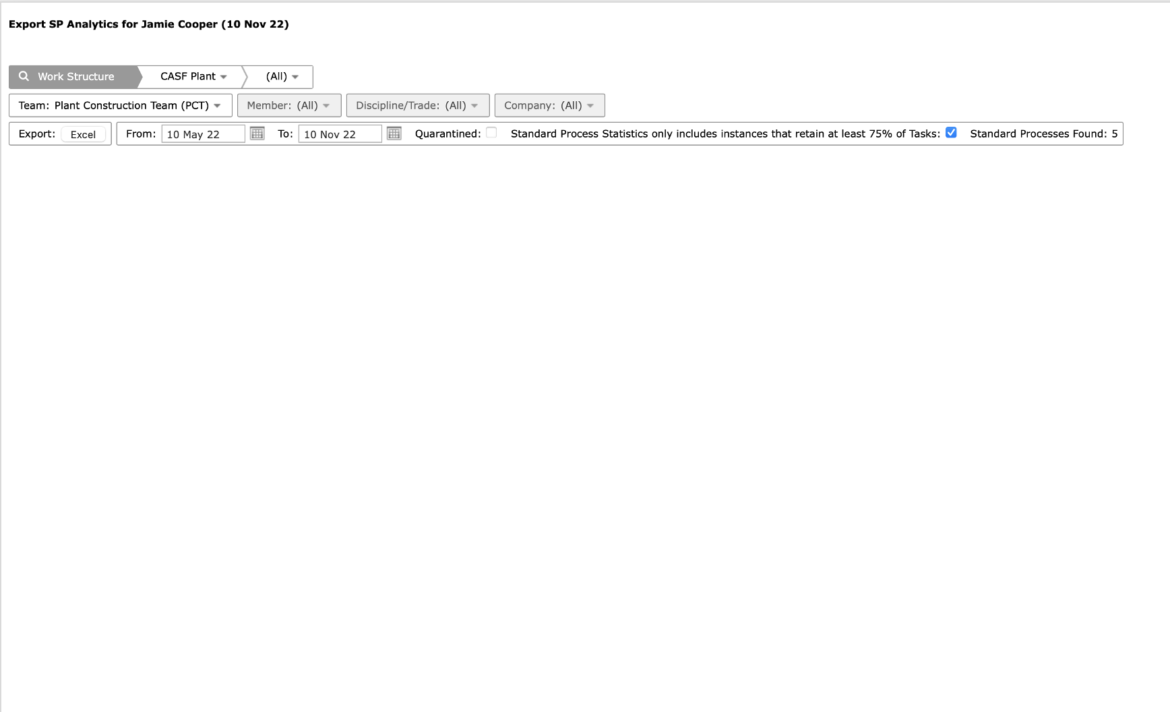
Use the filters in the Export SP Analytics window to select the desired parameters, including date range. When all parameters are selected, click the Excel button to initiate the export as shown in the image below.
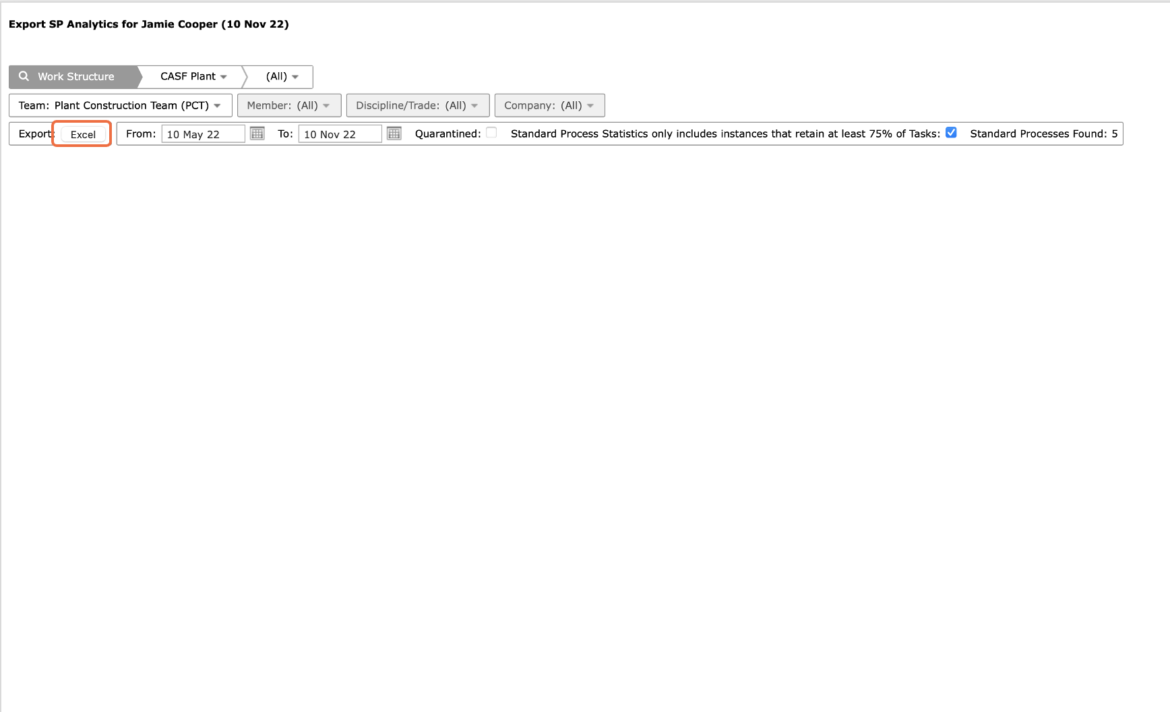
Note: If the Excel button is grayed out i.e., not clickable, this is because no data was found based on the selected parameters. In this case, modify the selected parameters until the Excel button is clickable.
- Click the Save / Save As button to save the file and then open it, or click the Open button to immediately open the file.
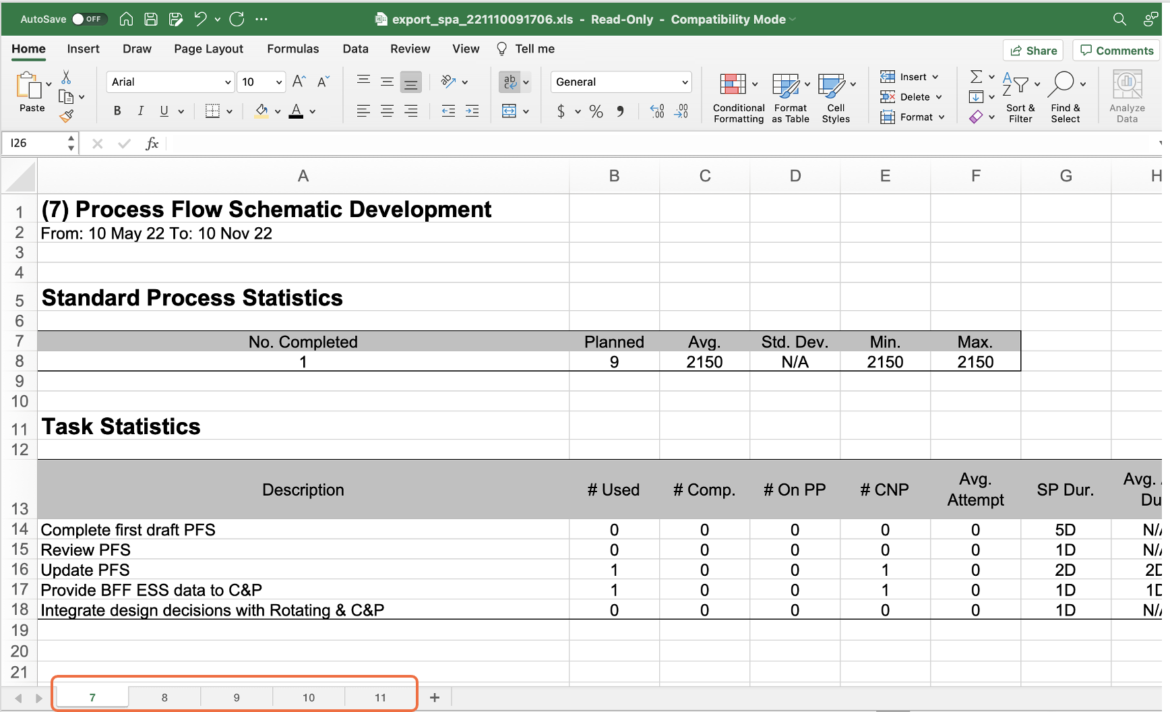
- The Export SP Analytics file will open as shown in the image below.
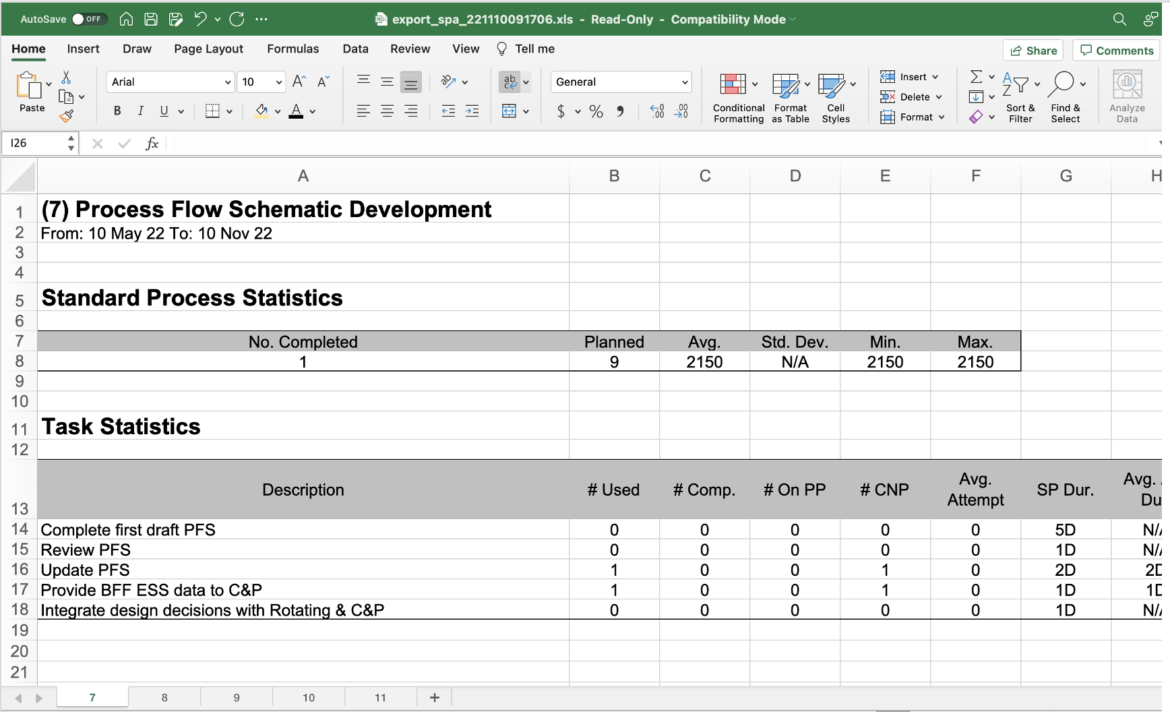
Analytics data for each Standard Process will appear on individual tabs. See Standard Process Analysis for an explanation of the Standard Process Analytic.