
Complexity of work across Work Structure and project phases including functions is captured in an integrated Production Schedule. Visibility into where and when there are interfaces between teams, team members, functions, groups, disciplines, etc. is critical in the effective coordination and execution of work across the entire project. The concept is based on a “Providing” and “Dependent” relationship, which defines an interface. To enable this, the Interfaces report provides the ability to filter for and analyze these interfaces.
To access the Interfaces report, complete the steps below:
- From the Main Navigation Bar select Reports, then select Interfaces.
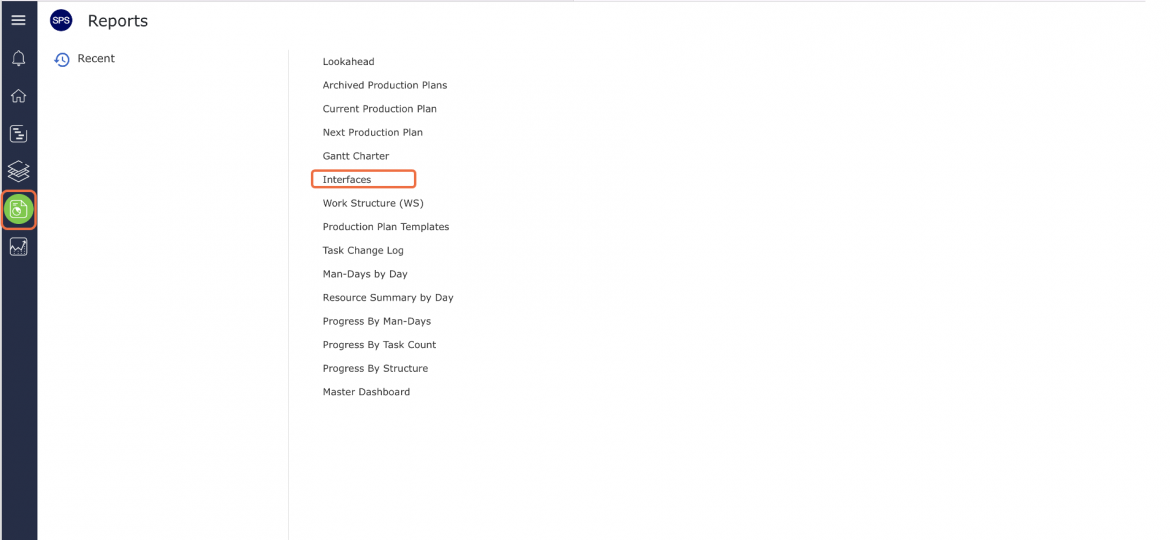
- The Interfaces report opens in a new window and automatically displays the report using the selected filters of the view from which you accessed the report e.g., Lookahead View.
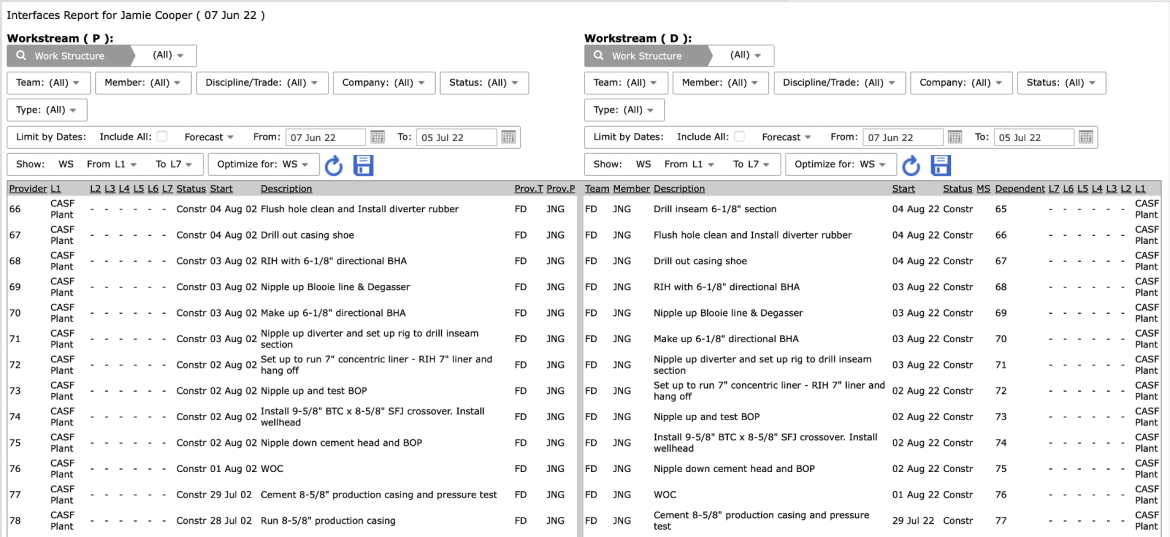
The Interfaces report displays the workflows that are linked with one or multiple workflows between the “Dependent” entity that are controlled by the “Provider” entity, e.g., other teams, team members, Discipline / Trade, etc. based on the selected filters. The Interfaces Report isolates the “touch points” or process interfaces, independently of how many times this occurs, identifying if there is any dependency between them.
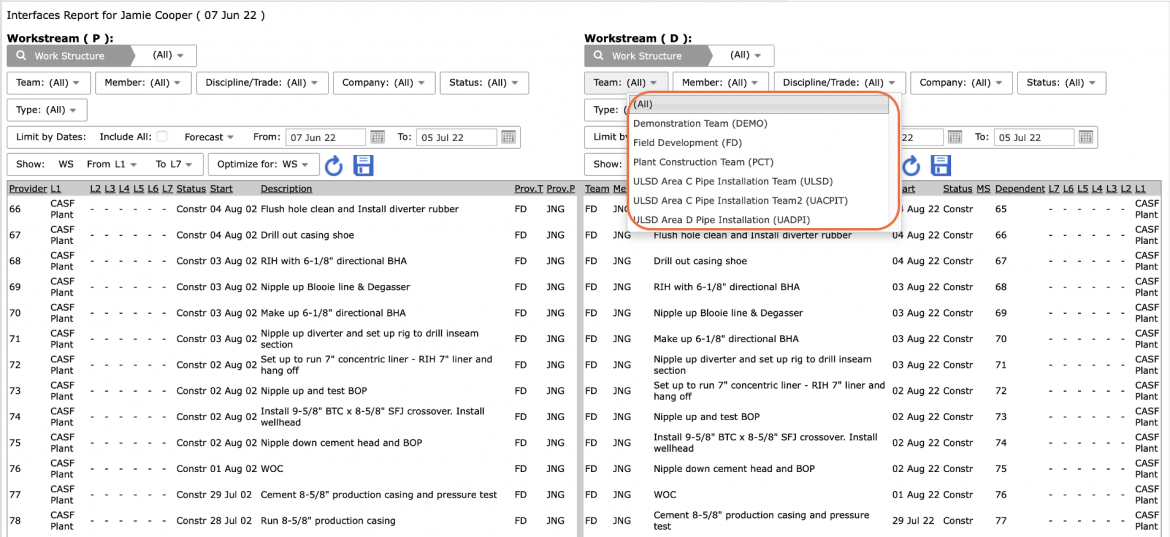
- Select Work Structure, Member, Milestone / Task Status, and any other attributes, in addition to date range, of the “Provider” (P) work stream and the “Dependent” (D) workstream to filter for the desired data.
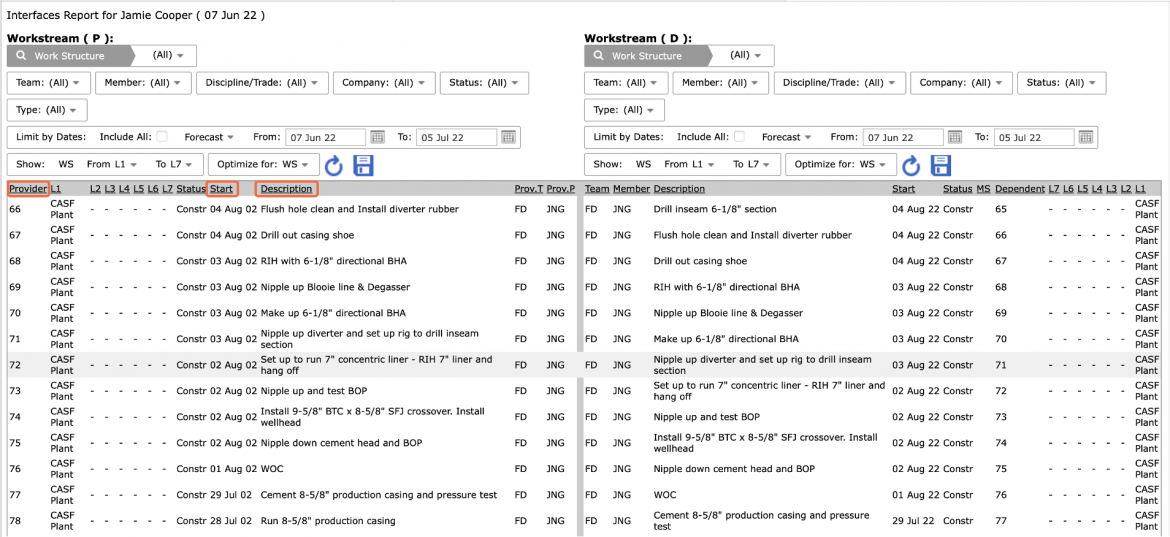
- Sort the data by clicking on any of the underlined column headings. This allows sorting in ascending order. Click a second time to reverse the sort.
- Depending on your browser, access to printing options may vary. For example, if you use Internet Explorer, to print the Interfaces report, right-click anywhere on the Interfaces report and select Print from the menu or simultaneously press the Ctrl and P keys on your keyboard.
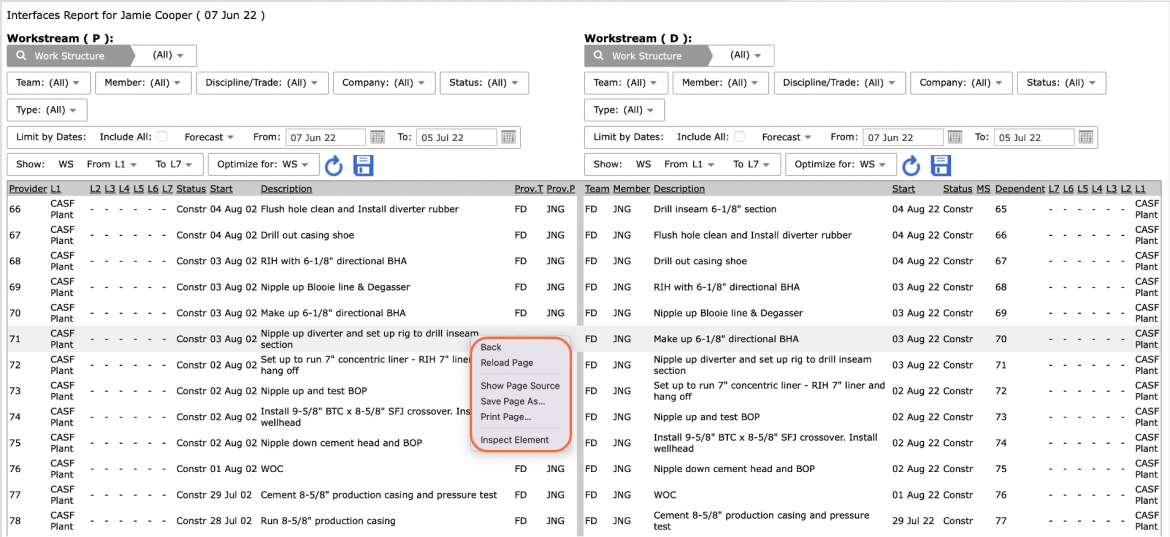
- The Print Dialogue box opens.
- Using the Print Dialogue box, change any desired print settings. Once all relevant printing settings have been modified, click the Print button.
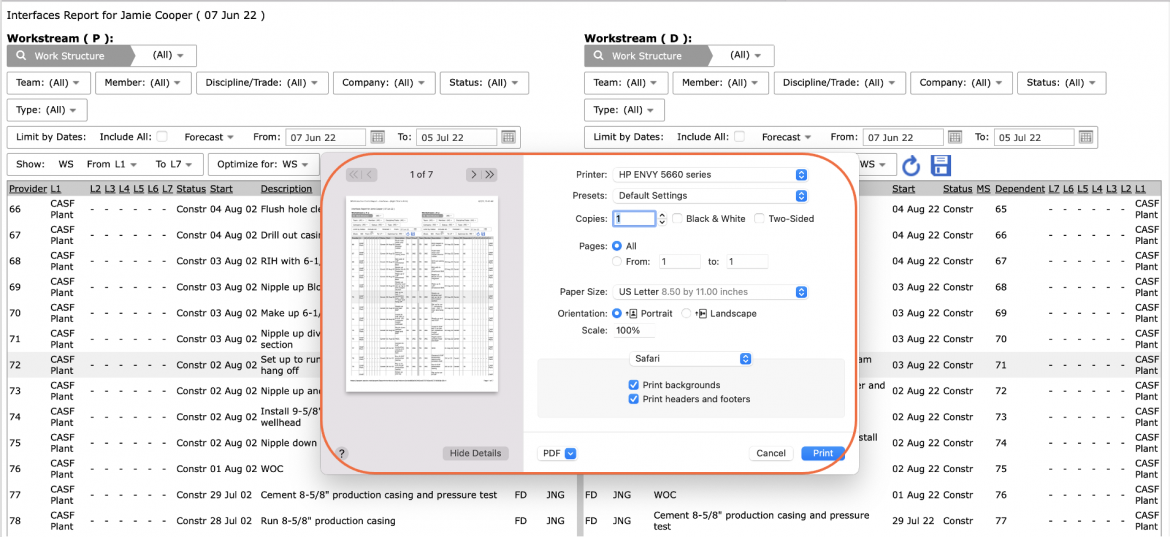
Note: Before printing the report, it is recommended you confirm whether the report fits the desired paper size.