In order to successfully deliver project objectives, ensuring Production Schedule accuracy and integration across disciplines / trades is critical.
The Manage Disciplines / Trades function provides the ability for teams to more effectively visualize workflows and identify critical hand-offs across multiple workflows through the use of color-coding. SPS|PM does this by enabling the definition of a given color to represent each Discipline / Trade displayed in the Network Manager view and also updating Discipline / Trade descriptions.
To manage Disciplines / Trades in SPS|PM, complete the steps below:
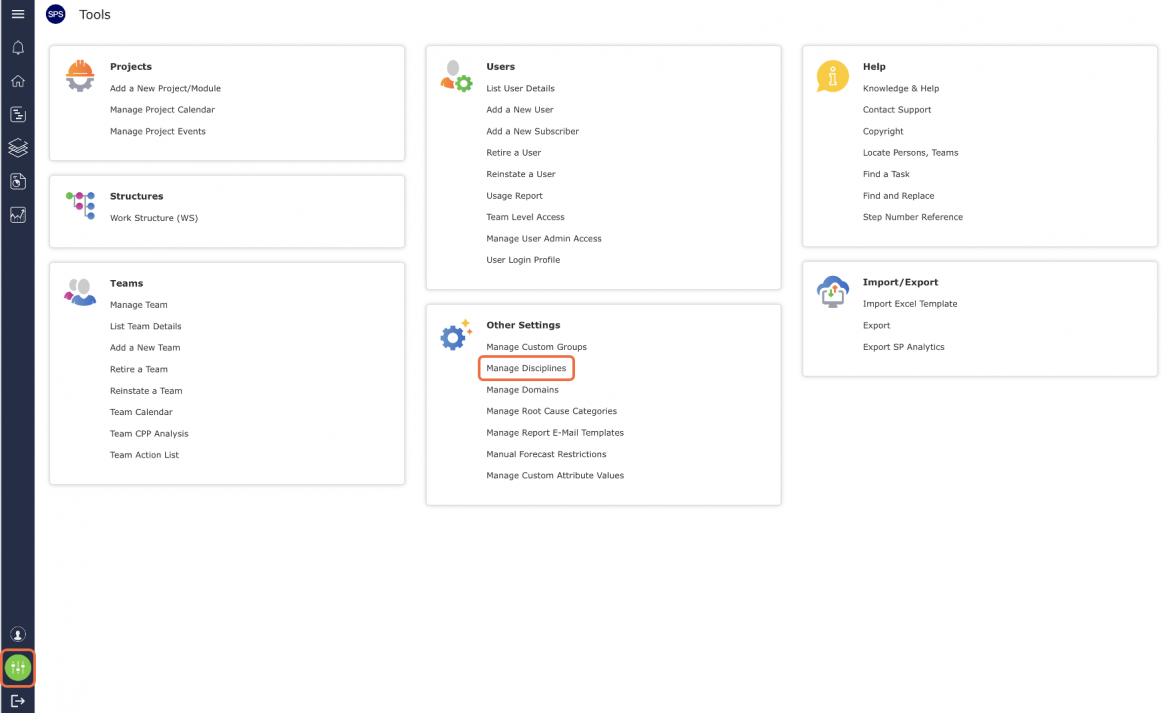
- From the Main Navigation Bar select Tools, then select Manage Disciplines.
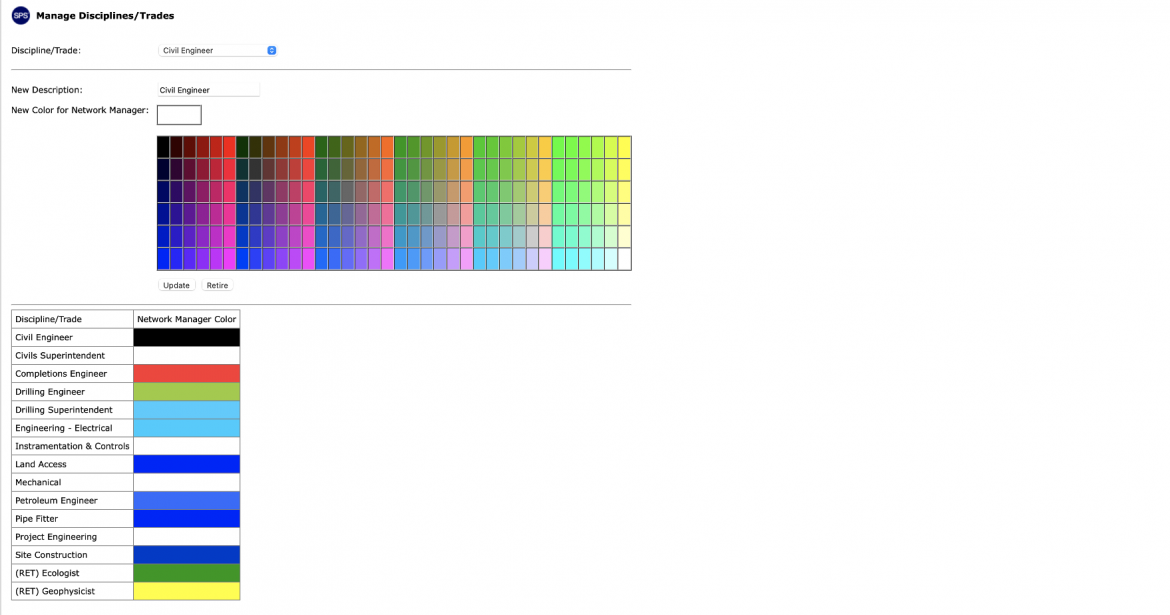
- The Manage Disciplines window opens and lists all Disciplines / Trades that have been created for all Domains and their associated colors as displayed in the Network Manager. If the color for a Discipline / Trade is white, it means no color has been assigned.
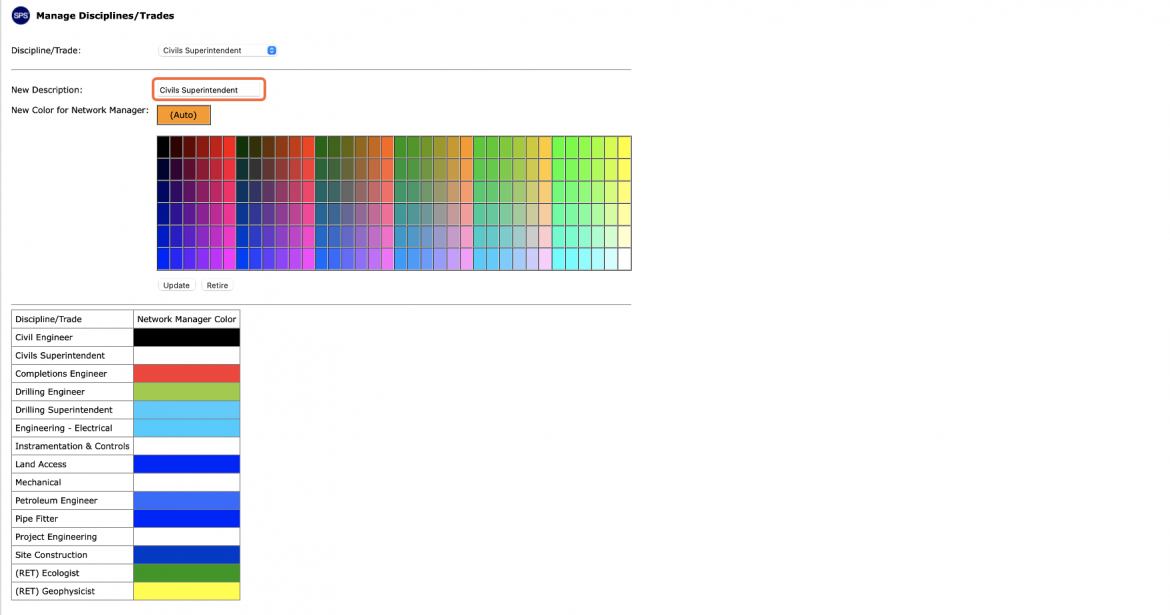
- To modify a Discipline / Trade description or color, select the desired Discipline / Trade from the Discipline / Trade drop-down. Enter the new / revised description and / or select the desired color from the color palette, then click the Update button.
All Disciplines / Trades that display in the Discipline / Trade drop-down are created when a new user is created. See Create New User Account under Team Management for more information.
As all Domains in SPS|PM share the same Discipline / Trades, it is important to closely coordinate with the System Administrators of all project teams when first creating descriptions and when modifying descriptions / colors. Also, standardizing nomenclature for the descriptions across all Domains is highly recommended, as there are significant implications for not doing so. For example, while Civils Superintendent, Civil Sup, Civil – Super, etc. may be intended to represent the same Discipline / Trade, the fact that there are multiple descriptions will cause inaccuracy in Reports, Decision-Support Mechanisms and Analytics, and confusion in filtering in any of the views. Also, remember that if a specific color is assigned to a Discipline / Trade, and that Discipline / Trade has tasks on different teams, tasks assigned to the Discipline / Trade will always display the same color in the Network Manager view, independent of the team.
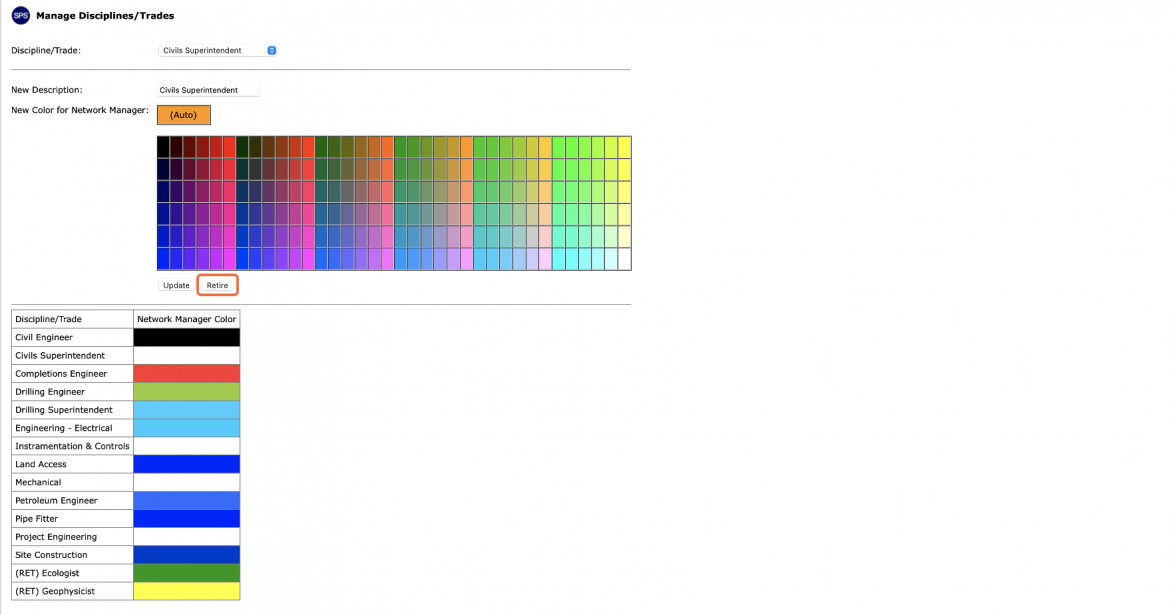
If a Discipline / Trade is no longer being used, you can retire it so it is hidden from view in the SPS|PM attribute filters. To retire a Discipline / Trade, follow the above steps for accessing the Manage Disciplines window, select the desired Discipline / Trade from the Discipline / Trade drop-down, and then click the Retire button as shown in the video below.
Note: Once a Discipline / Trade is retired, it cannot be reinstated. As all Domains in SPS|PM share the same Discipline / Trades, it is important to closely coordinate with the System Administrators of all project teams when retiring a Discipline / Trade so as not to inadvertently affect other project teams.
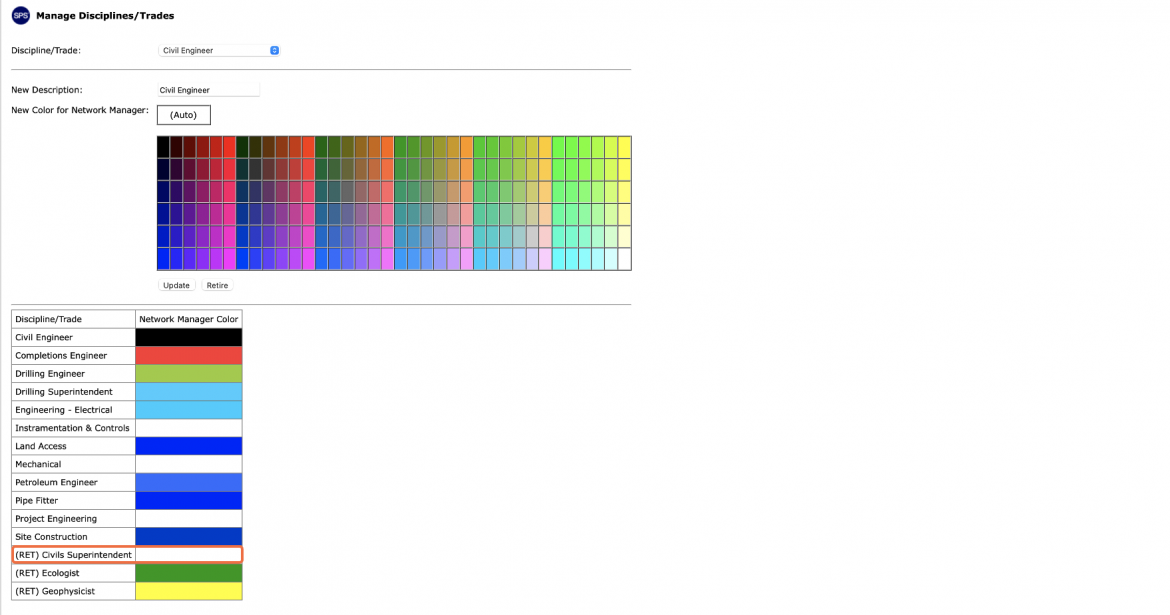
- A retired Discipline / Trade will be preceded by (RET) to denote its status as shown in the image below.