
Maintaining accuracy in the number of shifts and work hours per day / week for project teams is critical in ensuring LRM and forecast dates accuracy.
SPS|PM’s base configuration includes calendars at three levels: project, team, and member; LRM and forecast dates will be calculated using those settings. However, depending on work complexity, an additional calendar at the task level is available for use and can be enabled at any time as needed. If your project specific configuration does not include this additional level, contact your System Administrator to discuss if there is value in using it, and if so, how to enable and use it.
The Manage Project Calendar function provides the ability for teams to manage calendars at the project level. SPS|PM does this by enabling you to set the number of shifts and work hours per day / week for the project. For information on managing calendars at the team and member levels, see Team Management.
To manage a project calendar in SPS|PM, complete the steps below:
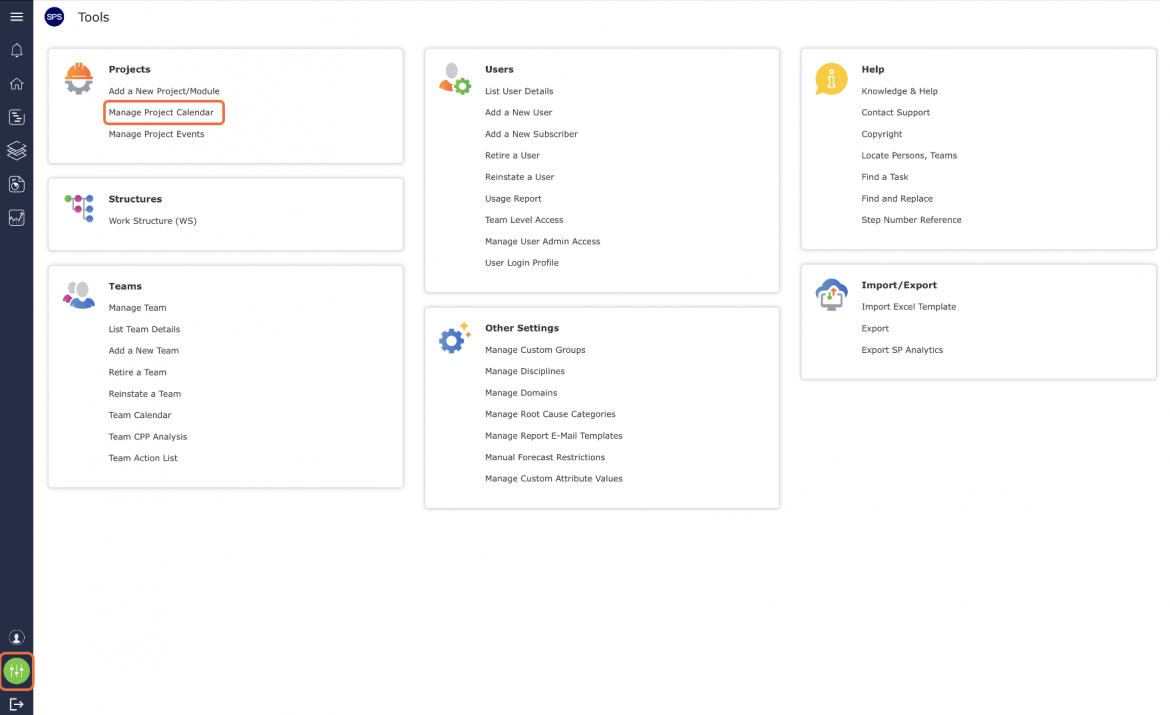
- From the Main Navigation Bar select Projects, then select Manage Project Calendar.
- The Manage Project Calendar window opens displaying all projects and associated Default Calendars.
Note: The SPS|PM default calendar setting is 1 shift / day x 5 days / week x 8 hours / day.

- To modify the Default Calendar, click the Edit icon for the desired project. Then select the desired new calendar setting from the Default Calendar drop-down.

- Click the Confirm icon to save or revert to the previous setting, and click the Discard button.

- The new setting displays as the Default Calendar.
