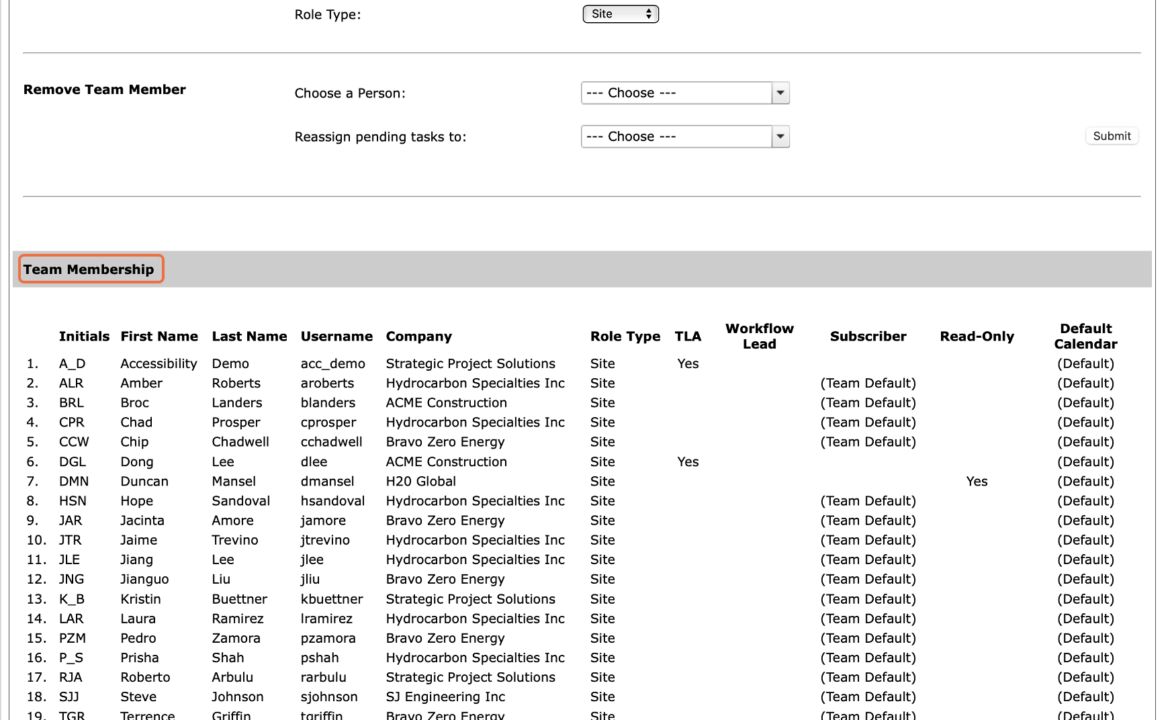
As project work progresses, team members may change. When an individual is no longer a member of a given team, this person can be removed from the team in SPS|PM. Removing a team member is not the same as removing a user, so removing a team member does not constrain the user from continuing to log into SPS|PM. If the intent is to remove a user from the SPS|PM database, see the section Retire / Reinstate User.
To remove a member from a team, complete the steps below:
Note: you must have Team-Level Access.
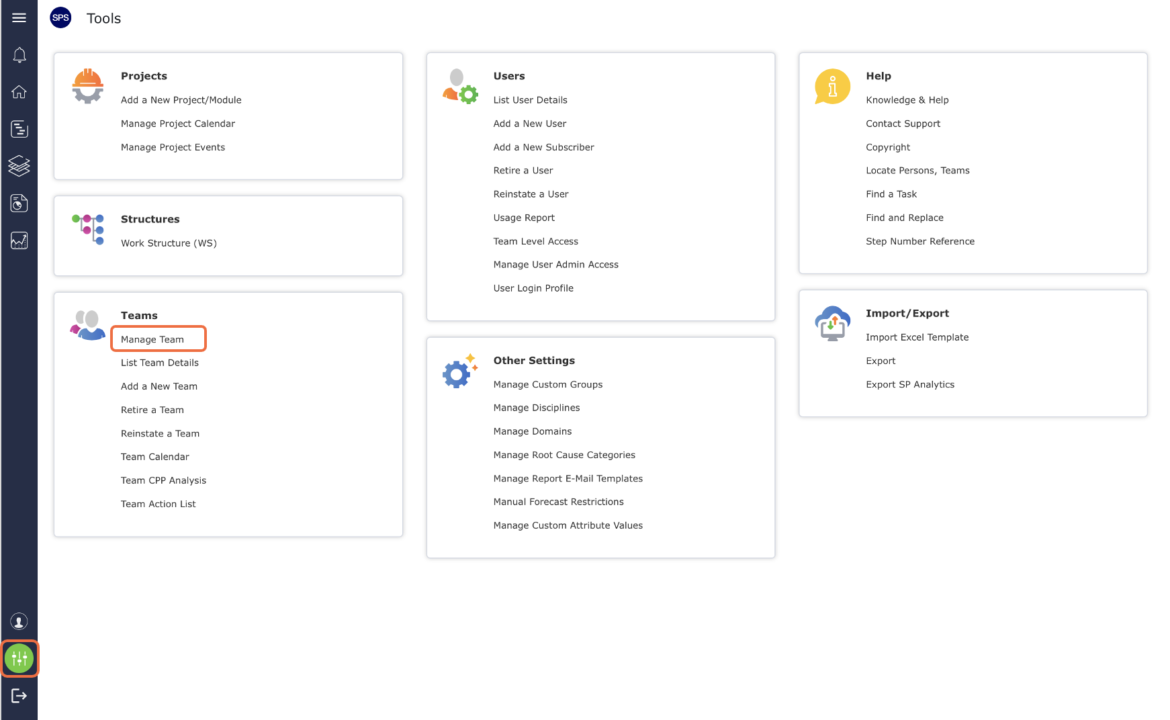
- From the Main Navigation Bar select Tools, then select Manage Team.
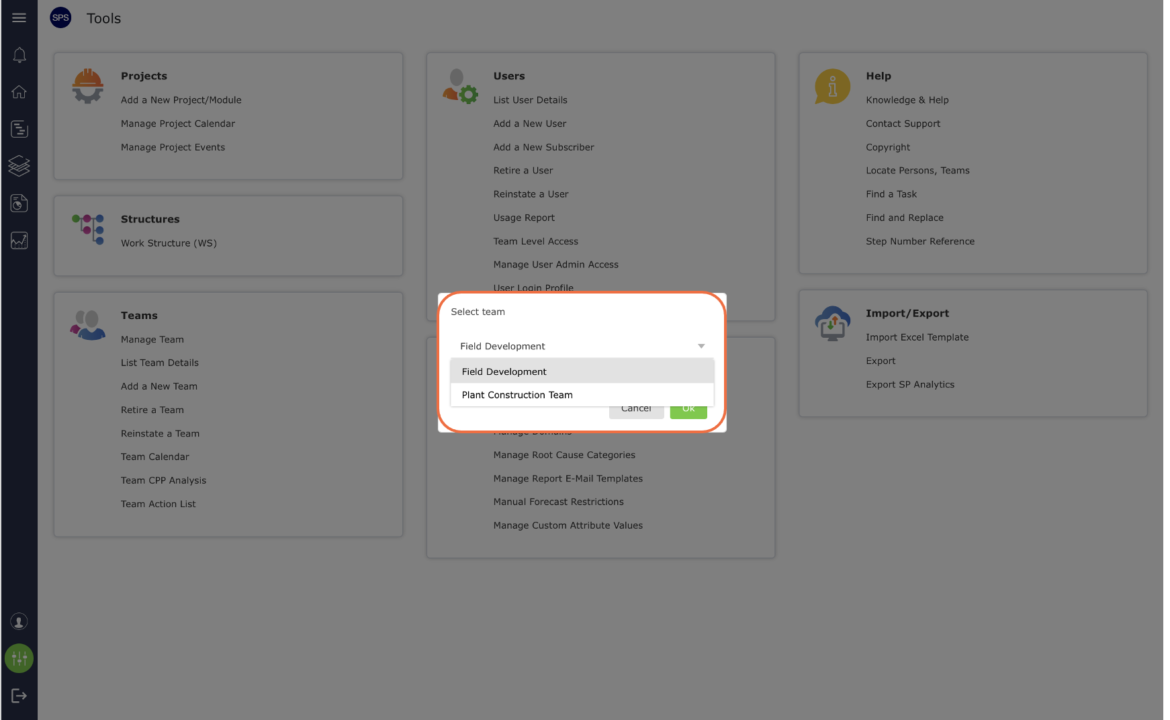
- Select the desired team.
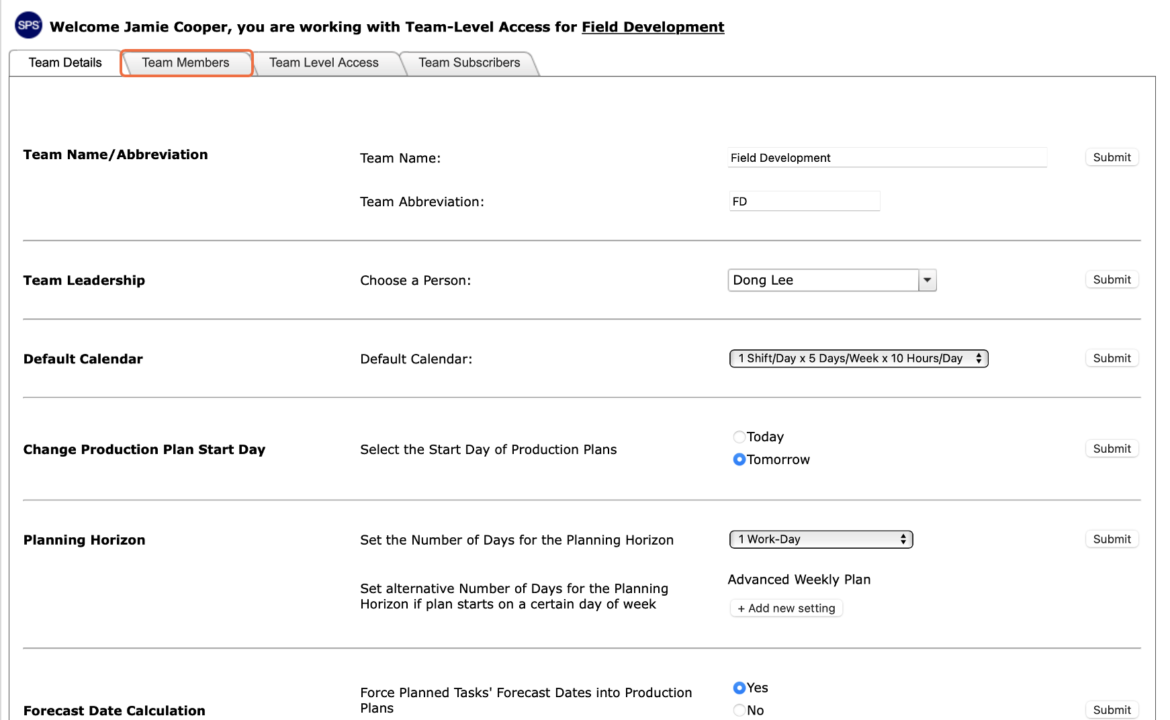
- The Manage Team window opens. Select the Team Members tab.
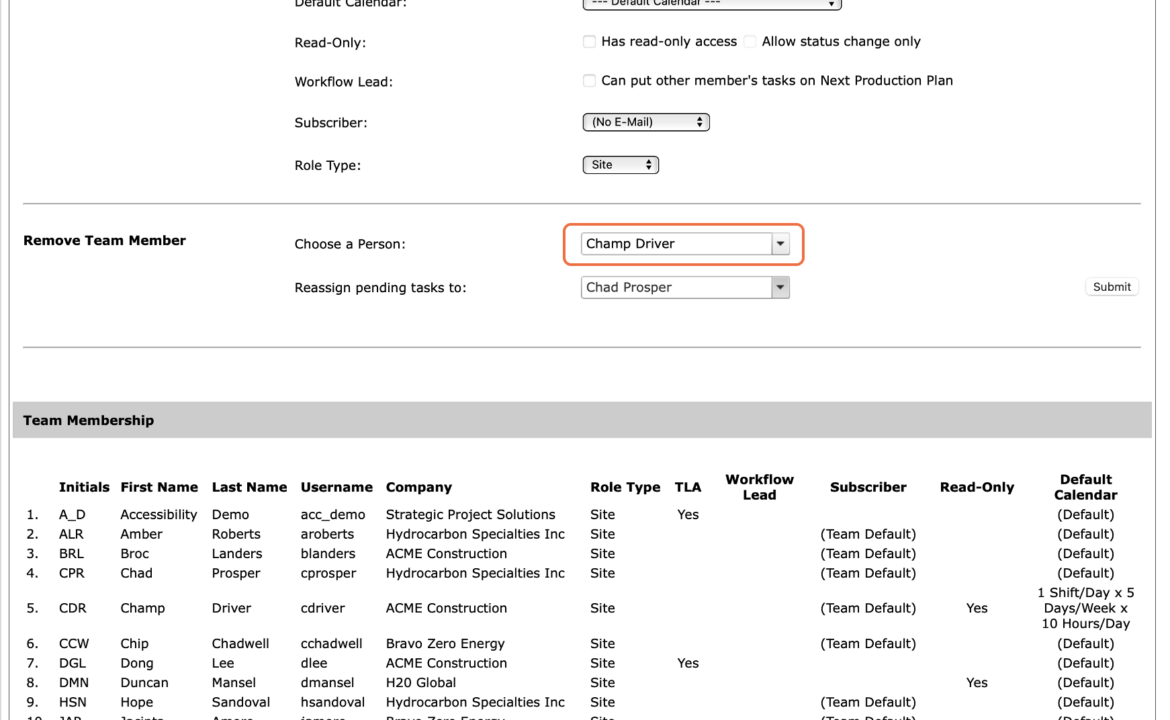
- In the Remove Team Member region, select the desired team member’s name in the Choose a Person drop-down.
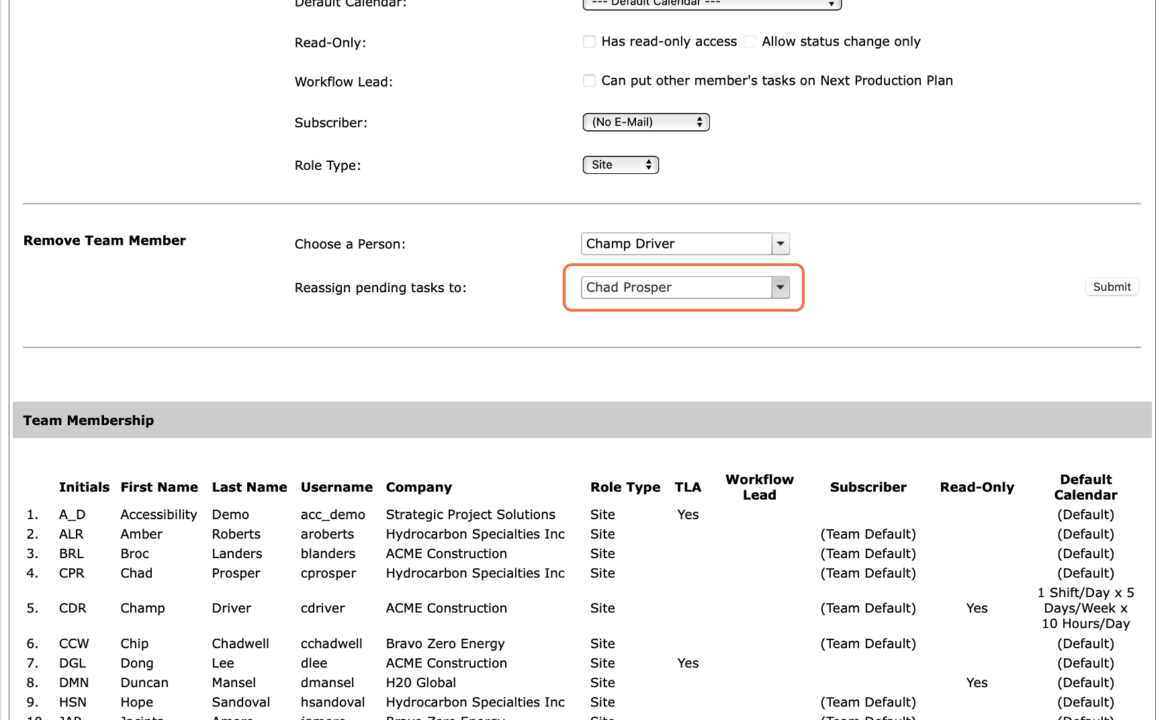
- Select the individual who will assume all pending tasks currently assigned to the team member being removed, in the Reassign Pending Tasks to drop-down.
- Once the desired individuals are shown, click the Submit button.
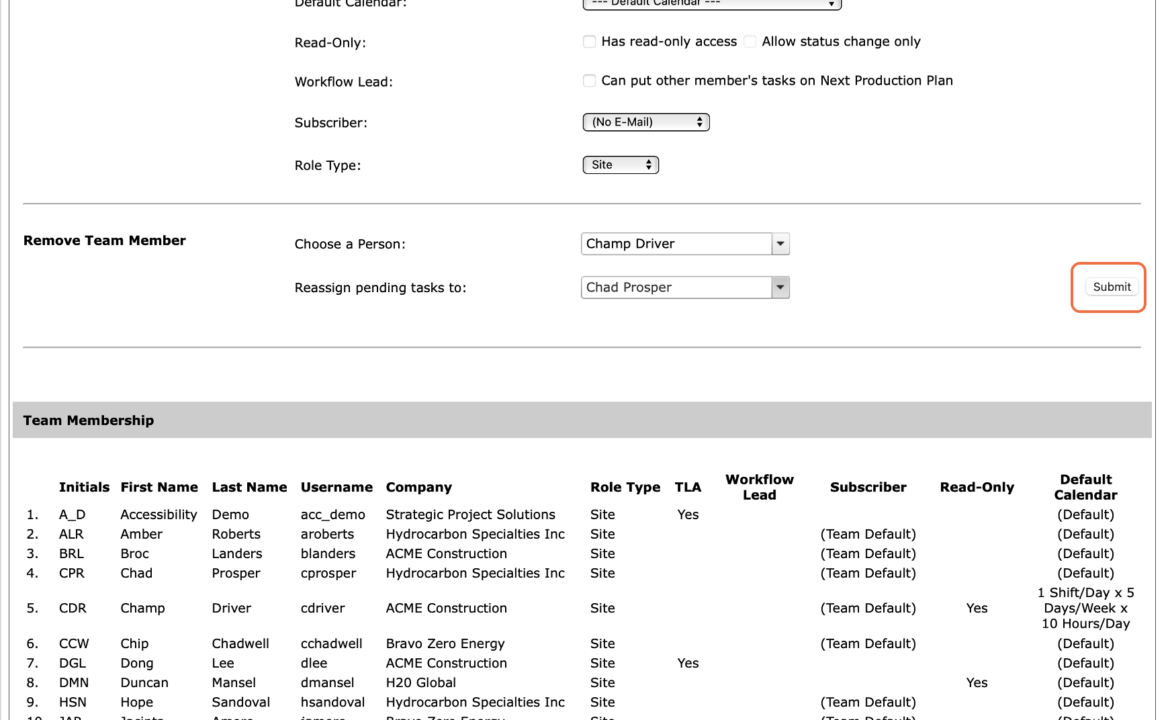
- To confirm that the individual has been removed from the team, scroll to the Team Membership region at the bottom of the Manage Team window and review the list of team members.