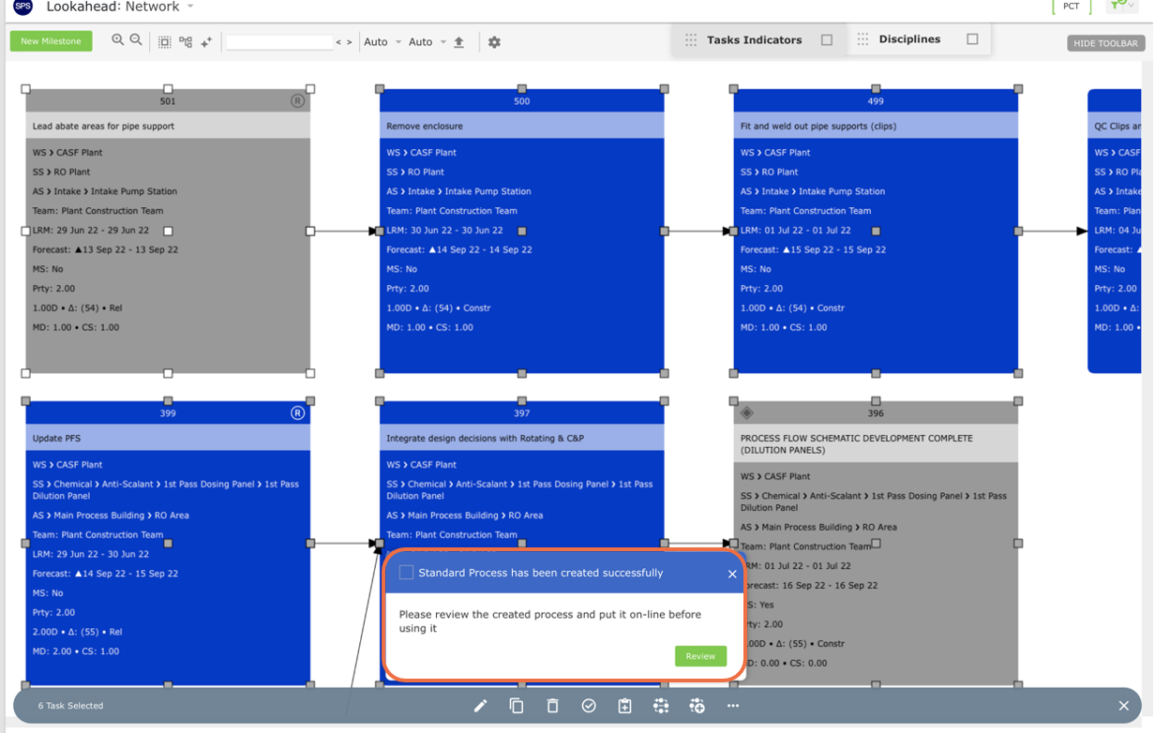
With the objective to create Production Schedules with the highest number of standard processes and a minimum number of one-off processes within the pre-determined level of variability the production system is meant to deal with, teams can optimize their Production Schedules by creating a standard process from an existing Production Schedule.
To capture an existing Production Schedule in the Network Manager into a standard process, complete the steps below:
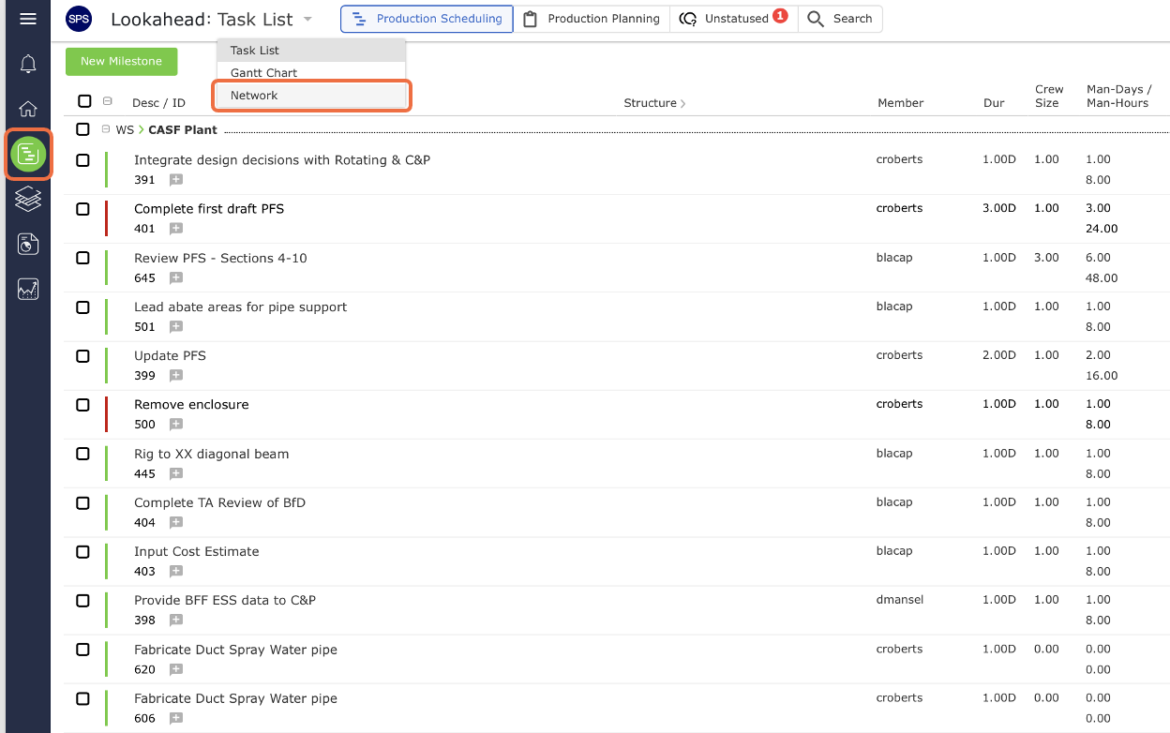
- From the Main Navigation Bar select Lookahead, then select Network.
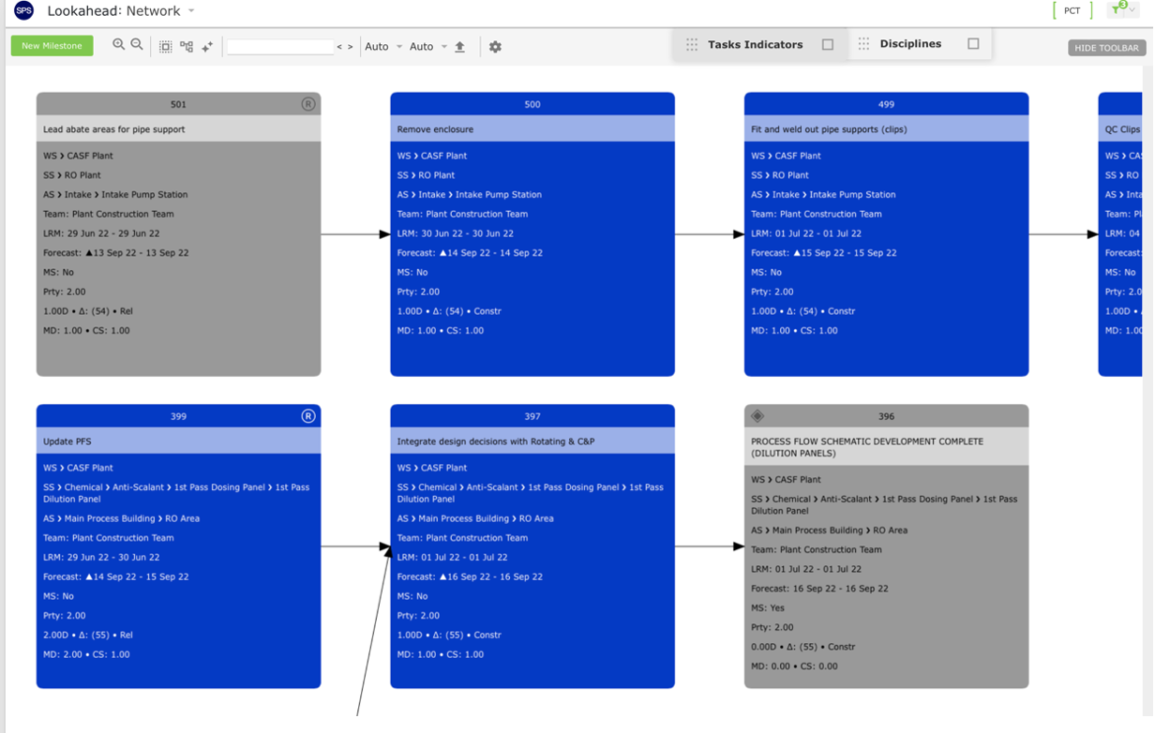
- The Network Manager view will display.
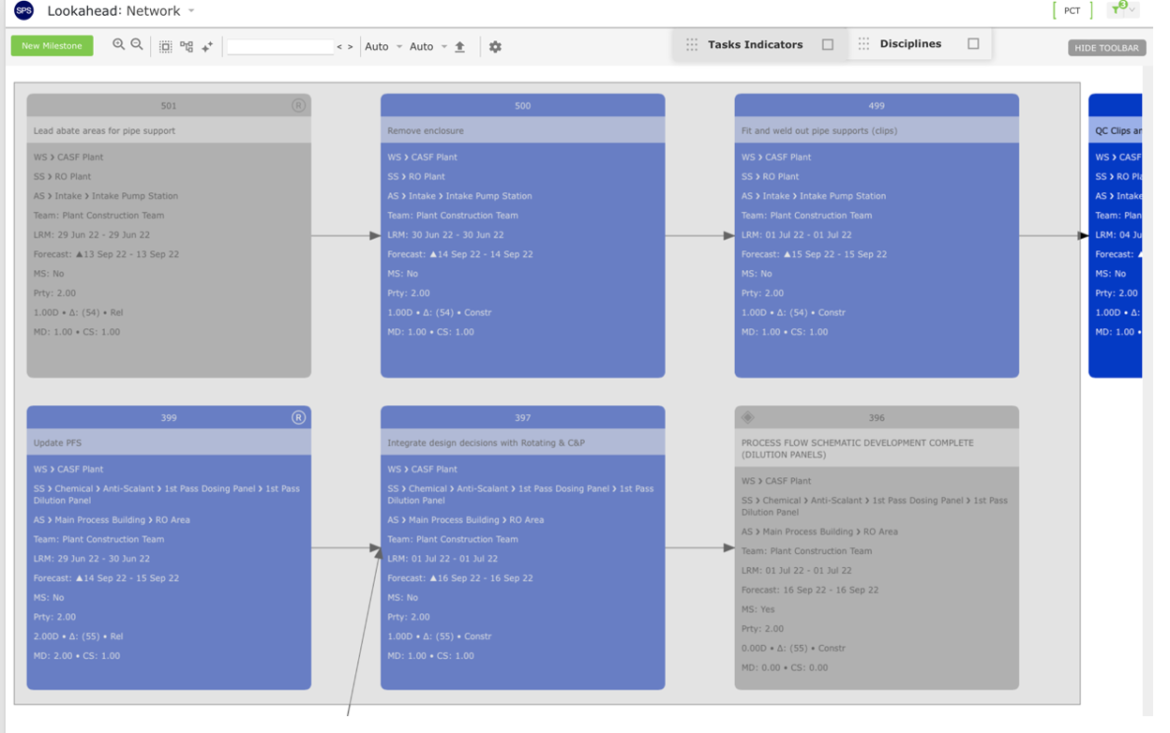
- Select the tasks to be captured in the new standard process by holding down the Ctrl key while clicking on all the desired tasks one by one. Or to simultaneously select multiple tasks, hold and drag the cursor around the tasks as shown in the image below. To select all tasks, click the Select All Tasks control.
- Once all tasks are selected, click the Capture Std. Process control.
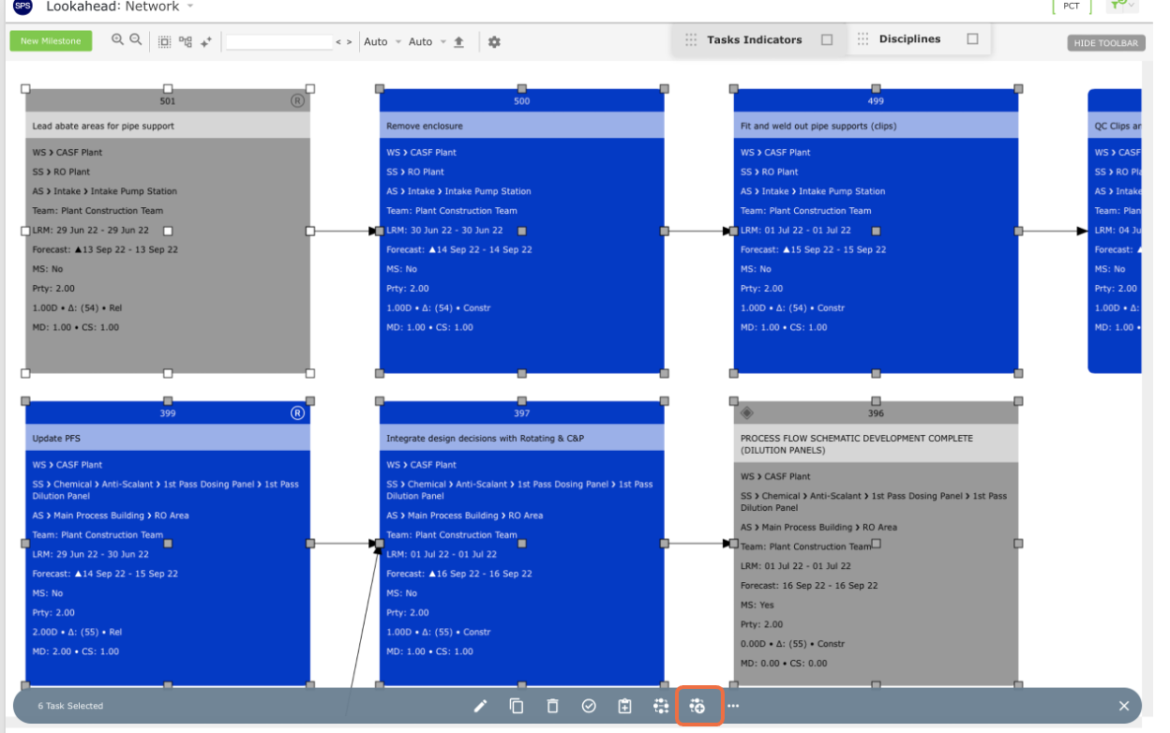
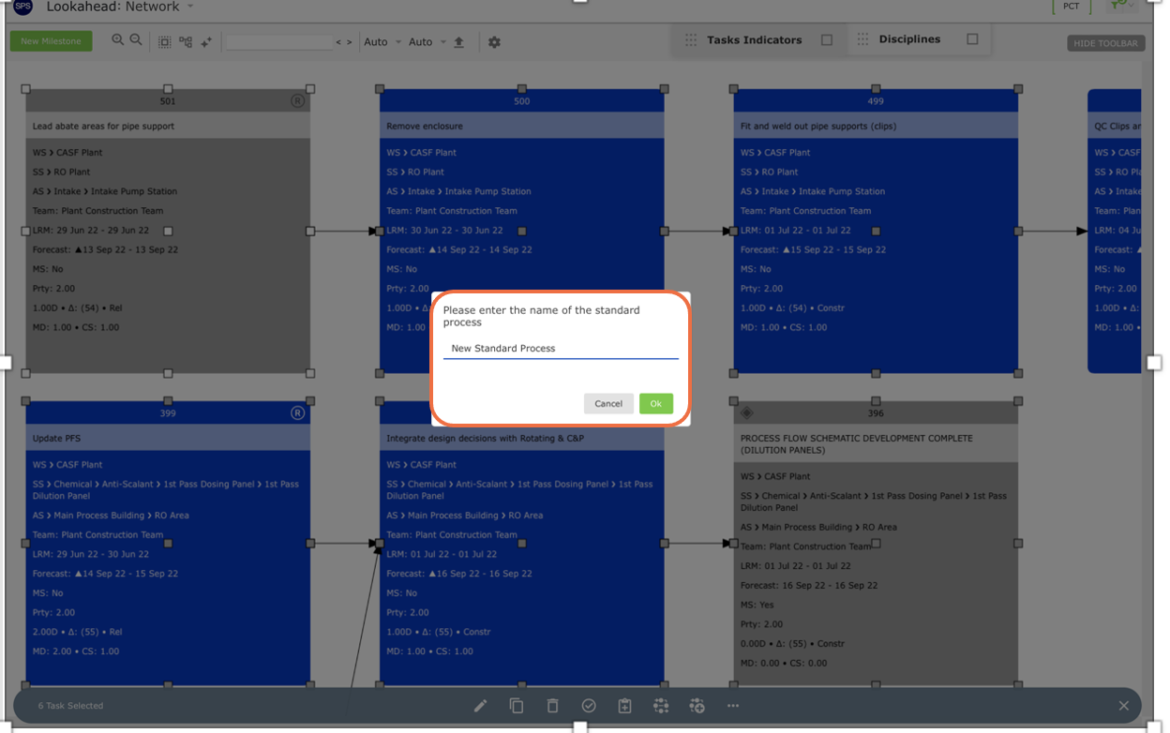
- In the pop-up prompt, enter the new standard process title following the project’s agreed-upon nomenclature. Consistency in naming standard processes is important to facilitate identification when using and editing standard processes in the future, as projects can easily have more than a hundred standard processes. When finished entering the title, click the OK button.
- After successfully creating the new standard process, a confirmation pop-up will display. Click the Review button. To view and edit the newly created standard process see Edit Existing Standard Process (Standard Process view) and Edit Existing Standard Process (Network Manager view).