
Once you create a standard process in SPS|PM, anyone with admin level 2 or greater may edit the process. To edit an existing standard process in the Network Manager view, complete the steps below:
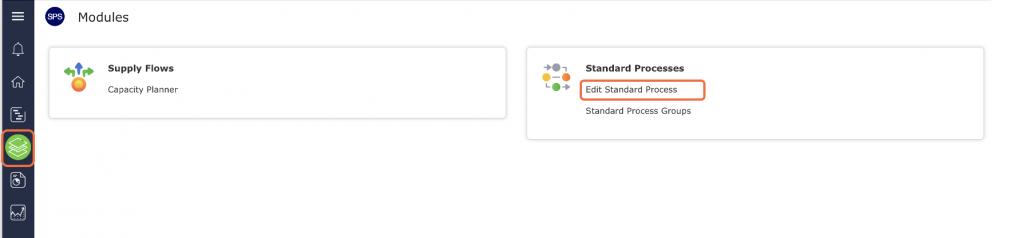
- From the Main Navigation Bar select Modules, then select Edit Standard Process.
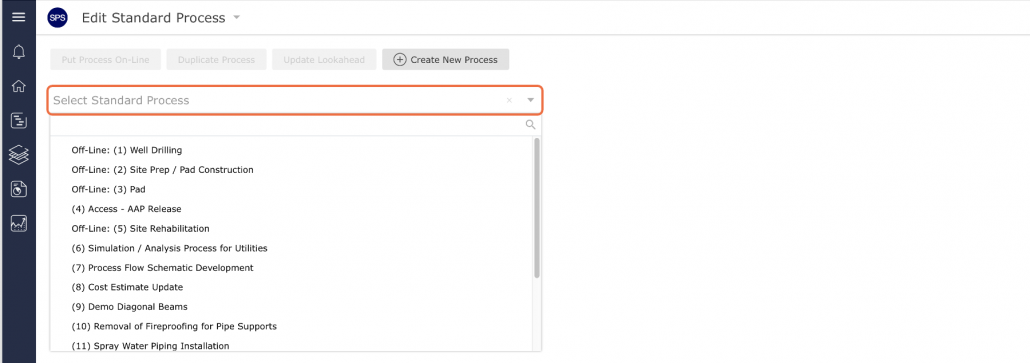
- Locate the standard process you wish to edit from the Edit Existing Standard Process drop-down.
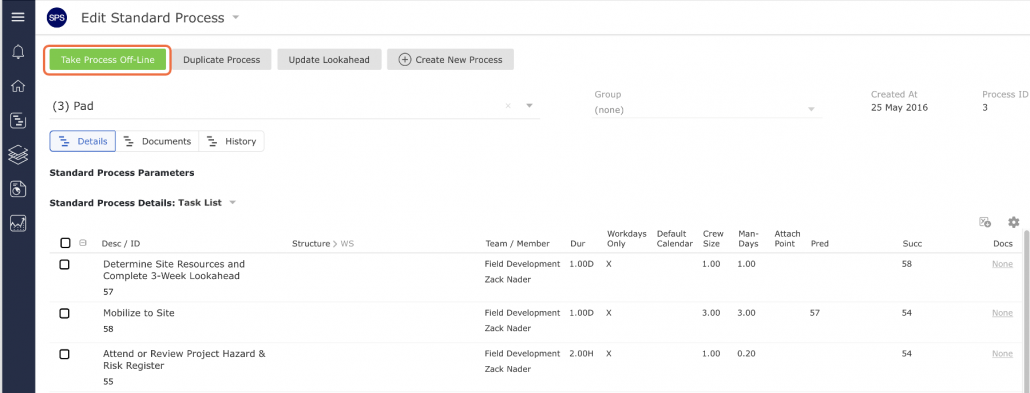
- In order to edit the process, it must be in an off-line state. The state (on-line or off-line) is found within the Selected Standard Process region as shown in the image below.
If a process is off-line, the status button will display Put Process On-Line. If a process is on-line, the status button will display Take Process Off-Line. To put a process that is on-line into an off-line state (and is then ready to be edited), click the Take Process Off-Line button.
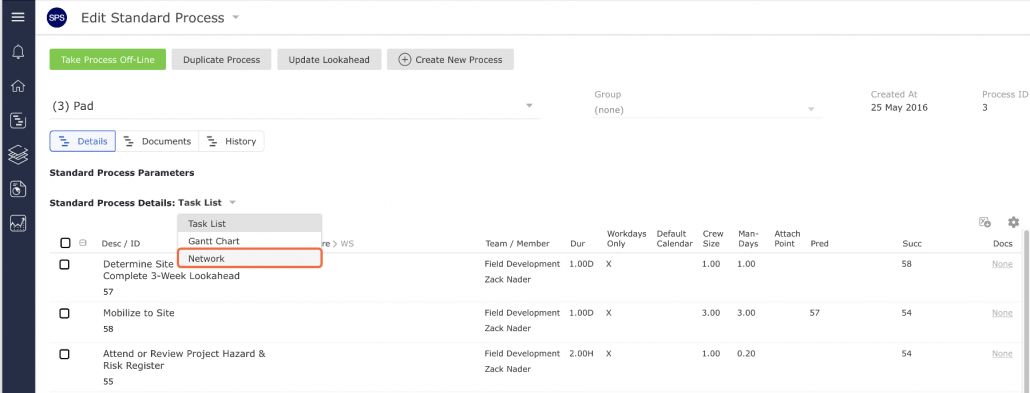
- To view as the Network diagram, select Network from the Standard Process Details dropdown list.
- The Network Manager will display.
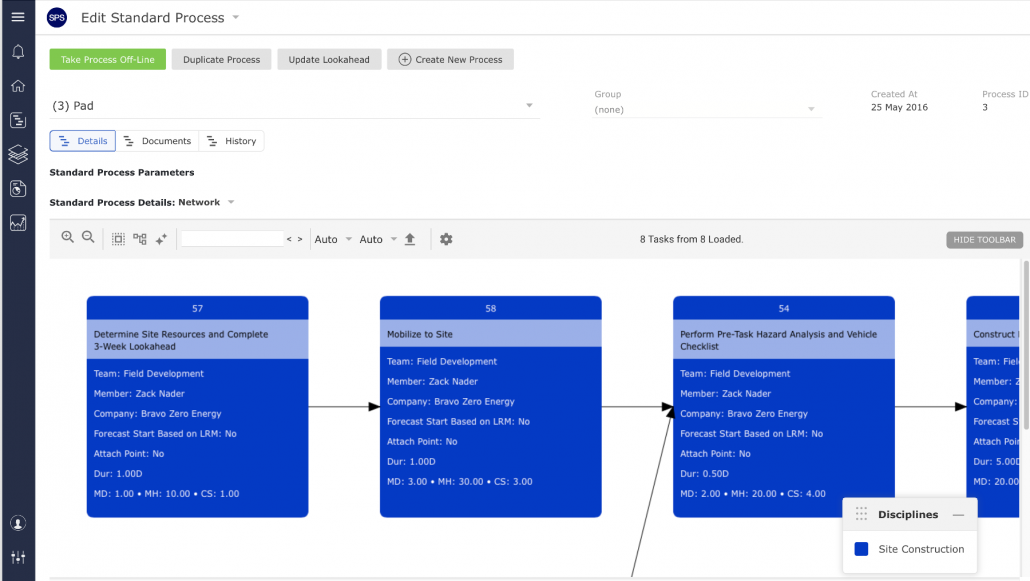
- The Controls appear at the top of the window as shown in image below. The Controls allow you to edit, review, and print the standard process.
- Use the Controls shown in the image below to edit the standard process. For detailed editing instructions see the following specific subsections under Using Network Manager: Insert Milestone / Task, Insert Constraint Task, Insert a Completed-Not-Planned Task, Duplicate Milestone / Constraint Task, Delete Milestone / Constraint Task, Create Workflow Logic (Link Tasks), Delete Workflow Logic (Delink Tasks).
