
Determining if team members are executing tasks in the sequence defined per the Lookahead can be key to effective planning and a high percentage of Commitment Reliability.
Out of Sequence Tasks on PP Ratio determines the percentage of tasks completed out of sequence to their defined successors and predecessors for a selected date range.
To access Out of Sequence Tasks on PP Ratio, complete the steps below:
- From the Main Navigation Bar select Analytics, then select Out of Sequence Tasks on PP Ratio.
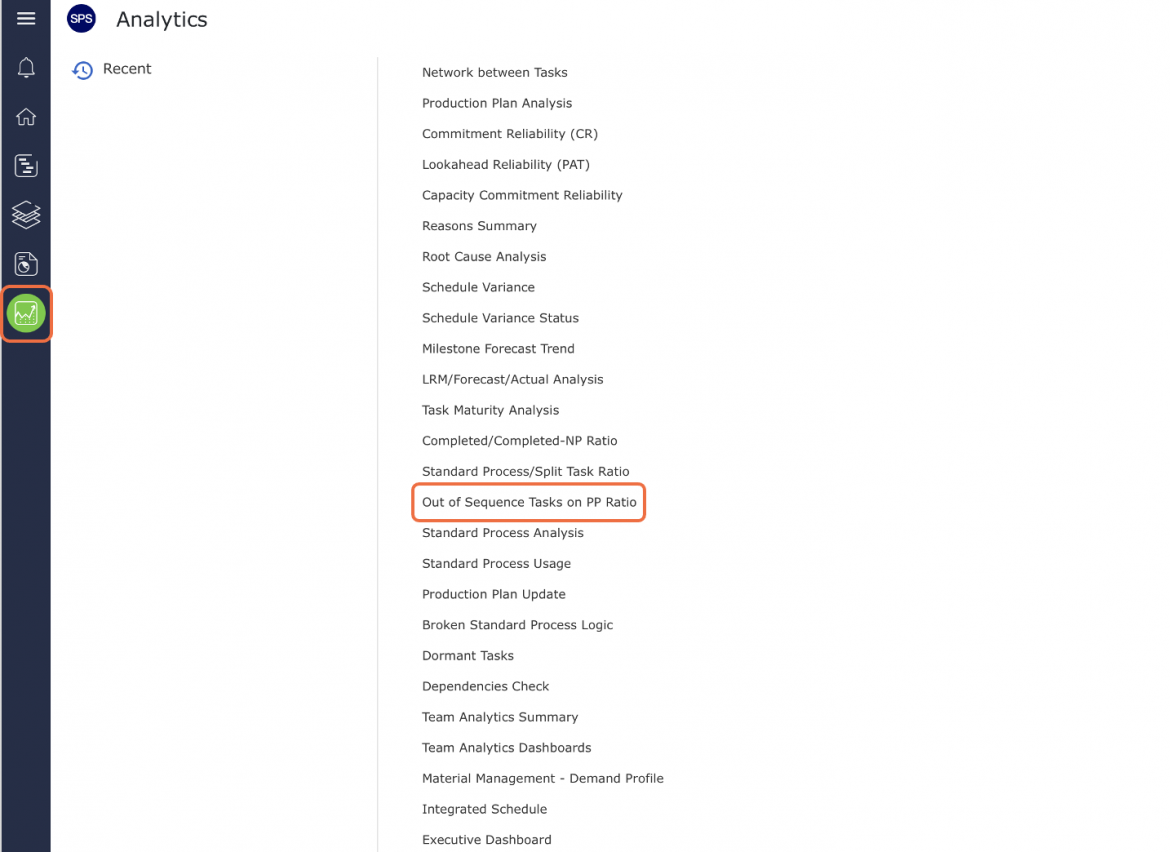
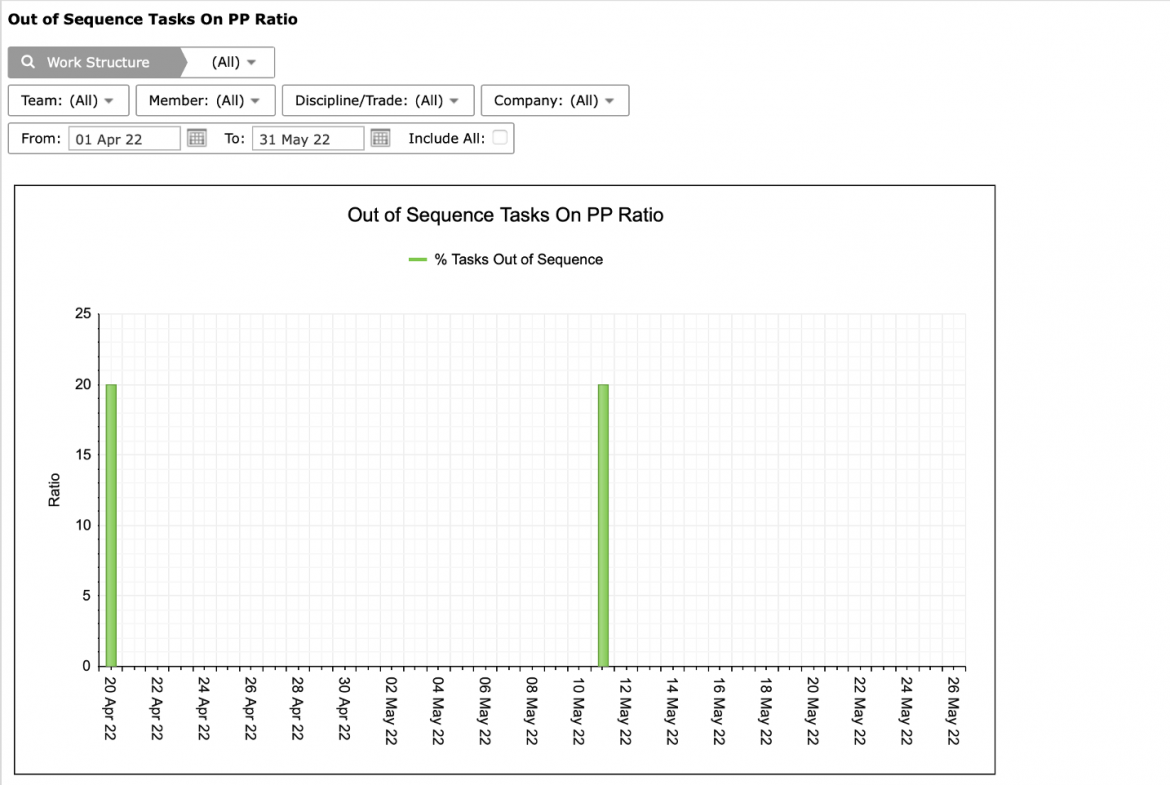
- Out of Sequence Tasks on PP Ratio opens in a new window and automatically displays the Analytic for the team selected under the Team Menu with the default date range of two weeks from the current date.
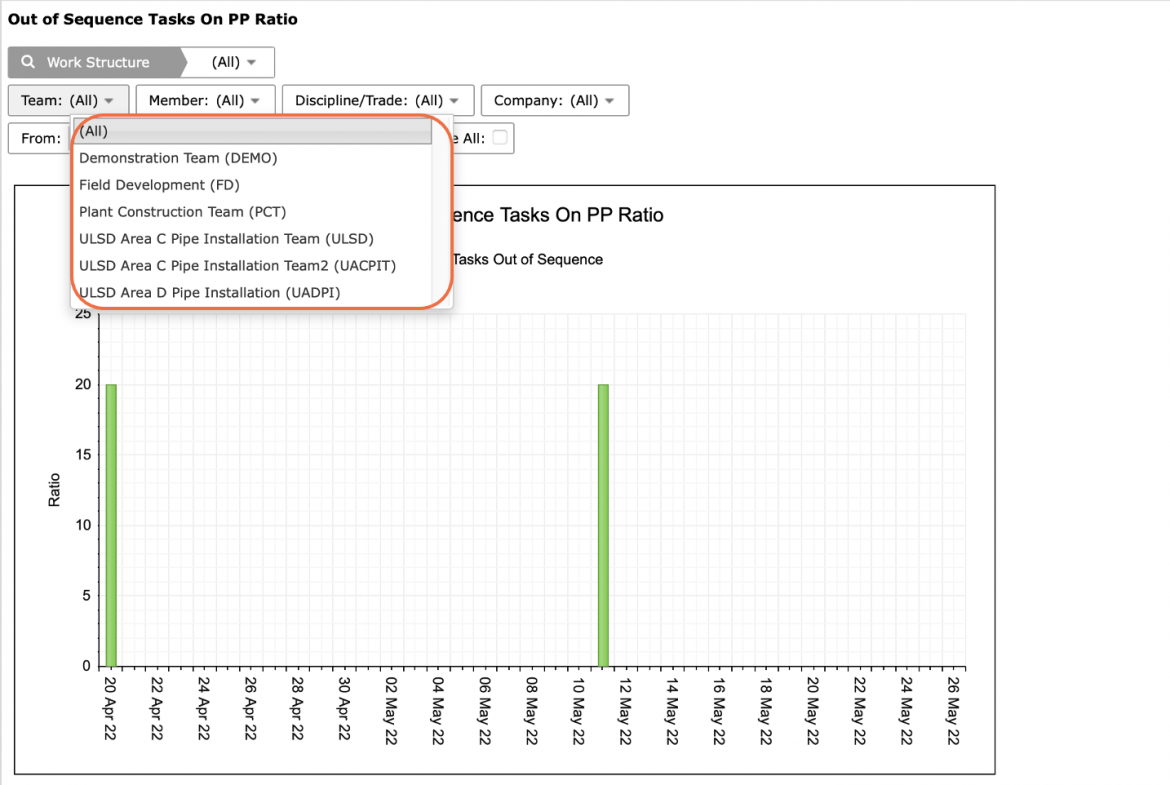
- To view Out of Sequence Tasks on PP Ratio for another team, select the desired team under the Team drop-down.
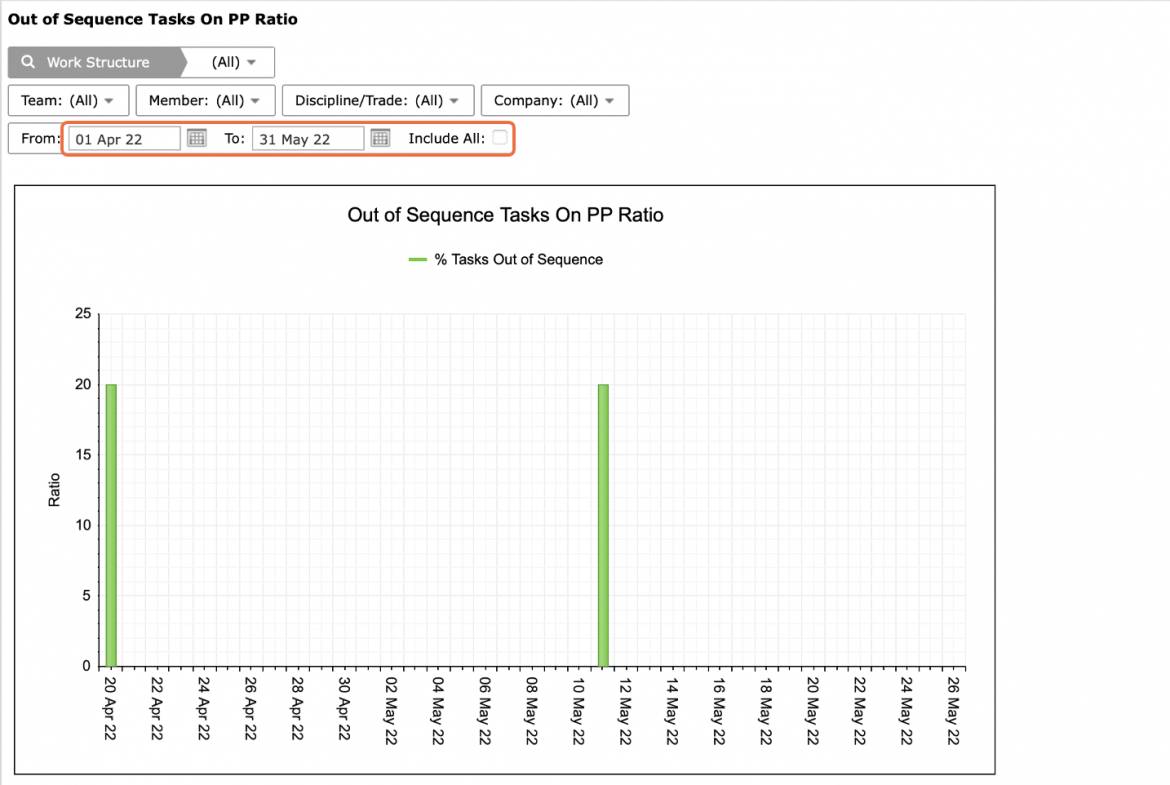
- If a different date range is desired, or no data is visible, adjust the From and To dates or check: Include All, to show all historical data.
The legend element: % Tasks Out of Sequence is clickable and toggles to display / hide data.
- Also, use the Pin icon in the top right of the graph to include Out of Sequence Tasks on PP Ratio in your Dashboard.
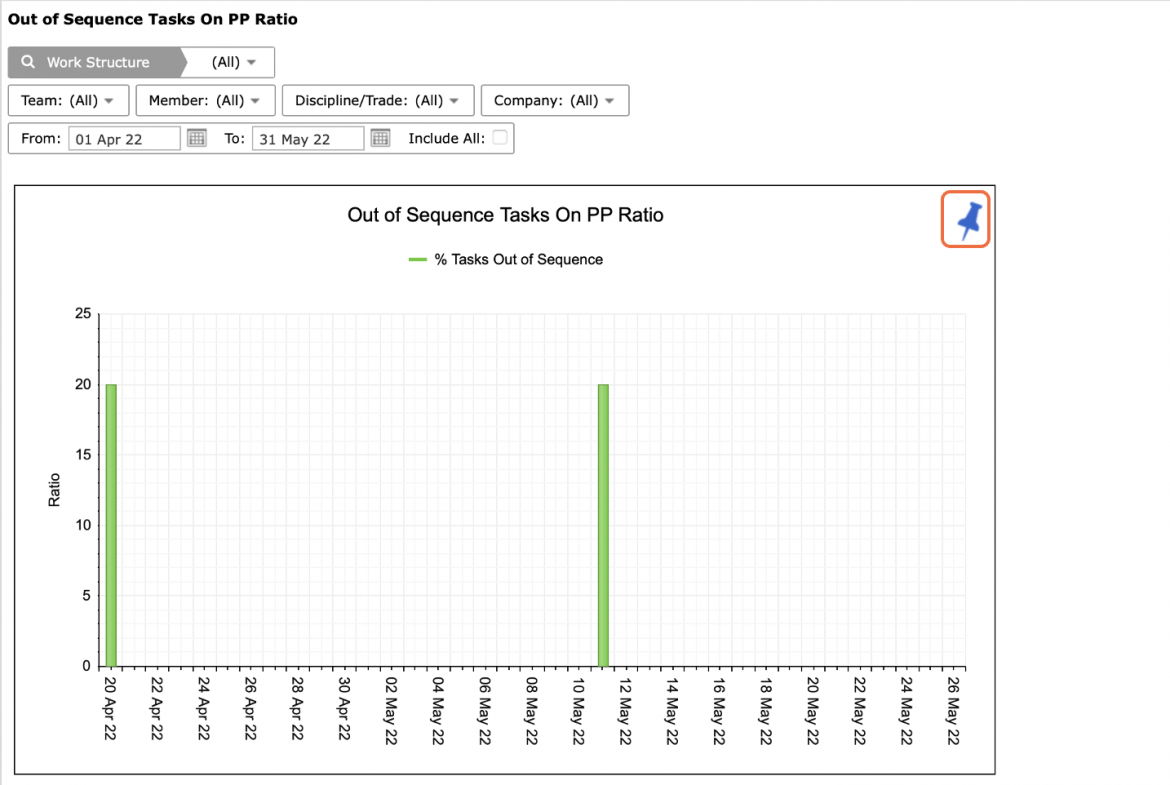
- For the selected team(s), Out of Sequence Tasks on PP Ratio displays the percentage of tasks completed out of sequence to their defined successors and predecessors by Production Plan date of occurrence.
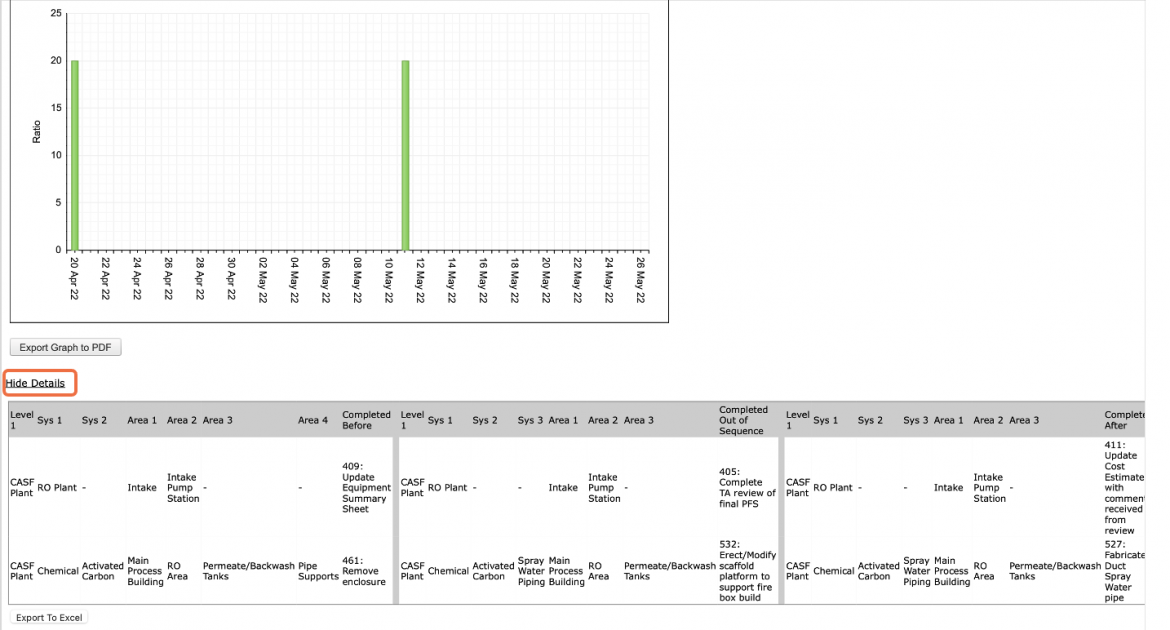
- To view the data behind the Out of Sequence Tasks on PP Ratio calculation for each date, click Show Details beneath the graph. To hide the data, click Hide Details.
For each individual Production Plan, the data table lists all tasks completed before, out of sequence and completed after, to enable the project team to be more effective during Production Planning.
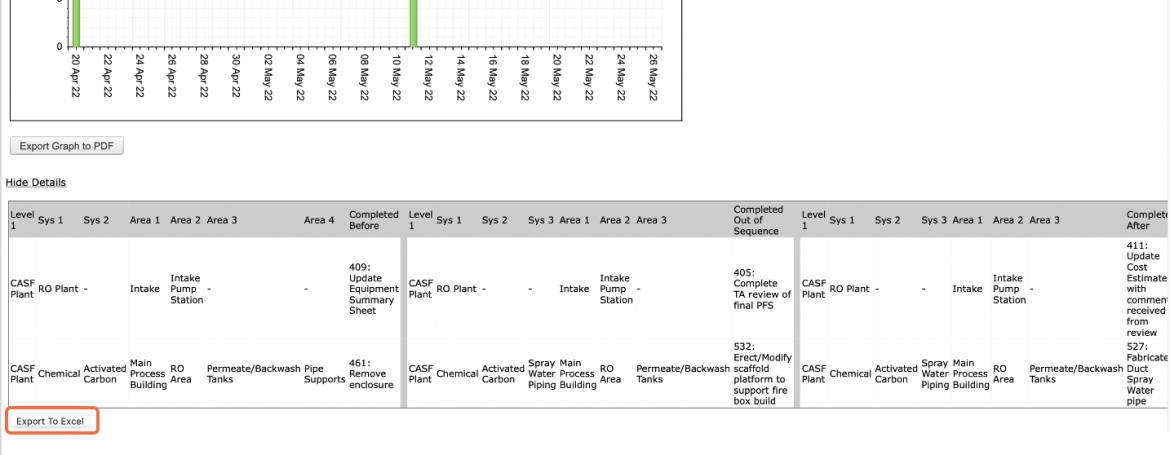
- To export Out of Sequence Tasks on PP Ratio table to a Microsoft Excel file, click the Export to Excel button and follow the prompts according to the specific browser you are using.
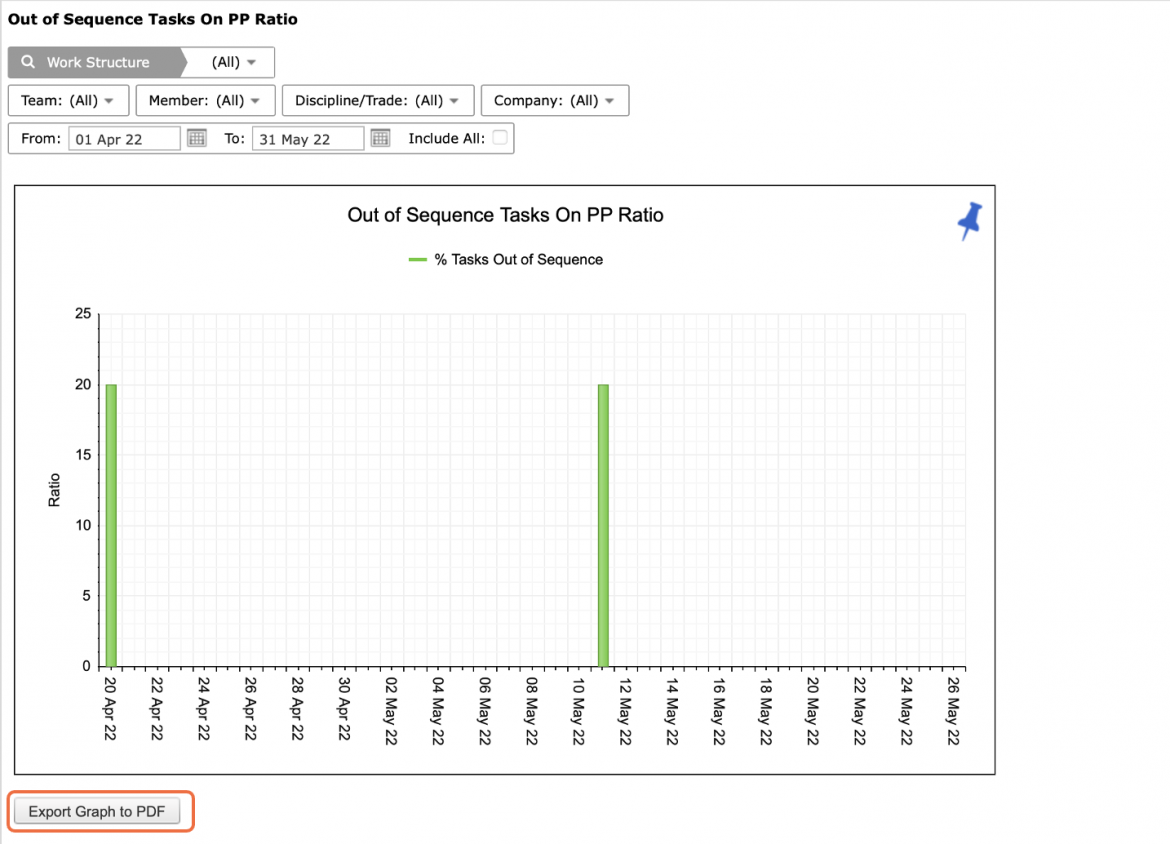
- To export Out of Sequence Tasks on PP Ratio to a PDF file, click the Export Graph to PDF button and follow the prompts according to the specific browser you are using.
- To print Out of Sequence Tasks on PP Ratio, options may differ based on your browser. For instance, if you are using Internet Explorer, right-click in the white space outside of the Out of Sequence Tasks on PP Ratio graph and select Print from the menu or simultaneously press the Ctrl and P keys on your keyboard.
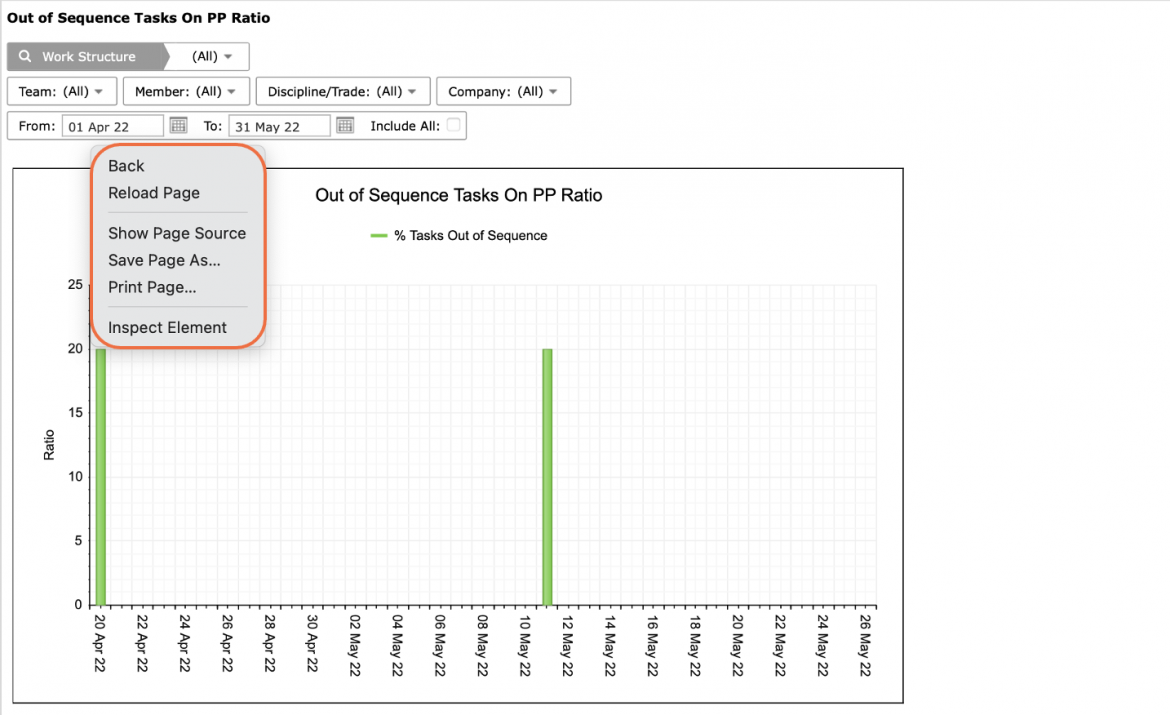
- The Print Dialogue box opens.
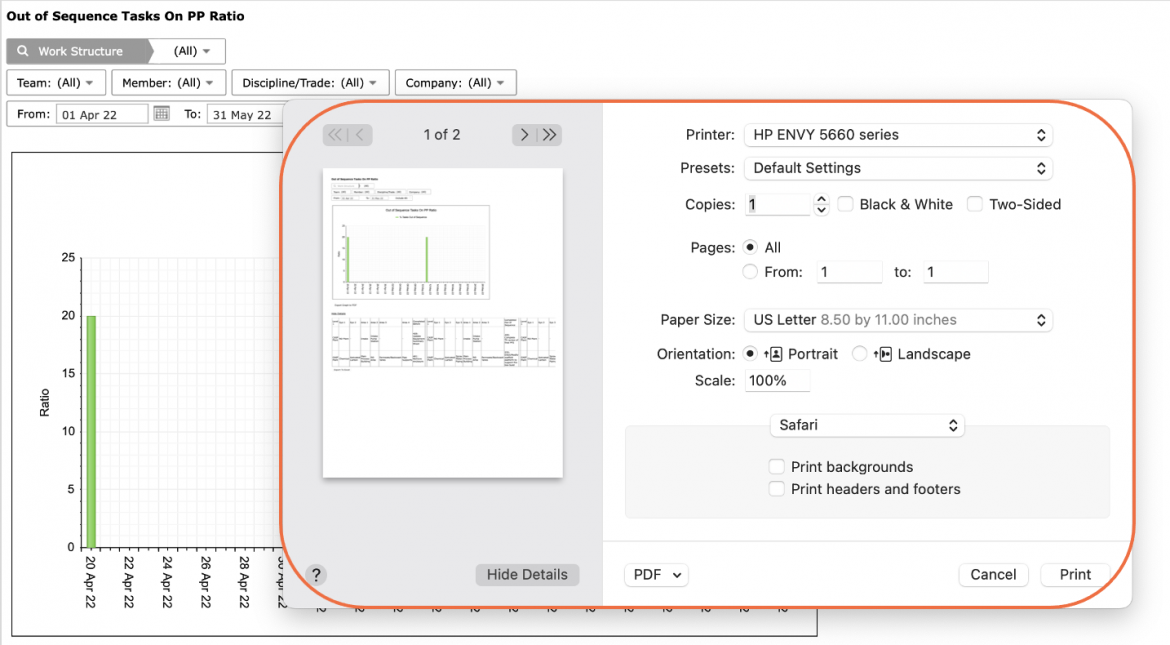
- Using the Print Dialogue box, change any desired print settings. Once all relevant printing settings have been modified, click the Print button.
Note: Before printing, it is recommended you confirm the fit to the desired paper size.