
Consistency and adherence to the ongoing Production Planning process are critical to reducing variability and increasing coordination for work execution. Determining if team members follow established rules associated with the execution of the Production Planning process is key to its effectiveness.
Production Plan Update measures how well an individual or team follows the process of updating the status of planned tasks that are on a Production Plan. For instance, if the rule is that team members must status their work (Completed or Not-Completed) before a Production Planning session, Production Plan Update exposes both the percentage of tasks in the Production Plan that were statused following the agreed rules as well as the percentage outside the agreed rules. The Production Plan Status Update Analytic captures data for the ten most recent Production Plans for a given team.
To access Production Plan Update, complete the steps below:
- From the Main Navigation Bar select Analytics, then select Production Plan Update.
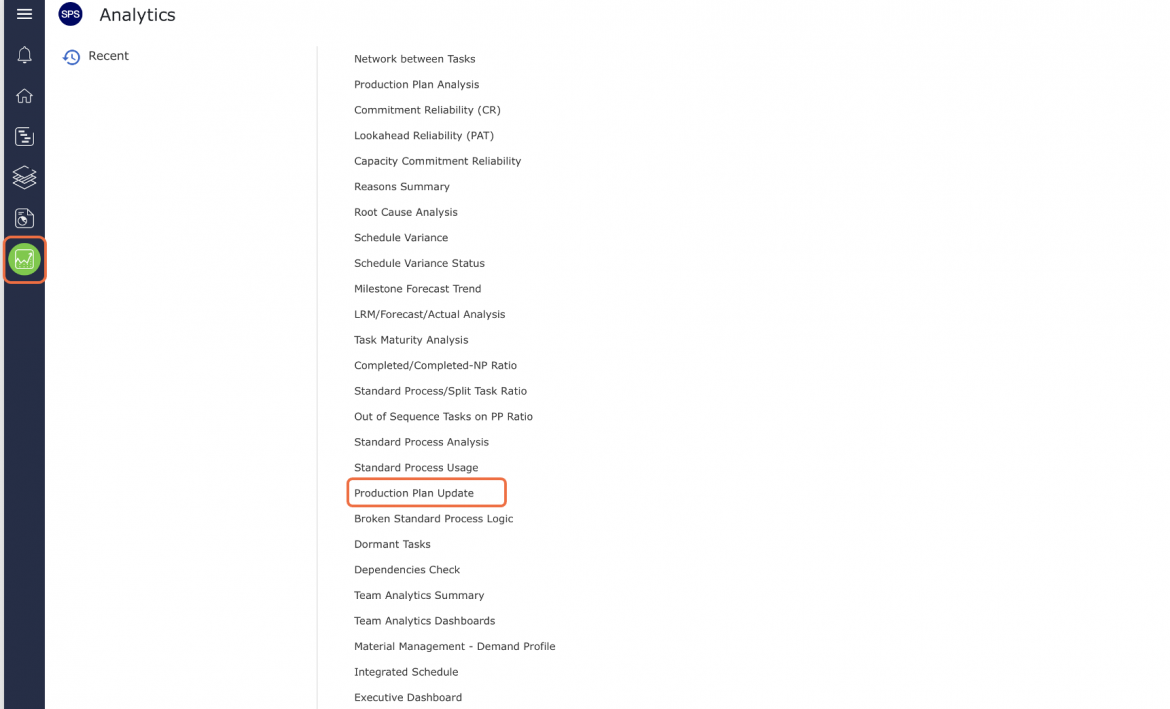
- Production Plan Update opens in a new window and automatically displays the Analytic for the team selected under the Team Menu.
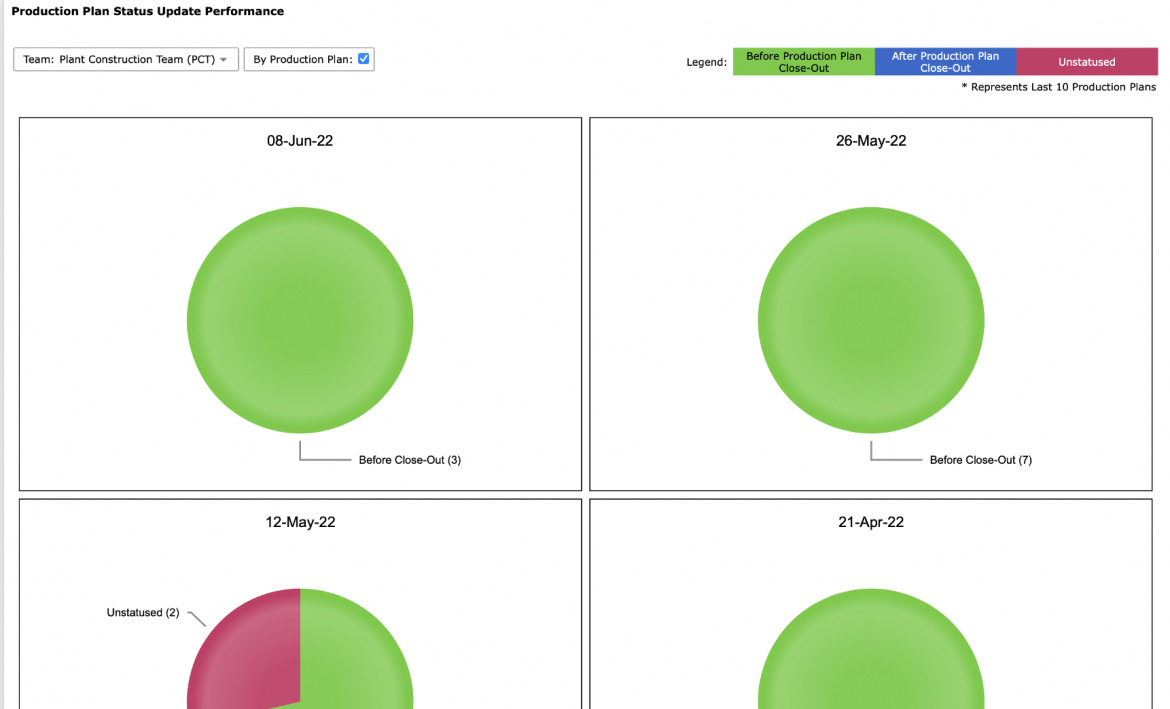
- To view Production Plan Update for another team, select the desired team under the Team drop-down.
Note: By design, the All value under the Team drop-down is disabled. A specific team must be selected to display data in Production Plan Update.
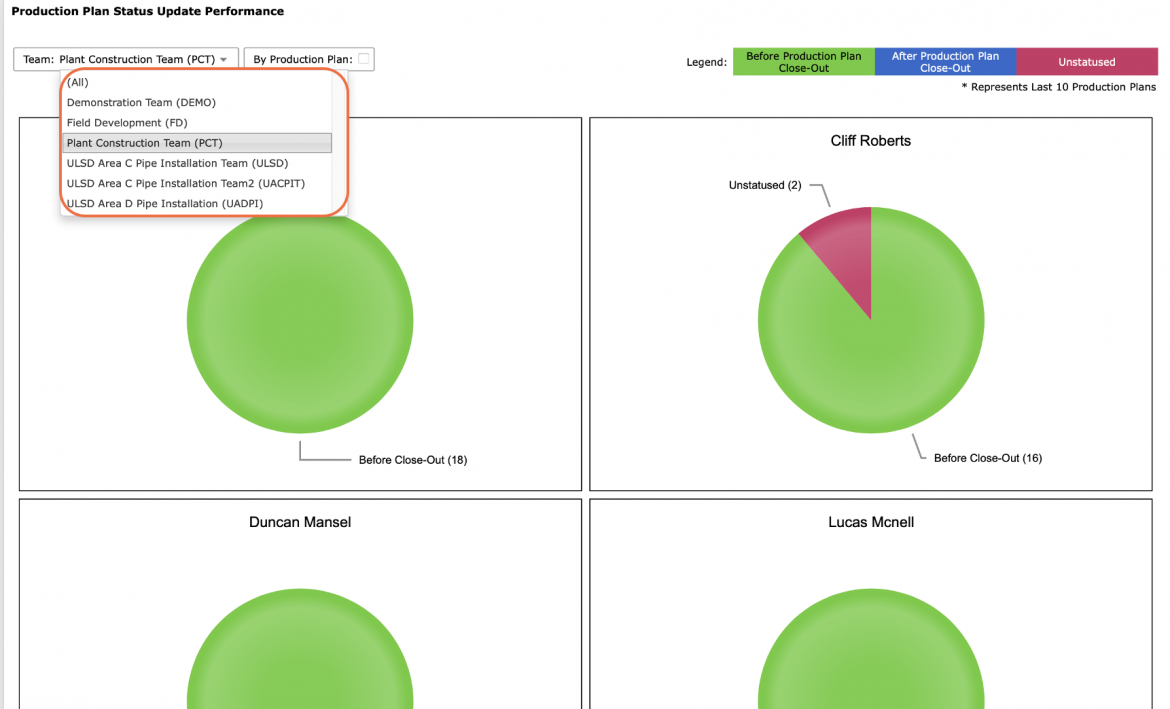
- For the selected team(s), Production Plan Update displays in pie chart format, the number of tasks for the last ten Production Plans that were: 1) Updated with a status before the Production Plan was closed (green), 2) Updated with a status after the Production Plan was closed (blue) or 3) Remain Unstatused (red).
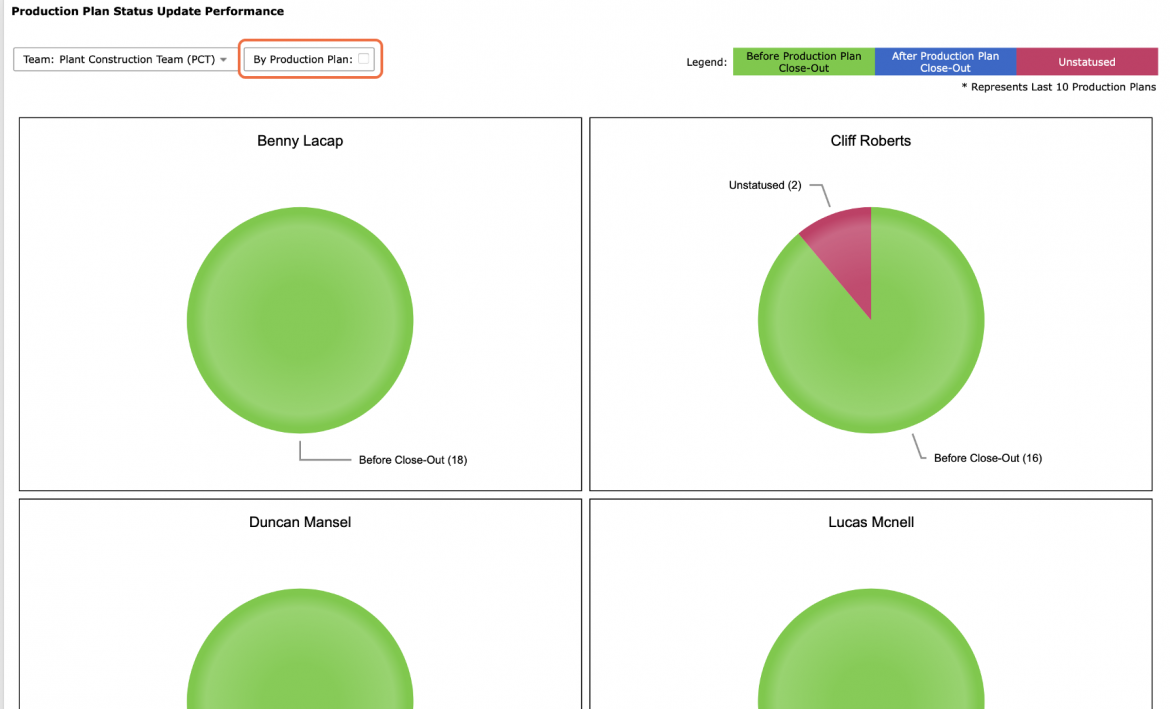
- To view the data for each Production Plan uncheck: By Production Plan. This will display the information by member rather than date of plan.
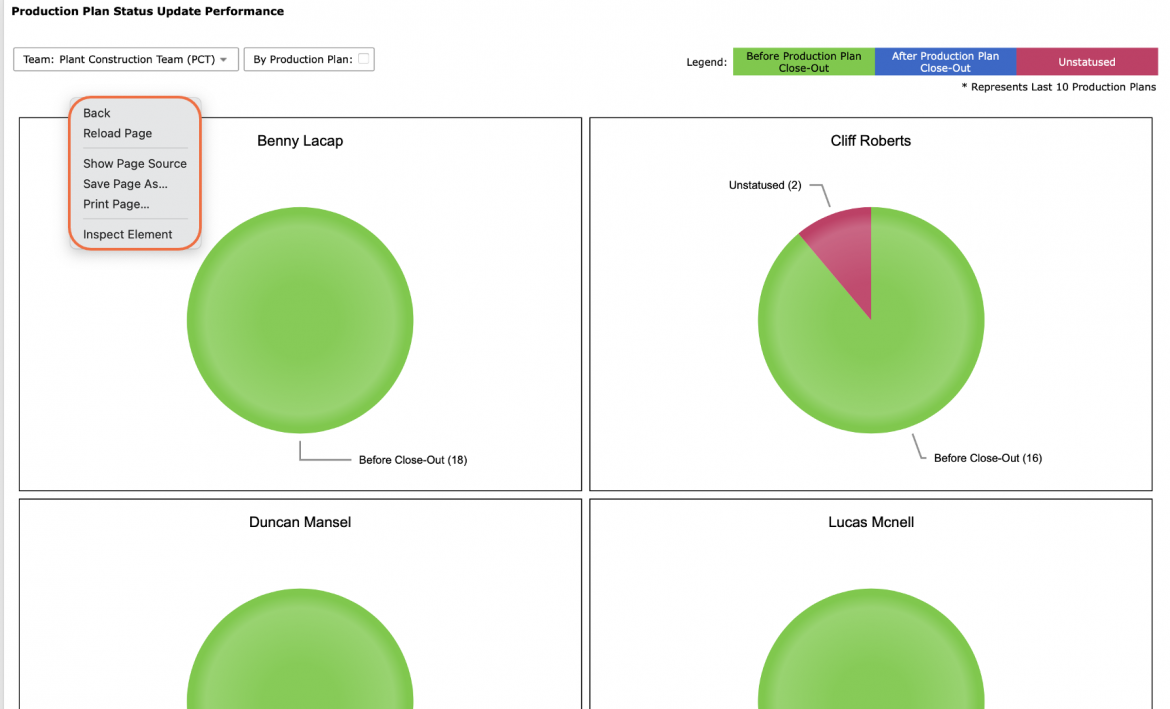
- To print Production Plan Update, options may differ based on your browser. For instance, if you are using Internet Explorer, right-click anywhere on the Production Plan Update and select Print from the menu or simultaneously press the Ctrl and P keys on your keyboard.
- The Print Dialogue box opens.
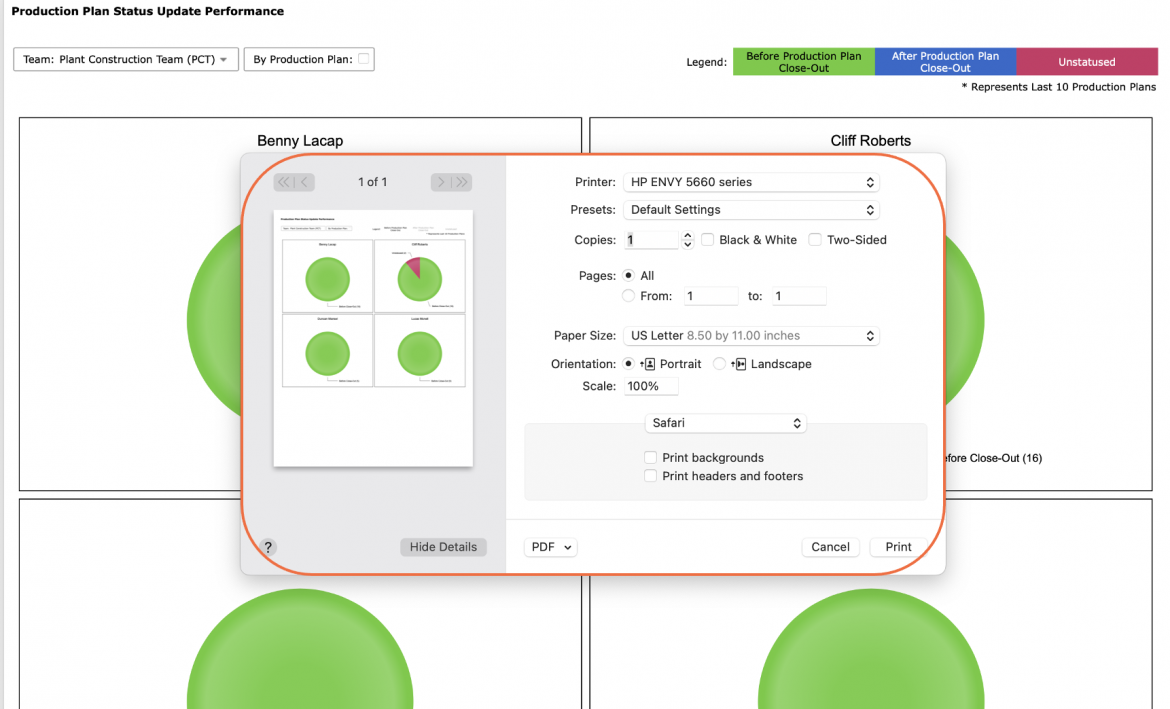
- Once all relevant printing settings have been modified, click the Print button.
Note: Before printing, it is recommended you confirm the fit to the desired paper size.