
Effective and reliable planning has a direct and significant impact on the project team’s ability to coordinate and execute work, as well as to produce data to support Performance Improvement efforts. To monitor how teams perform Production Planning, Dormant Tasks allows you to view tasks that have become released more than 7 days ago (or do not have predecessors) and are forecast to begin in the next 7 days, but are not on a Production Plan and do not have Manual Forecast Dates.
To access Dormant Tasks, complete the steps below:
- From the Main Navigation Bar select Analytics, then select Dormant Tasks.

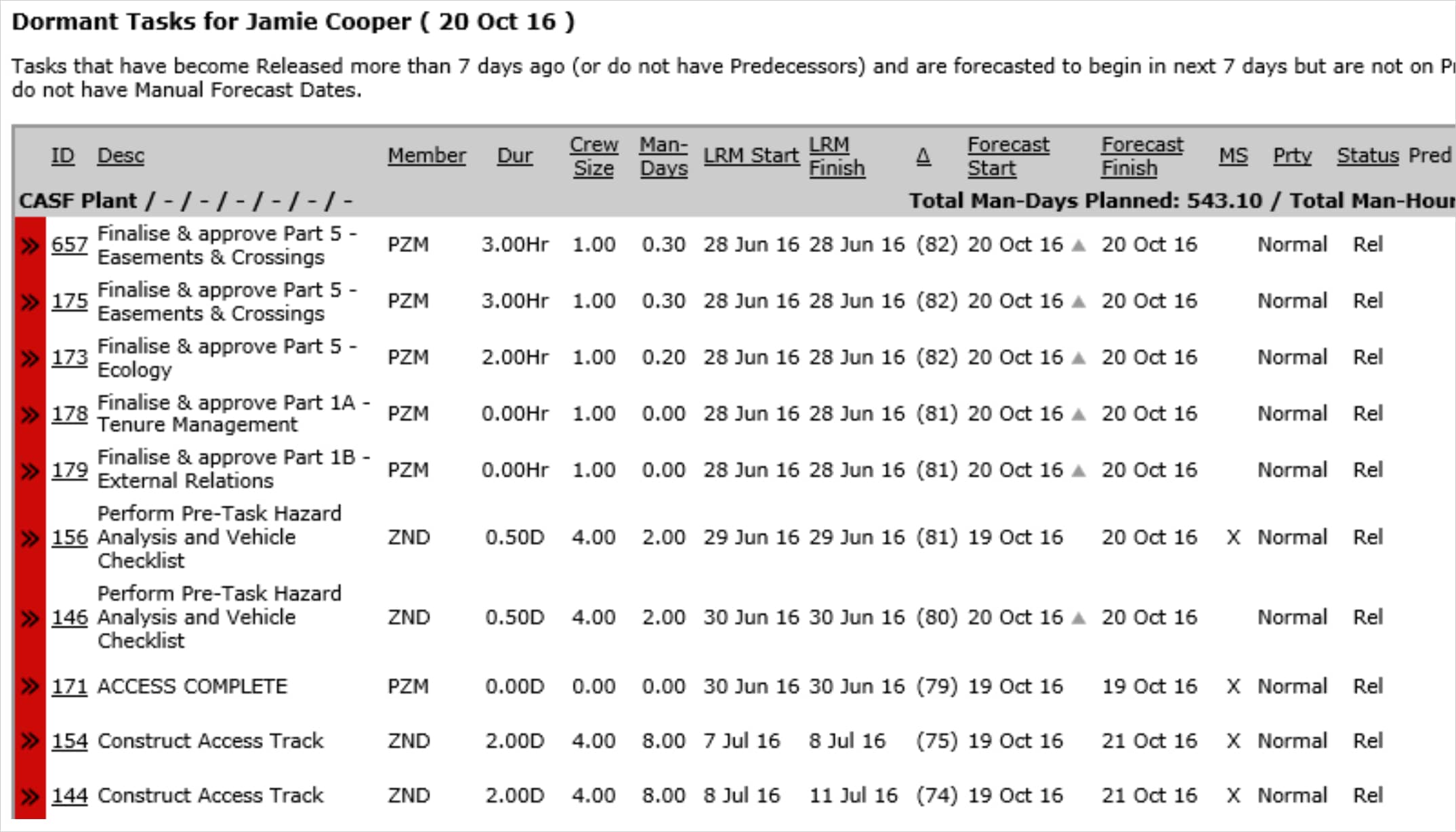
- Dormant Tasks opens in a new window and automatically displays the Analytic for the team selected under the Team Menu.
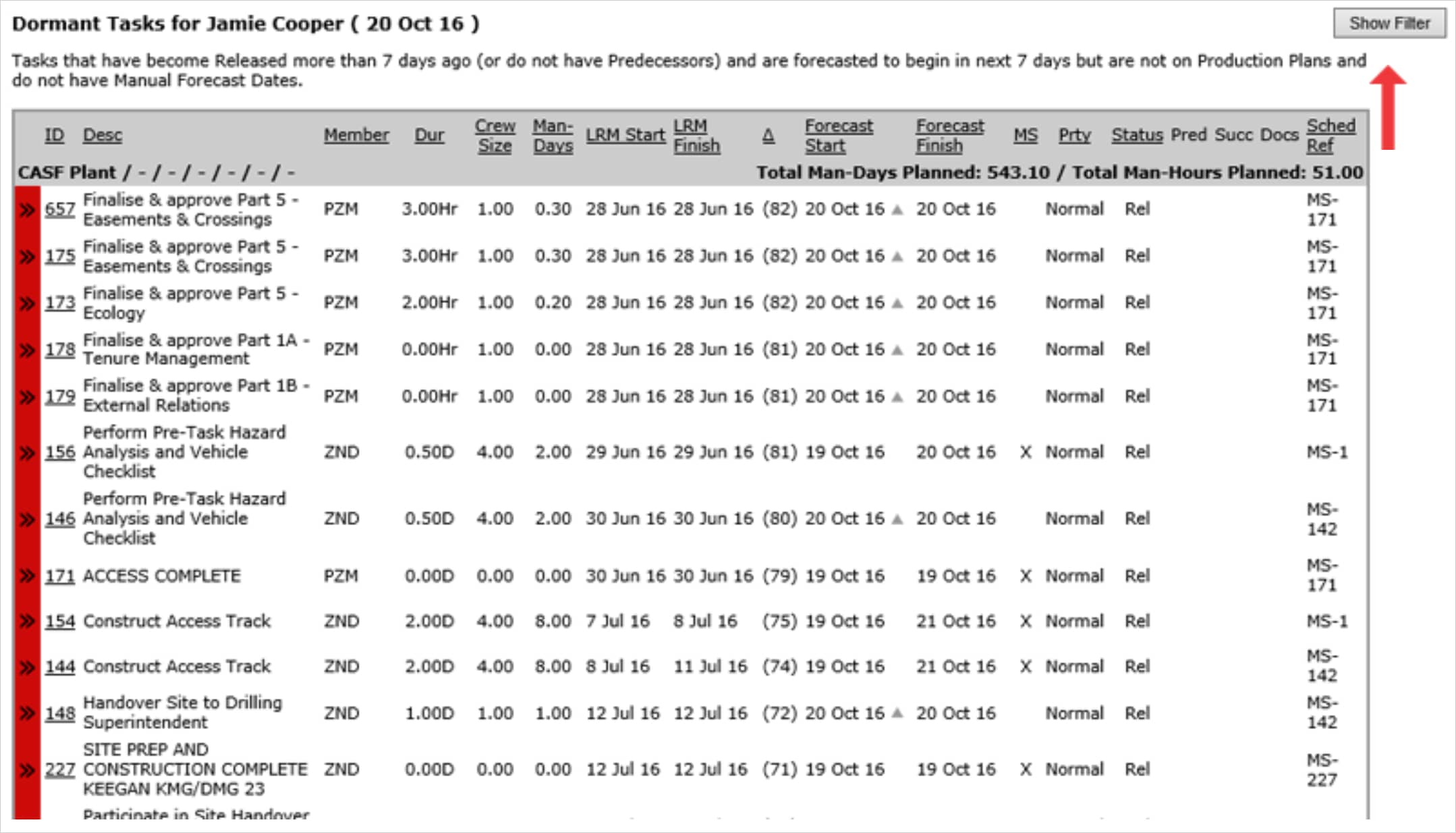
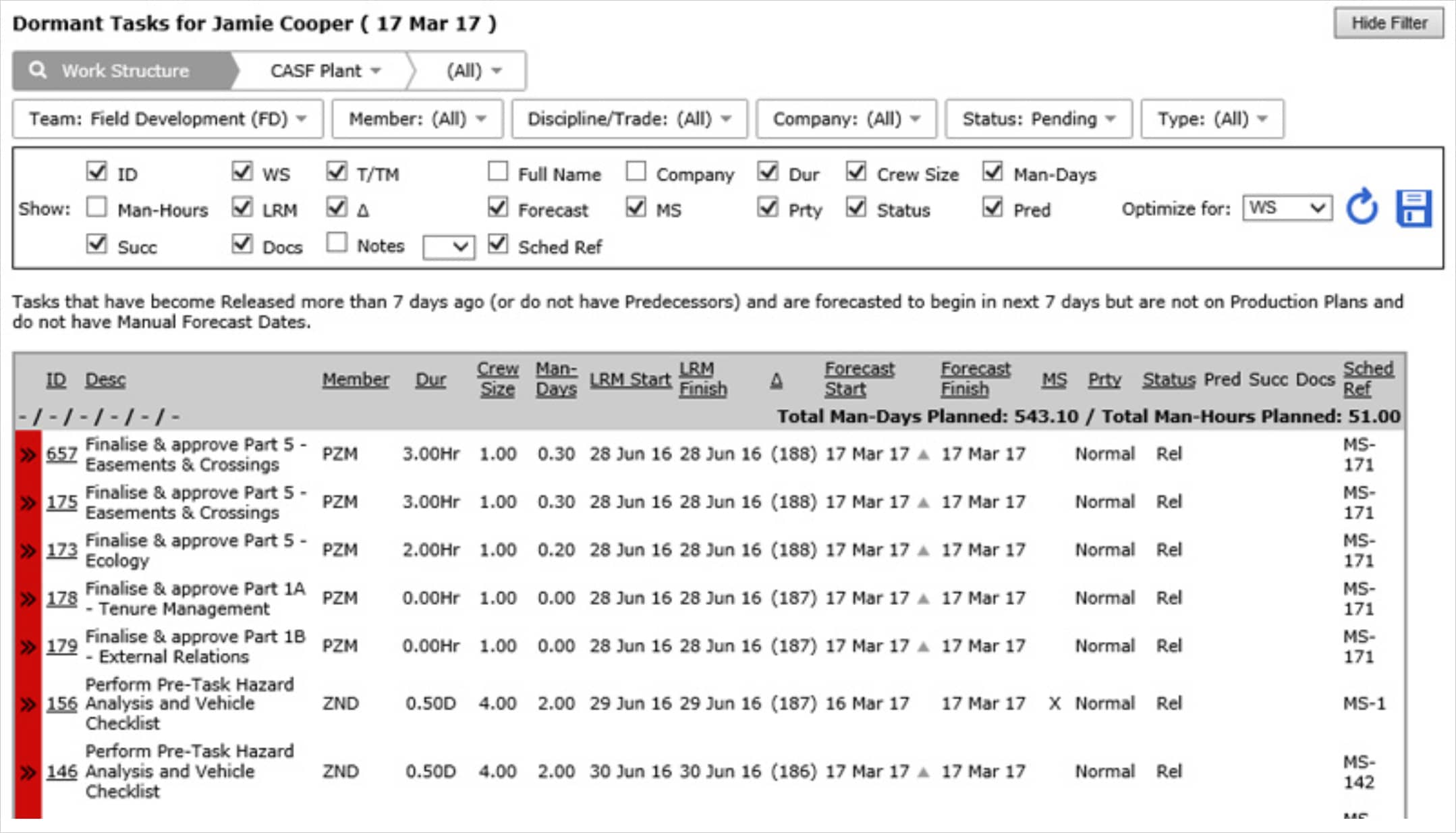
- Click the Show Filter button to display the filters above the Dormant Tasks table.
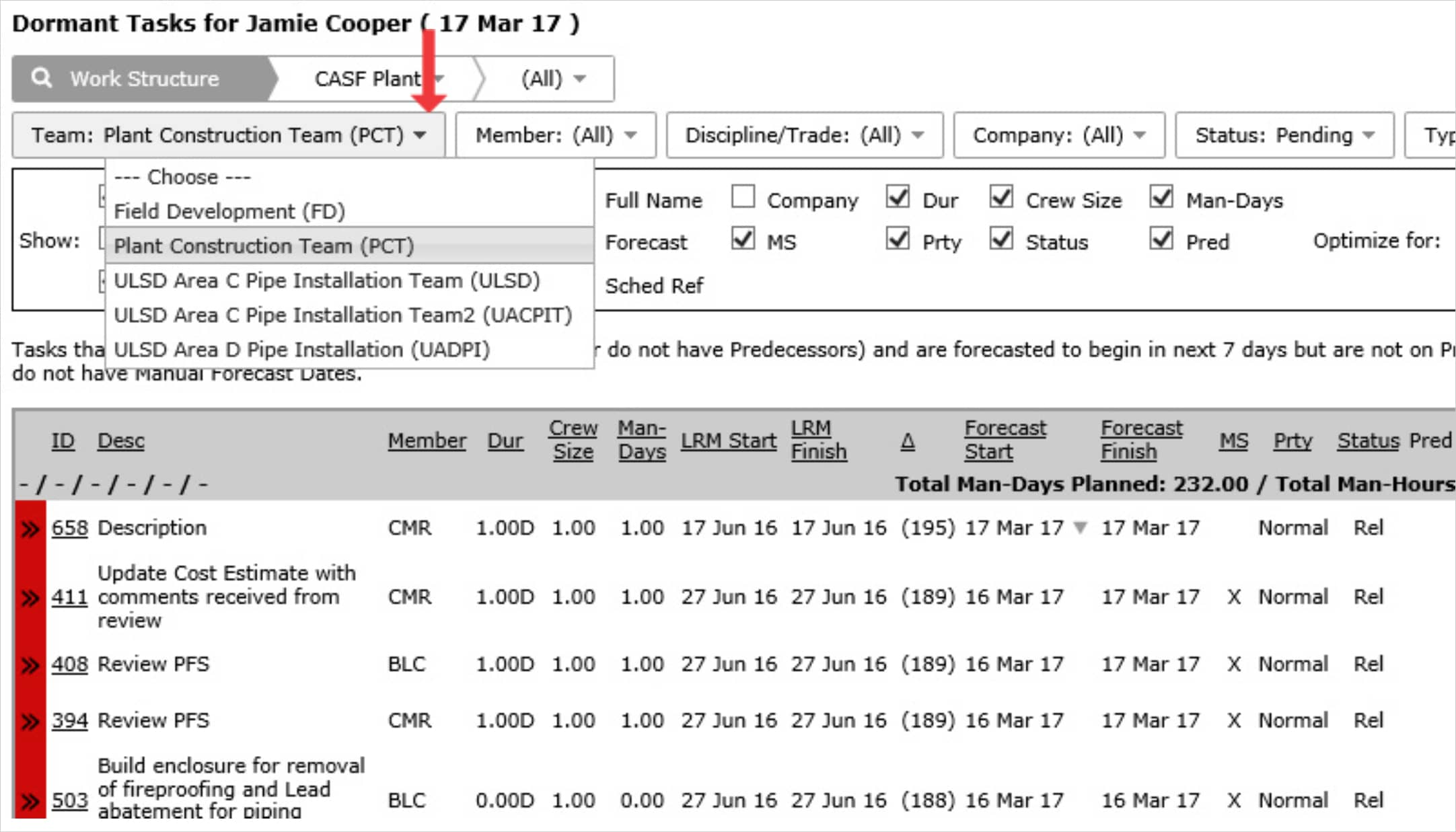
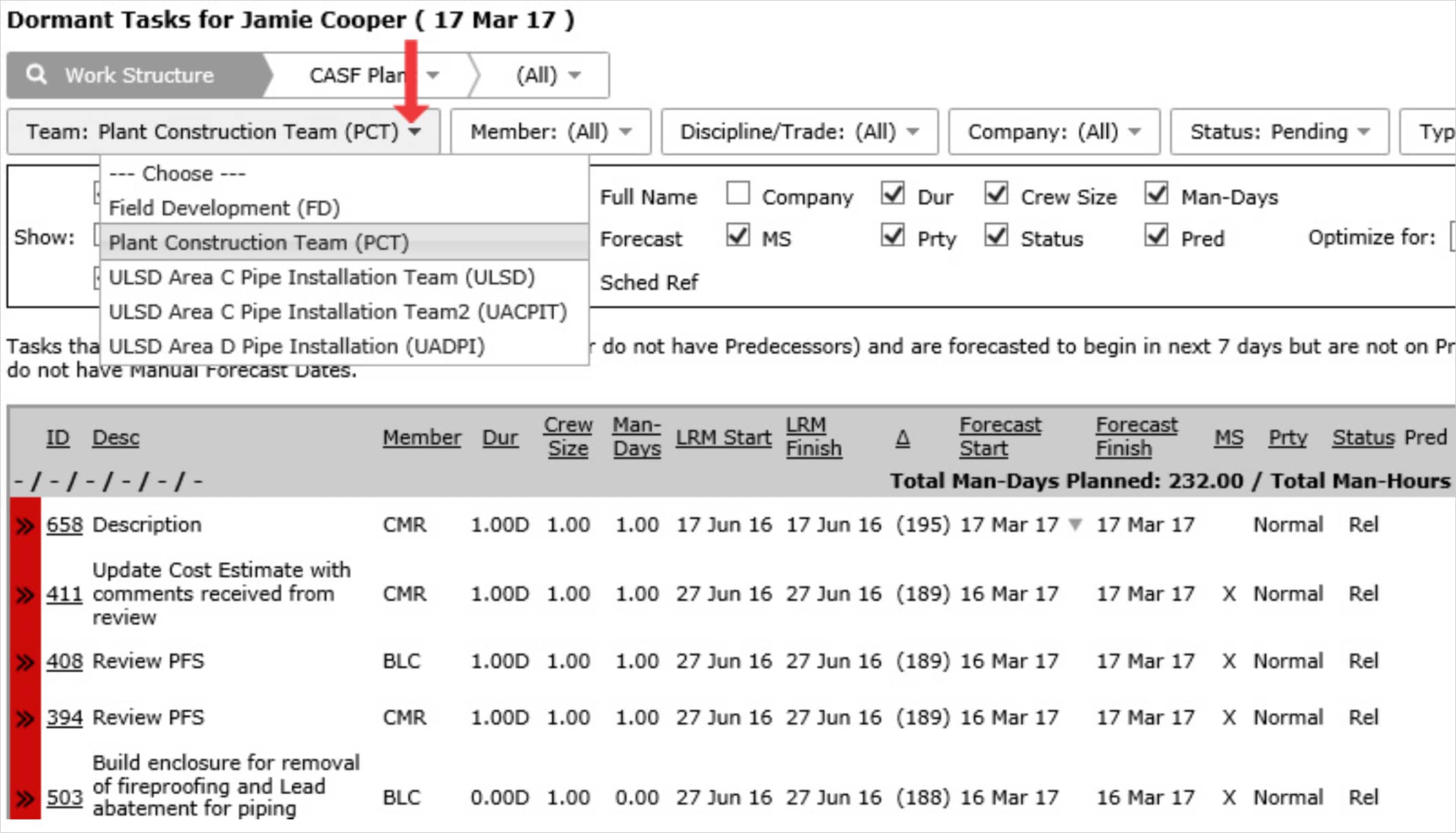
- To view Dormant Tasks for another team, select the desired team under the Team drop-down.
- For the selected team, Dormant Tasks displays the tasks that have become released more than 7 days ago (or do not have predecessors) and are forecast to begin in the next 7 days but are not on a Production Plan and do not have Manual Forecast Dates.
The attributes shown on Dormant Tasks can be limited by filtering by any of the attributes within Show such as: LRM, Forecast, Work Structure, LRM logic, team and team member and status. Once all desired attributes are selected within Show, click the Refresh button.
An additional column(s) appears in the table which lists the selected attributes for each task.
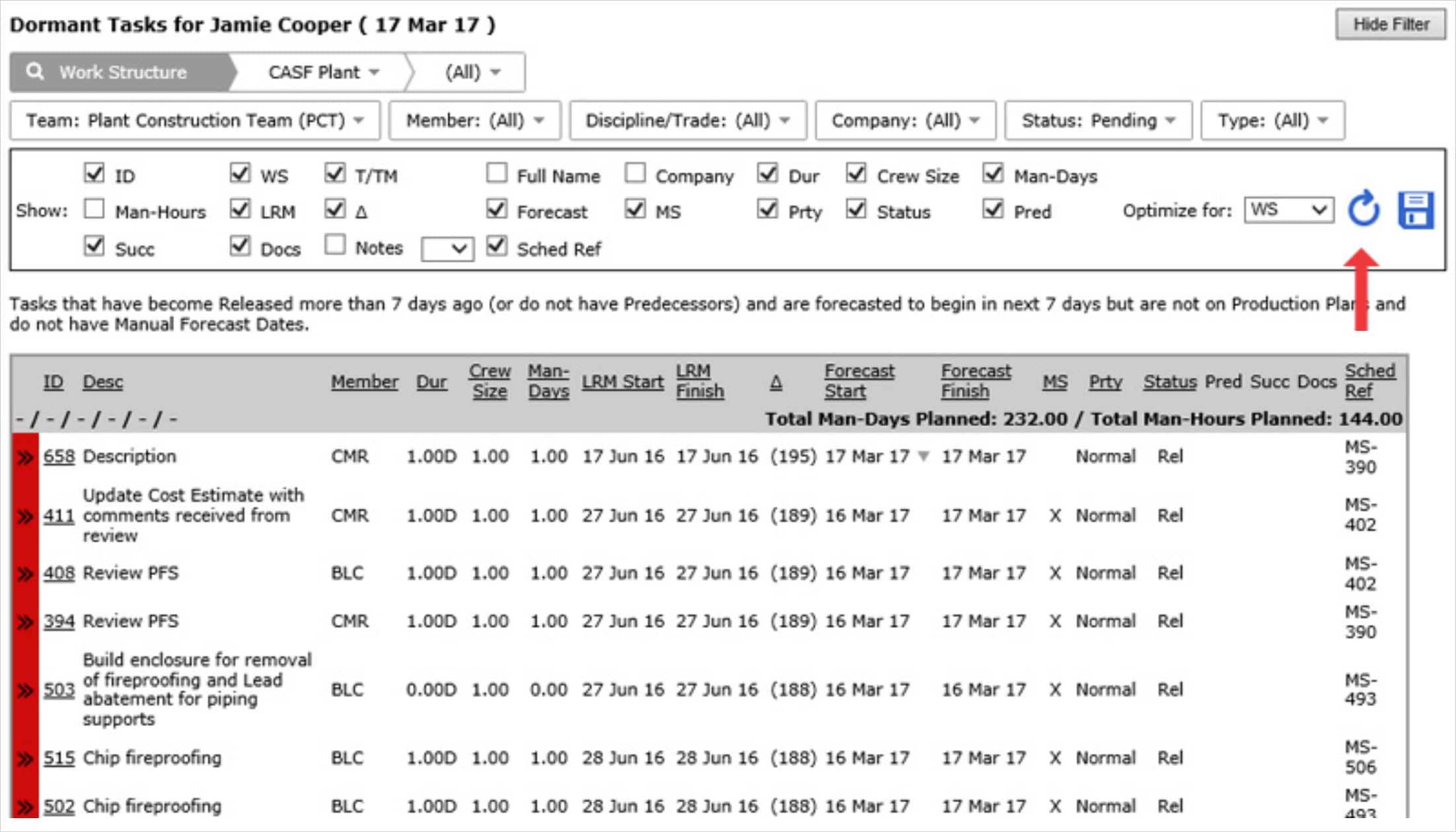
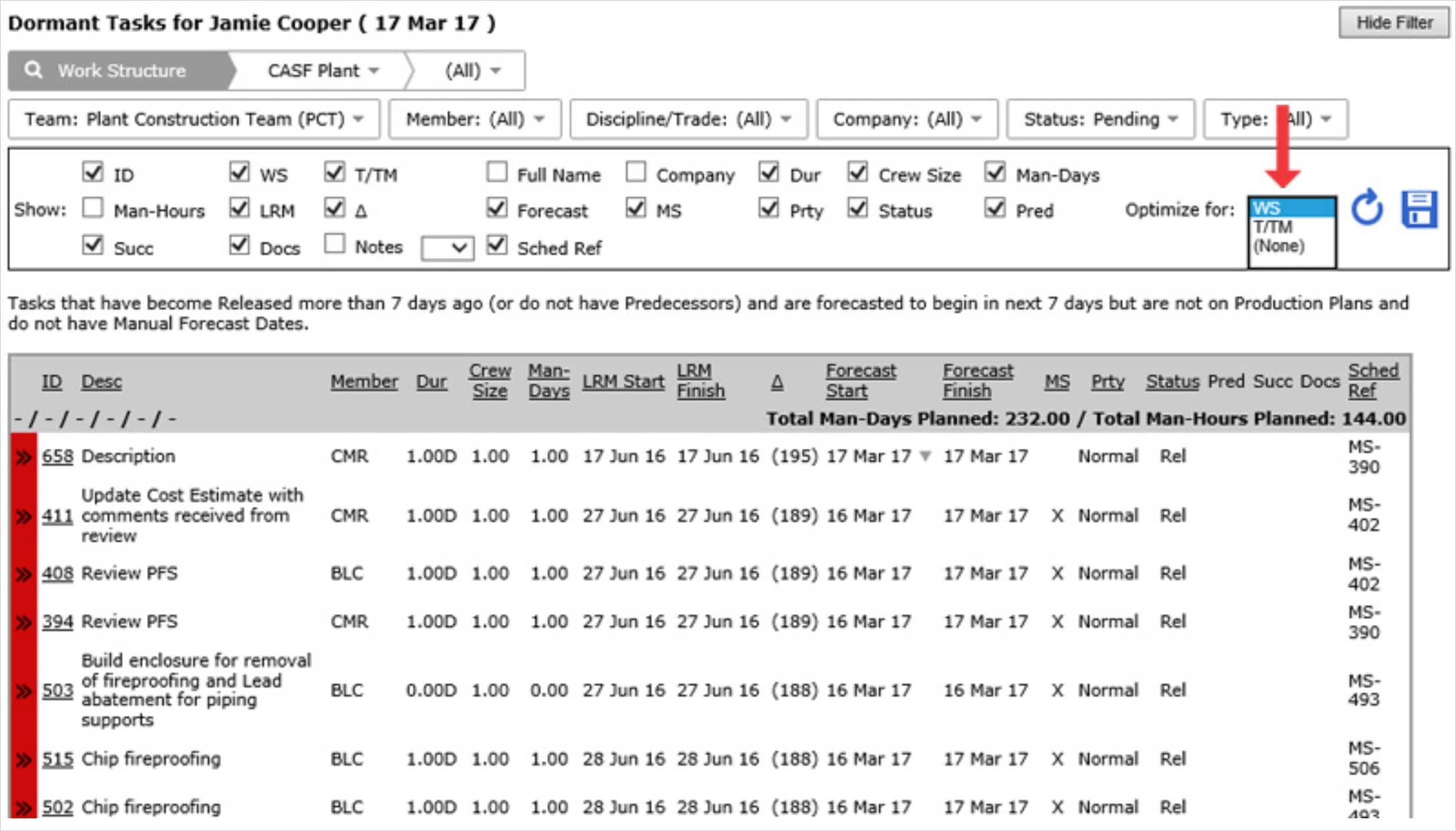
- Additionally, data can be visualized by the available Work Structure by selecting: Optimize For.
- To view Dormant Tasks for another team, select the desired team under the Team drop-down.
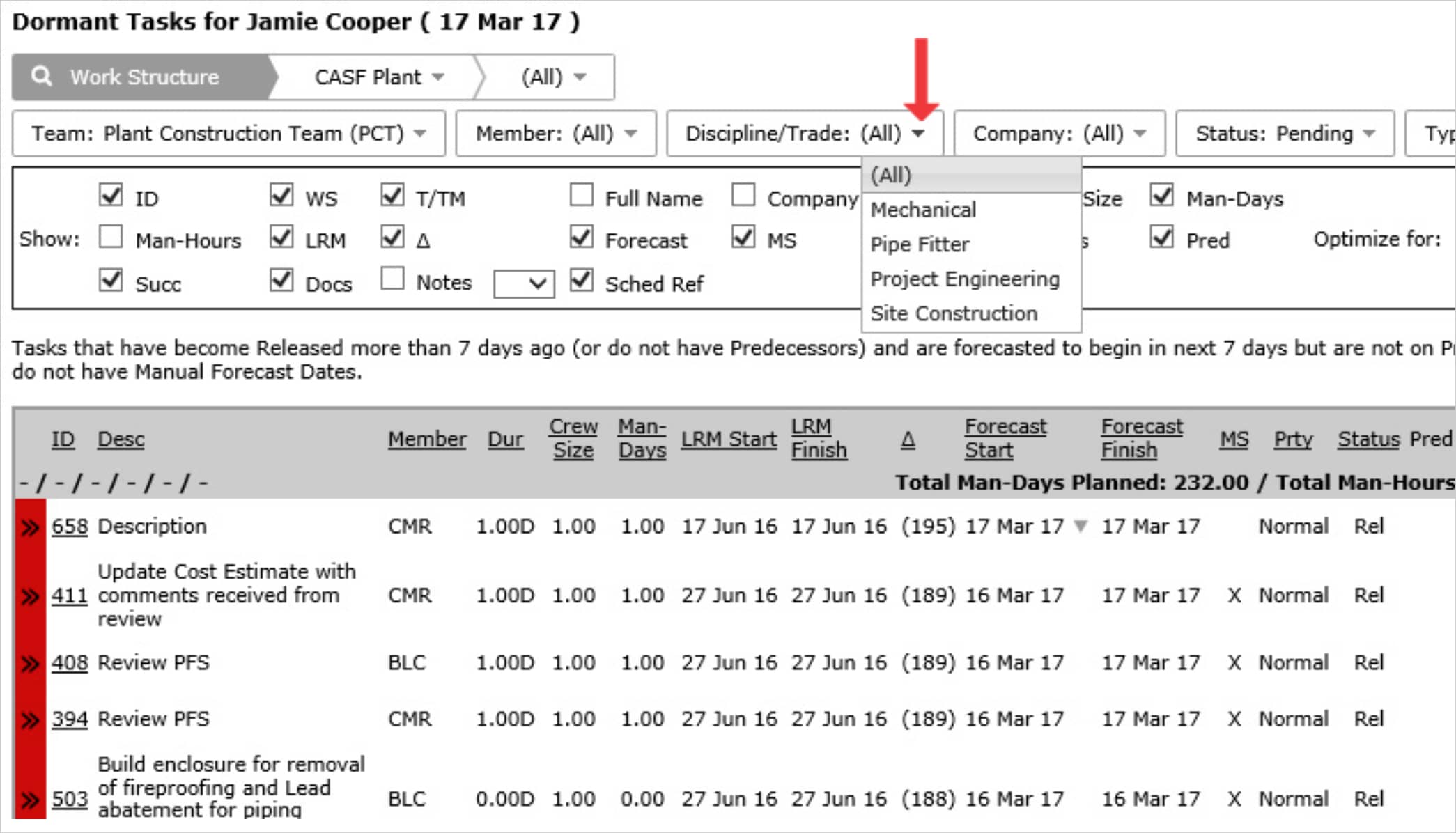
- You can also filter by Member, Company, Status, Type, Discipline / Trade and Work Structure.
- To print Dormant Tasks, options may differ based on your browser. For instance, if you are using Internet Explorer, right click anywhere on Dormant Tasks and select Print from the menu or simultaneously press the Ctrl and P keys on your keyboard.
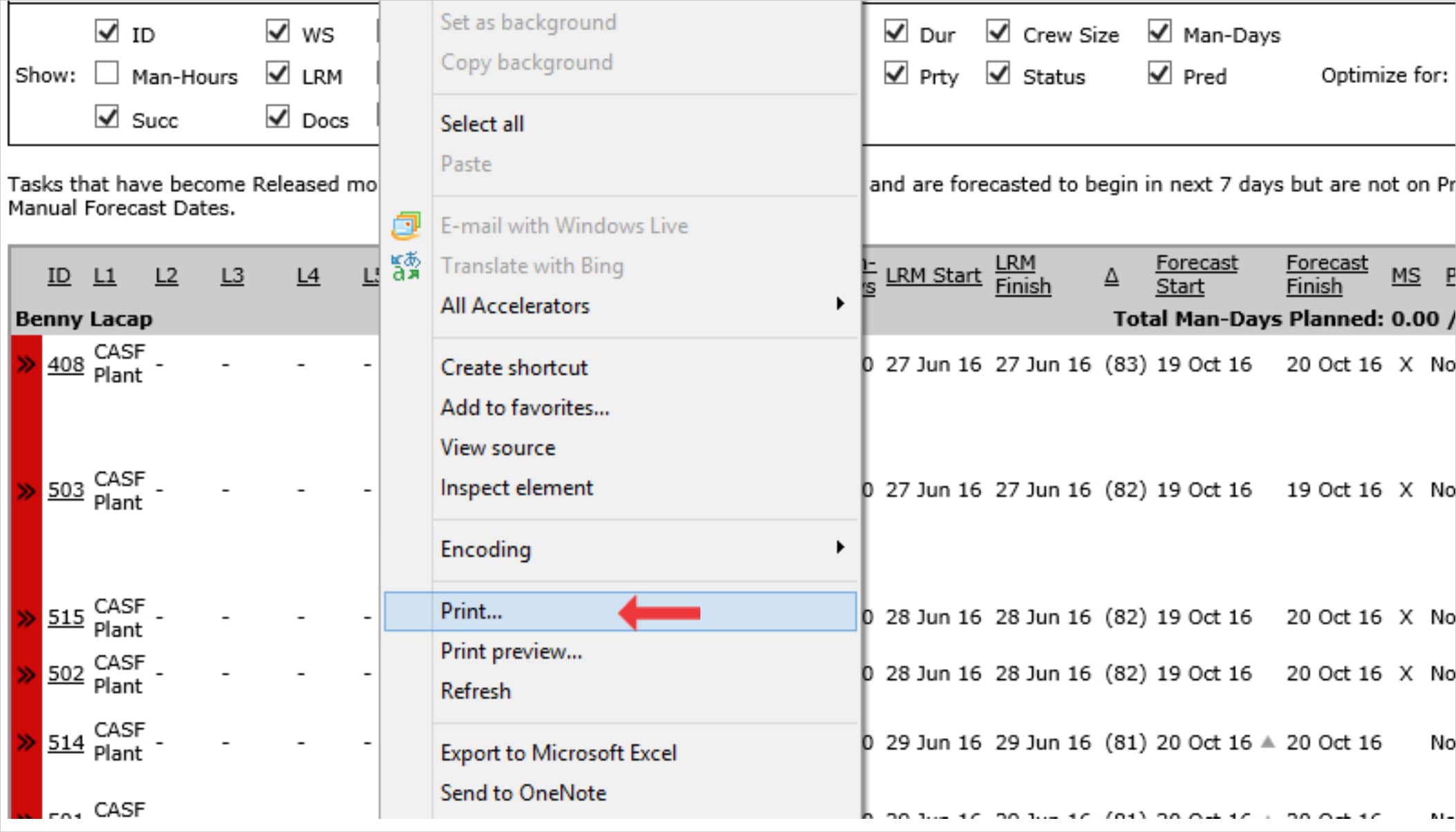
- The Print Dialogue box opens.
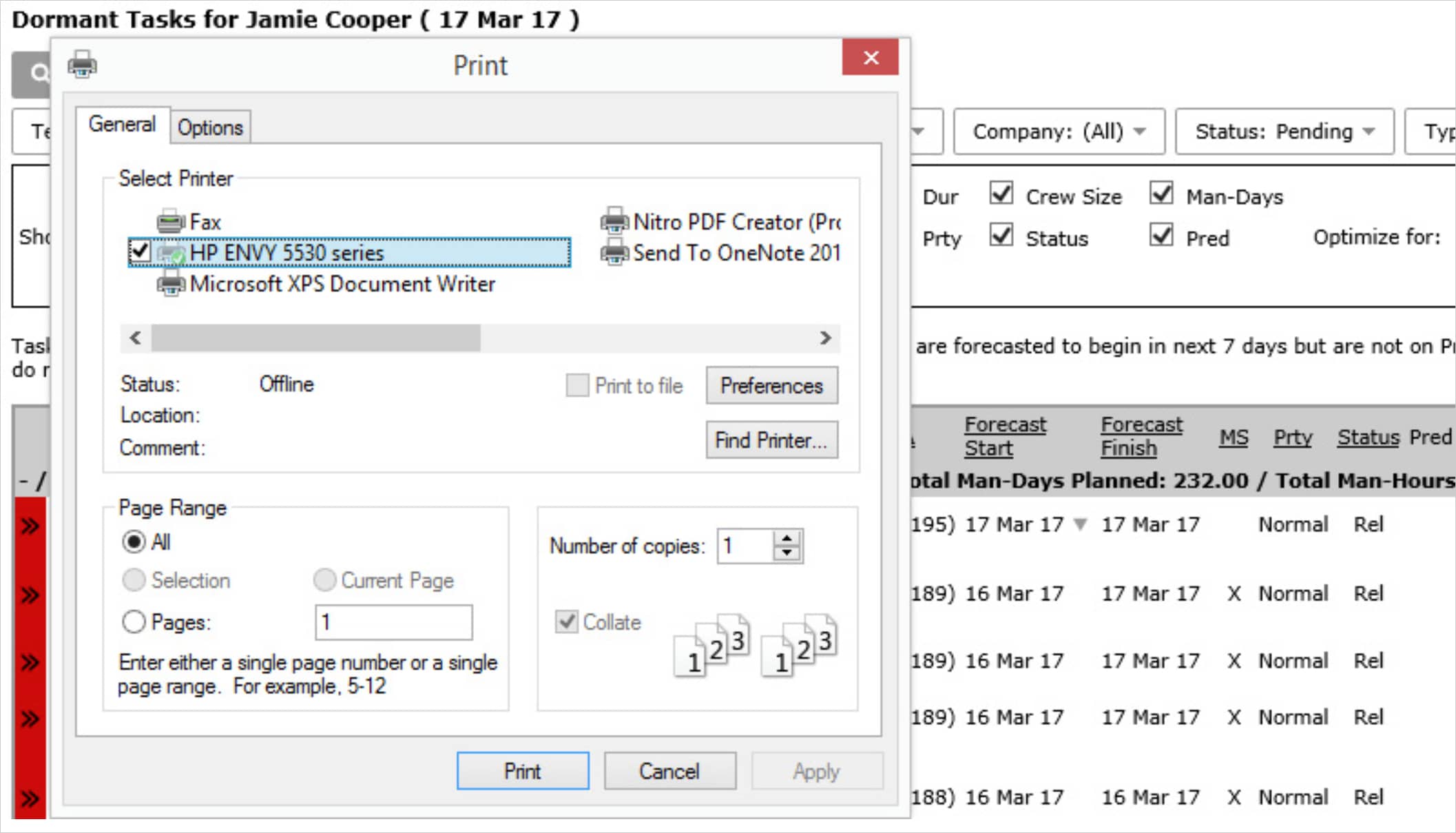
- Once all relevant printing settings have been modified, click the Print button.
Note: Before printing, it is recommended you confirm the fit to the desired paper size.