To ensure the appropriate control of access to enter and edit data, SPS|PM enables the use of three access rights: 1) Read-Only Access, 2) Write Access and 3) Team-Level Access. To assign or revoke access rights complete the steps below for the desired access:
Read-Only Access
Read-Only Access constrains a team member from entering and / or modifying any task description and attributes, even for tasks under the team member’s responsibility. Although access to SPS|PM is enabled, the individual can only view data. Only an individual with Team-Level Access can set Read-Only Access for other team members.
To assign or remove Read-Only Access, complete the steps below:
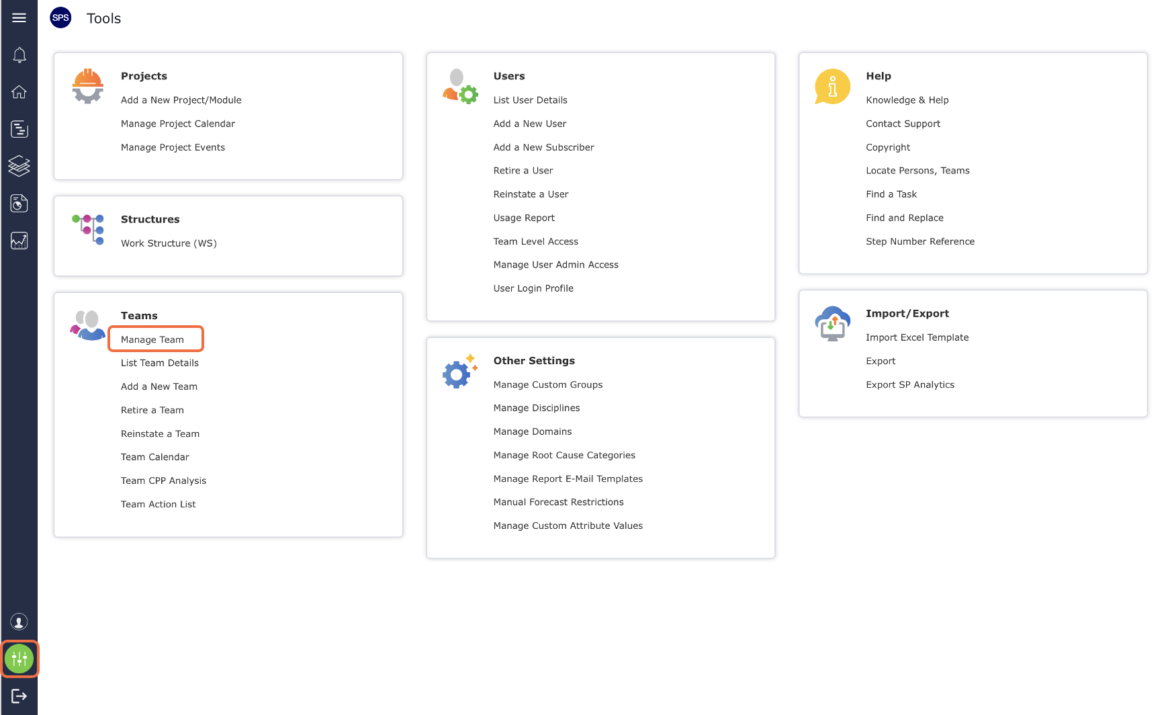
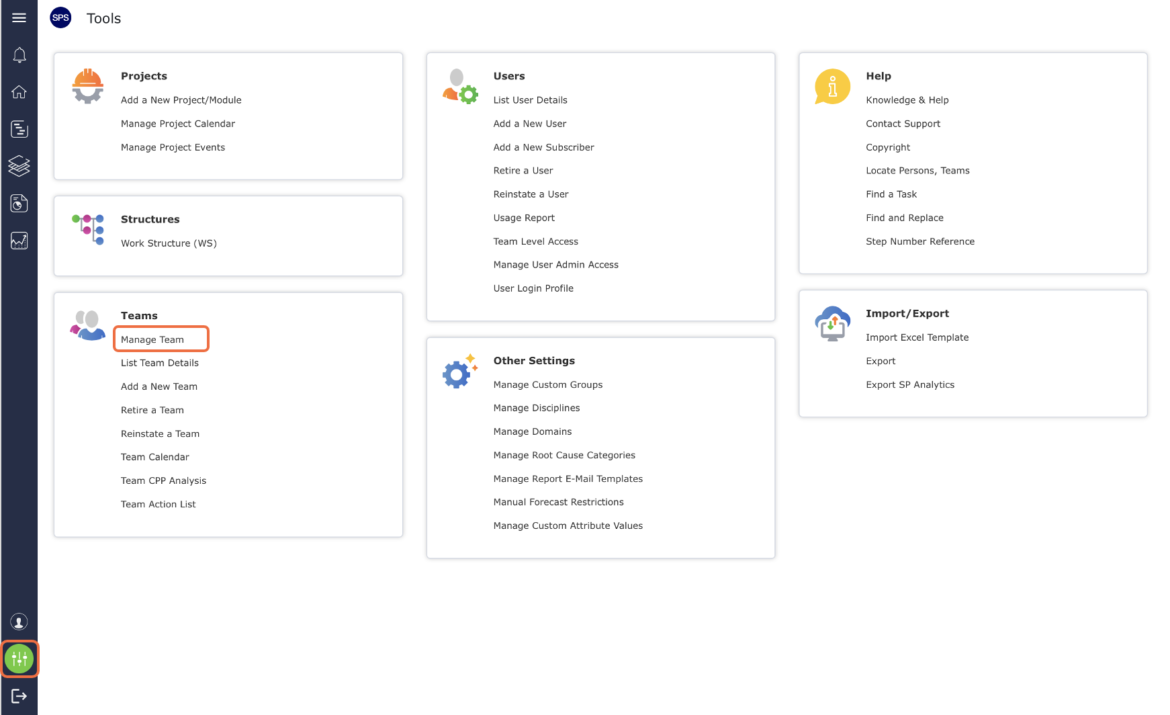
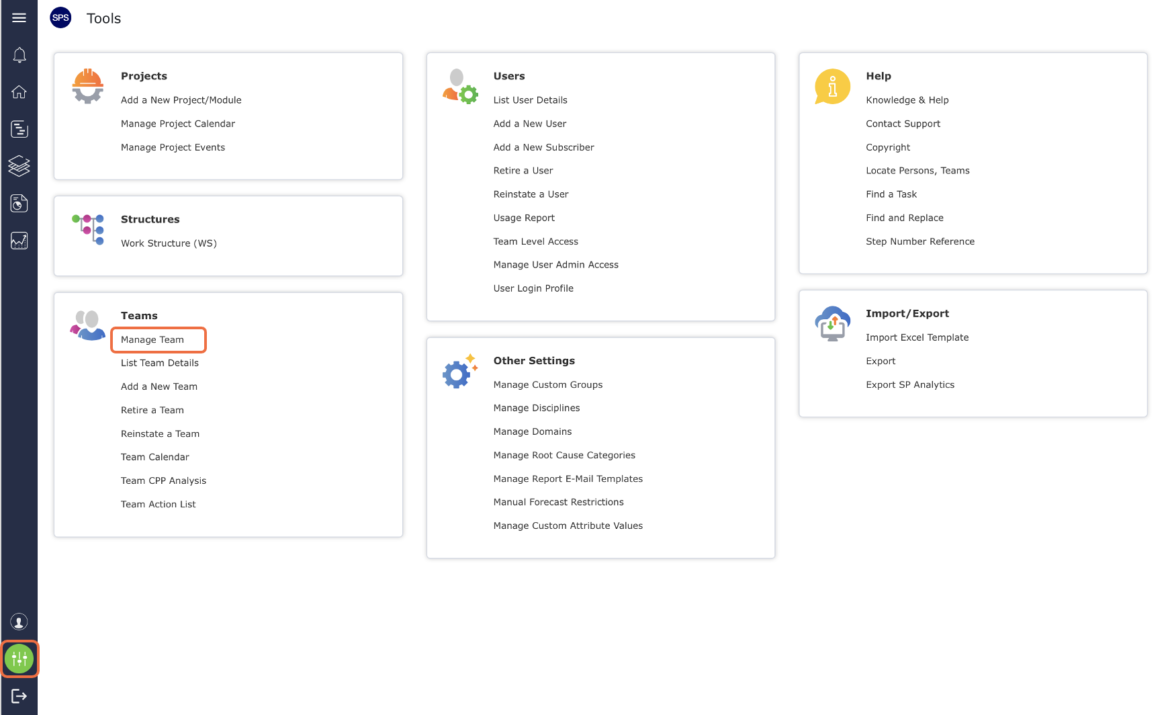
From the Main Navigation Bar select Tools, then select Manage Team.
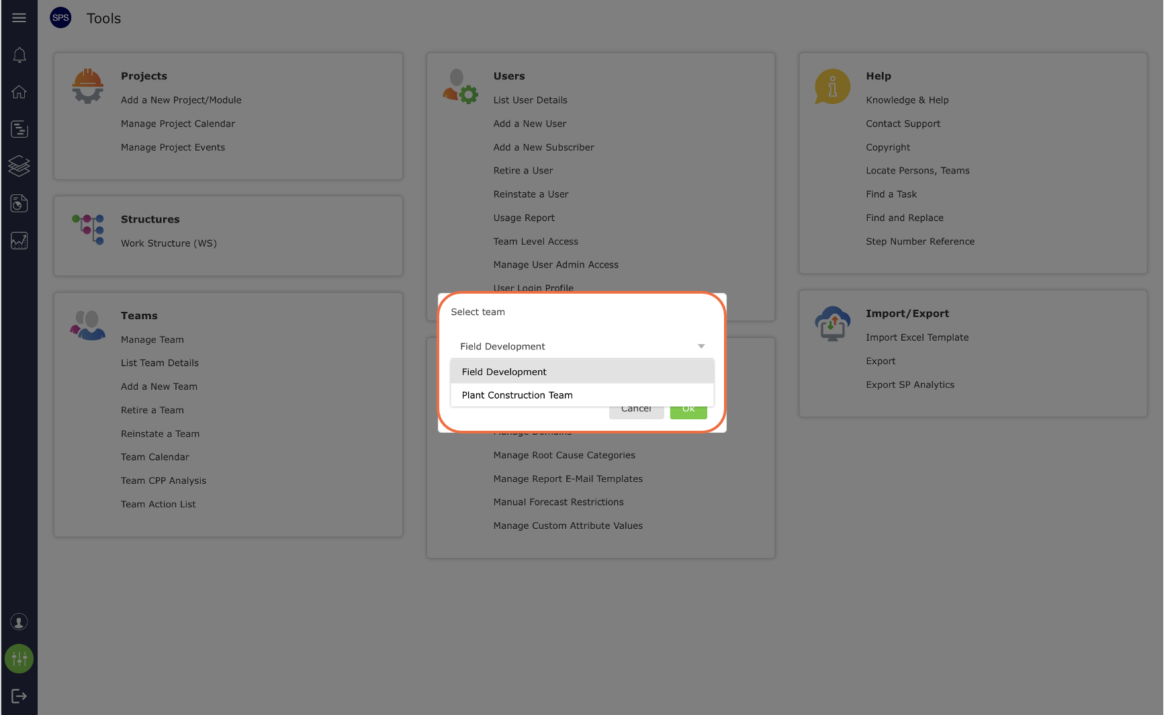
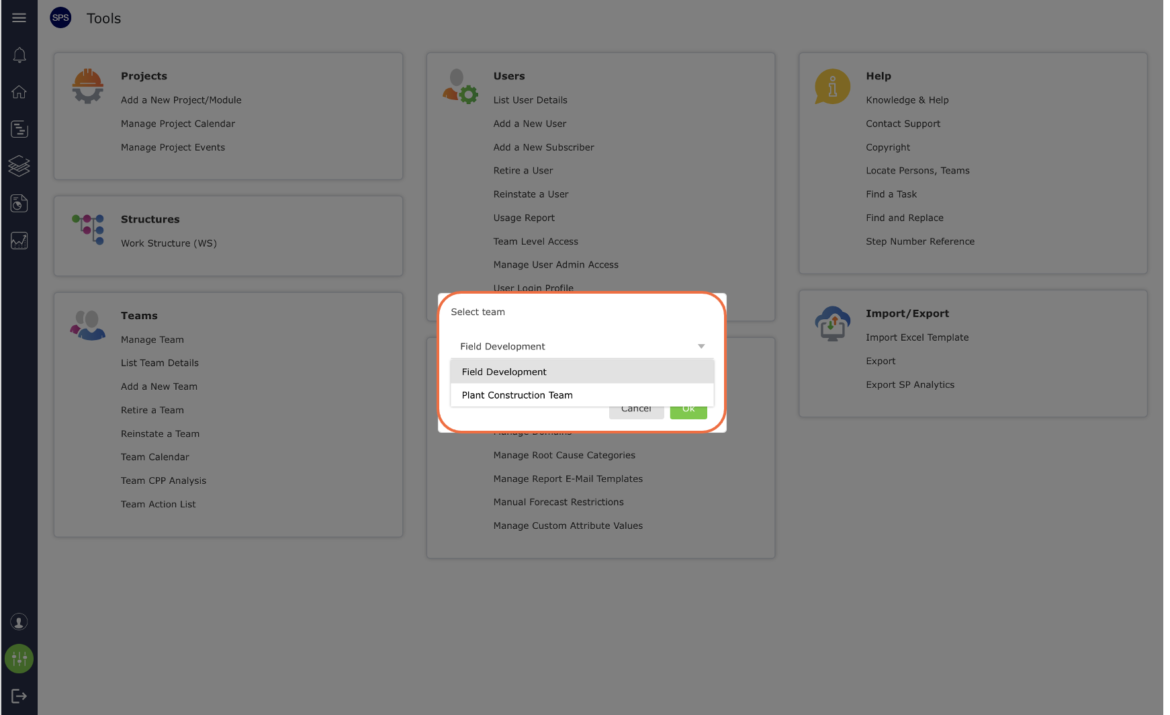
- Select the desired team.
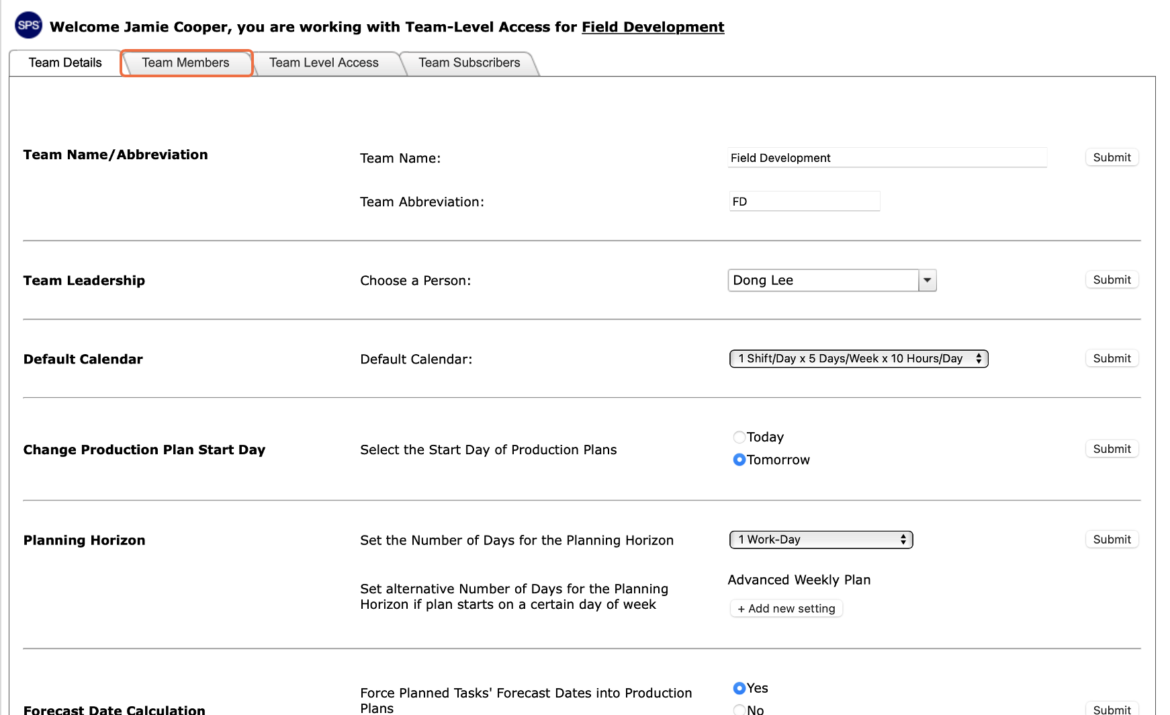
The Manage Team window opens. Select the Team Members tab.
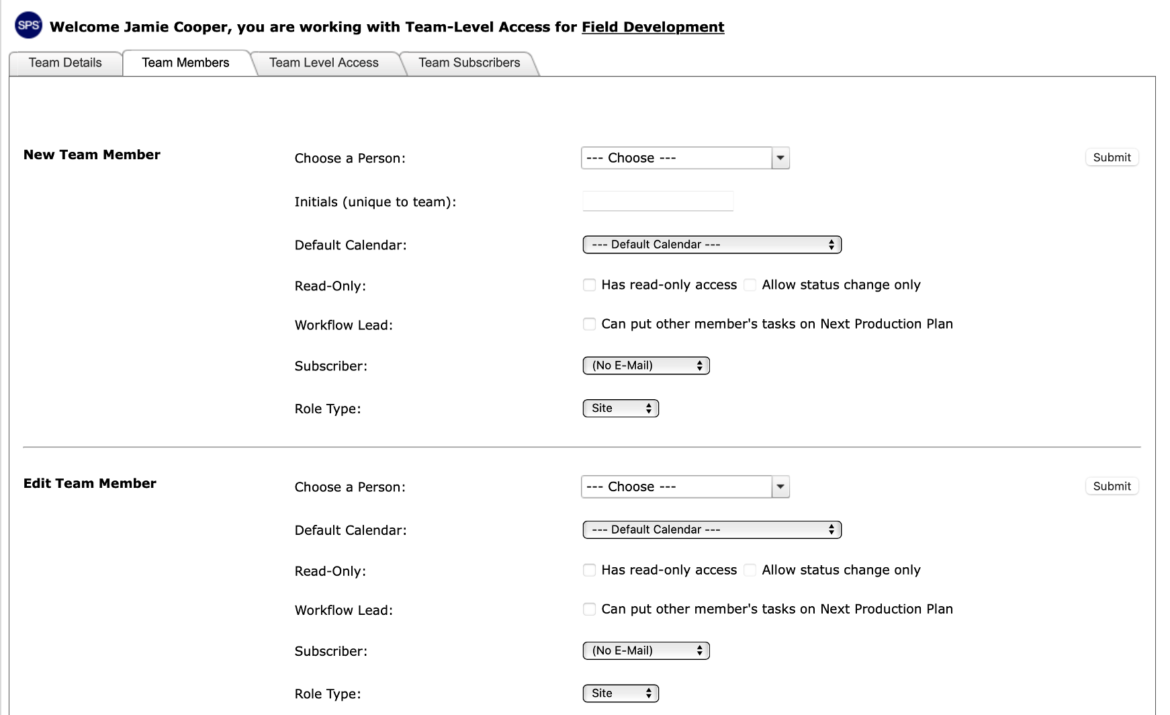
In the Edit Team Member region, select the desired individual from Choose a Person drop-down and the Default Calendar, Read-Only, Workflow Lead, Subscriber and Role Type will automatically populate with previously defined information.
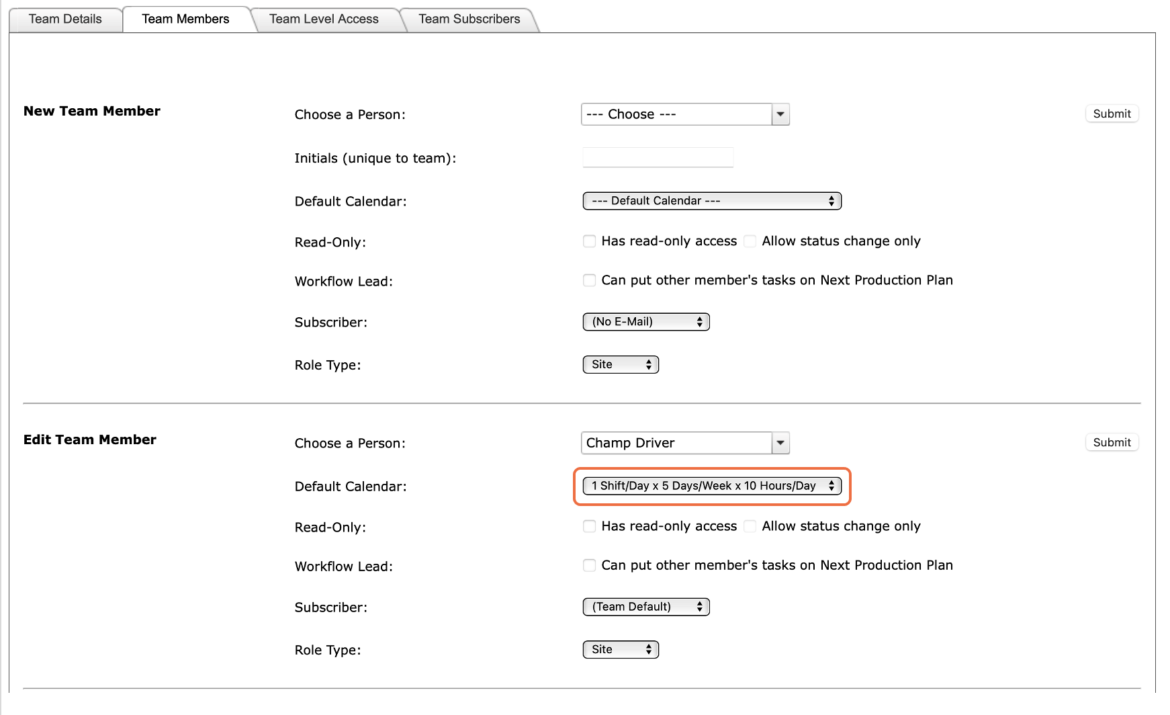
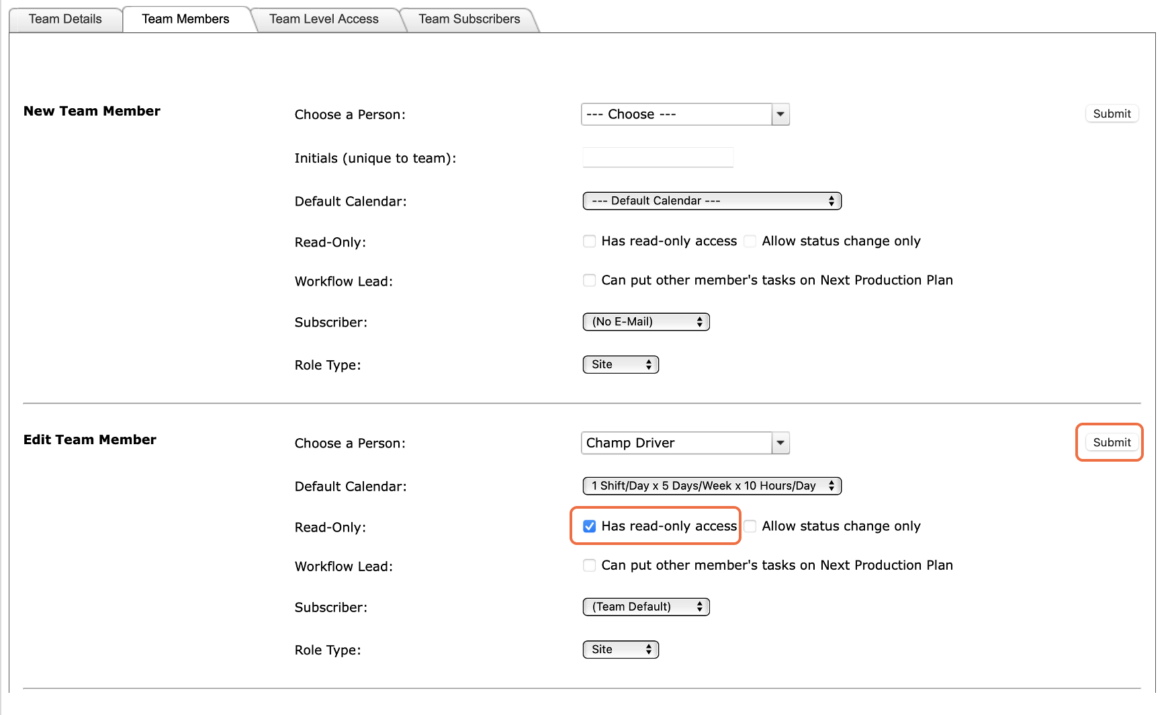
To assign Read-Only Access, check the Read-Only checkbox and click the Submit button.
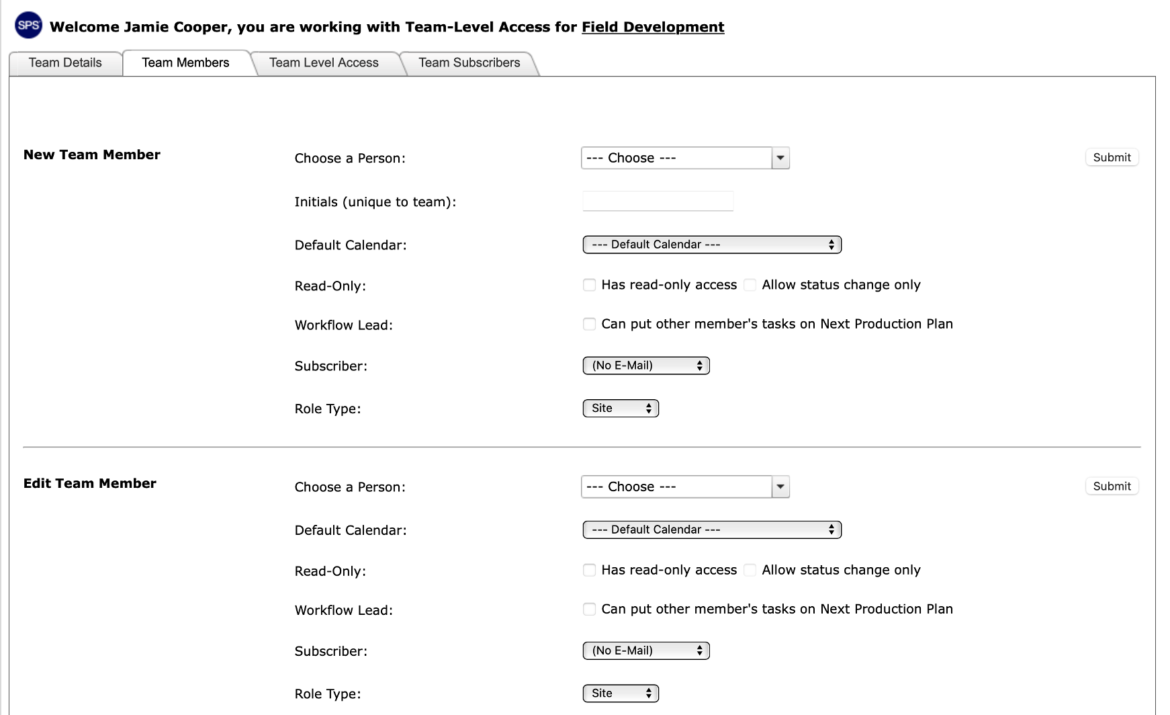
The Manage Team window will refresh to the default (unpopulated) values as shown in the image below.
- To remove Read-Only Access, complete the steps below under the Write Access section.
Write Access
Write Access allows any team member to add new tasks under the team member’s responsibility or under someone else’s responsibility. However, it does not allow the team member to edit tasks that are not under his / her responsibility. Write Access overwrites Read-Only Access settings. Only an individual with Team-Level Access can set Write Access for other team members.
For more information on the specific functionalities associated with Team-Level Access, see Team Access Rights under Administration.
To assign or remove Write Access, complete the steps below:
From the Main Navigation Bar select Tools, then select Manage Team.
- Select the desired team.
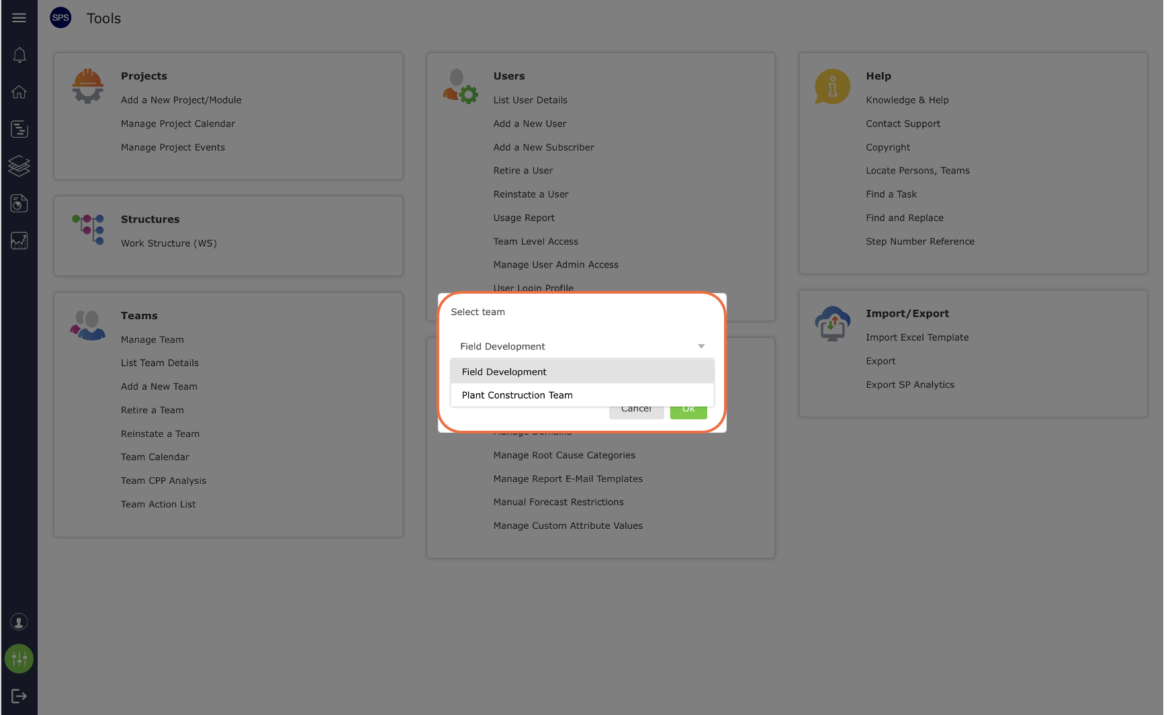
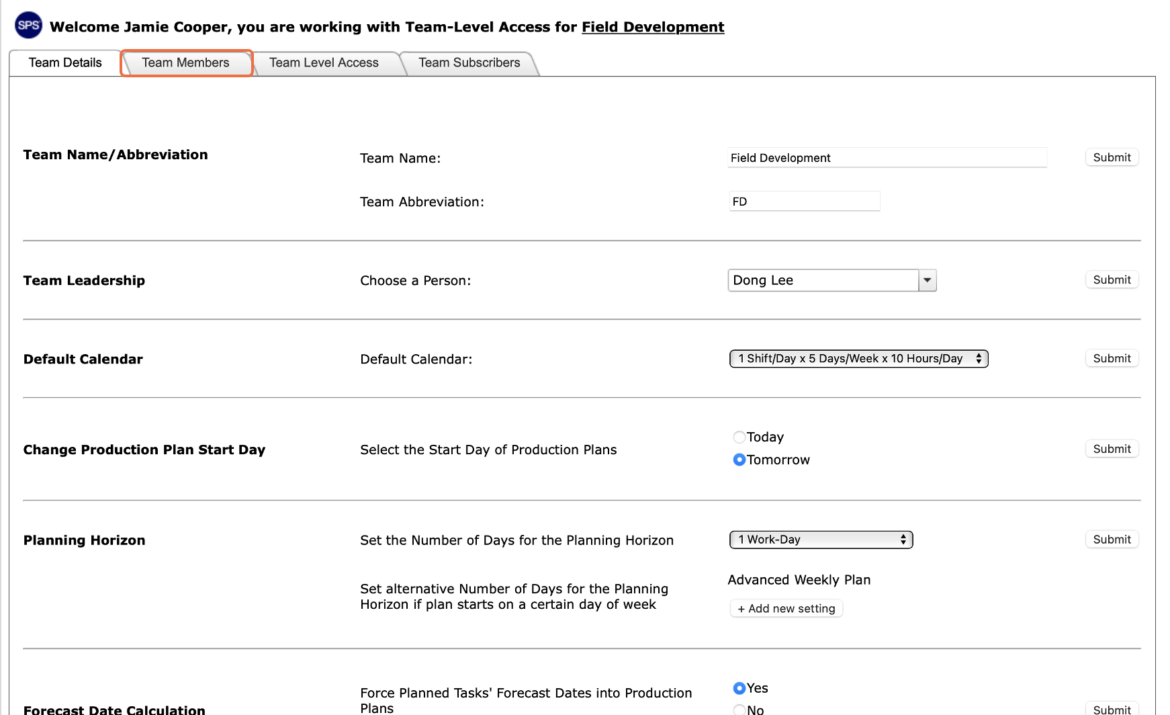
- The Manage Team window opens. Select the Team Members tab.
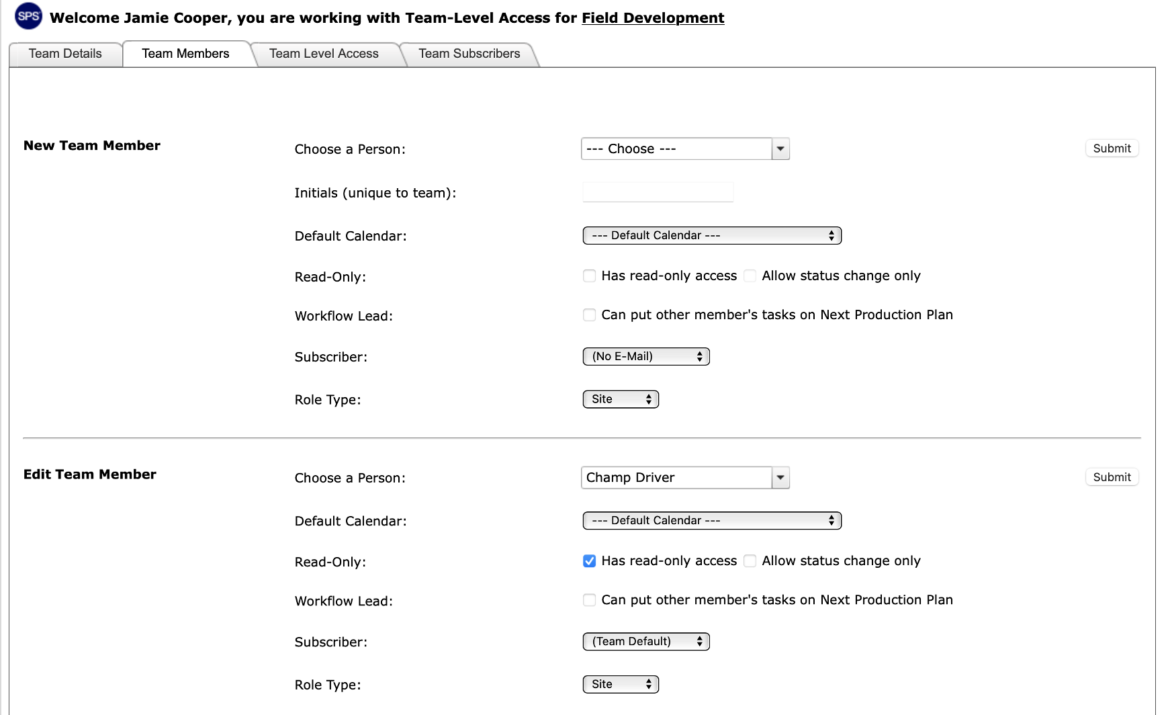
- In the Edit Team Member region, select the desired individual from Choose a Person drop-down and the Default Calendar, Read-Only, Workflow Lead, Subscriber and Role Type will automatically populate with previously defined information.
- To assign Write Access, uncheck the Read-Only checkbox and click the Submit button.
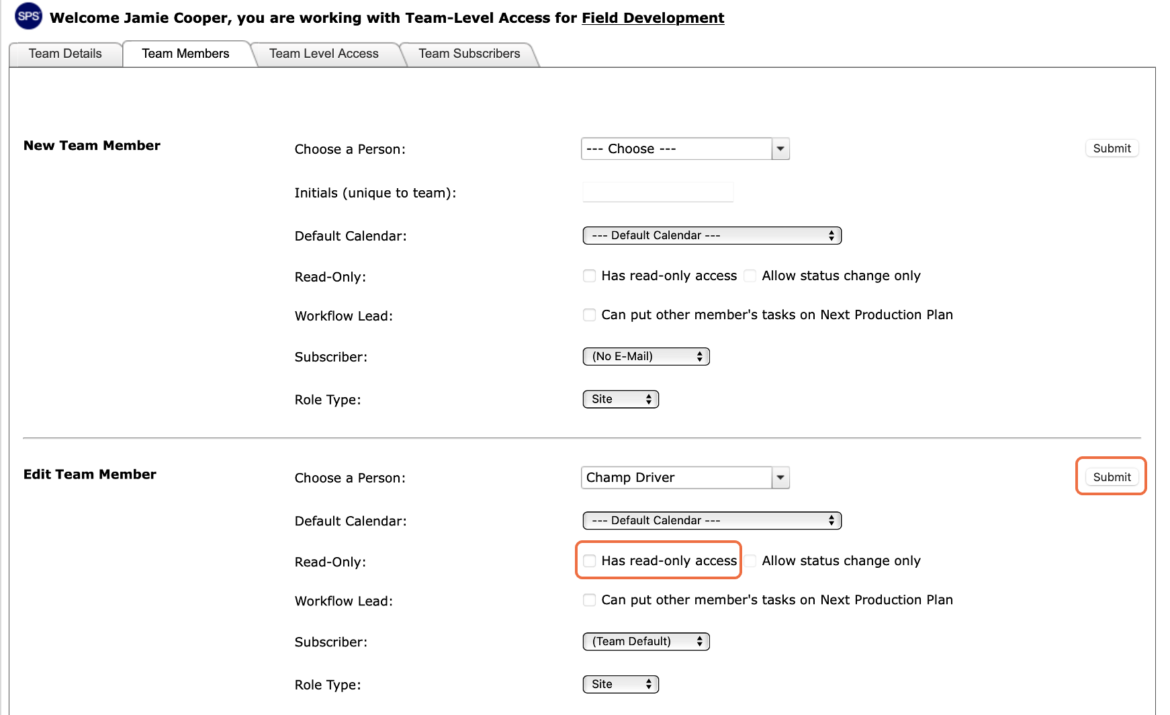
- The Manage Team window will refresh to the default (unpopulated) values as shown in the image below.
- To remove Write Access, complete the steps above under the Read-Only Access section.
Team-Level Access
Team-Level Access allows users to access and perform special functions on behalf of a team. Team-Level Access overwrites Write Access settings. Only an individual with Team-Level Access can set Team Level Access. Once a member is added to a team, Team-Level Access can be assigned to one or multiple team members as required. This will ensure that someone has the proper rights to commit or close out a Production Plan if the team leader is absent. Keep in mind that because Team-Level Access enables many functions a regular team member cannot perform, assigning Team-Level Access should be limited to a select few individuals of the team.
To assign or remove Team-Level Access, complete the steps below:
From the Main Navigation Bar select Tools, then select Manage Team.
- Select the desired team.
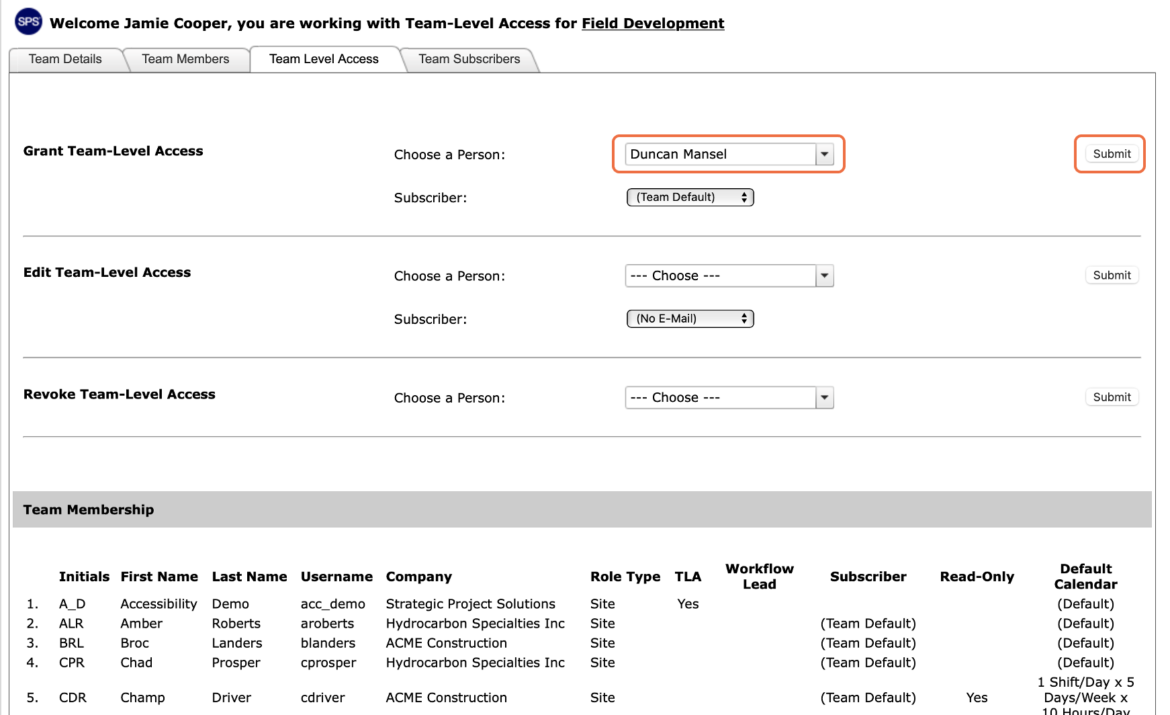
- The Manage Team window opens. Select the Team Level Access tab.
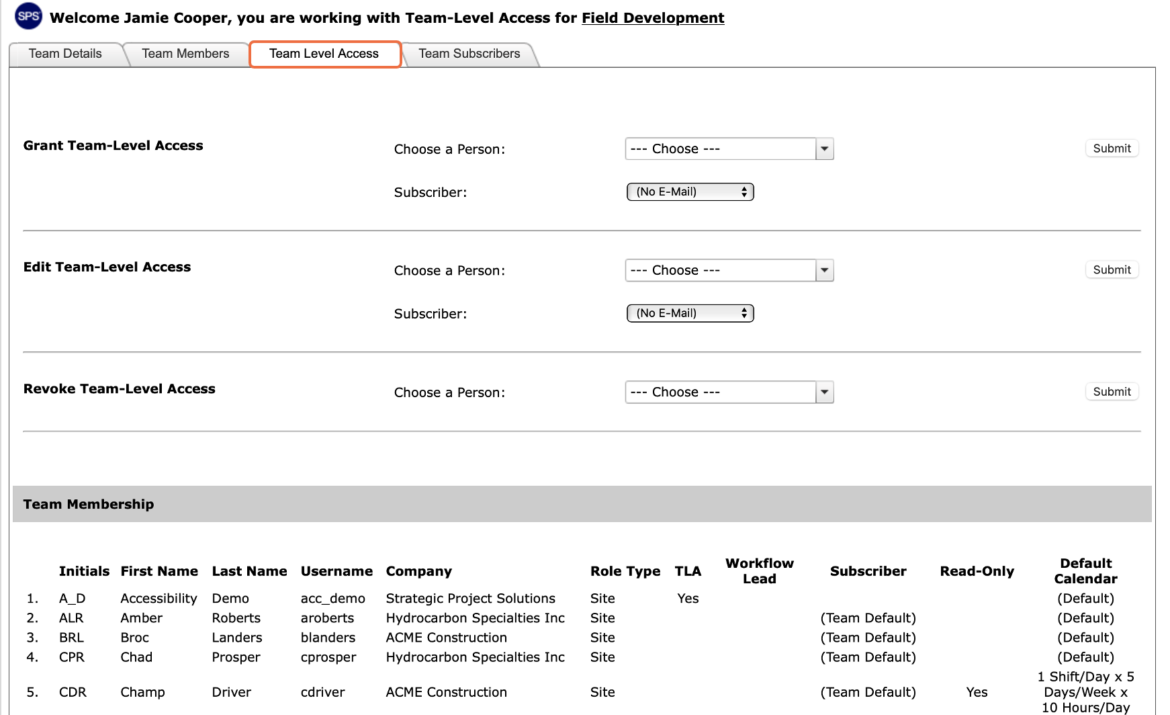
- In the Grant Team-Level Access region, select the desired individual from the Choose a Person drop-down, select the applicable Production Plan email subscription option e.g., (Team Default) and click the Submit button.
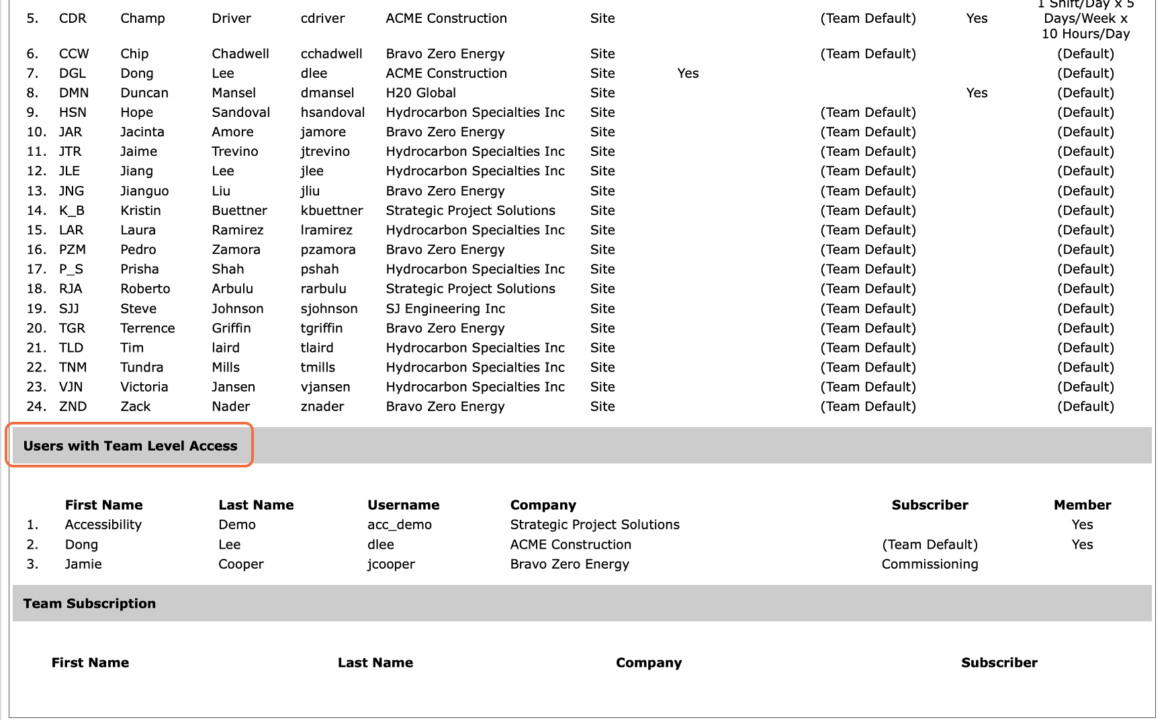
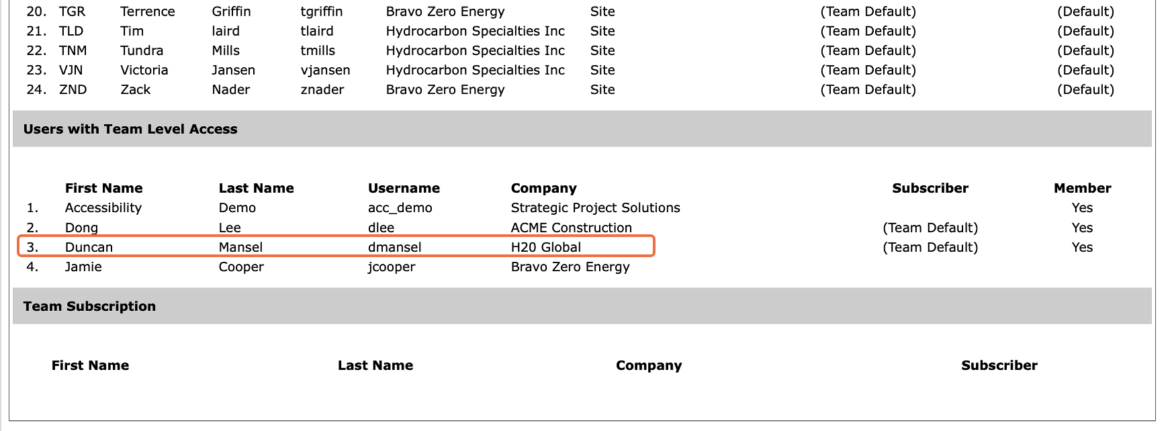
- The Manage Team window will refresh and the individual’s name will display in the Users with Team Level Access region as shown in the image below.
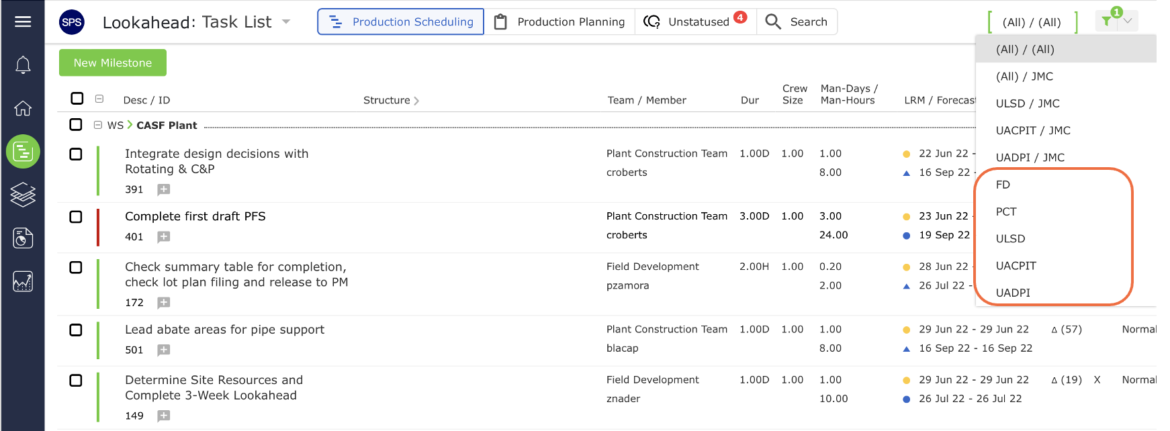
- If an individual has Team-Level Access, the Team Menu will display just the initials of the team as shown in the image below.
Note: An individual can have Team-Level Access to more than one team. SPS|PM does not limit how many teams an individual can have Team-Level access to.
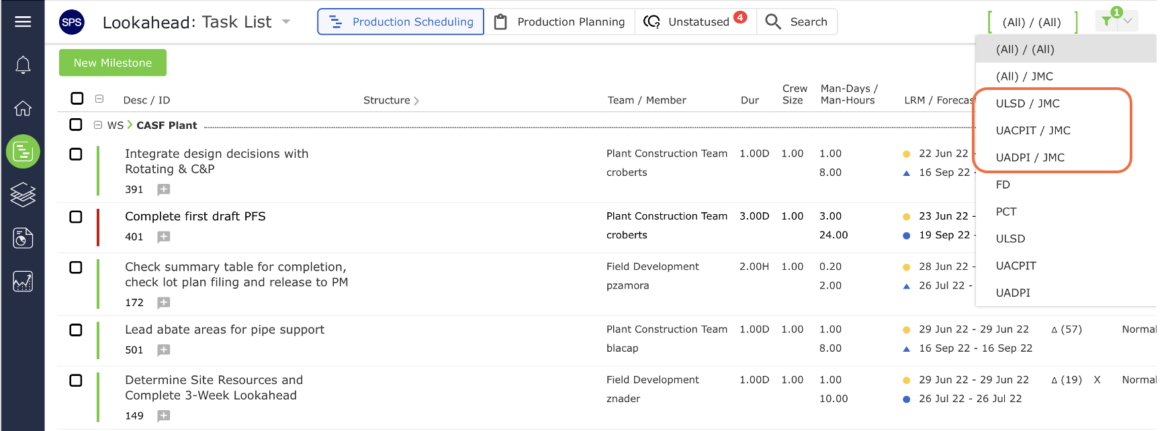
- If the Team Menu displays the initial of the team AND the initials of the individual, this indicates the individual is also a team member, as shown in the image below.
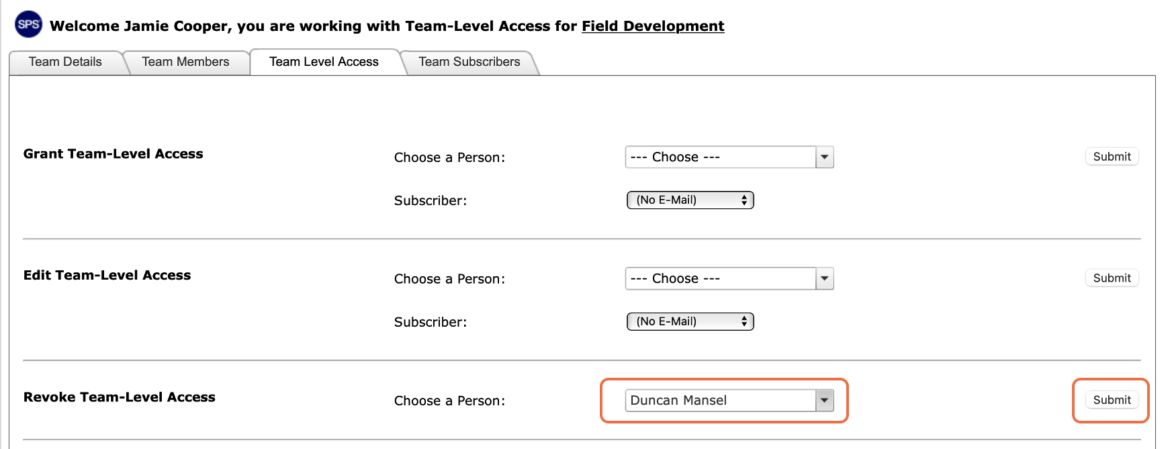
- To remove Team-Level Access, complete Steps 1 – 3 above. In the Revoke Team-Level Access region, select the desired individual from the Choose a Person drop-down and click the Submit button.
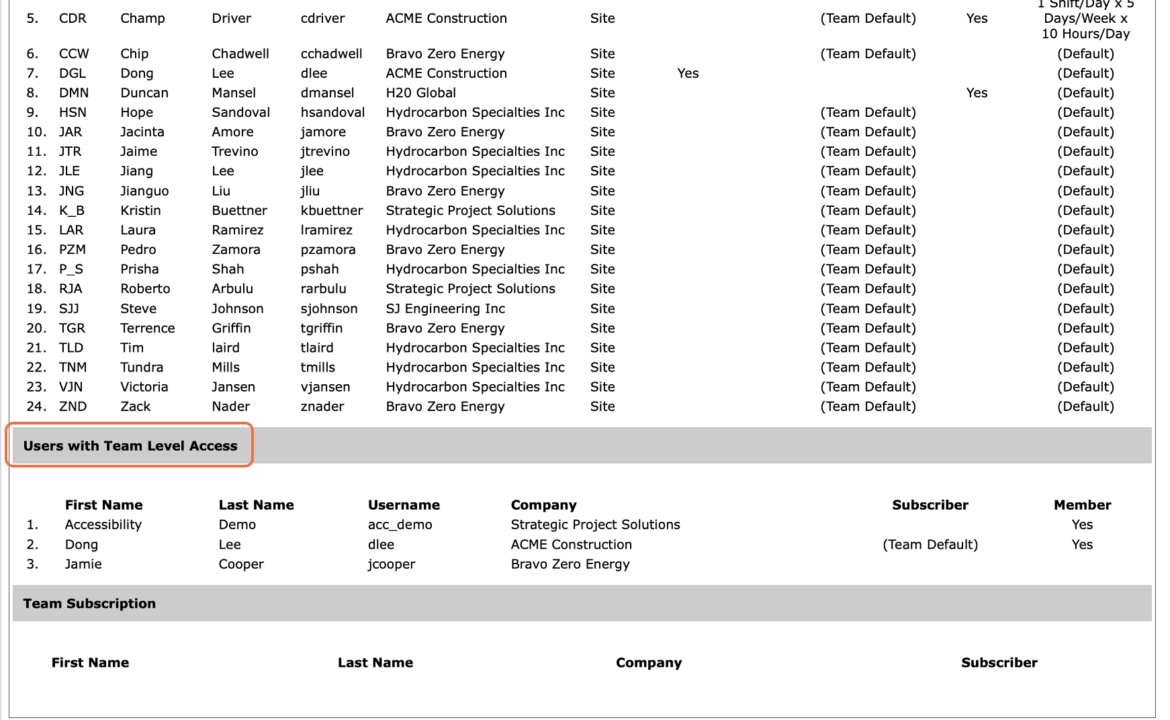
- The Manage Team window will refresh and the individual’s name will no longer display in the Users with Team Level Access region as shown in the image below.
- To edit Team-Level Access, complete Steps 1 – 3 above. In the Edit Team-Level Access region, select the desired individual from the Choose a Person drop-down, select the new Production Plan email subscription option and click the Submit button.
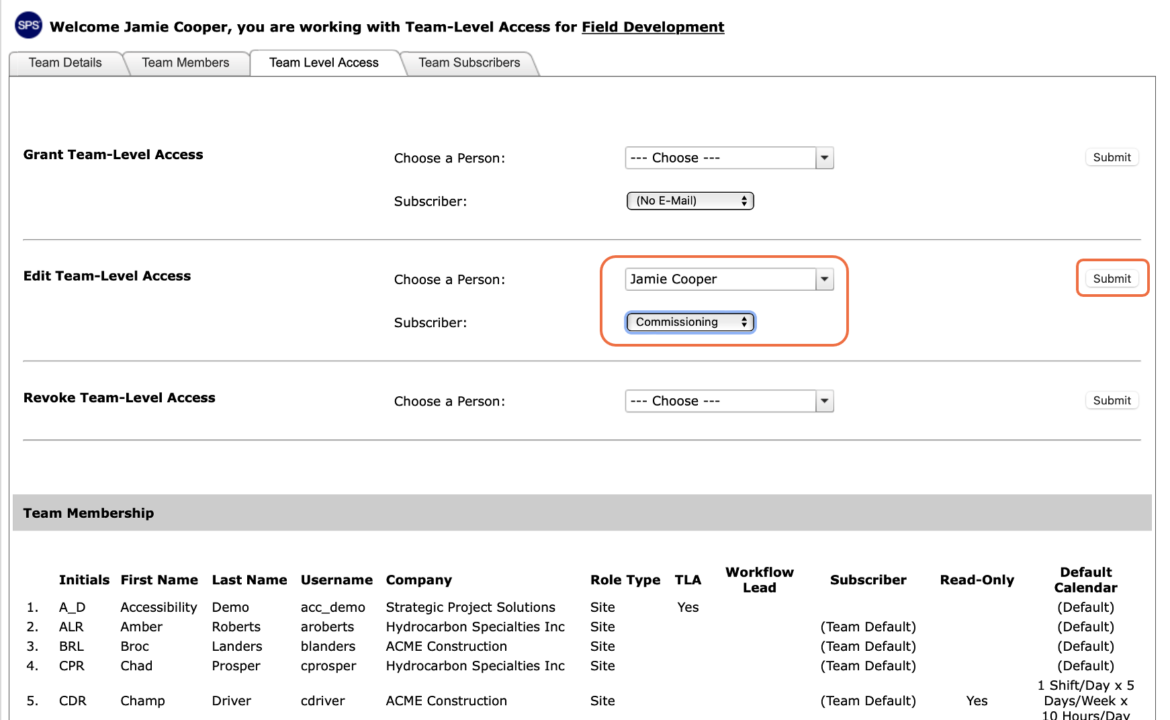
- The Manage Team window will refresh and the individual’s revised subscription information displays under the Subscriber column in the Users with Team Level Access region.