Ensuring the proper associations and access to specific Domains in SPS|PM is critical to support teams’ effective use of Project Production Control.
A domain is a unit of security block that SPS|PM uses to control the visibility of data. Depending on the specific SPS|PM configuration, a Domain may be a company, a business unit, or a project. For instance, if SPS|PM is enabled at the company level with several projects, members of one project will not be able to access data from other projects unless access to a specific project domain is granted.
The Manage Domains function provides teams the ability to specify the necessary association and access to Domains for teams, individuals, standard processes, and Work Structure elements. SPS|PM does this by enabling you to create and remove team, user, standard process, and Work Structure linkages for each Domain previously created in SPS|PM.
To link elements to, or delink elements from, a Domain in SPS|PM, complete the steps below:
Link to Domain
To link to a Domain in SPS|PM, complete the steps below:
- From the Main Navigation Bar select Tools, then select Manage Domains.
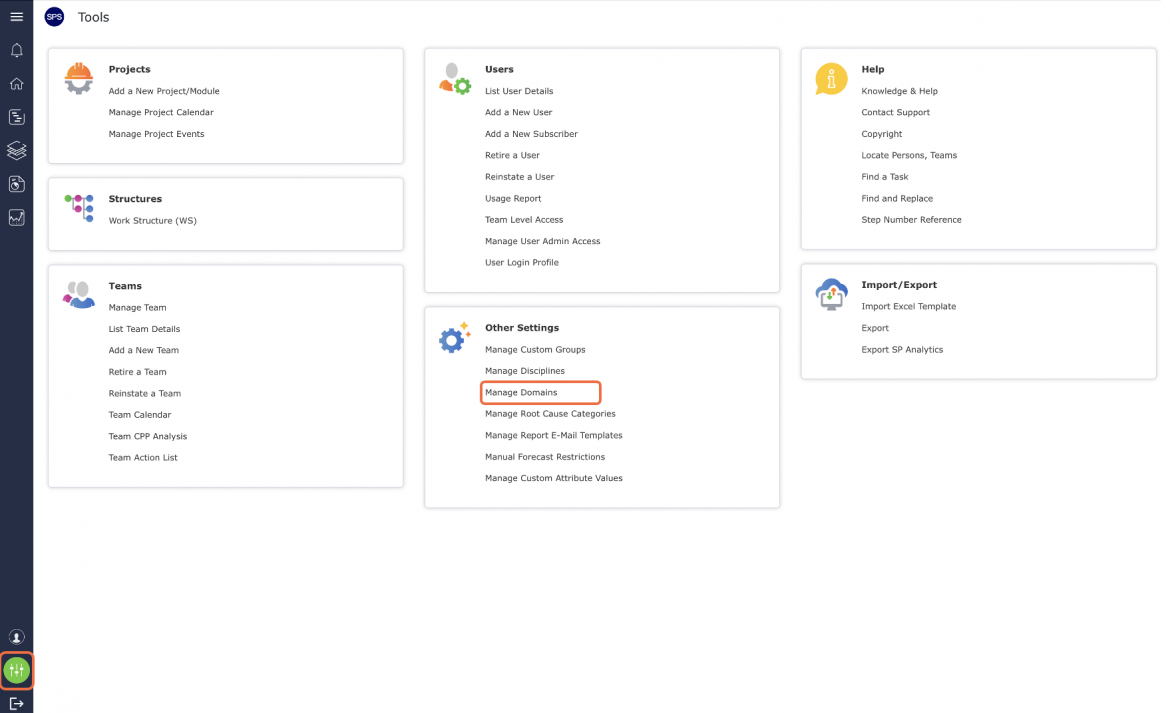
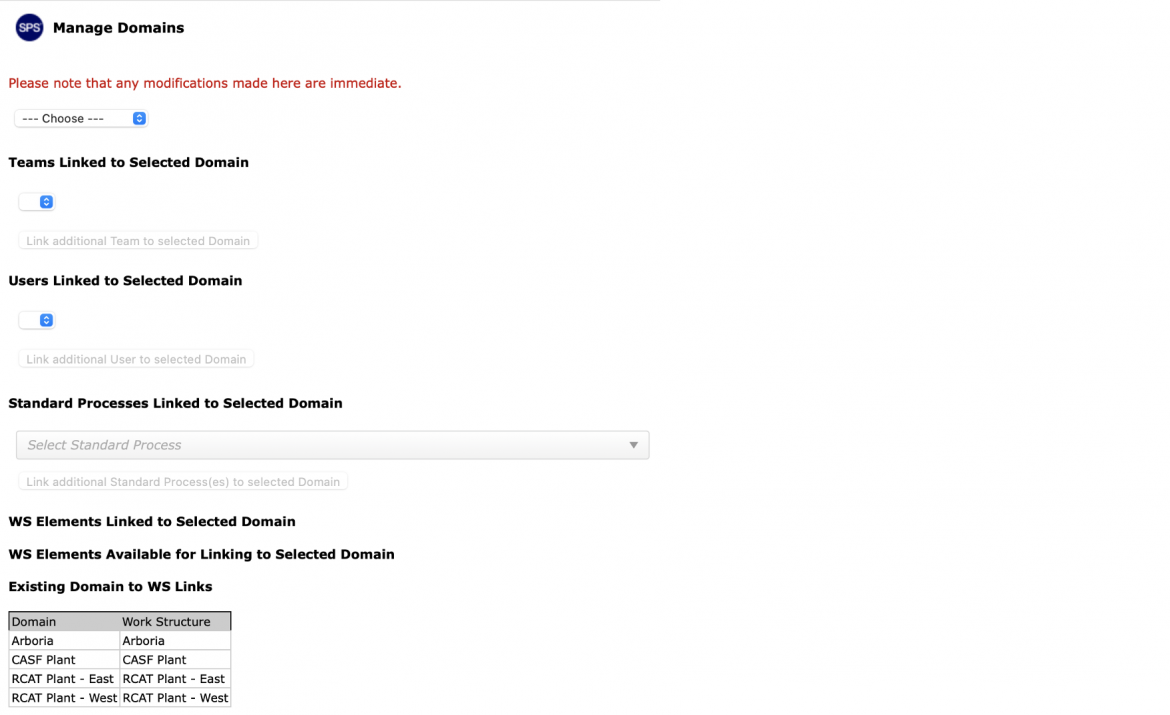
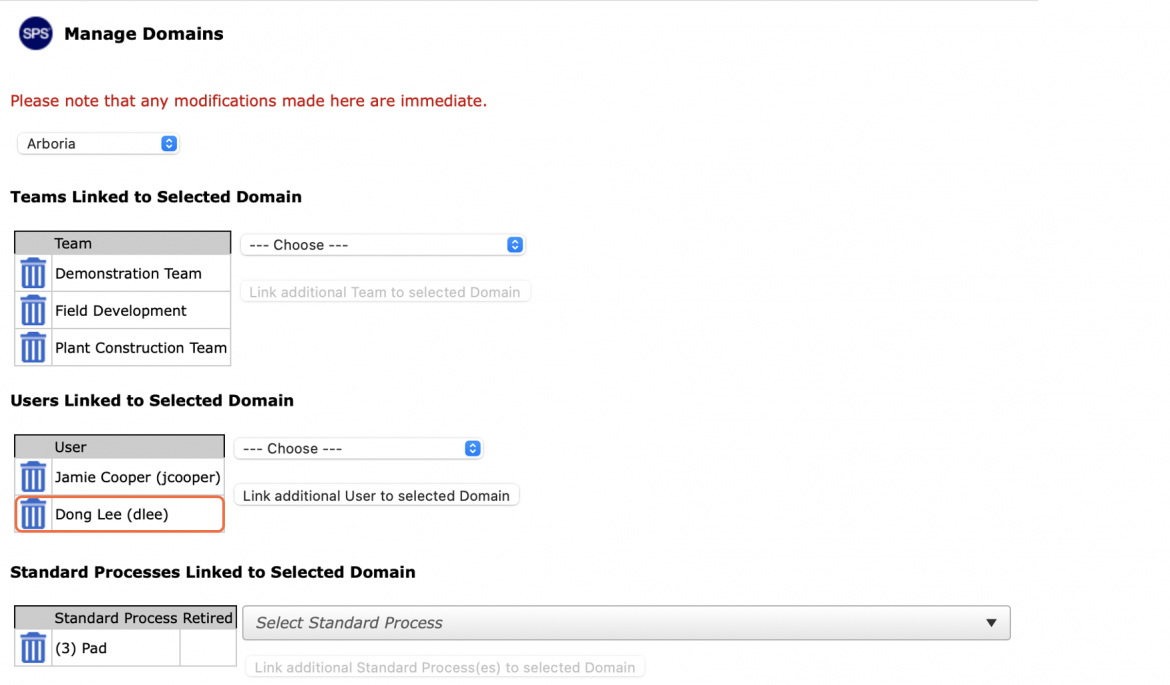
- The Manage Domains window opens displaying all current Domain settings.
Note: Generally only one Domain is used for a project. However, in some cases, for example, when a program is spread out over a large geographic area such as a global deployment scenario or regions within a county, multiple Domains may be present.
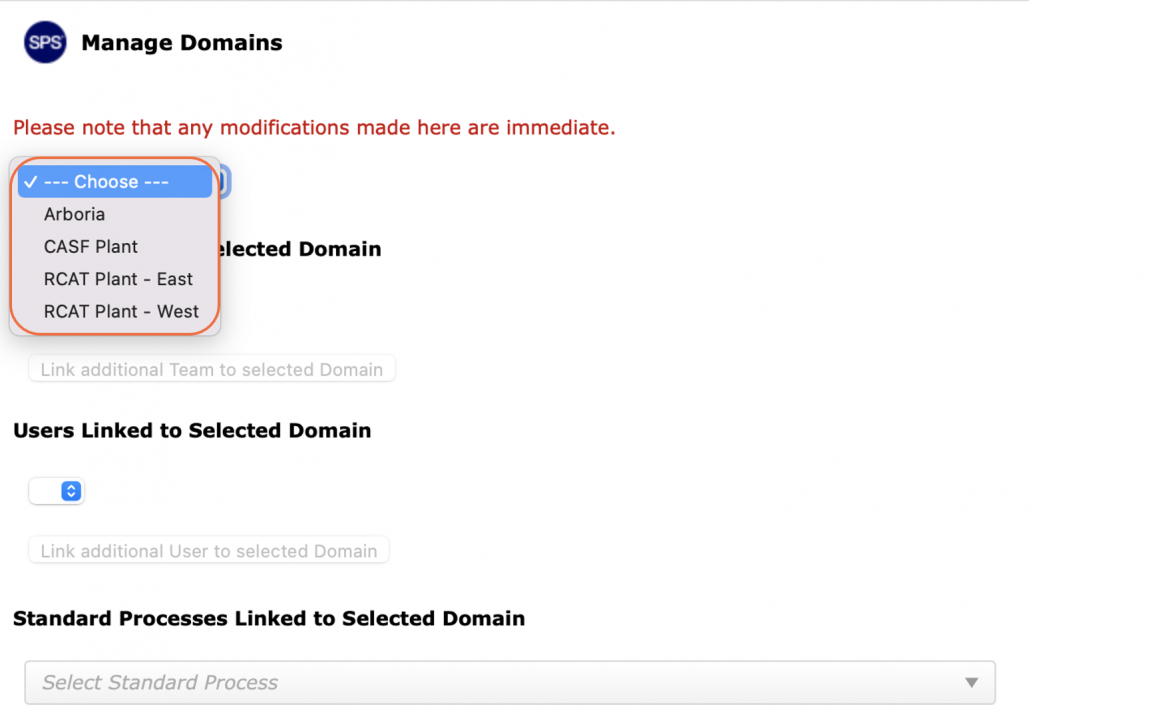
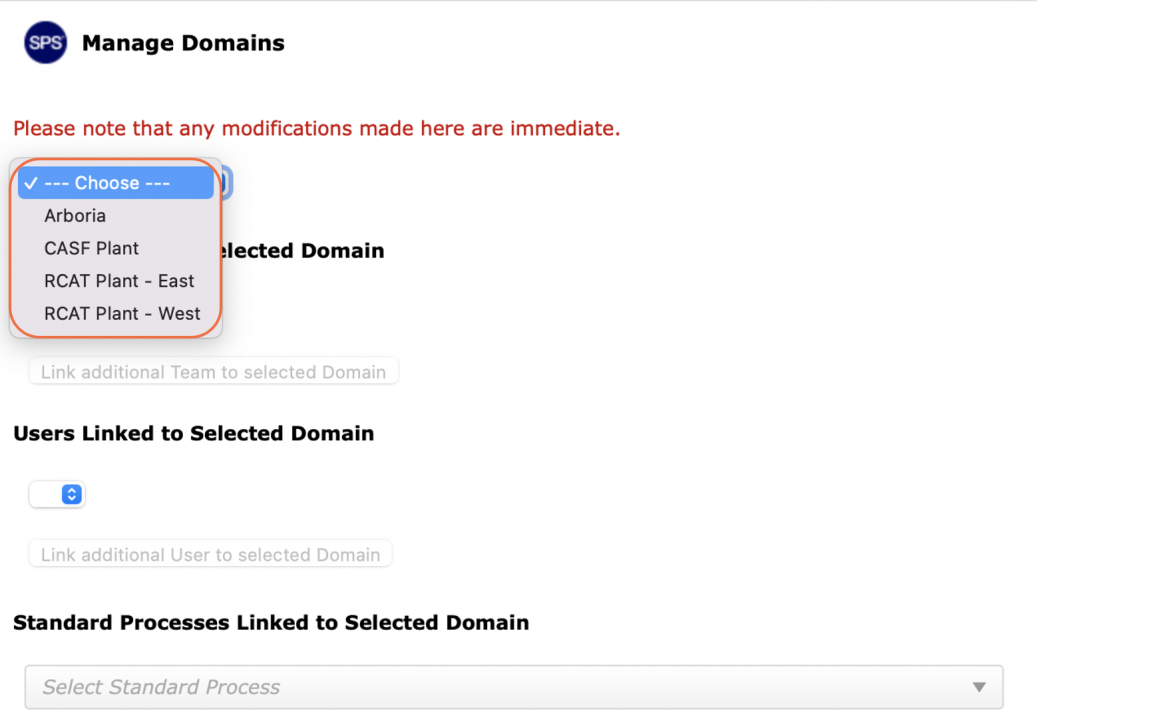
- To modify a Domain, select the desired Domain from the drop-down.
- To link a new team to the Domain, select a team you desire to be associated (have access) with the Domain from the Team drop-down and click the Team Linked to Selected Domain button.
Note: Domain association is established when a new team is created (see Add New Team under Team Management for more information). However, the Manage Domain function can be used to later associate / remove a team(s) from a Domain.
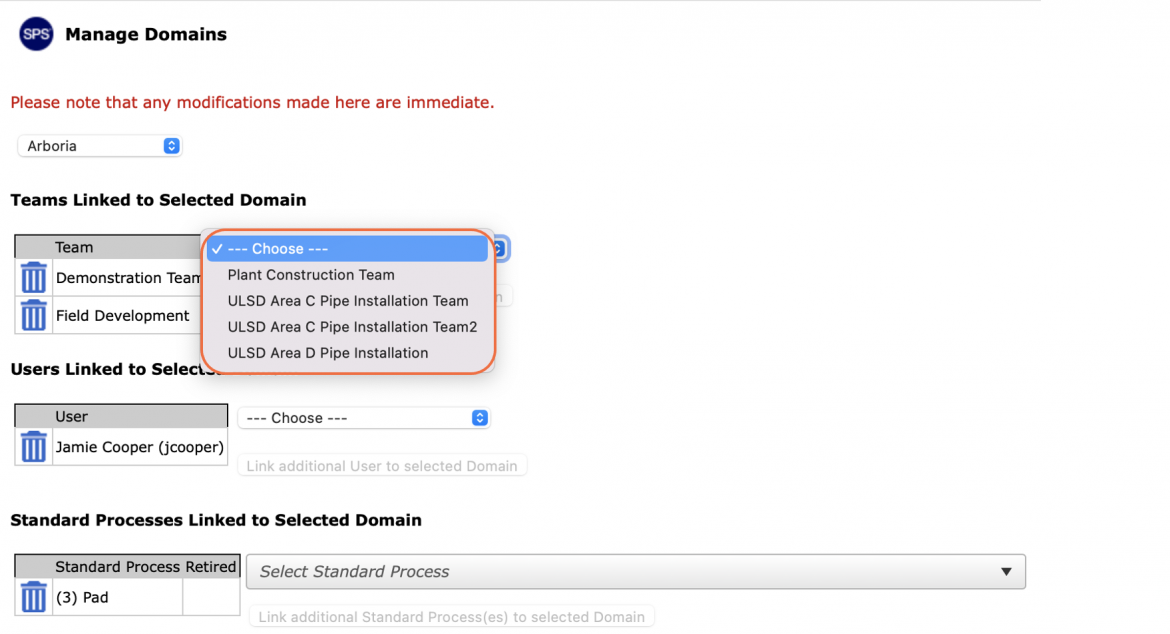
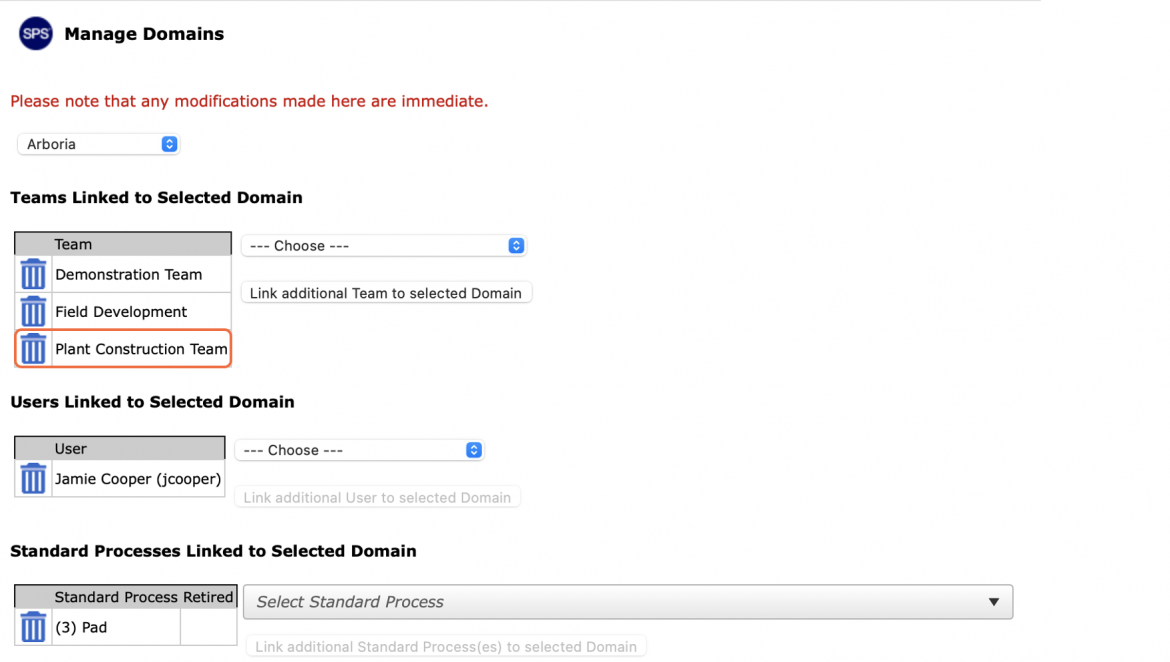
- The newly linked team will then display in the Team table. Repeat the above step to link all desired teams with the selected Domain.
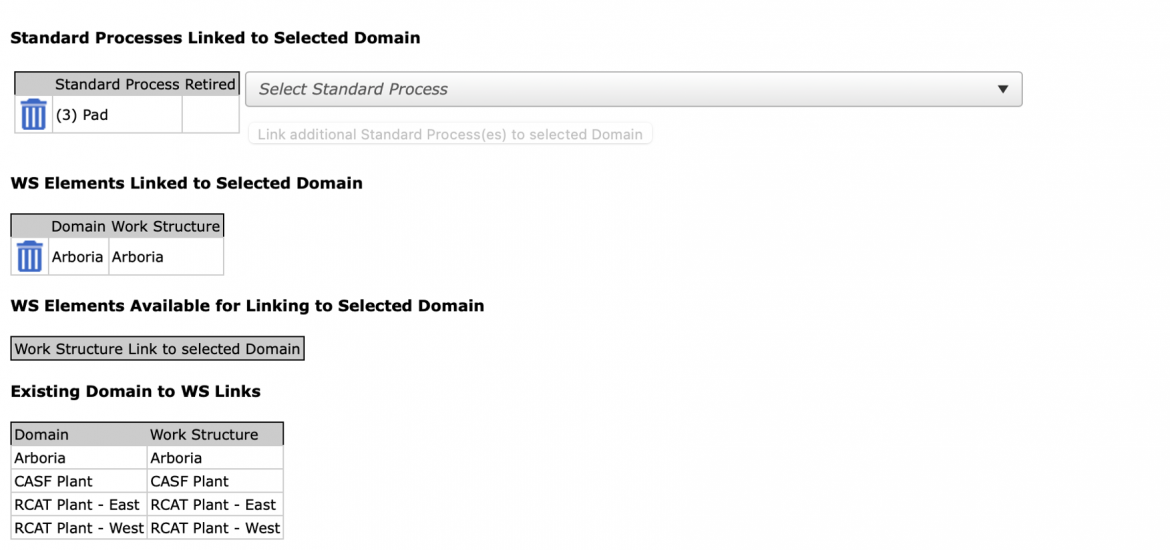
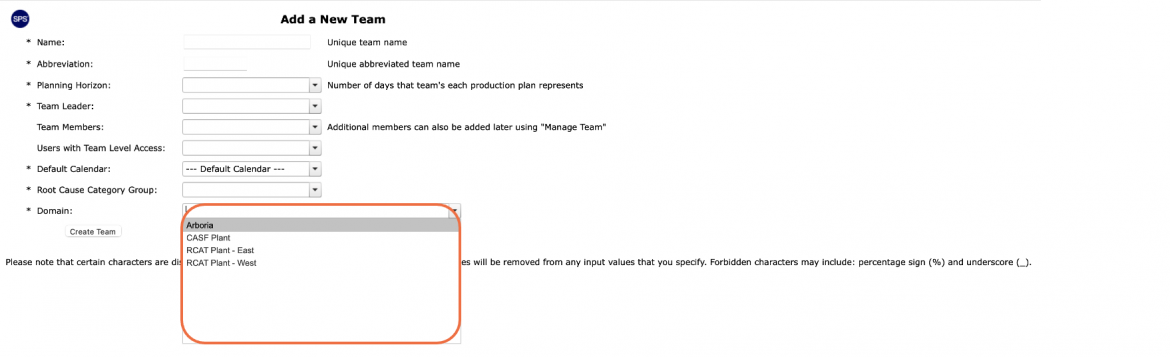
- By default, the Domain / Team association is established when a new team is created in SPS|PM as shown in the image below. This is how the Doman is initially linked in SPS|PM with a team. However, the Manage Domain function can be subsequently used to create new (as described above) or modify existing (see Delink from Domain below) linkages. For more information on creating a new team, see Team Management.
- To link new individuals to the Domain, select the individual you desire to be associated (have access) to the Domain from the User drop-down and click the Users Linked to Selected Domain button.
Note: Adding individuals to a team through the Team Management function (see Add New Member to Team under Team Management for more information) is different than linking individuals to a Domain. Individuals linked to a Domain are typically not members of the team, however, these individuals require access to view a team’s SPS|PM data such as a senior leader or a System Administrator of another team.
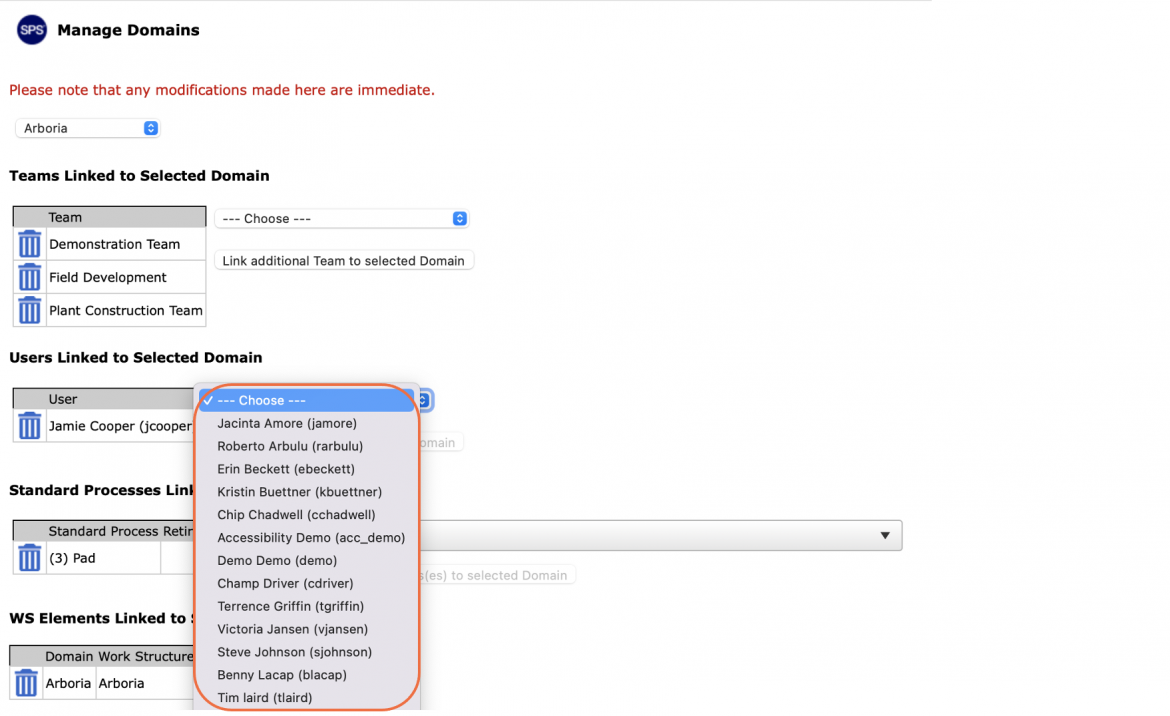
- The newly linked individual will then display in the User table. Repeat the above step to link all desired individuals with the selected Domain.
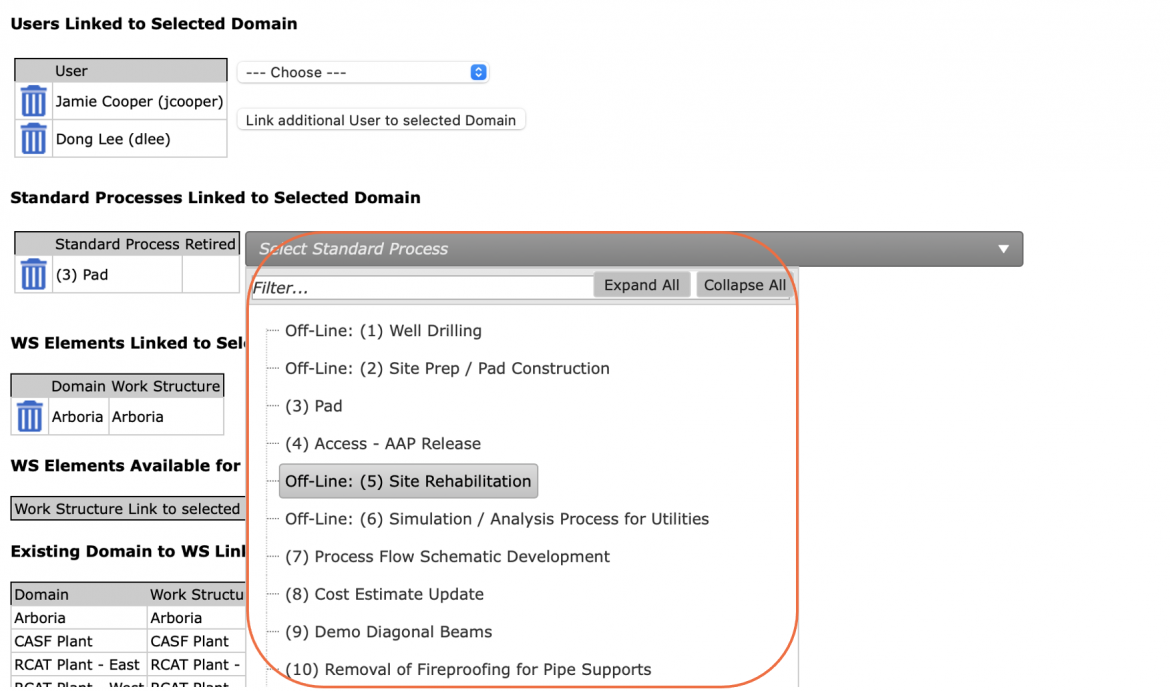
- To link a new standard process created within another Domain, select the standard process you desire to be associated with the Domain from the Standard Process drop-down and click the Standard Processes Linked to Selected Domain button.
Note: By default, a standard process takes on the Domain(s) that the individual who created it has access to. Through the Manage Domain function, you can enable access to specific standard processes by individuals from other Domains.
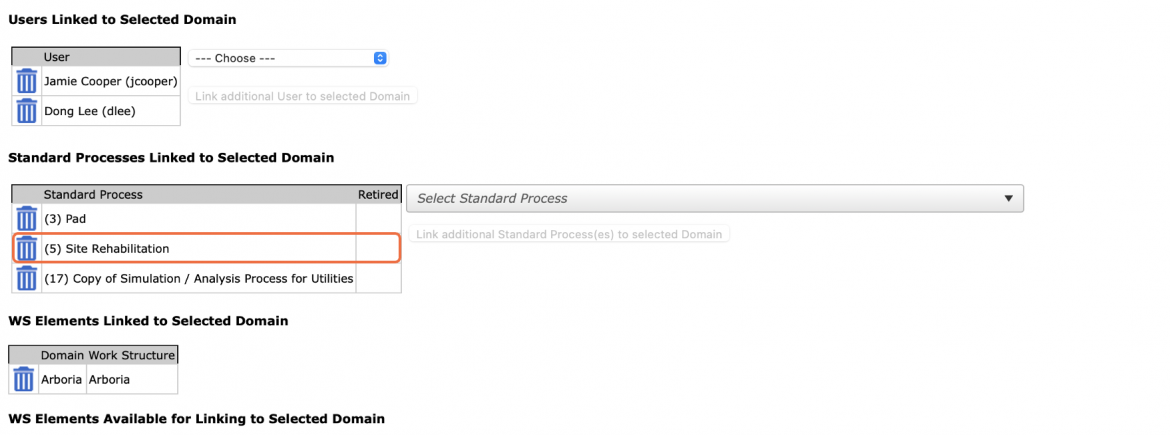
- The newly linked standard process will then display in the Standard Process table. Repeat the above step to link all desired standard processes with the selected Domain.
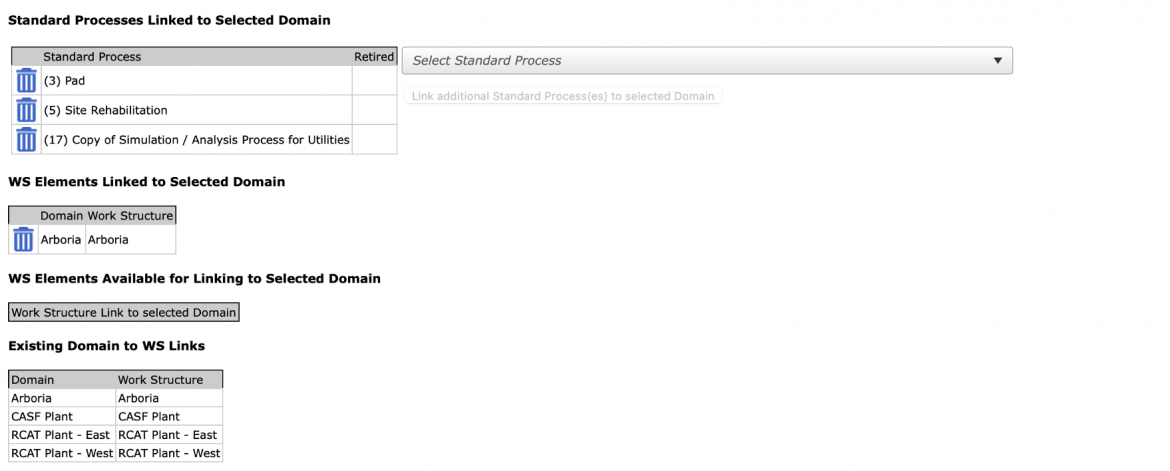
- SPS|PM’s base configuration includes one Work Structure (WS) that enables breaking work into seven different levels. The Work Structure elements associated with the selected Domain are displayed in Manage Domain. For more information on Work Structure, see Work Structure in SPS|PM under Work Structure.
Note: In order to protect system and data integrity, Work Structure elements should not be delinked from a Domain except under very rare conditions. Contact your System Administrator for more information.
Delink from Domain
To delink from a Domain in SPS|PM, complete the steps below:
- From the Main Navigation Bar select Tools, then select Manage Domains.
- Manage Domains opens in a new window displaying all current Domain settings.
Note: Generally only one Domain is used for a project. However, in some cases, for example, when a program is spread out over a large geographic area such as a global deployment scenario or regions within a county, multiple Domains may be present.
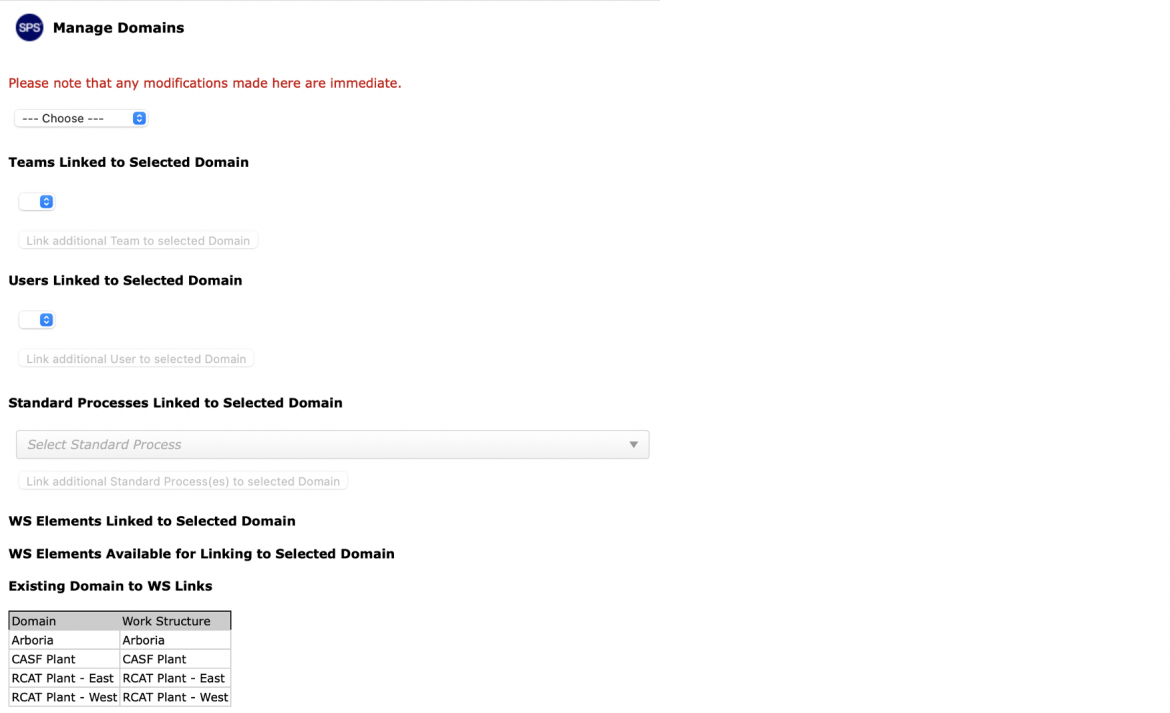
- To modify a Domain, select the desired Domain from the drop-down.
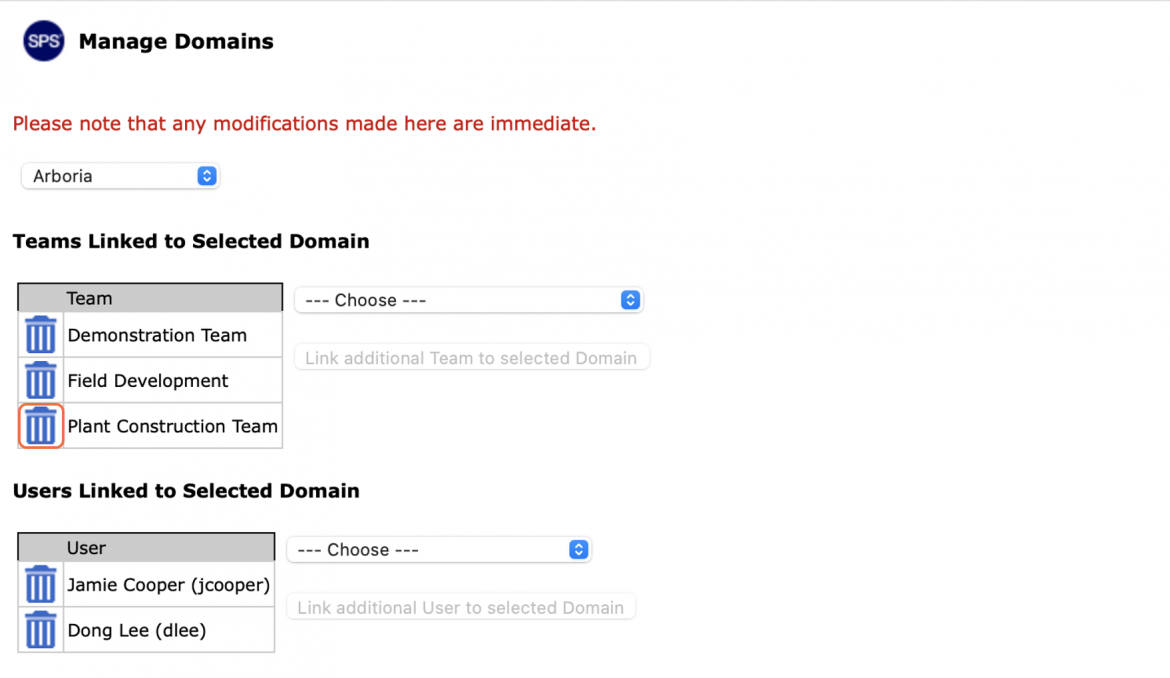
- To delink a team, click the Delete icon in the Team table for the team you desire to delink.
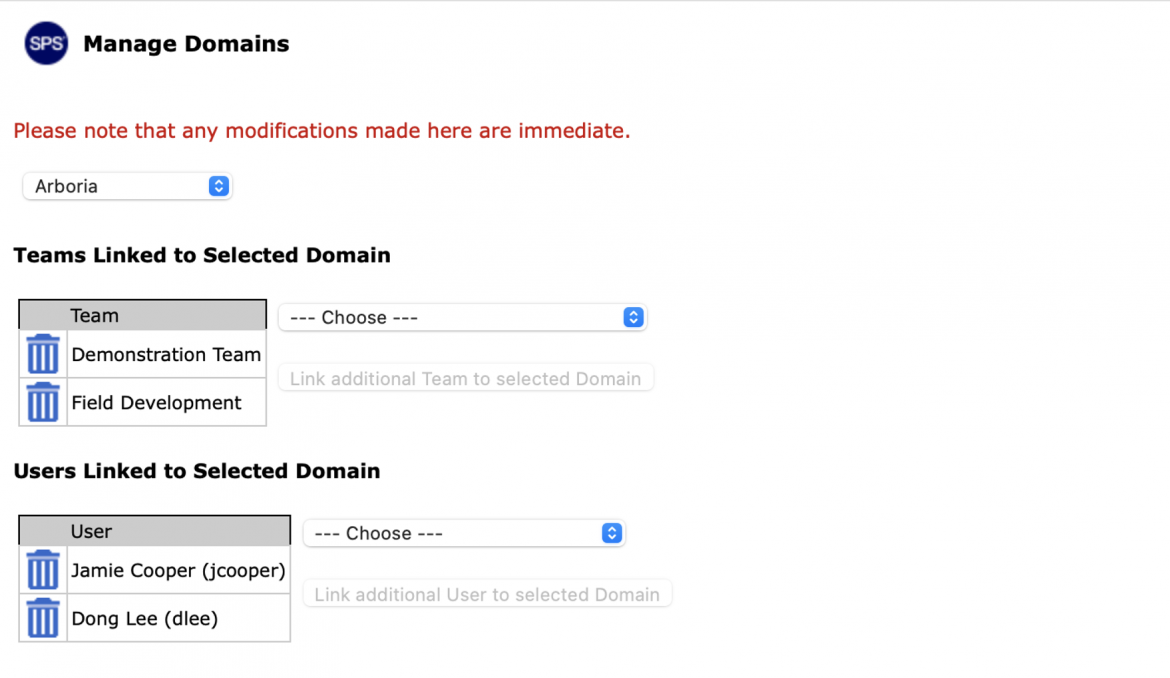
- The delinked team is no longer displayed in the Team table. Repeat the above step to delink all desired teams from the selected Domain.
- To delink an individual, click the Delete icon in the User table for the team you desire to delink.
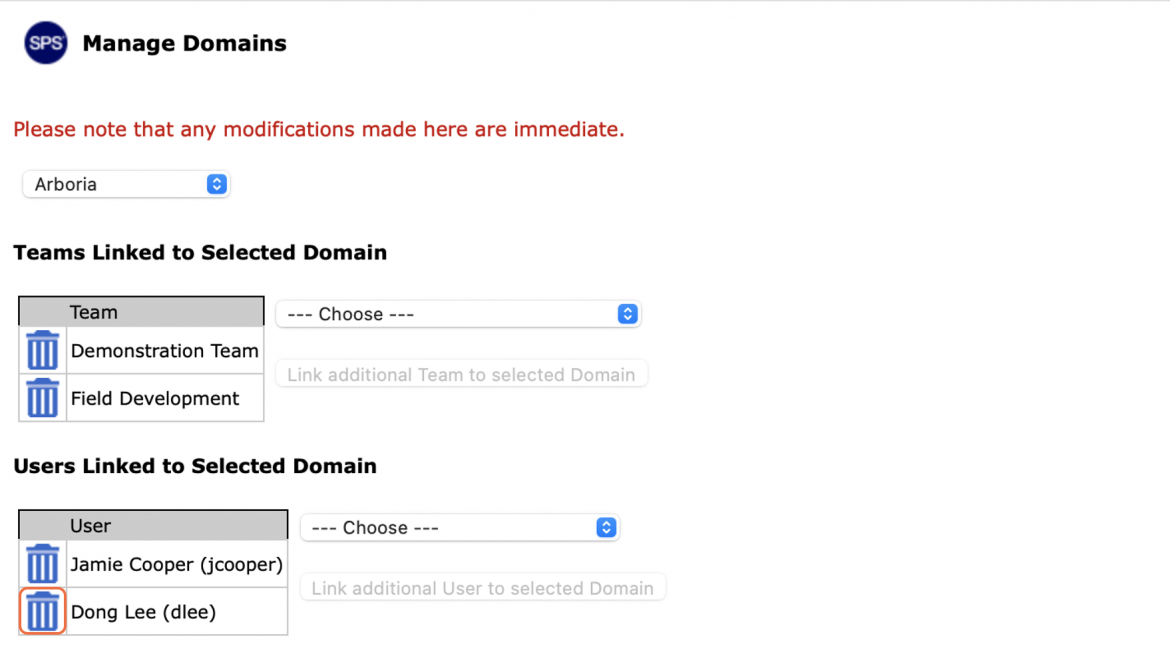
- The delinked individual no longer displays in the User table. Repeat the above step to delink all desired individuals from the selected Domain.
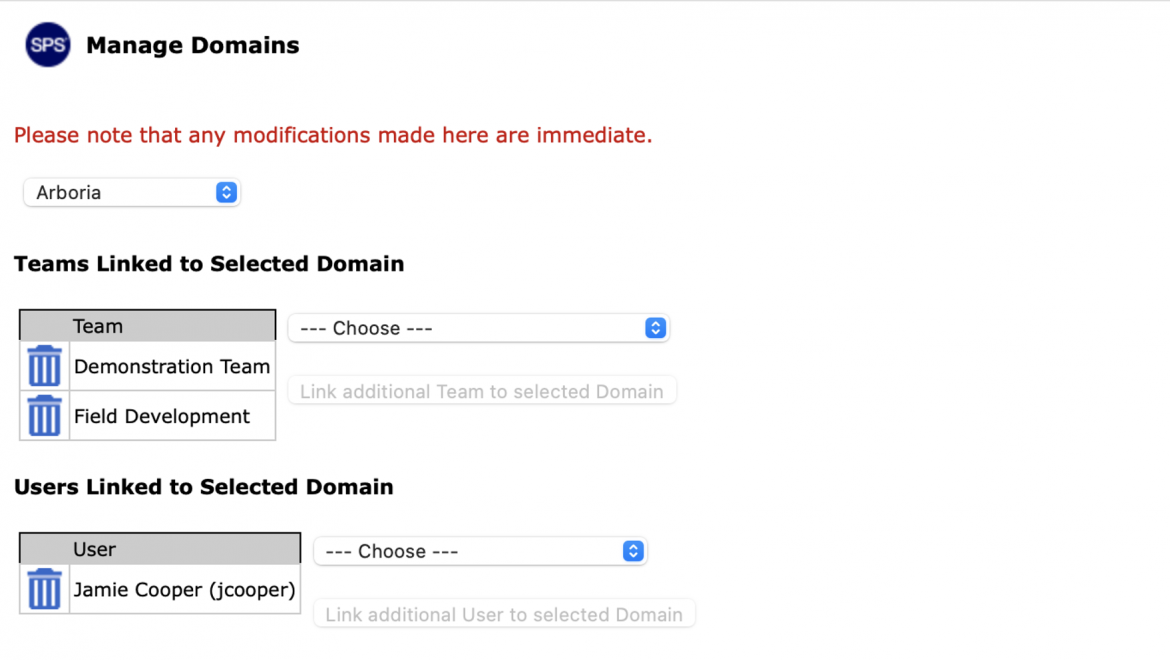
- To delink a standard process, click the Delete icon in the Standard Process table for the standard process you desire to delink.
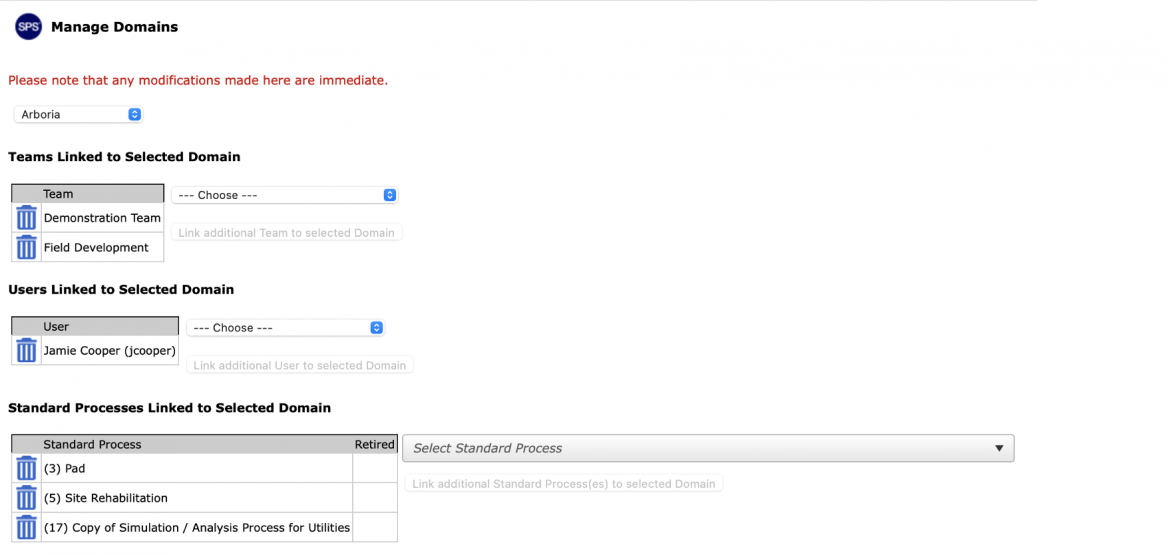
- The delinked standard process no longer displays in the Standard Process table. Repeat the above step to delink all desired standard processes from the selected Domain.
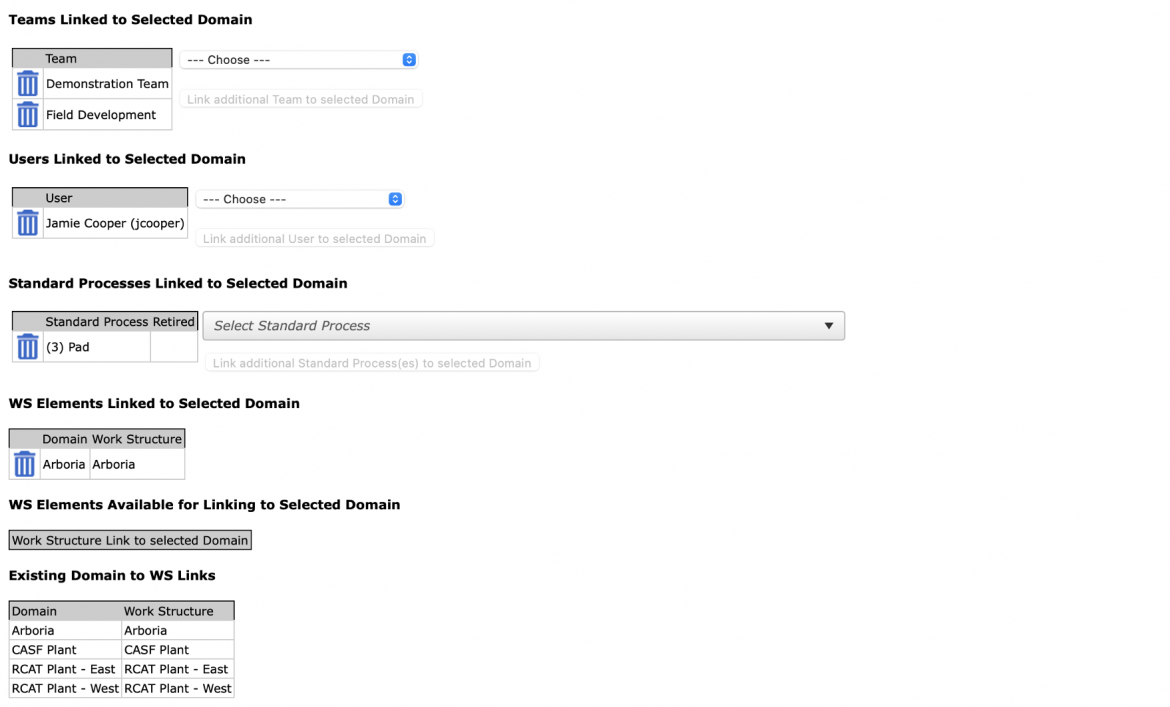
- SPS|PM’s base configuration includes one Work Structure that enables breaking work into seven different levels. The Work Structure elements associated with the select Domain are displayed in Manage Domain. For more information on Work Structure, see Work Structure in SPS|PM under Work Structure.
Note: In order to protect system and data integrity, Work Structure elements should not be delinked from a Domain except under very rare conditions. Contact your System Administrator for more information.