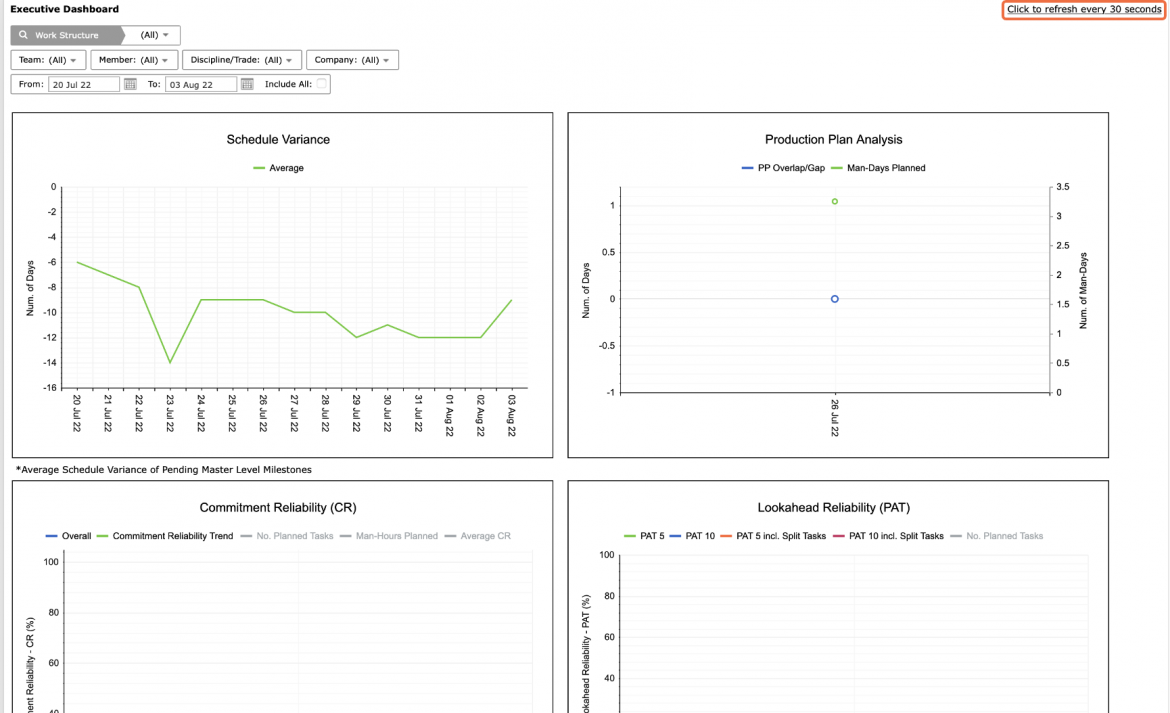
Understanding the project team’s work execution progress is critical to ensuring all deliverables (e.g., Milestones) are effectively completed according to project objectives and to alert you in advance to potential production issues.
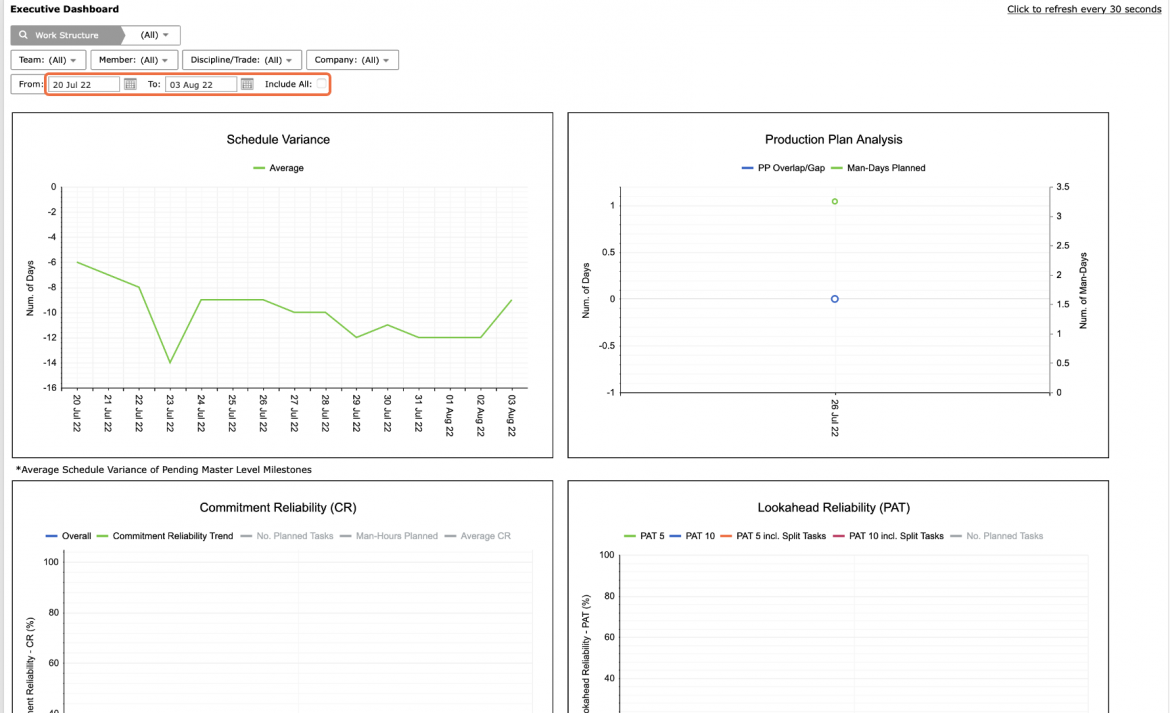
Executive Dashboard enables visualization of key Production Analytics: Production Plan Analysis, Commitment Reliability, Reasons Summary, and Schedule Variance in a single window.
To access Executive Dashboard, complete the steps below:
- From the Main Navigation Bar select Analytics, then select Executive Dashboard.
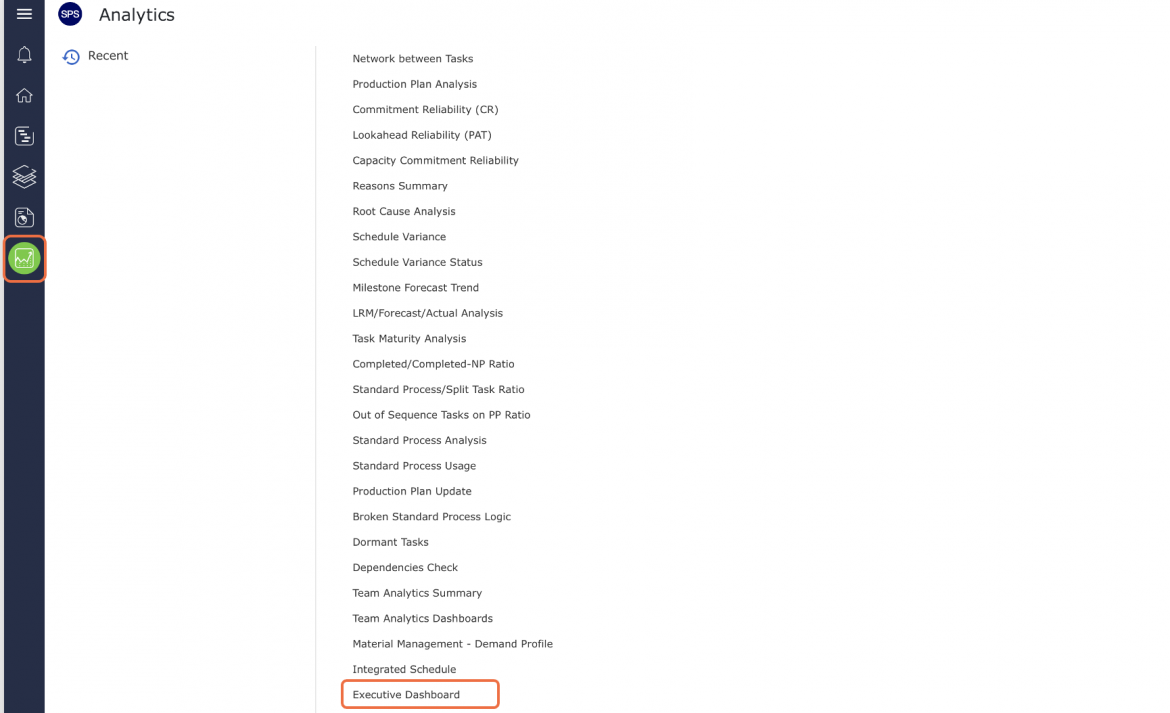
- Executive Dashboard opens in a new window and automatically displays the Analytics for the team selected under the Team Menu with the default date range of two weeks from the current date.
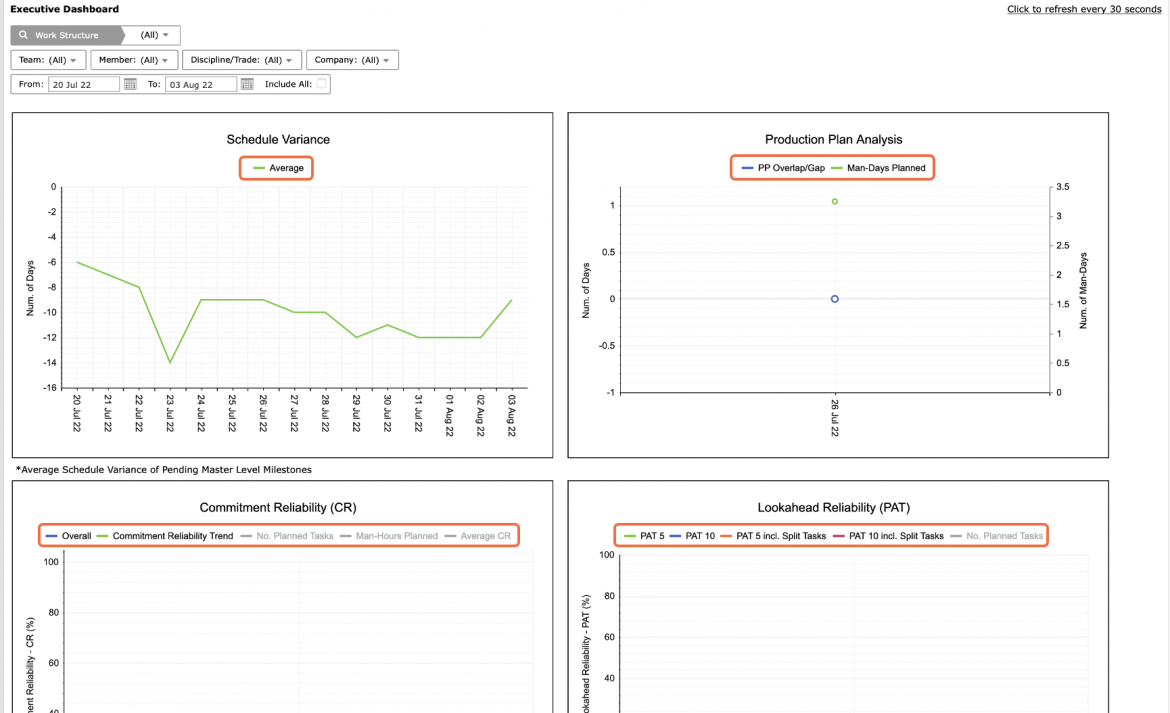
The legend elements for each Analytic are clickable and toggle to display / hide data.
For more information on each Analytic, see: Production Plan Analysis, Commitment Reliability, Reasons Summary, and Schedule Variance.
Note: Schedule Variance on the Executive Dashboard displays the overall variance for the selected team while the individual Schedule Variance Analytic displays a detailed status (early, on-time, late or complete) for each Master Level Milestone (and Milestone and / or Step No. depending on the specific SPS|PM configuration for your project).
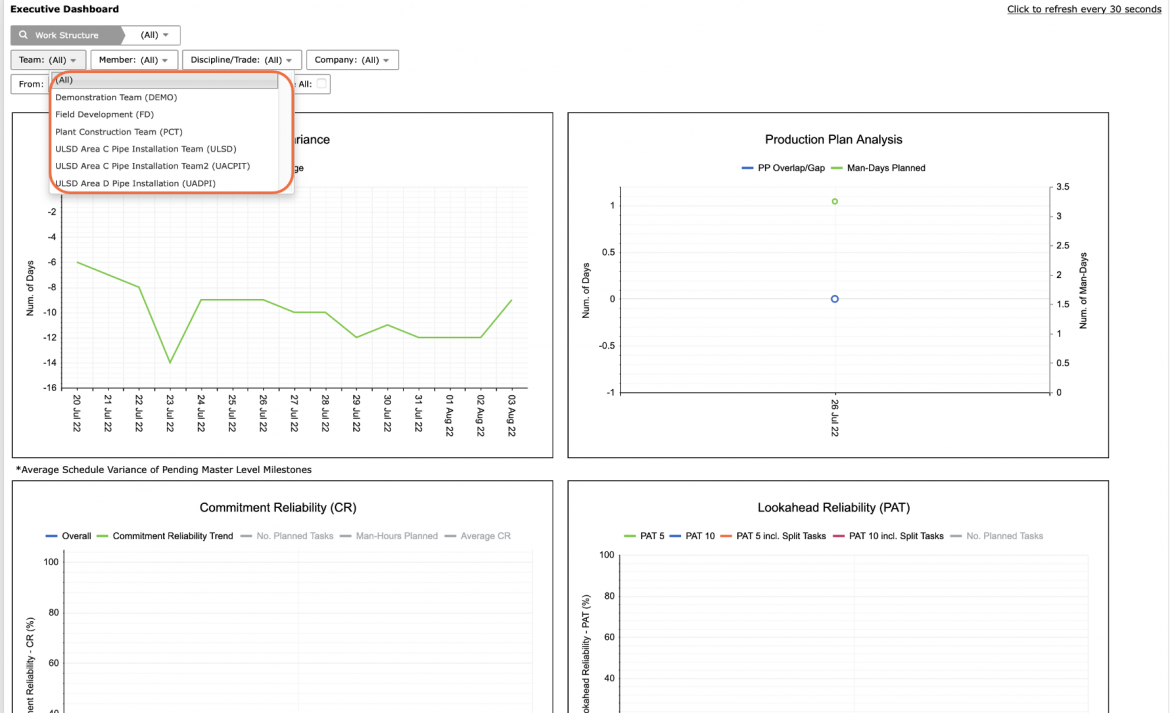
- To view Executive Dashboard for another team, select the desired team under the Team drop-down.
- If a different date range is desired, or no data is visible, adjust the From and To dates or check: Include All, to show all historical data.
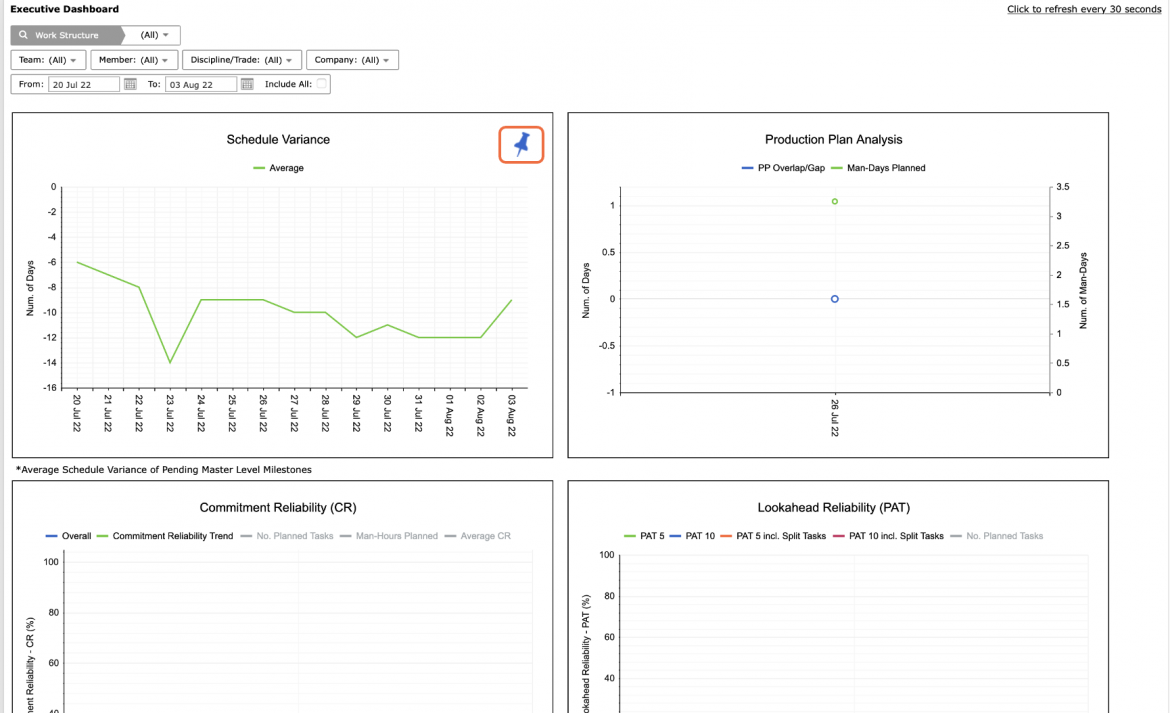
- Use the Pin icon in the top right of any of the Analytics to include in your Dashboard.
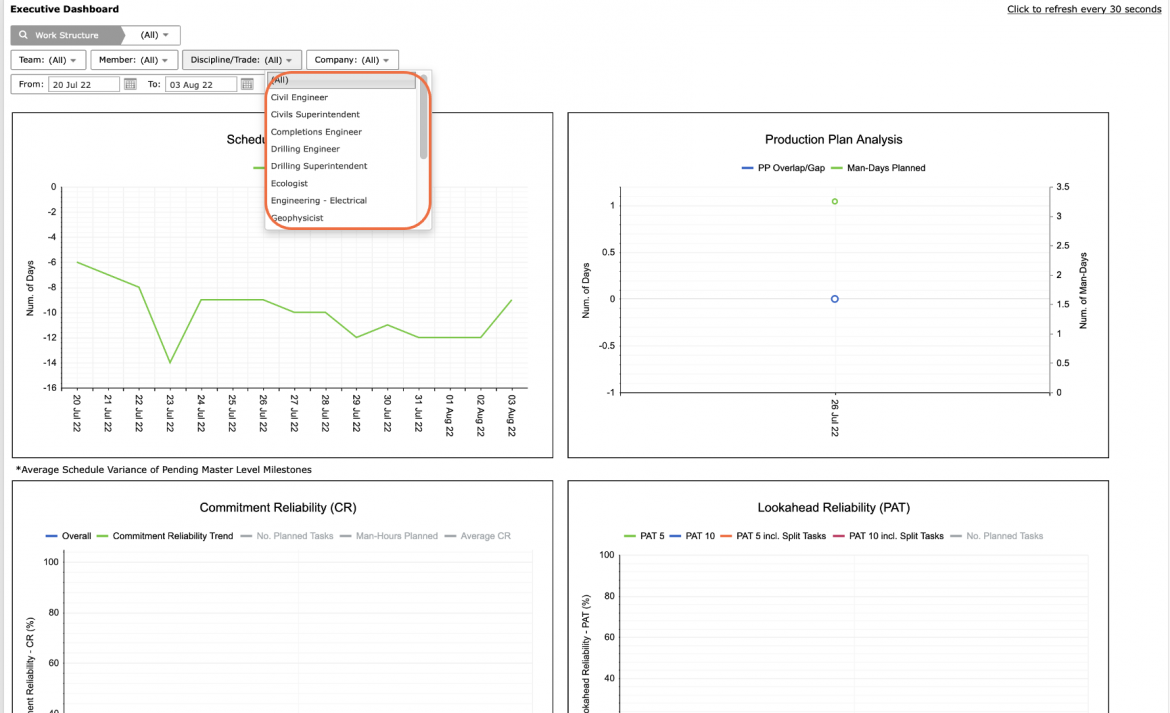
- You can also filter by Member, Company, Discipline / Trade and Work Structure.
- To print Executive Dashboard, options may differ based on your browser. For instance, if you are using Internet Explorer, right-click in the white space outside any of the Analytics and select Print from the menu or simultaneously press the Ctrl and P keys on your keyboard.
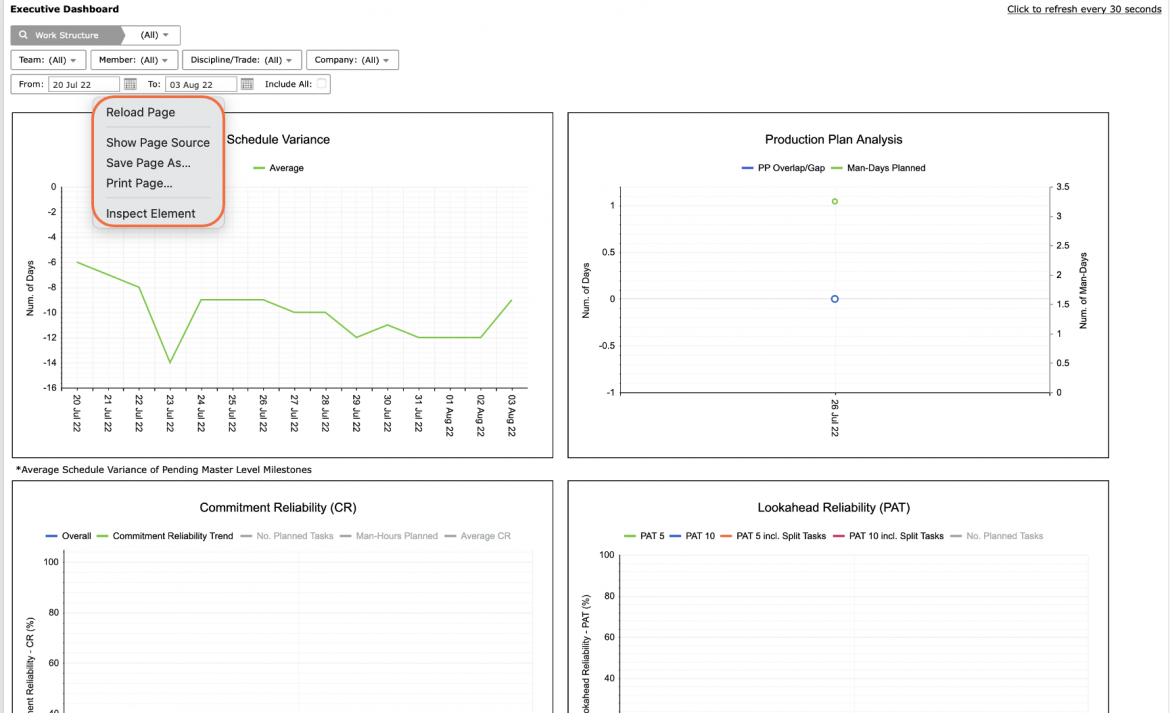
- The Print Dialogue box opens.
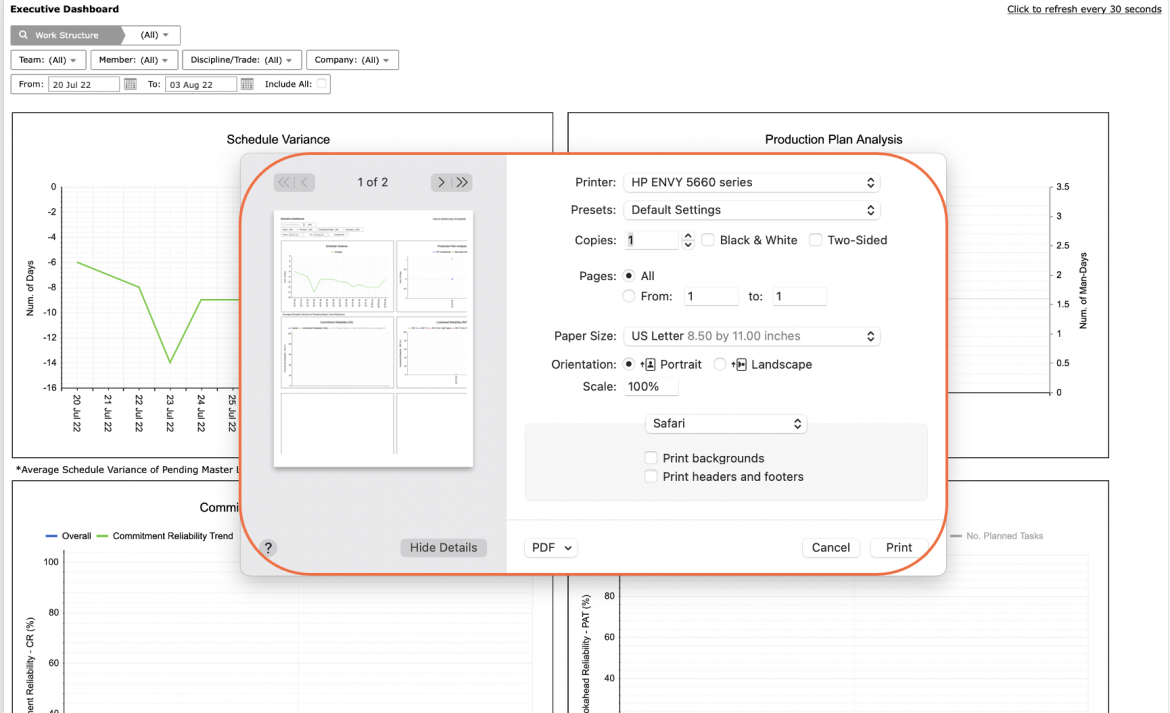
- Using the Print Dialogue box, change any desired print settings. Once all relevant printing settings have been modified, click the Print button.
Note: Before printing, it is recommended you confirm the fit to the desired paper size.
- To automatically refresh the Executive Dashboard with the most current data, click Click to refresh every 30 seconds. To disable the automatic refresh, click Click to turn off the automatic refresh.